> ## Documentation Index
> Fetch the complete documentation index at: https://docs.zoice.com/llms.txt
> Use this file to discover all available pages before exploring further.

# Image-to-Image with Nano Banana 2

> Use reference images to guide AI generation with Nano Banana 2. Learn how to maintain composition and structure while applying professional transformations.

## Quick Start

Nano Banana 2 supports reference images, allowing you to guide generation with existing images while maintaining fast processing times. The AI analyzes your input image and applies transformations based on your text prompt while maintaining the overall composition and structure of the original image.

<Steps>
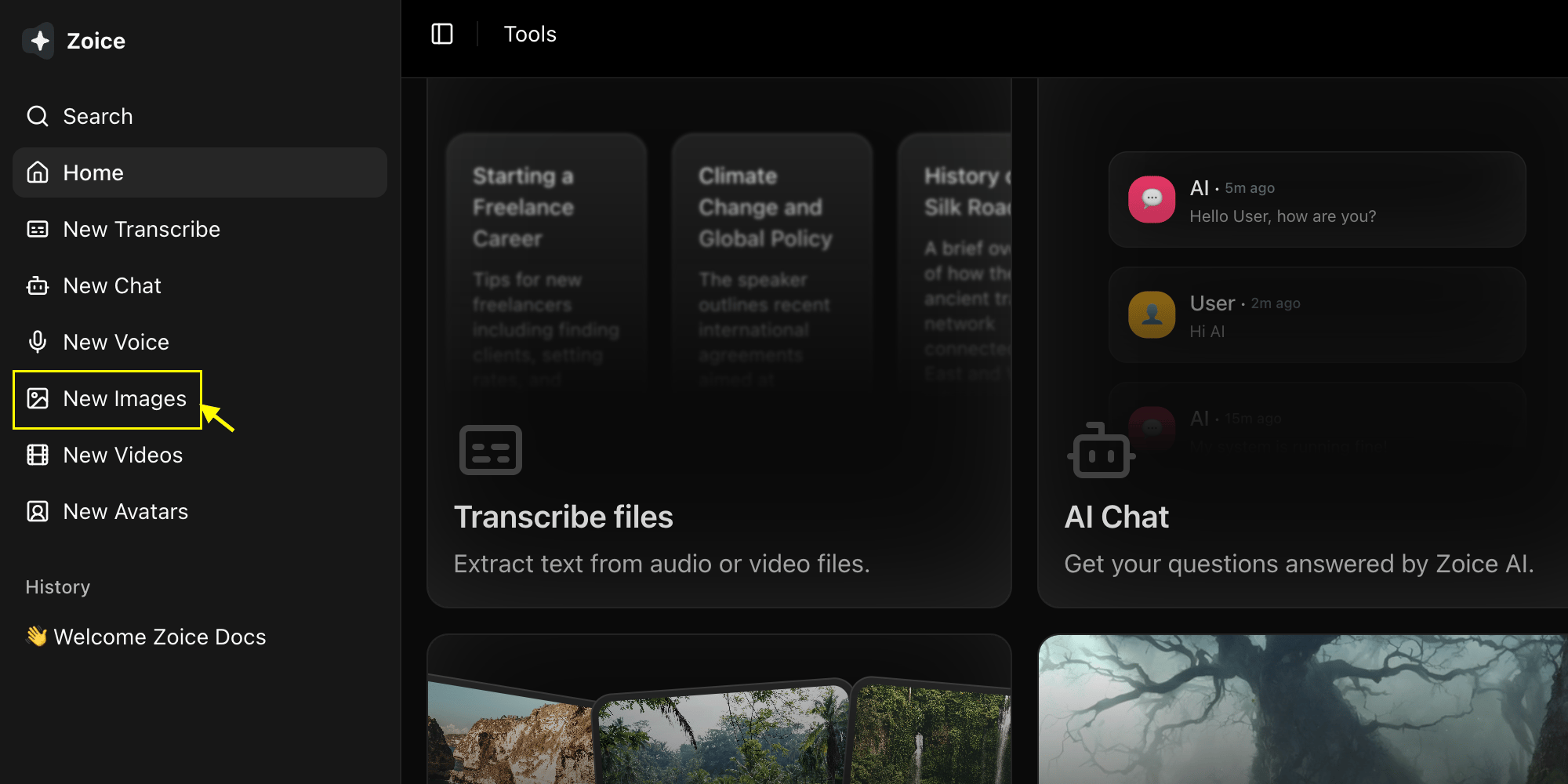
  <Step title="Navigate to Image Generator by Clicking on New Image">
    Go to the Image Generator tool by clicking on **New Image**.
    <Frame>
      <img src="https://mintcdn.com/shoutpreneurllp/std7Nm_yX-zyixs4/images/navigate-to-new-image.png?fit=max&auto=format&n=std7Nm_yX-zyixs4&q=85&s=a1d750073035f8d536892447a0130300" alt="Navigate to New Image" width="2000" height="1000" data-path="images/navigate-to-new-image.png" />
    </Frame>
  </Step>

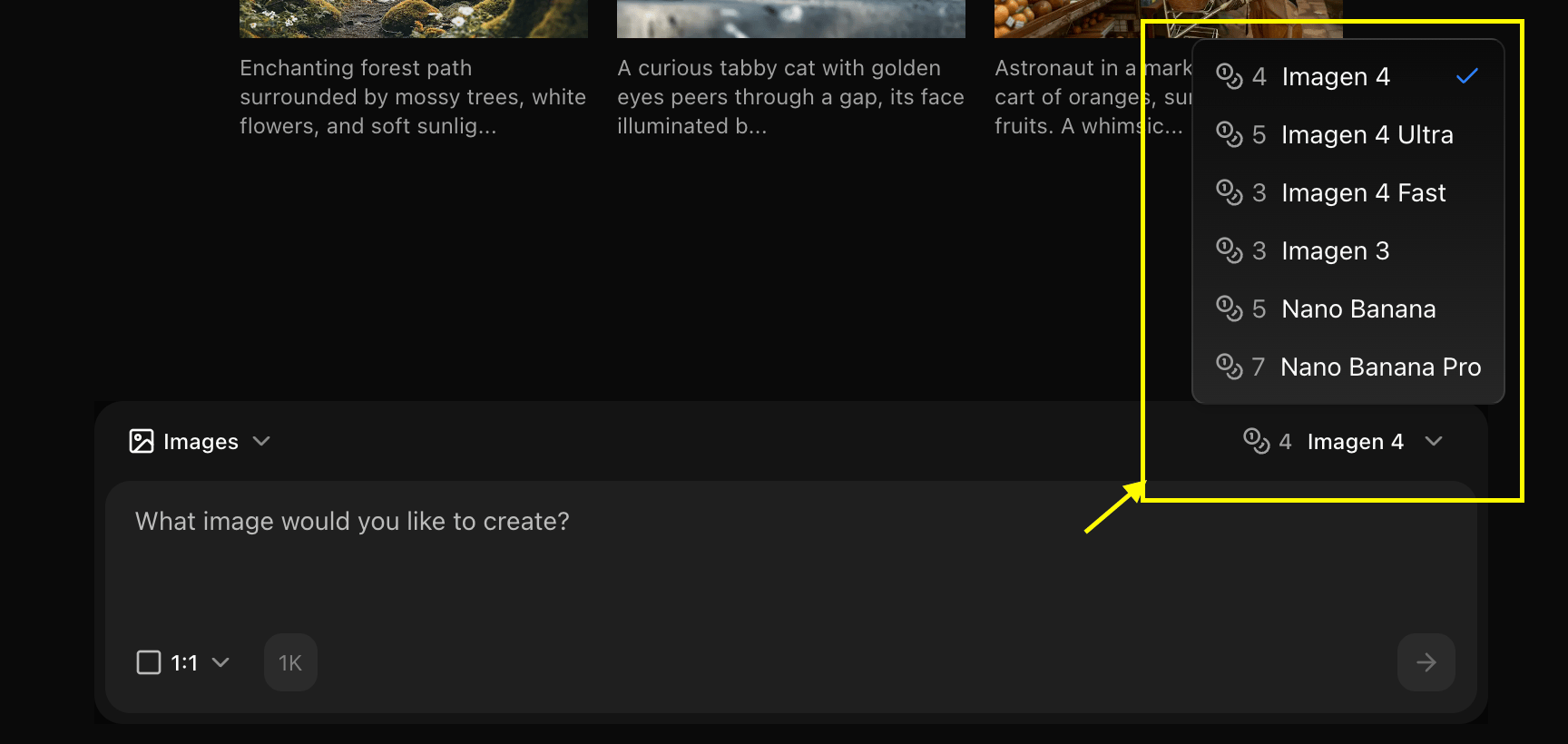
  <Step title="Select Nano Banana 2 Model">
    Choose "Nano Banana 2" from the model selector.
    <Frame>
      <img src="https://mintcdn.com/shoutpreneurllp/RKvW9rME47MixiX_/images/select-image-model.png?fit=max&auto=format&n=RKvW9rME47MixiX_&q=85&s=6ec47552ebcce3780d56115ec889cd4b" alt="Select Model" width="1728" height="820" data-path="images/select-image-model.png" />
    </Frame>
  </Step>

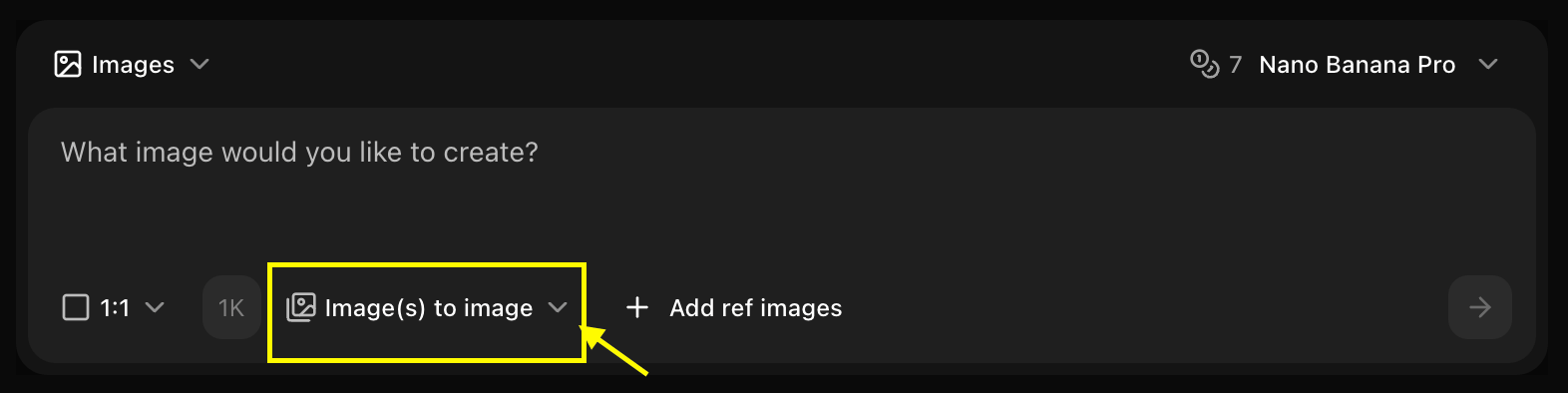
  <Step title="Configure Settings for Image">
    Choose **Image to Image** mode and set your preferred resolution.
    <Frame>
      <img src="https://mintcdn.com/shoutpreneurllp/TcDy12qnwPn1eooq/images/i2i-3.png?fit=max&auto=format&n=TcDy12qnwPn1eooq&q=85&s=32cc125424f448beb2de5f53ee80889b" alt="Configure Settings" width="1572" height="394" data-path="images/i2i-3.png" />
    </Frame>
  </Step>

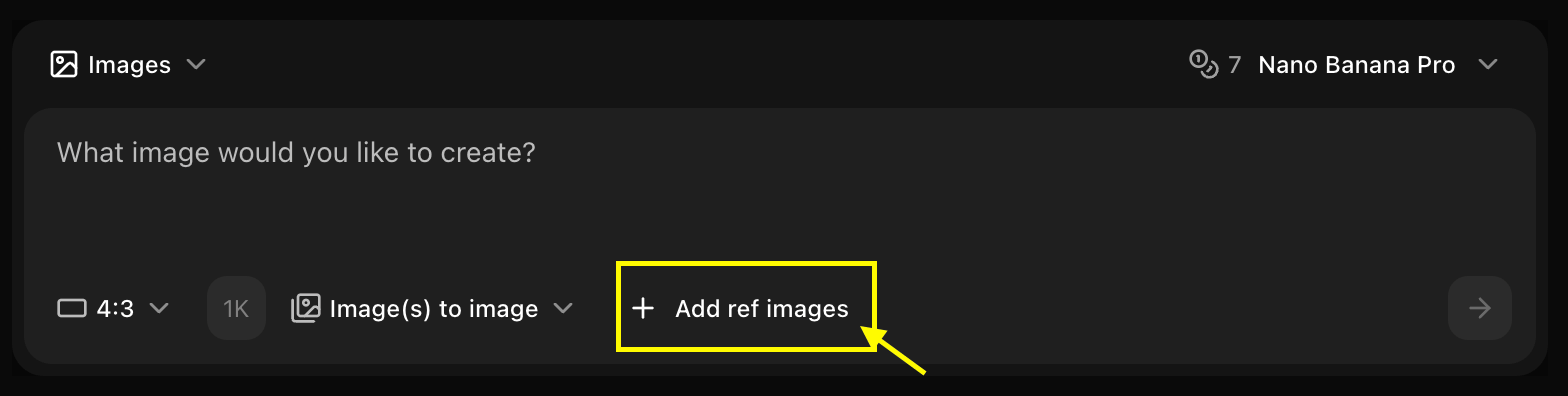
  <Step title="Upload Reference Image">
    Upload the image you want to use as a base.
    <Frame>
      <img src="https://mintcdn.com/shoutpreneurllp/TcDy12qnwPn1eooq/images/i2i-5.png?fit=max&auto=format&n=TcDy12qnwPn1eooq&q=85&s=b9445939892f8db60e995db9e753f3f3" alt="Upload Reference Image" width="1568" height="396" data-path="images/i2i-5.png" />
    </Frame>
  </Step>

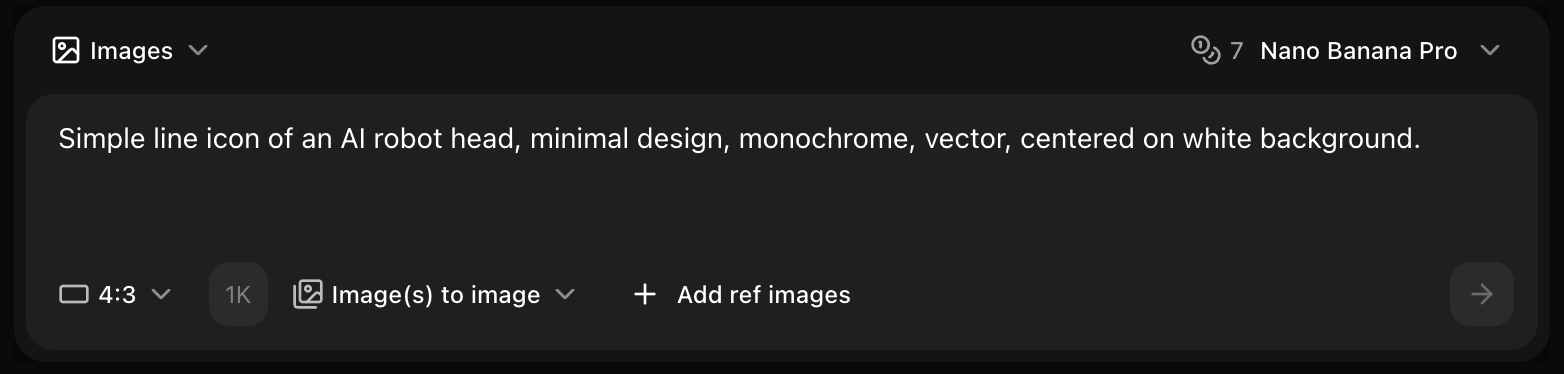
  <Step title="Type Detailed Prompt">
    Enter a description of how you want the AI to modify your reference image.
    <Frame>
      <img src="https://mintcdn.com/shoutpreneurllp/TcDy12qnwPn1eooq/images/i2i-6.png?fit=max&auto=format&n=TcDy12qnwPn1eooq&q=85&s=2064067d2d41fb075ce002fd69a0375d" alt="Type Detailed Prompt" width="1564" height="374" data-path="images/i2i-6.png" />
    </Frame>
  </Step>

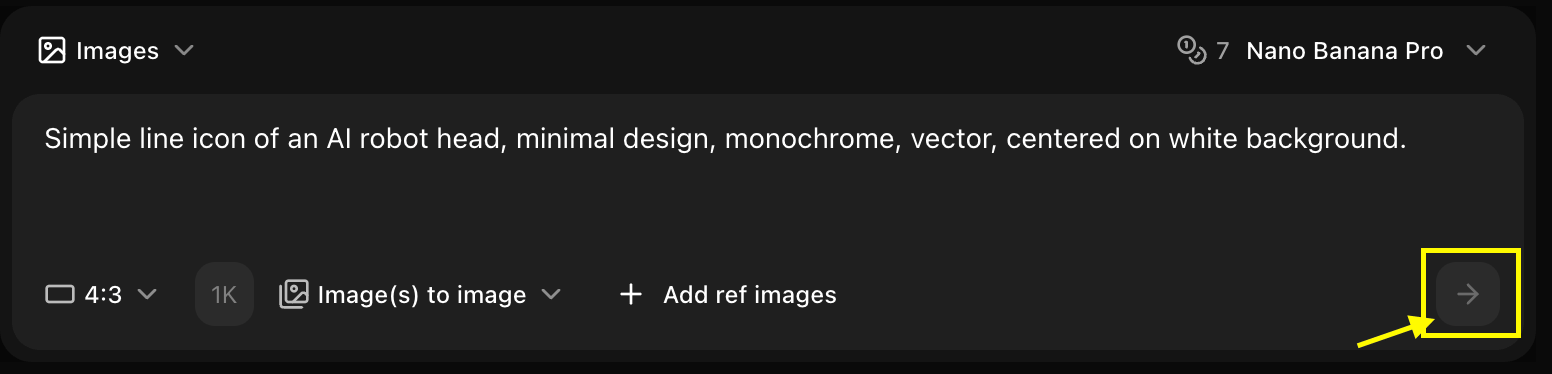
  <Step title="Generate">
    Click on **Generate** and wait a few seconds for your transformed image to be created.
    <Frame>
      <img src="https://mintcdn.com/shoutpreneurllp/TcDy12qnwPn1eooq/images/i2i-7.png?fit=max&auto=format&n=TcDy12qnwPn1eooq&q=85&s=e10834b371176002934adec9022ed9b1" alt="Generate" width="1552" height="374" data-path="images/i2i-7.png" />
    </Frame>
  </Step>

  <Step title="Download">
    Save your generated image.
  </Step>
</Steps>

## Best Practices

* Use clear reference images
* Adjust strength for desired effect
* Combine with detailed prompts

## Next Steps

<CardGroup cols={2}>
  <Card title="Text Prompts" icon="text" href="/ai-models/image/nano-banana-2/text-prompt">
    Generate without reference
  </Card>

  <Card title="Model Overview" icon="info" href="/ai-models/image/nano-banana-2/overview">
    Learn more
  </Card>

  <Card title="Image Generator Tool" icon="image" href="/features/image-generator">
    Back to the main Image Generator guide
  </Card>
</CardGroup>
