> ## Documentation Index
> Fetch the complete documentation index at: https://docs.zoice.com/llms.txt
> Use this file to discover all available pages before exploring further.

# Generate Enhanced AI Images with Nano Banana 2

> Guide to using Nano Banana 2 for high-quality, fast AI image generation. Master text prompts, resolution controls, and professional settings.

## Overview

Nano Banana 2 offers improved quality over standard Nano Banana while maintaining fast generation times, perfect for professional work with quick turnaround.

## Quick Start

<Steps>
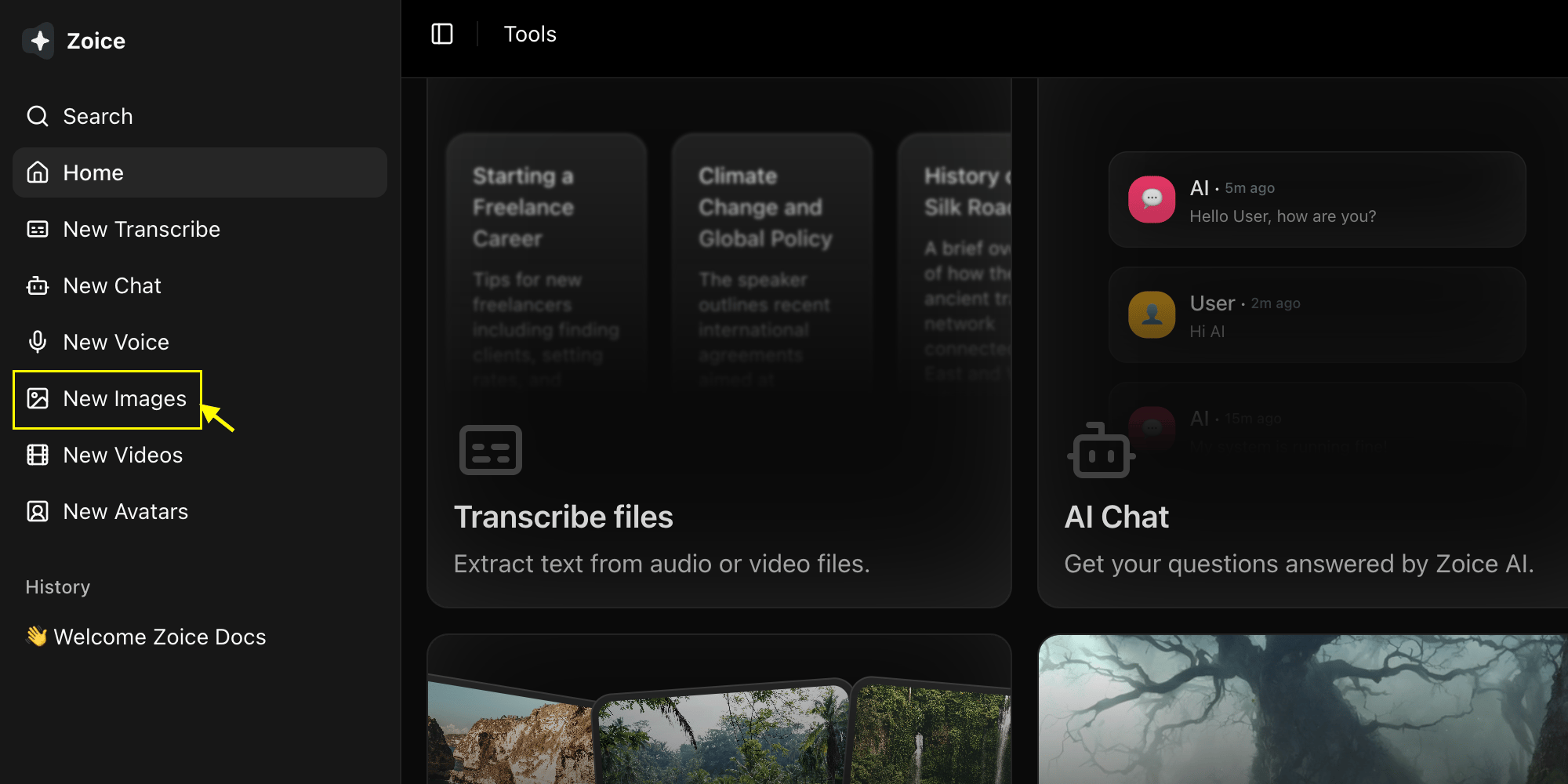
  <Step title="Navigate to Image Generator by Clicking on New Image">
    Go to the Image Generator tool in your Zoice dashboard by clicking on New Image.
    <Frame>
      <img src="https://mintcdn.com/shoutpreneurllp/std7Nm_yX-zyixs4/images/navigate-to-new-image.png?fit=max&auto=format&n=std7Nm_yX-zyixs4&q=85&s=a1d750073035f8d536892447a0130300" alt="New Image" width="2000" height="1000" data-path="images/navigate-to-new-image.png" />
    </Frame>
  </Step>

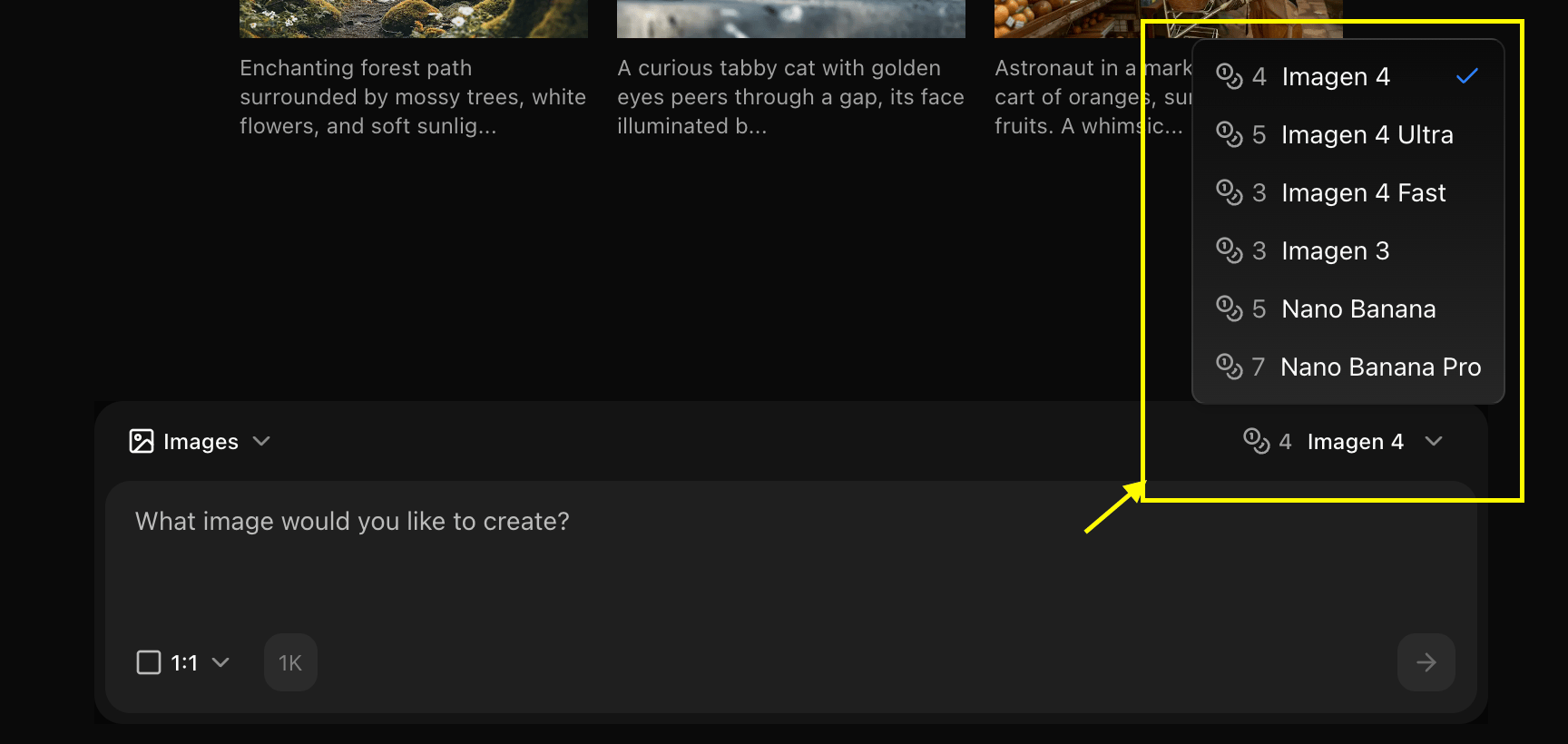
  <Step title="Select Nano Banana 2 Model">
    Choose "Nano Banana 2" from the model selector.
    <Frame>
      <img src="https://mintcdn.com/shoutpreneurllp/RKvW9rME47MixiX_/images/select-image-model.png?fit=max&auto=format&n=RKvW9rME47MixiX_&q=85&s=6ec47552ebcce3780d56115ec889cd4b" alt="Select Model" width="1728" height="820" data-path="images/select-image-model.png" />
    </Frame>
  </Step>

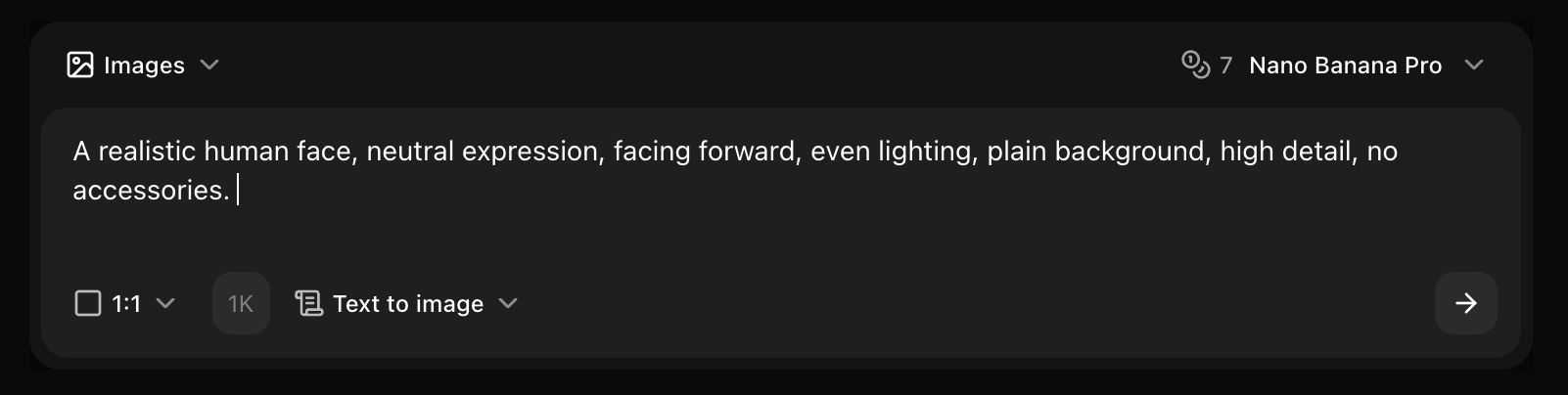
  <Step title="Configure Settings for Image">
    Set resolution and quality for the image you want to generate.
    <Frame>
      <img src="https://mintcdn.com/shoutpreneurllp/8RapMNpSuvxTJuKY/images/text-to-image.png?fit=max&auto=format&n=8RapMNpSuvxTJuKY&q=85&s=6fa42edaa3c3192d3eb9cde43cd492e6" alt="Configure Settings" width="1602" height="404" data-path="images/text-to-image.png" />
    </Frame>
  </Step>

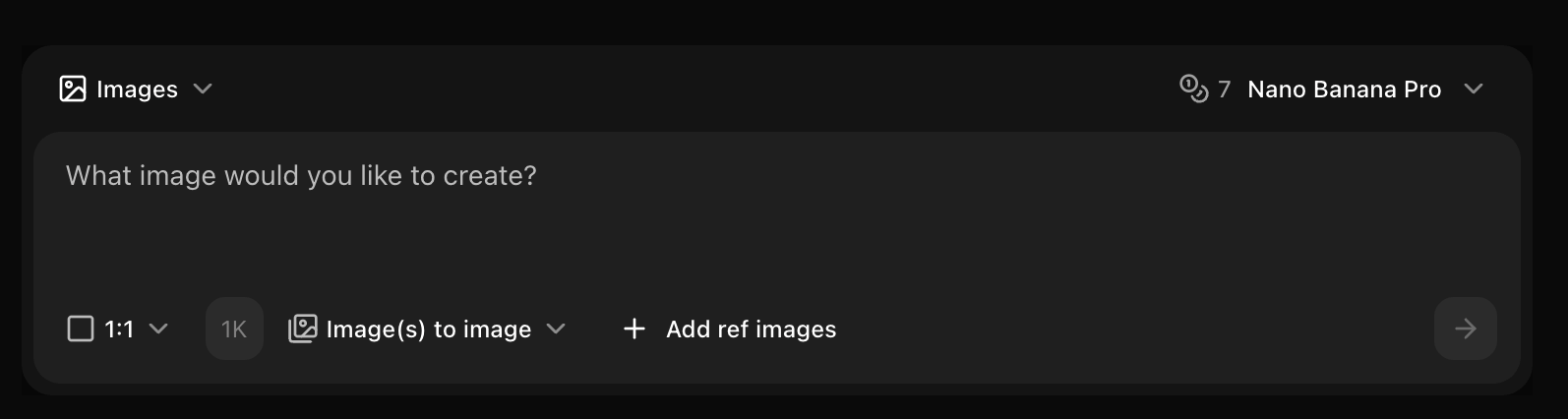
  <Step title="Write Your Prompt">
    Enter a description of the image you want to create in the prompt box.
    <Frame>
      <img src="https://mintcdn.com/shoutpreneurllp/std7Nm_yX-zyixs4/images/write-prompt-or-upload-reference.png?fit=max&auto=format&n=std7Nm_yX-zyixs4&q=85&s=c328d4c481694b182cd3fae99ca298fc" alt="Write Prompt" width="1594" height="426" data-path="images/write-prompt-or-upload-reference.png" />
    </Frame>
  </Step>

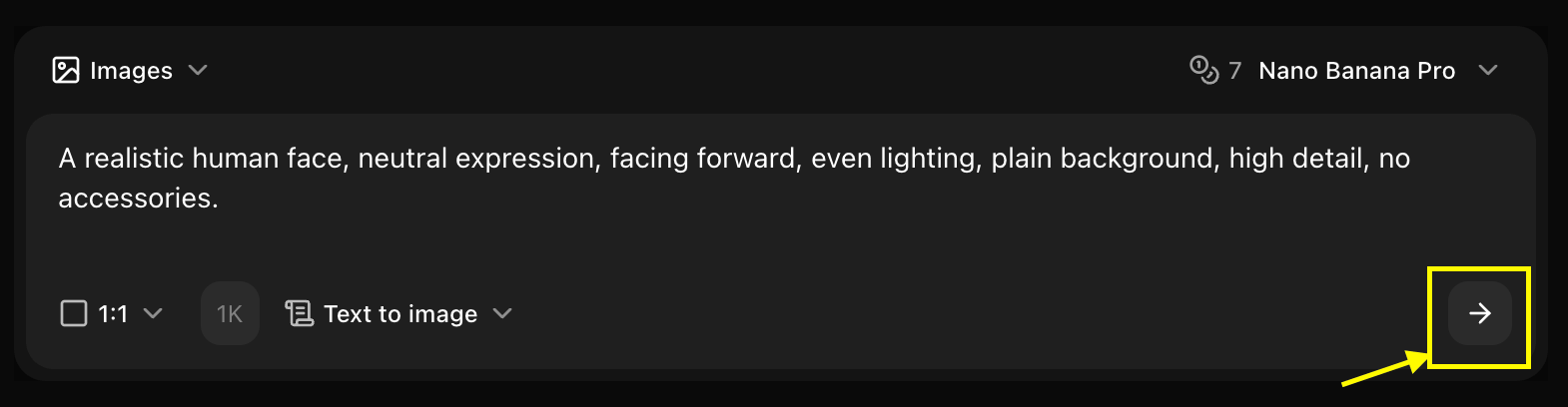
  <Step title="Click on Generate">
    Click generate and wait few seconds for your image to be generated.
    <Frame>
      <img src="https://mintcdn.com/shoutpreneurllp/TcDy12qnwPn1eooq/images/generate-your-image.png?fit=max&auto=format&n=TcDy12qnwPn1eooq&q=85&s=584734fb0d9e43a7eb579682ee482d78" alt="Generate" width="1570" height="408" data-path="images/generate-your-image.png" />
    </Frame>
  </Step>

  <Step title="Download">
    Save your generated image
  </Step>
</Steps>

## Best Practices

* Clear, focused prompts
* Include quality keywords
* Leverage speed for iterations

## Next Steps

<CardGroup cols={2}>
  <Card title="Model Overview" icon="info" href="/ai-models/image/nano-banana-2/overview">
    Learn about Nano Banana 2
  </Card>

  <Card title="Reference Images" icon="image" href="/ai-models/image/nano-banana-2/ref-image">
    Use reference images
  </Card>

  <Card title="Image Generator Tool" icon="image" href="/features/image-generator">
    Back to the main Image Generator guide
  </Card>
</CardGroup>
