> ## Documentation Index
> Fetch the complete documentation index at: https://docs.zoice.com/llms.txt
> Use this file to discover all available pages before exploring further.

# Generate Veo 2 Videos Using Text Prompts

> Create realistic videos with Veo 2 using text descriptions.

## Overview

Veo 2 creates high-quality videos from text prompts, perfect for marketing, social media, and creative projects.

## Quick Start

Generate videos from text prompts using Zoice’s AI video generation models.

<Steps>
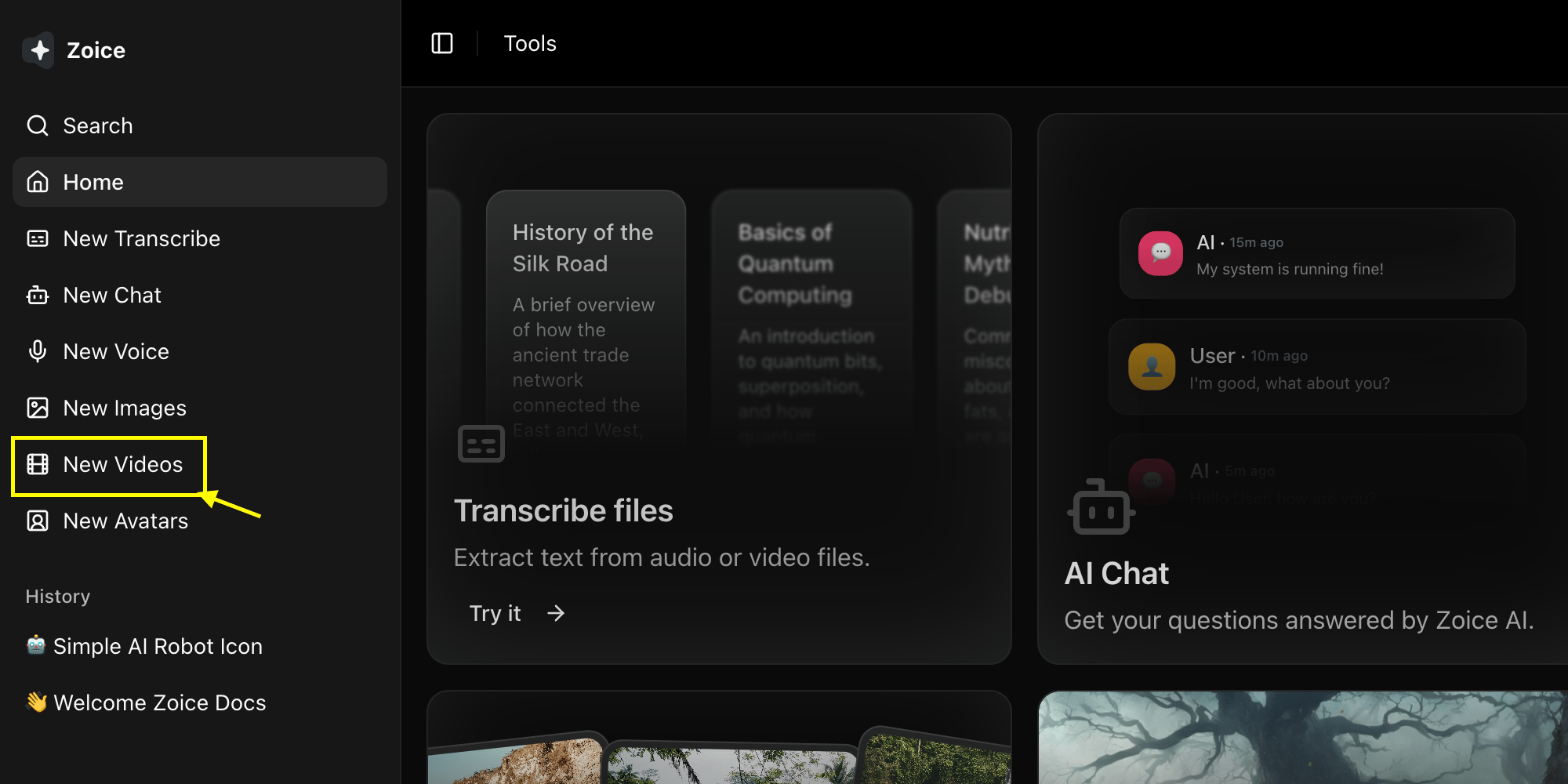
  <Step title="Navigate to New Video">
    Go to the Video Generator tool by clicking on **New Video**.
    <Frame>
      <img src="https://mintcdn.com/shoutpreneurllp/Qpau63XtSH1ElIfW/images/new-video.png?fit=max&auto=format&n=Qpau63XtSH1ElIfW&q=85&s=3bc83833351630689c12c249cfc2108f" alt="Navigate to New Video" width="2000" height="1000" data-path="images/new-video.png" />
    </Frame>
  </Step>

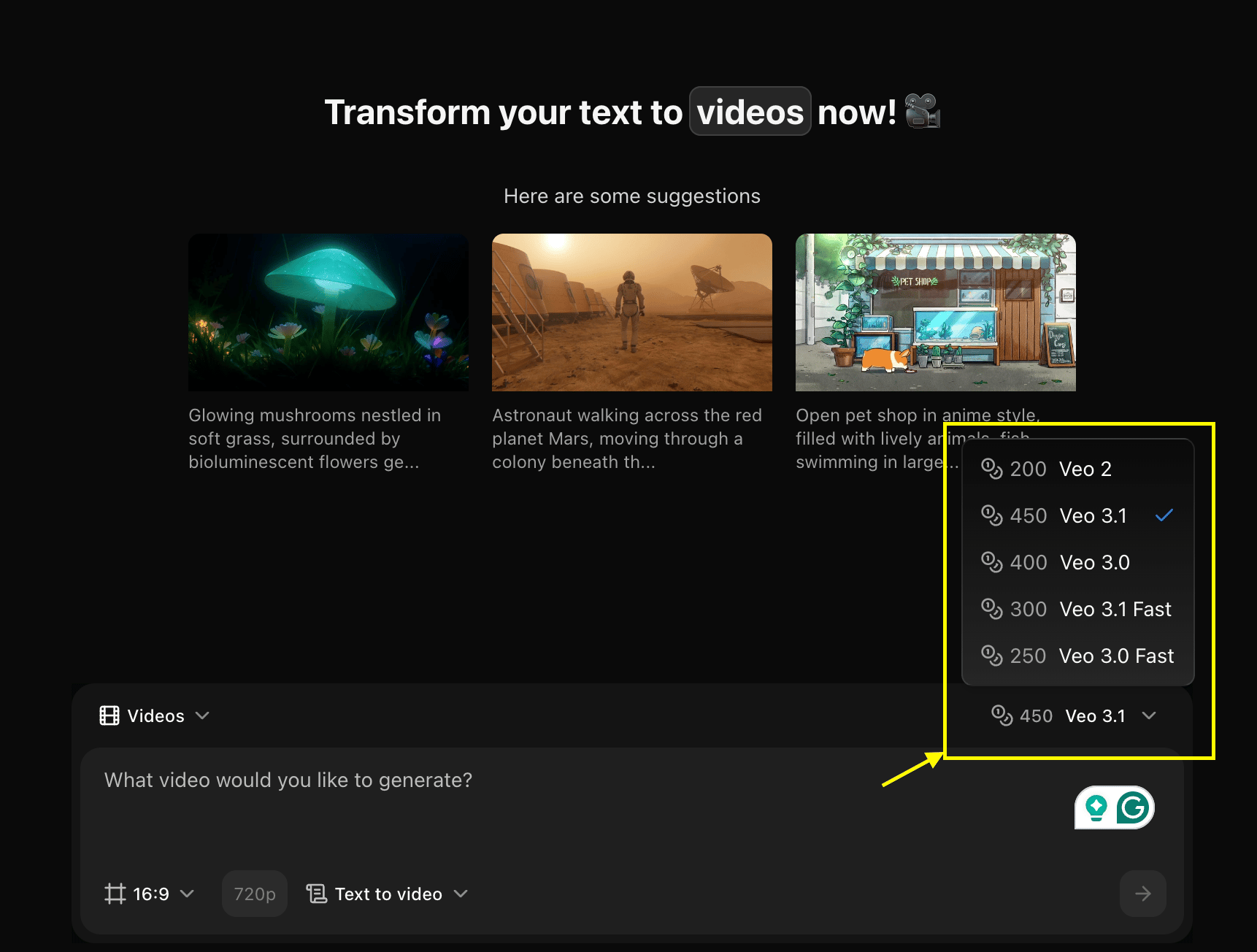
  <Step title="Select Veo 2 Model">
    Choose **Veo 2** from the model selector.
    <Frame>
      <img src="https://mintcdn.com/shoutpreneurllp/RKvW9rME47MixiX_/images/select-video-model.png?fit=max&auto=format&n=RKvW9rME47MixiX_&q=85&s=dd57f3b612f075452a36833df7eb0906" alt="Select Model" width="1722" height="1304" data-path="images/select-video-model.png" />
    </Frame>
  </Step>

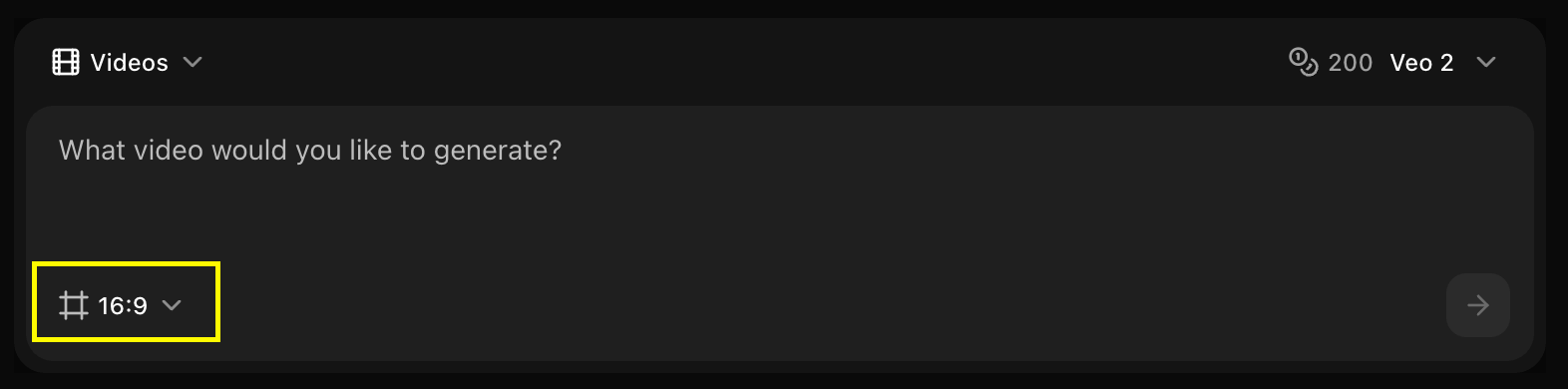
  <Step title="Configure Settings for Video">
    Set the dimensions and resolution for your video output.
    <Frame>
      <img src="https://mintcdn.com/shoutpreneurllp/S-WtB_UoKIbtAxZx/images/veo2v-3.png?fit=max&auto=format&n=S-WtB_UoKIbtAxZx&q=85&s=993088fe39414237c0c365cdbc6cb0ce" alt="Configure Settings" width="1572" height="390" data-path="images/veo2v-3.png" />
    </Frame>
  </Step>

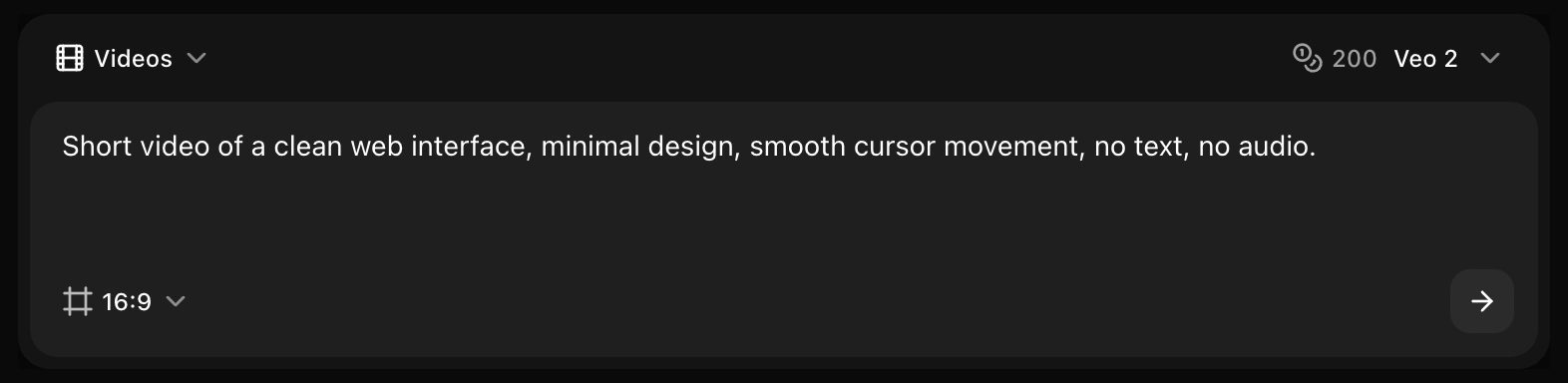
  <Step title="Write Your Text Prompt">
    Enter a description of the scene and action you want to create in the prompt box.
    <Frame>
      <img src="https://mintcdn.com/shoutpreneurllp/S-WtB_UoKIbtAxZx/images/veo2v-4.png?fit=max&auto=format&n=S-WtB_UoKIbtAxZx&q=85&s=3d2692193cc44d2f1e8115c75b794bc8" alt="Write Your Text Prompt" width="1572" height="384" data-path="images/veo2v-4.png" />
    </Frame>
  </Step>

  <Step title="Click on Generate">
    Click on the **Generate** button to start generating your video.
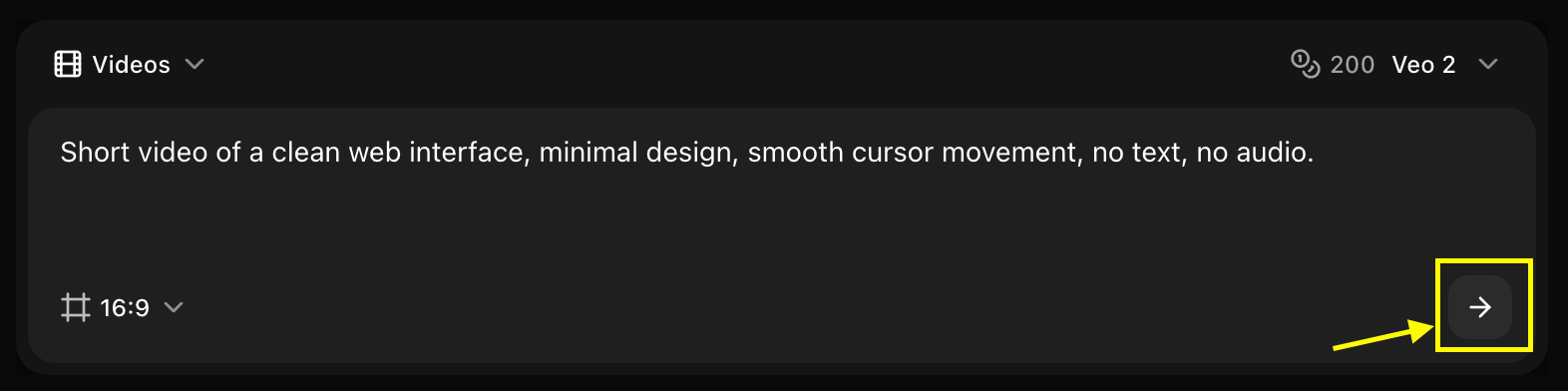
    <Frame>
      <img src="https://mintcdn.com/shoutpreneurllp/S-WtB_UoKIbtAxZx/images/veo2v-5.png?fit=max&auto=format&n=S-WtB_UoKIbtAxZx&q=85&s=4e5391748727d6e8fc1a043fab477e7a" alt="Generate" width="1572" height="392" data-path="images/veo2v-5.png" />
    </Frame>
  </Step>

  <Step title="Download">
    Save your generated video.
  </Step>
</Steps>

## Best Practices

* Include camera movement keywords
* Describe action clearly
* Specify duration context
* Use cinematic terms

## Next Steps

<CardGroup cols={2}>
  <Card title="Model Overview" icon="info" href="/ai-models/video/veo-2/overview">
    Learn about Veo 2
  </Card>

  <Card title="Prompt Guide" icon="book" href="/prompt-guide/introduction">
    Master video prompts
  </Card>
</CardGroup>
