> ## Documentation Index
> Fetch the complete documentation index at: https://docs.zoice.com/llms.txt
> Use this file to discover all available pages before exploring further.
# Generate AI Videos with Veo 3.1 (Text-to-Video)
> Step-by-step guide to generating high-quality AI videos using text prompts with Veo 3.1. Learn about resolution, motion control, and professional settings.
## Overview
Veo 3.1 delivers enhanced video quality with improved motion and better prompt understanding for professional video creation.
## Quick Start
Generate videos from text prompts using Zoice’s AI video generation models.
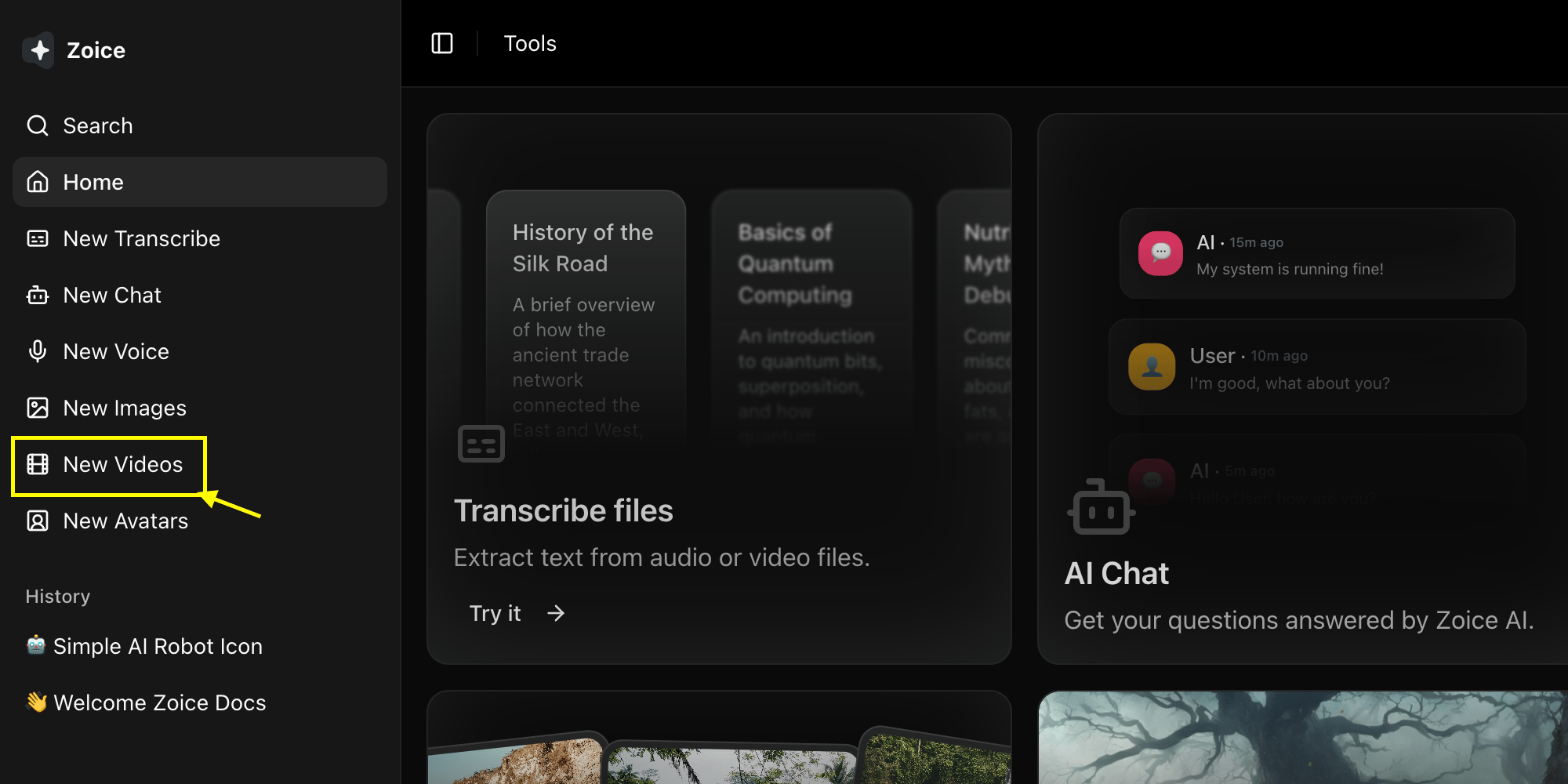
Go to the Video Generator tool by clicking on **New Video**.
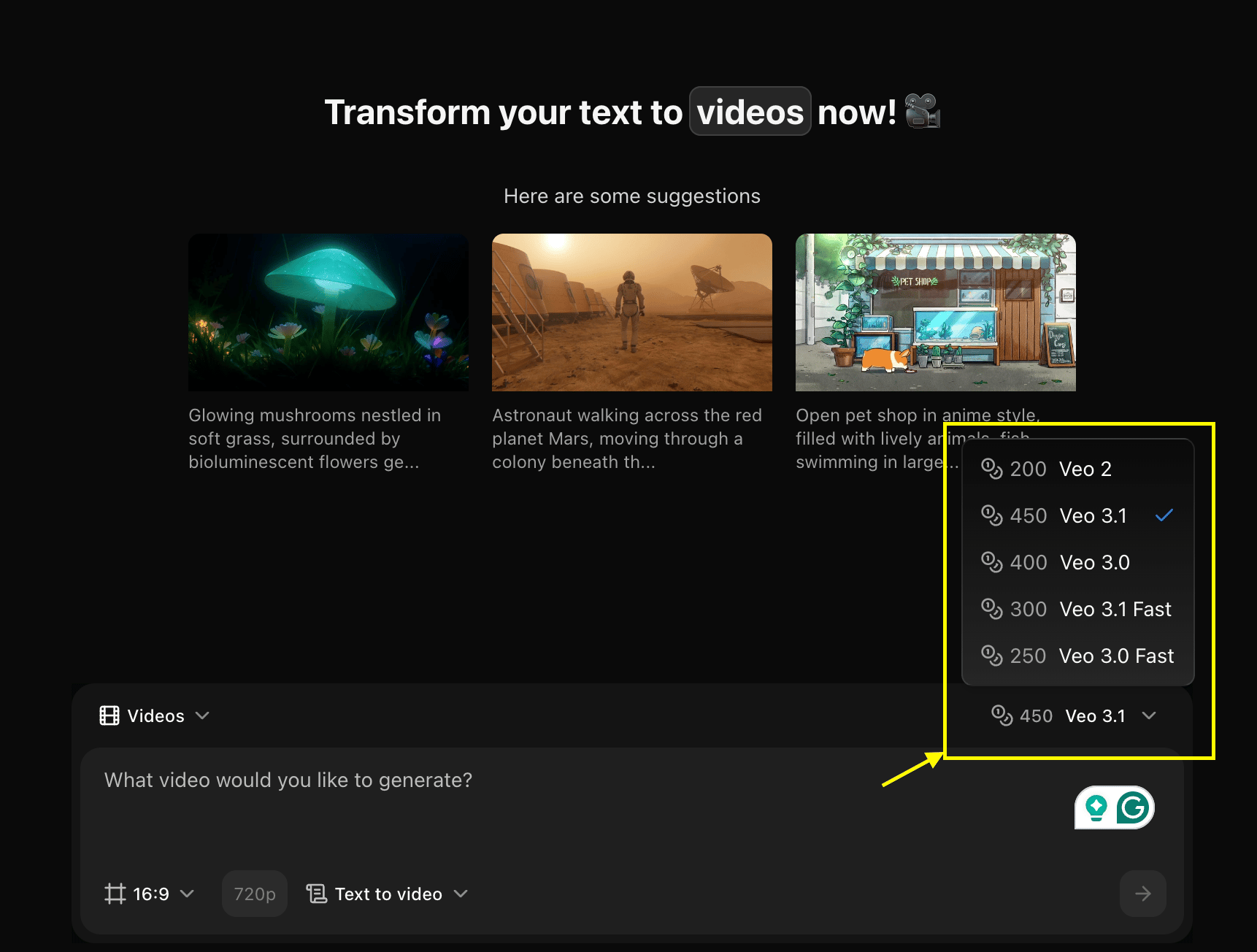
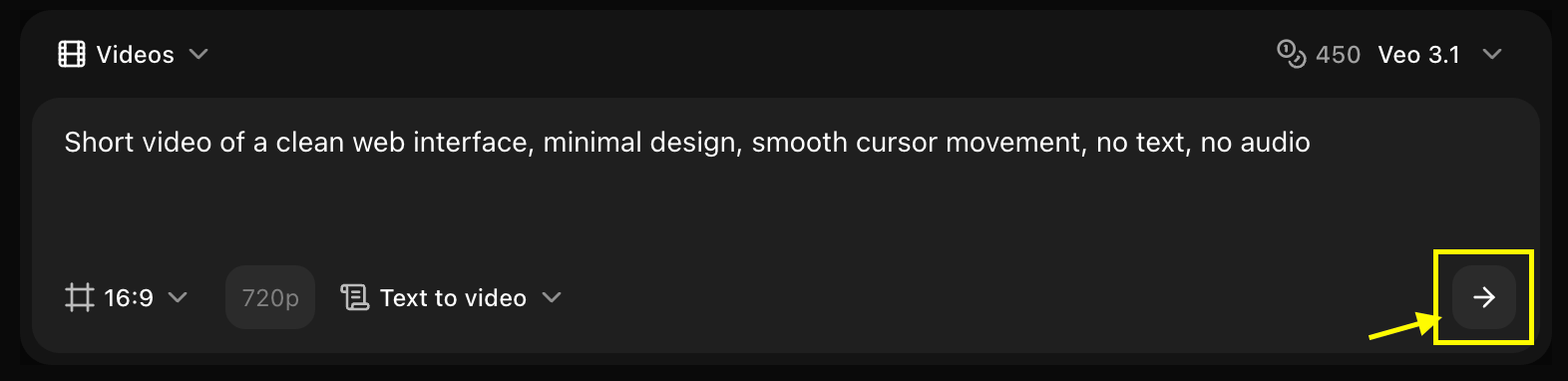
 Choose **Veo 3.1** from the model selector.
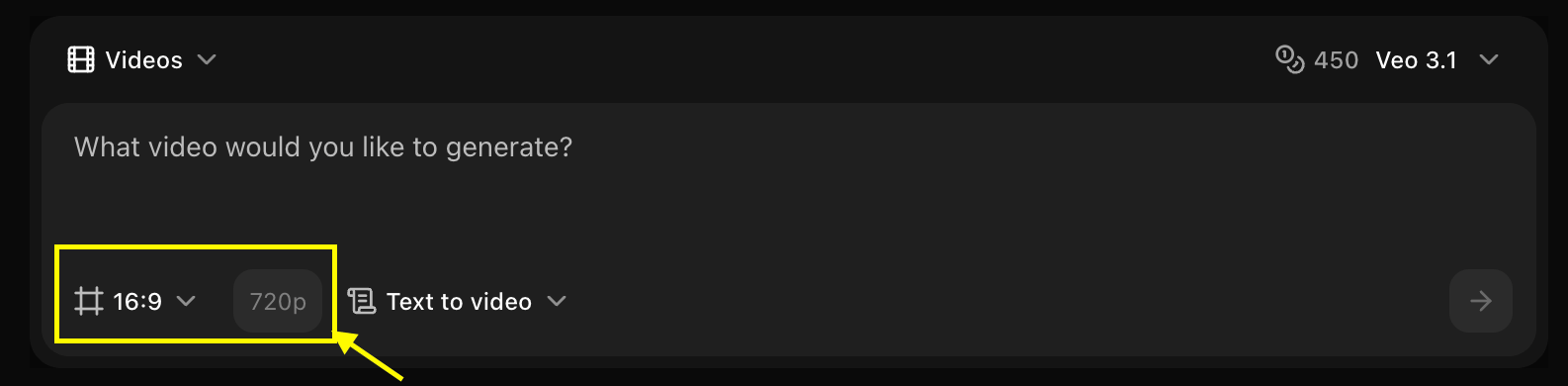
 Set dimensions, resolution, and choose **Text to Video** mode.
 Enter a description of the scene and action you want to create in the prompt box.
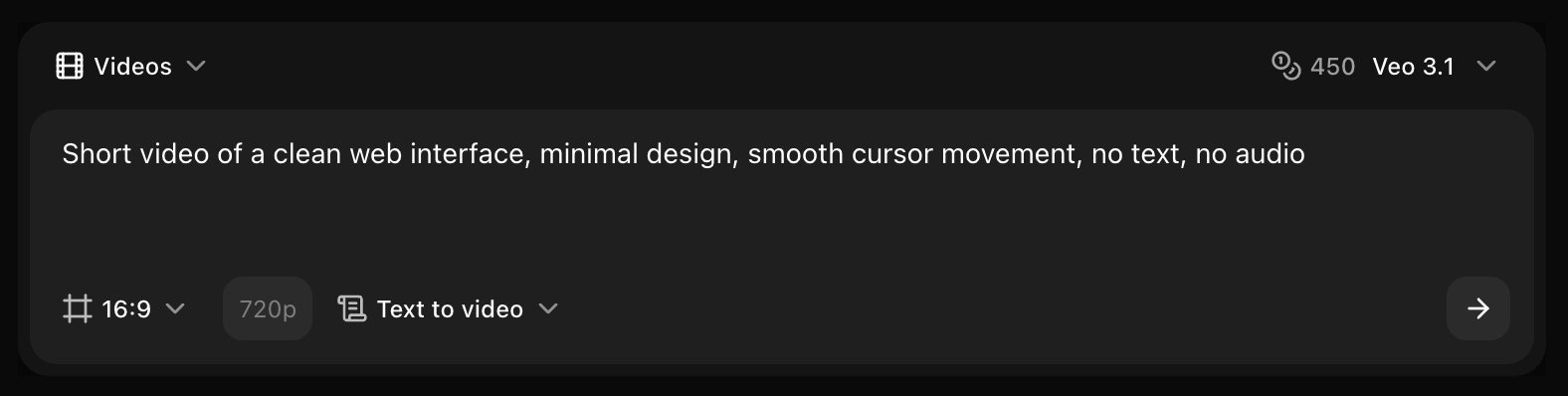 Click on the **Generate** button to begin creating your video.
 Save your generated video.
## Best Practices
* Use detailed scene descriptions
* Include camera movements
* Specify lighting and mood
* Describe action clearly
## Next Steps
Learn about Veo 3.1
Convert images to video
Back to the main Video Generator guide
Save your generated video.
## Best Practices
* Use detailed scene descriptions
* Include camera movements
* Specify lighting and mood
* Describe action clearly
## Next Steps
Learn about Veo 3.1
Convert images to video
Back to the main Video Generator guide