> ## Documentation Index
> Fetch the complete documentation index at: https://docs.zoice.com/llms.txt
> Use this file to discover all available pages before exploring further.
# AI Voice Generator
> Generate natural, human-like AI voices from text. Build high-quality narration for videos, podcasts, and e-learning with Zoice's text-to-speech engine.
## Key Features
Zoice's Voice Generator converts your text into natural, human-like speech. Perfect for voiceovers, audiobooks, podcasts, and more, our AI voice technology delivers high-quality audio by allowing you to choose from a curated selection of professional voice templates.
* **Text-to-Speech**: Transform any text into high-quality, natural-sounding speech instantly.
* **Voice Templates**: Select from a diverse range of pre-defined voices across different genders, ages, and accents.
* **High-Fidelity Audio**: Generate clear, studio-quality audio suitable for professional projects.
* **Fast Generation**: Process and receive your audio files in seconds.
* **Language Support**: Support for a variety of languages and regional dialects.
## Use Cases
Create professional narration for your YouTube videos, social media, and ads.
Generate engaging narration for educational content and training materials.
Convert scripts into audio for podcasts or broadcast-style content.
Make written content more accessible by providing high-quality audio versions.
## How It Works
1. **Input Text**: Enter the specific text or script you want to convert to speech.
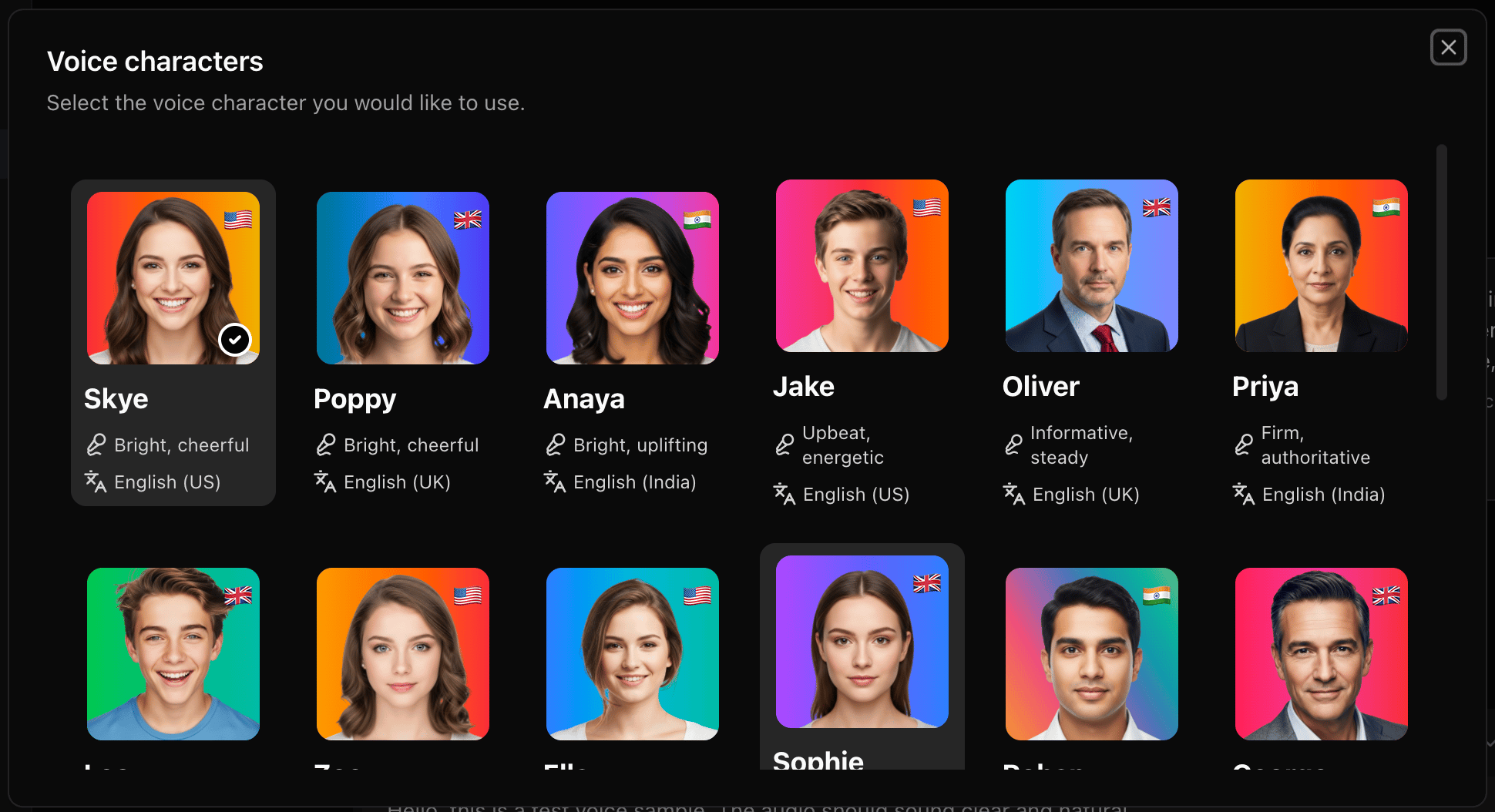
2. **Choose Template**: Browse and select a voice from our library of sample voice templates.
3. **Generate**: Click the generate button to create your high-quality audio file.
4. **Download**: Save your generated audio file directly to your device.
## Getting Started
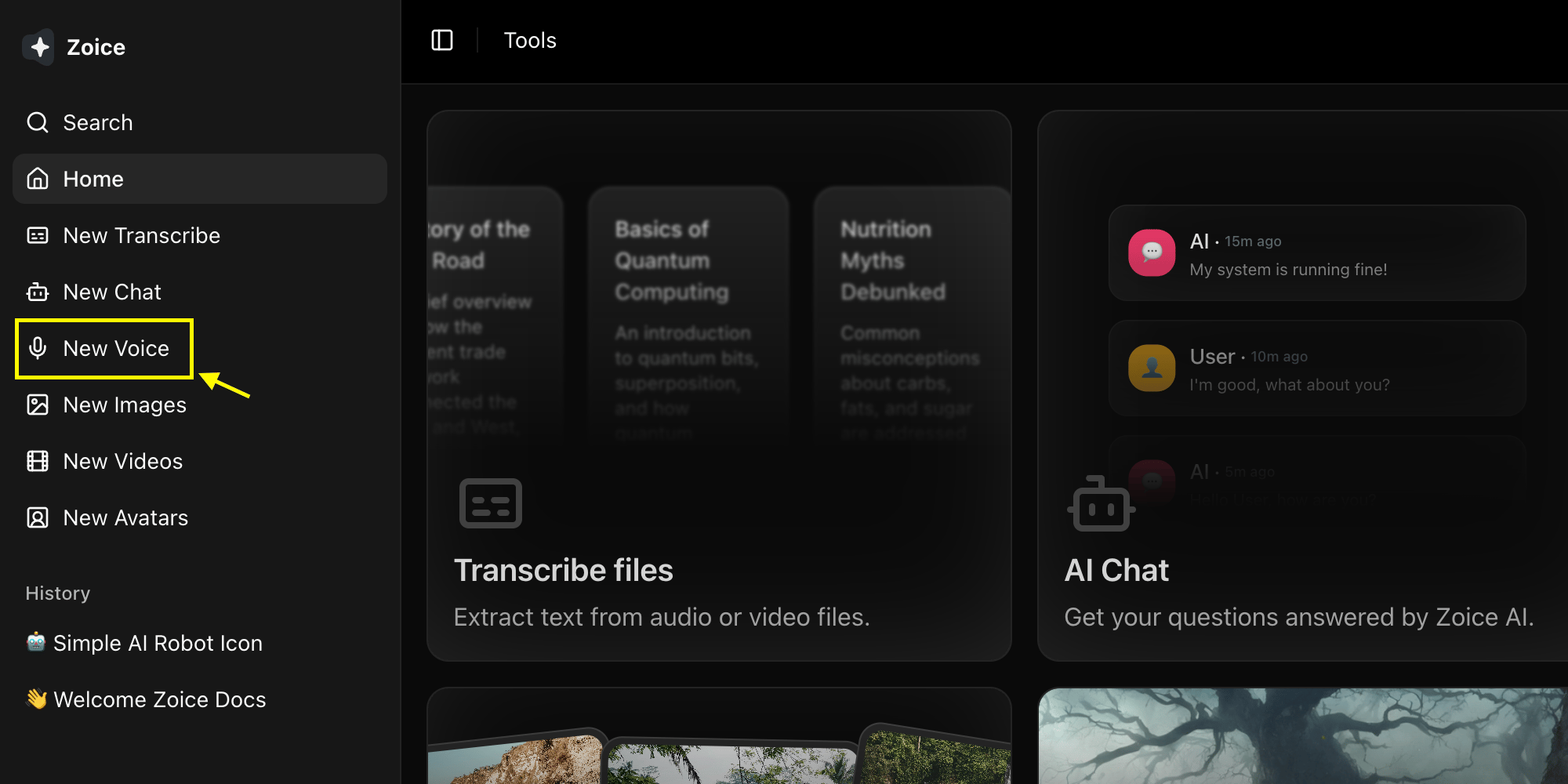
Navigate to the new voice generator page.
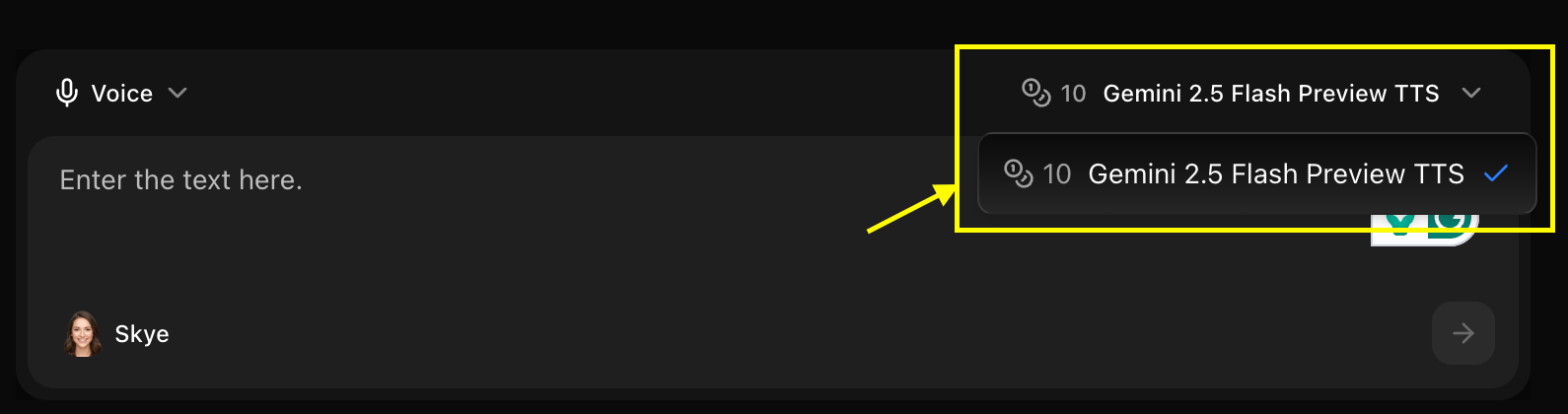
 Choose the AI model you want to use for your voice generation
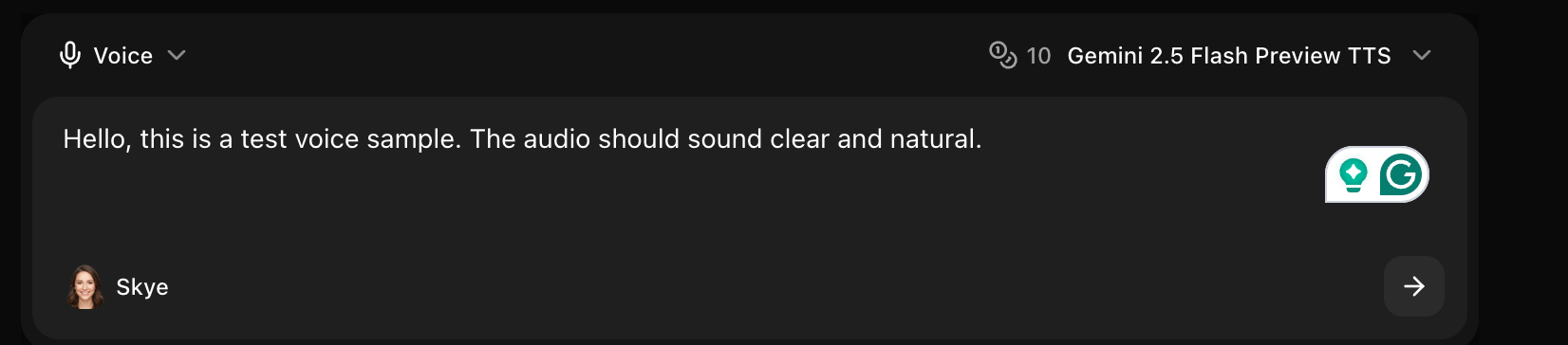
 Enter the text or script you want to hear in the voice-over section.
 Browse the sample templates and choose the voice that best fits your content's tone and style.
 Click the **Generate** button to process your text into the selected voice.
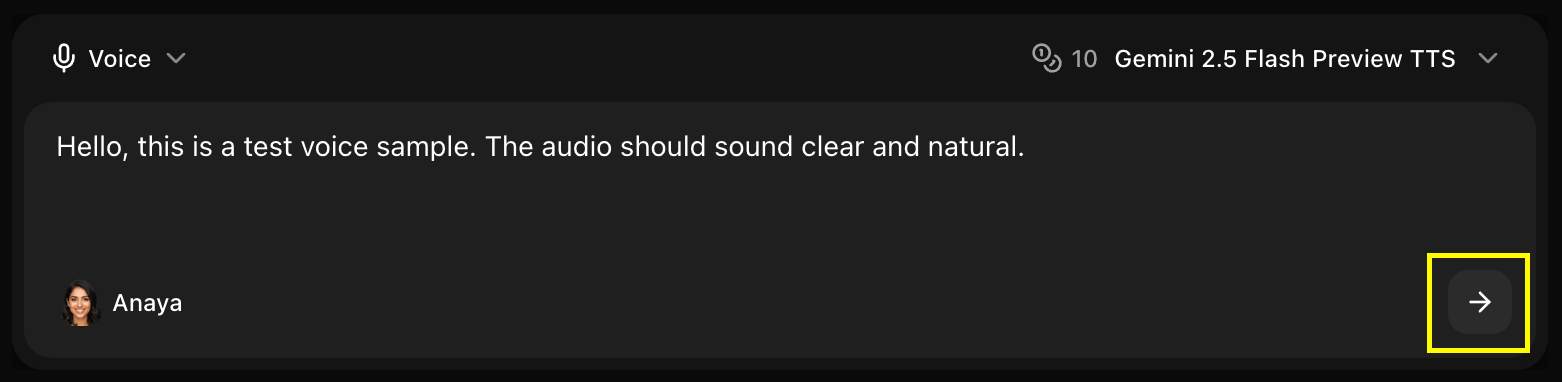 Once processing is complete, download and save your professional AI voiceover.
Ensure your text includes proper punctuation to help the AI voice maintain the correct rhythm and natural pacing during generation.
## Next Steps
Detailed steps for creating professional narration from text.
Combine AI voices with animated characters for high-impact video.
Transcribe your existing videos into accurate text descriptions.
Master effective prompting for better AI voice results.
Once processing is complete, download and save your professional AI voiceover.
Ensure your text includes proper punctuation to help the AI voice maintain the correct rhythm and natural pacing during generation.
## Next Steps
Detailed steps for creating professional narration from text.
Combine AI voices with animated characters for high-impact video.
Transcribe your existing videos into accurate text descriptions.
Master effective prompting for better AI voice results.