> ## Documentation Index
> Fetch the complete documentation index at: https://docs.zoice.com/llms.txt
> Use this file to discover all available pages before exploring further.
# How to Create an AI Avatar for Healthcare Marketing
> Build a professional, trustworthy AI avatar presenter for healthcare campaigns, patient education, and medical marketing videos.
## Why Use AI Avatars in Healthcare Marketing?
Healthcare organizations need to communicate clearly, build trust, and reach diverse audiences — all while managing tight content budgets. AI avatars created with Zoice let you produce professional presenter-led videos at scale, without the need for on-camera talent. Use them for patient education, product explainers, clinic promotions, and more.
## Prerequisites
Before starting, ensure you have:
* A professional headshot or stock avatar suited to the healthcare context.
* A clear, factual script reviewed for medical accuracy.
* Optional: a branded logo or background image for your clinic/company.
***
## Step-by-Step Guide
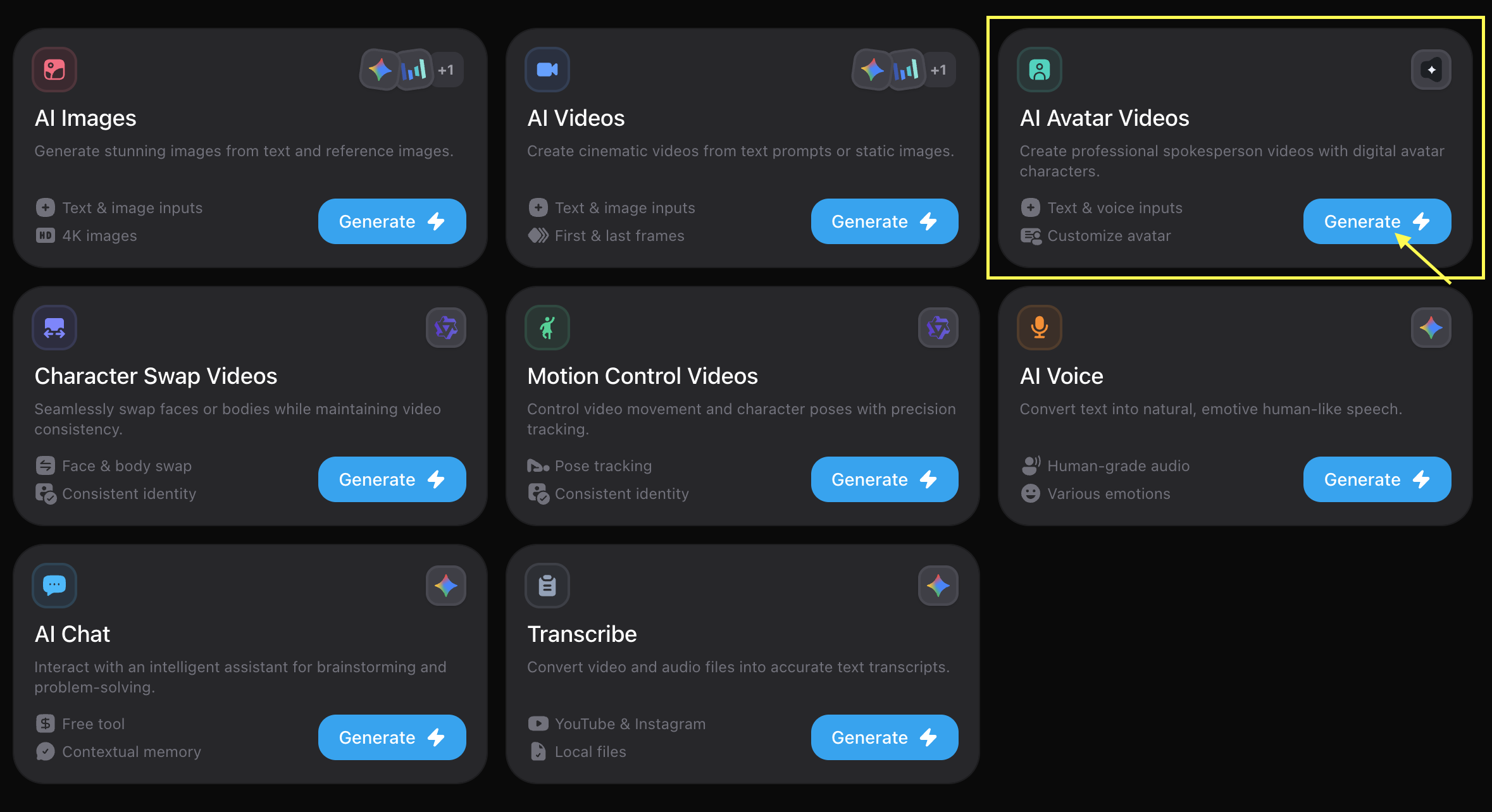
Log in to your [Zoice Dashboard](https://zoice.com) and click **See all tools**. Scroll down and locate **AI Avatar Videos**, then click **Generate**.
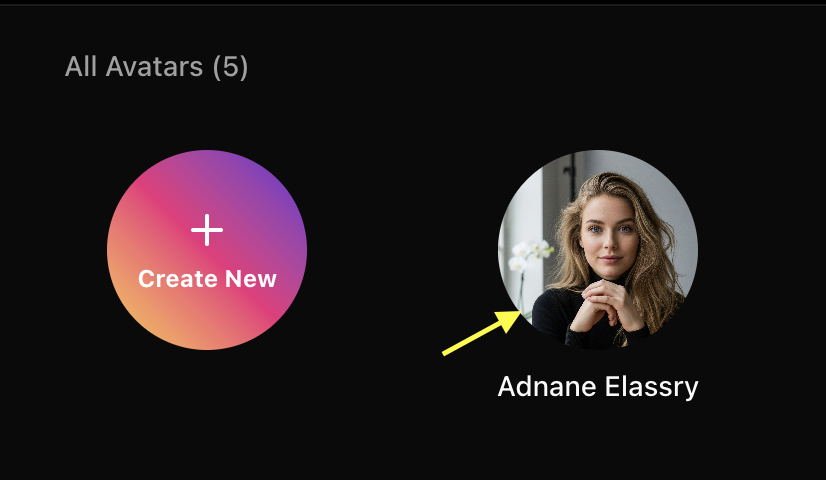
 Click **Avatar Character** to open the library. For healthcare marketing, choose a **Stock Avatar** that appears professional and approachable, or upload a custom presenter image. A neutral expression, professional attire, and good lighting in the source image builds viewer trust.
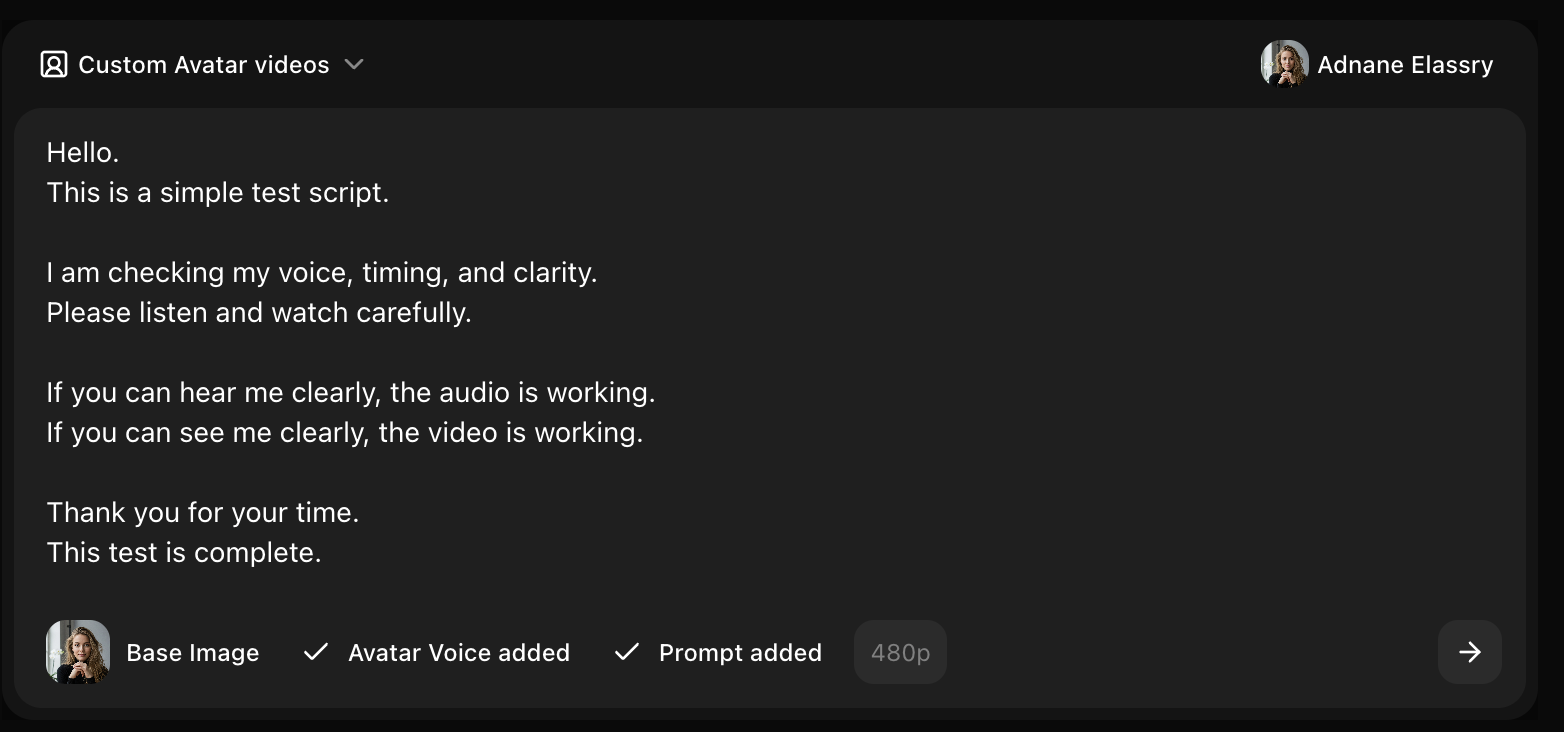
 Type or paste your healthcare marketing script into the text field. Keep language clear, empathetic, and jargon-free for patient-facing content. Use short sentences and a calm, informative tone.
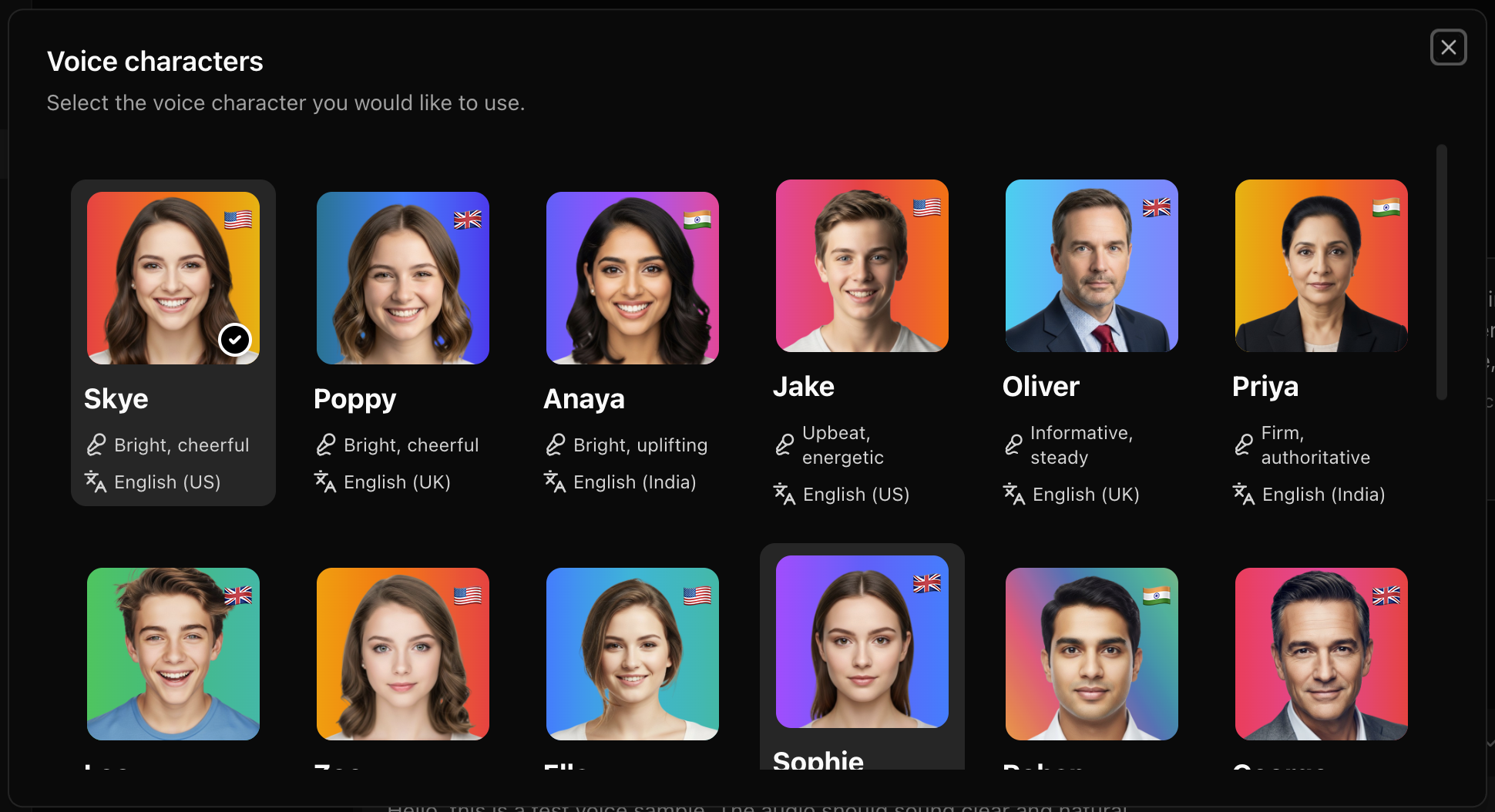
 In the voice settings, select a voice that sounds warm and authoritative — ideal for healthcare contexts. You can also use **Voice Cloning** to use the voice of a specific spokesperson or doctor with their permission.
 Upload a branded background image (clinic interior, branded slide, or neutral gradient). Set the video aspect ratio — 16:9 is standard for presentations and website embeds.
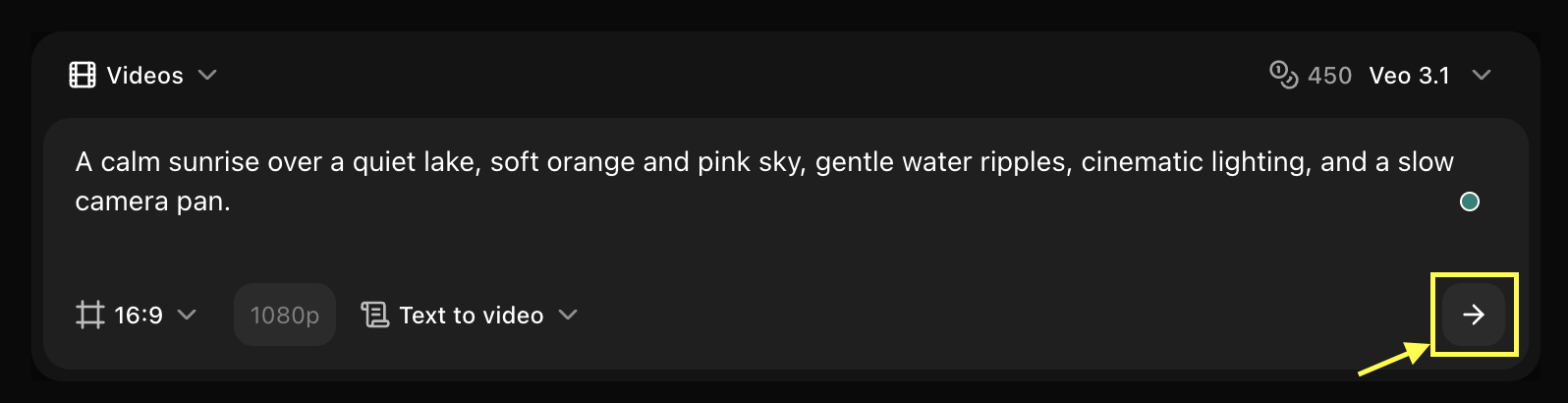
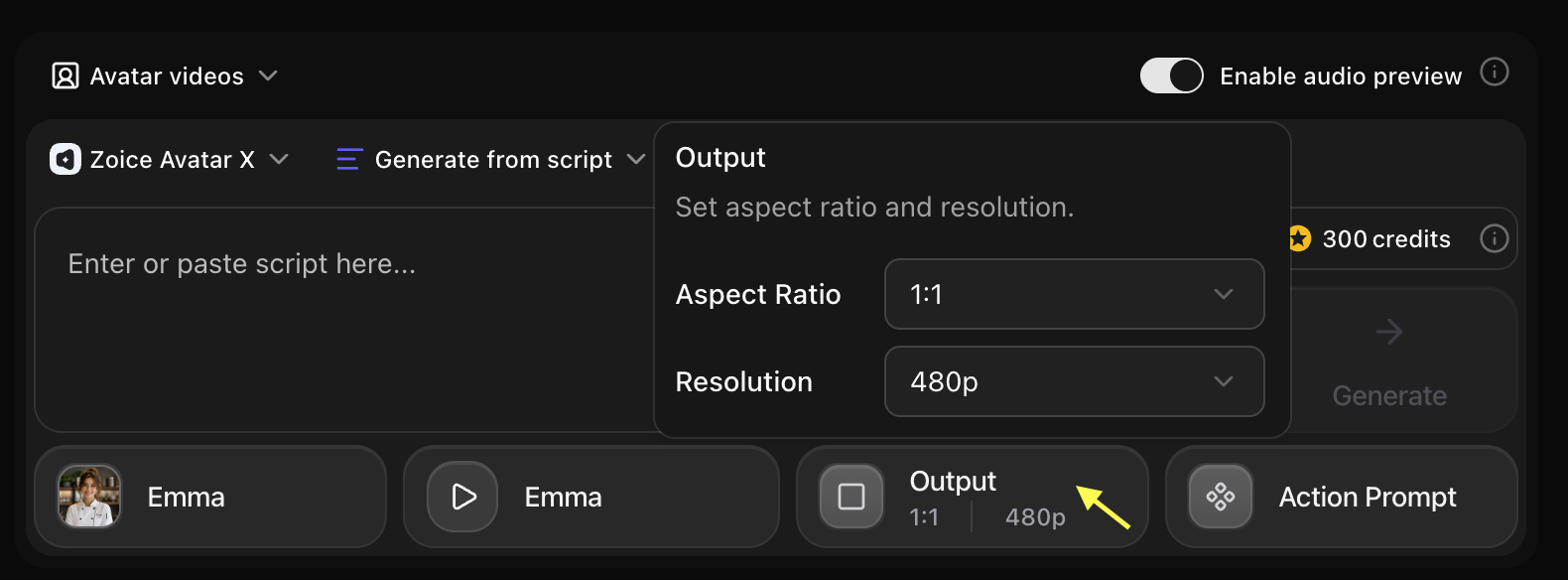 Review all settings and click **Generate**. Once your video renders, download it in your preferred format for website embedding, social media, or patient portal integration.
 ***
## Best Practices for Healthcare AI Avatar Videos
* Use a professional, front-facing avatar with neutral or slightly warm expression.
* Keep the visual environment clean and uncluttered (white or branded backgrounds work best).
* Avoid overly animated or expressive movements — a calm, measured delivery inspires confidence.
* Always have scripts reviewed by a qualified medical professional before publication.
* Include necessary disclaimers (e.g., "Consult your physician before making medical decisions").
* Avoid making specific medical claims unless substantiated by evidence.
* Enable captions or subtitles for all patient-facing content.
* Choose clear, well-articulated voice profiles so content is accessible for older or hearing-impaired audiences.
***
## Next Steps
Reach diverse patient populations by cloning your avatar's voice in multiple languages.
Create a fully branded custom avatar that represents your healthcare brand.
***
## Best Practices for Healthcare AI Avatar Videos
* Use a professional, front-facing avatar with neutral or slightly warm expression.
* Keep the visual environment clean and uncluttered (white or branded backgrounds work best).
* Avoid overly animated or expressive movements — a calm, measured delivery inspires confidence.
* Always have scripts reviewed by a qualified medical professional before publication.
* Include necessary disclaimers (e.g., "Consult your physician before making medical decisions").
* Avoid making specific medical claims unless substantiated by evidence.
* Enable captions or subtitles for all patient-facing content.
* Choose clear, well-articulated voice profiles so content is accessible for older or hearing-impaired audiences.
***
## Next Steps
Reach diverse patient populations by cloning your avatar's voice in multiple languages.
Create a fully branded custom avatar that represents your healthcare brand.