> ## Documentation Index
> Fetch the complete documentation index at: https://docs.zoice.com/llms.txt
> Use this file to discover all available pages before exploring further.
# How to Create a Podcast Video with AI
> Learn how to create a professional podcast video with AI using Zoice. Write your script, select an AI voice, generate realistic audio, and publish your podcast episode in minutes — no recording equipment needed.
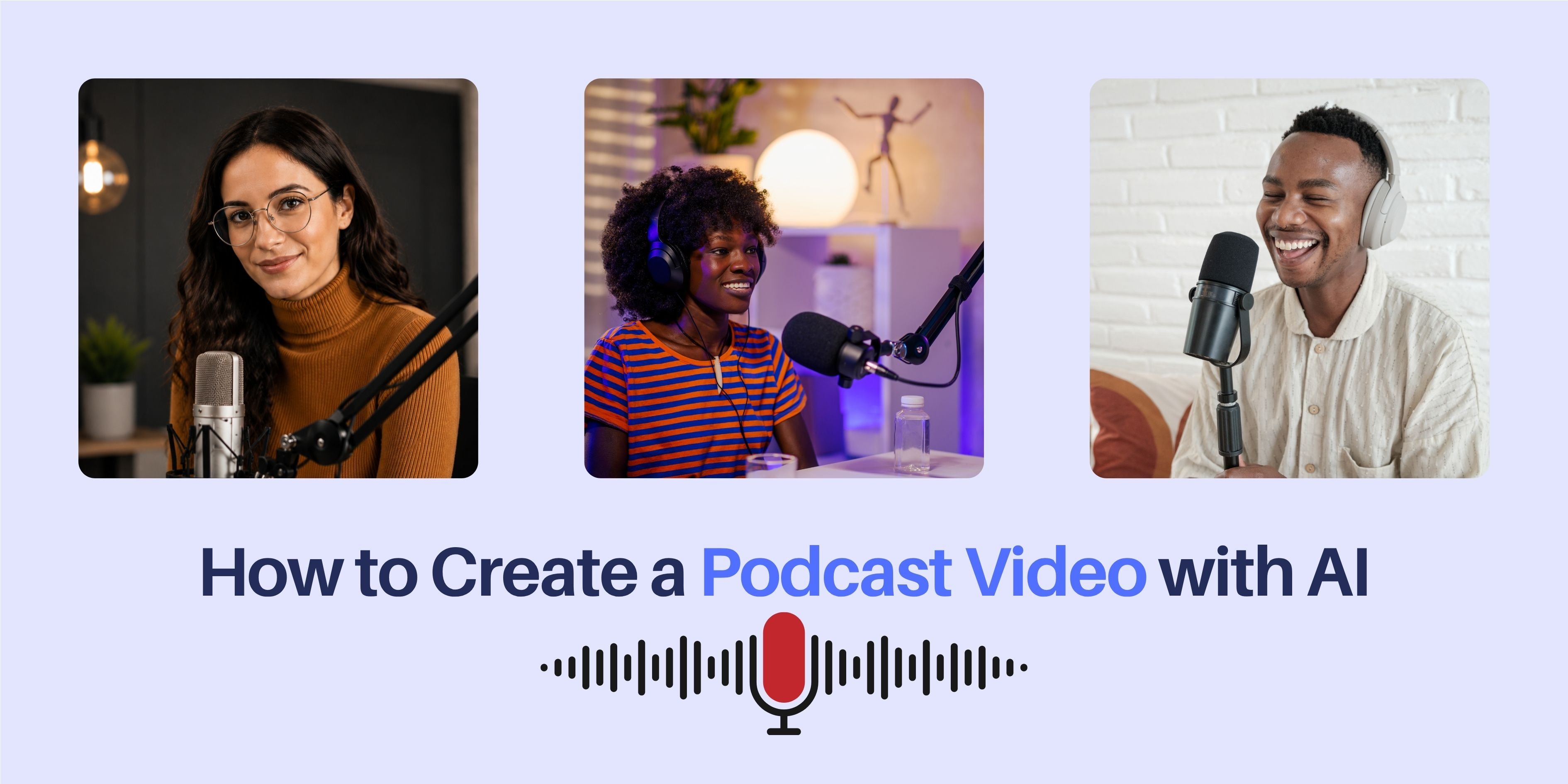 Podcasting is evolving quickly with the help of artificial intelligence. Content creators, educators, and brands now use AI videos to host engaging podcast episodes, share stories, and create dynamic audio-visual content faster.
Traditionally, creating a video podcast required high-end cameras, microphones, recording studios, and editing teams. This process could take days or weeks, especially when producing consistent episodes.
AI avatar technology makes this process easier by allowing you to create realistic podcast presenter videos from a simple script. Instead of recording yourself, you can create a digital podcast host that delivers your episode clearly with natural speech, facial expressions, and human-like communication.
Whether you want to create interview-style content, storytelling podcasts, news briefings, or educational episodes, AI avatars help you produce professional video podcasts without complicated production setups.
In this article, you will learn how to create a podcast video with AI using Zoice by following a complete step-by-step process.
## What Are AI Podcast Videos?
AI podcast videos are audio-visual episodes created using artificial intelligence tools. These videos use AI avatars, AI voices, and automated video generation technology to present topics in a conversational and engaging way.
Instead of a real person sitting in front of a microphone, an AI avatar acts as your virtual podcast host and delivers your prepared content.
For example, you can create an AI avatar video for:
*“Welcome to the Daily Tech Update podcast”*
or
*“Today, we explore the history of artificial intelligence”*
The AI avatar reads the script naturally, creating a professional podcast video that your audience can watch or listen to anytime.
## How to Create a Podcast Video with AI Using Zoice
Creating a podcast video with an AI avatar is simple. Follow the steps below to create a professional episode.
### Step 1: Visit Zoice.com and Click Sign In
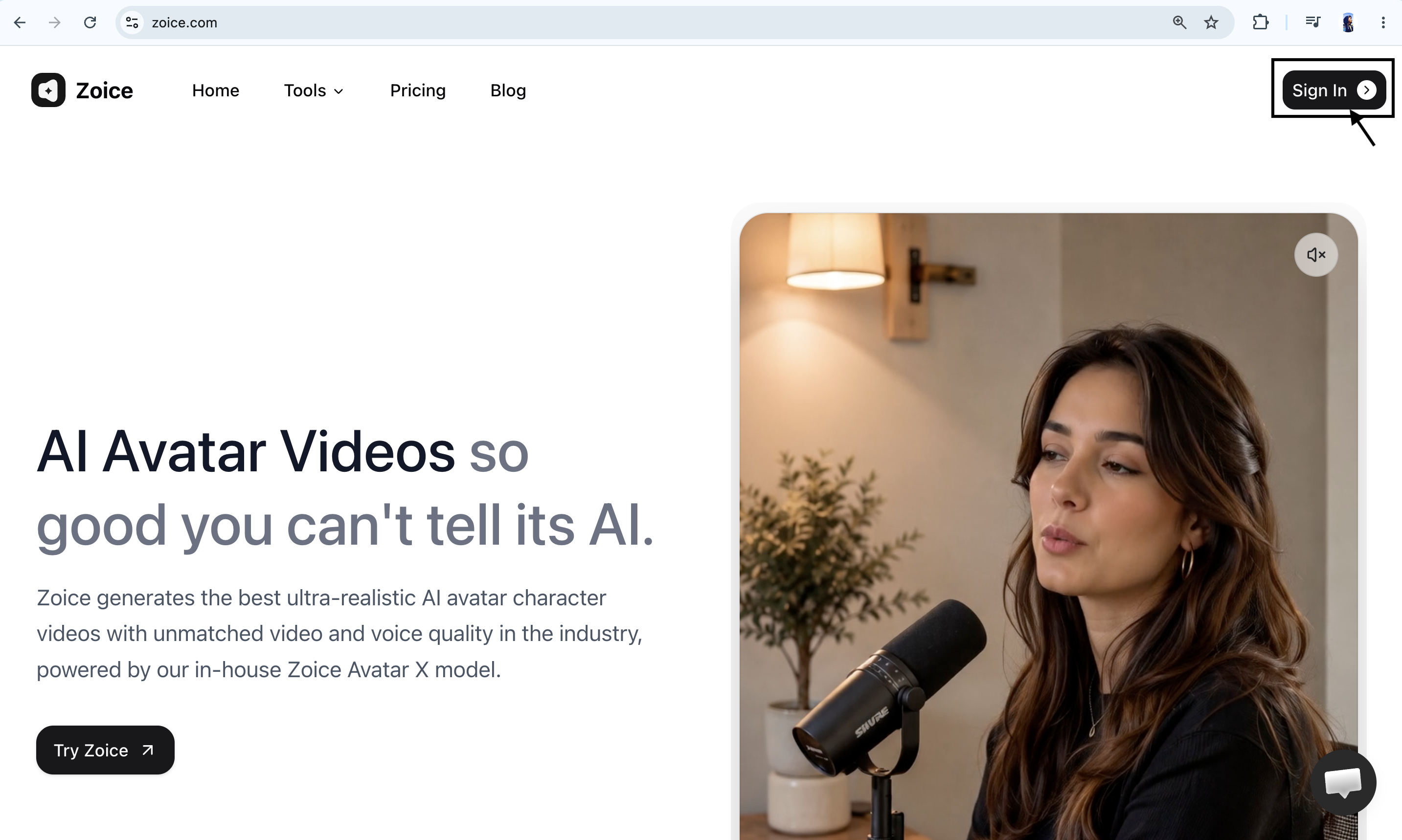
Go to [Zoice.com](https://zoice.com) in your browser and click the **Sign In** button available at the top-right corner of the homepage. This will open the login page where you can access your Zoice account.
Podcasting is evolving quickly with the help of artificial intelligence. Content creators, educators, and brands now use AI videos to host engaging podcast episodes, share stories, and create dynamic audio-visual content faster.
Traditionally, creating a video podcast required high-end cameras, microphones, recording studios, and editing teams. This process could take days or weeks, especially when producing consistent episodes.
AI avatar technology makes this process easier by allowing you to create realistic podcast presenter videos from a simple script. Instead of recording yourself, you can create a digital podcast host that delivers your episode clearly with natural speech, facial expressions, and human-like communication.
Whether you want to create interview-style content, storytelling podcasts, news briefings, or educational episodes, AI avatars help you produce professional video podcasts without complicated production setups.
In this article, you will learn how to create a podcast video with AI using Zoice by following a complete step-by-step process.
## What Are AI Podcast Videos?
AI podcast videos are audio-visual episodes created using artificial intelligence tools. These videos use AI avatars, AI voices, and automated video generation technology to present topics in a conversational and engaging way.
Instead of a real person sitting in front of a microphone, an AI avatar acts as your virtual podcast host and delivers your prepared content.
For example, you can create an AI avatar video for:
*“Welcome to the Daily Tech Update podcast”*
or
*“Today, we explore the history of artificial intelligence”*
The AI avatar reads the script naturally, creating a professional podcast video that your audience can watch or listen to anytime.
## How to Create a Podcast Video with AI Using Zoice
Creating a podcast video with an AI avatar is simple. Follow the steps below to create a professional episode.
### Step 1: Visit Zoice.com and Click Sign In
Go to [Zoice.com](https://zoice.com) in your browser and click the **Sign In** button available at the top-right corner of the homepage. This will open the login page where you can access your Zoice account.
 ### Step 2: Sign In to Your Zoice Account
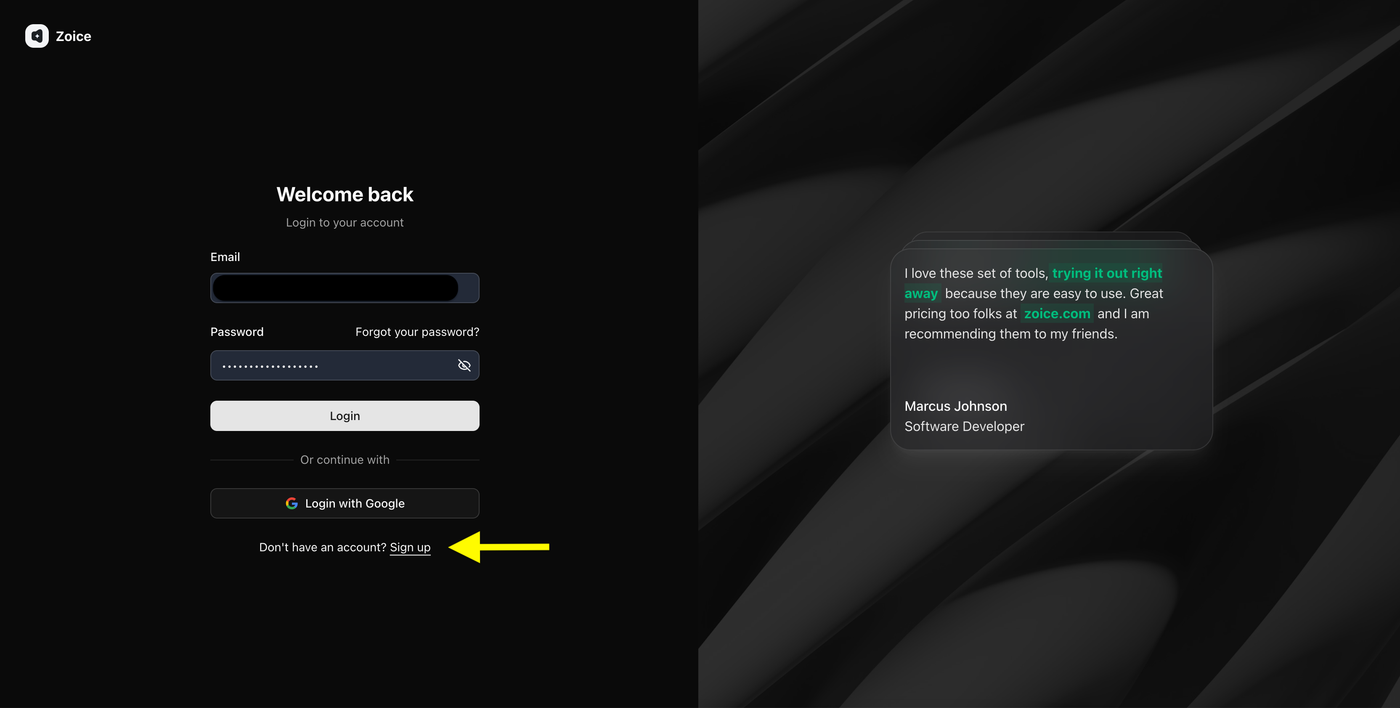
If you already have a Zoice account, enter your registered email address and password, then click **Sign In**.
You can also choose **Sign in with Google** if your account is connected with Google. After successfully signing in, you will be redirected to the Zoice dashboard.
### Step 2: Sign In to Your Zoice Account
If you already have a Zoice account, enter your registered email address and password, then click **Sign In**.
You can also choose **Sign in with Google** if your account is connected with Google. After successfully signing in, you will be redirected to the Zoice dashboard.
 ### Step 3: Create a New Zoice Account (For New Users)
If you are using Zoice for the first time, click **Sign Up** to create a new account.
### Step 3: Create a New Zoice Account (For New Users)
If you are using Zoice for the first time, click **Sign Up** to create a new account.
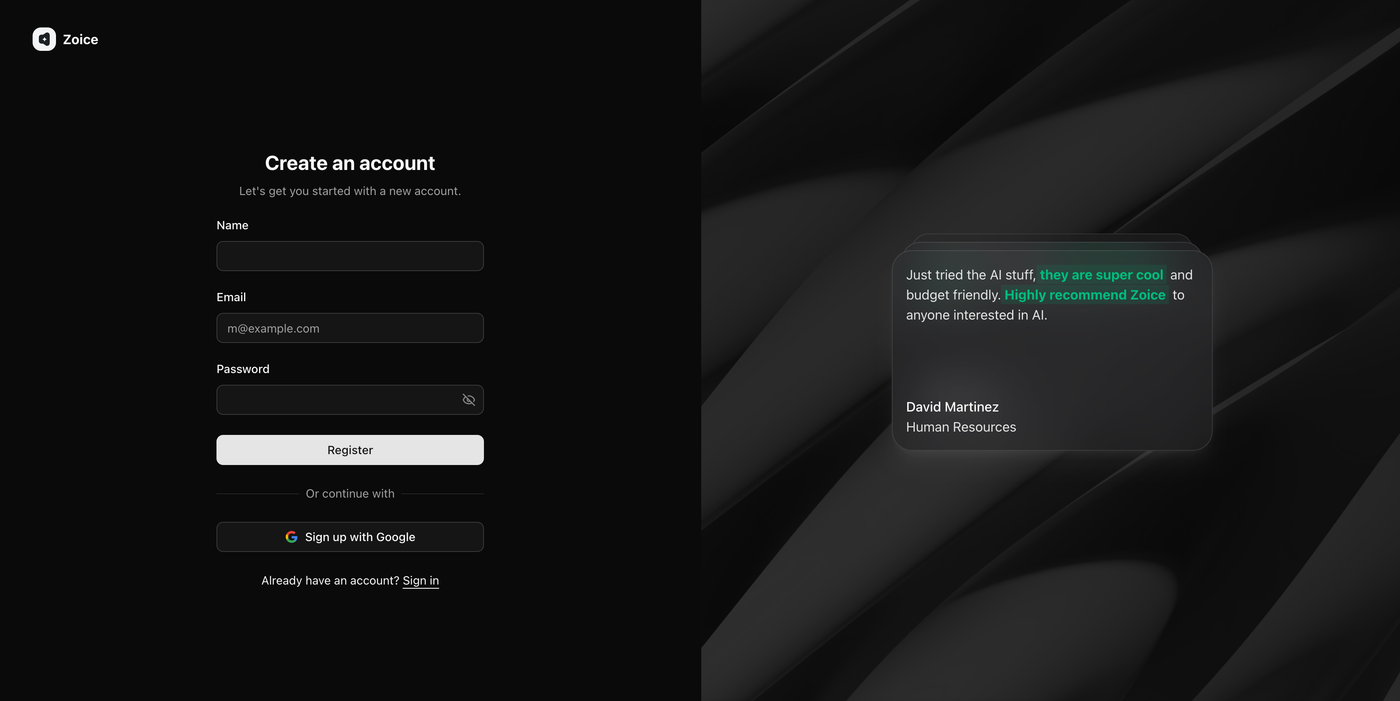 Enter the required details:
* Name
* Email address
* Password
You can also select **Sign up with Google** to quickly create your account. Once your account is created, you can access the Zoice dashboard and start creating AI podcast videos.
### Step 4: Navigate to Avatar Characters
After logging in, you will reach the Zoice dashboard. From the left sidebar, click **Avatar Characters** under the Manage section.
Enter the required details:
* Name
* Email address
* Password
You can also select **Sign up with Google** to quickly create your account. Once your account is created, you can access the Zoice dashboard and start creating AI podcast videos.
### Step 4: Navigate to Avatar Characters
After logging in, you will reach the Zoice dashboard. From the left sidebar, click **Avatar Characters** under the Manage section.
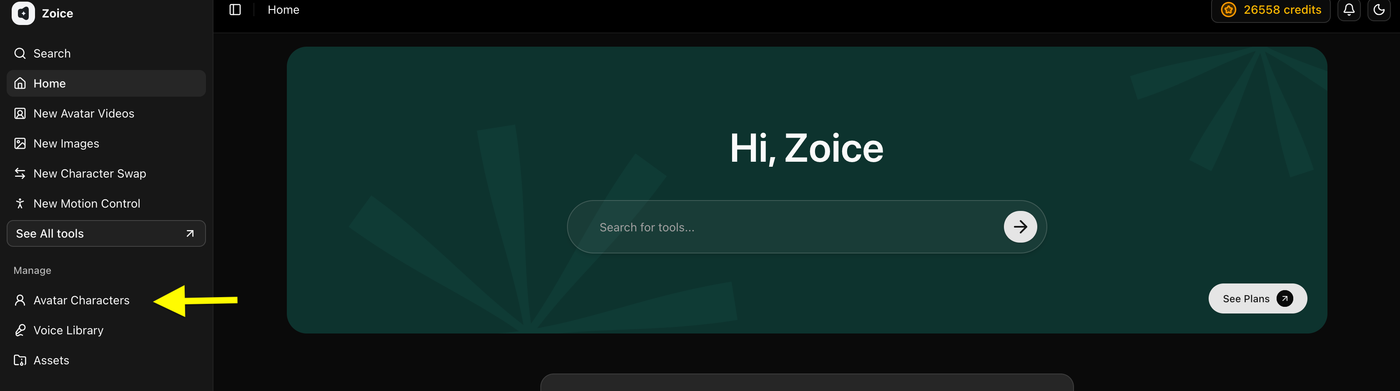 This section allows you to create, customize, and manage AI avatars that you can use for podcast hosting, storytelling, and other AI-generated video content.
### Step 5: Click Create New Avatar
On the Avatar Characters page, click the **Create New** button to start creating your custom AI podcast host.
This section allows you to create, customize, and manage AI avatars that you can use for podcast hosting, storytelling, and other AI-generated video content.
### Step 5: Click Create New Avatar
On the Avatar Characters page, click the **Create New** button to start creating your custom AI podcast host.
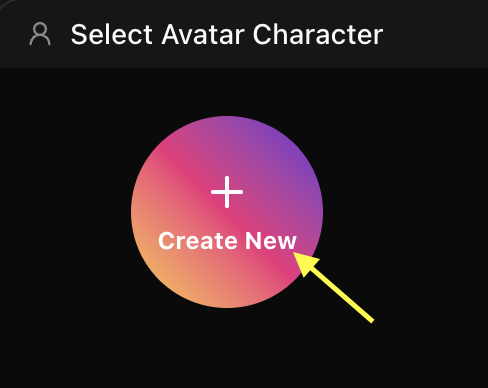 This will open the avatar creation page where you can create your avatar by uploading an image or generating one using an AI prompt.
### Step 6A: Create Your Avatar Using an Image (Skip to step 6B if you don't have an image)
Upload a clear, high-quality image of a host or presenter that you want to convert into an AI avatar. Add an avatar name so you can easily identify it later in your avatar library.
This will open the avatar creation page where you can create your avatar by uploading an image or generating one using an AI prompt.
### Step 6A: Create Your Avatar Using an Image (Skip to step 6B if you don't have an image)
Upload a clear, high-quality image of a host or presenter that you want to convert into an AI avatar. Add an avatar name so you can easily identify it later in your avatar library.
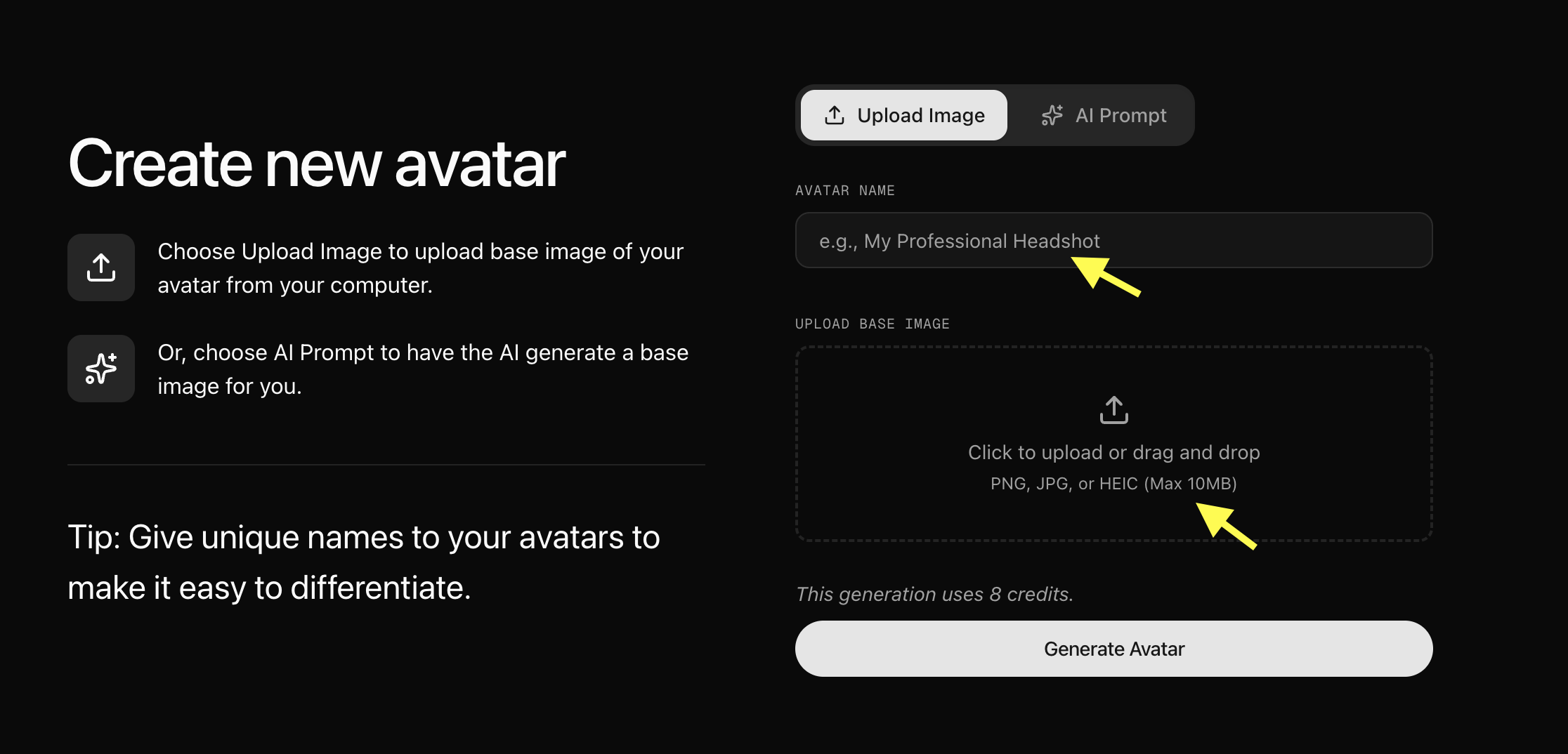 For better results, use an image with:
* Clear face visibility
* Good lighting
* Front-facing angle
* High image quality
### Step 6B: Generate Avatar Using AI Prompt (Skip if you uploaded an image)
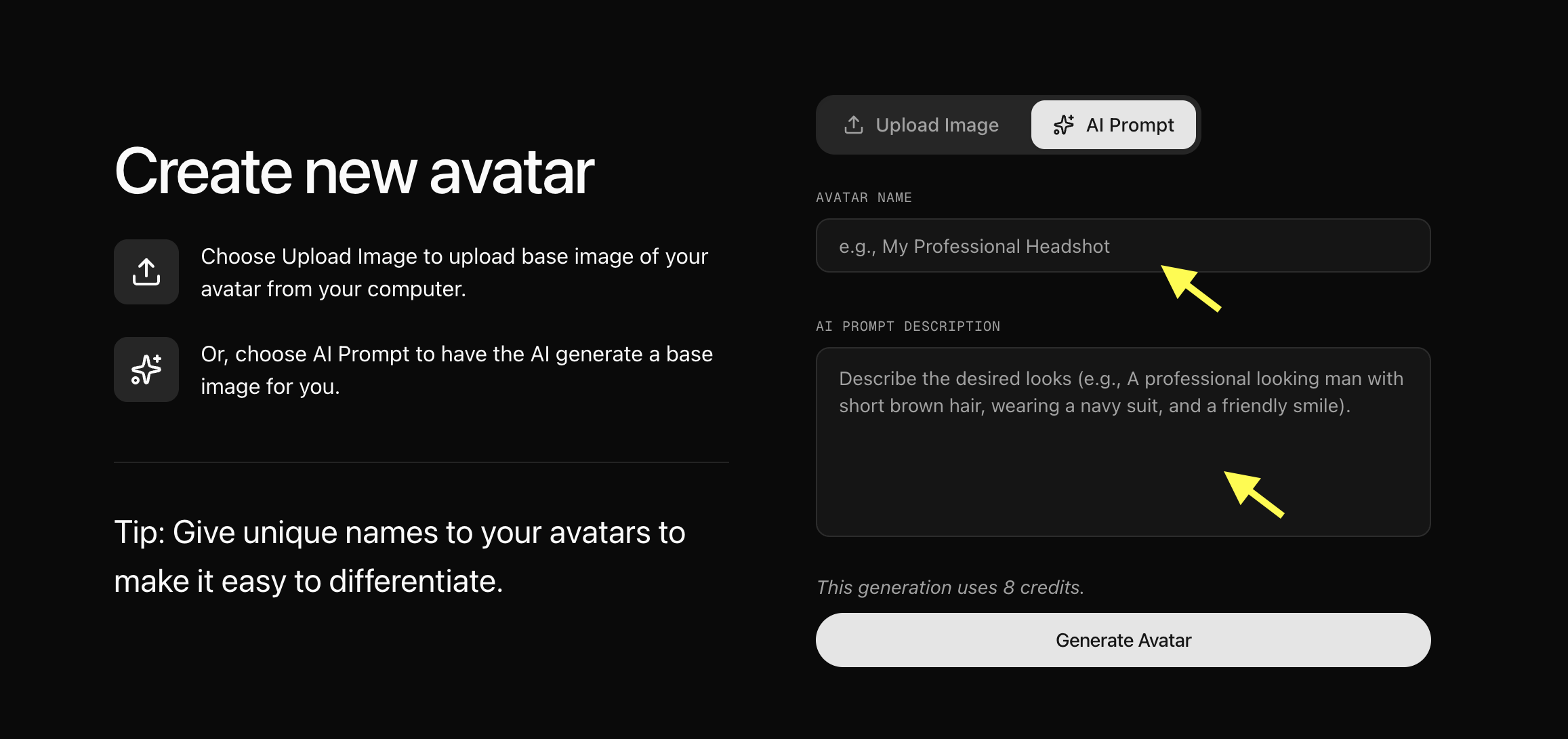
If you don't have an image, select the **AI Prompt** option to create an avatar using text description. Enter an Avatar Name, describe the type of podcast host you want (for example: *"A charismatic podcast host wearing headphones, sitting in a studio with a microphone, cinematic lighting"*), and click **Generate Image**. Once you are happy with the generated image, click **Generate Avatar**.
For better results, use an image with:
* Clear face visibility
* Good lighting
* Front-facing angle
* High image quality
### Step 6B: Generate Avatar Using AI Prompt (Skip if you uploaded an image)
If you don't have an image, select the **AI Prompt** option to create an avatar using text description. Enter an Avatar Name, describe the type of podcast host you want (for example: *"A charismatic podcast host wearing headphones, sitting in a studio with a microphone, cinematic lighting"*), and click **Generate Image**. Once you are happy with the generated image, click **Generate Avatar**.
 ### Step 7: Upload Your Avatar Image and Generate Avatar
Now upload the image you want to convert into your AI podcast host. Add a unique **Avatar Name** so you can easily find and manage your avatar later, and click **Generate Avatar**. Zoice will process your image and create your AI avatar profile.
### Step 7: Upload Your Avatar Image and Generate Avatar
Now upload the image you want to convert into your AI podcast host. Add a unique **Avatar Name** so you can easily find and manage your avatar later, and click **Generate Avatar**. Zoice will process your image and create your AI avatar profile.
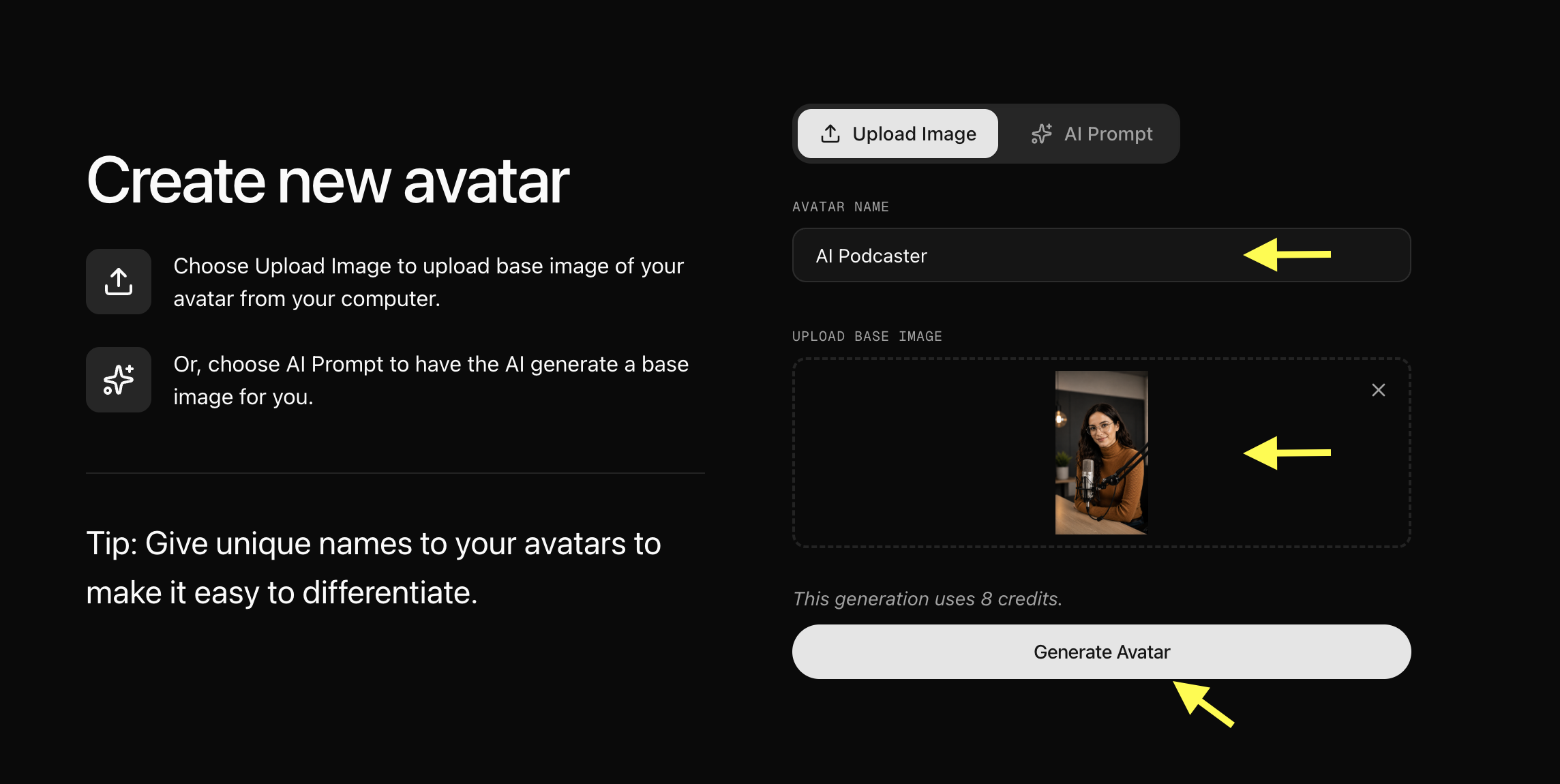 *Note: The images referenced are examples; your interface will reflect your uploaded image.*
### Step 8: Select Your Created Avatar
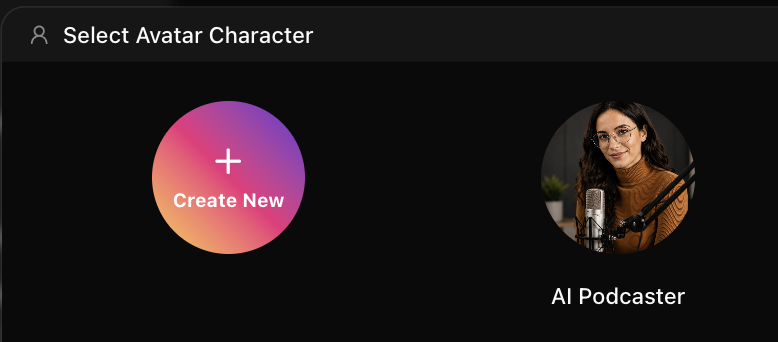
After your AI avatar profile is generated, go back to the Avatar Characters section. Your newly created avatar will appear in the avatar library. Click on the avatar you created to select it.
*Note: The images referenced are examples; your interface will reflect your uploaded image.*
### Step 8: Select Your Created Avatar
After your AI avatar profile is generated, go back to the Avatar Characters section. Your newly created avatar will appear in the avatar library. Click on the avatar you created to select it.
 ### Step 9: Go to Avatar settings
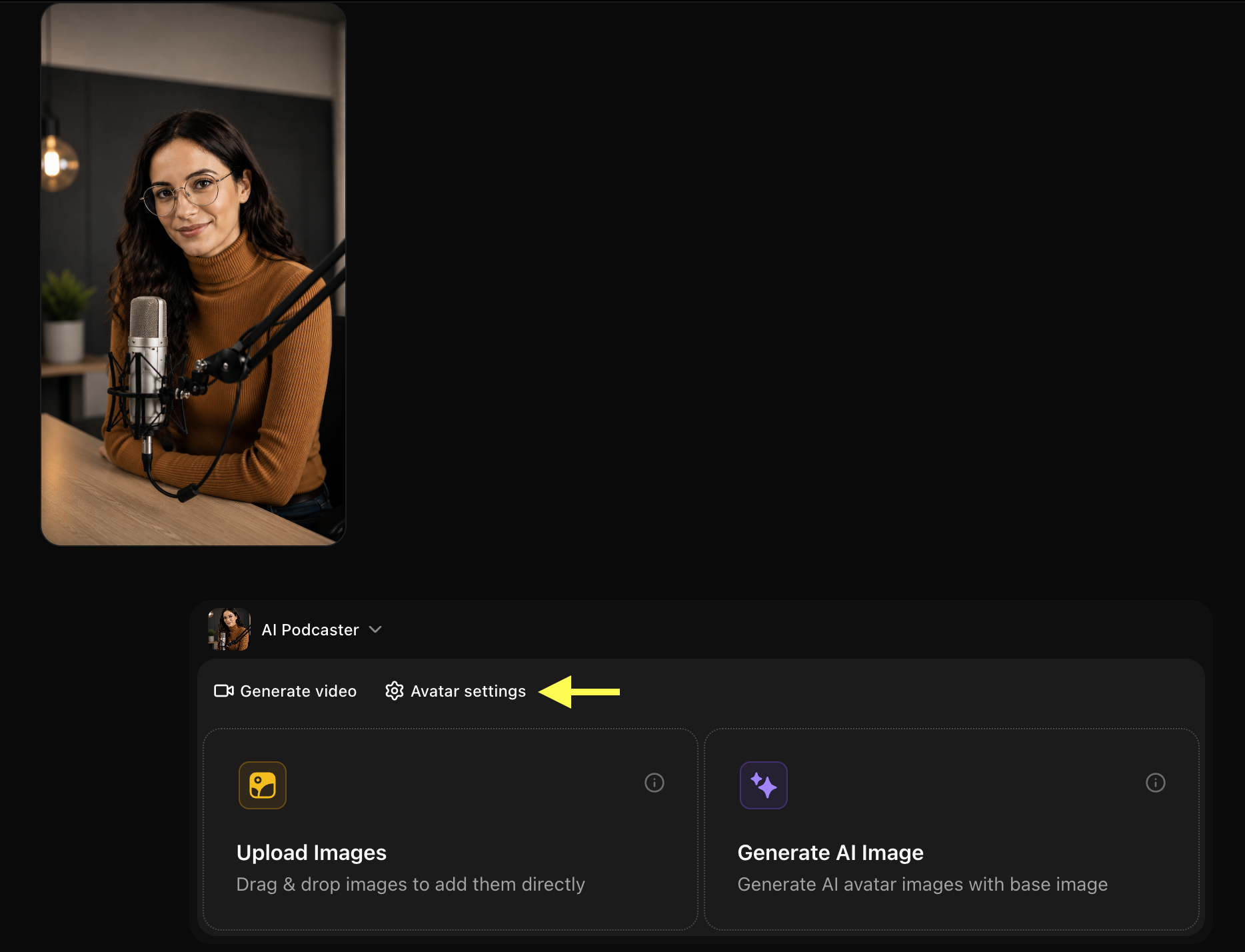
Click on Avatar Setting to add the deatails about the AI Podcaster, like Gender, Ethnicity, Age, Voice and Accent.
### Step 9: Go to Avatar settings
Click on Avatar Setting to add the deatails about the AI Podcaster, like Gender, Ethnicity, Age, Voice and Accent.
 ### Step 10: Click Generate Video
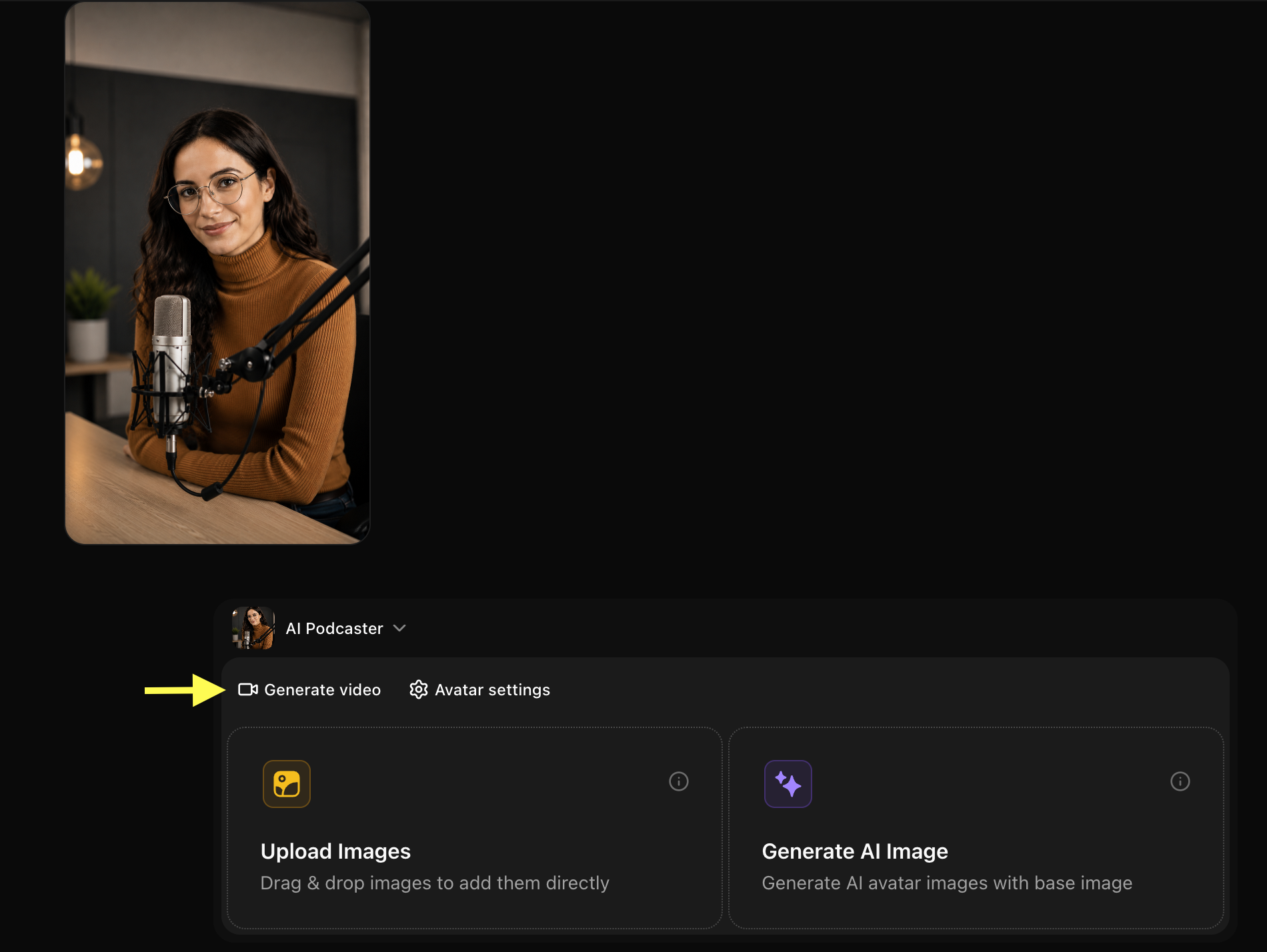
After selecting the avatar you want to use for your podcast from the library, click **Generate Video** to open the video creation workspace page.
### Step 10: Click Generate Video
After selecting the avatar you want to use for your podcast from the library, click **Generate Video** to open the video creation workspace page.
 ### Step 11: Add Script and Configure Video Settings
After opening the avatar video creator, you can customize your video by entering a script, selecting a voice, choosing the output format, and adding an action prompt.
### Step 11: Add Script and Configure Video Settings
After opening the avatar video creator, you can customize your video by entering a script, selecting a voice, choosing the output format, and adding an action prompt.
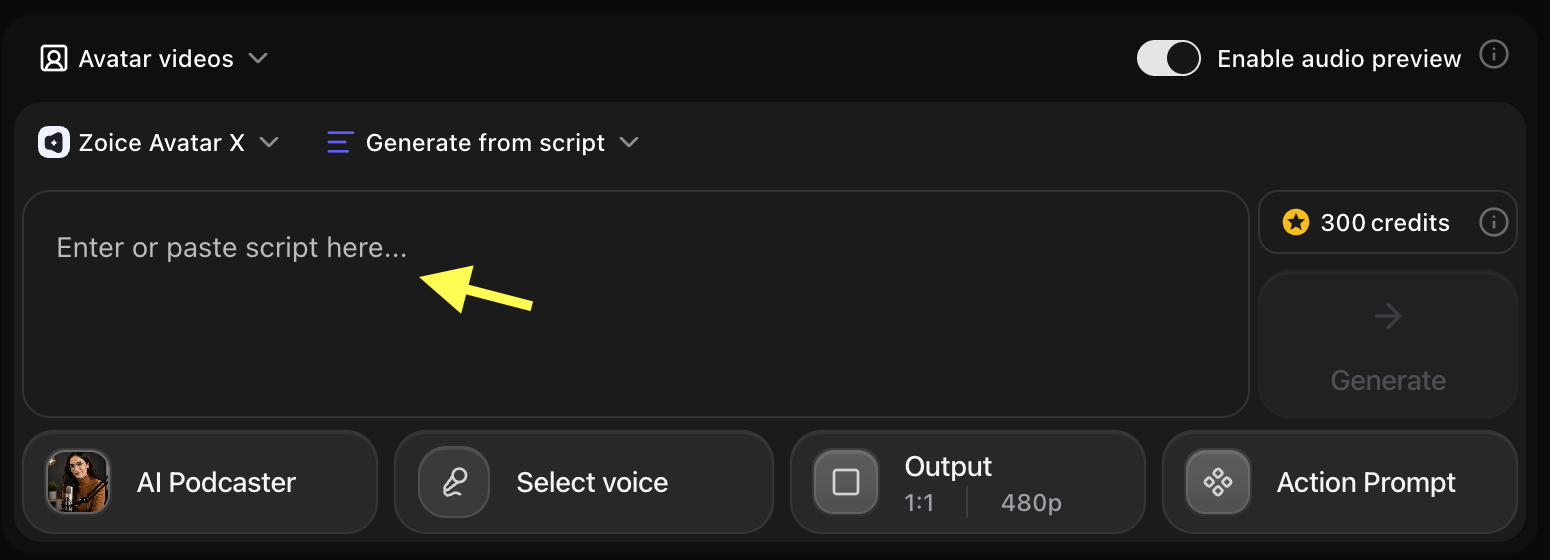 ### Step 12: Add Your Script and Choose Voice Model
Click on the script box. A popup window will appear where you can write the detailed script. Add the script that your AI podcast host will speak in the episode. Choose the Voice Model from right dropdown, and click on Add Script.
### Step 12: Add Your Script and Choose Voice Model
Click on the script box. A popup window will appear where you can write the detailed script. Add the script that your AI podcast host will speak in the episode. Choose the Voice Model from right dropdown, and click on Add Script.
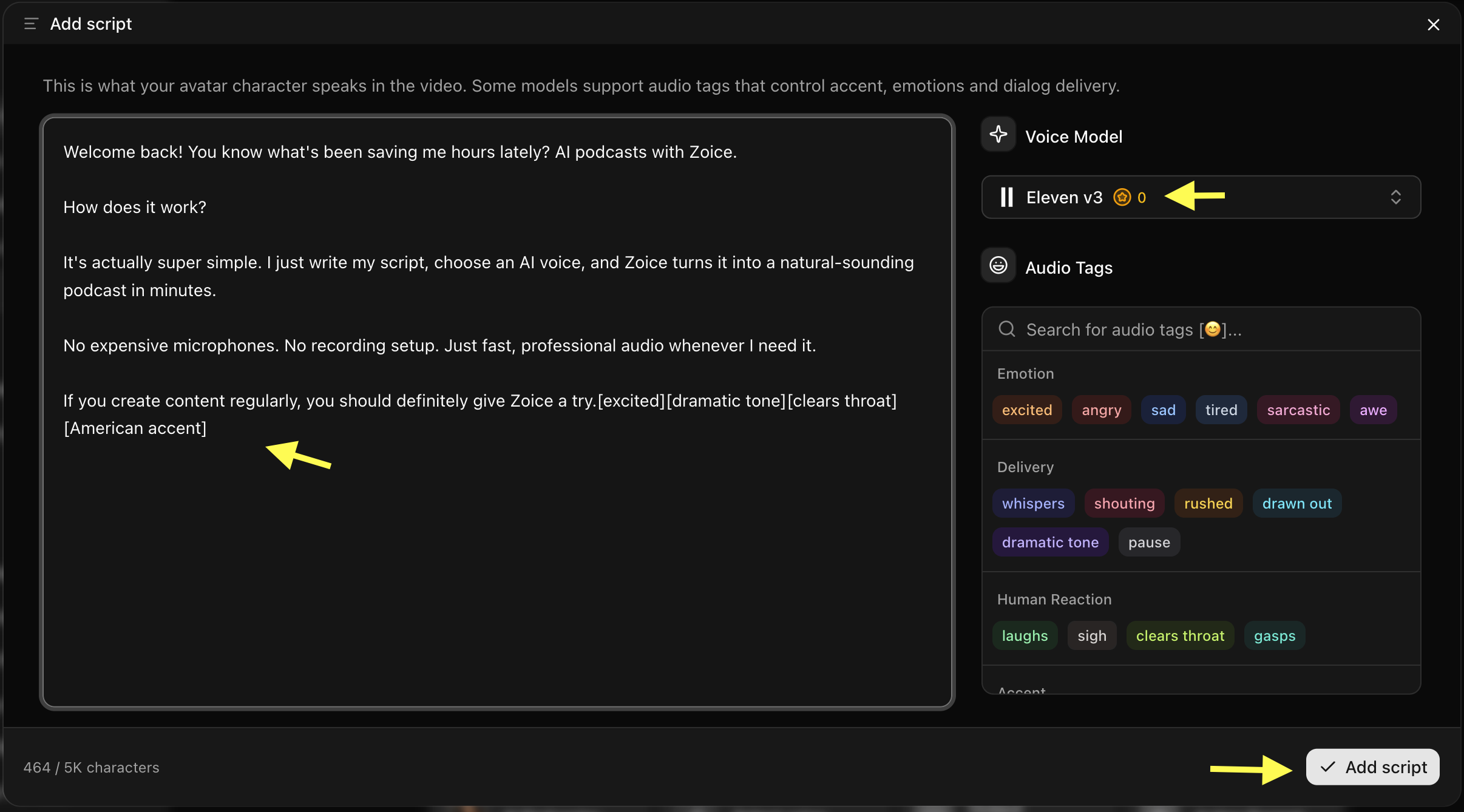 *Tip: For podcasts, keep the script conversational and engaging. Use natural language as if speaking directly to a listener.*
### Step 13: Click on Select Voice
Click on the **Select Voice** option. You can browse through the available public voices, listen to voice previews, or upload your own voice. Select a dynamic, clear AI voice model that matches your podcast's tone.
*Tip: For podcasts, keep the script conversational and engaging. Use natural language as if speaking directly to a listener.*
### Step 13: Click on Select Voice
Click on the **Select Voice** option. You can browse through the available public voices, listen to voice previews, or upload your own voice. Select a dynamic, clear AI voice model that matches your podcast's tone.
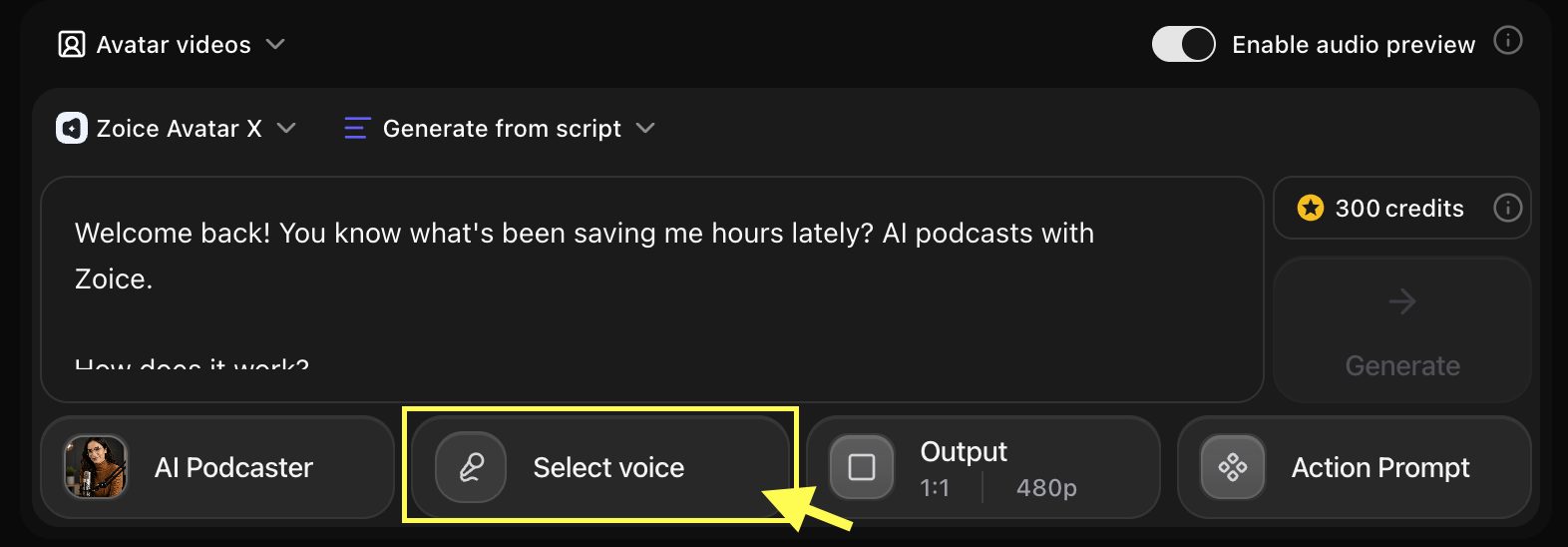 * **Choose the Voice for your AI podcast host**
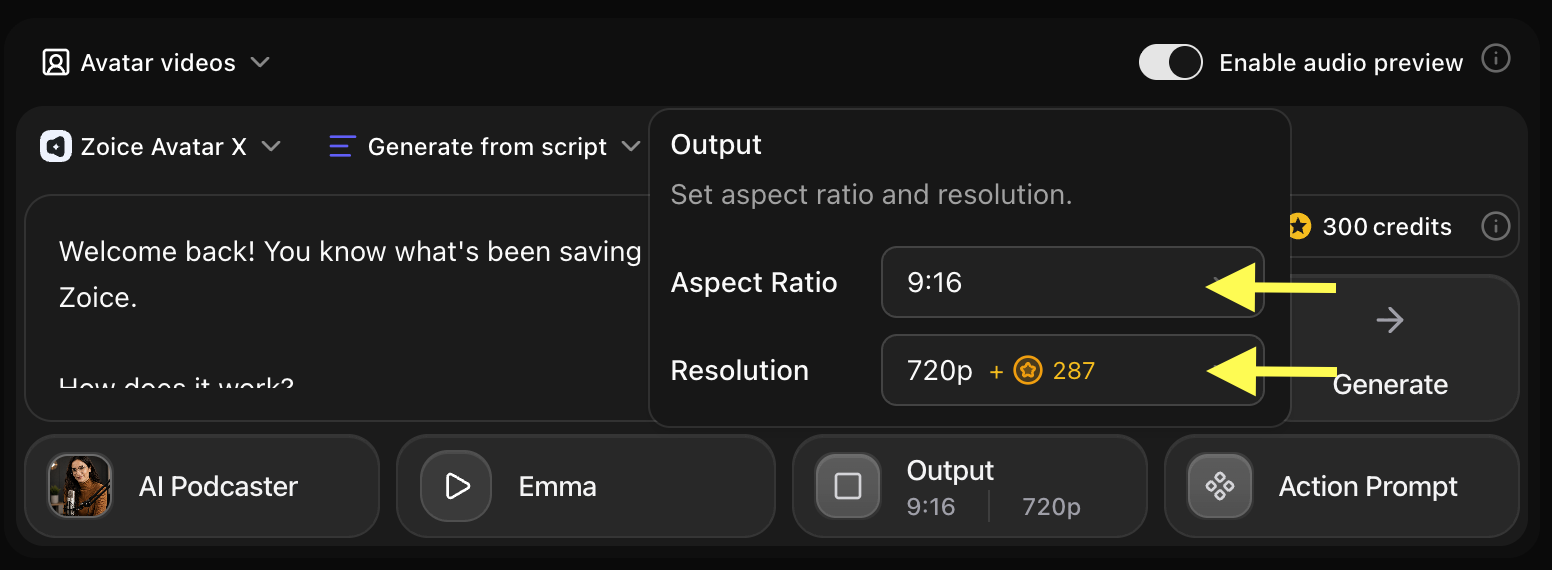
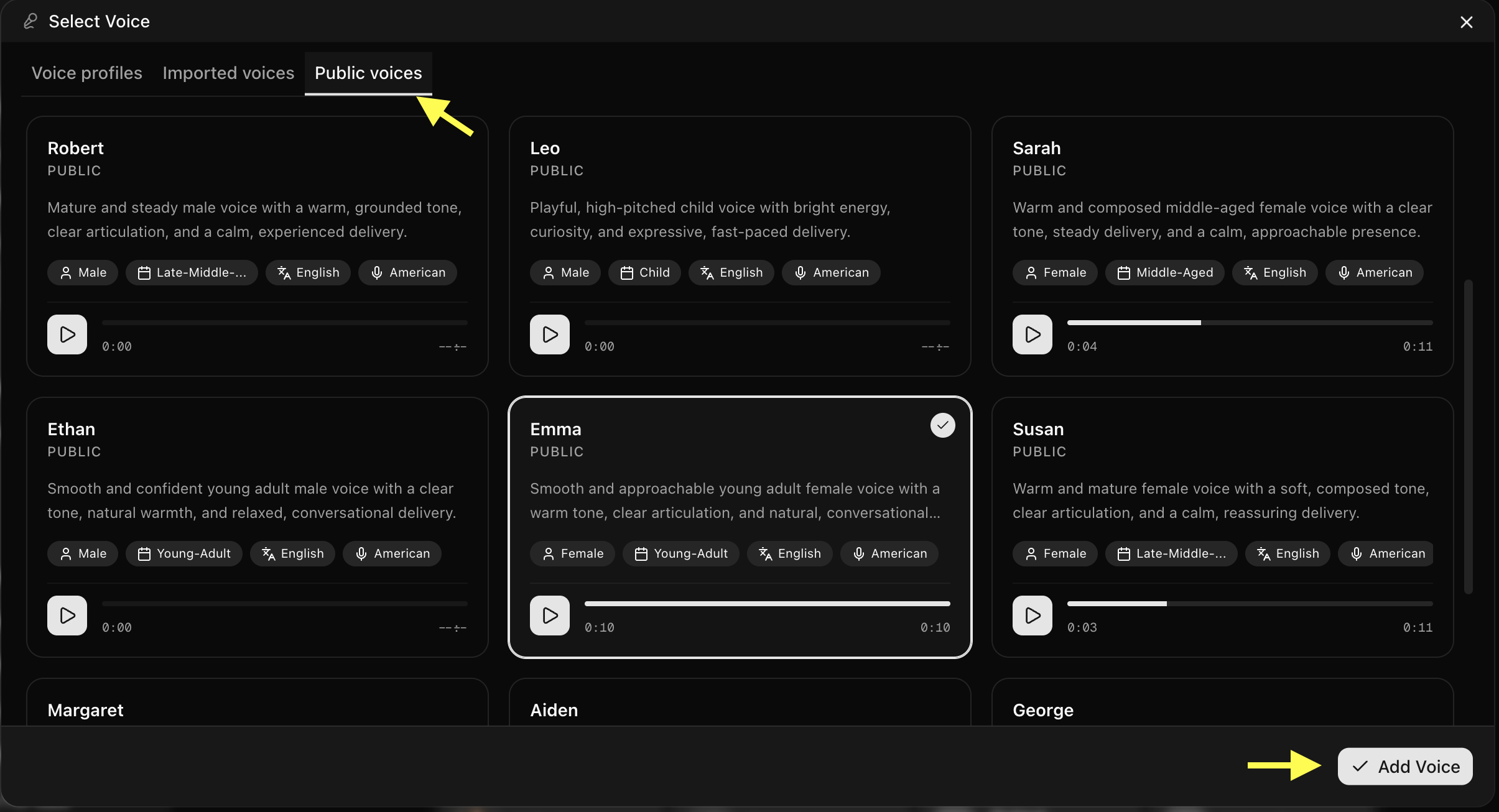 ### Step 14: Choose Video Output Settings
Click on **Output Settings**. Choose the aspect ratio and resolution based on where you want to publish your podcast video:
* **Aspect Ratio:** 16:9 for YouTube videos/website embeds, or 9:16 for YouTube Shorts, Instagram Reels, and TikTok clips.
* **Resolution:** Select 1080p or up to 4K for high-quality professional output.
### Step 14: Choose Video Output Settings
Click on **Output Settings**. Choose the aspect ratio and resolution based on where you want to publish your podcast video:
* **Aspect Ratio:** 16:9 for YouTube videos/website embeds, or 9:16 for YouTube Shorts, Instagram Reels, and TikTok clips.
* **Resolution:** Select 1080p or up to 4K for high-quality professional output.
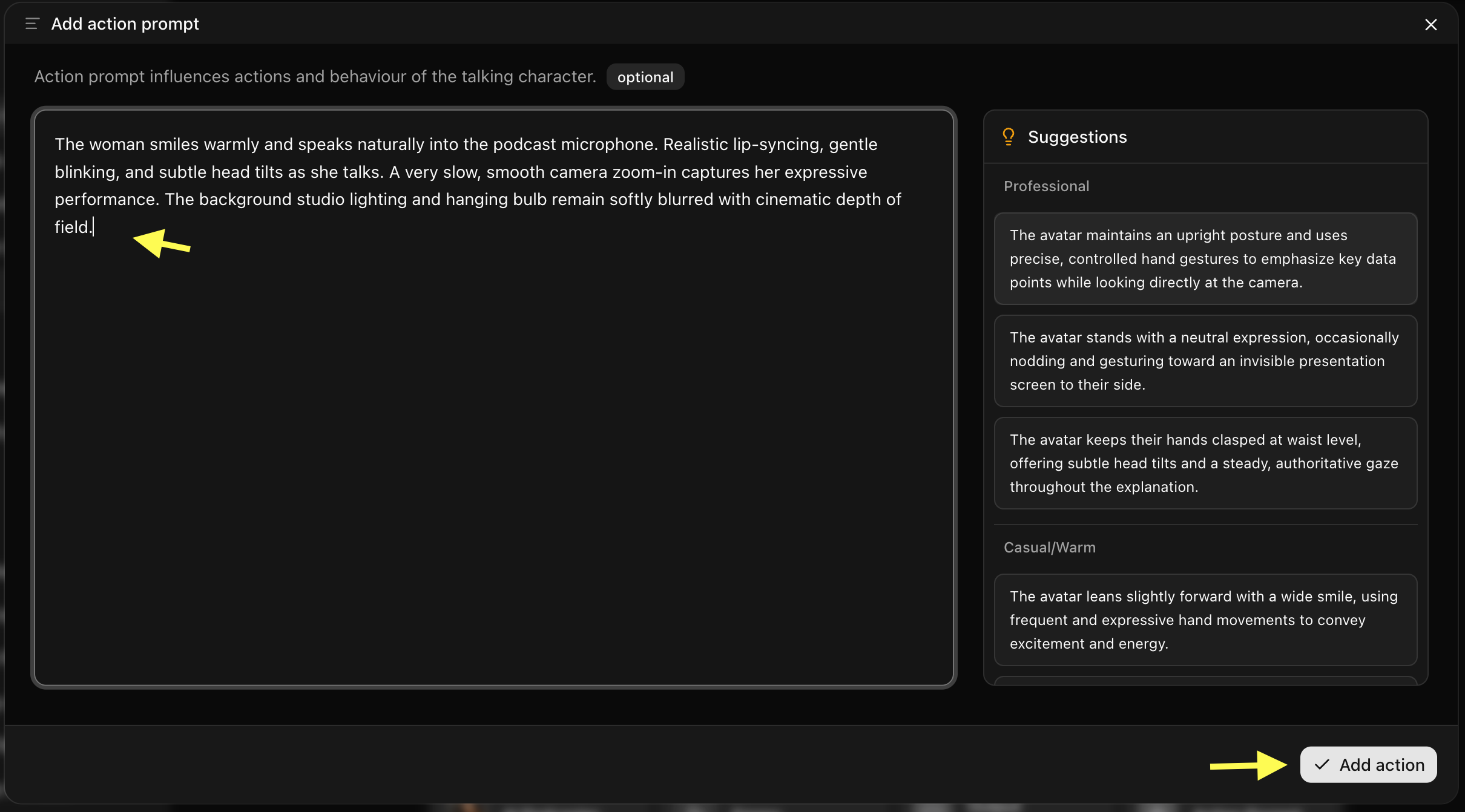
 ### Step 15: Add Action Prompt
Click on **Action Prompt** to control how your AI avatar behaves during the video. You can write your own instructions or select suggested action styles (such as: *"enthusiastic expression, natural hand gestures, leaning slightly forward to engage the audience"*).
### Step 15: Add Action Prompt
Click on **Action Prompt** to control how your AI avatar behaves during the video. You can write your own instructions or select suggested action styles (such as: *"enthusiastic expression, natural hand gestures, leaning slightly forward to engage the audience"*).
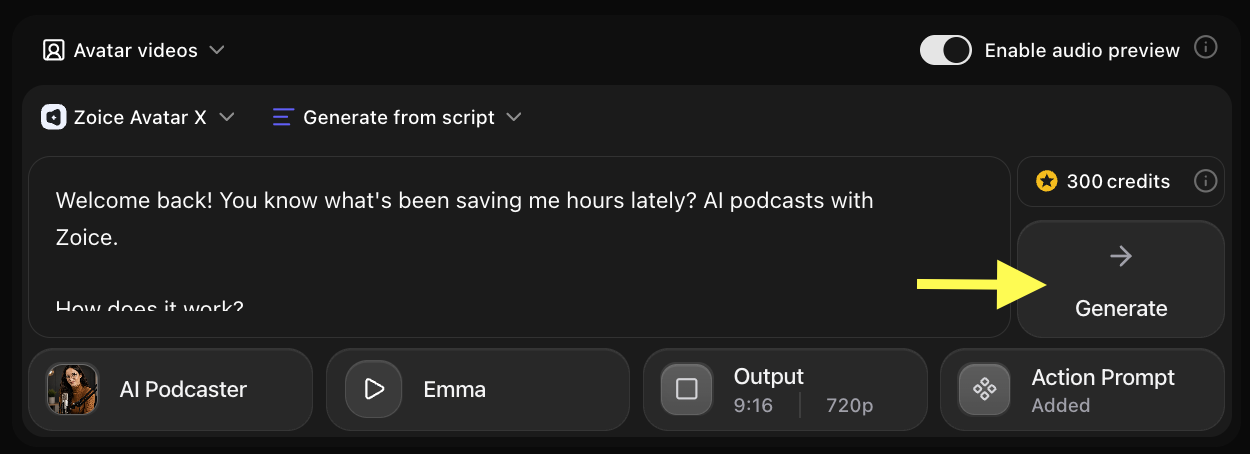
 ### Step 16: Generate Your AI Podcast Video
After setting up the script, voice, output settings, and action prompt, review all your configuration options. Click **Generate** to start processing your AI podcast video.
### Step 16: Generate Your AI Podcast Video
After setting up the script, voice, output settings, and action prompt, review all your configuration options. Click **Generate** to start processing your AI podcast video.
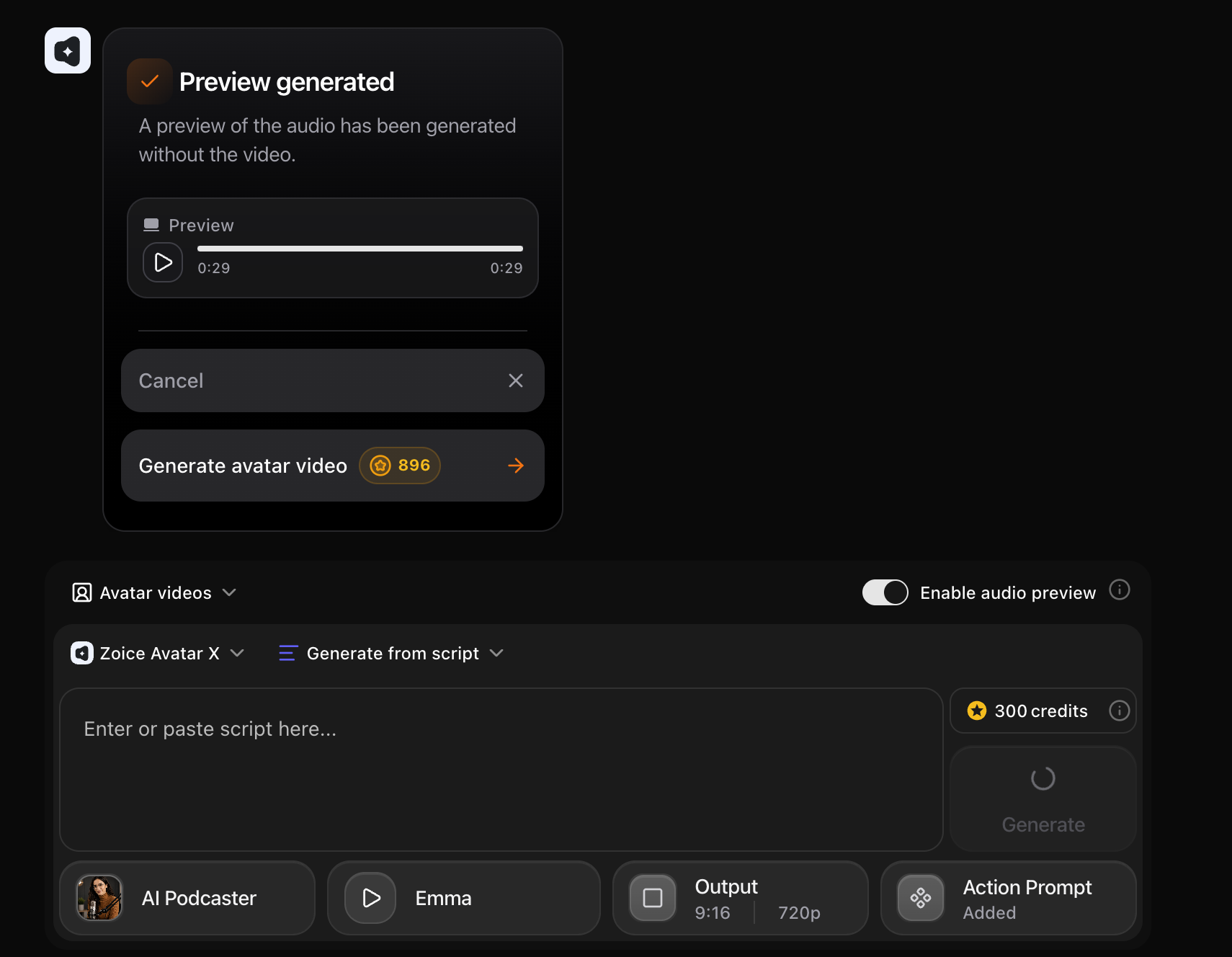
 ### Step 17: Preview Audio and Click on Generate Avatar Video
Before generating the final video, Zoice creates an audio preview so you can verify how your script sounds. Check pronunciation, clarity, and pacing. If everything sounds correct, click **Generate Avatar Video** to create the final talking video.
### Step 17: Preview Audio and Click on Generate Avatar Video
Before generating the final video, Zoice creates an audio preview so you can verify how your script sounds. Check pronunciation, clarity, and pacing. If everything sounds correct, click **Generate Avatar Video** to create the final talking video.
 ### Step 18: Preview and Download Your AI Podcast Video
Once the AI avatar video finishes processing, play the final result to check the avatar movements, voice synchronization, and video quality.
### Step 18: Preview and Download Your AI Podcast Video
Once the AI avatar video finishes processing, play the final result to check the avatar movements, voice synchronization, and video quality.
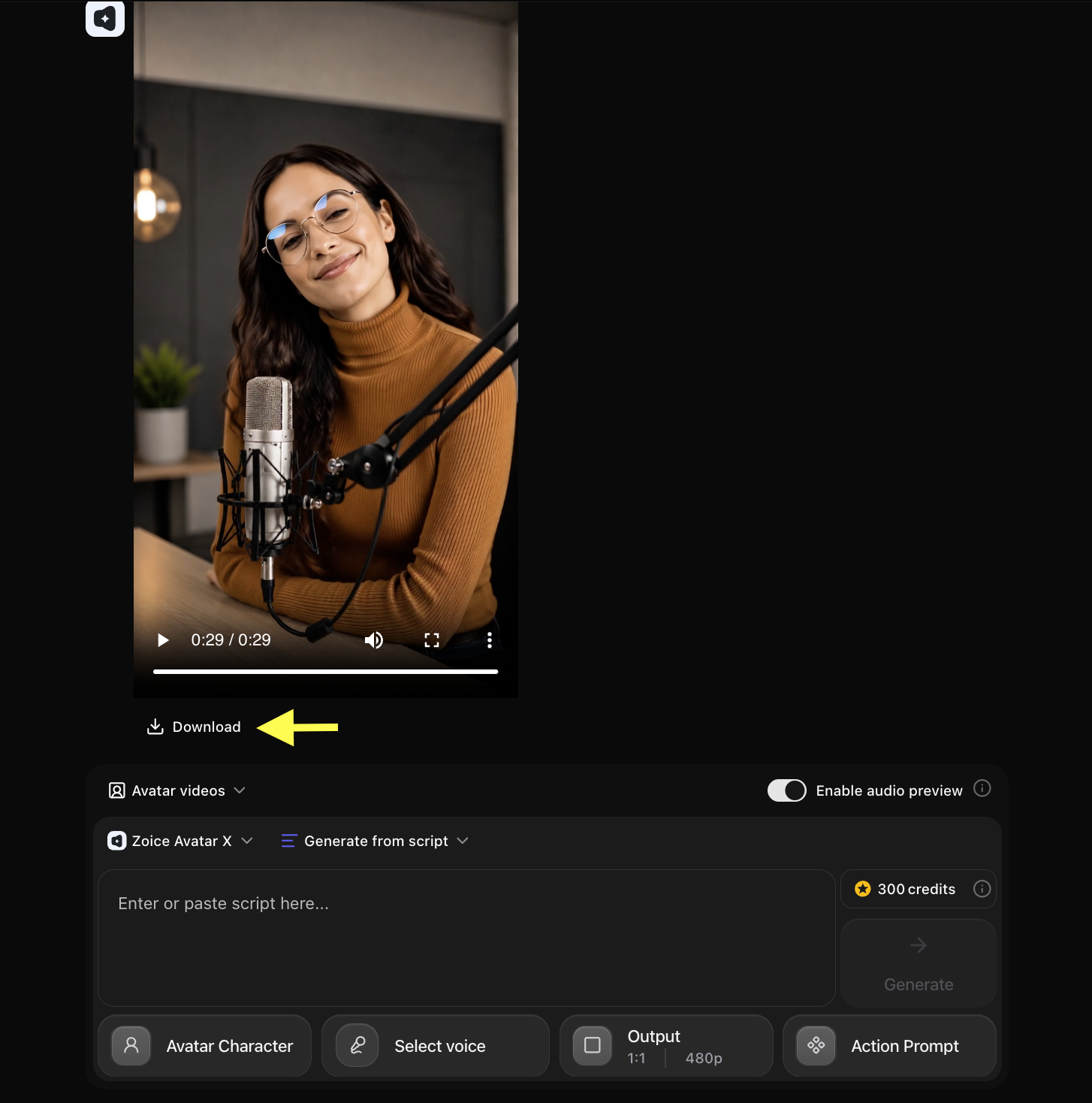 If you are satisfied, click **Download** to save the video to your device. Your AI podcast video is now ready to use for your next episode, promotional clips, or social media teasers!
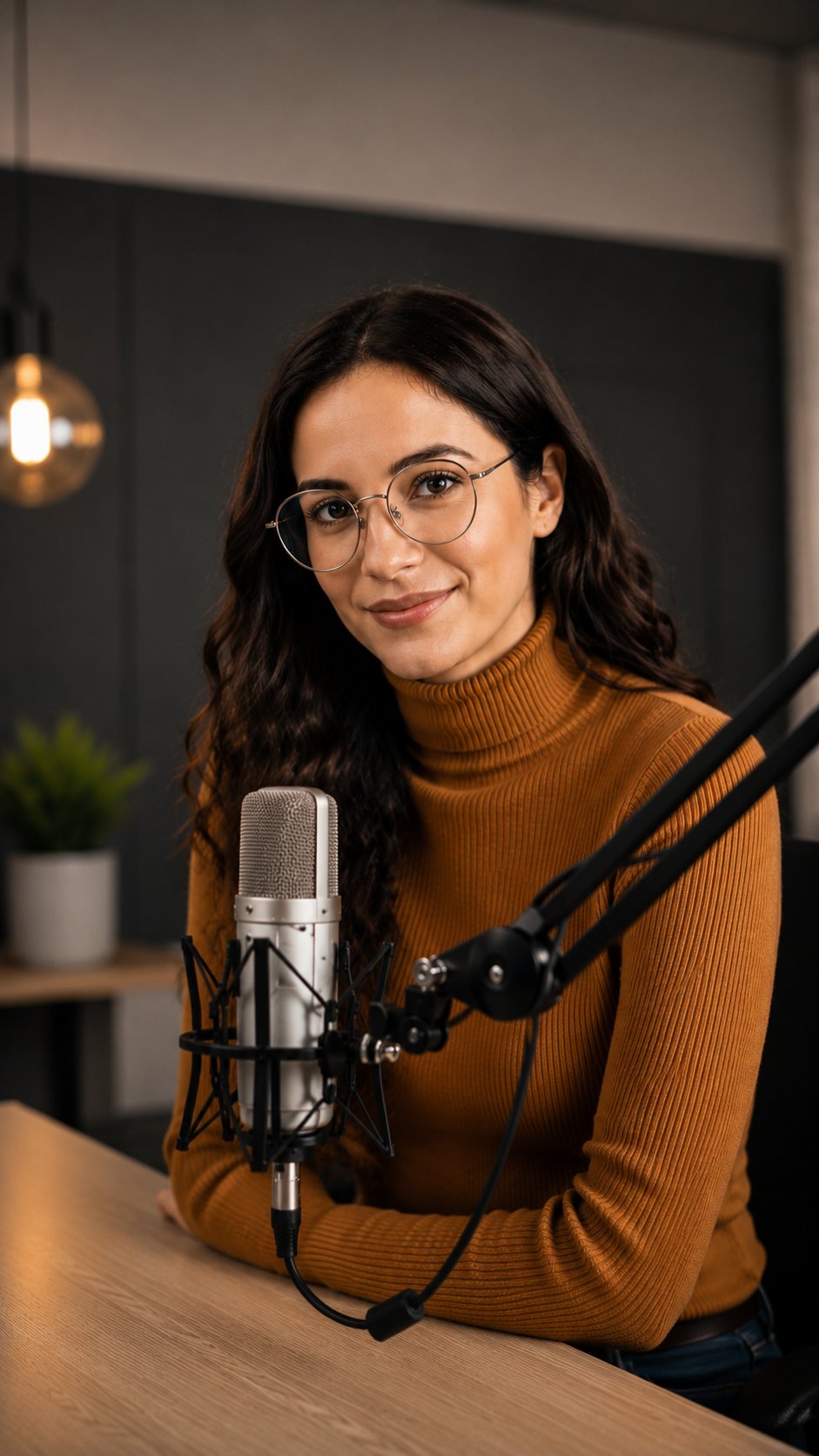
## Example Input Image, Script, Action Prompt & Output Video
To help you get started, here is an example of an input image, script, action prompt, and generated AI podcast video.
### Used Image
If you are satisfied, click **Download** to save the video to your device. Your AI podcast video is now ready to use for your next episode, promotional clips, or social media teasers!
## Example Input Image, Script, Action Prompt & Output Video
To help you get started, here is an example of an input image, script, action prompt, and generated AI podcast video.
### Used Image
 ### Used Script
```
Welcome back! You know what's been saving me hours lately? AI podcasts with Zoice.
How does it work?
It's actually super simple. I just write my script, choose an AI voice, and Zoice turns it into a natural-sounding podcast in minutes.
No expensive microphones. No recording setup. Just fast, professional audio whenever I need it.
If you create content regularly, you should definitely give Zoice a try.
```
### Used Action Prompt
```
The woman smiles warmly and speaks naturally into the podcast microphone. Realistic lip-syncing, gentle blinking, and subtle head tilts as she talks. A very slow, smooth camera zoom-in captures her expressive performance. The background studio lighting and hanging bulb remain softly blurred with cinematic depth of field.
```
### Output Result Video
Below is the rendered AI podcast video based on the input script:
## Tips for Creating Better AI Podcast Videos
* **Write Conversational Scripts:** Write the way you speak, not the way you write for an essay. Use contractions and casual transitions.
* **Choose an Engaging Avatar:** Pick an avatar image that fits your podcast's genre—professional for business, casual for pop culture, or themed for specialized topics.
* **Use Pauses:** Add natural pauses in your script using punctuation to give the audience time to absorb the information.
* **Select a Dynamic Voice:** The voice is crucial in a podcast. Pick one that has natural intonation and sounds engaging rather than monotonous.
* **Add Captions:** Many viewers watch videos on mute on social media. Adding captions ensures your message gets across regardless.
## AI Podcast Videos Can Be Used For
* Full-length podcast episodes on YouTube
* Short promotional clips for social media (TikTok, Reels, Shorts)
* News and daily update briefings
* Educational series and tutorials
* Storytelling and narrative fiction series
* Business insights and market updates
* Interview-style content (using multiple avatars)
## Where AI Podcast Videos Are Used
* YouTube and video streaming platforms
* Spotify (Video Podcasts)
* Social media platforms (Instagram, TikTok, LinkedIn, Facebook)
* Company websites and landing pages
* E-learning and course platforms
* Newsletters and email marketing campaigns
## Final Words
Creating AI podcast videos with Zoice is a fast and simple process. By setting up your host avatar and uploading your script, you can generate engaging episodes in minutes.
Whether you want to build a new audience, share your expertise, or scale your content production, AI avatars help you produce professional-quality podcast videos without cameras, microphones, or recording studios.
## Next Steps
Create engaging AI astrologer videos with personalized horoscope content.
Add a visual element to your audio by creating a singing AI avatar presenter.
### Used Script
```
Welcome back! You know what's been saving me hours lately? AI podcasts with Zoice.
How does it work?
It's actually super simple. I just write my script, choose an AI voice, and Zoice turns it into a natural-sounding podcast in minutes.
No expensive microphones. No recording setup. Just fast, professional audio whenever I need it.
If you create content regularly, you should definitely give Zoice a try.
```
### Used Action Prompt
```
The woman smiles warmly and speaks naturally into the podcast microphone. Realistic lip-syncing, gentle blinking, and subtle head tilts as she talks. A very slow, smooth camera zoom-in captures her expressive performance. The background studio lighting and hanging bulb remain softly blurred with cinematic depth of field.
```
### Output Result Video
Below is the rendered AI podcast video based on the input script:
## Tips for Creating Better AI Podcast Videos
* **Write Conversational Scripts:** Write the way you speak, not the way you write for an essay. Use contractions and casual transitions.
* **Choose an Engaging Avatar:** Pick an avatar image that fits your podcast's genre—professional for business, casual for pop culture, or themed for specialized topics.
* **Use Pauses:** Add natural pauses in your script using punctuation to give the audience time to absorb the information.
* **Select a Dynamic Voice:** The voice is crucial in a podcast. Pick one that has natural intonation and sounds engaging rather than monotonous.
* **Add Captions:** Many viewers watch videos on mute on social media. Adding captions ensures your message gets across regardless.
## AI Podcast Videos Can Be Used For
* Full-length podcast episodes on YouTube
* Short promotional clips for social media (TikTok, Reels, Shorts)
* News and daily update briefings
* Educational series and tutorials
* Storytelling and narrative fiction series
* Business insights and market updates
* Interview-style content (using multiple avatars)
## Where AI Podcast Videos Are Used
* YouTube and video streaming platforms
* Spotify (Video Podcasts)
* Social media platforms (Instagram, TikTok, LinkedIn, Facebook)
* Company websites and landing pages
* E-learning and course platforms
* Newsletters and email marketing campaigns
## Final Words
Creating AI podcast videos with Zoice is a fast and simple process. By setting up your host avatar and uploading your script, you can generate engaging episodes in minutes.
Whether you want to build a new audience, share your expertise, or scale your content production, AI avatars help you produce professional-quality podcast videos without cameras, microphones, or recording studios.
## Next Steps
Create engaging AI astrologer videos with personalized horoscope content.
Add a visual element to your audio by creating a singing AI avatar presenter.