> ## Documentation Index
> Fetch the complete documentation index at: https://docs.zoice.com/llms.txt
> Use this file to discover all available pages before exploring further.
# How to Bring Old Photos to Life
> Learn how to bring old photos to life using Zoice. Transform vintage black-and-white family portraits into realistic talking AI videos with text-to-speech and facial expressions.
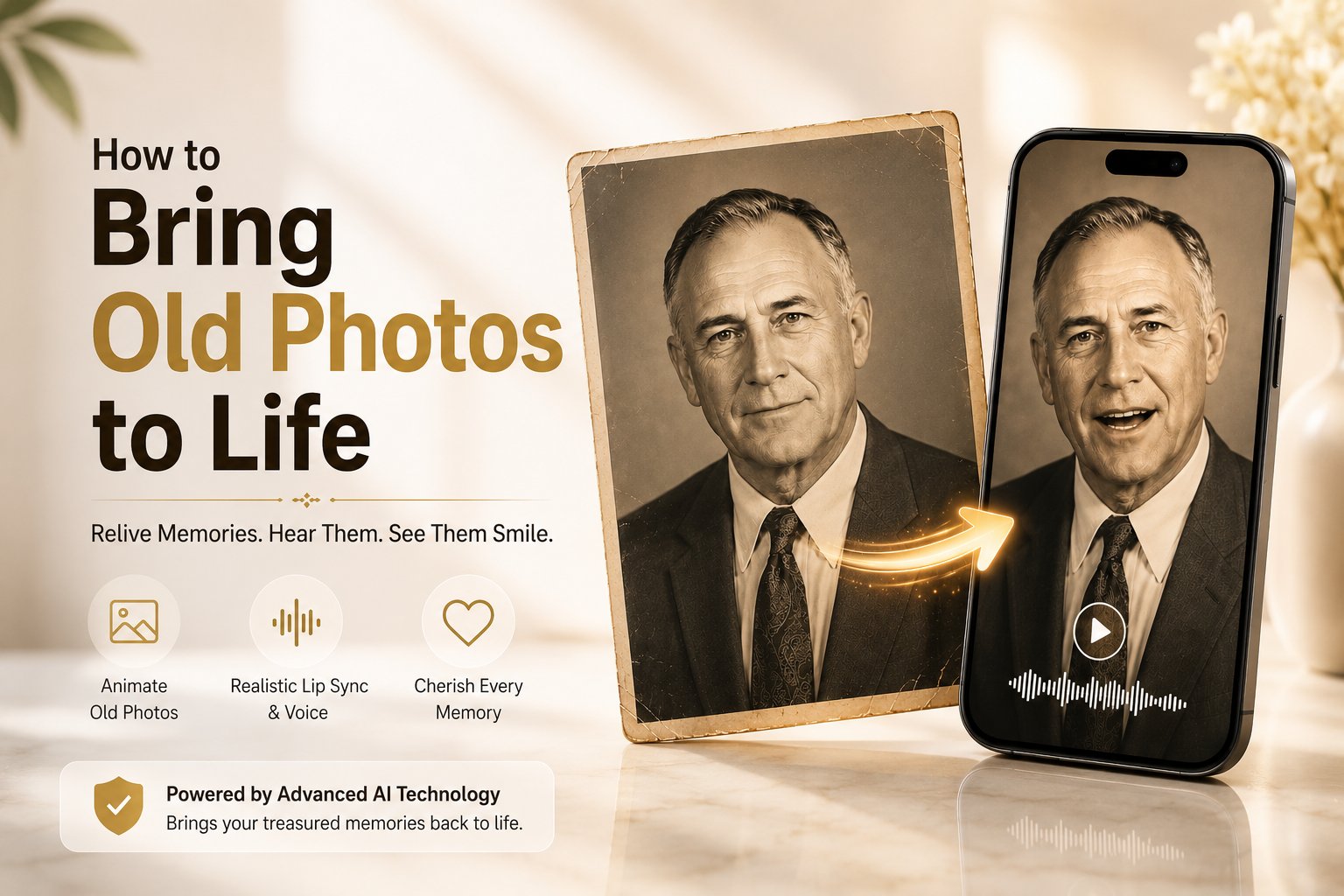 Preserving heritage and family history has entered the digital age. Instead of letting vintage family albums sit on shelves collecting dust, you can now bring old photos to life using modern artificial intelligence. By animating old portraits with natural facial movements and customized speech, you can create engaging historical archives and touching family tributes.
With Zoice, you don't need complex rigging tools or video editing experience. You simply upload a vintage photo, input the text you want the subject to say, and choose an AI voice model. The platform automatically animates the lips, eyes, and head movements to match the speech perfectly.
In this article, you will learn how to bring old photos to life using Zoice by following a complete, step-by-step process.
## What Does Animate Old Photos Mean?
Animating old photos means taking a static, historic portrait and using neural networks to generate a realistic video representation. The AI model analyzes the positioning of eyes, nose, cheeks, and lips in the vintage photograph, generating natural blinking, sways, and lip-syncing that matches a typed script.
This technology allows you to hear ancestors tell their own stories, recite family histories, or present historical timelines in a highly immersive format.
## How to Bring Old Photos to Life Using Zoice
Converting a vintage portrait into a talking video takes only a few minutes. Follow the detailed steps below to get started.
### Step 1: Open the Zoice Homepage
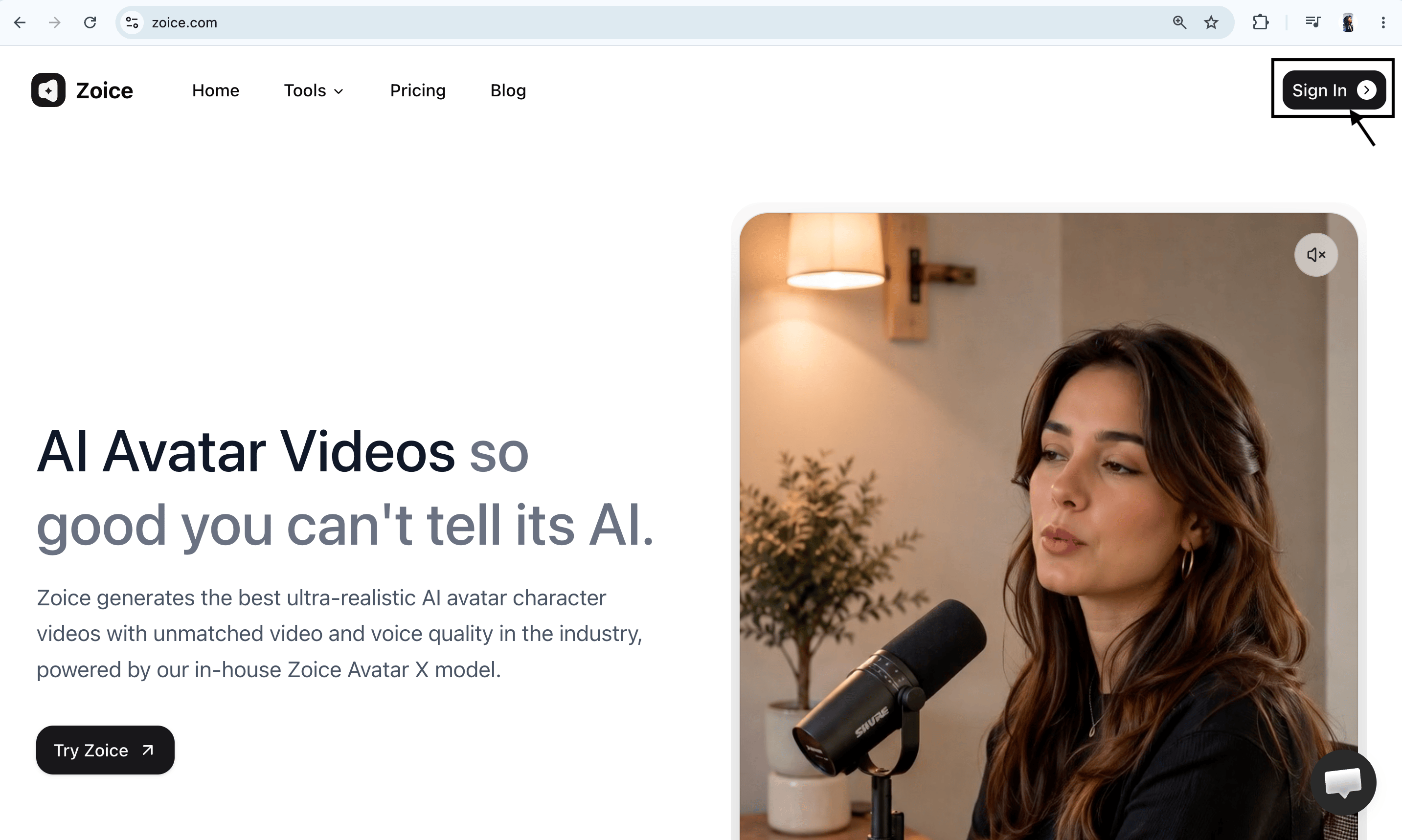
Launch your web browser, navigate to [Zoice.com](https://zoice.com), and click **Sign In** in the top-right corner.
Preserving heritage and family history has entered the digital age. Instead of letting vintage family albums sit on shelves collecting dust, you can now bring old photos to life using modern artificial intelligence. By animating old portraits with natural facial movements and customized speech, you can create engaging historical archives and touching family tributes.
With Zoice, you don't need complex rigging tools or video editing experience. You simply upload a vintage photo, input the text you want the subject to say, and choose an AI voice model. The platform automatically animates the lips, eyes, and head movements to match the speech perfectly.
In this article, you will learn how to bring old photos to life using Zoice by following a complete, step-by-step process.
## What Does Animate Old Photos Mean?
Animating old photos means taking a static, historic portrait and using neural networks to generate a realistic video representation. The AI model analyzes the positioning of eyes, nose, cheeks, and lips in the vintage photograph, generating natural blinking, sways, and lip-syncing that matches a typed script.
This technology allows you to hear ancestors tell their own stories, recite family histories, or present historical timelines in a highly immersive format.
## How to Bring Old Photos to Life Using Zoice
Converting a vintage portrait into a talking video takes only a few minutes. Follow the detailed steps below to get started.
### Step 1: Open the Zoice Homepage
Launch your web browser, navigate to [Zoice.com](https://zoice.com), and click **Sign In** in the top-right corner.
 ### Step 2: Sign In to Your Dashboard Account
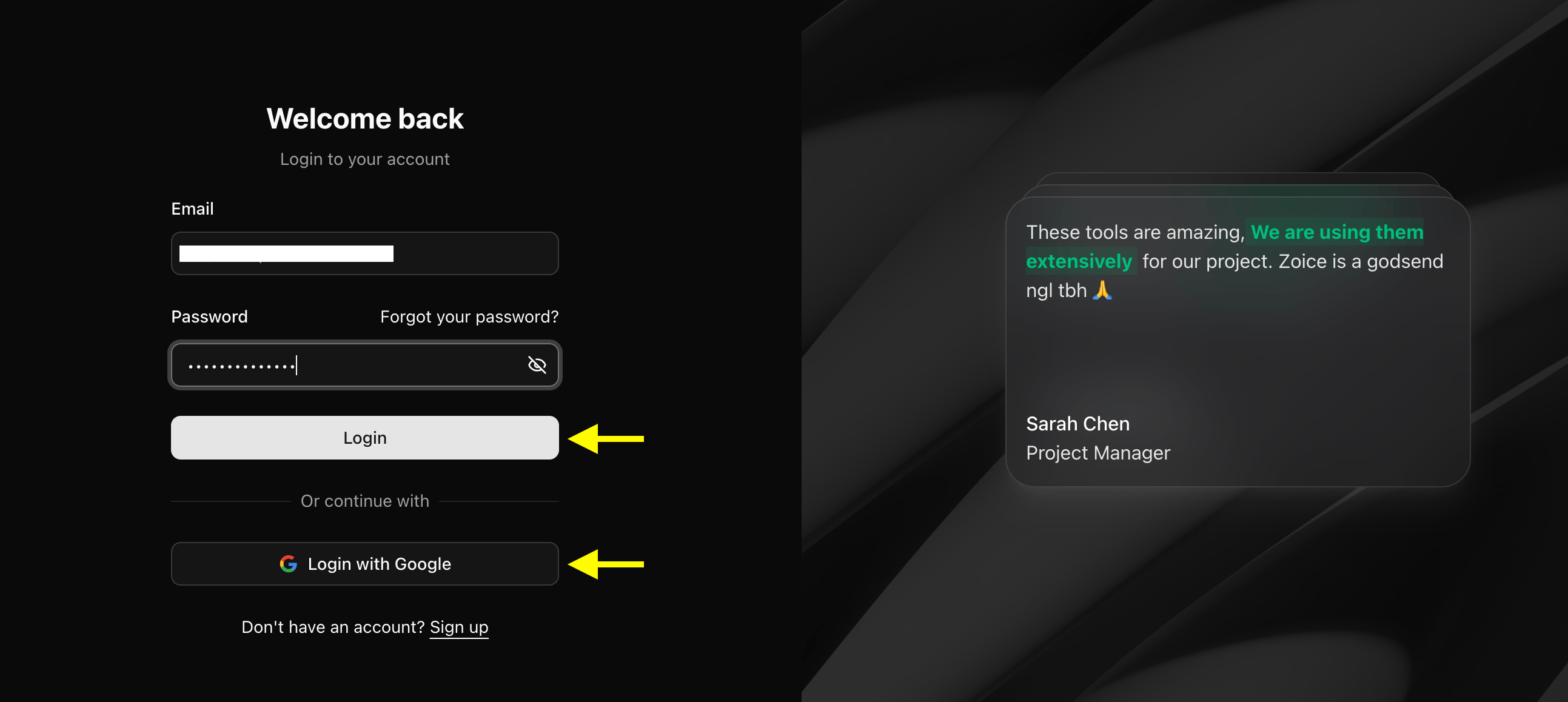
Enter your email and password, then click **Sign In**. Or select the **Sign in with Google** button for quick dashboard access.
### Step 2: Sign In to Your Dashboard Account
Enter your email and password, then click **Sign In**. Or select the **Sign in with Google** button for quick dashboard access.
 ### Step 3: Set Up a Free Creator Profile
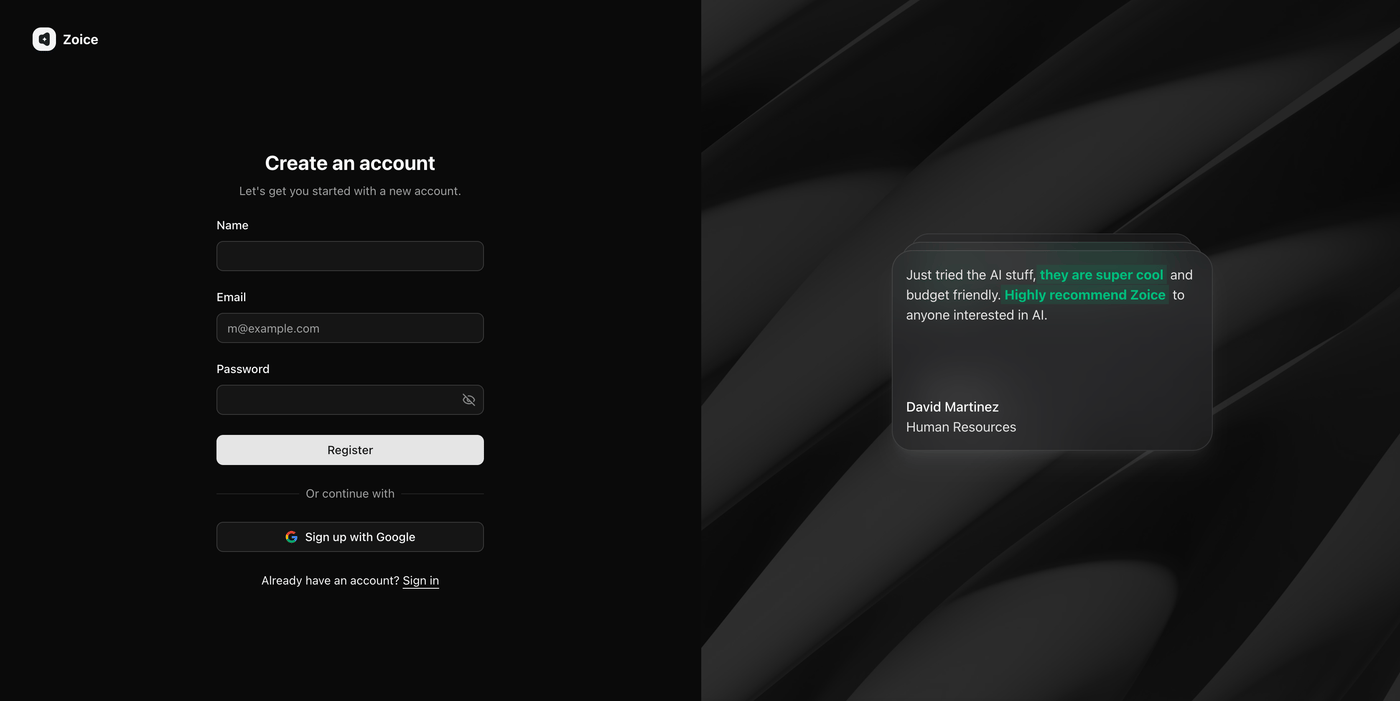
If you are a first-time user, select **Sign Up** on the page to register your free workspace.
### Step 3: Set Up a Free Creator Profile
If you are a first-time user, select **Sign Up** on the page to register your free workspace.
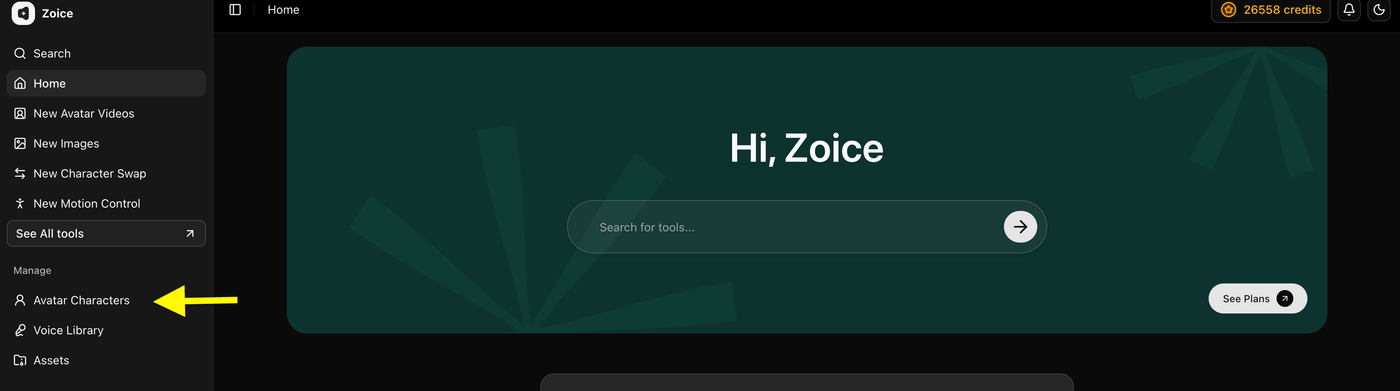
 ### Step 4: Click Avatar Characters
Locate the left sidebar on the main dashboard page and select the **Avatar Characters** menu.
### Step 4: Click Avatar Characters
Locate the left sidebar on the main dashboard page and select the **Avatar Characters** menu.
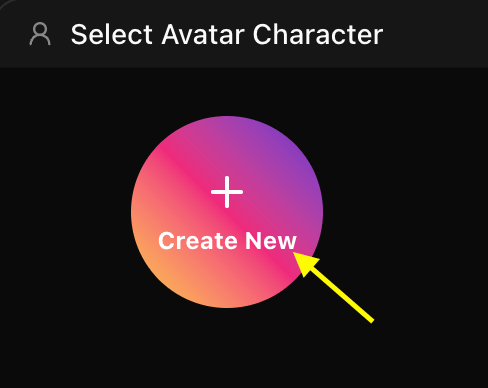
 ### Step 5: Click Create New
On the presenter library page, click the **Create New** button to set up your relative's avatar card.
### Step 5: Click Create New
On the presenter library page, click the **Create New** button to set up your relative's avatar card.
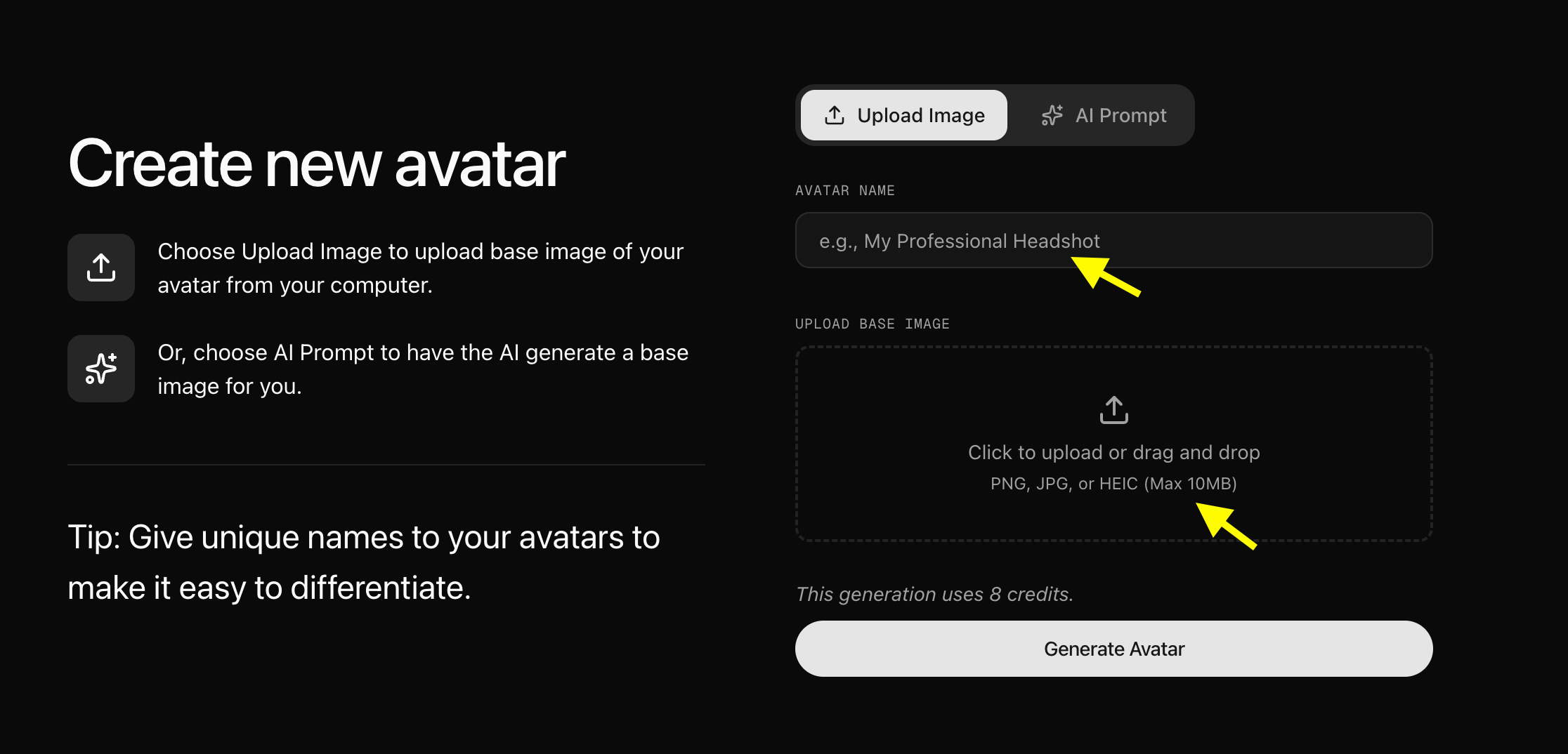
 ### Step 6: Upload Your Relative's Portrait Photo and Generate Avatar
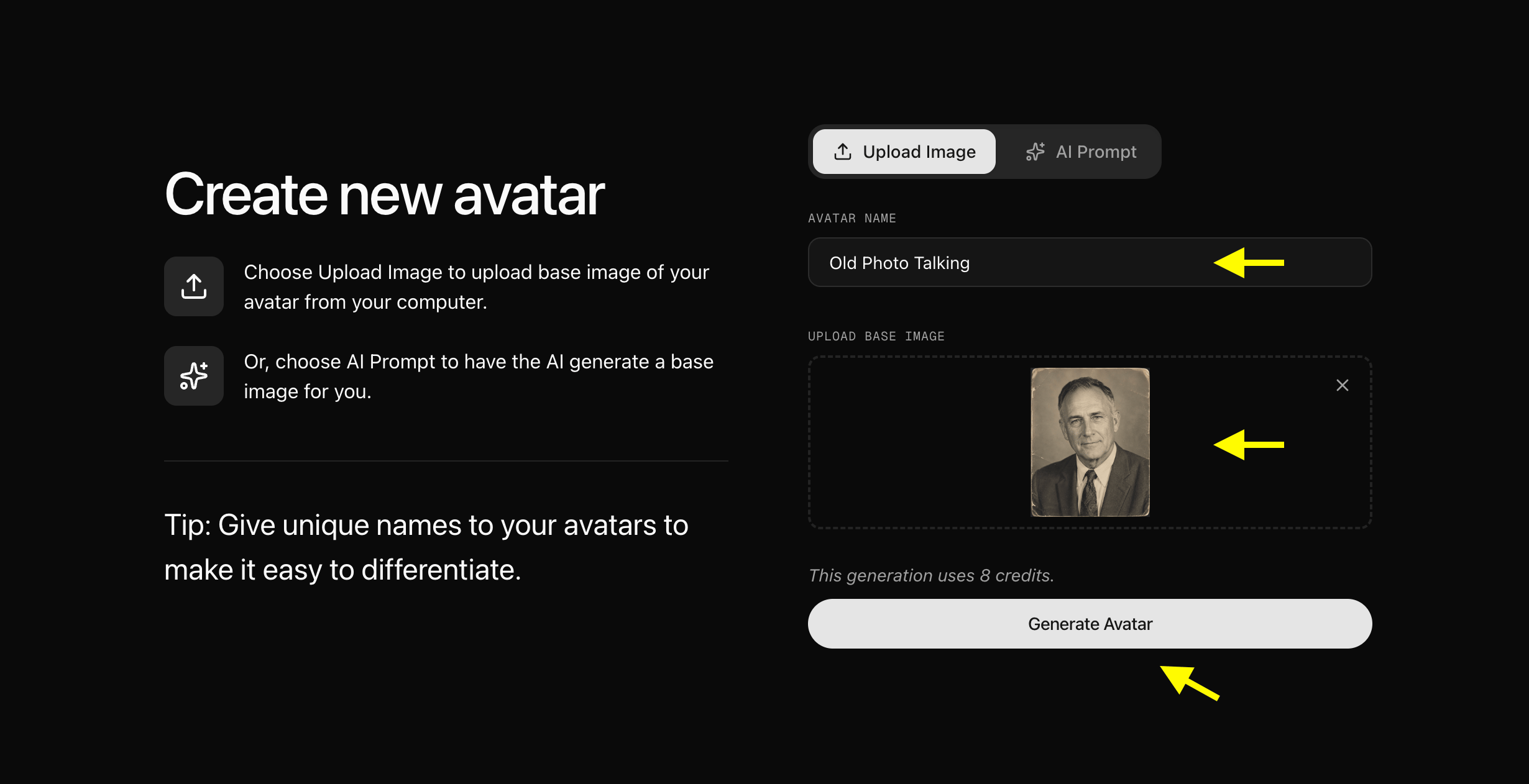
* Upload a Photo: Select the **Upload Image** option on the creation page. Enter a name for your relative in the **Avatar Name** field (e.g., 'Old Photo Talking', pointed to by the yellow arrow), upload or drag-and-drop the face portrait in the **Upload Base Image** box, and click **Generate Avatar** at the bottom to build their AI profile.
### Step 6: Upload Your Relative's Portrait Photo and Generate Avatar
* Upload a Photo: Select the **Upload Image** option on the creation page. Enter a name for your relative in the **Avatar Name** field (e.g., 'Old Photo Talking', pointed to by the yellow arrow), upload or drag-and-drop the face portrait in the **Upload Base Image** box, and click **Generate Avatar** at the bottom to build their AI profile.
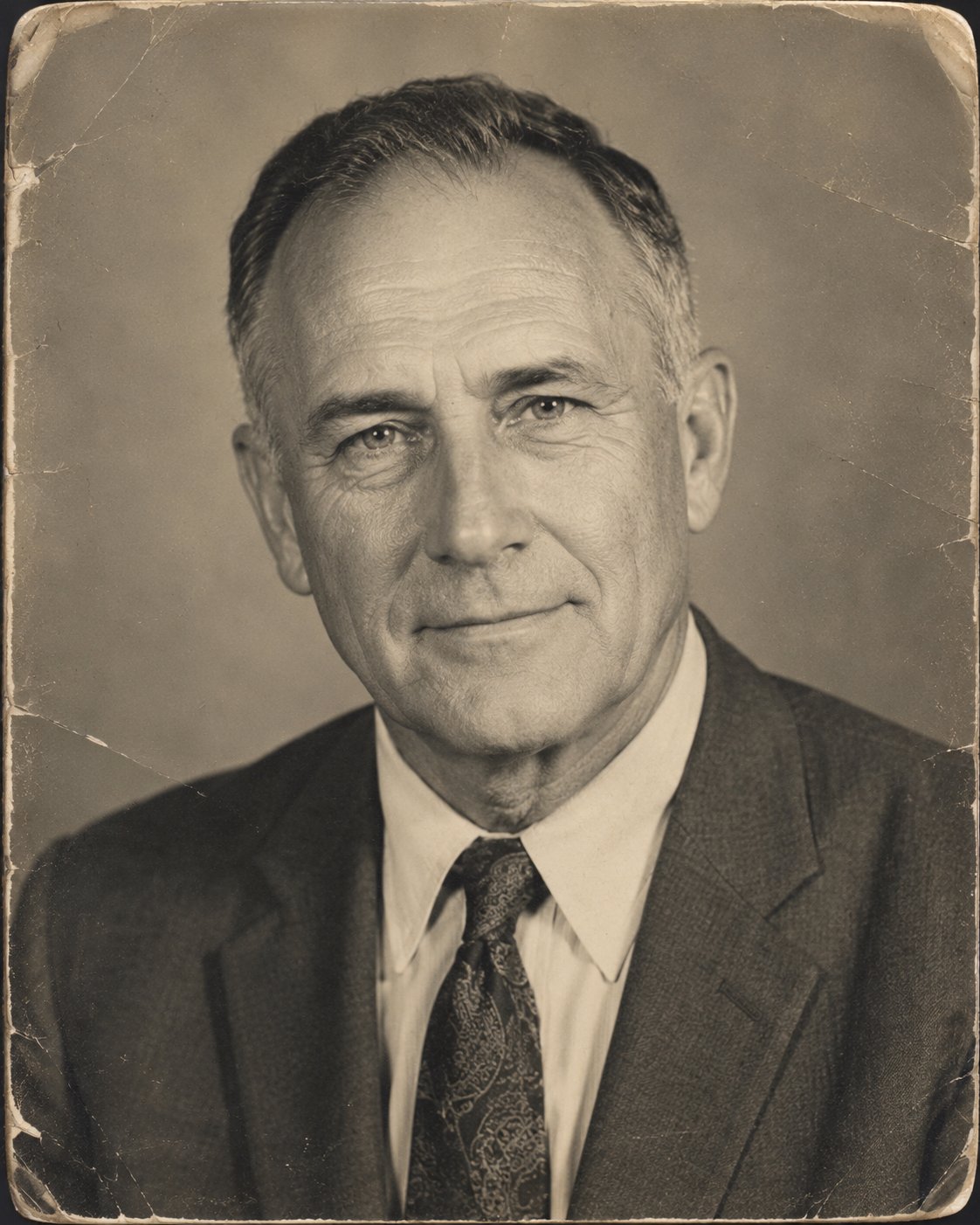
 * We used this image for the relative portrait :
 ### Step 7: Select Your Relatives Avatar from Avatar Characters List
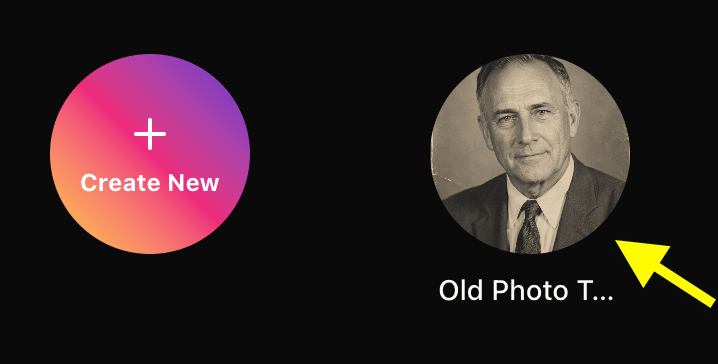
Go back to the Avatar Characters menu. Your new card will appear in your library. Click on the card to select it.
### Step 7: Select Your Relatives Avatar from Avatar Characters List
Go back to the Avatar Characters menu. Your new card will appear in your library. Click on the card to select it.
 ### Step 8: Configure Avatar Settings
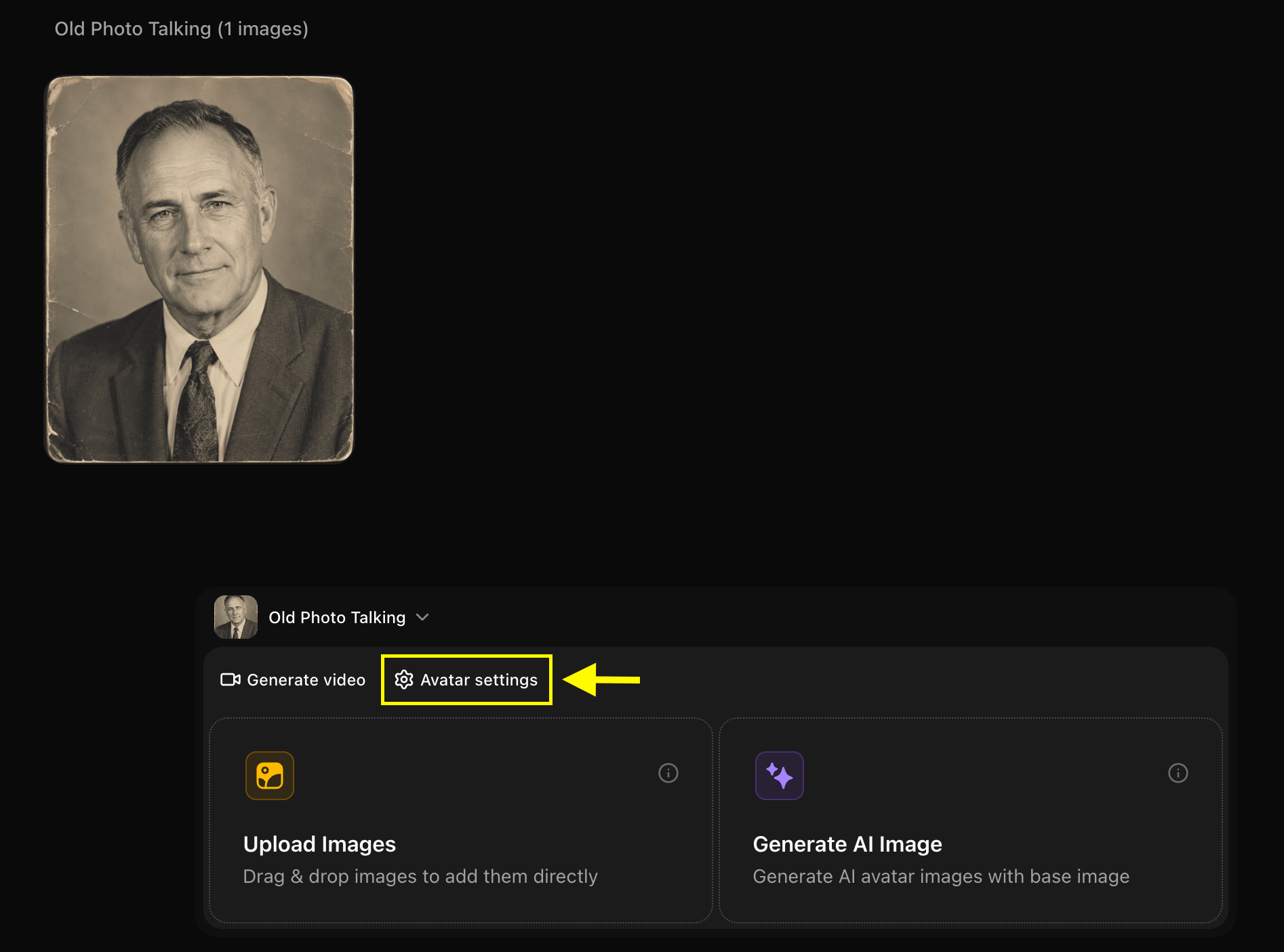
Click **Avatar Setting** next to Generate Video. Under the **General** settings, add the Name, Gender, Age, and Ethnicity of the relative to help the AI map natural expressions. Click Save when finished.
### Step 8: Configure Avatar Settings
Click **Avatar Setting** next to Generate Video. Under the **General** settings, add the Name, Gender, Age, and Ethnicity of the relative to help the AI map natural expressions. Click Save when finished.
 ### Step 9: Click Generate Video
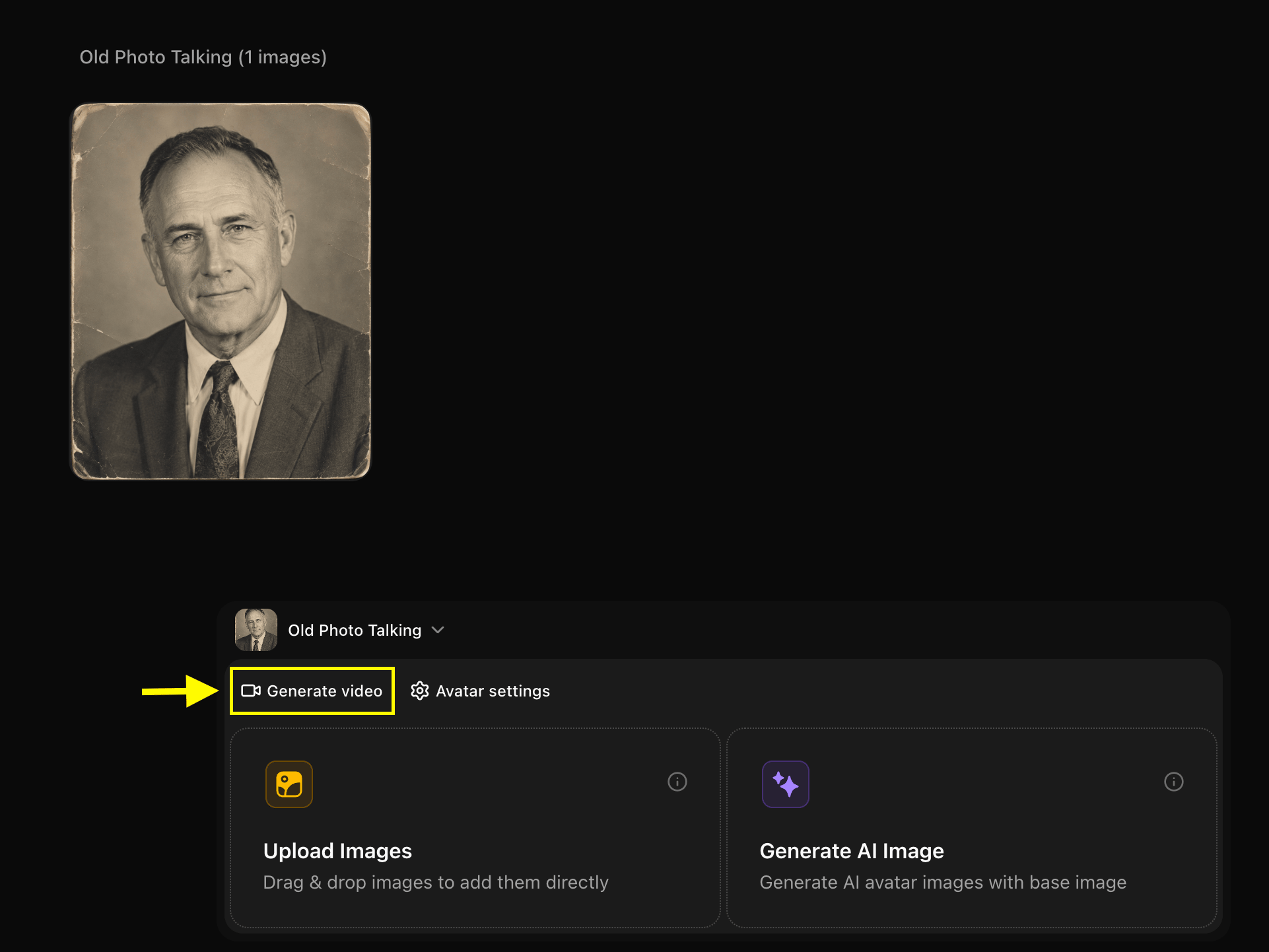
With your character card active, click the **Generate Video** button to launch the avatar advance configuration.
### Step 9: Click Generate Video
With your character card active, click the **Generate Video** button to launch the avatar advance configuration.
 ### Step 10: Click on the Script Field
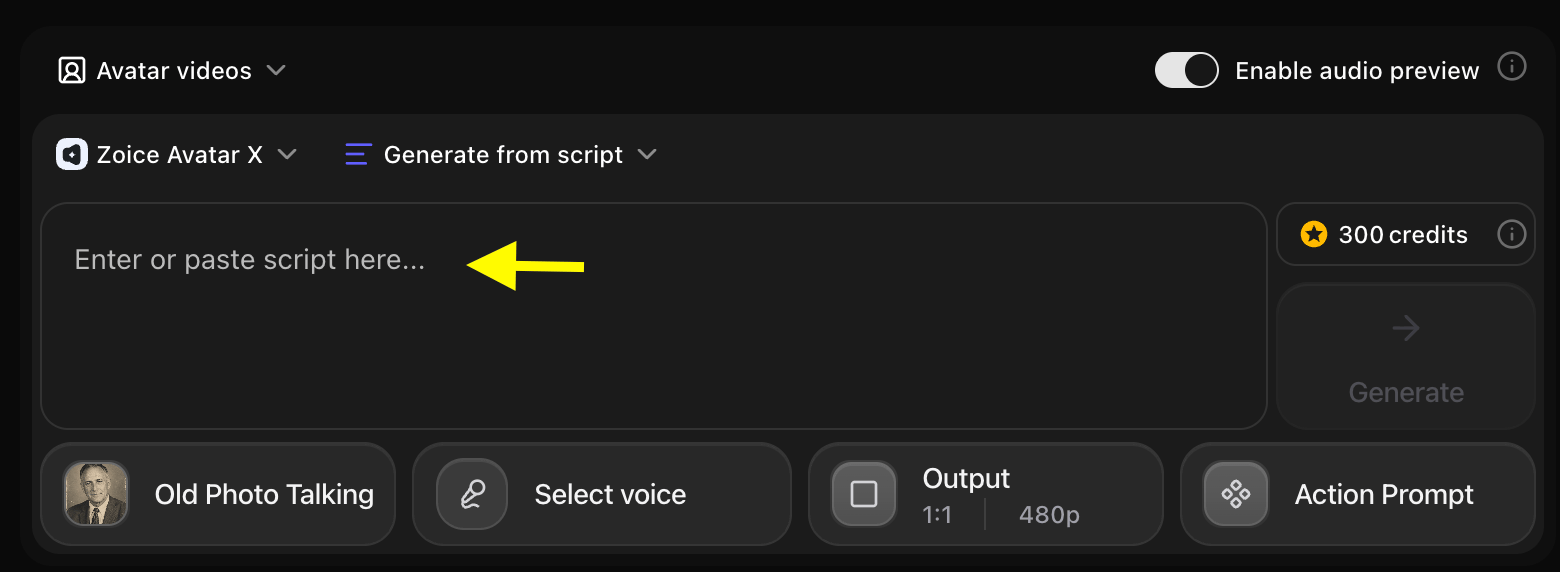
In the editor timeline, click on the **Script** tab to open the text editing panel.
### Step 10: Click on the Script Field
In the editor timeline, click on the **Script** tab to open the text editing panel.
 ### Step 11: Write Your Script
Type the exact message, advice, or family history you want them to speak.
### Step 11: Write Your Script
Type the exact message, advice, or family history you want them to speak.
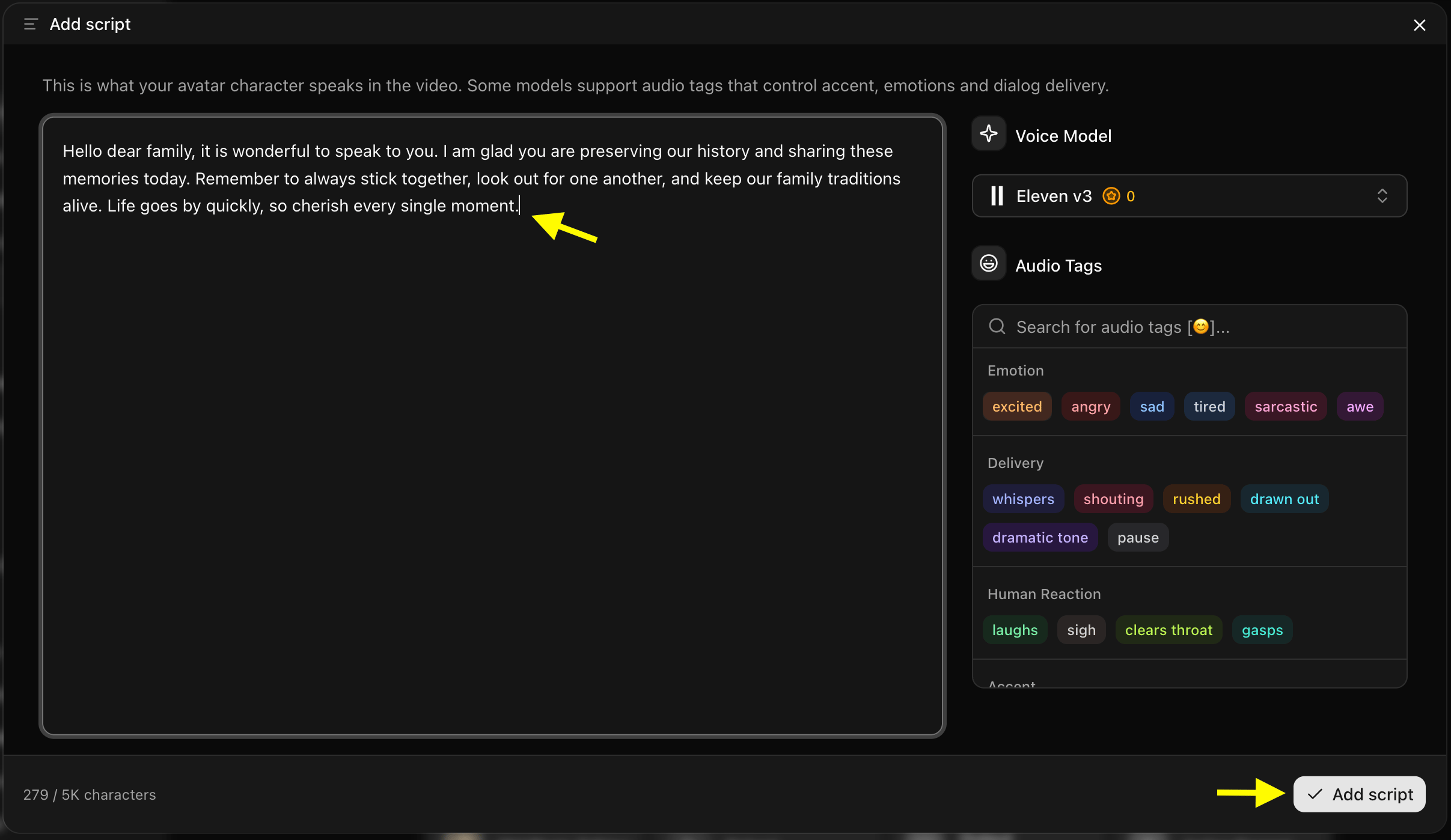 *Tip: For historical figures, write transcripts of their famous historical quotes or letters.*
### Step 12: Select a Voice Model
Click on **Select Voice**. Select a voice preset that matches the gender, age, and accent of your relative, or upload a custom voice sample.
*Tip: For historical figures, write transcripts of their famous historical quotes or letters.*
### Step 12: Select a Voice Model
Click on **Select Voice**. Select a voice preset that matches the gender, age, and accent of your relative, or upload a custom voice sample.
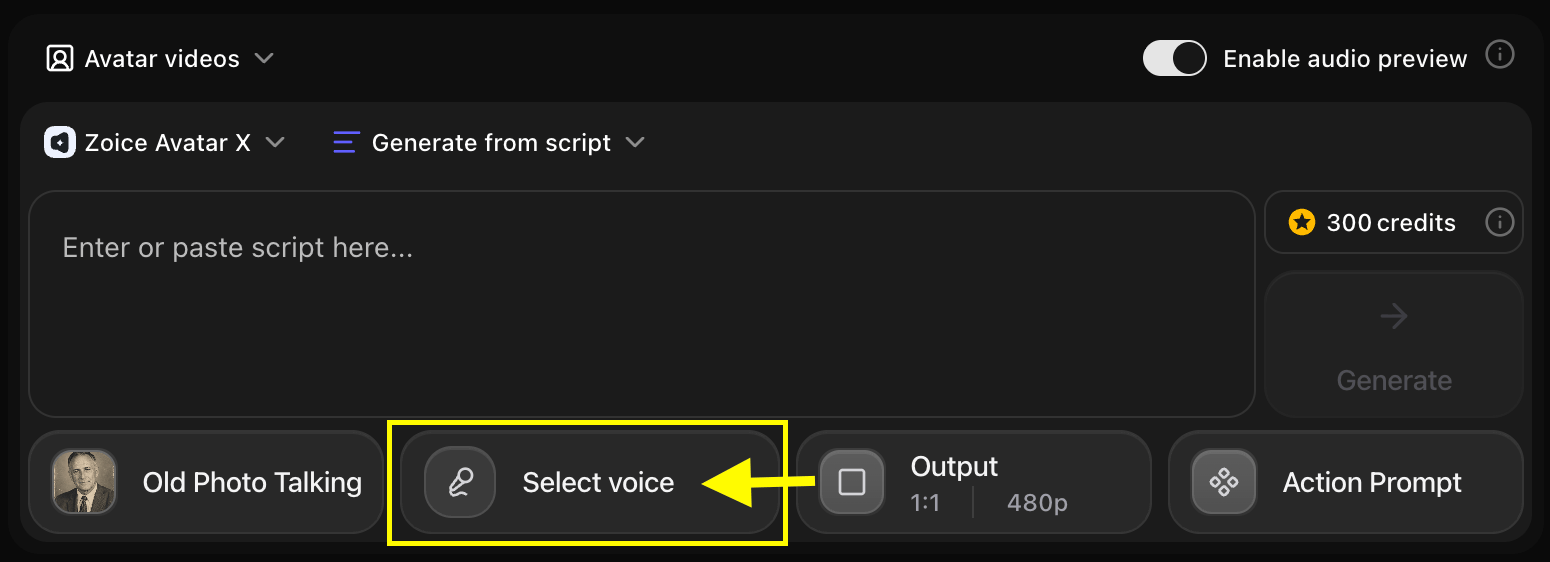 * We used the below voice for the relative in the example:
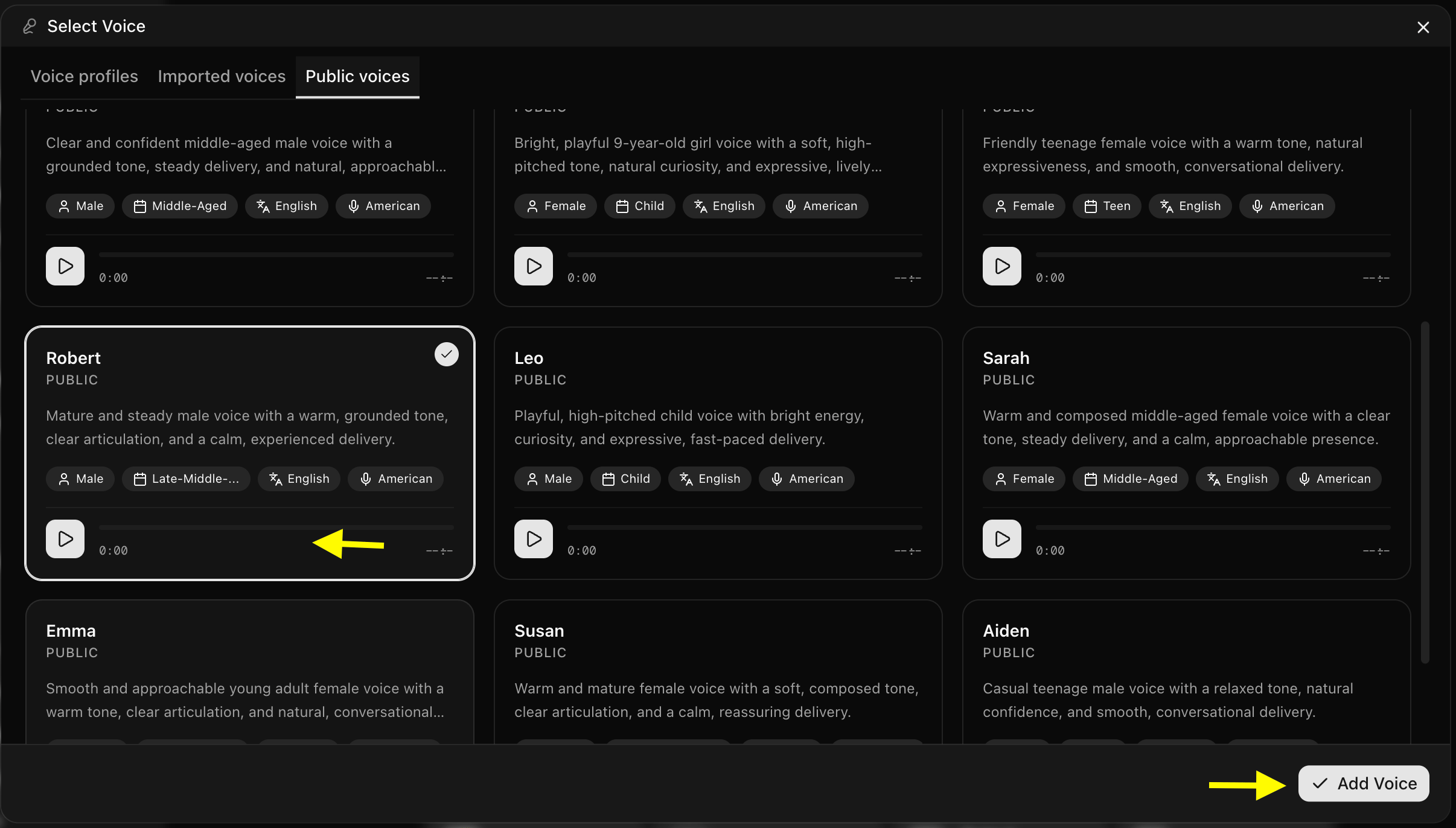 We used a public voice for the generation, but you can also record live audio or upload a custom voice.
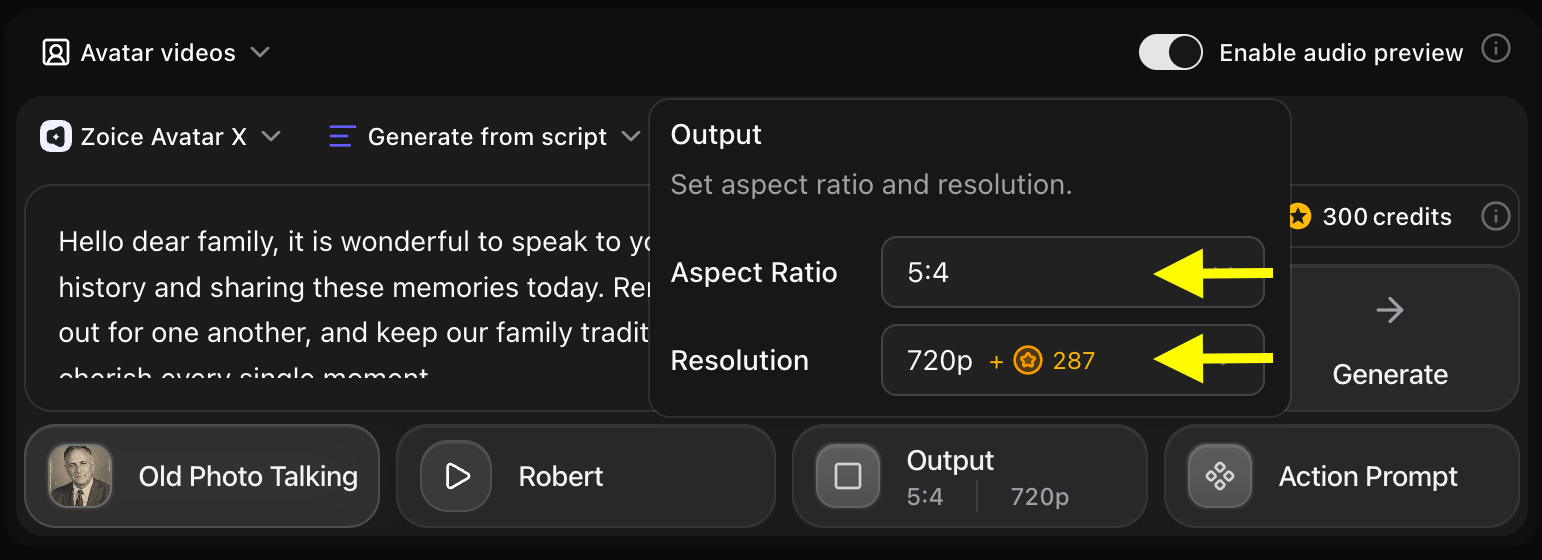
### Step 13: Choose Output Formats
Under **Output Settings**, choose the aspect ratio:
* **Aspect Ratio**: Select 9:16 for mobile phone cards (WhatsApp, Reels) or 16:9 for widescreen visualizers.
* **Resolution**: Choose 1080p or 4K to preserve the details of the original photo.
We used a public voice for the generation, but you can also record live audio or upload a custom voice.
### Step 13: Choose Output Formats
Under **Output Settings**, choose the aspect ratio:
* **Aspect Ratio**: Select 9:16 for mobile phone cards (WhatsApp, Reels) or 16:9 for widescreen visualizers.
* **Resolution**: Choose 1080p or 4K to preserve the details of the original photo.
 ### Step 14: Select Action Prompt
Click on **Action Prompt** to control the physical behaviors. Write custom instructions (e.g., *"Gentle speaking style, nodding head slightly, warm gaze, smiling softly"*).
### Step 14: Select Action Prompt
Click on **Action Prompt** to control the physical behaviors. Write custom instructions (e.g., *"Gentle speaking style, nodding head slightly, warm gaze, smiling softly"*).
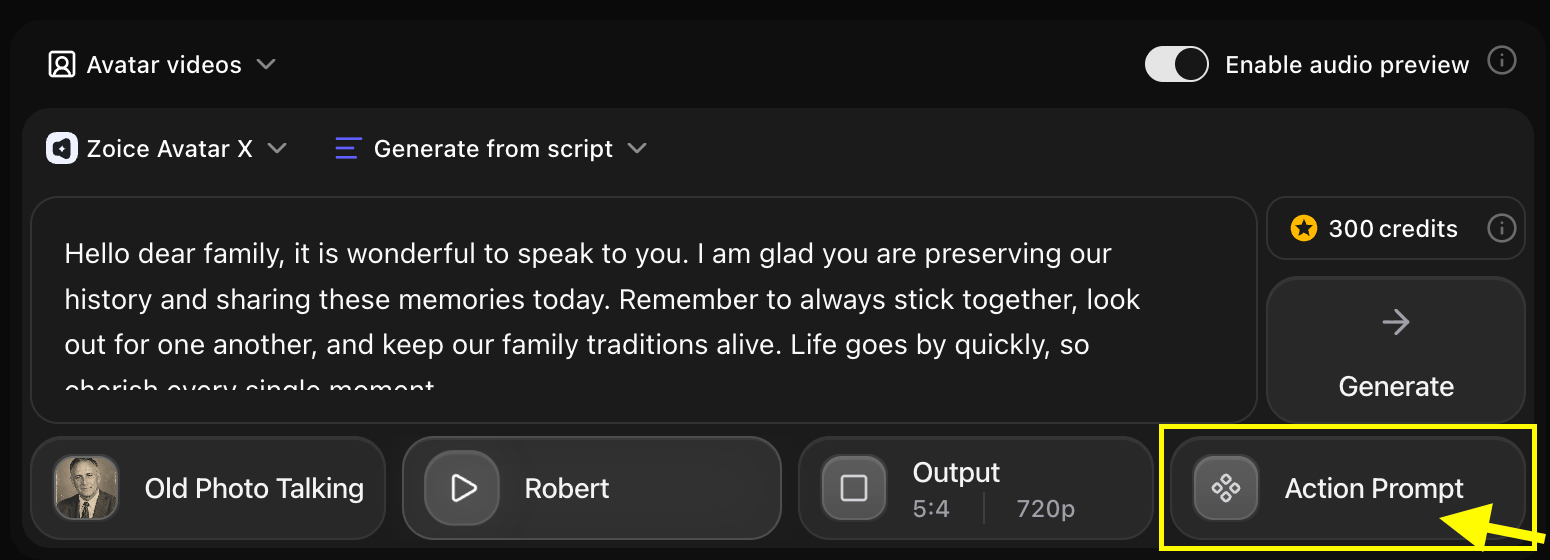 * We used the below action prompt for the relative in the example:
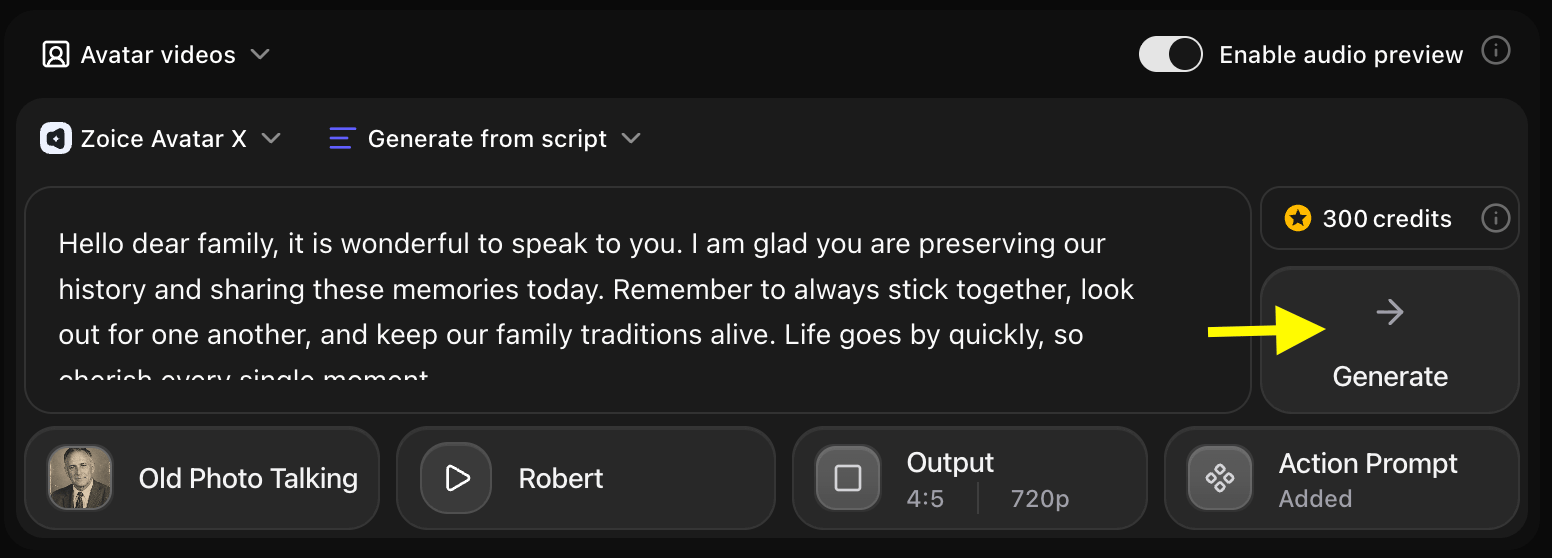
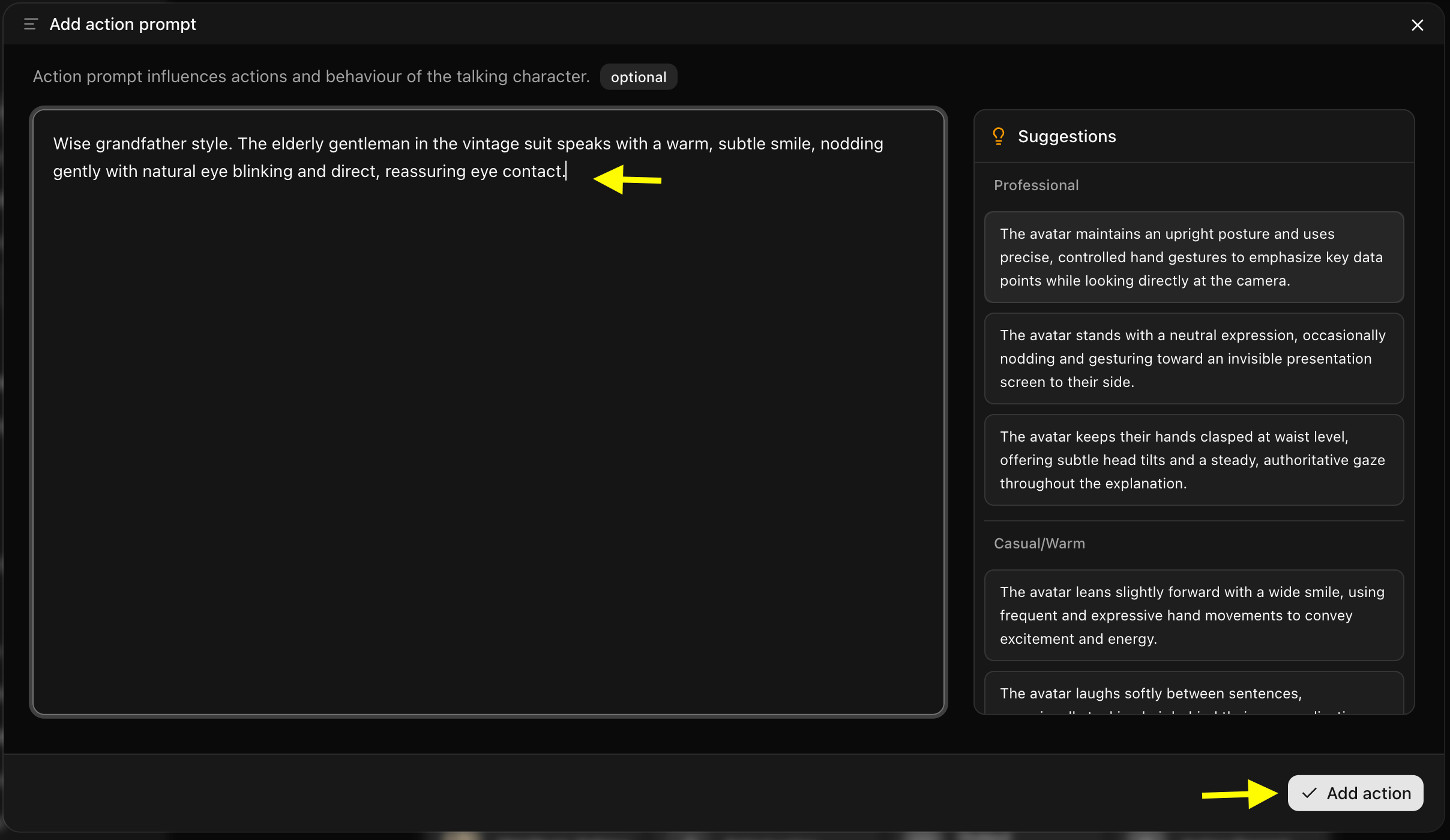 ### Step 15: Click on **Generate** for Video Generation
Verify your text script and configurations, and click **Generate** to start processing.
### Step 15: Click on **Generate** for Video Generation
Verify your text script and configurations, and click **Generate** to start processing.
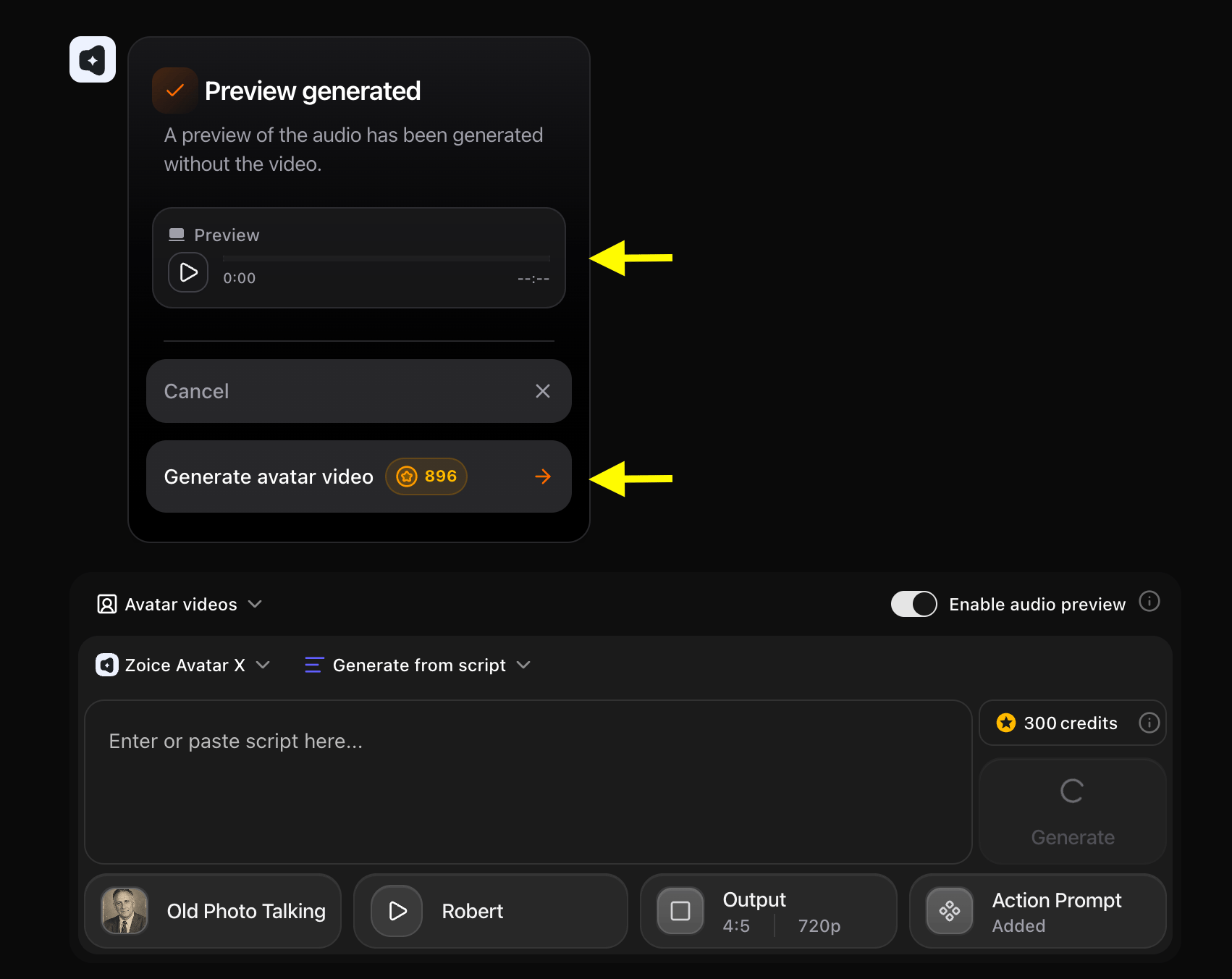
 ### Step 16: Confirm the Audio Preview
Listen to the audio preview to check the pacing. If everything sounds correct, click **Generate Avatar Video** to compile the video clip.
### Step 16: Confirm the Audio Preview
Listen to the audio preview to check the pacing. If everything sounds correct, click **Generate Avatar Video** to compile the video clip.
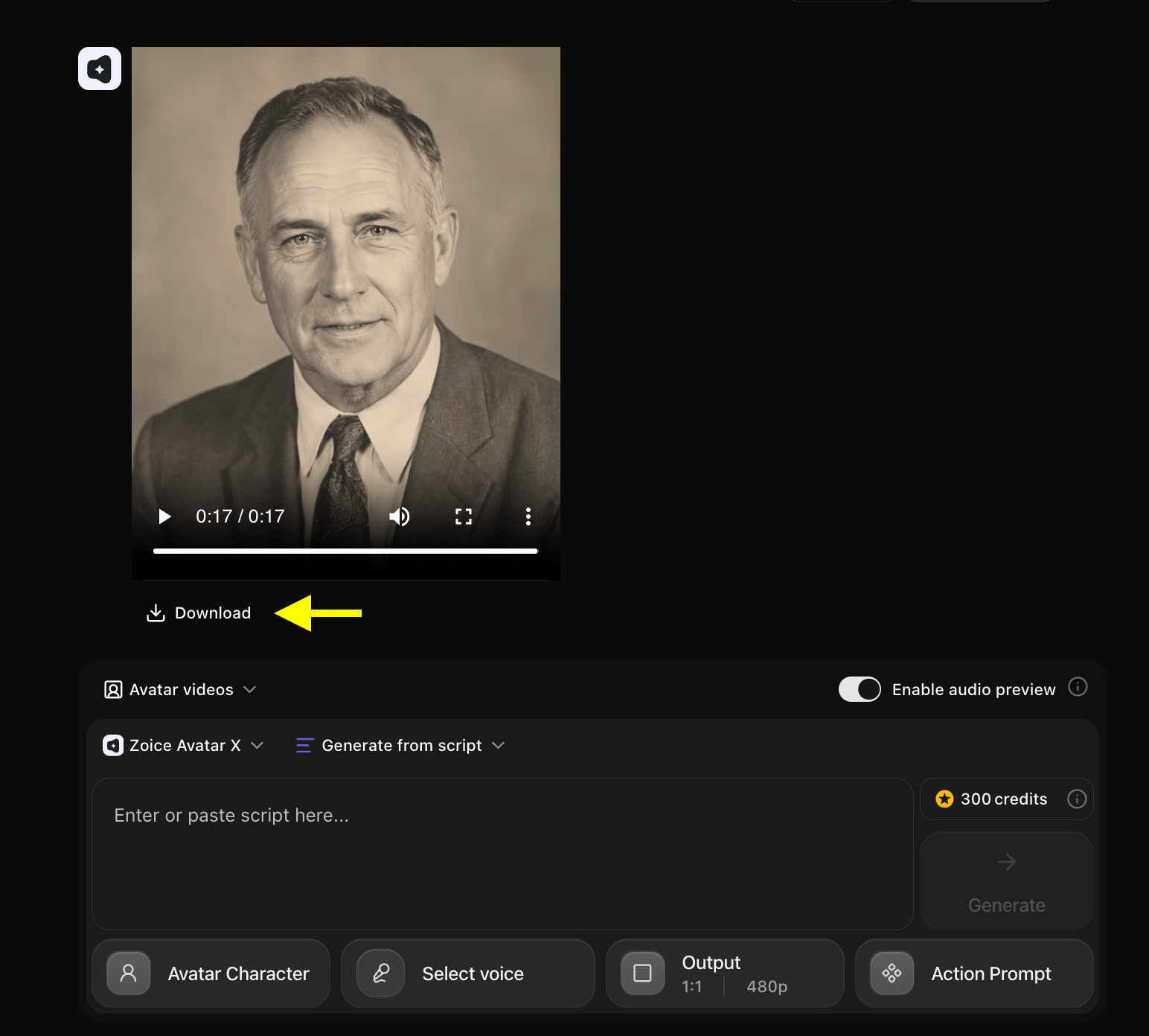
 ### Step 17: Download the Video
Once processing is complete, check the animations. Click the **Download** button to save the MP4 video to your device.
### Step 17: Download the Video
Once processing is complete, check the animations. Click the **Download** button to save the MP4 video to your device.
 ## Example Inputs & Result
Here is an example setup showing how you can bring old photos to life:
### Used Photo
## Example Inputs & Result
Here is an example setup showing how you can bring old photos to life:
### Used Photo
 ### Used Script
```
Hello there! This is a portrait of me taken in the summer of 1945. It is wonderful to share my story with you today using modern technology. Though years have passed and the world has changed, these memories remain as clear as ever. Thank you for keeping this history alive.
```
### Used Action Prompt
```
Nostalgic memoir presenter. The person in the black-and-white photo speaks calmly, nodding gently with subtle, warm smiles and natural blinking.
```
### Output Result Video
Below is the rendered video:
## Tips for Creating Better Old Photo Animations
To ensure the best outcomes when you bring old photos to life, follow these best practices:
* **Restore Photo Quality First**: If the original picture is faded or scratched, use an image restoration tool before uploading to ensure the AI detects facial landmarks accurately.
* **Select Appropriate Voices**: Choose older, warm, or classic voice styles from the library to preserve the historic feel.
* **Add Contextual Backdrops**: Render the avatar with a green screen, then place a vintage room or sepia background behind the speaker in post-production.
## Bring Old Photos to Life Can Be Used For?
Animating vintage pictures is highly useful for:
* **Genealogy & Family History**: Share stories of ancestors at family reunions or on ancestry profiles.
* **Museum Displays**: Create talking guides of historical figures for local exhibits.
* **Digital Scrapbooking**: Make interactive family legacy journals.
## Where Animated Old Photo Videos Are Used?
* Ancestry blogs and heritage websites.
* YouTube history and educational channels.
* Family group chats (WhatsApp, Messenger) and reunions.
## Final Words
Learning how to bring old photos to life using Zoice is a powerful way to bridge the gap between past generations and modern technology. With only a single portrait and a text script, you can create a moving, talking keepsake that preserves family legacies for generations to come.
### Used Script
```
Hello there! This is a portrait of me taken in the summer of 1945. It is wonderful to share my story with you today using modern technology. Though years have passed and the world has changed, these memories remain as clear as ever. Thank you for keeping this history alive.
```
### Used Action Prompt
```
Nostalgic memoir presenter. The person in the black-and-white photo speaks calmly, nodding gently with subtle, warm smiles and natural blinking.
```
### Output Result Video
Below is the rendered video:
## Tips for Creating Better Old Photo Animations
To ensure the best outcomes when you bring old photos to life, follow these best practices:
* **Restore Photo Quality First**: If the original picture is faded or scratched, use an image restoration tool before uploading to ensure the AI detects facial landmarks accurately.
* **Select Appropriate Voices**: Choose older, warm, or classic voice styles from the library to preserve the historic feel.
* **Add Contextual Backdrops**: Render the avatar with a green screen, then place a vintage room or sepia background behind the speaker in post-production.
## Bring Old Photos to Life Can Be Used For?
Animating vintage pictures is highly useful for:
* **Genealogy & Family History**: Share stories of ancestors at family reunions or on ancestry profiles.
* **Museum Displays**: Create talking guides of historical figures for local exhibits.
* **Digital Scrapbooking**: Make interactive family legacy journals.
## Where Animated Old Photo Videos Are Used?
* Ancestry blogs and heritage websites.
* YouTube history and educational channels.
* Family group chats (WhatsApp, Messenger) and reunions.
## Final Words
Learning how to bring old photos to life using Zoice is a powerful way to bridge the gap between past generations and modern technology. With only a single portrait and a text script, you can create a moving, talking keepsake that preserves family legacies for generations to come.