> ## Documentation Index
> Fetch the complete documentation index at: https://docs.zoice.com/llms.txt
> Use this file to discover all available pages before exploring further.
# How to Create Brand Mascot Animation Using AI
> Learn how to create brand mascot animation using AI with Zoice. Animate 2D & 3D company mascots, brand characters, and illustrated avatars into engaging talking marketing videos.
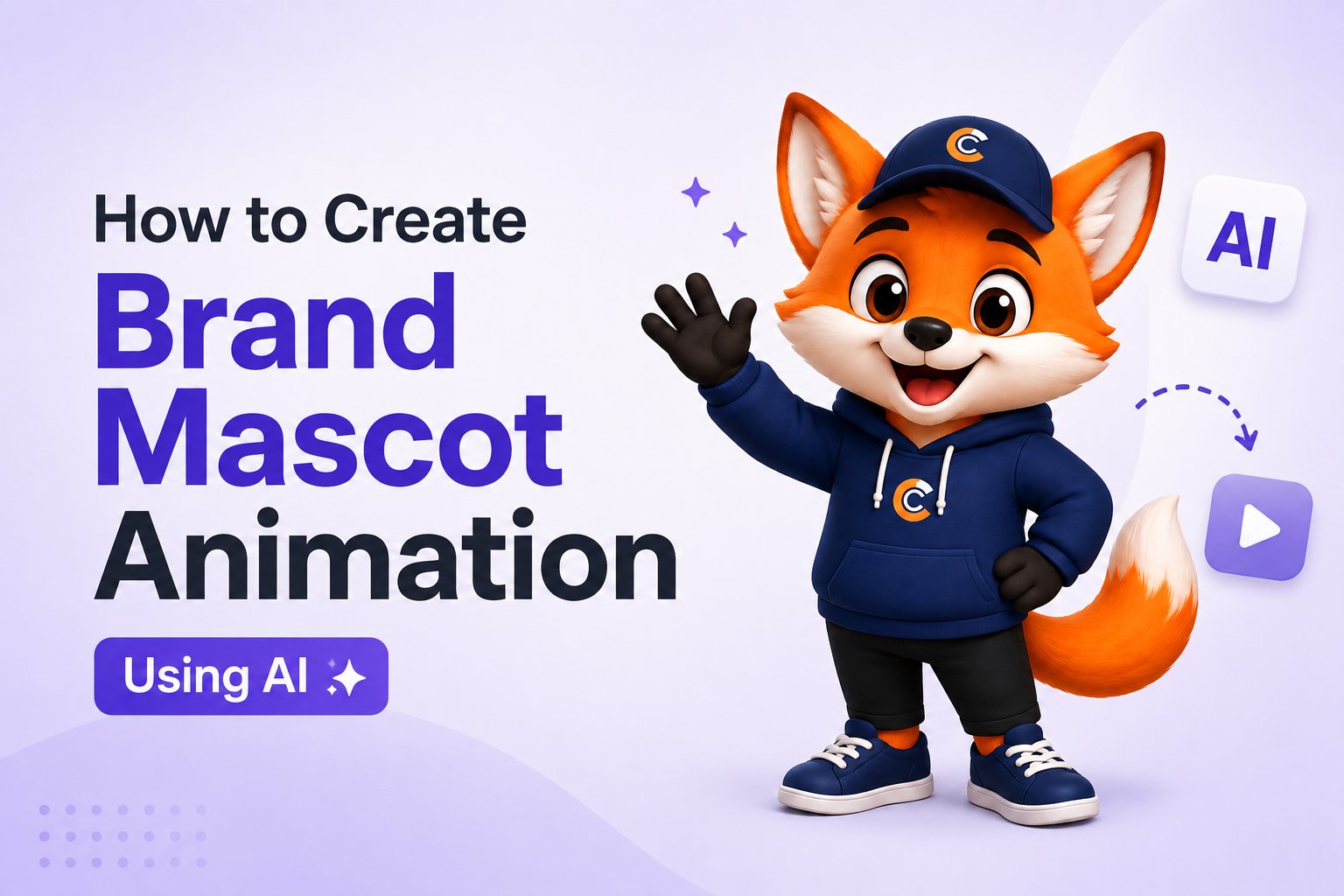 Brand mascots and illustrated company characters are among the most powerful visual assets for building brand identity, driving engagement, and creating memorable customer experiences. However, traditional 3D or 2D mascot animation requires expensive studio production, character rigging, and lengthy rendering times.
With Zoice, artificial intelligence allows you to transform static 2D or 3D brand mascots into dynamic talking avatars in minutes. By pairing your mascot illustration with a custom brand script, tailored AI voiceover, and expressive Action Prompts, you can produce engaging promotional videos for social media ads, product launches, customer onboarding, and website landing pages.
In this tutorial, you will learn how to create a brand mascot animation using AI with Zoice through a complete step-by-step guide.
## What is an AI Brand Mascot Animation?
An AI brand mascot animation is an automated video presentation where a 2D or 3D brand character speaks, gestures, and interacts with viewers using artificial intelligence. The AI model analyzes your mascot’s facial structure and generates natural lip-syncing, eye blinks, and micro-expressions matching your script.
Key capabilities of AI brand mascot animations include:
* **2D & 3D Mascot Morphing**: Animating illustrated logos, 3D digital mascots, cartoon spokespersons, and brand characters.
* **Multilingual Brand Ambassador**: Delivering product announcements in over 100 languages with consistent facial expressions.
* **Custom Voice Matching**: Pairing your mascot with energetic, friendly, or authoritative AI voices that embody your brand tone.
* **Dynamic Expression Control**: Using Action Prompts to command your mascot to smile, wave, point to product callouts, or deliver high-energy pitches.
## Why Use AI Animated Brand Mascots?
Animating your brand mascot offers significant advantages for modern marketing and advertising:
* **Instant Brand Recognition**: A consistent mascot spokesperson makes your social ads and video content instantly recognizable across platforms.
* **Dramatically Lower Production Costs**: Eliminate five-figure 3D animation studio bills and lengthy production turnarounds.
* **High Audience Engagement**: Animated characters hold viewer attention longer than traditional text or static banner ads.
* **Rapid Content Scaling**: Produce dozens of promotional video ads for new campaigns, seasonal sales, or feature releases in hours.
## How to Create Brand Mascot Animation Using AI with Zoice
Follow the step-by-step instructions below to create an animated brand mascot video.
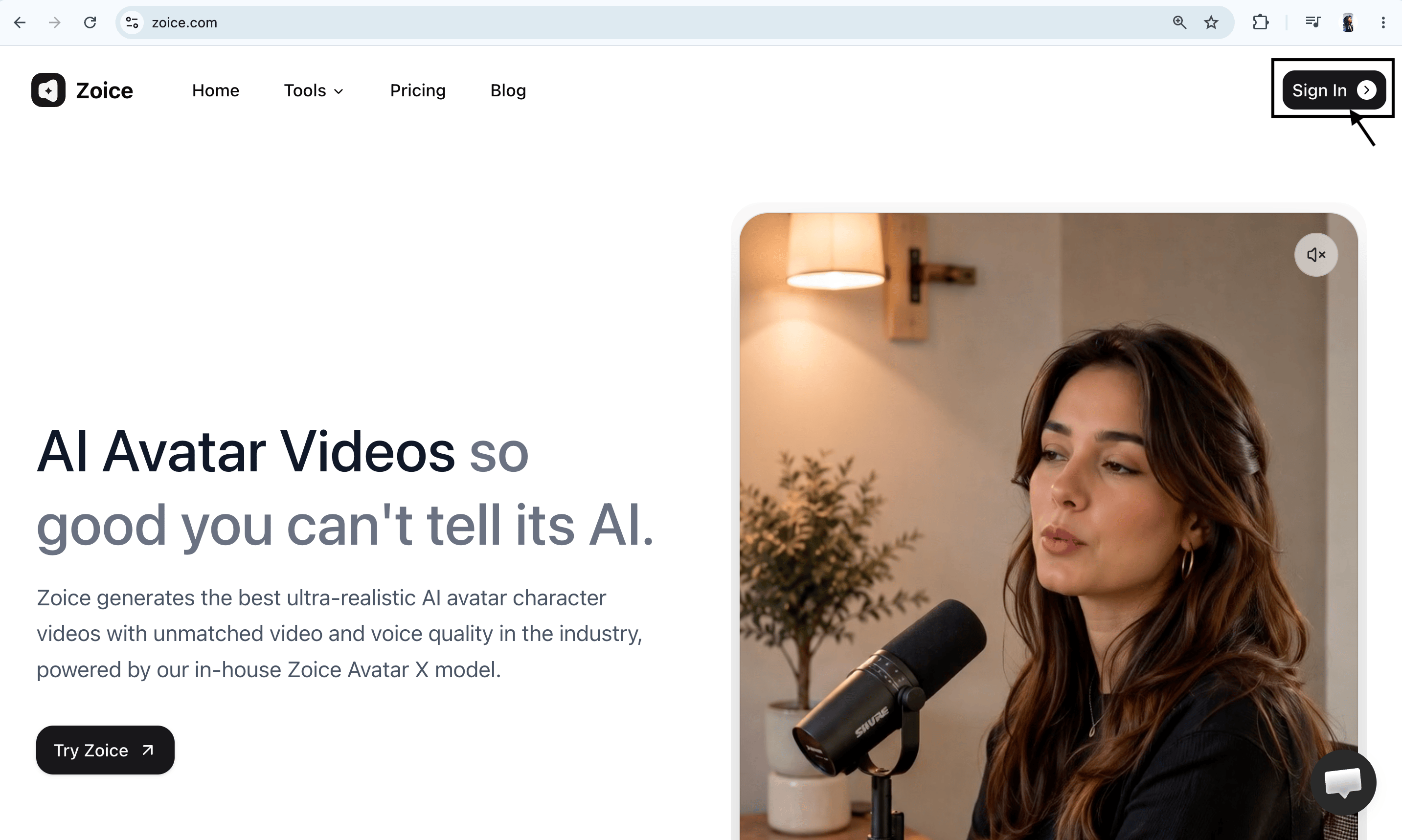
### Step 1: Visit Zoice.com and Click Sign In
Go to [Zoice.com](https://zoice.com) in your web browser and click the **Sign In** button in the top-right corner of the homepage.
Brand mascots and illustrated company characters are among the most powerful visual assets for building brand identity, driving engagement, and creating memorable customer experiences. However, traditional 3D or 2D mascot animation requires expensive studio production, character rigging, and lengthy rendering times.
With Zoice, artificial intelligence allows you to transform static 2D or 3D brand mascots into dynamic talking avatars in minutes. By pairing your mascot illustration with a custom brand script, tailored AI voiceover, and expressive Action Prompts, you can produce engaging promotional videos for social media ads, product launches, customer onboarding, and website landing pages.
In this tutorial, you will learn how to create a brand mascot animation using AI with Zoice through a complete step-by-step guide.
## What is an AI Brand Mascot Animation?
An AI brand mascot animation is an automated video presentation where a 2D or 3D brand character speaks, gestures, and interacts with viewers using artificial intelligence. The AI model analyzes your mascot’s facial structure and generates natural lip-syncing, eye blinks, and micro-expressions matching your script.
Key capabilities of AI brand mascot animations include:
* **2D & 3D Mascot Morphing**: Animating illustrated logos, 3D digital mascots, cartoon spokespersons, and brand characters.
* **Multilingual Brand Ambassador**: Delivering product announcements in over 100 languages with consistent facial expressions.
* **Custom Voice Matching**: Pairing your mascot with energetic, friendly, or authoritative AI voices that embody your brand tone.
* **Dynamic Expression Control**: Using Action Prompts to command your mascot to smile, wave, point to product callouts, or deliver high-energy pitches.
## Why Use AI Animated Brand Mascots?
Animating your brand mascot offers significant advantages for modern marketing and advertising:
* **Instant Brand Recognition**: A consistent mascot spokesperson makes your social ads and video content instantly recognizable across platforms.
* **Dramatically Lower Production Costs**: Eliminate five-figure 3D animation studio bills and lengthy production turnarounds.
* **High Audience Engagement**: Animated characters hold viewer attention longer than traditional text or static banner ads.
* **Rapid Content Scaling**: Produce dozens of promotional video ads for new campaigns, seasonal sales, or feature releases in hours.
## How to Create Brand Mascot Animation Using AI with Zoice
Follow the step-by-step instructions below to create an animated brand mascot video.
### Step 1: Visit Zoice.com and Click Sign In
Go to [Zoice.com](https://zoice.com) in your web browser and click the **Sign In** button in the top-right corner of the homepage.
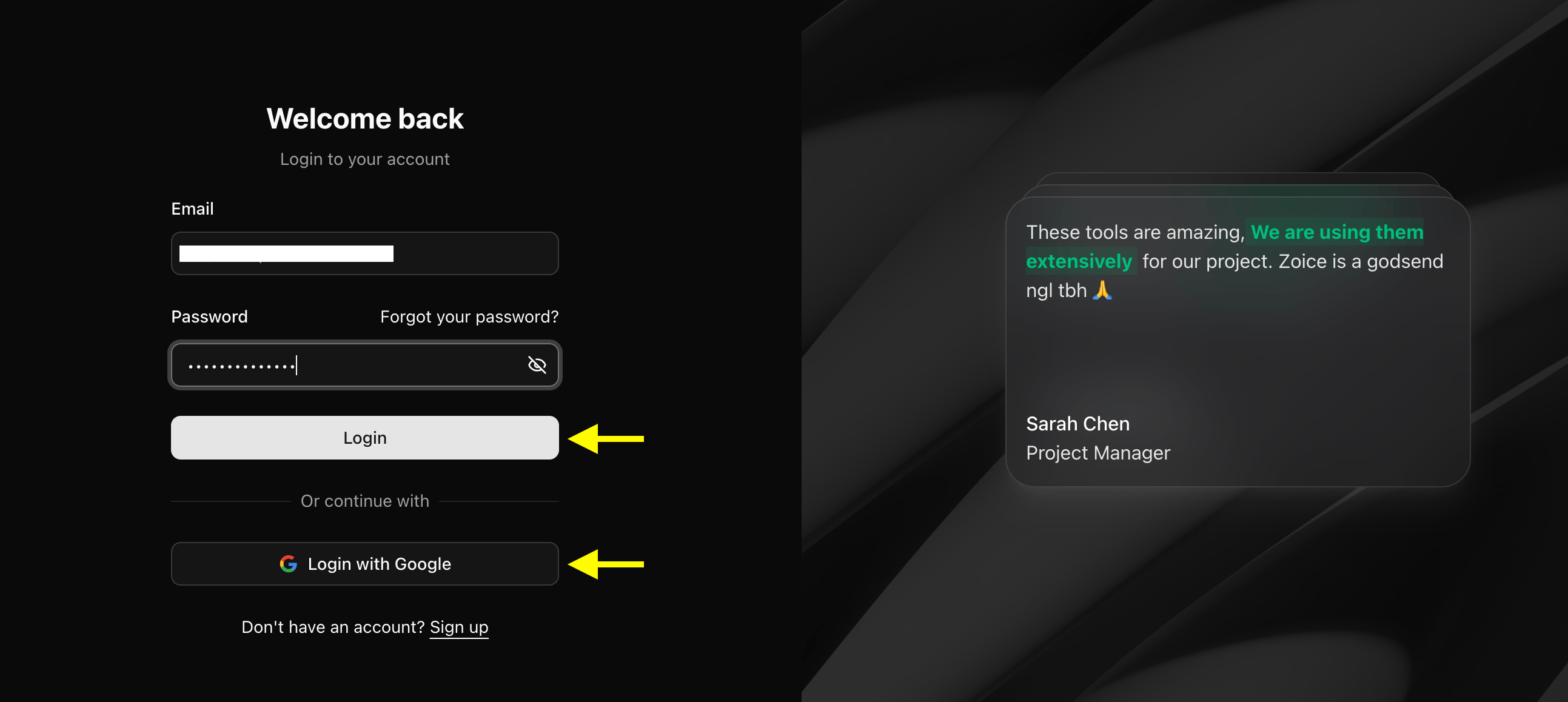
 ### Step 2: Sign In to Your Zoice Account
Enter your registered email address and password, then click **Sign In**. Alternatively, select **Sign in with Google** for single-click dashboard access.
### Step 2: Sign In to Your Zoice Account
Enter your registered email address and password, then click **Sign In**. Alternatively, select **Sign in with Google** for single-click dashboard access.
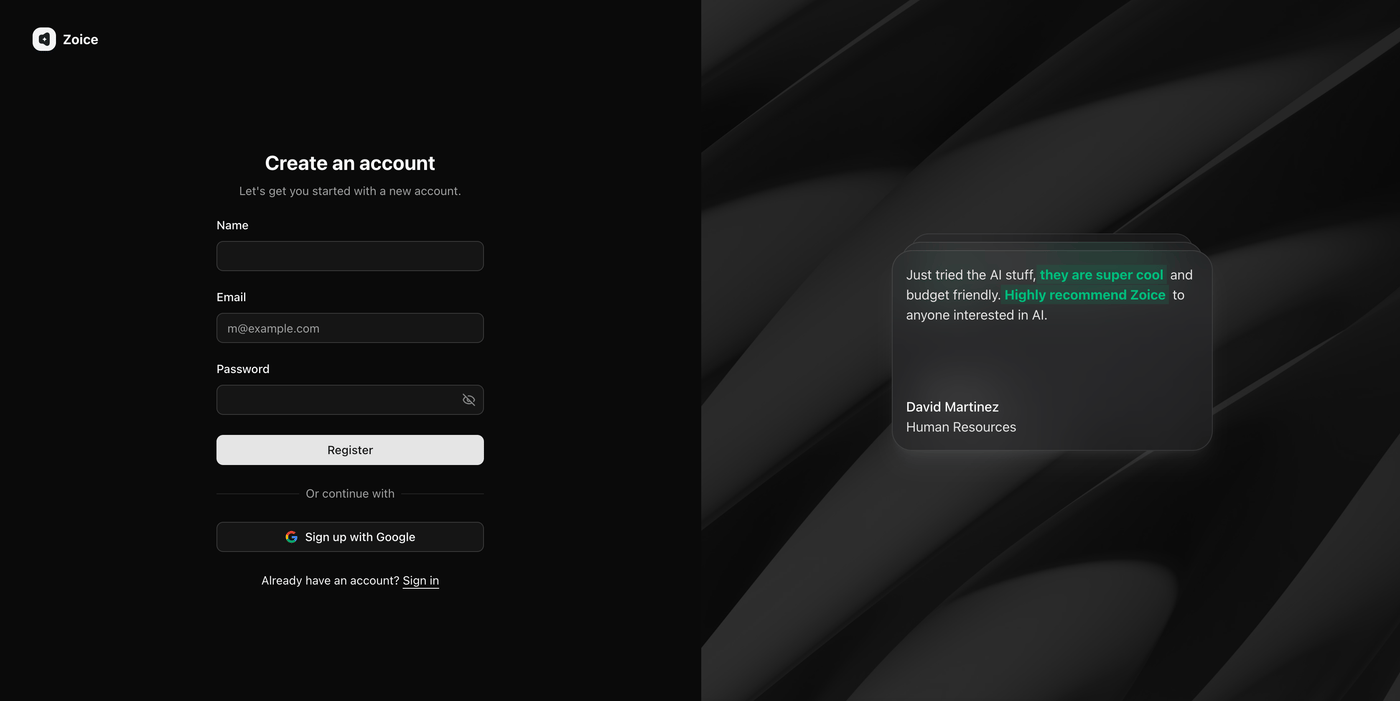
 ### Step 3: Create a New Zoice Account (For New Users)
If you are using Zoice for the first time, click **Sign Up** to create a free workspace account.
### Step 3: Create a New Zoice Account (For New Users)
If you are using Zoice for the first time, click **Sign Up** to create a free workspace account.
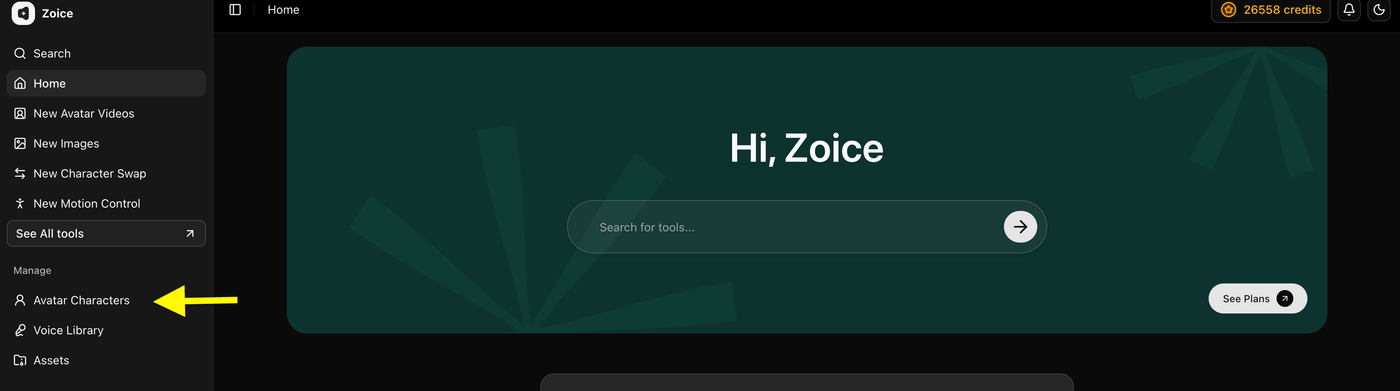
 ### Step 4: Navigate to Avatar Characters
On the left sidebar menu of your Zoice dashboard, click **Avatar Characters** under the **Manage** section.
### Step 4: Navigate to Avatar Characters
On the left sidebar menu of your Zoice dashboard, click **Avatar Characters** under the **Manage** section.
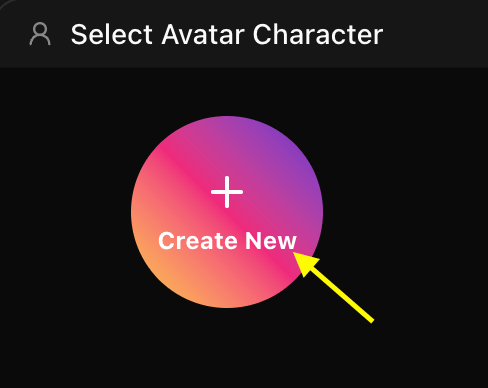
 ### Step 5: Click Create New Avatar
Click the **Create New** button to open the avatar setup tool.
### Step 5: Click Create New Avatar
Click the **Create New** button to open the avatar setup tool.
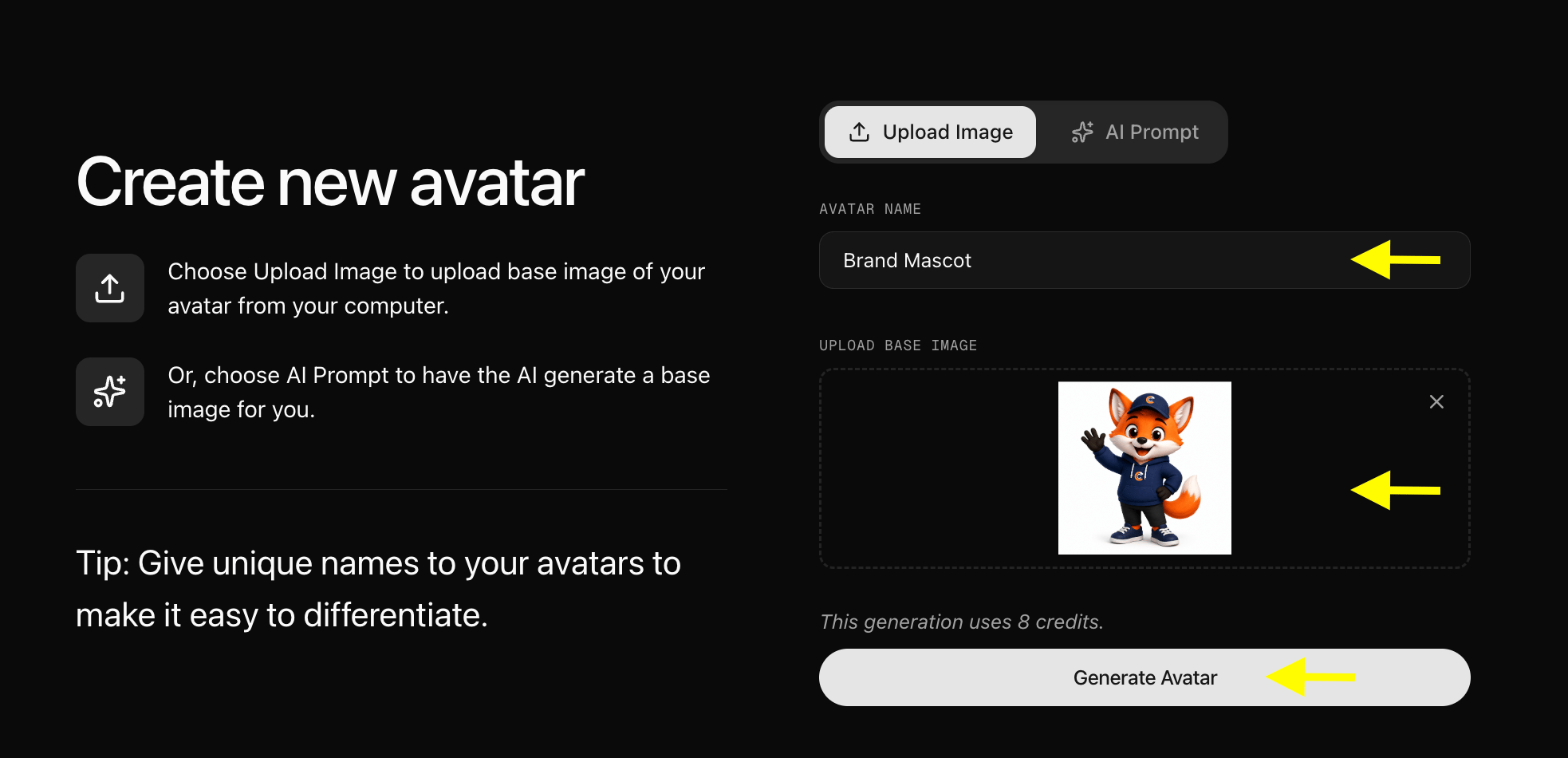
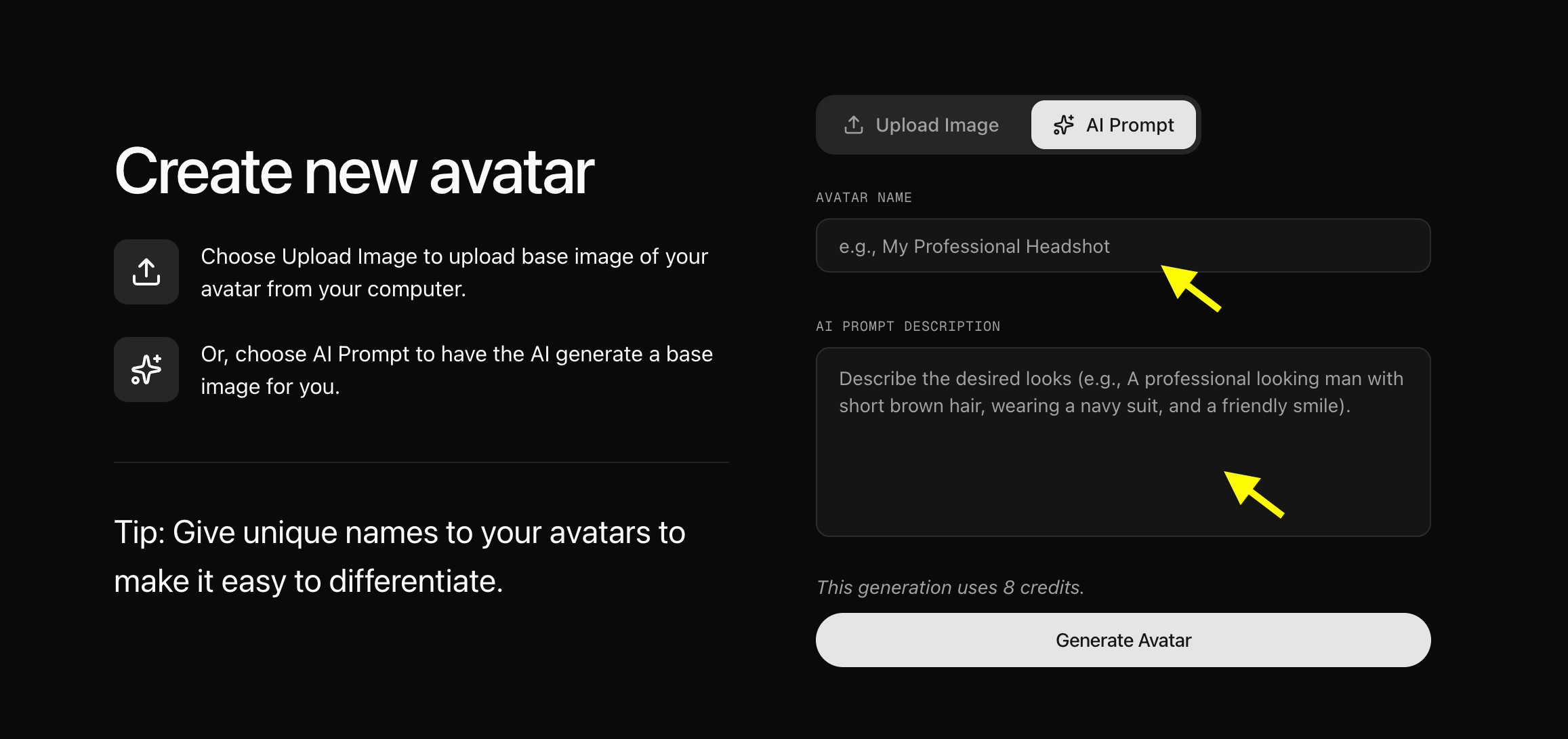
 ### Step 6: Upload Mascot Image or Generate Mascot with AI Prompt
You can choose between two methods to set up your brand mascot:
* **Upload Image**: Upload a high-resolution, forward-facing image of your brand mascot illustration or 3D render.
* **AI Prompt**: Switch to the **AI Prompt** tab and type a detailed description of your desired brand mascot (e.g., *"A friendly 3D Pixar-style fox mascot wearing a blue corporate polo shirt, warm smile, modern office background"*).
### Step 6: Upload Mascot Image or Generate Mascot with AI Prompt
You can choose between two methods to set up your brand mascot:
* **Upload Image**: Upload a high-resolution, forward-facing image of your brand mascot illustration or 3D render.
* **AI Prompt**: Switch to the **AI Prompt** tab and type a detailed description of your desired brand mascot (e.g., *"A friendly 3D Pixar-style fox mascot wearing a blue corporate polo shirt, warm smile, modern office background"*).
 ### Step 7: Configure Mascot Avatar Profile Settings
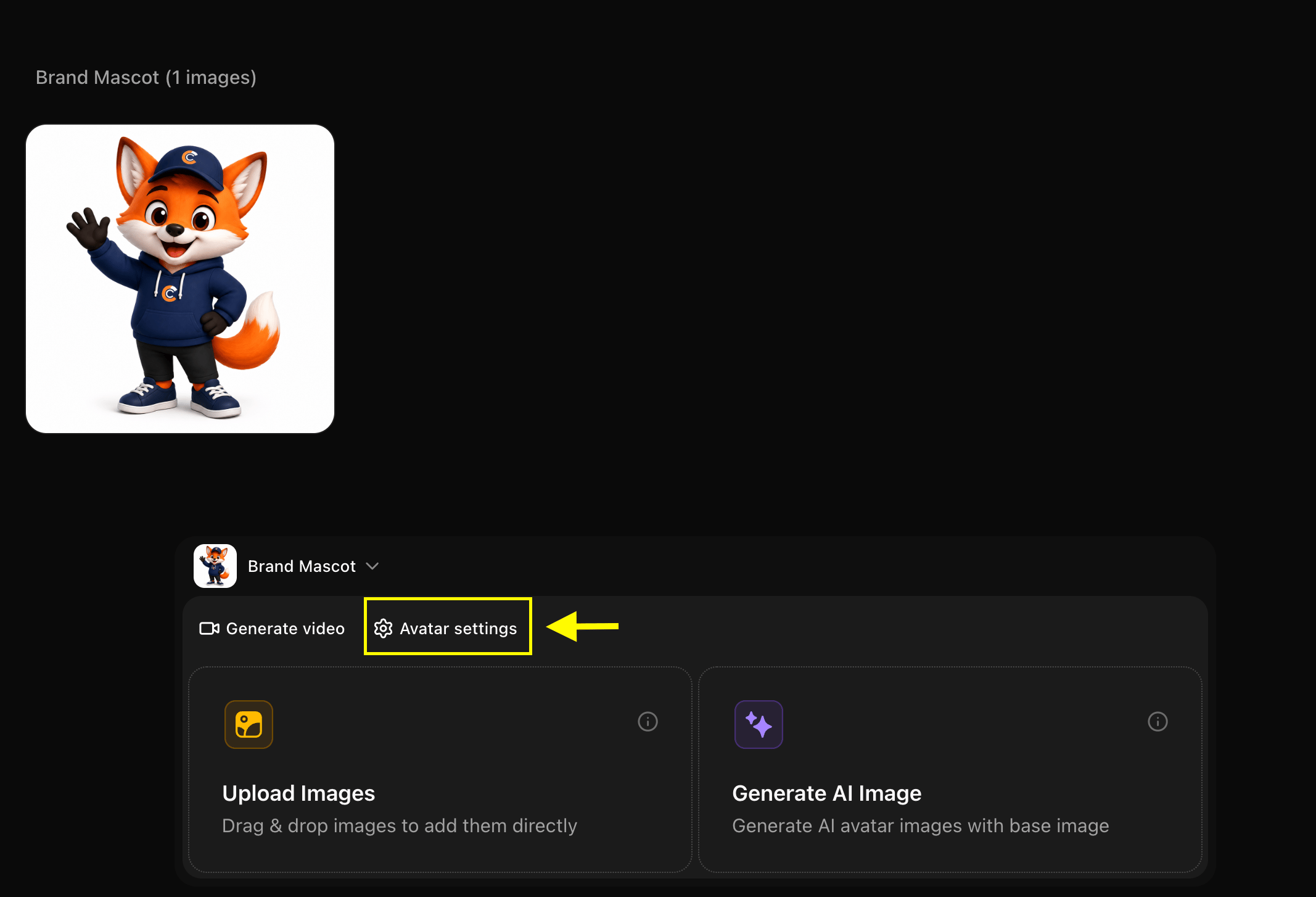
Click **Avatar Setting** to specify profile details such as Avatar Name, Gender, Age, and Category. Setting accurate profile attributes ensures smooth facial animation around your mascot's features.
### Step 7: Configure Mascot Avatar Profile Settings
Click **Avatar Setting** to specify profile details such as Avatar Name, Gender, Age, and Category. Setting accurate profile attributes ensures smooth facial animation around your mascot's features.
 ### Step 8: Click Generate Video
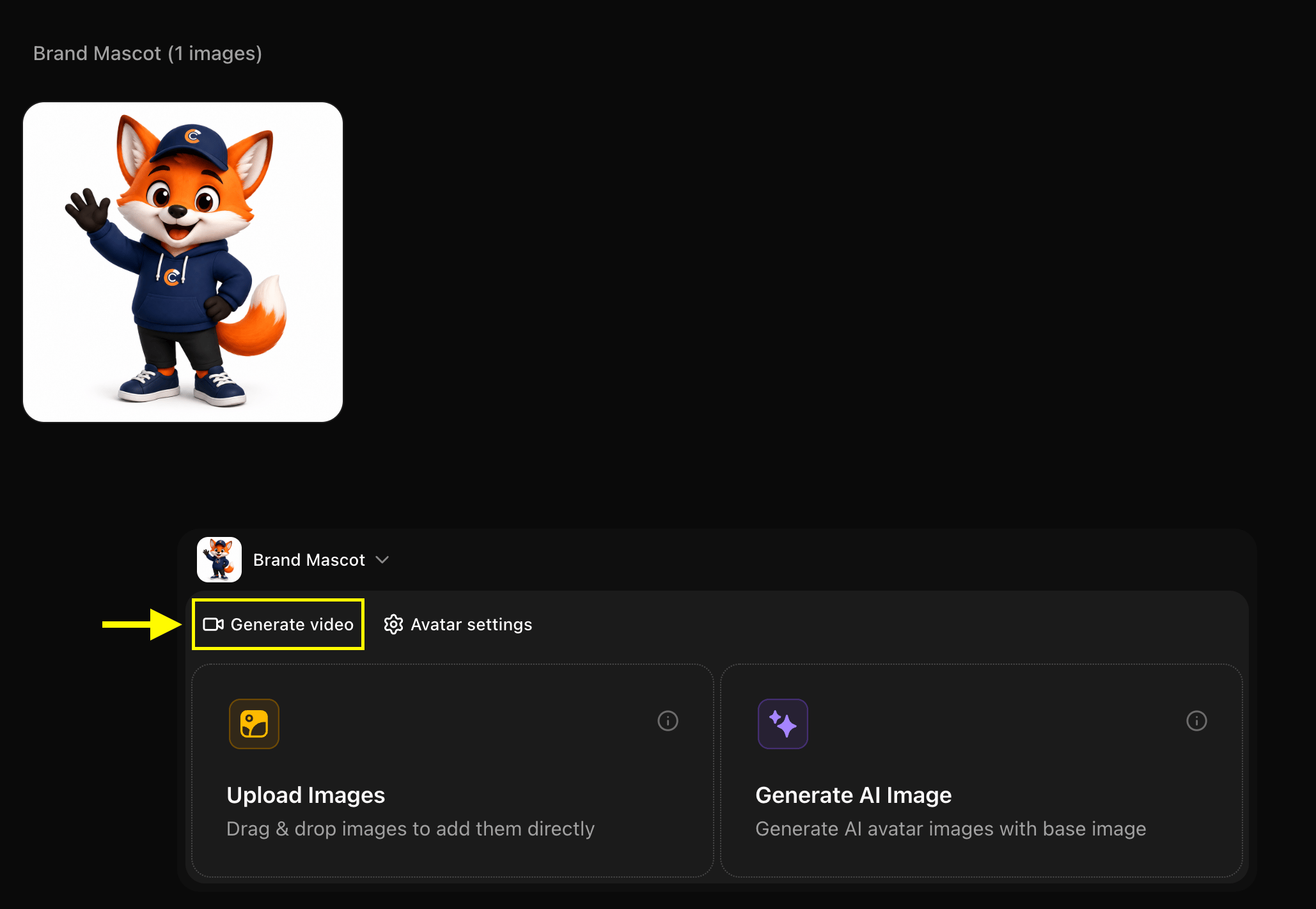
Once your mascot avatar profile is saved in your library, select your character card and click **Generate Video**.
### Step 8: Click Generate Video
Once your mascot avatar profile is saved in your library, select your character card and click **Generate Video**.
 ### Step 9: Add Script or Audio Content
Click on the script area in the video creation studio.
### Step 9: Add Script or Audio Content
Click on the script area in the video creation studio.
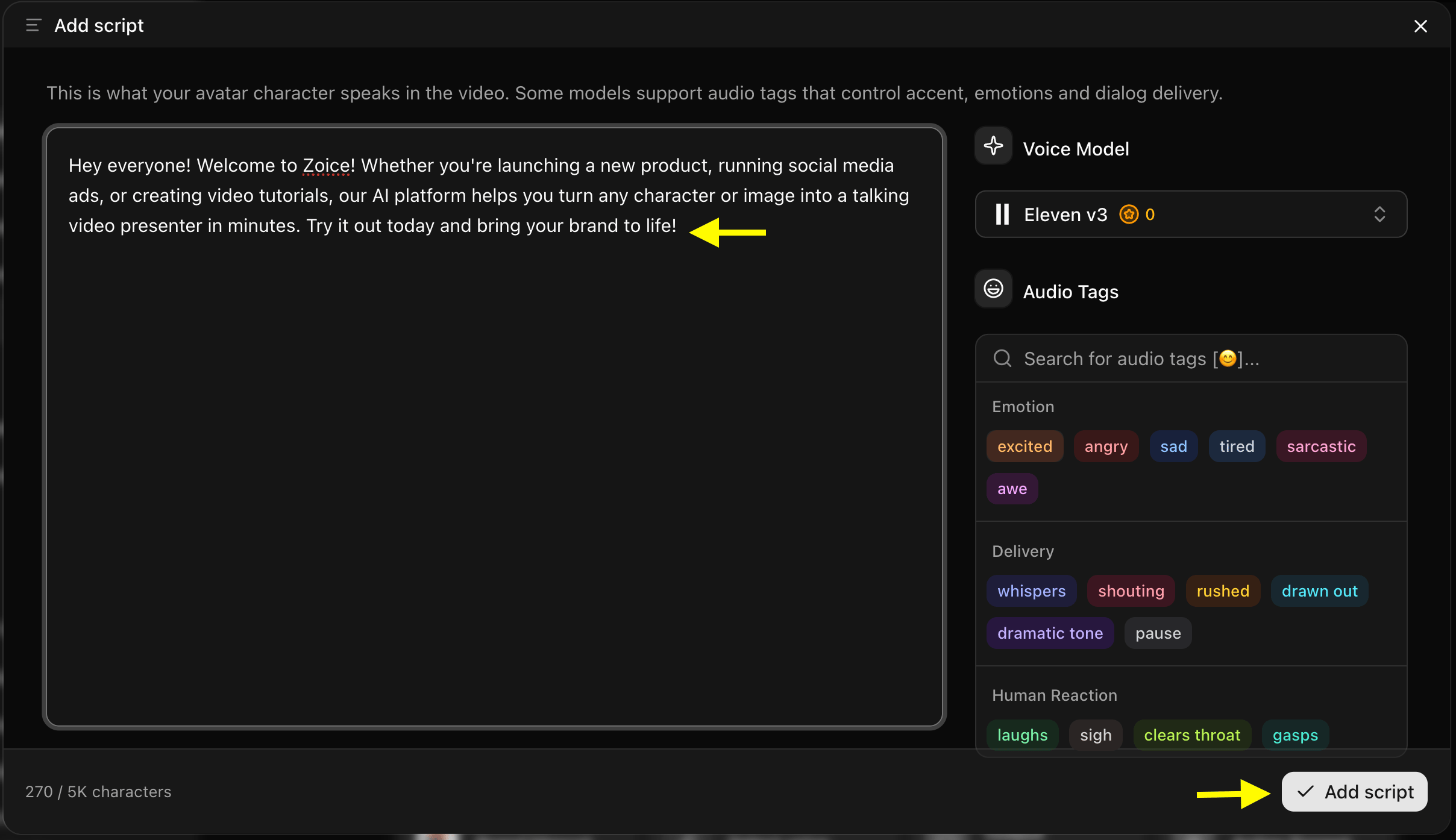
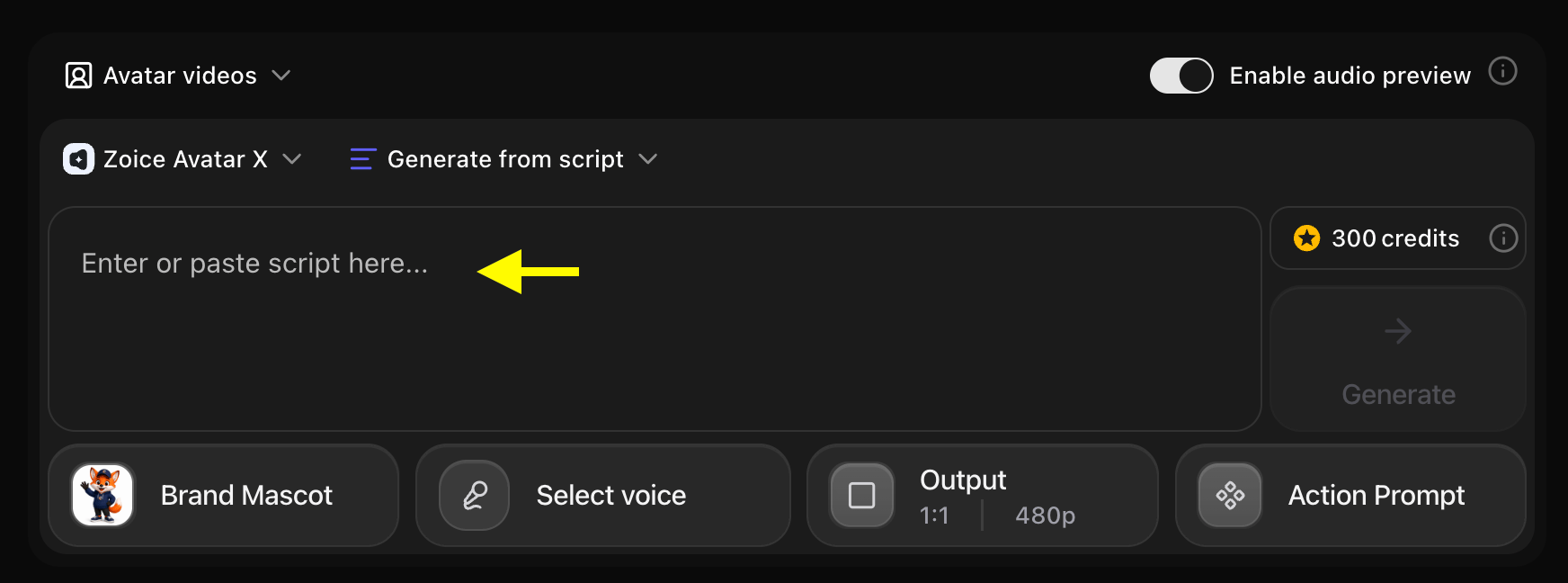 The script box will expand so you can write or paste your brand mascot's speech, promotional offer, or product demonstration script.
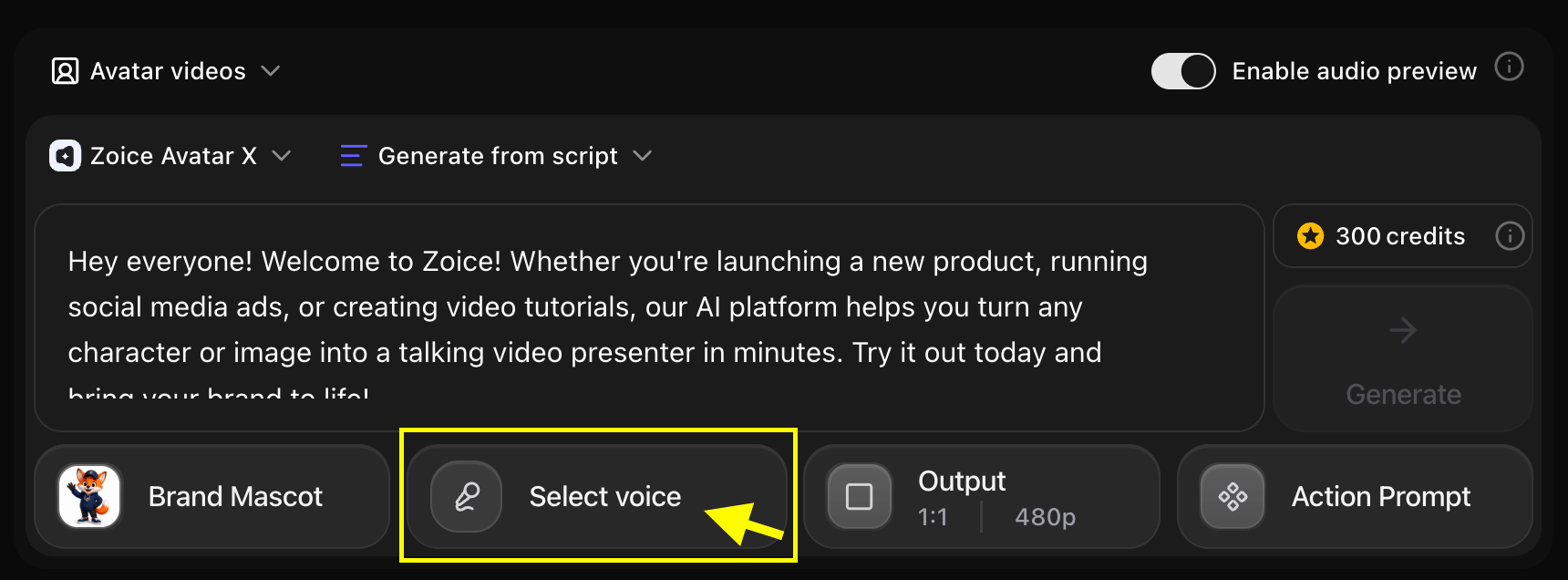
 ### Step 10: Select an AI Voice for Your Mascot
Click on **Select Voice** to choose a matching voice model.
### Step 10: Select an AI Voice for Your Mascot
Click on **Select Voice** to choose a matching voice model.
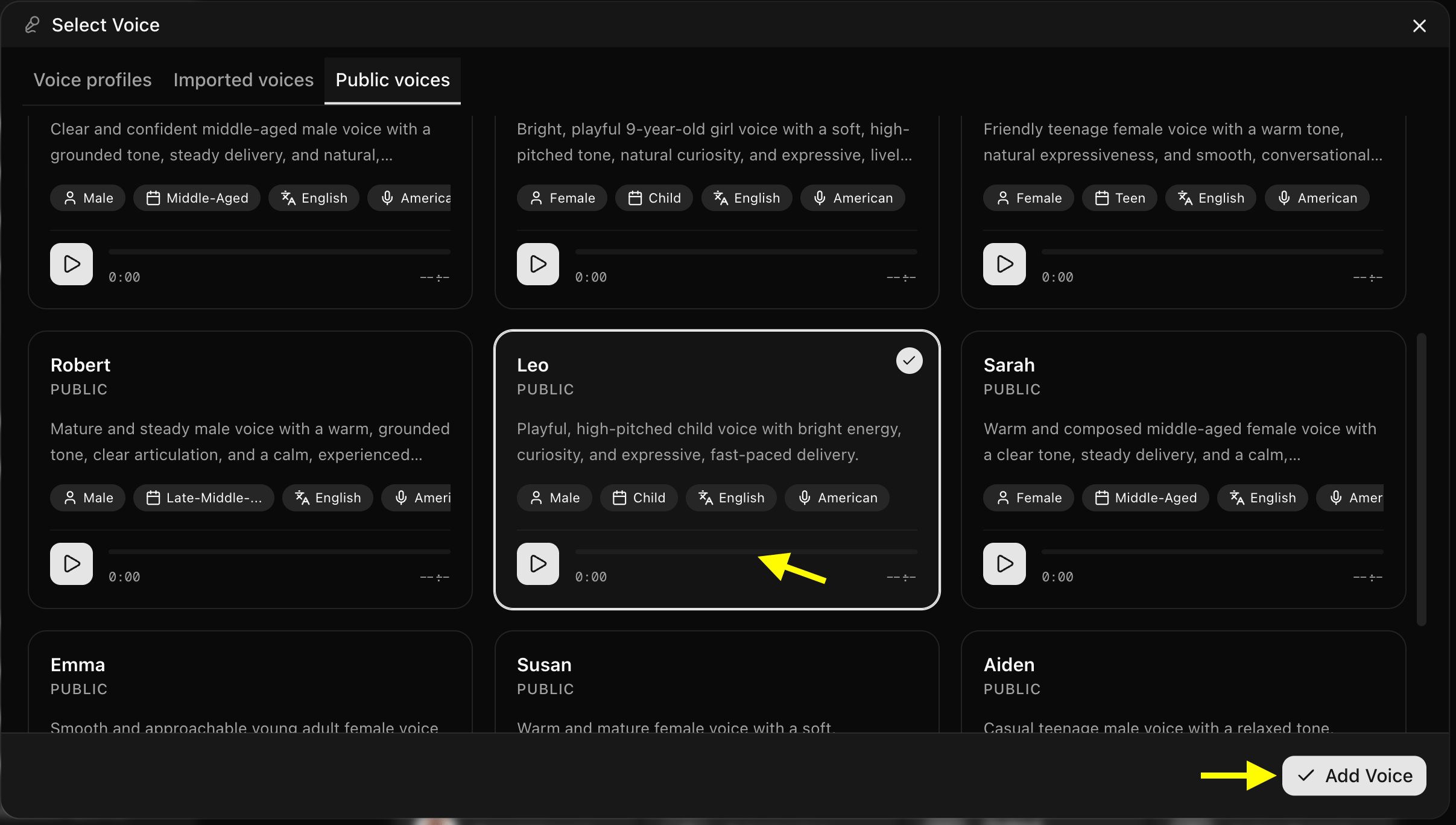
 A pop-up window will open where you can upload a custom voice clone or choose from public AI voice presets that reflect your mascot's personality (e.g., cheerful, energetic, professional, or playful). Select a voice and click **Add Voice**.
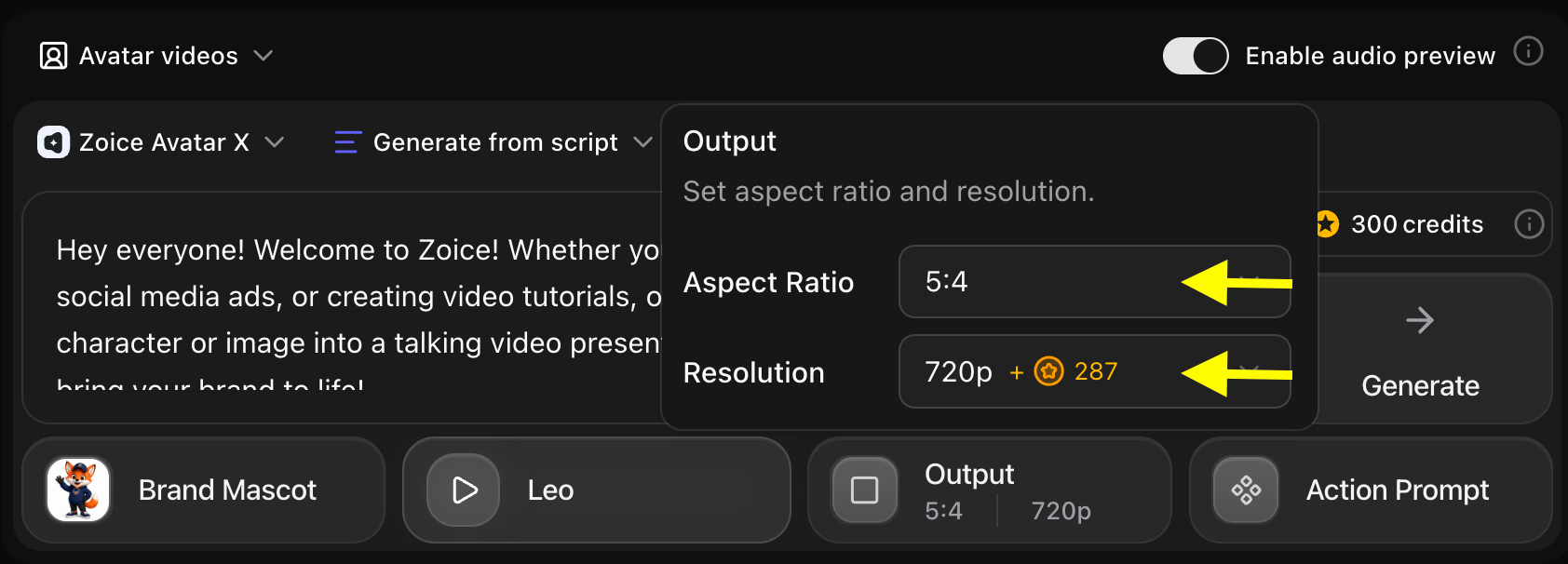
 ### Step 11: Configure Output Settings
Click **Output Settings** to set your video resolution (1080p or 4K) and aspect ratio (16:9 for YouTube/Web, or 9:16 for Instagram Reels, TikTok, and Shorts).
### Step 11: Configure Output Settings
Click **Output Settings** to set your video resolution (1080p or 4K) and aspect ratio (16:9 for YouTube/Web, or 9:16 for Instagram Reels, TikTok, and Shorts).
 ### Step 12: Add Action Prompts for Mascot Gestures & Expressions
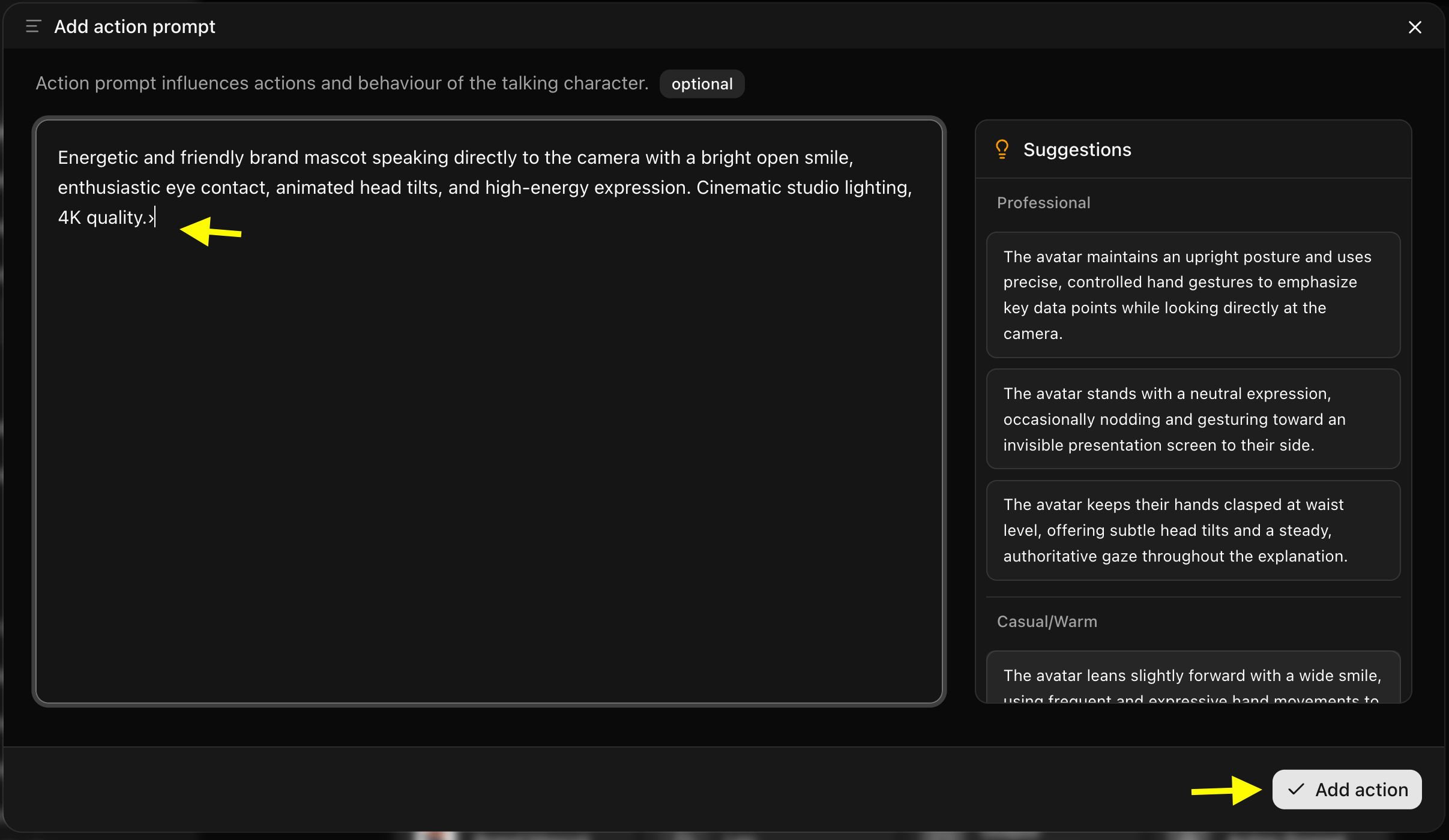
Click on **Action Prompt** to direct your mascot's emotional tone and gestures.
### Step 12: Add Action Prompts for Mascot Gestures & Expressions
Click on **Action Prompt** to direct your mascot's emotional tone and gestures.
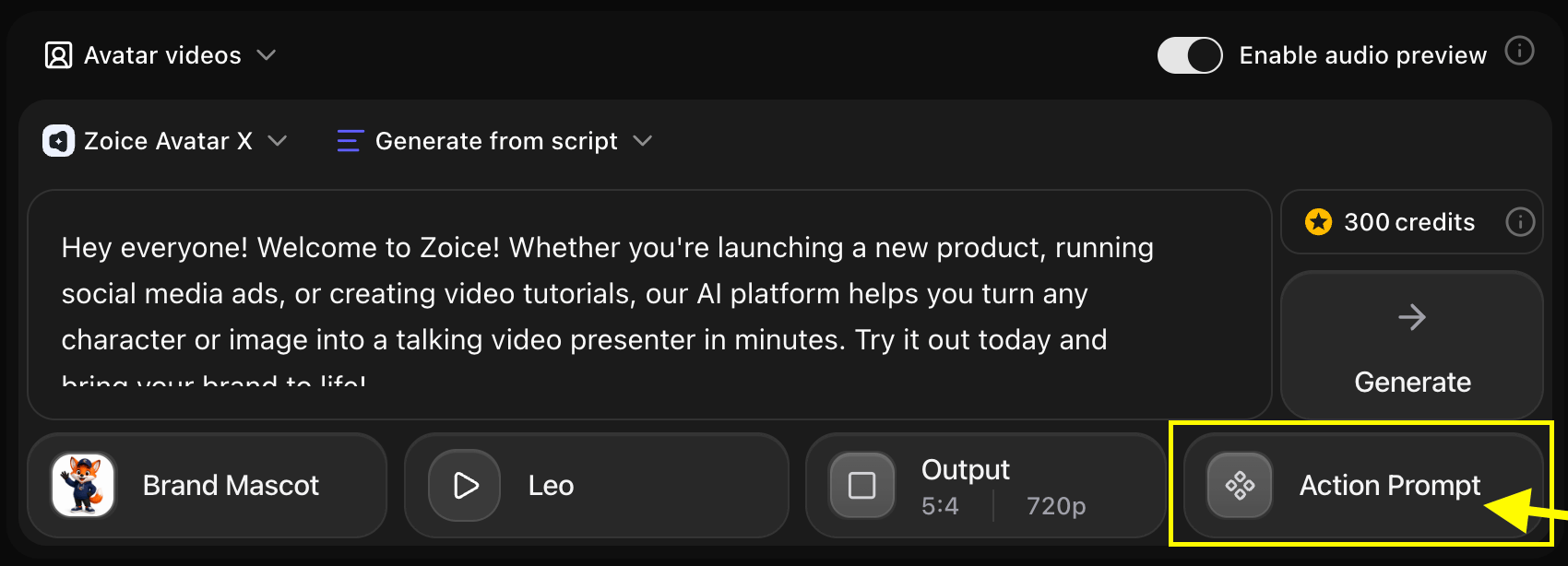 In the action prompt box, type specific behavioral instructions (e.g., *"cheerful mascot smiling warmly, gesturing towards the screen, enthusiastic head tilts, vibrant eye contact"*).
 ### Step 13: Click Generate
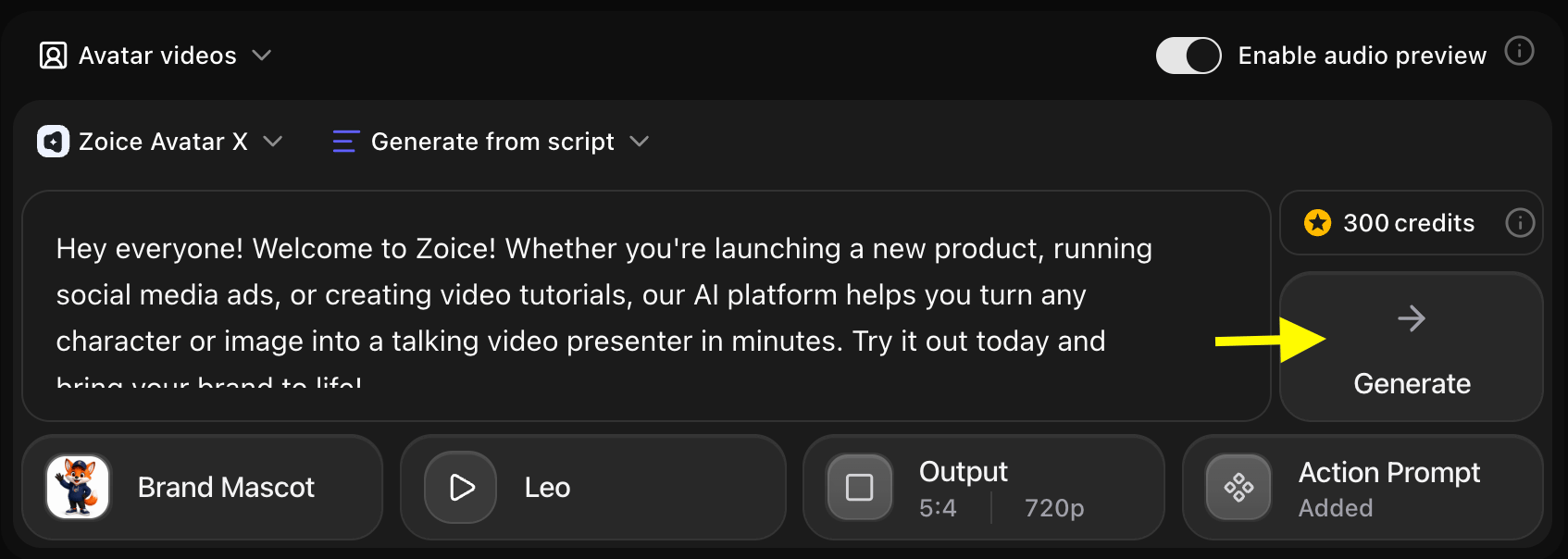
Click **Generate** to start processing your brand mascot animation setup.
### Step 13: Click Generate
Click **Generate** to start processing your brand mascot animation setup.
 ### Step 14: Preview Audio and Click Generate Avatar Video
Once you click **Generate**, Zoice synthesizes the AI audio track first. Listen to the audio preview to verify that speech cadence, brand tone, and pronunciation sound perfect.
### Step 14: Preview Audio and Click Generate Avatar Video
Once you click **Generate**, Zoice synthesizes the AI audio track first. Listen to the audio preview to verify that speech cadence, brand tone, and pronunciation sound perfect.
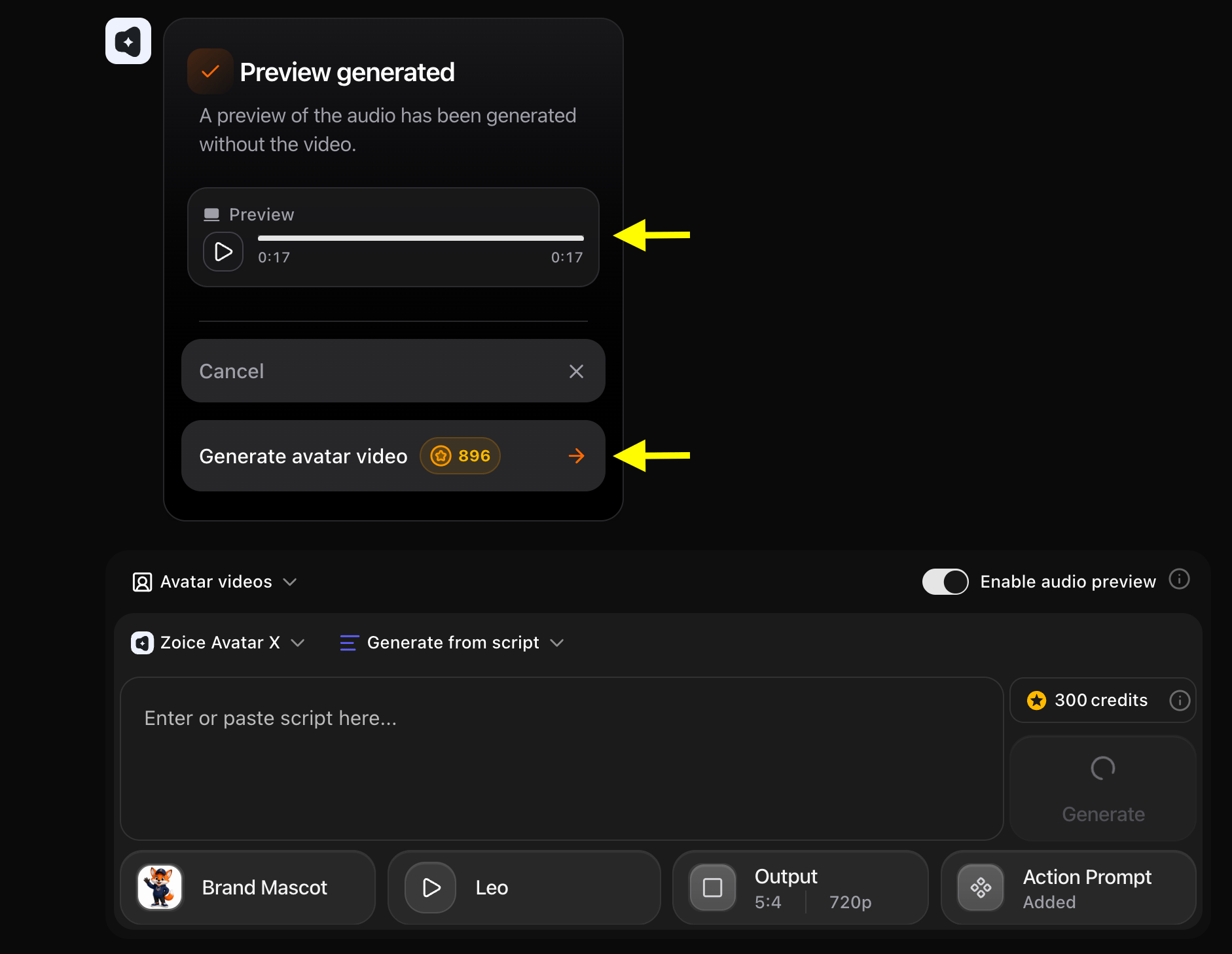 If everything sounds right, click **Generate Avatar Video** and wait a few minutes for the final video render to finish.
### Step 15: Preview and Download Your Mascot Video
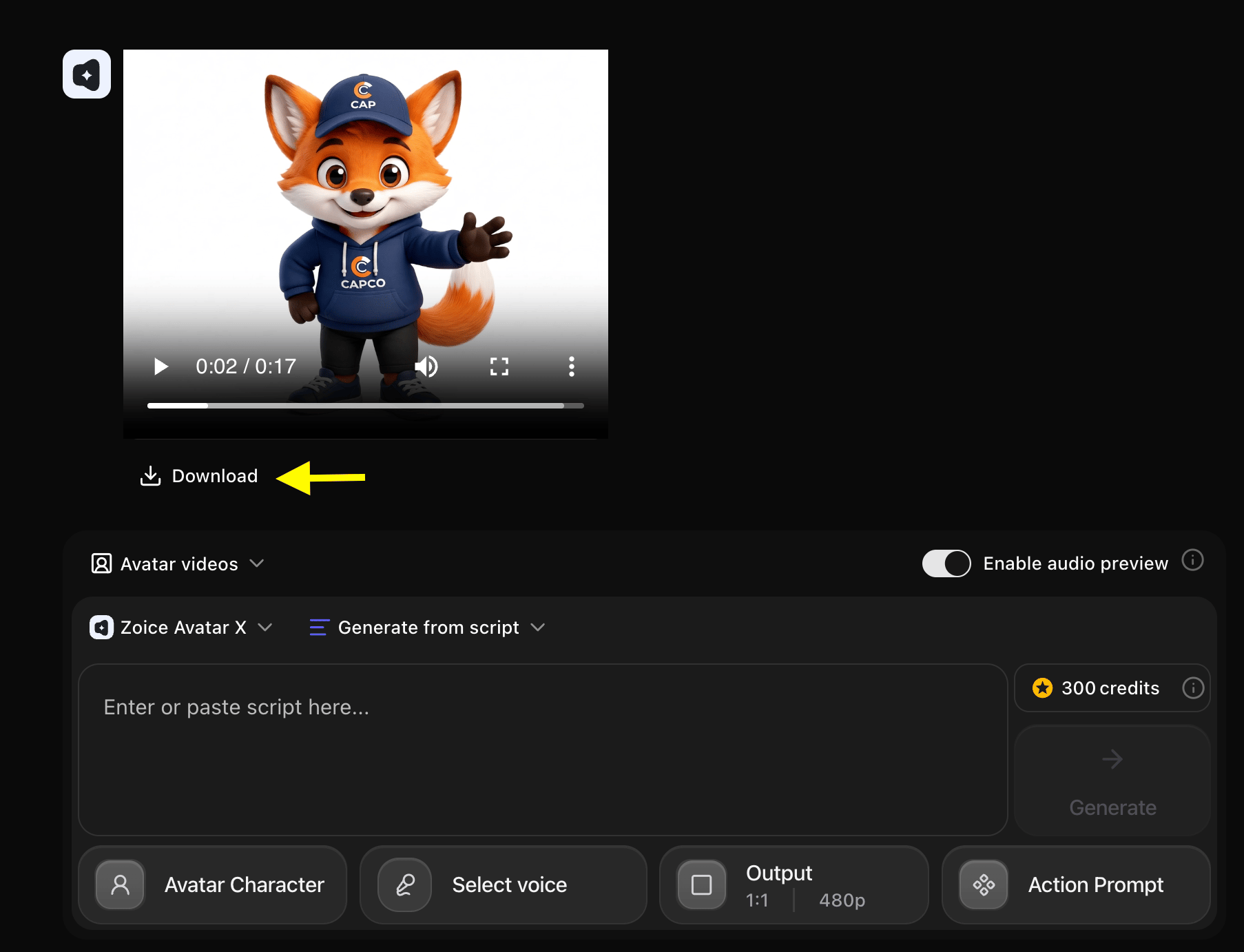
Once video processing is complete, play the video preview to review mascot lip-syncing and expression timing. Click **Download** to save the MP4 video to your device.
If everything sounds right, click **Generate Avatar Video** and wait a few minutes for the final video render to finish.
### Step 15: Preview and Download Your Mascot Video
Once video processing is complete, play the video preview to review mascot lip-syncing and expression timing. Click **Download** to save the MP4 video to your device.
 ## Example Input Image, Script, Action Prompt & Output Video
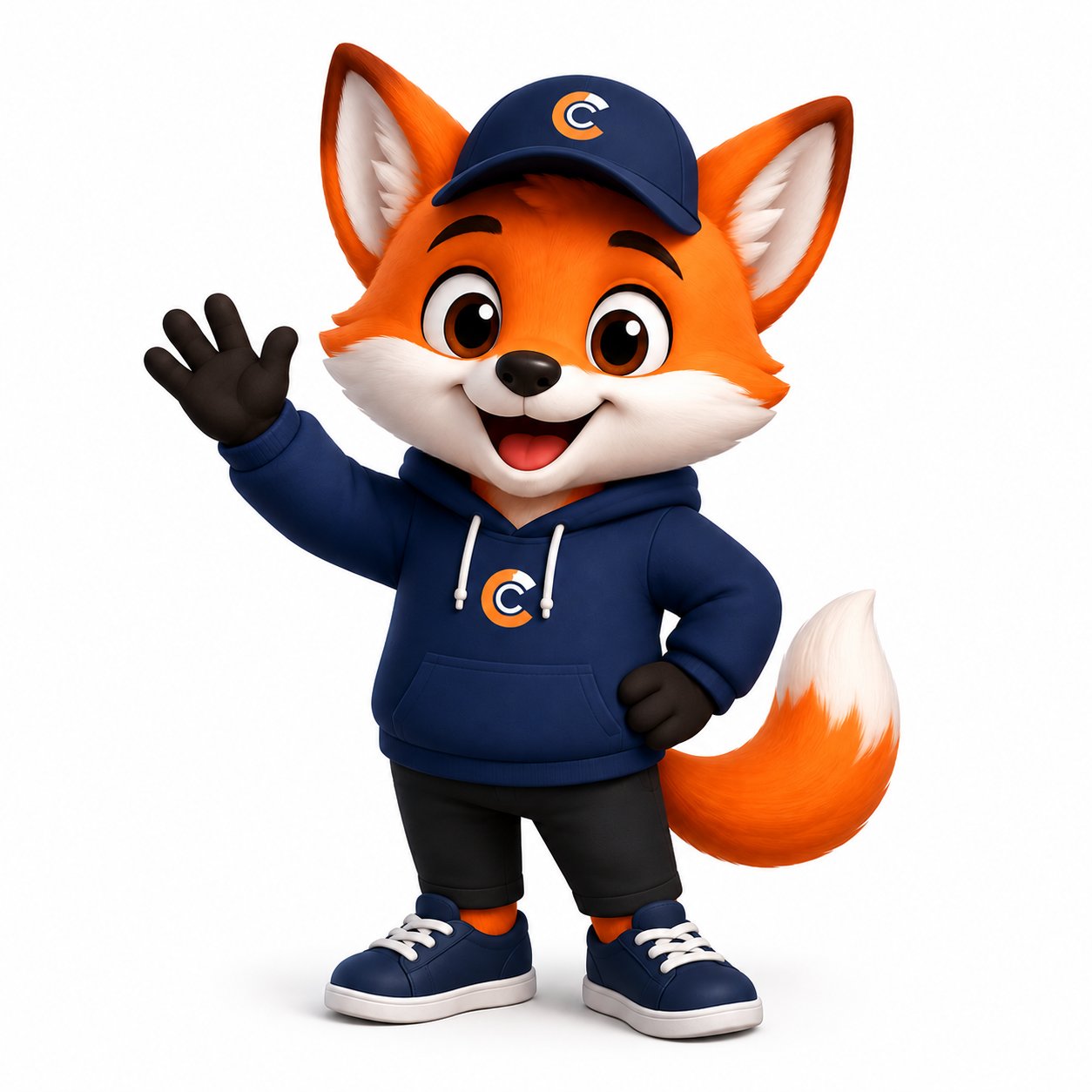
To help you get started, here is an example of an input brand mascot image, script, action prompt, and generated video.
### Used Mascot Image
## Example Input Image, Script, Action Prompt & Output Video
To help you get started, here is an example of an input brand mascot image, script, action prompt, and generated video.
### Used Mascot Image
 ### Used Script
```text theme={null}
Hey everyone! Welcome to Zoice! Whether you're launching a new product, running social media ads, or creating video tutorials, our AI platform helps you turn any character or image into a talking video presenter in minutes. Try it out today and bring your brand to life!
```
### Used Action Prompt
```text theme={null}
Energetic and friendly brand mascot speaking directly to the camera with a bright open smile, enthusiastic eye contact, animated head tilts, and high-energy expression. Cinematic studio lighting, 4K quality.
```
### Output Result Video
Below is the rendered animated brand mascot video:
## Best Practices for Brand Mascot Animation
To get maximum performance out of your AI brand mascot videos:
* **Keep Source Images High-Resolution**: Use clear 2D illustrations or 3D renders with distinct eyes, nose, and mouth lines for optimal AI facial landmark tracking.
* **Match Voice to Brand Persona**: Pick a voice model that reflects your brand identity, whether it is fun and quirky for youth brands, or polished and authoritative for B2B SaaS.
* **Structure Short Marketing Hooks**: Keep social media mascot ads under 30 seconds, leading with a strong value proposition in the first 3 seconds.
* **Incorporate Clear Call-to-Actions**: End every mascot presentation with a direct CTA like *"Visit our website"*, *"Claim your discount"*, or *"Download the app today"*.
## Conclusion
Creating brand mascot animations using AI with Zoice allows companies, startups, and creators to transform static character logos into interactive brand ambassadors. Start animating your brand mascots today to supercharge your video marketing and captivate your audience!
## Next Steps
Learn how to make cartoon characters talk using AI.
Discover how to create AI-powered talking product demonstration videos.
### Used Script
```text theme={null}
Hey everyone! Welcome to Zoice! Whether you're launching a new product, running social media ads, or creating video tutorials, our AI platform helps you turn any character or image into a talking video presenter in minutes. Try it out today and bring your brand to life!
```
### Used Action Prompt
```text theme={null}
Energetic and friendly brand mascot speaking directly to the camera with a bright open smile, enthusiastic eye contact, animated head tilts, and high-energy expression. Cinematic studio lighting, 4K quality.
```
### Output Result Video
Below is the rendered animated brand mascot video:
## Best Practices for Brand Mascot Animation
To get maximum performance out of your AI brand mascot videos:
* **Keep Source Images High-Resolution**: Use clear 2D illustrations or 3D renders with distinct eyes, nose, and mouth lines for optimal AI facial landmark tracking.
* **Match Voice to Brand Persona**: Pick a voice model that reflects your brand identity, whether it is fun and quirky for youth brands, or polished and authoritative for B2B SaaS.
* **Structure Short Marketing Hooks**: Keep social media mascot ads under 30 seconds, leading with a strong value proposition in the first 3 seconds.
* **Incorporate Clear Call-to-Actions**: End every mascot presentation with a direct CTA like *"Visit our website"*, *"Claim your discount"*, or *"Download the app today"*.
## Conclusion
Creating brand mascot animations using AI with Zoice allows companies, startups, and creators to transform static character logos into interactive brand ambassadors. Start animating your brand mascots today to supercharge your video marketing and captivate your audience!
## Next Steps
Learn how to make cartoon characters talk using AI.
Discover how to create AI-powered talking product demonstration videos.