> ## Documentation Index
> Fetch the complete documentation index at: https://docs.zoice.com/llms.txt
> Use this file to discover all available pages before exploring further.
# How to Make an Old Photo Sing a Song Using AI
> Learn how to make an old photo sing a song using AI with Zoice. Bring historic portraits or family photos to life with realistic singing animations, uploaded audio, and natural lip-syncing in minutes.
 A singing AI old photo video allows you to animate historic black-and-white portraits, vintage pictures, or family keepsakes so they perform any song using artificial intelligence. You no longer need advanced animation skills or video editing tools to bring old photos to life.
With Zoice, you can upload an old photo, create an AI avatar character, add your favorite song or voice recording, and generate a natural-looking singing performance with accurate lip-syncing and expressive facial animations.
Whether you want to create a touching family video, a historical project, or engaging content for social media, AI singing old photos make it easy to generate unique animations in minutes.
In this article, you will learn how to make an old photo sing a song using Zoice by following a comprehensive, step-by-step tutorial.
## What is a Singing AI Old Photo?
A singing AI old photo is a digital animation of a static vintage photograph performing a song using artificial intelligence. Instead of using complex rigging tools, the AI analyzes the uploaded audio track and animates the facial features of the person in the photo, creating realistic lip movements, eye blinks, and natural head motions.
This technology helps users preserve memories, create funny clips, or produce educational content featuring historical figures singing or speaking in a polished format.
## How to Make an Old Photo Sing a Song Using AI
Animating an old photo to sing with Zoice takes only a few minutes. Follow the detailed steps below to get started.
### Step 1: Visit Zoice.com
Go to [Zoice.com](https://zoice.com) in your web browser. This is the main portal where you can access all of Zoice's AI creation tools.
A singing AI old photo video allows you to animate historic black-and-white portraits, vintage pictures, or family keepsakes so they perform any song using artificial intelligence. You no longer need advanced animation skills or video editing tools to bring old photos to life.
With Zoice, you can upload an old photo, create an AI avatar character, add your favorite song or voice recording, and generate a natural-looking singing performance with accurate lip-syncing and expressive facial animations.
Whether you want to create a touching family video, a historical project, or engaging content for social media, AI singing old photos make it easy to generate unique animations in minutes.
In this article, you will learn how to make an old photo sing a song using Zoice by following a comprehensive, step-by-step tutorial.
## What is a Singing AI Old Photo?
A singing AI old photo is a digital animation of a static vintage photograph performing a song using artificial intelligence. Instead of using complex rigging tools, the AI analyzes the uploaded audio track and animates the facial features of the person in the photo, creating realistic lip movements, eye blinks, and natural head motions.
This technology helps users preserve memories, create funny clips, or produce educational content featuring historical figures singing or speaking in a polished format.
## How to Make an Old Photo Sing a Song Using AI
Animating an old photo to sing with Zoice takes only a few minutes. Follow the detailed steps below to get started.
### Step 1: Visit Zoice.com
Go to [Zoice.com](https://zoice.com) in your web browser. This is the main portal where you can access all of Zoice's AI creation tools.
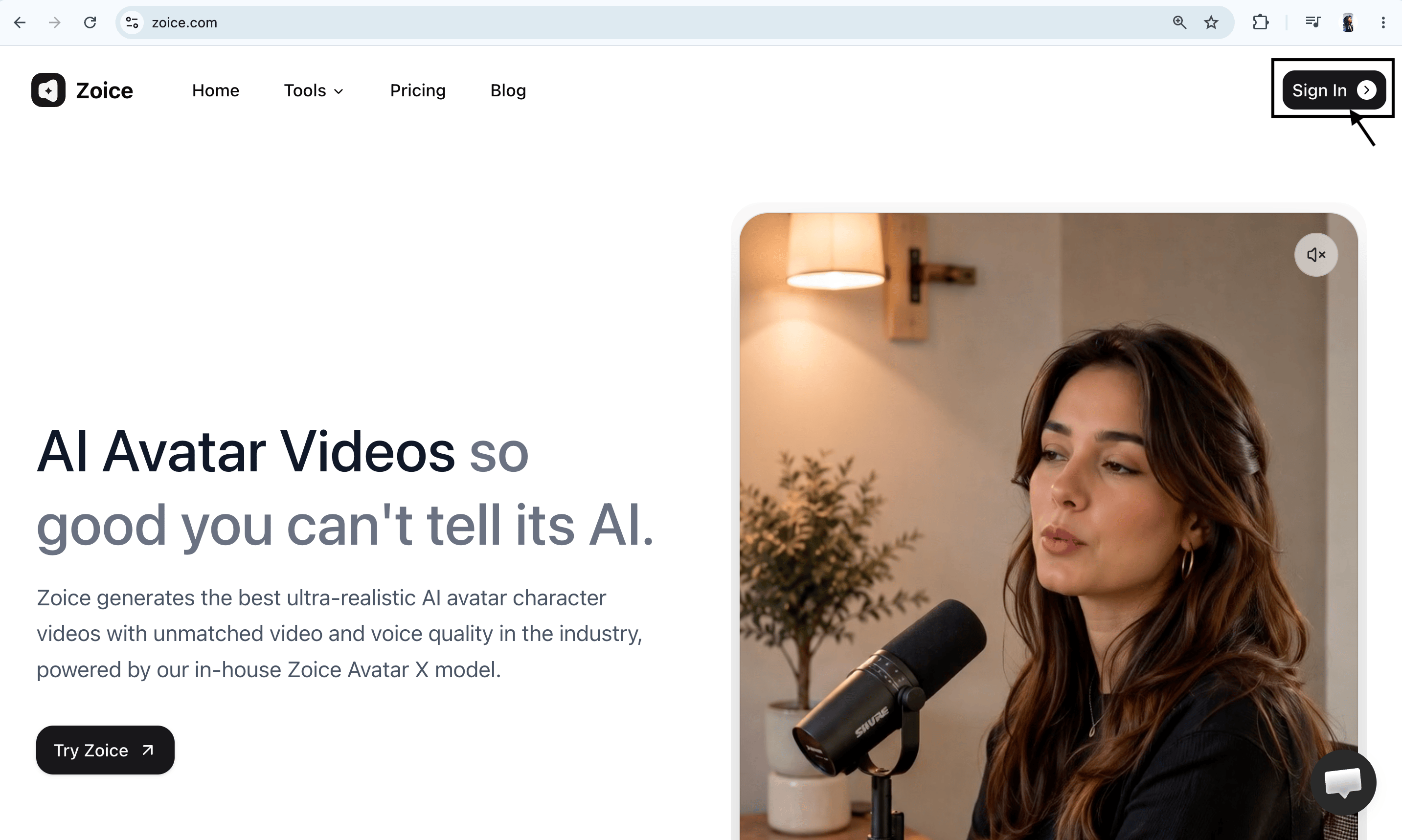 ### Step 2: Sign In to Your Zoice Account
Click the **Sign In** button in the top-right corner of the homepage. Enter your registered email address and password, or choose **Sign in with Google** to access your dashboard quickly.
### Step 2: Sign In to Your Zoice Account
Click the **Sign In** button in the top-right corner of the homepage. Enter your registered email address and password, or choose **Sign in with Google** to access your dashboard quickly.
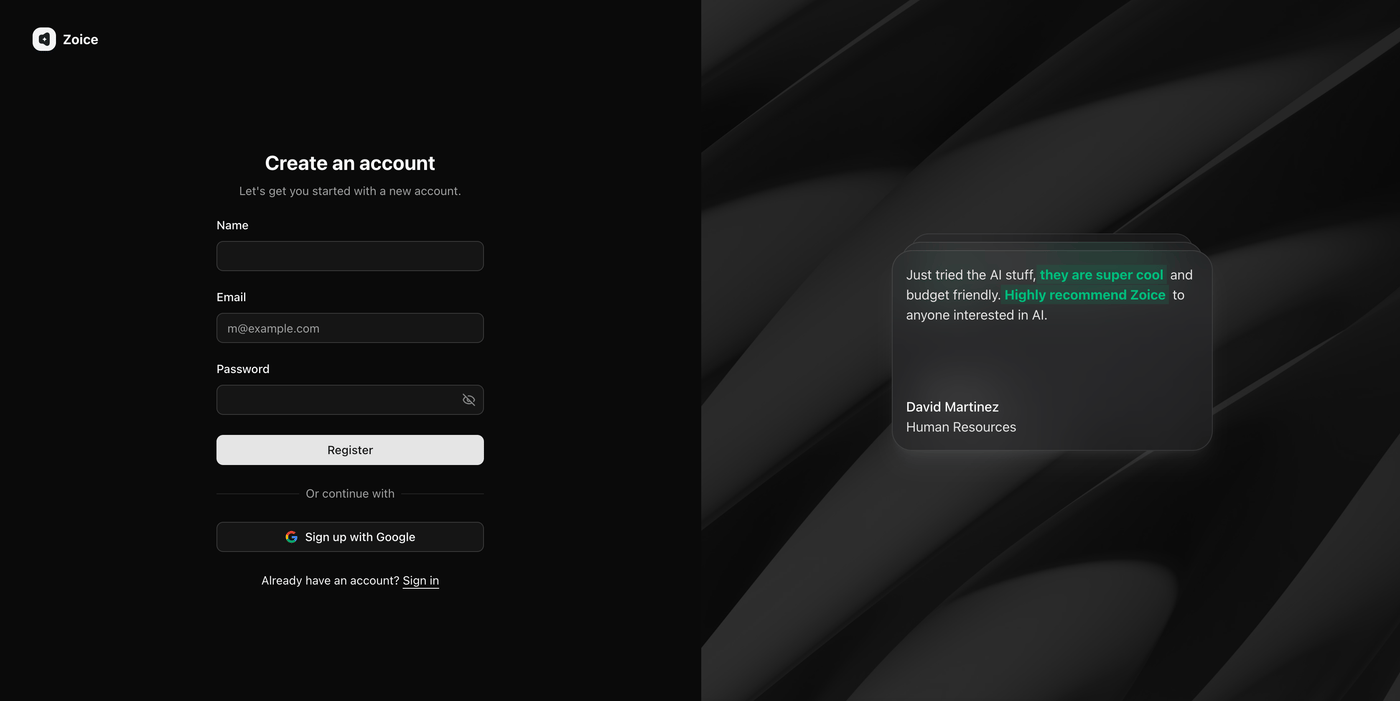
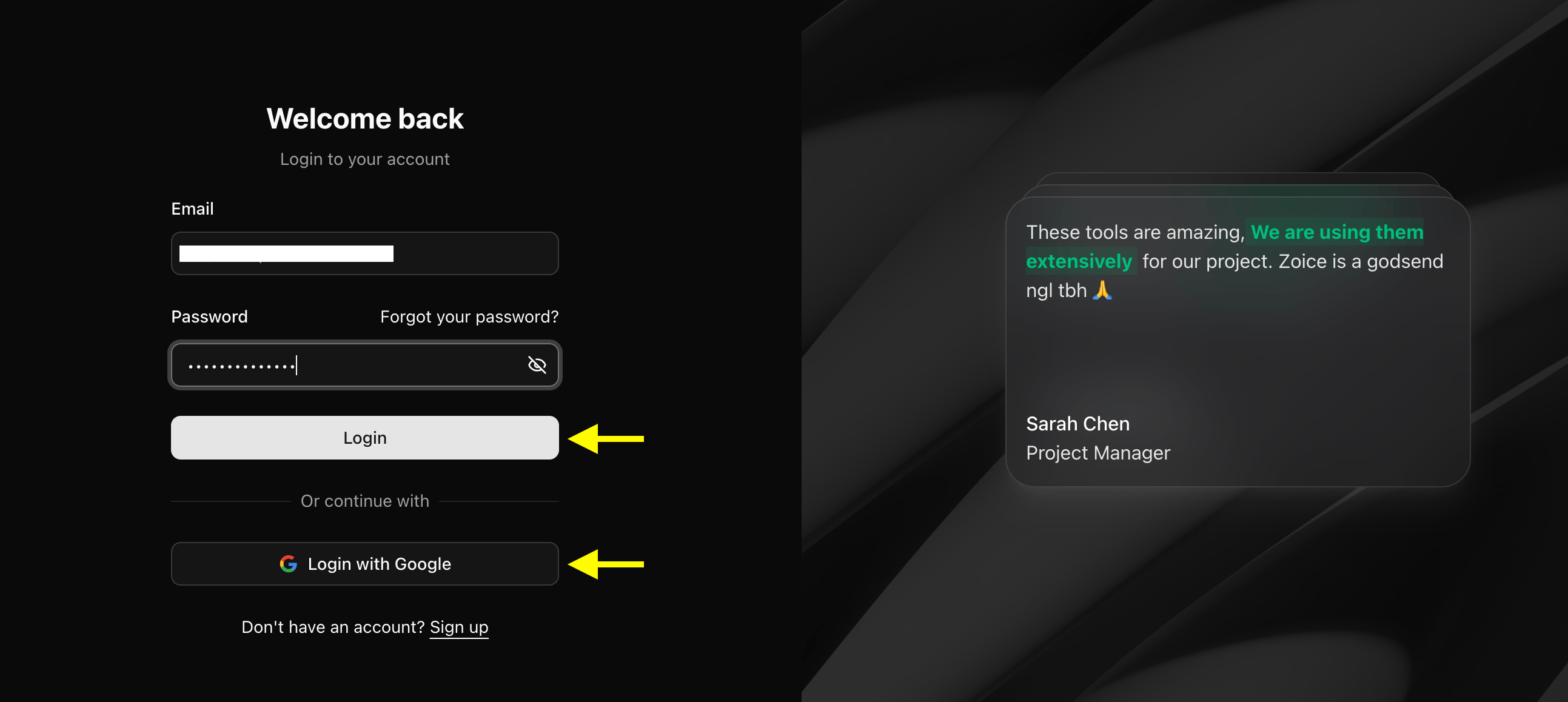 ### Step 3: Create a New Zoice Account (For New Users)
If you don't have a Zoice account yet, click **Sign Up** on the login page. Fill in your details (name, email, and password) or select **Sign up with Google** to create a new account in one click.
### Step 3: Create a New Zoice Account (For New Users)
If you don't have a Zoice account yet, click **Sign Up** on the login page. Fill in your details (name, email, and password) or select **Sign up with Google** to create a new account in one click.
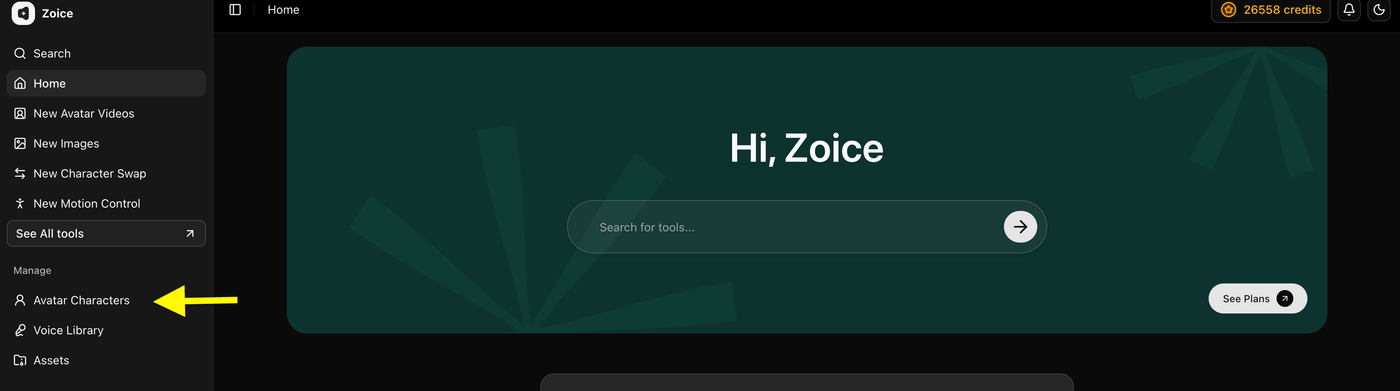
 ### Step 4: Click Avatar Character
Select **Avatar Character** to begin creating a new AI old photo avatar. If you already have one saved, you can choose it from your library and proceed to the next step.
### Step 4: Click Avatar Character
Select **Avatar Character** to begin creating a new AI old photo avatar. If you already have one saved, you can choose it from your library and proceed to the next step.
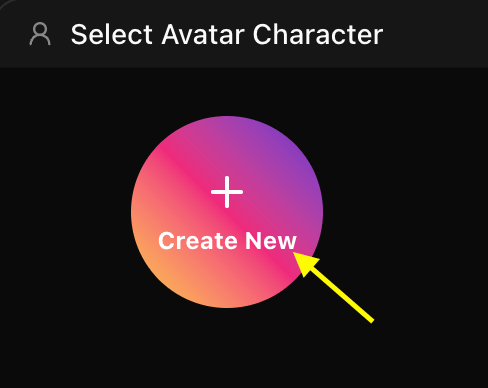
 * **Click on Create New**
 ### Step 5: Upload or Generate Avatar Image
Now, you have two options to set up your old photo avatar:
* **Upload a Photo**: Upload a clear portrait image from your computer and give your singer a name.
### Step 5: Upload or Generate Avatar Image
Now, you have two options to set up your old photo avatar:
* **Upload a Photo**: Upload a clear portrait image from your computer and give your singer a name.
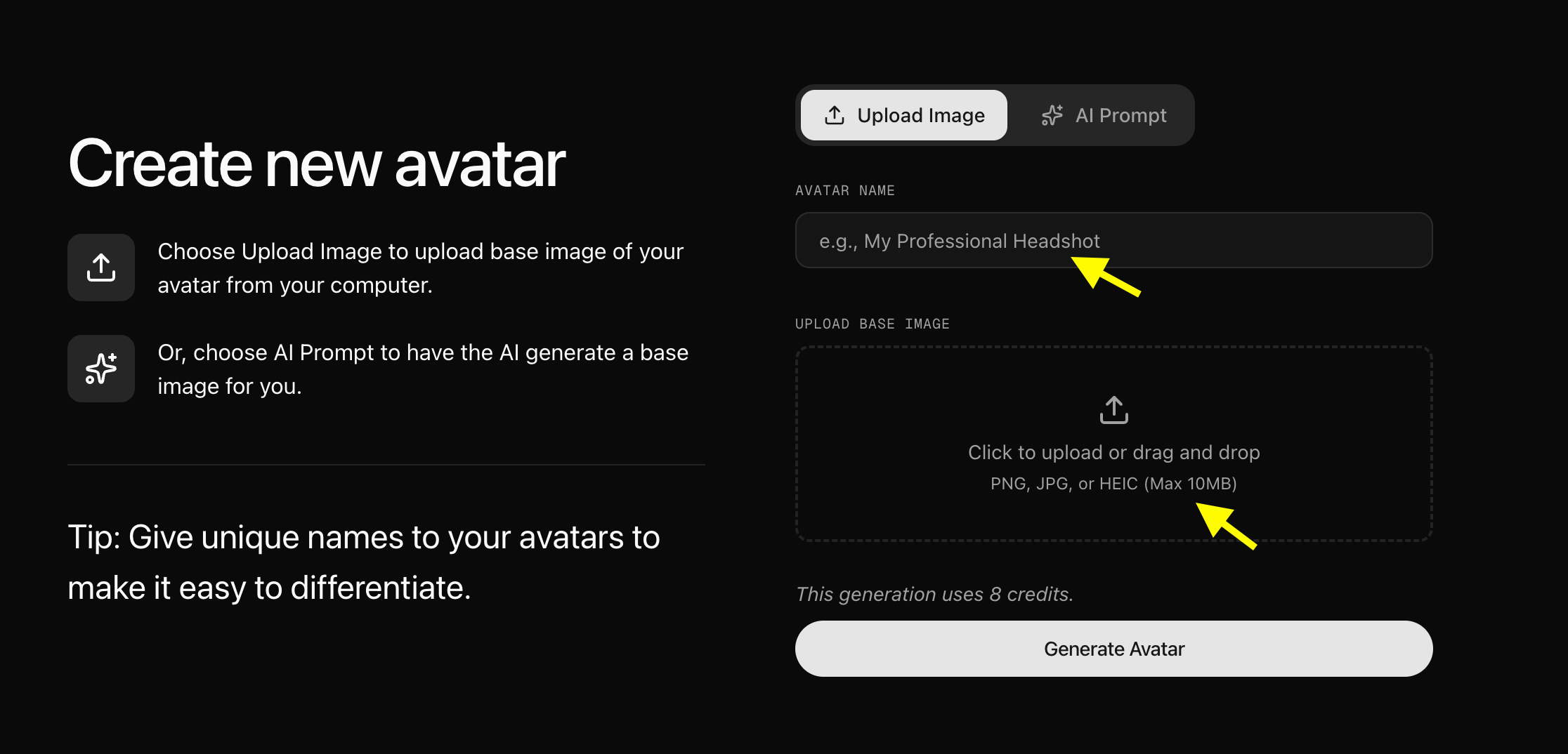 A high-quality, front-facing image helps Zoice generate more natural facial animations and accurate lip-syncing. We have uploaded an HD image and created an avatar, as shown below:
 * **Use an AI Prompt**: Toggle the **AI Prompt** option.
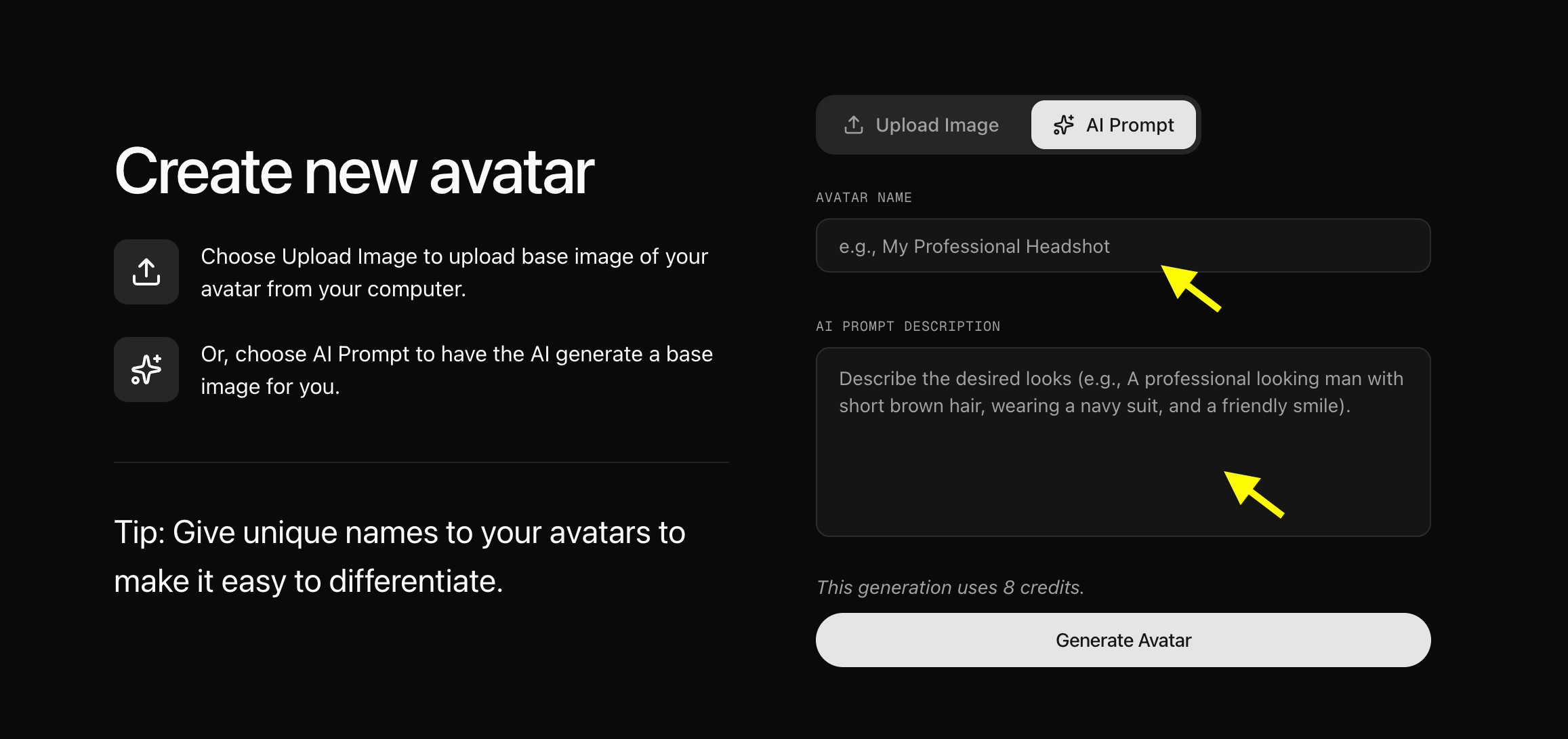 Enter a descriptive text prompt explaining what your avatar should look like (e.g., *"A vintage style black and white portrait of a 1920s jazz singer"*). Click **Generate Image**, review the generated image, name your avatar, and save it to your library.
### Step 6: Configure Avatar Settings (Optional)
After adding the image to your library, click **Avatar Setting** to add basic details such as Name, Gender, and Age. Providing these details can help organize your avatar library. Once done, save and close the avatar settings window.
Enter a descriptive text prompt explaining what your avatar should look like (e.g., *"A vintage style black and white portrait of a 1920s jazz singer"*). Click **Generate Image**, review the generated image, name your avatar, and save it to your library.
### Step 6: Configure Avatar Settings (Optional)
After adding the image to your library, click **Avatar Setting** to add basic details such as Name, Gender, and Age. Providing these details can help organize your avatar library. Once done, save and close the avatar settings window.
 ### Step 7: Click Generate Video
With your old photo avatar profile ready, click **Generate Video** to open the video editor and add your singing audio.
### Step 7: Click Generate Video
With your old photo avatar profile ready, click **Generate Video** to open the video editor and add your singing audio.
 ### Step 8: Select Generate from Audio
Switch the input mode from **Generate from Script** to **Generate from Audio** to create a singing avatar using a sound file. You can upload a pre-recorded audio file such as a famous song, a funny voiceover, or an original music track.
### Step 8: Select Generate from Audio
Switch the input mode from **Generate from Script** to **Generate from Audio** to create a singing avatar using a sound file. You can upload a pre-recorded audio file such as a famous song, a funny voiceover, or an original music track.
 ### Step 9: Upload the Song
Upload the audio file (MP3, WAV, or M4A format) that you want your old photo avatar to sing. You can select a file from your device or choose a trending song from Zoice's built-in library.
### Step 9: Upload the Song
Upload the audio file (MP3, WAV, or M4A format) that you want your old photo avatar to sing. You can select a file from your device or choose a trending song from Zoice's built-in library.
 ### Step 10: Preview Your Uploaded Audio
Once the audio is uploaded, click **Preview** to listen to the track and confirm that the audio has loaded correctly and plays from the right starting point.
### Step 10: Preview Your Uploaded Audio
Once the audio is uploaded, click **Preview** to listen to the track and confirm that the audio has loaded correctly and plays from the right starting point.
 ### Step 11: Update Output Settings
Configure the output settings to suit your target platform:
* **Aspect Ratio**: Choose the aspect ratio matching your target platform (e.g., 9:16 for portrait/TikTok/Shorts, 16:9 for landscape/YouTube).
* **Resolution**: Set the resolution up to 4K for maximum clarity.
### Step 11: Update Output Settings
Configure the output settings to suit your target platform:
* **Aspect Ratio**: Choose the aspect ratio matching your target platform (e.g., 9:16 for portrait/TikTok/Shorts, 16:9 for landscape/YouTube).
* **Resolution**: Set the resolution up to 4K for maximum clarity.
 ### Step 12: Configure the Action Prompt
Click **Action Prompt** to define the facial expressions and physical gestures of your singing old photo avatar during the video.
### Step 12: Configure the Action Prompt
Click **Action Prompt** to define the facial expressions and physical gestures of your singing old photo avatar during the video.
 ### Step 13: Select or Write an Action Prompt
Write a custom prompt to specify your avatar's expressions (e.g., *"The singer performs enthusiastically, swaying head gently to the beat with nostalgic, emotional expressions"*).
### Step 13: Select or Write an Action Prompt
Write a custom prompt to specify your avatar's expressions (e.g., *"The singer performs enthusiastically, swaying head gently to the beat with nostalgic, emotional expressions"*).
 ### Step 14: Generate Your Singing Avatar Video
Once all settings are configured, click the **Generate** button to begin the generation process.
### Step 14: Generate Your Singing Avatar Video
Once all settings are configured, click the **Generate** button to begin the generation process.
 ### Step 15: Preview the Generated Audio
Before processing the final video, Zoice generates an audio preview. Listen to the preview to verify the audio quality and timing.
If the preview sounds correct, click **Generate Avatar Video** to render the final video.
### Step 15: Preview the Generated Audio
Before processing the final video, Zoice generates an audio preview. Listen to the preview to verify the audio quality and timing.
If the preview sounds correct, click **Generate Avatar Video** to render the final video.
 **Tip**: You can toggle the **Enhance Audio** switch in the top-right corner of the script box to automatically improve the sound quality of the uploaded track before rendering.
### Step 16: Download Your Singing AI Avatar Video
Once the rendering is complete and you are satisfied with the result, click the **Download** button to save the singing old photo video to your device. It is now ready to share on social media or send to friends.
**Tip**: You can toggle the **Enhance Audio** switch in the top-right corner of the script box to automatically improve the sound quality of the uploaded track before rendering.
### Step 16: Download Your Singing AI Avatar Video
Once the rendering is complete and you are satisfied with the result, click the **Download** button to save the singing old photo video to your device. It is now ready to share on social media or send to friends.
 ## Example Input Image, Voice, Action Prompt & Output Video
To help you get started, here is an example of an input voice, action prompt and generated singing old photo video.
### Used Old Photo
### Used Vocal Track
[🎵 Click here to listen to the singing sample](/images/singing-used-voice.mp3)
### Used Action Prompt
```
Classic vintage look. The person in the black and white portrait sings passionately, head swaying gently from side to side matching the rhythm of the track. Natural mouth shapes and nostalgic eyes.
```
### Output Result Video
Below is the rendered singing old photo video based on the input:
***
## What AI Singing Old Photos Can Be Used For
Singing old photo avatars are highly versatile and perfect for:
* **Nostalgic Keepsakes**: Animate late family members singing family favorites as creative tributes.
* **Historical Projects**: Bring famous historical figures to life singing traditional anthems or iconic speeches in musical forms.
* **Viral Social Media Content**: Create catchy, nostalgic content for platforms like TikTok, Reels, and YouTube.
* **Unique Musical Visualizers**: Present new music tracks using animated classical artwork or retro photographs.
## Where AI Singing Old Photo Videos Are Used
Singing old photo videos perform exceptionally well across visual media platforms:
* TikTok and Instagram Reels
* YouTube Shorts and history/educational channels
* Personal messaging and virtual family gatherings
* Creative exhibitions and digital archives
## Final Words
Making an old photo sing a song with Zoice is an incredibly rewarding and straightforward process. By combining a historic portrait with a high-quality vocal audio file, you can restore and animate static memories into musical legacy videos in just a few minutes.
## Example Input Image, Voice, Action Prompt & Output Video
To help you get started, here is an example of an input voice, action prompt and generated singing old photo video.
### Used Old Photo
### Used Vocal Track
[🎵 Click here to listen to the singing sample](/images/singing-used-voice.mp3)
### Used Action Prompt
```
Classic vintage look. The person in the black and white portrait sings passionately, head swaying gently from side to side matching the rhythm of the track. Natural mouth shapes and nostalgic eyes.
```
### Output Result Video
Below is the rendered singing old photo video based on the input:
***
## What AI Singing Old Photos Can Be Used For
Singing old photo avatars are highly versatile and perfect for:
* **Nostalgic Keepsakes**: Animate late family members singing family favorites as creative tributes.
* **Historical Projects**: Bring famous historical figures to life singing traditional anthems or iconic speeches in musical forms.
* **Viral Social Media Content**: Create catchy, nostalgic content for platforms like TikTok, Reels, and YouTube.
* **Unique Musical Visualizers**: Present new music tracks using animated classical artwork or retro photographs.
## Where AI Singing Old Photo Videos Are Used
Singing old photo videos perform exceptionally well across visual media platforms:
* TikTok and Instagram Reels
* YouTube Shorts and history/educational channels
* Personal messaging and virtual family gatherings
* Creative exhibitions and digital archives
## Final Words
Making an old photo sing a song with Zoice is an incredibly rewarding and straightforward process. By combining a historic portrait with a high-quality vocal audio file, you can restore and animate static memories into musical legacy videos in just a few minutes.