> ## Documentation Index
> Fetch the complete documentation index at: https://docs.zoice.com/llms.txt
> Use this file to discover all available pages before exploring further.
# How to Make a Talking Pet Avatar Video Using AI
> Learn how to make a talking pet avatar video using AI with Zoice. Upload any pet image, add a voice or script, and generate a realistic talking pet avatar video in minutes.
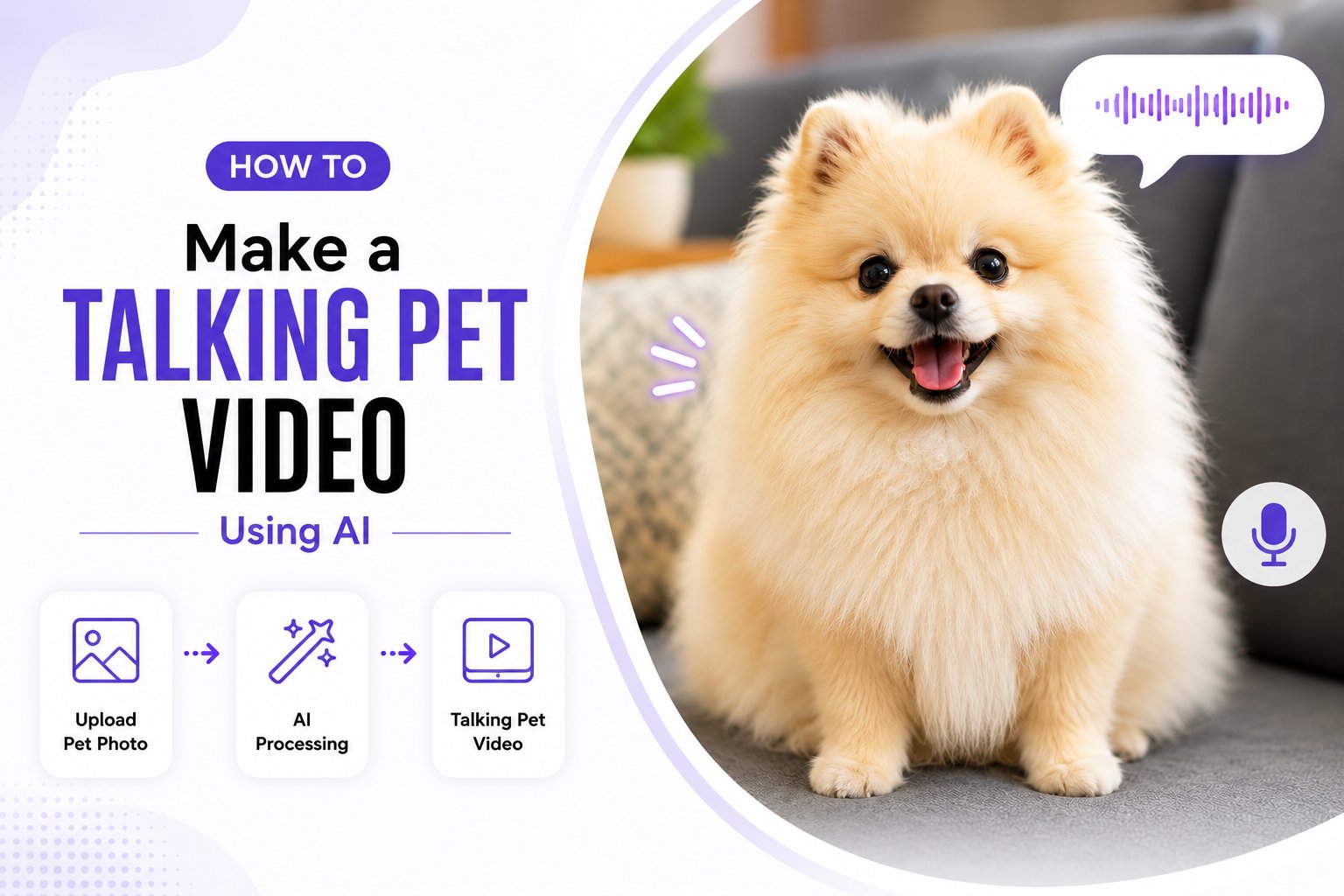 A talking pet avatar video lets you bring any pet image to life using artificial intelligence. You no longer need complex animation software or expensive studios to create engaging pet videos.
With Zoice, you can upload a pet image, create a pet avatar, add a script or voice, and generate a realistic talking video with accurate lip synchronization and expressive facial animations.
Whether you are an educator, content creator, marketer, or storyteller, AI pet avatars make it easy to produce unique videos for YouTube, social media, educational content, and entertainment.
In this article, you will learn how to make a talking pet avatar talk using AI with Zoice by following a complete step by step process.
## What is a Talking Pet AI Avatar?
A talking pet AI avatar is a digital animated character that speaks and moves using artificial intelligence. Instead of manually animating a pet frame by frame, AI analyzes your uploaded pet image and generates realistic lip movements, facial expressions, and head motions synchronized with your script or audio.
Talking pet avatars are widely used for:
* YouTube animations and educational content
* Brand mascot videos
* Children's storytelling
* Social media entertainment
* Marketing campaigns
* Online courses
## How to Make Pet Talk Using AI
Creating a talking pet video with Zoice only takes a few minutes. First, create or choose an AI avatar using your pet image, add your script or audio, customize the output settings, and generate your video. Follow the detailed steps below.
### Step 1: Visit Zoice and Click Sign In
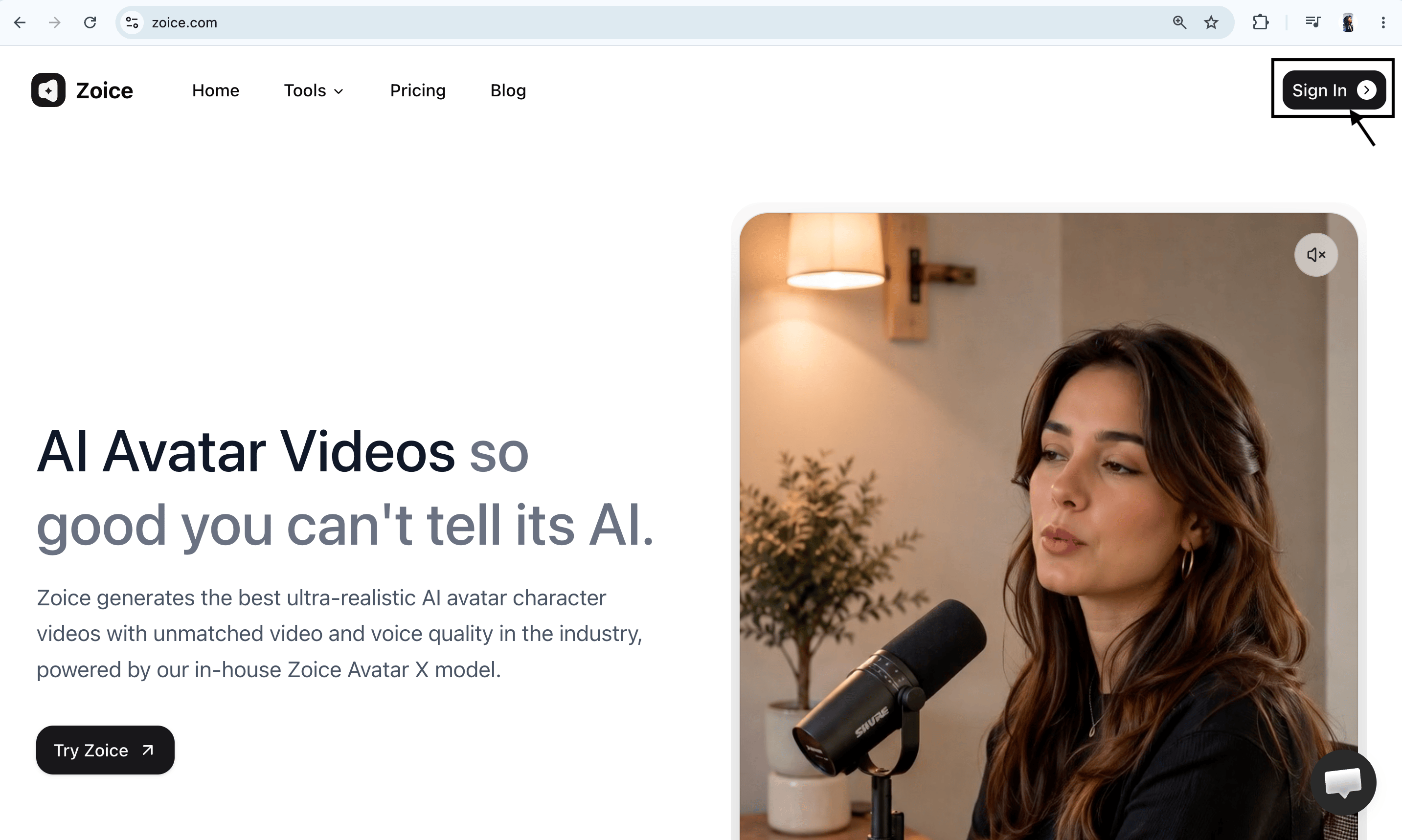
Go to the [Zoice website](https://zoice.com) and click the **Sign In** button at the top-right corner of the homepage. This will open the login page where you can access your Zoice account.
A talking pet avatar video lets you bring any pet image to life using artificial intelligence. You no longer need complex animation software or expensive studios to create engaging pet videos.
With Zoice, you can upload a pet image, create a pet avatar, add a script or voice, and generate a realistic talking video with accurate lip synchronization and expressive facial animations.
Whether you are an educator, content creator, marketer, or storyteller, AI pet avatars make it easy to produce unique videos for YouTube, social media, educational content, and entertainment.
In this article, you will learn how to make a talking pet avatar talk using AI with Zoice by following a complete step by step process.
## What is a Talking Pet AI Avatar?
A talking pet AI avatar is a digital animated character that speaks and moves using artificial intelligence. Instead of manually animating a pet frame by frame, AI analyzes your uploaded pet image and generates realistic lip movements, facial expressions, and head motions synchronized with your script or audio.
Talking pet avatars are widely used for:
* YouTube animations and educational content
* Brand mascot videos
* Children's storytelling
* Social media entertainment
* Marketing campaigns
* Online courses
## How to Make Pet Talk Using AI
Creating a talking pet video with Zoice only takes a few minutes. First, create or choose an AI avatar using your pet image, add your script or audio, customize the output settings, and generate your video. Follow the detailed steps below.
### Step 1: Visit Zoice and Click Sign In
Go to the [Zoice website](https://zoice.com) and click the **Sign In** button at the top-right corner of the homepage. This will open the login page where you can access your Zoice account.
 ### Step 2: Create a New Zoice Account
If you are using Zoice for the first time, click **Sign Up** to create a new account.
### Step 2: Create a New Zoice Account
If you are using Zoice for the first time, click **Sign Up** to create a new account.
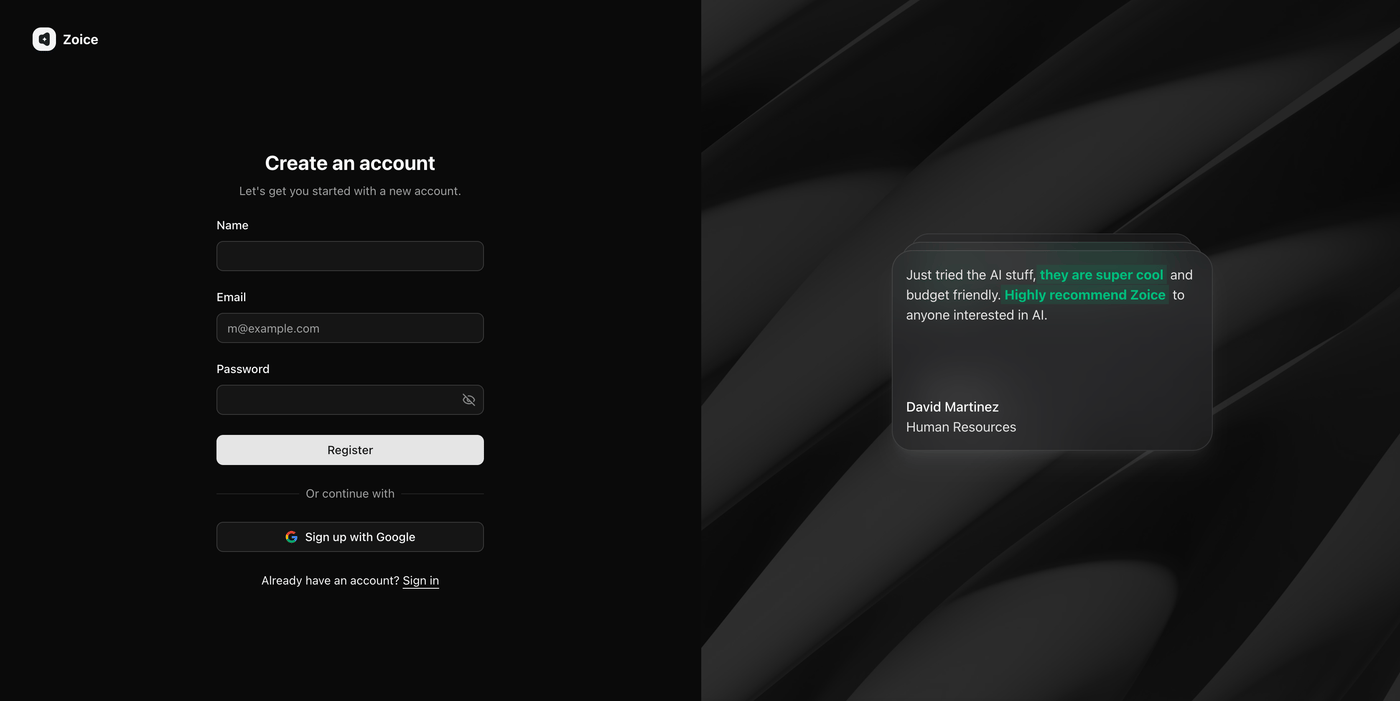 Enter the required details:
* Name
* Email address
* Password
You can also select **Sign up with Google** to quickly create your account.
### Step 3: Sign In to Your Zoice Account
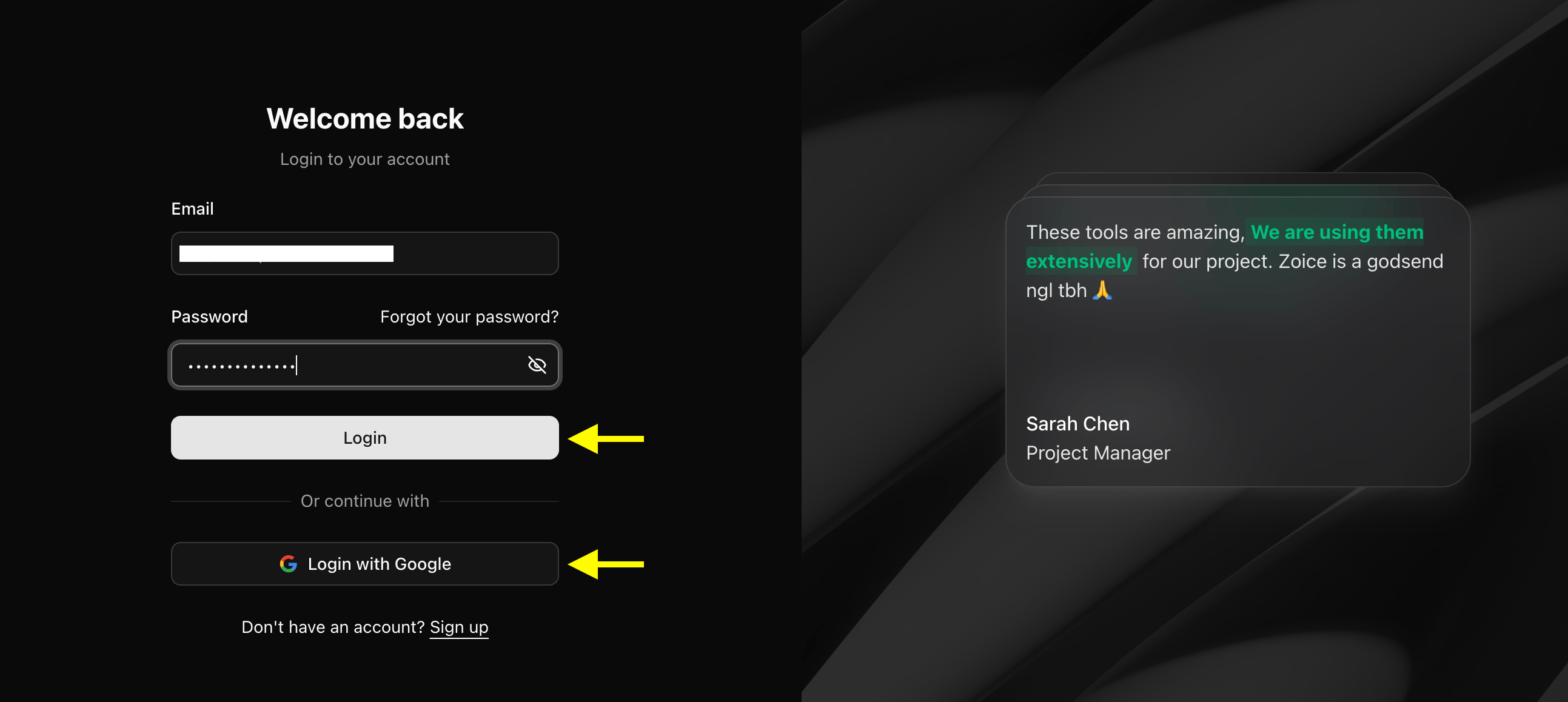
After creating your account, return to the sign-in page and log in using your registered email and password. You can also choose **Sign in with Google** if your account is connected with Google. Once signed in, you will be redirected to the Zoice dashboard.
Enter the required details:
* Name
* Email address
* Password
You can also select **Sign up with Google** to quickly create your account.
### Step 3: Sign In to Your Zoice Account
After creating your account, return to the sign-in page and log in using your registered email and password. You can also choose **Sign in with Google** if your account is connected with Google. Once signed in, you will be redirected to the Zoice dashboard.
 ### Step 4: Navigate to Avatar Characters
After logging in, you will reach the Zoice dashboard. From the left sidebar, click **Avatar Characters** under the Manage section.
### Step 4: Navigate to Avatar Characters
After logging in, you will reach the Zoice dashboard. From the left sidebar, click **Avatar Characters** under the Manage section.
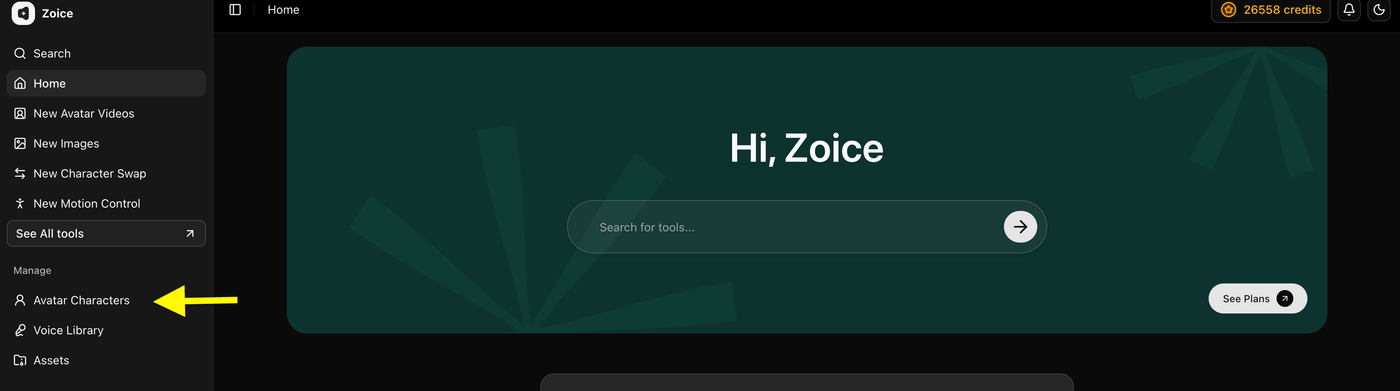 This is where you can create and manage custom AI avatars using your pet image or any other image.
### Step 5: Click Create New Avatar
On the Avatar Characters page, click the **Create New** button to start creating your custom pet avatar.
This is where you can create and manage custom AI avatars using your pet image or any other image.
### Step 5: Click Create New Avatar
On the Avatar Characters page, click the **Create New** button to start creating your custom pet avatar.
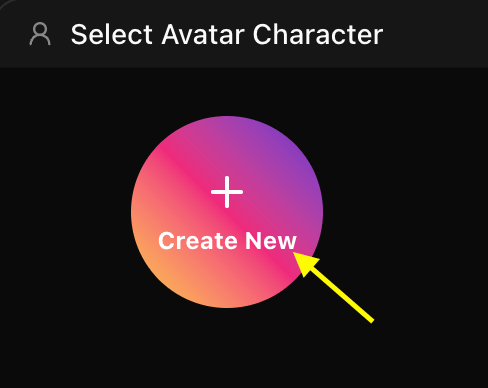 This will open the avatar creation page where you can either upload an existing pet image or generate a new avatar image using an AI prompt.
### Step 6: Upload Your Pet Image and Name Your Avatar
Upload a clear, high-quality pet image that you want to bring to life.
This will open the avatar creation page where you can either upload an existing pet image or generate a new avatar image using an AI prompt.
### Step 6: Upload Your Pet Image and Name Your Avatar
Upload a clear, high-quality pet image that you want to bring to life.
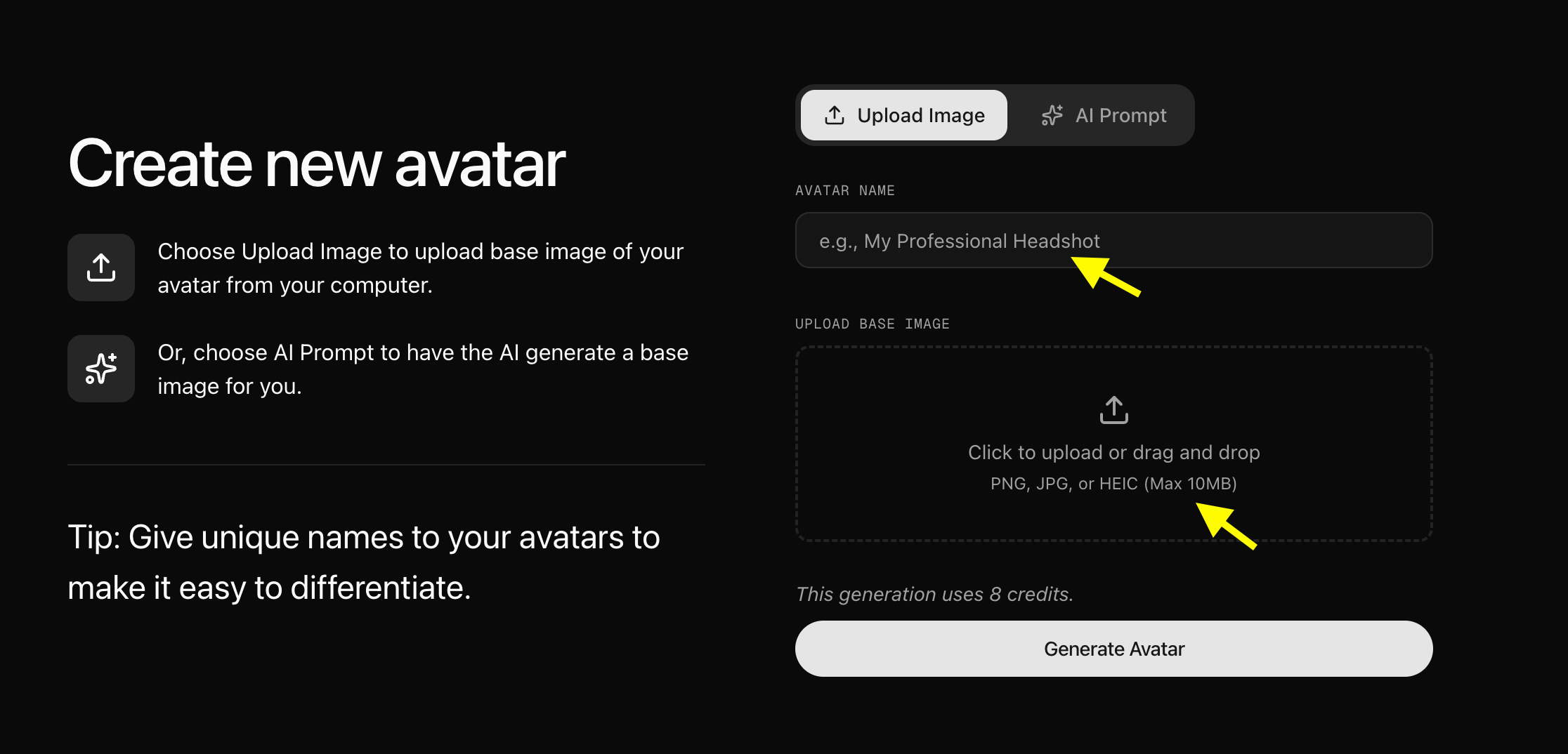 Add a **Pet Avatar Name** to easily identify your avatar later, then click **Generate Avatar** to create your custom AI pet avatar.
For better results, use an image with:
* Clear face visibility and forward-facing angle
* Good contrast between character and background
* Closed or neutral mouth position
* No blurry or low-quality images
* **Upload Your Image or Generate an Avatar Using AI Prompt**
Zoice gives you two options to create your pet avatar:
* **Upload Image:** Upload a clear pet image directly from your device.
* **AI Prompt:** If you don't have an image, select the **AI Prompt** option and describe the pet you want to create. Zoice will generate a custom AI image based on your prompt.
Add a **Pet Avatar Name** to easily identify your avatar later, then click **Generate Avatar** to create your custom AI pet avatar.
For better results, use an image with:
* Clear face visibility and forward-facing angle
* Good contrast between character and background
* Closed or neutral mouth position
* No blurry or low-quality images
* **Upload Your Image or Generate an Avatar Using AI Prompt**
Zoice gives you two options to create your pet avatar:
* **Upload Image:** Upload a clear pet image directly from your device.
* **AI Prompt:** If you don't have an image, select the **AI Prompt** option and describe the pet you want to create. Zoice will generate a custom AI image based on your prompt.
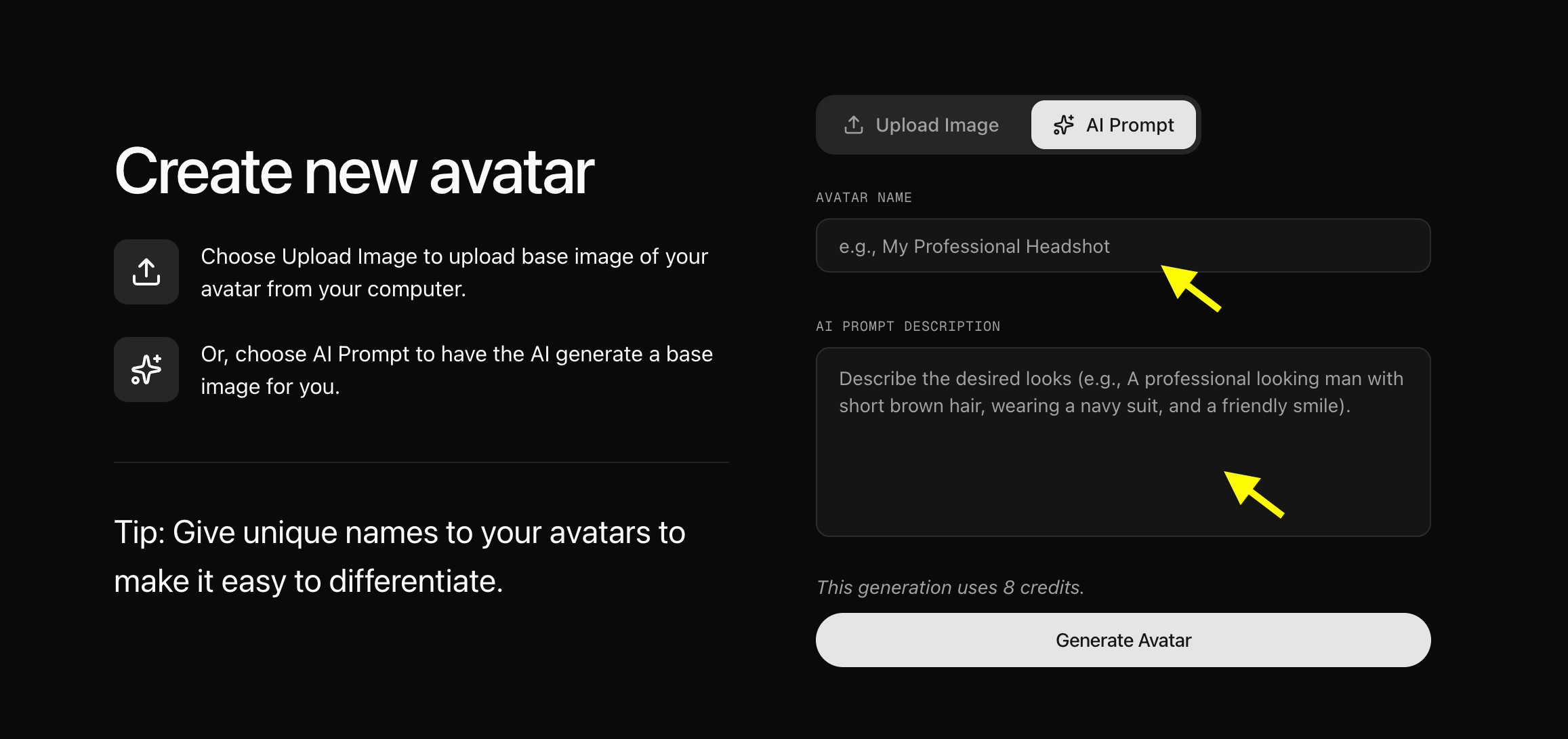 * **We upload the image of our pet.**
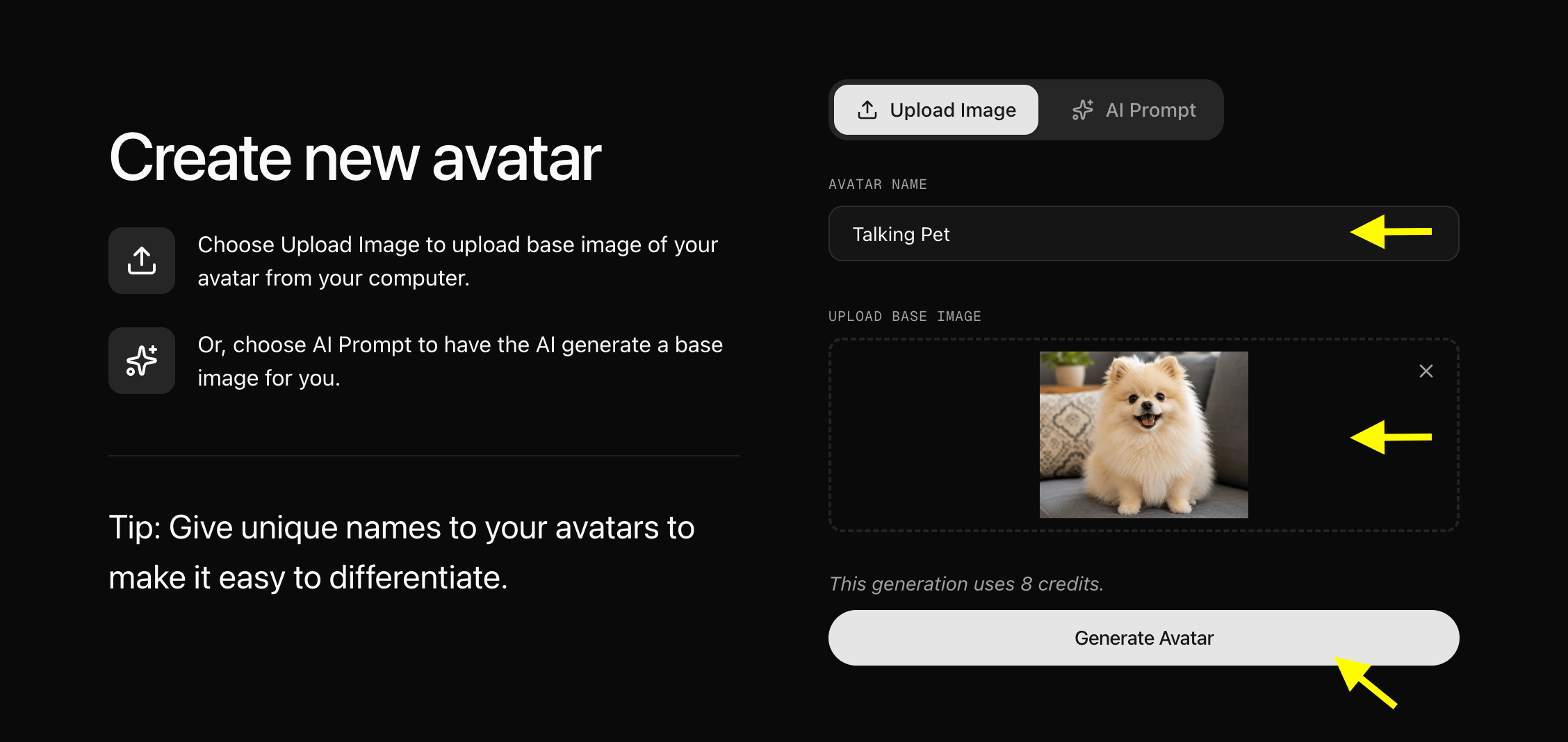 After adding your image, enter a unique avatar name and click **Generate Avatar**.
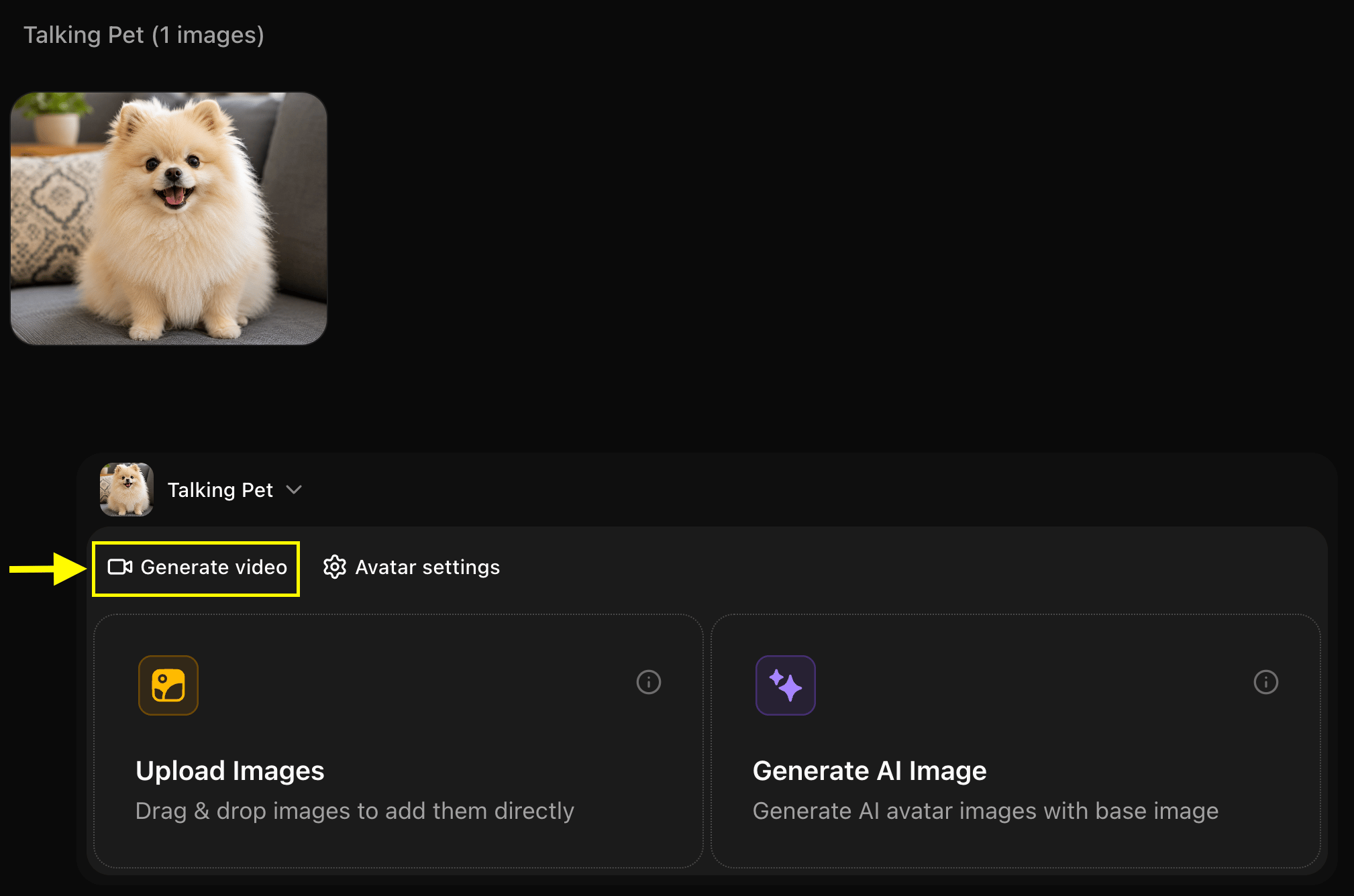
### Step 7: Click Generate Video
Once you selected your pet avatar, click the **Generate Video** button to open the video generation settings panel.
After adding your image, enter a unique avatar name and click **Generate Avatar**.
### Step 7: Click Generate Video
Once you selected your pet avatar, click the **Generate Video** button to open the video generation settings panel.
 ### Step 8: Add Your Script
In the video generation panel, Click on script box the popup window will appear here we write the detailed script also select the voice model and audio tag like emotion accent, delivery and then click on Add Script.
### Step 8: Add Your Script
In the video generation panel, Click on script box the popup window will appear here we write the detailed script also select the voice model and audio tag like emotion accent, delivery and then click on Add Script.
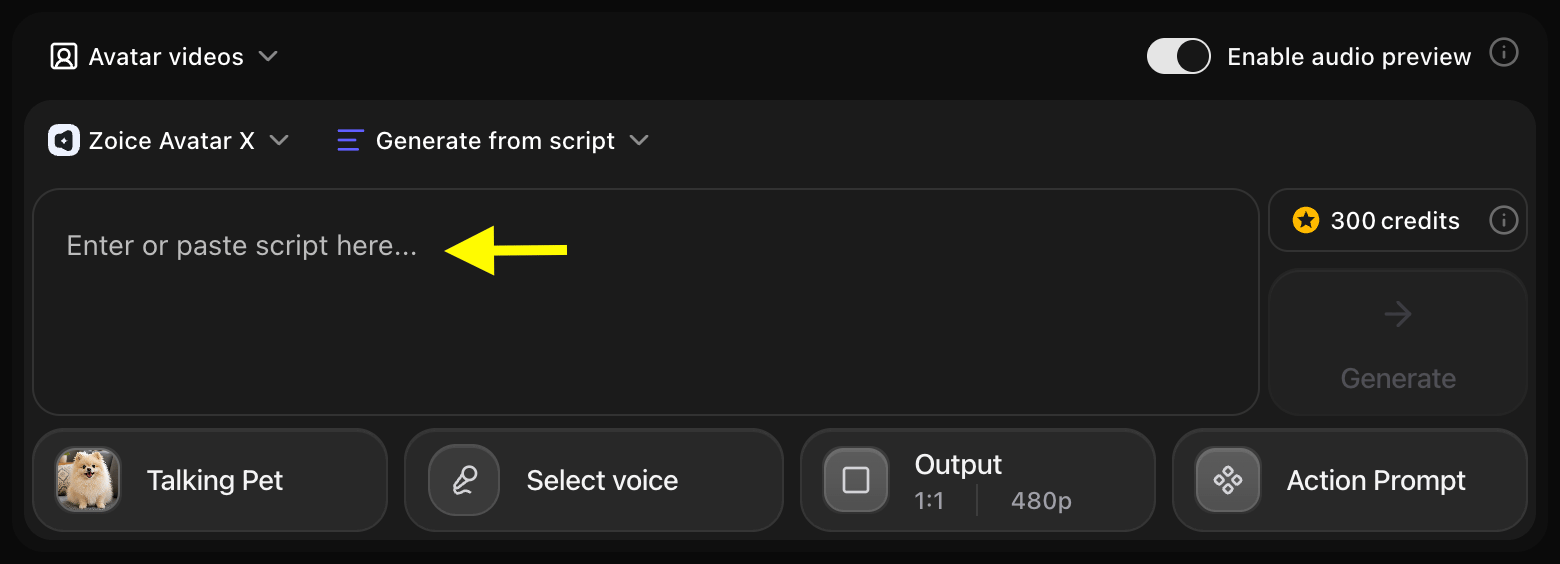 * **Once the window pops up then we have to write the script in the script box and also select the voice model and audio tag like emotion accent, delivery and then click on Add Script.**
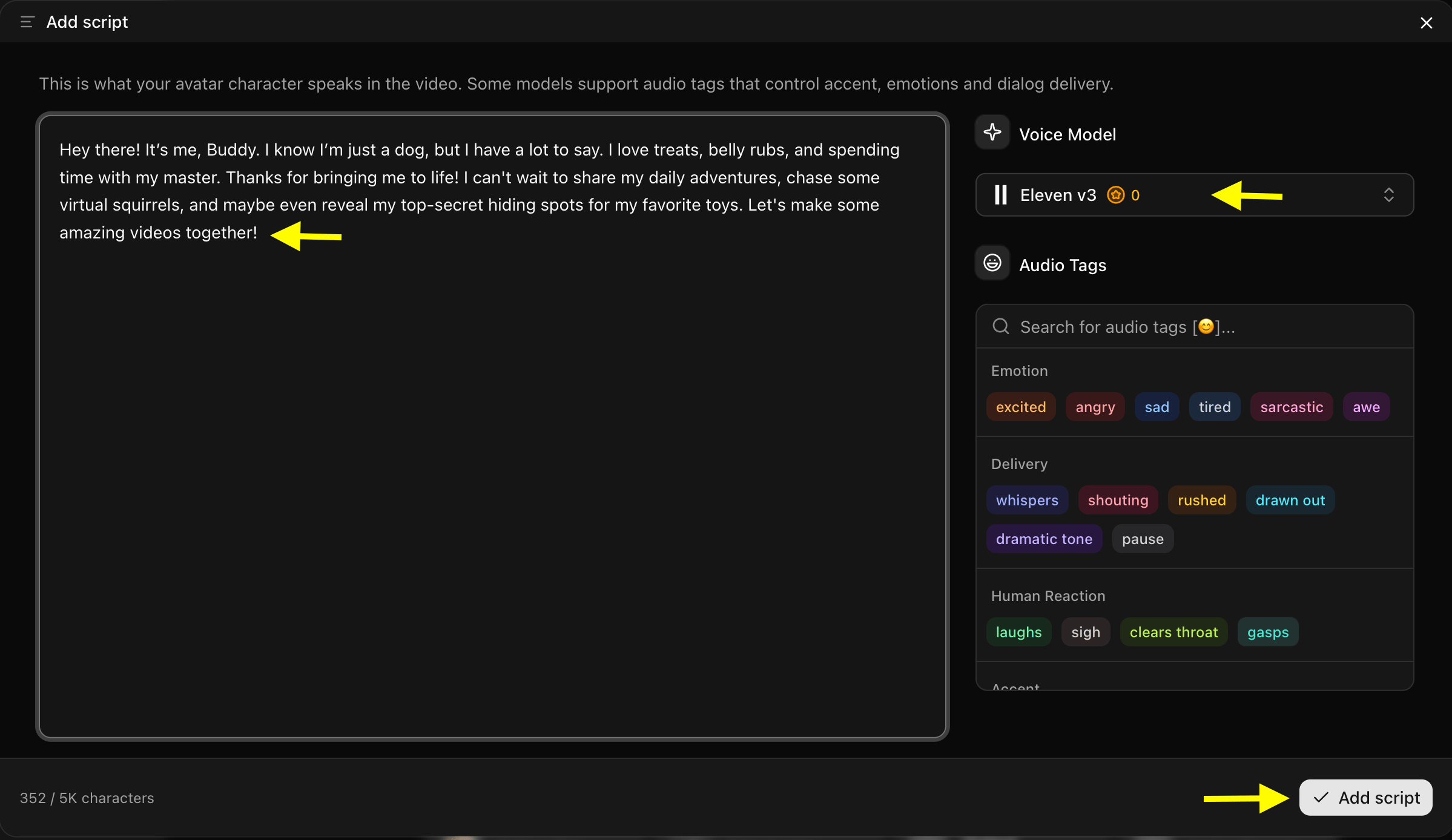 ### Step 9: Click on Select Voice
After adding the script, Click on Select Voice option, and you will see few public voice and also you can upload your own voice for pet avatar.
### Step 9: Click on Select Voice
After adding the script, Click on Select Voice option, and you will see few public voice and also you can upload your own voice for pet avatar.
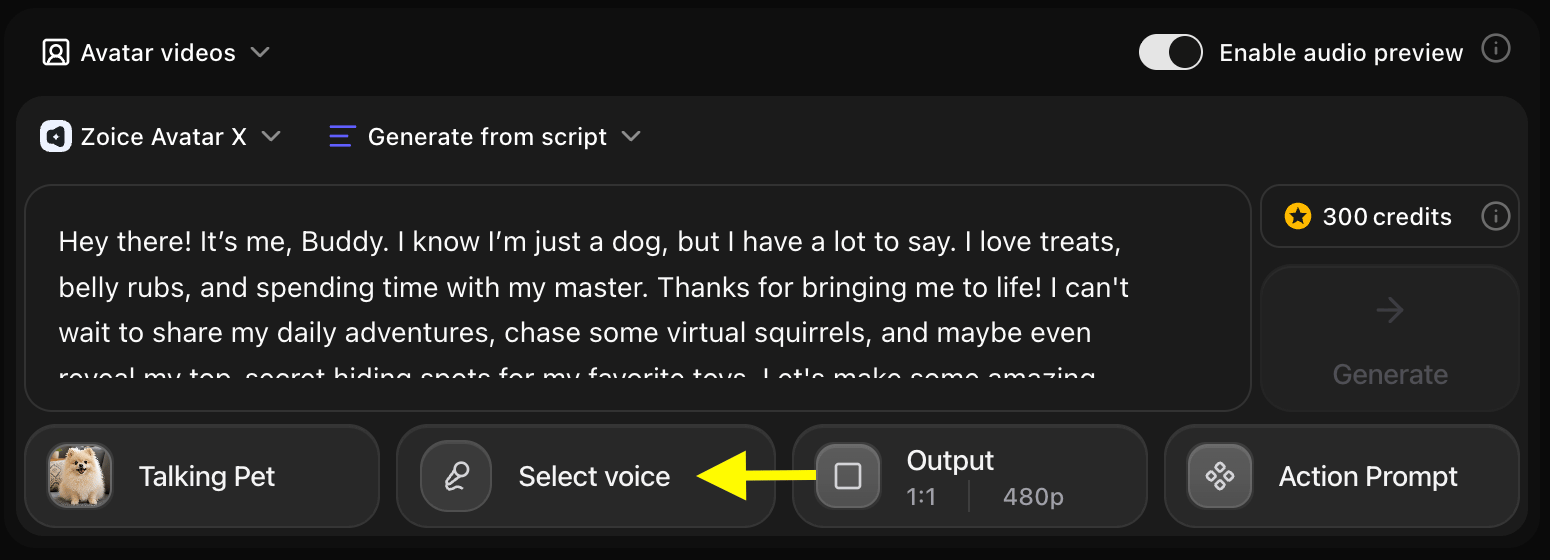 ### Step 10: Choose a Voice for Your Pet Avatar
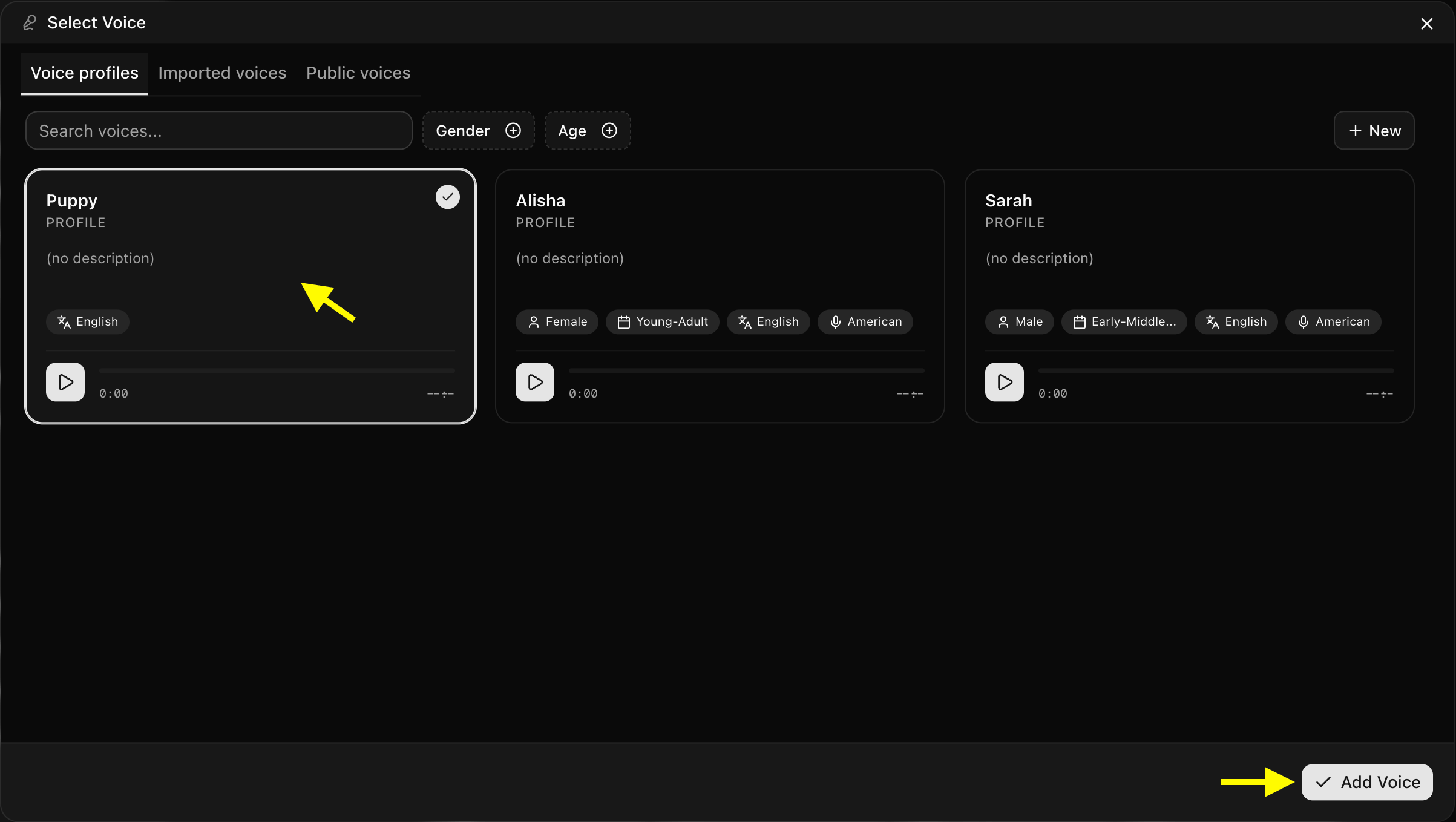
Browse through the available voices and click on the one that matches your pet's style. You can preview each voice before selecting it to make sure it fits your pet's personality.
### Step 10: Choose a Voice for Your Pet Avatar
Browse through the available voices and click on the one that matches your pet's style. You can preview each voice before selecting it to make sure it fits your pet's personality.
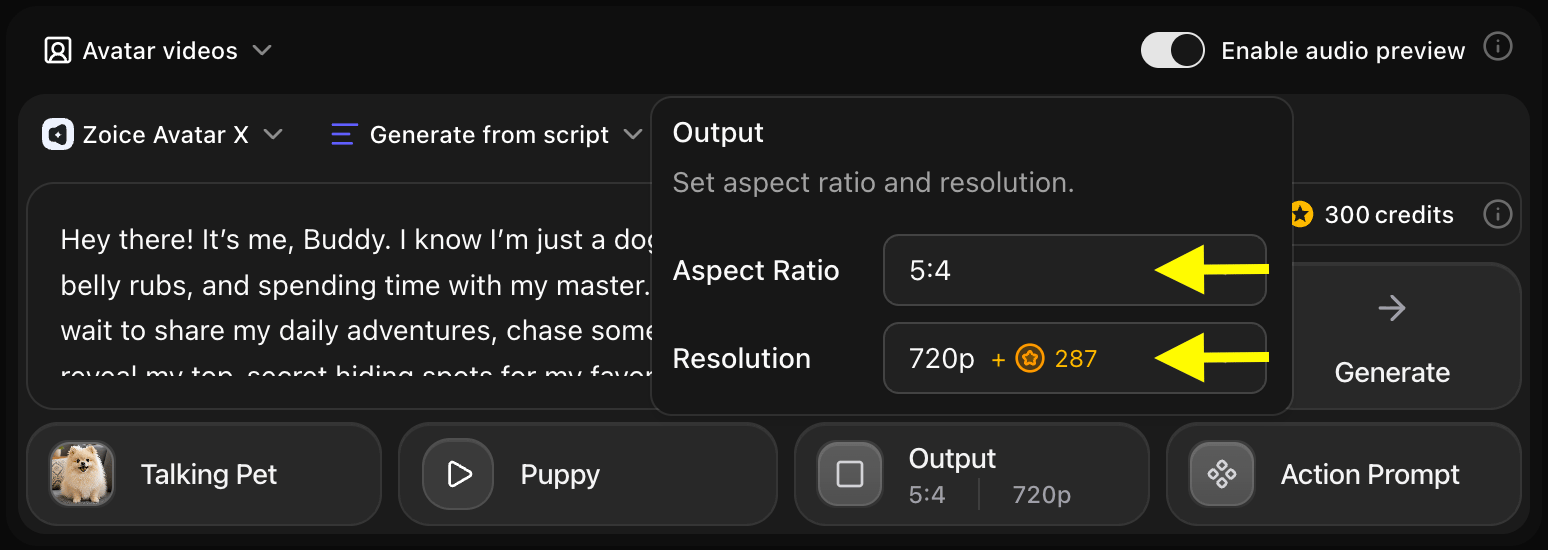
 ### Step 11: Choose Output Settings
After selecting a voice, customize the video output settings based on your platform needs:
* **Aspect Ratio:** 16:9 for YouTube, 9:16 for TikTok or Instagram Reels, 1:1 for social media posts
* **Resolution:** Up to 4K for high-quality output
### Step 11: Choose Output Settings
After selecting a voice, customize the video output settings based on your platform needs:
* **Aspect Ratio:** 16:9 for YouTube, 9:16 for TikTok or Instagram Reels, 1:1 for social media posts
* **Resolution:** Up to 4K for high-quality output
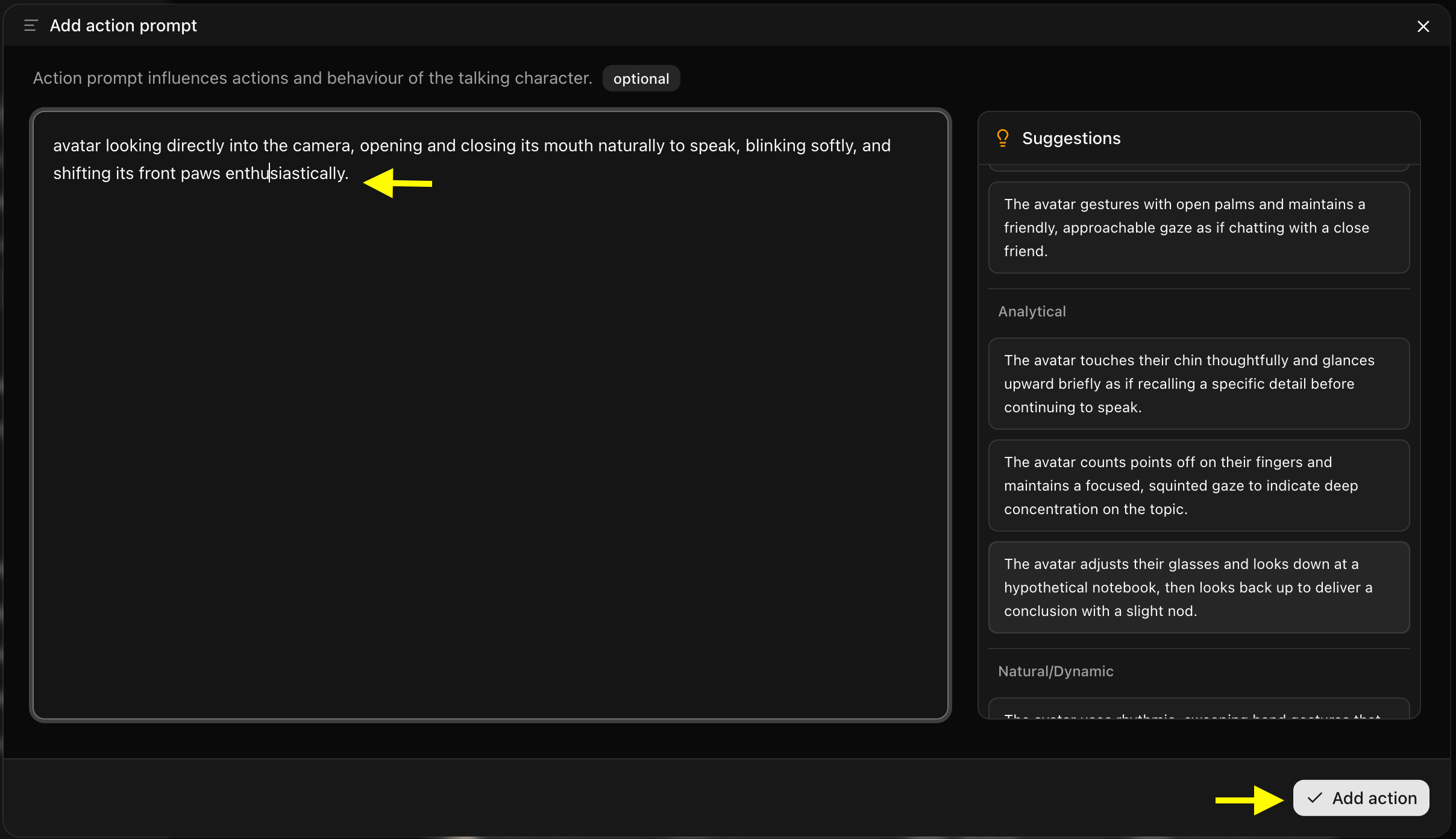
 ### Step 12: Add an Action Prompt
Click on **Action Prompt** to set the expression and animated actions of your pet character. Select or write a custom action prompt that matches the mood and tone of your video content.
### Step 12: Add an Action Prompt
Click on **Action Prompt** to set the expression and animated actions of your pet character. Select or write a custom action prompt that matches the mood and tone of your video content.
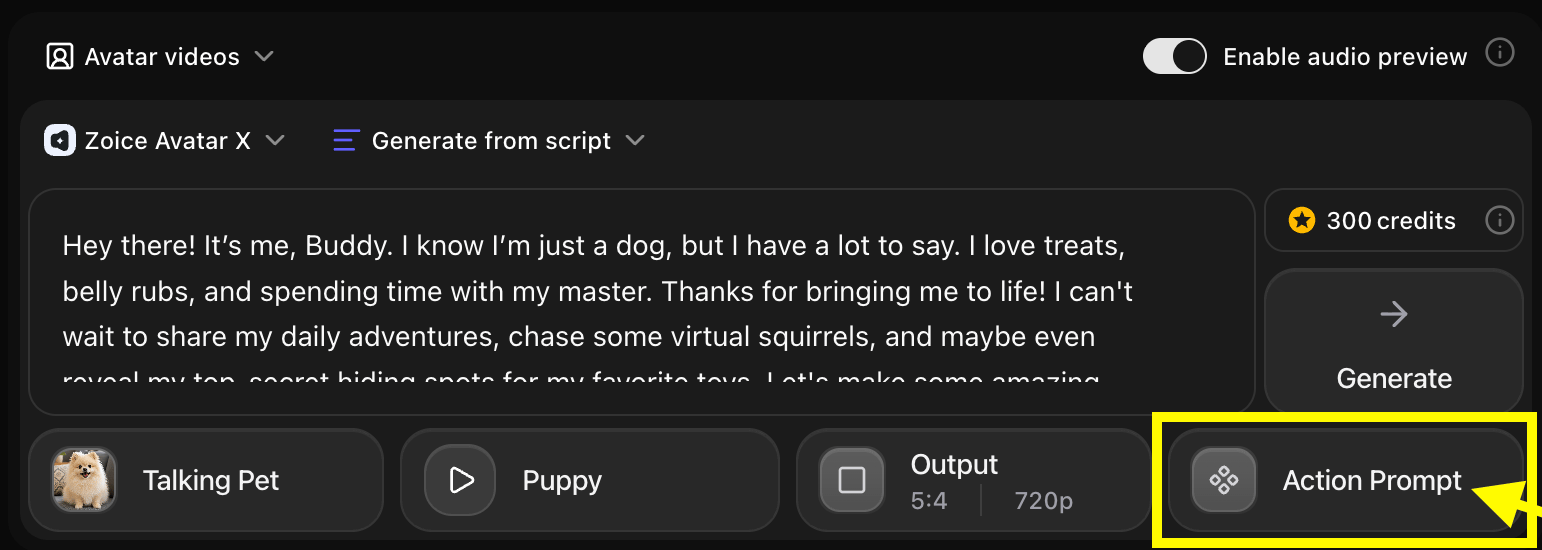 * **We have written a prompt for our pet avatar.**
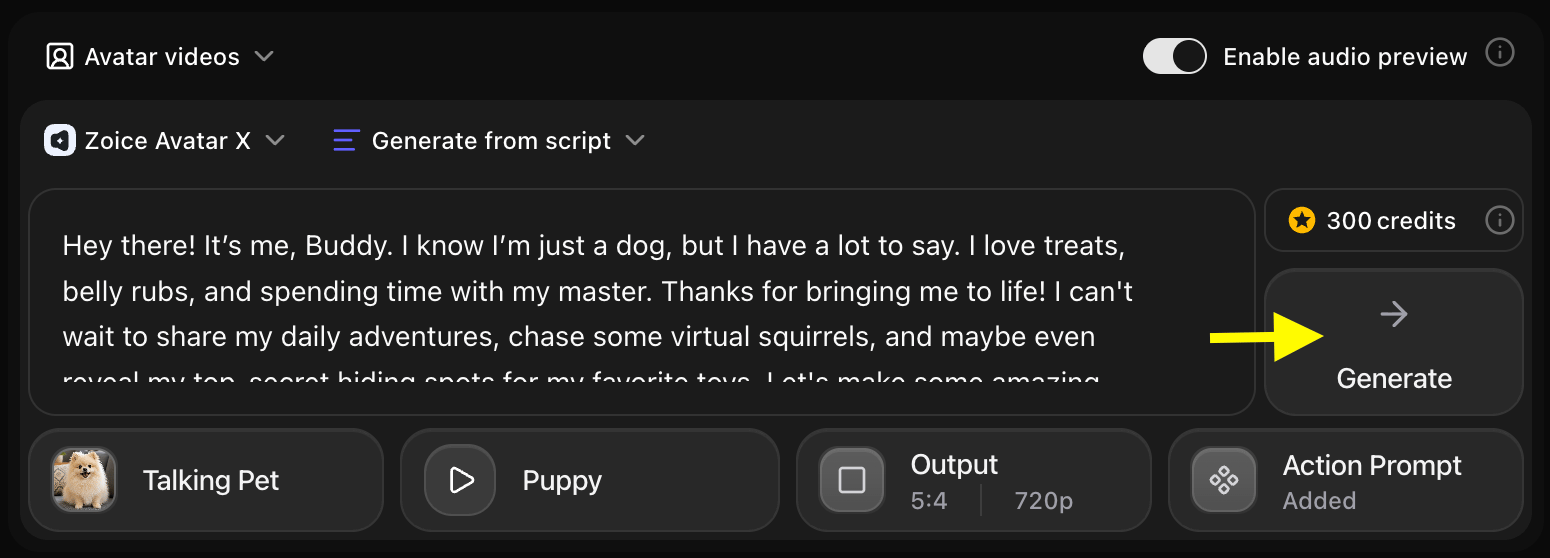
 ### Step 13: Generate Your Talking Pet Avatar Video
Once all your settings are ready, click the **Generate** button. Zoice will process your script and pet avatar to create the talking video.
### Step 13: Generate Your Talking Pet Avatar Video
Once all your settings are ready, click the **Generate** button. Zoice will process your script and pet avatar to create the talking video.
 ### Step 14: Preview the Audio and Generate the Video
Before generating the final video, Zoice creates an audio preview. Listen carefully to check:
* Voice quality and clarity
* Timing and pacing of the speech
* Overall tone and expression
### Step 14: Preview the Audio and Generate the Video
Before generating the final video, Zoice creates an audio preview. Listen carefully to check:
* Voice quality and clarity
* Timing and pacing of the speech
* Overall tone and expression
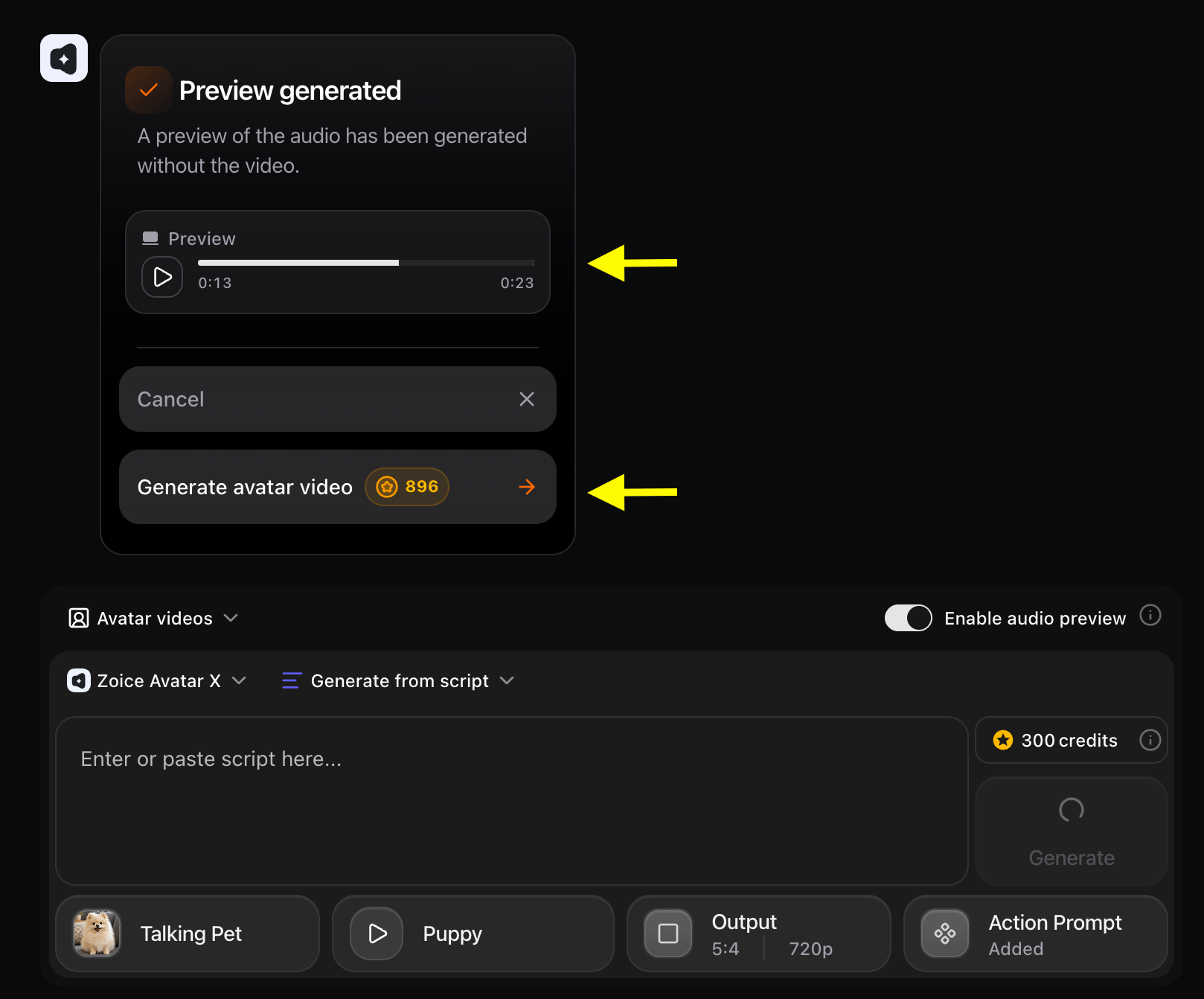 If everything sounds good, click **Generate Avatar Video** to create your final talking pet video.
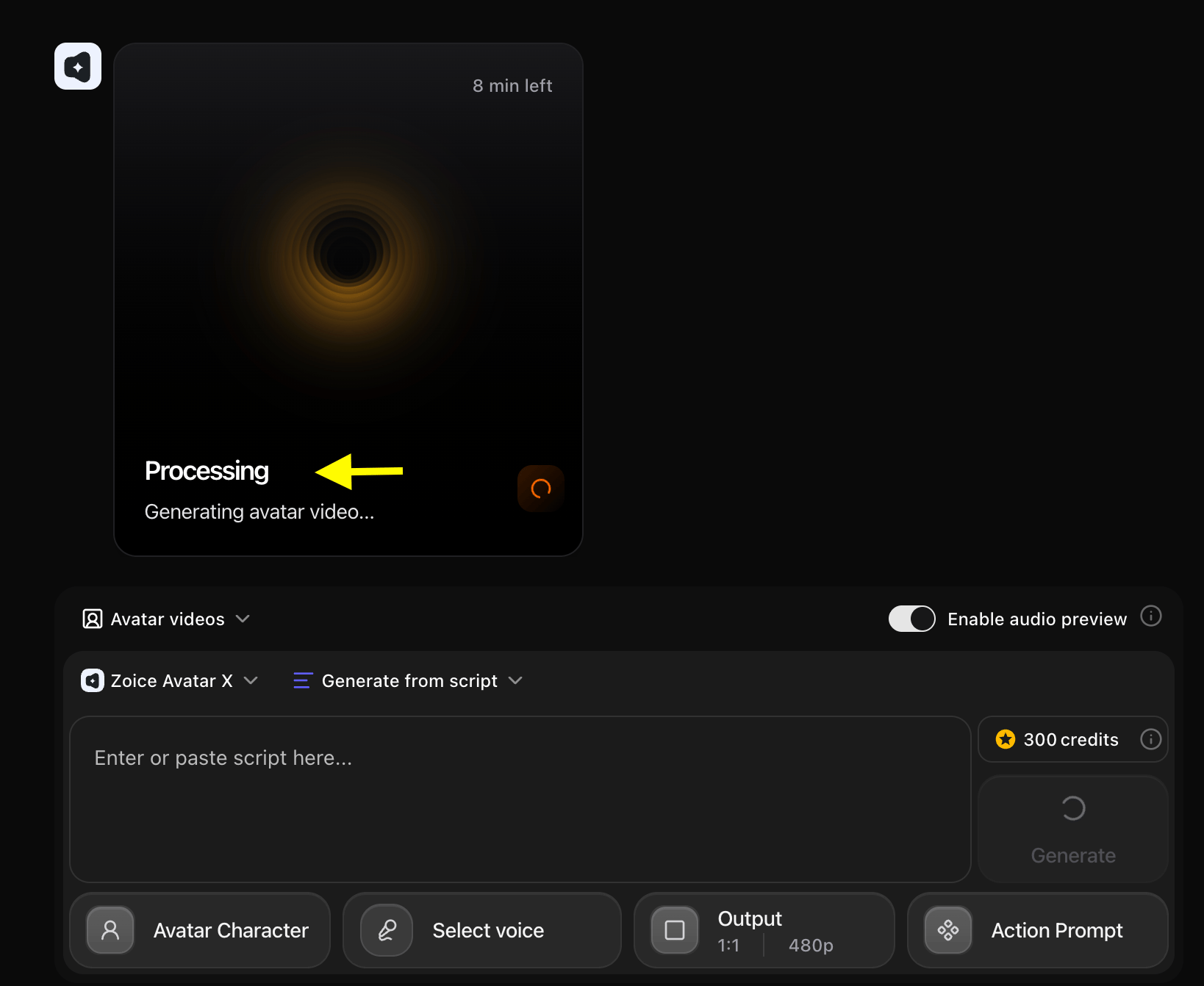
### Step 15: Wait for Your Pet Avatar Video to Process
Zoice will now process and render your talking pet avatar video. Processing time may vary depending on the length of your script and selected resolution. You can stay on the page or return later to check on the progress.
If everything sounds good, click **Generate Avatar Video** to create your final talking pet video.
### Step 15: Wait for Your Pet Avatar Video to Process
Zoice will now process and render your talking pet avatar video. Processing time may vary depending on the length of your script and selected resolution. You can stay on the page or return later to check on the progress.
 ### Step 16: Preview and Download Your Talking Pet Avatar Video
Once your video is ready, preview it to confirm the lip-sync quality, voice match, and overall output.
### Step 16: Preview and Download Your Talking Pet Avatar Video
Once your video is ready, preview it to confirm the lip-sync quality, voice match, and overall output.
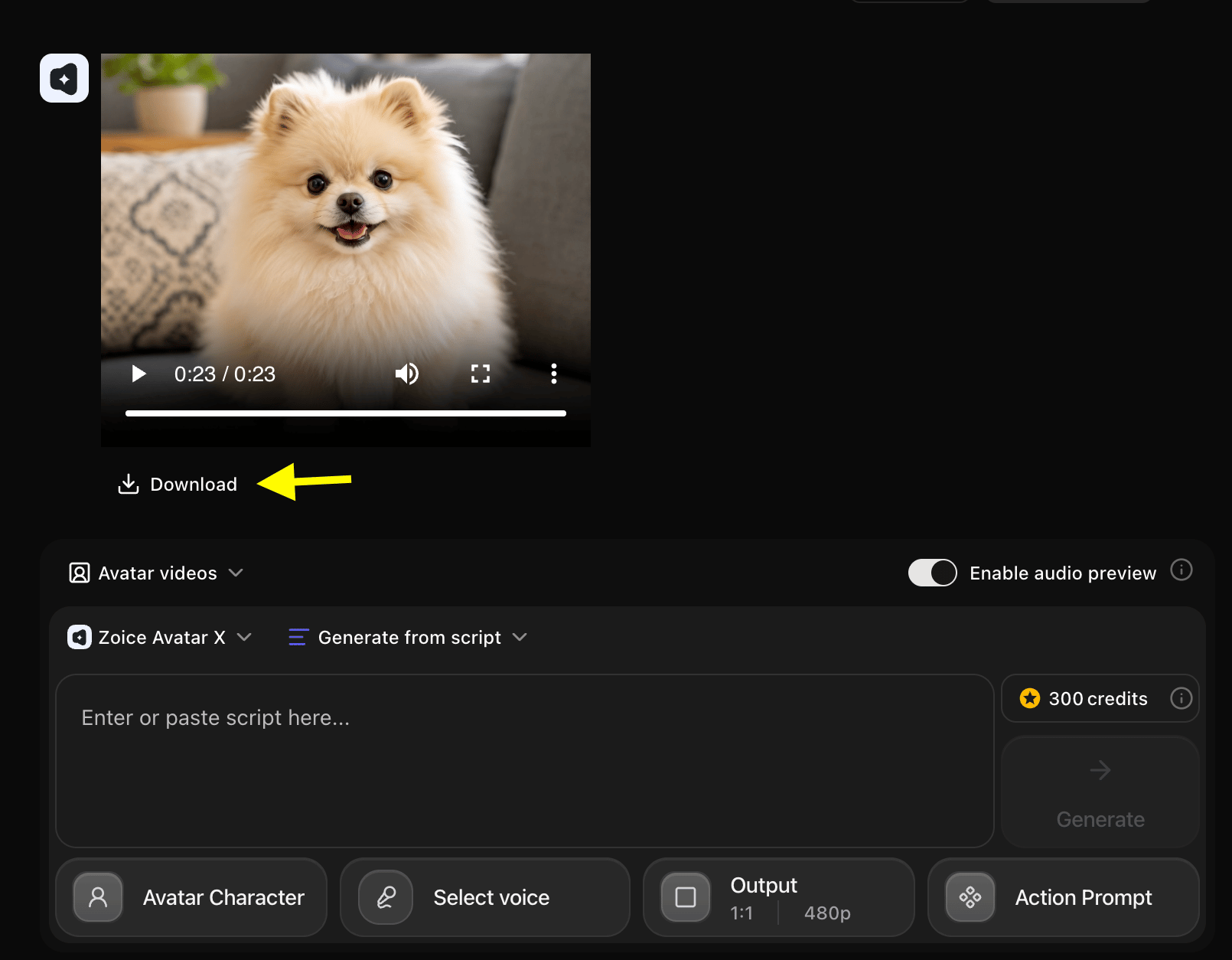 ## Example Input Image, Action Prompt & Output Video
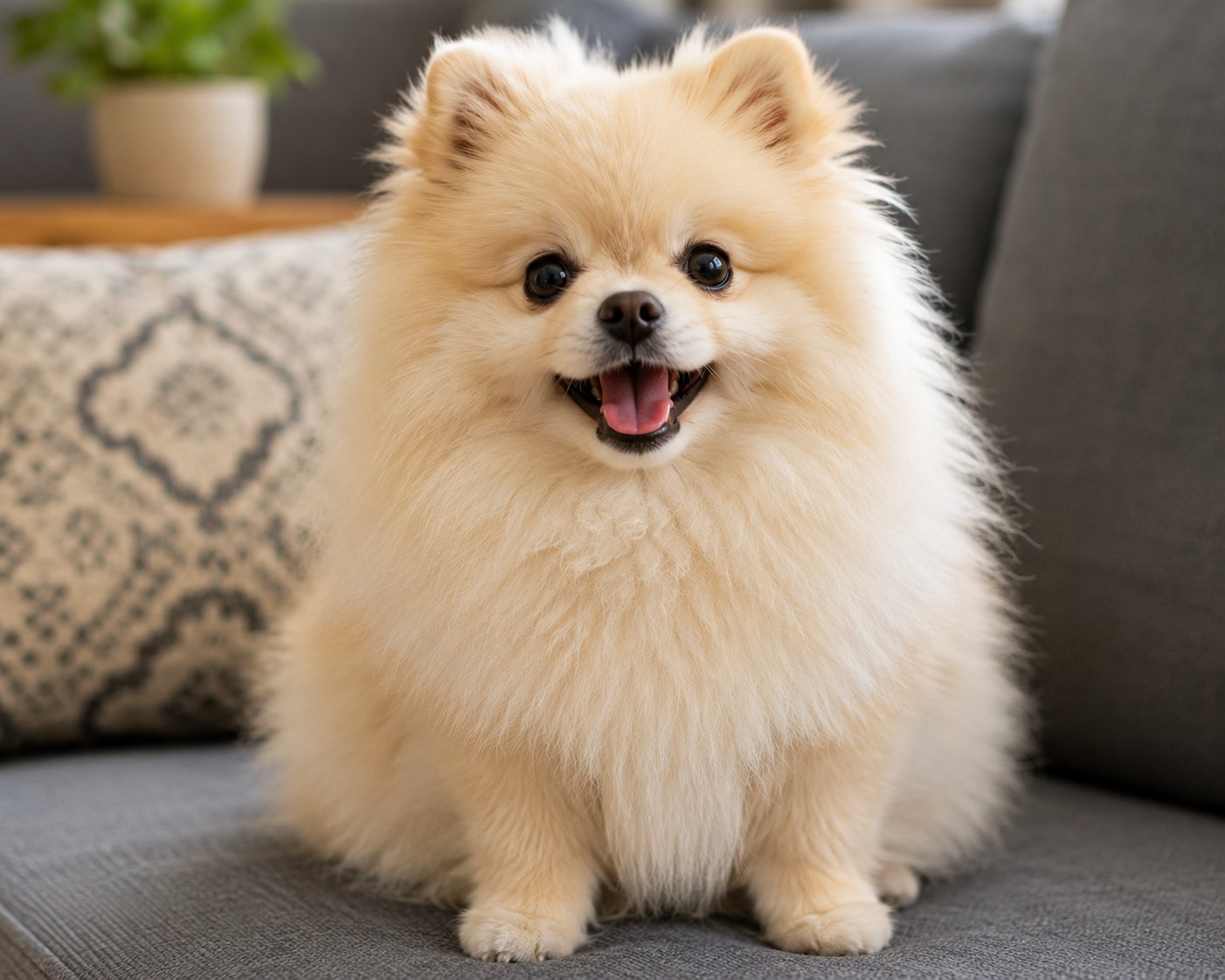
To help you get started, here is an example of an input script, action prompt, and generated talking pet avatar video.
### Used Image
## Example Input Image, Action Prompt & Output Video
To help you get started, here is an example of an input script, action prompt, and generated talking pet avatar video.
### Used Image
 ### Used Script
```
Hey there! It’s me, Buddy. I know I’m just a dog, but I have a lot to say. I love treats, belly rubs, and spending time with my favorite humans. Thanks for bringing me to life! I can't wait to share my daily adventures, chase some virtual squirrels, and maybe even reveal my top-secret hiding spots for my favorite toys. Let's make some amazing videos together! [excited][laughs][American accent]
```
### Used Action Prompt
```
The avatar leans slightly forward with a wide smile, using natural head movements to convey excitement and energy.
```
### Output Result Video
Below is the rendered talking pet avatar video based on the input script:
## Pet Avatar Videos Can Be Used For
AI talking pet videos are suitable for many creative and professional projects, including:
* YouTube animations
* Educational explainer videos
* Children's storytelling content
* Brand mascot promotions
* Social media entertainment
* Online course content
* Product marketing videos
* Digital storytelling
## Final Words
Creating a talking pet video with Zoice is a fast and simple process. By uploading your pet image, adding a script, selecting a matching voice, and generating the final output, you can produce engaging pet talking videos in just a few minutes.
Whether you want to create educational animations, brand character videos, social media content, or entertainment projects, Zoice helps you generate professional-quality talking pet avatar videos with natural lip synchronization, expressive facial animation, and smooth video output.
## Next Steps
Make your pet character sing with a vocal track.
Learn more about creating and managing custom avatars.
### Used Script
```
Hey there! It’s me, Buddy. I know I’m just a dog, but I have a lot to say. I love treats, belly rubs, and spending time with my favorite humans. Thanks for bringing me to life! I can't wait to share my daily adventures, chase some virtual squirrels, and maybe even reveal my top-secret hiding spots for my favorite toys. Let's make some amazing videos together! [excited][laughs][American accent]
```
### Used Action Prompt
```
The avatar leans slightly forward with a wide smile, using natural head movements to convey excitement and energy.
```
### Output Result Video
Below is the rendered talking pet avatar video based on the input script:
## Pet Avatar Videos Can Be Used For
AI talking pet videos are suitable for many creative and professional projects, including:
* YouTube animations
* Educational explainer videos
* Children's storytelling content
* Brand mascot promotions
* Social media entertainment
* Online course content
* Product marketing videos
* Digital storytelling
## Final Words
Creating a talking pet video with Zoice is a fast and simple process. By uploading your pet image, adding a script, selecting a matching voice, and generating the final output, you can produce engaging pet talking videos in just a few minutes.
Whether you want to create educational animations, brand character videos, social media content, or entertainment projects, Zoice helps you generate professional-quality talking pet avatar videos with natural lip synchronization, expressive facial animation, and smooth video output.
## Next Steps
Make your pet character sing with a vocal track.
Learn more about creating and managing custom avatars.