> ## Documentation Index
> Fetch the complete documentation index at: https://docs.zoice.com/llms.txt
> Use this file to discover all available pages before exploring further.
# Stock Avatar
> Choose from Zoice's library of professional AI avatars to create video presentations quickly. Stock avatars are pre-made, diverse characters ready to deliver your message without the need for custom creation or photo uploads.
## Getting Started
Stock avatars are professionally designed AI characters available in Zoice's library. They come in various ages, genders, ethnicities, and styles, perfect for creating professional video content without using your own image or creating custom avatars.
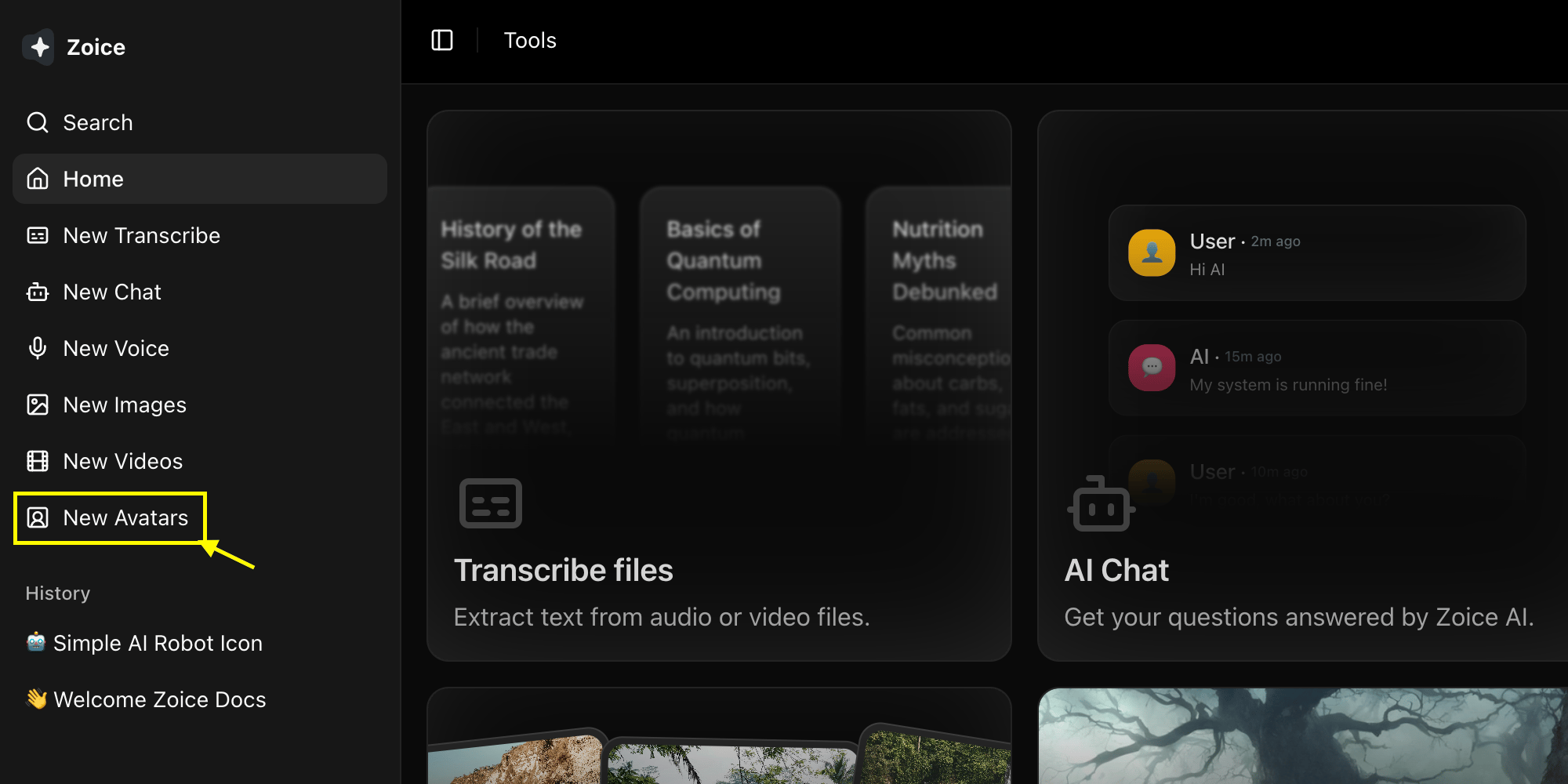
Navigate to the new avatar page in your Zoice dashboard.
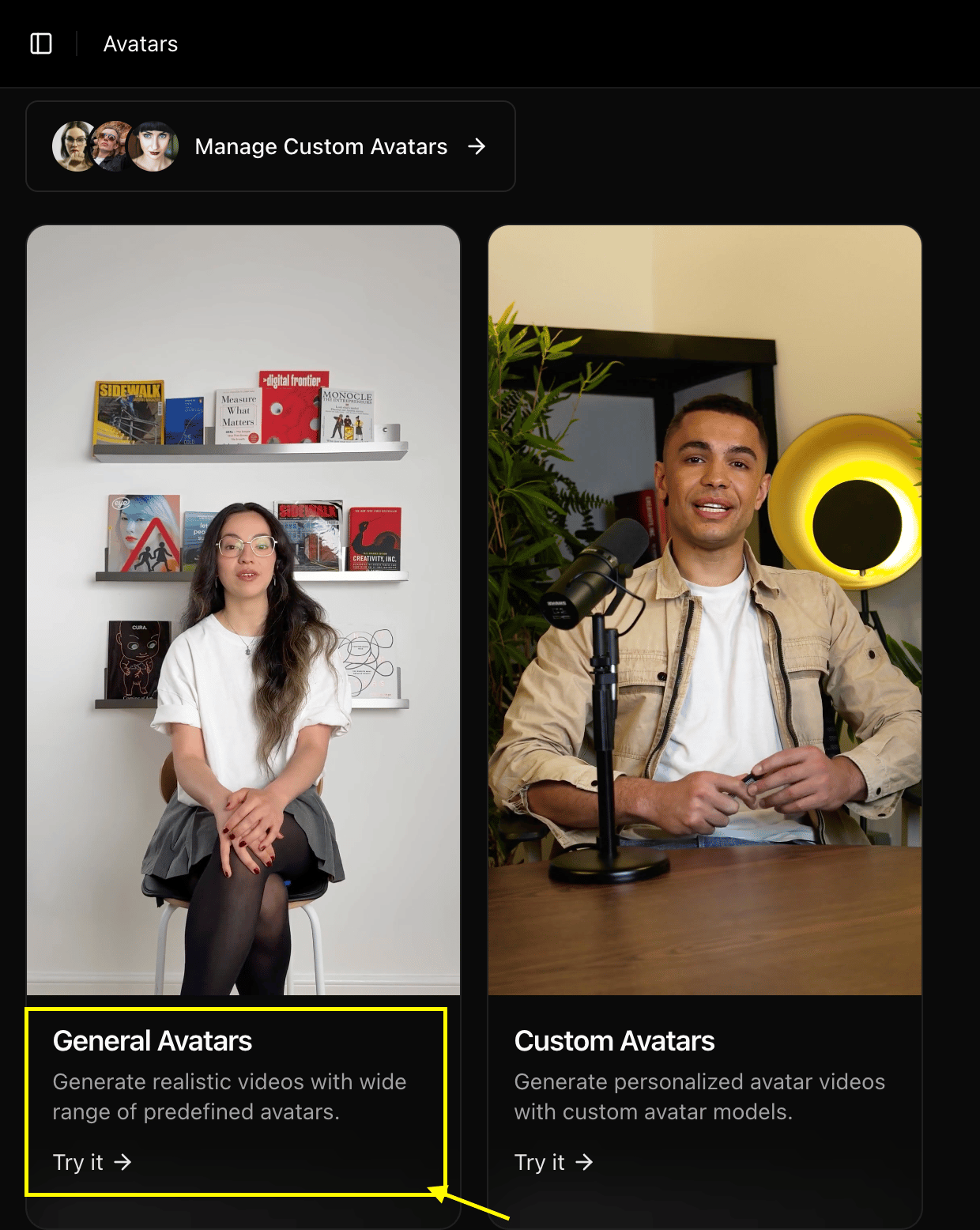
 Browse the stock library and select the professional AI avatar template you want to use for your video.
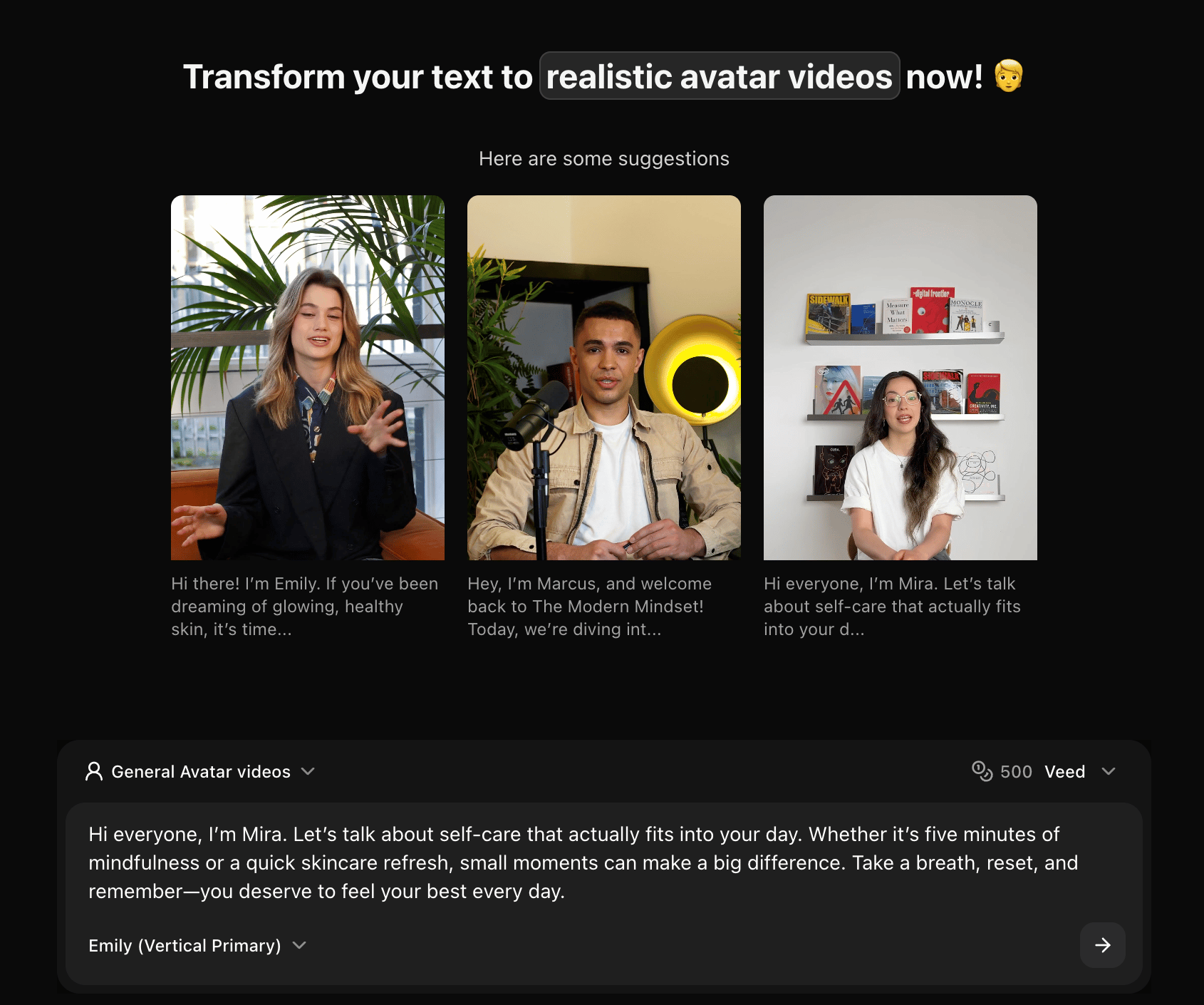
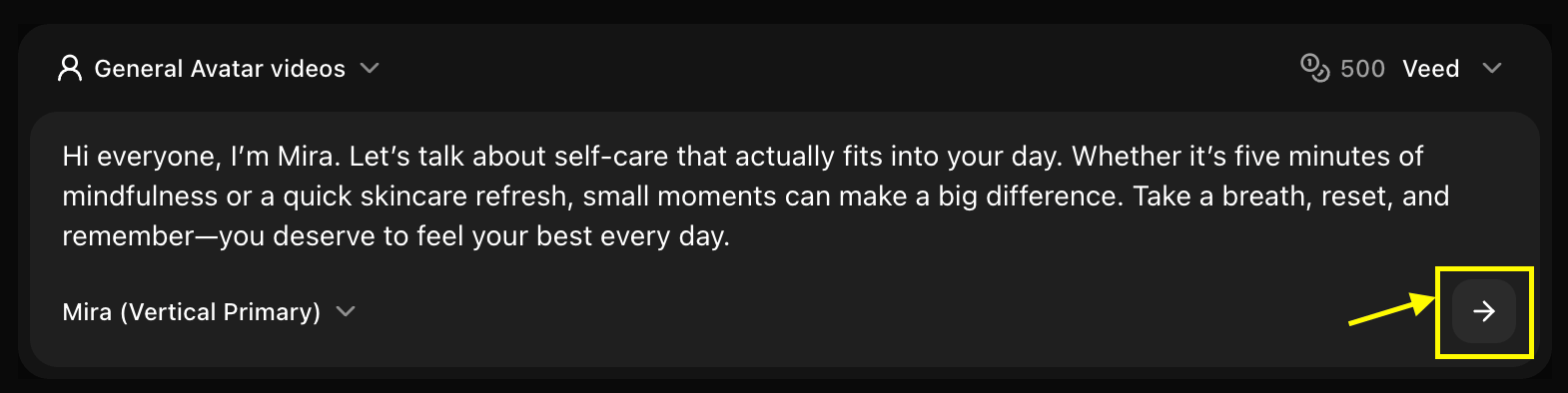
 Enter the text or script you want your avatar to speak in the text area.
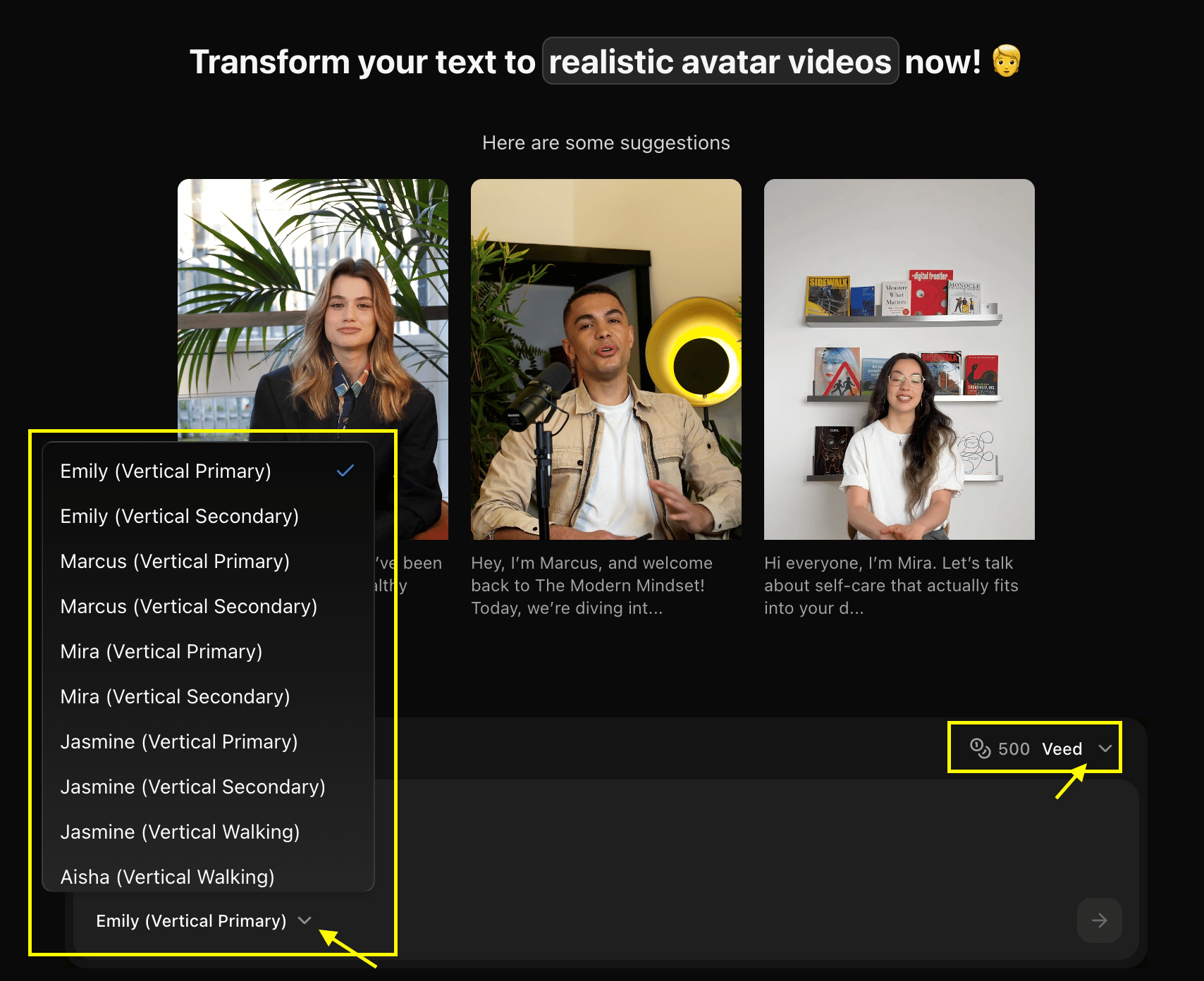
 Choose the perfect voice and AI model to bring your avatar to life.
 Click the **Generate** button to create your animated avatar video.
 ## Selecting the Perfect Avatar
Choosing the right stock avatar is key to making your video effective. Consider these factors when browsing the library:
* **Role & Persona**: Match the avatar's appearance to the role (e.g., professional, casual, creative).
* **Tone & Mood**: Ensure the avatar's style aligns with the tone of your message.
* **Audience Connection**: Choose a character that your target audience can relate to.
* **Consistency**: Consider using the same avatar for a series of videos to build recognition.
## Professional Use Cases
Stock avatars are ideal for a variety of professional applications:
Deliver consistent training modules and internal communications.
Create clear, engaging walkthroughs for your products or services.
Enhance your pitch decks with professional virtual presenters.
Easily localize your message by pairing templates with different voices.
## Customization Options
### Avatar Settings
* **Animation Style**: Choose from realistic, expressive, or subtle movements
* **Background**: Select or upload custom backgrounds
* **Clothing**: Adjust avatar clothing and appearance
* **Voice**: Add voice narration to your avatar
### Video Settings
* **Resolution**: 720p or 1080p output
* **Duration**: Based on script length (up to 2 minutes)
* **Format**: MP4 video output
## Best Practices
* Match accessibility and representation goals
* Test different avatars for specific brand tones
* Use the same character for series continuity
* Use punctuation to control natural pauses
* Keep sentences concise for better lip-sync clarity
* Preview scenes to ensure timing matches visuals
* Select a voice age and tone that fits the character
* Adjust speed and pitch for the most natural result
* Ensure the audio quality matches your production level
* Choose a background that provides good contrast
* Match the setting to the avatar's attire
* Use simple backgrounds for focused messaging
When creating a series, document the specific avatar, voice, and settings used to maintain perfect consistency.
## Licensing & Usage
* **Commercial Rights**: All stock avatars come with commercial usage rights for your projects.
* **Global Reach**: Use characters across any platform or region without additional fees.
* **No Attribution**: You are not required to attribute Zoice when using stock characters.
## Next Steps
Create avatars from text descriptions
Add custom voices to your avatars
Master generation techniques
## Selecting the Perfect Avatar
Choosing the right stock avatar is key to making your video effective. Consider these factors when browsing the library:
* **Role & Persona**: Match the avatar's appearance to the role (e.g., professional, casual, creative).
* **Tone & Mood**: Ensure the avatar's style aligns with the tone of your message.
* **Audience Connection**: Choose a character that your target audience can relate to.
* **Consistency**: Consider using the same avatar for a series of videos to build recognition.
## Professional Use Cases
Stock avatars are ideal for a variety of professional applications:
Deliver consistent training modules and internal communications.
Create clear, engaging walkthroughs for your products or services.
Enhance your pitch decks with professional virtual presenters.
Easily localize your message by pairing templates with different voices.
## Customization Options
### Avatar Settings
* **Animation Style**: Choose from realistic, expressive, or subtle movements
* **Background**: Select or upload custom backgrounds
* **Clothing**: Adjust avatar clothing and appearance
* **Voice**: Add voice narration to your avatar
### Video Settings
* **Resolution**: 720p or 1080p output
* **Duration**: Based on script length (up to 2 minutes)
* **Format**: MP4 video output
## Best Practices
* Match accessibility and representation goals
* Test different avatars for specific brand tones
* Use the same character for series continuity
* Use punctuation to control natural pauses
* Keep sentences concise for better lip-sync clarity
* Preview scenes to ensure timing matches visuals
* Select a voice age and tone that fits the character
* Adjust speed and pitch for the most natural result
* Ensure the audio quality matches your production level
* Choose a background that provides good contrast
* Match the setting to the avatar's attire
* Use simple backgrounds for focused messaging
When creating a series, document the specific avatar, voice, and settings used to maintain perfect consistency.
## Licensing & Usage
* **Commercial Rights**: All stock avatars come with commercial usage rights for your projects.
* **Global Reach**: Use characters across any platform or region without additional fees.
* **No Attribution**: You are not required to attribute Zoice when using stock characters.
## Next Steps
Create avatars from text descriptions
Add custom voices to your avatars
Master generation techniques