> ## Documentation Index
> Fetch the complete documentation index at: https://docs.zoice.com/llms.txt
> Use this file to discover all available pages before exploring further.
# Text to Avatar Videos
> Text to Avatars allows you to describe your ideal presenter using text prompts, and our AI will generate a 3D avatar model matching your description. You have full control over appearance, style, clothing, and characteristics.
## Getting Started
Create unique AI avatars from scratch using text descriptions. Design custom characters with specific appearances, styles, and personalities for your video content without needing photos or images.
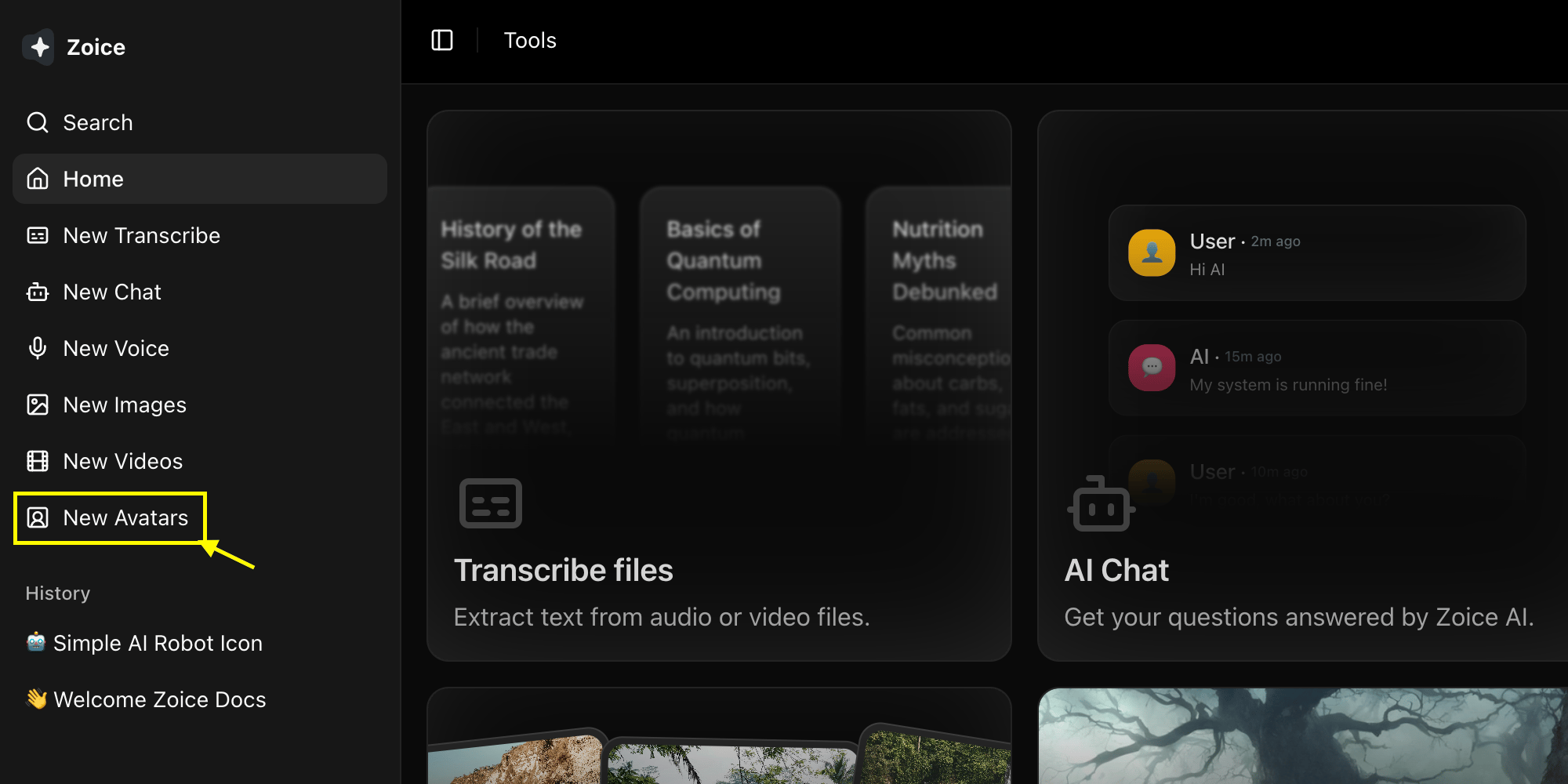
Go to the **New Avatar** section in the left menu of your Zoice dashboard.
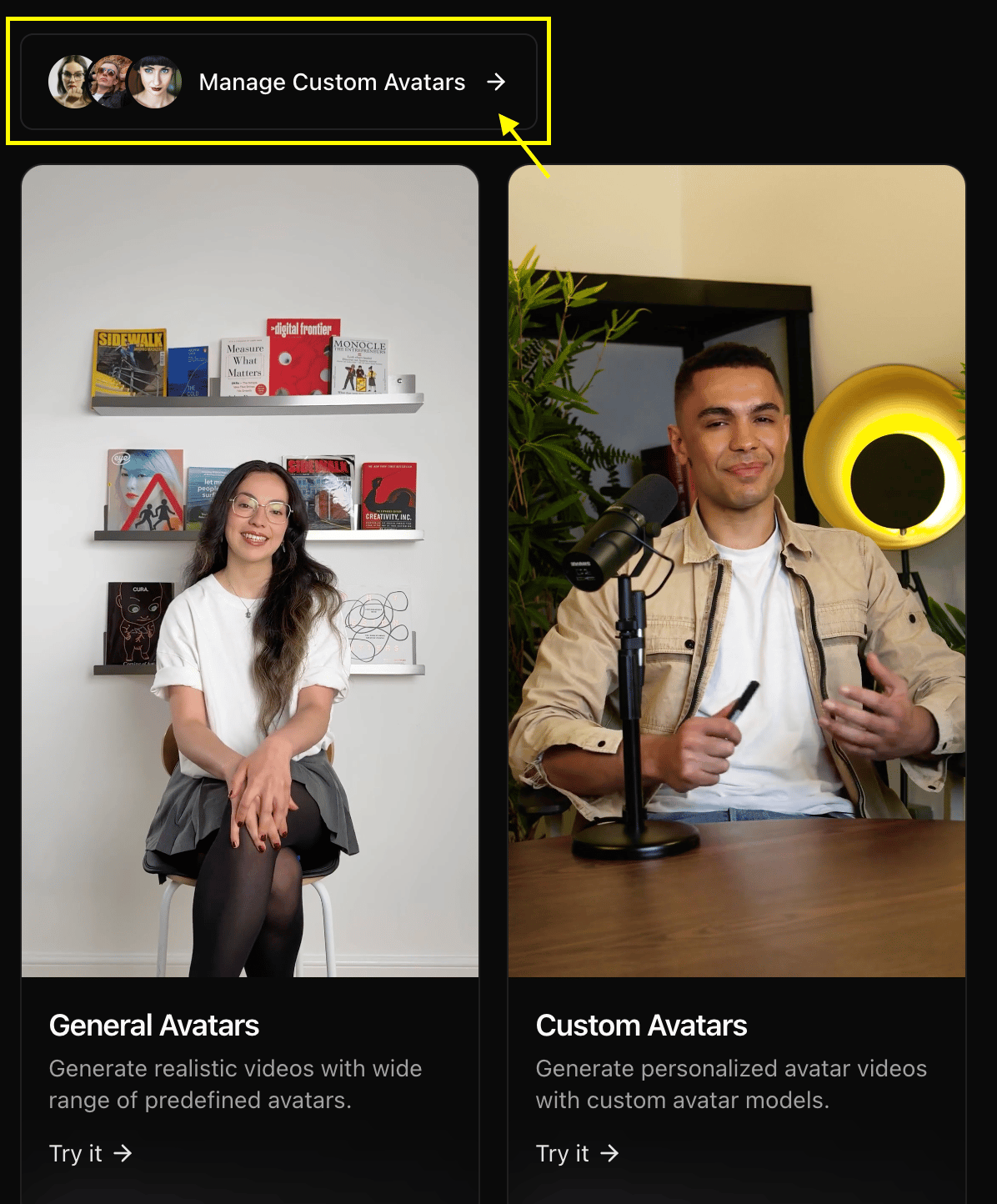
 Select the **Manage Custom Avatar** option to start creating your personalized character.
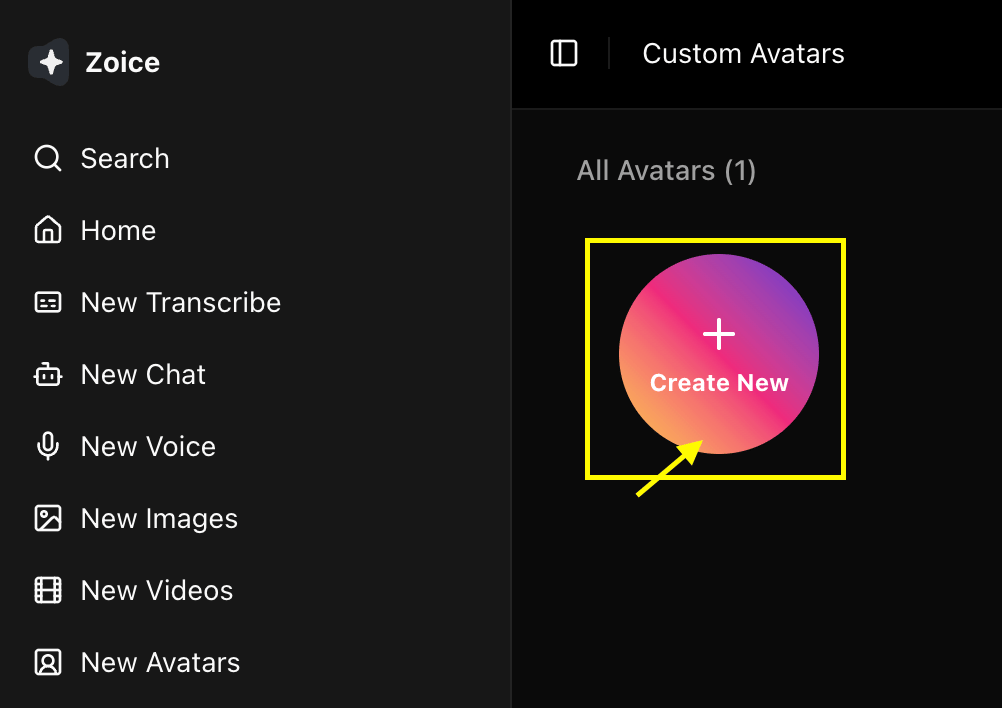
 Click on the **Create New** button to begin the avatar creation process.
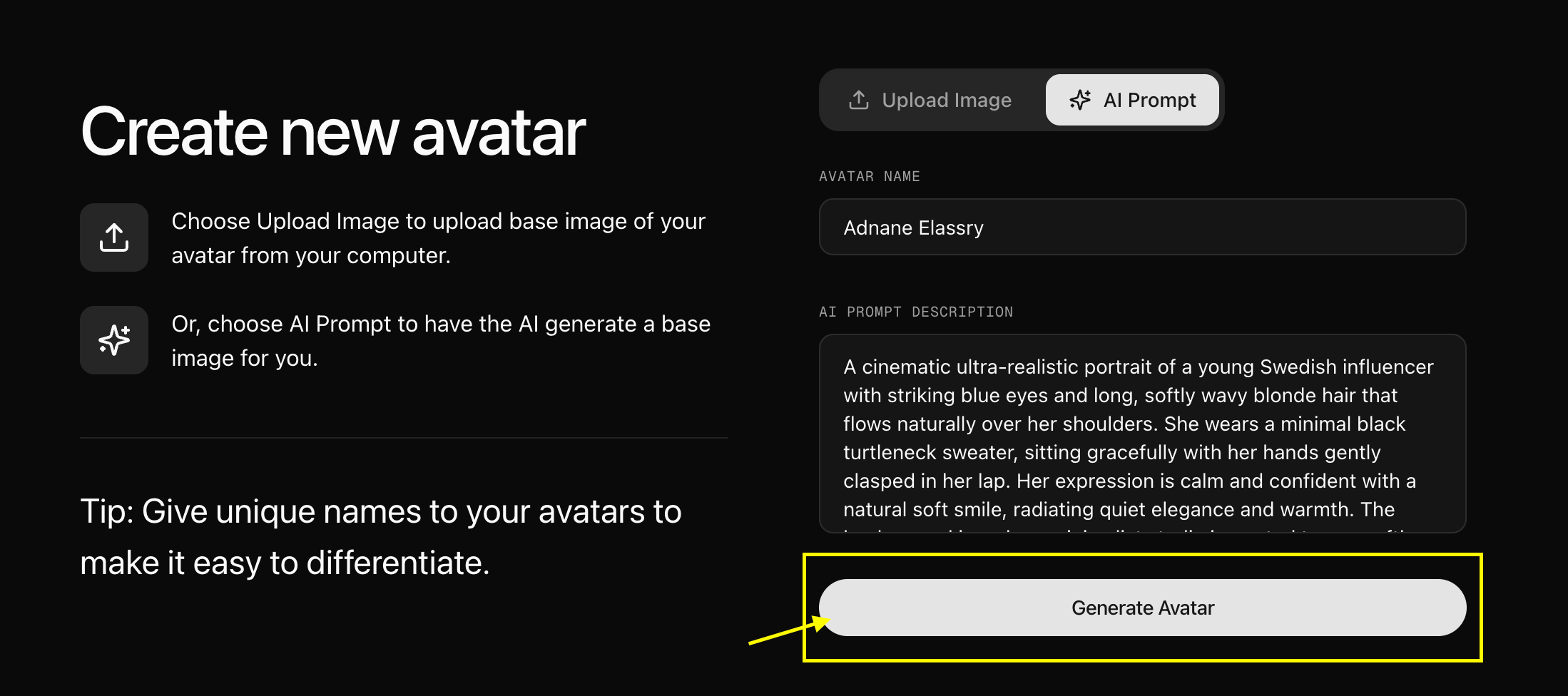
 Write a detailed text prompt to have AI generate a high-definition image for your avatar's base appearance.
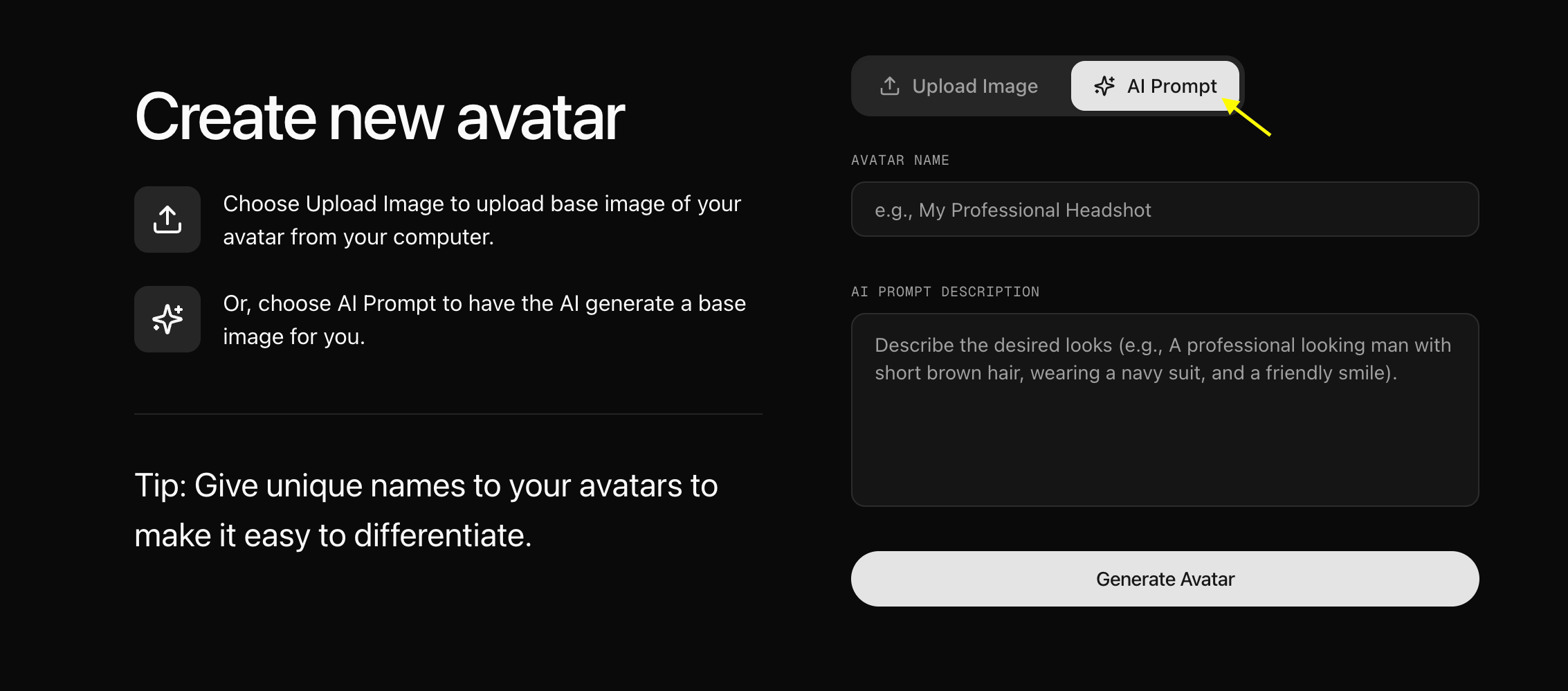 Enter a descriptive name for your avatar to easily identify it in your gallery later.
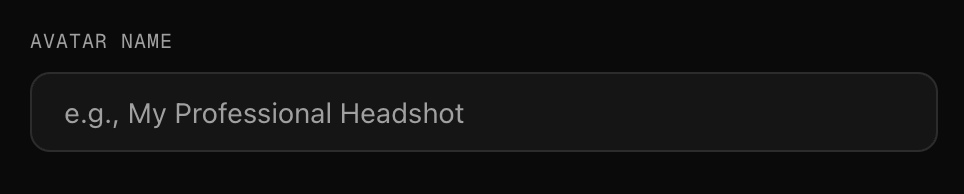 Once you've generated your image, click on **Generate Avatar**. You will now see your avatar saved in your gallery.
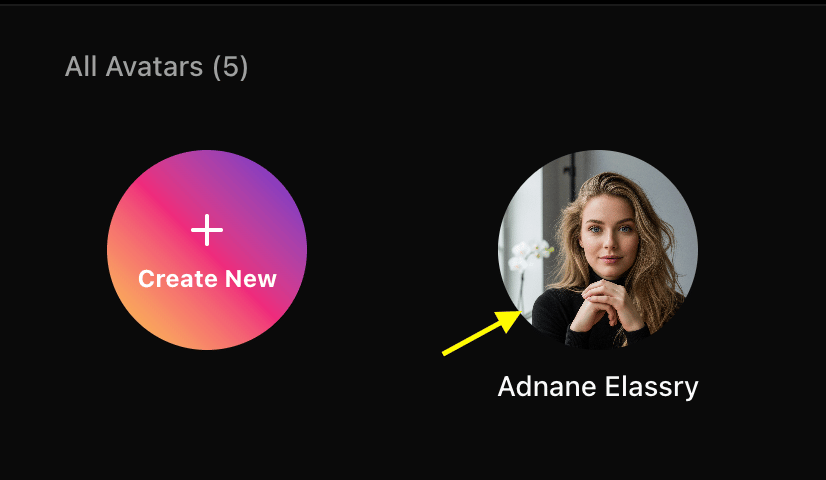
 Click on your saved avatar from the custom avatar gallery to select it.
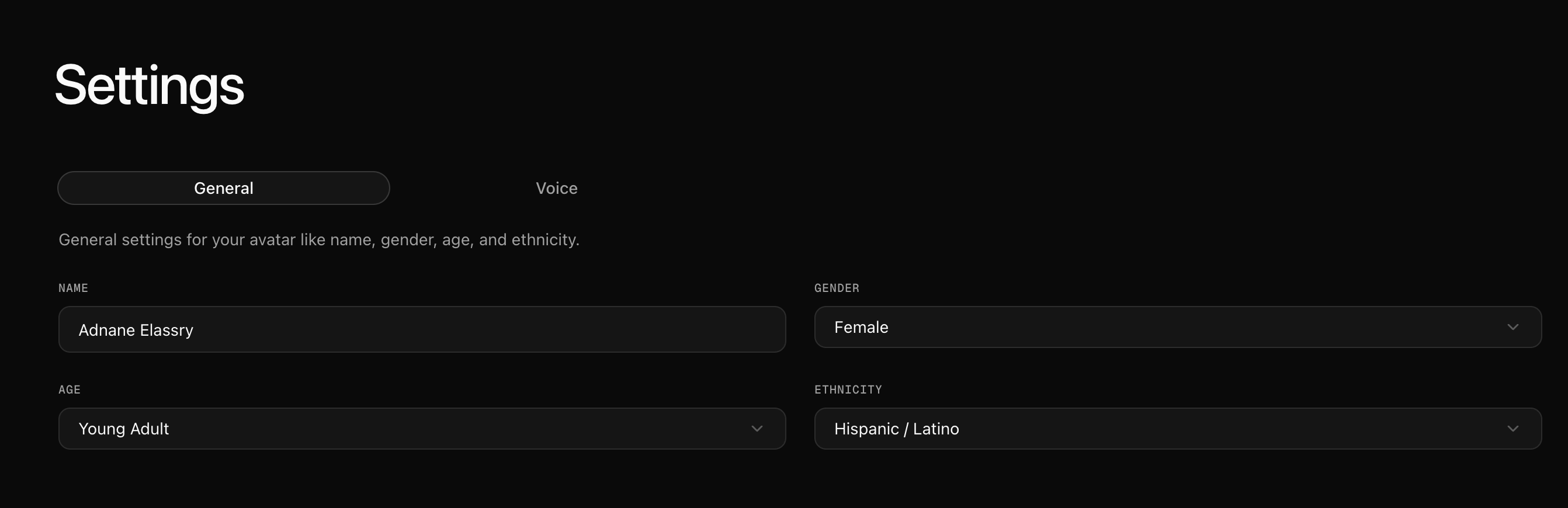
 Once selected, click to navigate to the settings to begin your customization.
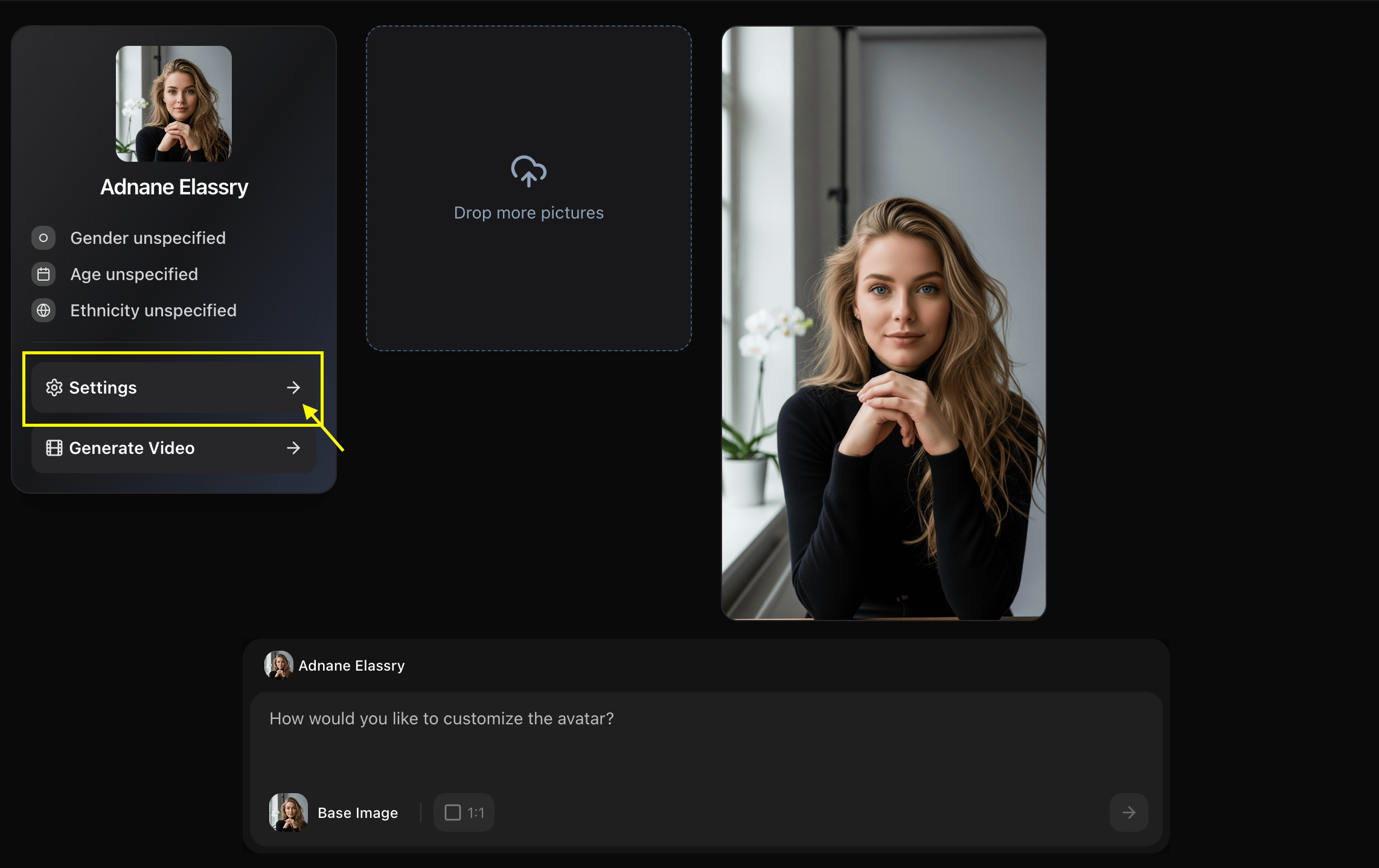 Fine-tune your avatar's profile by adjusting settings like **Age**, **Ethnicity**, and **Gender** to match your vision.
 Go back to the **New Avatar** section and select **Custom Avatar**.
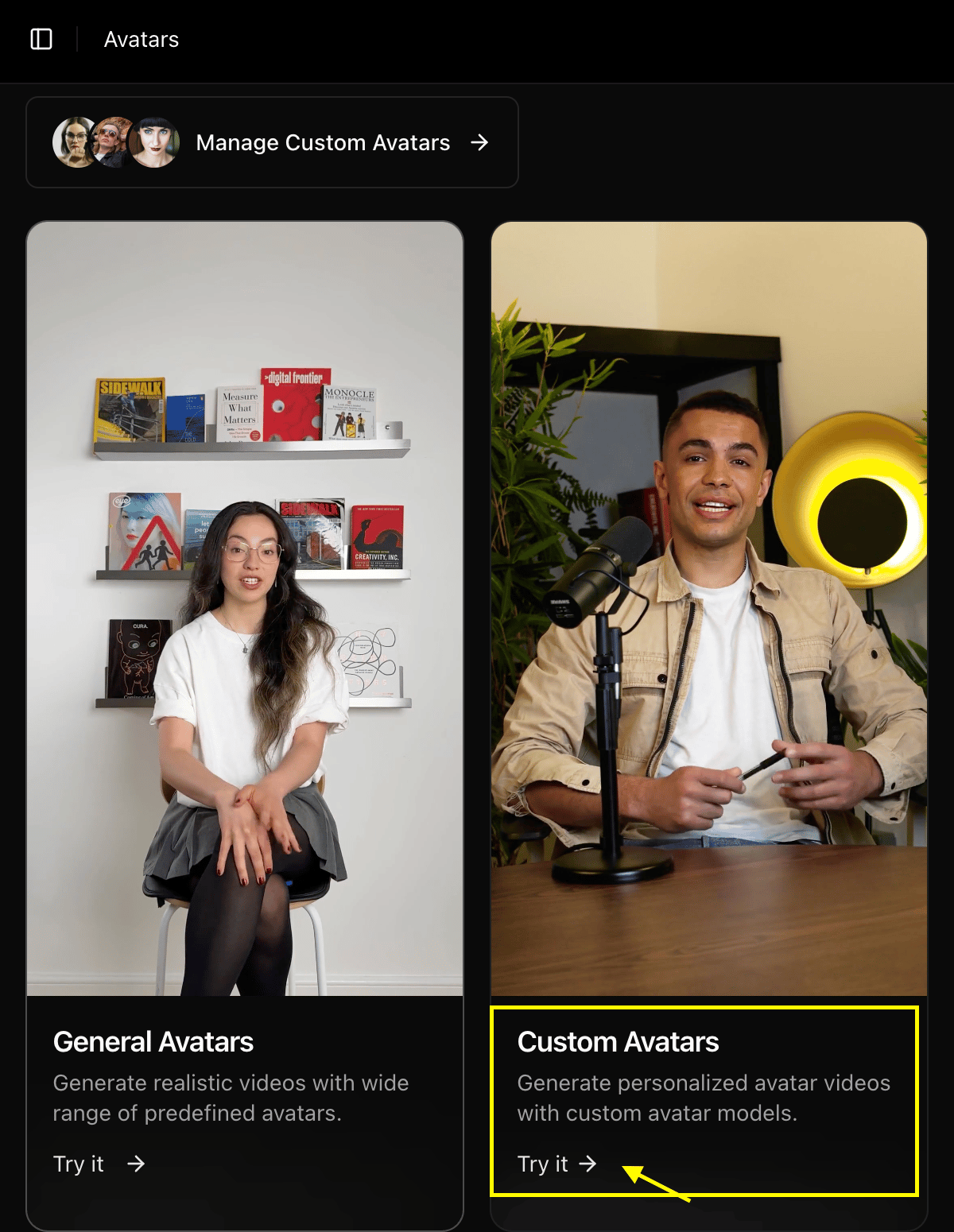 From here:
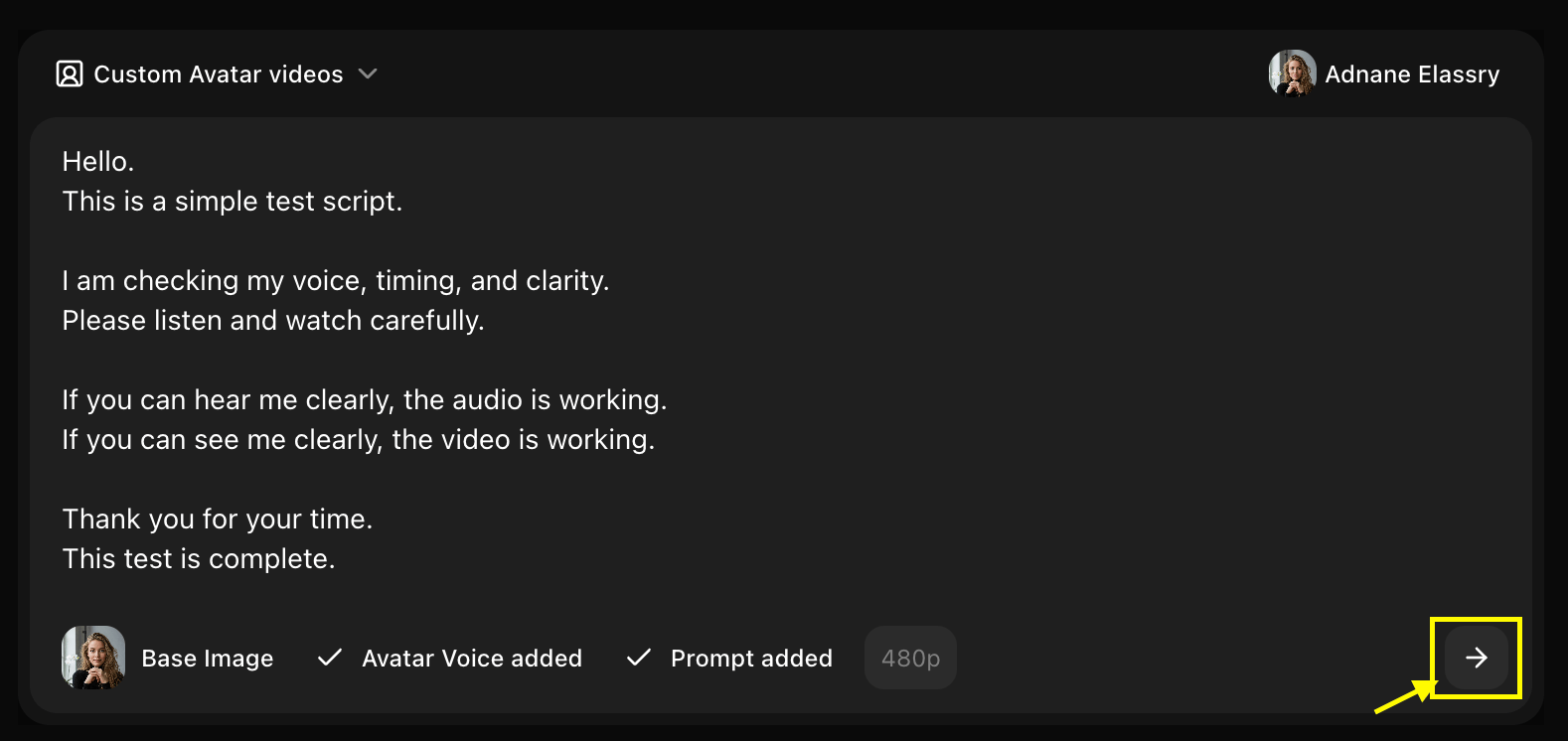
* **Select Base Image**: Choose your newly customized avatar image from the gallery.
From here:
* **Select Base Image**: Choose your newly customized avatar image from the gallery.
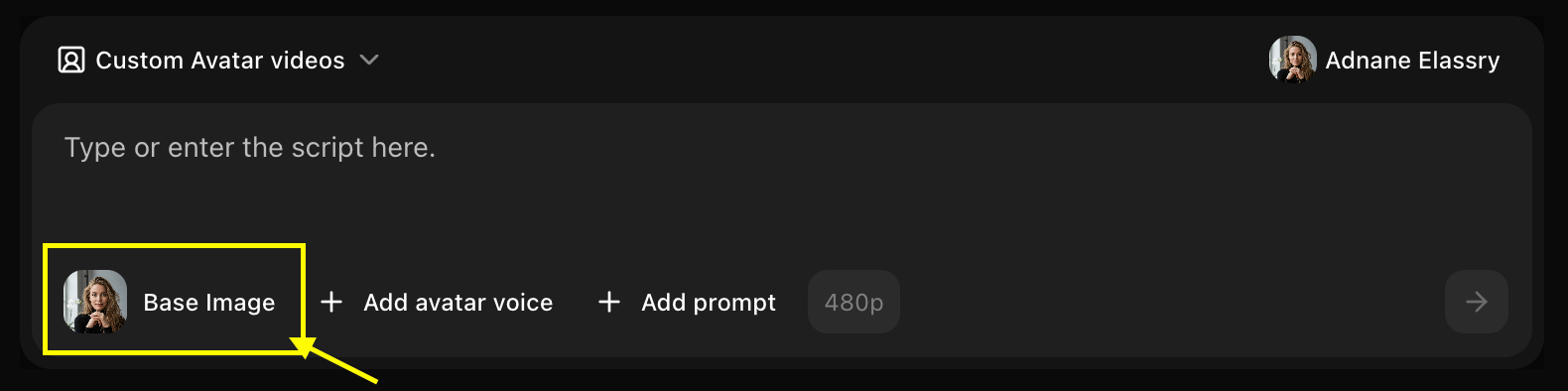 * **Click Add Voice**: Select a voice or upload your own 1-minute voice sample if preferred.
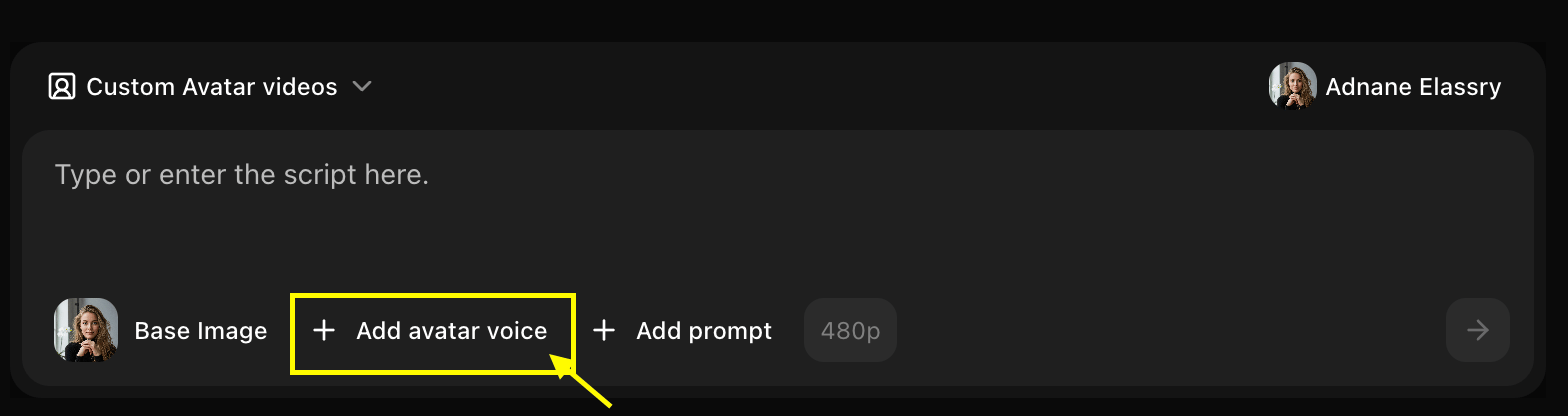 * **Upload Voice Sample**: Upload your own 1-minute voice sample if preferred.
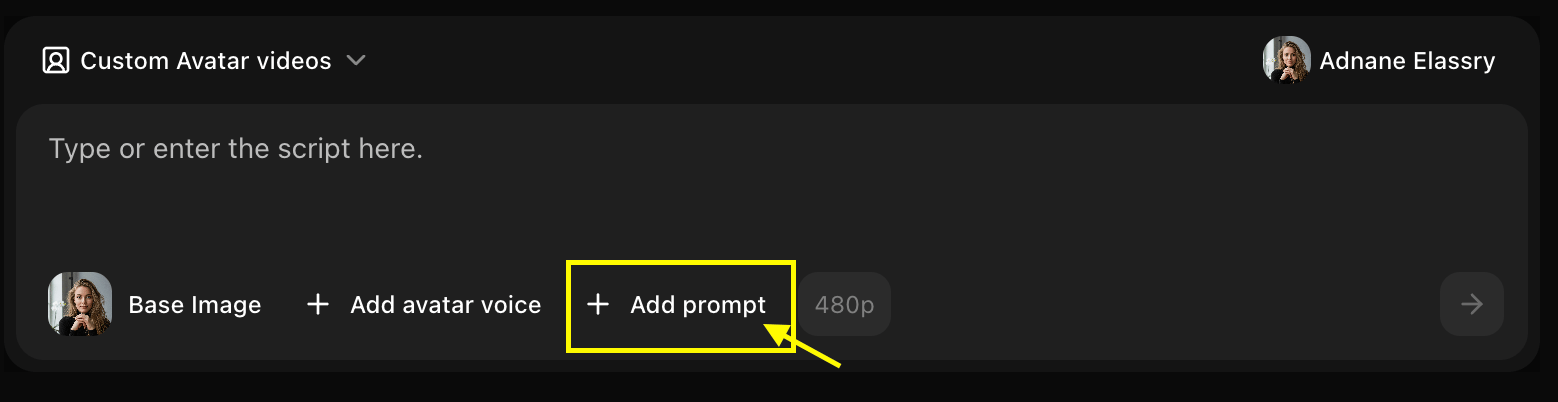
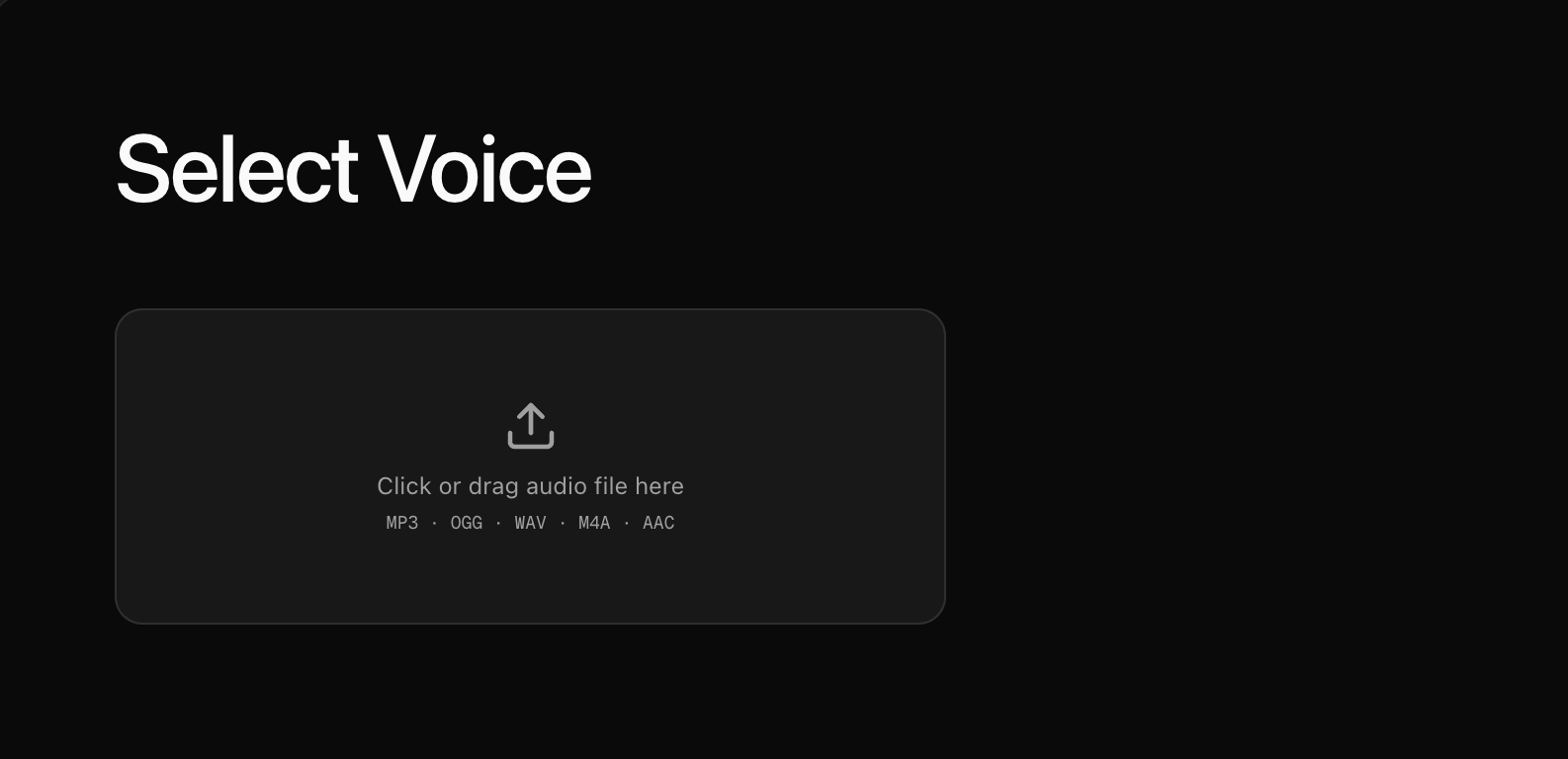 * **Add Action**: Define the action you want your avatar to perform like greeting, waving, etc.
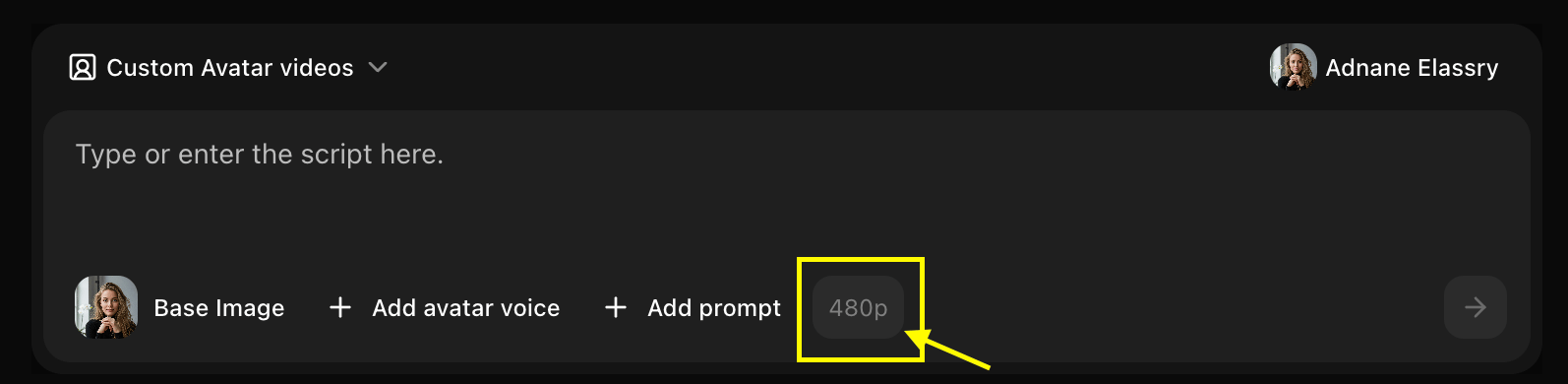
 * **Resolution**: Choose your preferred video resolution.
 * **Write Script**: Enter the text you want your avatar to speak in the script box.
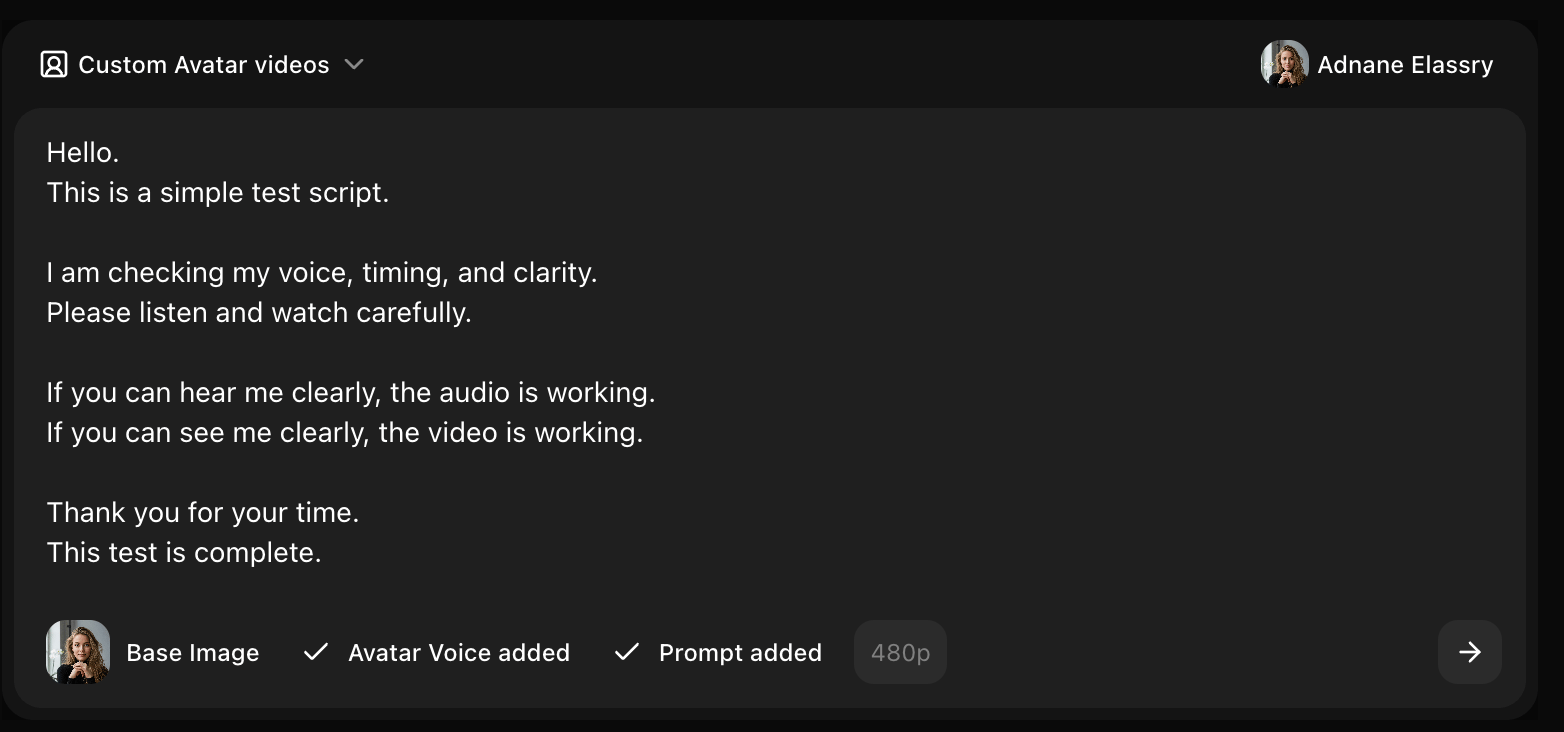 * **Generate**: Click on **Generate** to create your final video.
 ## Writing Effective Prompts
### Basic Structure
A good avatar prompt includes:
* **Demographics**: Age, gender, ethnicity
* **Appearance**: Hair color/style, facial features, build
* **Style**: Clothing, accessories, overall aesthetic
* **Mood**: Expression, demeanor, personality
### Example Prompts
```text Professional theme={null}
A professional woman in her 30s with shoulder-length brown hair, wearing a navy blue blazer, friendly smile, confident posture, modern office background
```
```text Creative theme={null}
A young creative artist in their 20s with colorful dyed hair, casual streetwear, artistic tattoos, expressive features, studio background
```
```text Educational theme={null}
A friendly teacher in their 40s with glasses, warm smile, professional attire, approachable demeanor, classroom setting
```
```text Character theme={null}
A futuristic sci-fi character with sleek silver hair, high-tech outfit, glowing accents, confident expression, digital background
```
## Customization Options
### Appearance Controls
* **Age Range**: Child, teen, young adult, middle-aged, senior
* **Gender**: Male, female, non-binary
* **Ethnicity**: Various ethnic backgrounds available
* **Hair**: Color, length, style
* **Facial Features**: Eyes, nose, mouth, facial structure
* **Build**: Body type and proportions
### Style Options
* **Realistic**: Photorealistic human avatars
* **Stylized**: Semi-realistic with artistic touches
* **Cartoon**: Animated, cartoon-style characters
* **Anime**: Anime/manga-inspired style
### Clothing & Accessories
* **Professional**: Business attire, formal wear
* **Casual**: Everyday clothing, streetwear
* **Creative**: Artistic, unique outfits
* **Themed**: Specific themes or costumes
### Background & Setting
* **Office**: Professional workspace
* **Studio**: Neutral or colored backgrounds
* **Outdoor**: Natural settings
* **Custom**: Upload your own background
## Use Cases
Create unique brand representative avatars
Generate presenters for videos and webinars
Design characters for games or interactive content
Create consistent avatar personas for platforms
## Best Practices
* Be specific about key features
* Include style preferences
* Mention clothing and accessories
* Describe the mood or expression
* Specify background if important
* Start with a basic description
* Generate and review
* Refine prompt based on results
* Adjust specific details
* Test different style options
* Save successful prompts for reuse
* Use similar descriptions for character consistency
* Document your avatar specifications
* Create style guides for brand avatars
Start with simple descriptions and add details gradually. Too many details in one prompt can sometimes conflict.
## Advanced Features
### Voice Integration
Combine your text-generated avatar with:
* Custom voice selection
* Voice cloning for unique voices
* Emotion and tone control
* Multi-language support
### Animation Control
* **Expression Intensity**: Subtle to expressive
* **Movement Style**: Static, moderate, or dynamic
* **Gesture Options**: Hand movements and body language
* **Camera Angles**: Front, slight angle, or dynamic
## Limitations
* Avatar generation may take 30-60 seconds
* Very complex or contradictory prompts may produce unexpected results
* Extreme or unrealistic features may not render accurately
* Some style combinations may not be available
Generated avatars should not be used to impersonate real individuals without consent.
## Next Steps
Create avatars from photos instead
Add custom voices to your avatars
Master prompt engineering techniques
## Writing Effective Prompts
### Basic Structure
A good avatar prompt includes:
* **Demographics**: Age, gender, ethnicity
* **Appearance**: Hair color/style, facial features, build
* **Style**: Clothing, accessories, overall aesthetic
* **Mood**: Expression, demeanor, personality
### Example Prompts
```text Professional theme={null}
A professional woman in her 30s with shoulder-length brown hair, wearing a navy blue blazer, friendly smile, confident posture, modern office background
```
```text Creative theme={null}
A young creative artist in their 20s with colorful dyed hair, casual streetwear, artistic tattoos, expressive features, studio background
```
```text Educational theme={null}
A friendly teacher in their 40s with glasses, warm smile, professional attire, approachable demeanor, classroom setting
```
```text Character theme={null}
A futuristic sci-fi character with sleek silver hair, high-tech outfit, glowing accents, confident expression, digital background
```
## Customization Options
### Appearance Controls
* **Age Range**: Child, teen, young adult, middle-aged, senior
* **Gender**: Male, female, non-binary
* **Ethnicity**: Various ethnic backgrounds available
* **Hair**: Color, length, style
* **Facial Features**: Eyes, nose, mouth, facial structure
* **Build**: Body type and proportions
### Style Options
* **Realistic**: Photorealistic human avatars
* **Stylized**: Semi-realistic with artistic touches
* **Cartoon**: Animated, cartoon-style characters
* **Anime**: Anime/manga-inspired style
### Clothing & Accessories
* **Professional**: Business attire, formal wear
* **Casual**: Everyday clothing, streetwear
* **Creative**: Artistic, unique outfits
* **Themed**: Specific themes or costumes
### Background & Setting
* **Office**: Professional workspace
* **Studio**: Neutral or colored backgrounds
* **Outdoor**: Natural settings
* **Custom**: Upload your own background
## Use Cases
Create unique brand representative avatars
Generate presenters for videos and webinars
Design characters for games or interactive content
Create consistent avatar personas for platforms
## Best Practices
* Be specific about key features
* Include style preferences
* Mention clothing and accessories
* Describe the mood or expression
* Specify background if important
* Start with a basic description
* Generate and review
* Refine prompt based on results
* Adjust specific details
* Test different style options
* Save successful prompts for reuse
* Use similar descriptions for character consistency
* Document your avatar specifications
* Create style guides for brand avatars
Start with simple descriptions and add details gradually. Too many details in one prompt can sometimes conflict.
## Advanced Features
### Voice Integration
Combine your text-generated avatar with:
* Custom voice selection
* Voice cloning for unique voices
* Emotion and tone control
* Multi-language support
### Animation Control
* **Expression Intensity**: Subtle to expressive
* **Movement Style**: Static, moderate, or dynamic
* **Gesture Options**: Hand movements and body language
* **Camera Angles**: Front, slight angle, or dynamic
## Limitations
* Avatar generation may take 30-60 seconds
* Very complex or contradictory prompts may produce unexpected results
* Extreme or unrealistic features may not render accurately
* Some style combinations may not be available
Generated avatars should not be used to impersonate real individuals without consent.
## Next Steps
Create avatars from photos instead
Add custom voices to your avatars
Master prompt engineering techniques