> ## Documentation Index
> Fetch the complete documentation index at: https://docs.zoice.com/llms.txt
> Use this file to discover all available pages before exploring further.
# Images to Image
> Image-to-Image generation allows you to transform existing images using AI. Upload a reference image and provide instructions to modify, enhance, or completely reimagine it in a new style.
## Quick Start
The AI analyzes your input image and applies transformations based on your text prompt while maintaining the overall composition and structure of the original image.
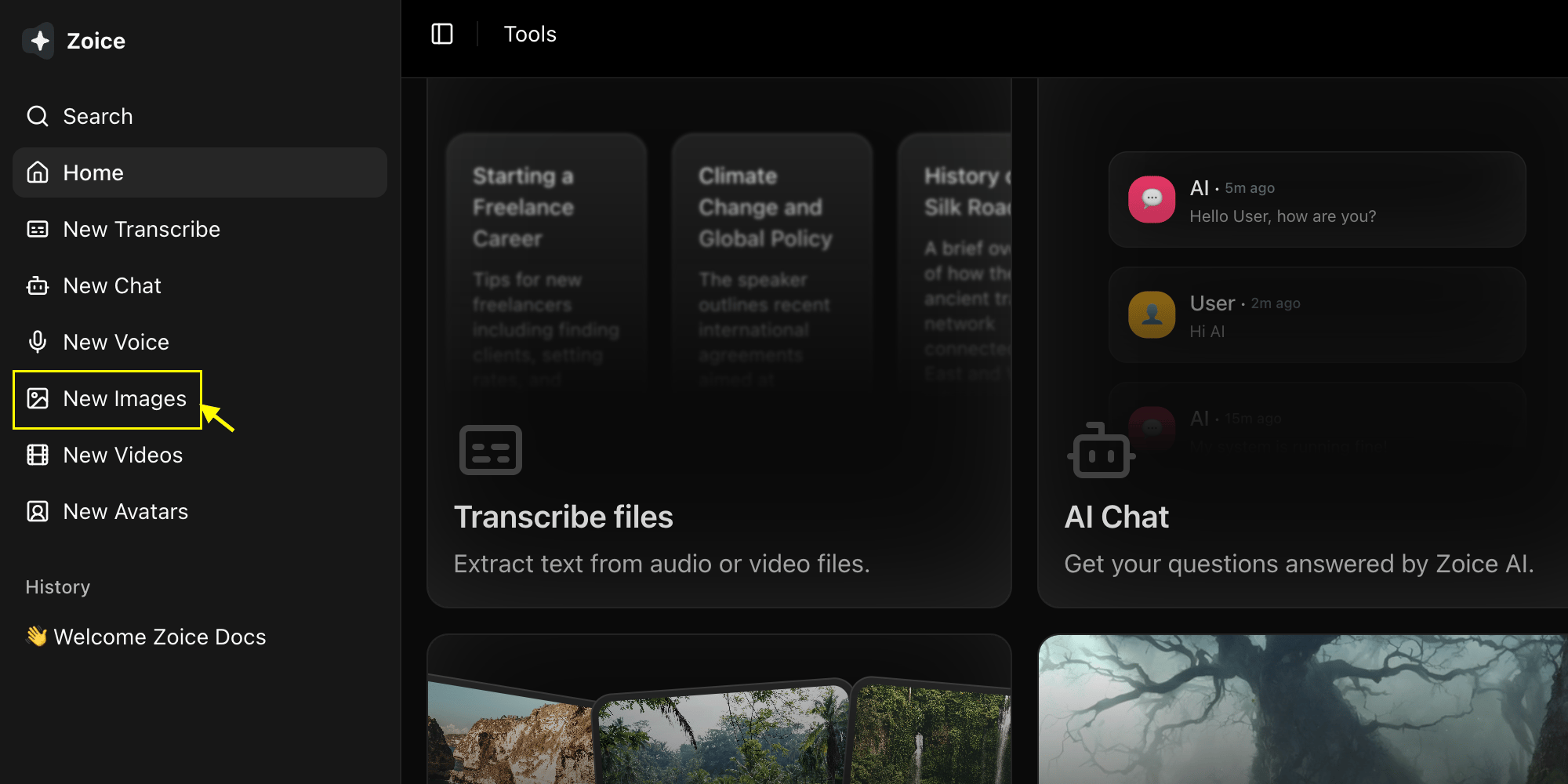
Go to the Image Generator tool in your Zoice dashboard by clicking on **New Image**.
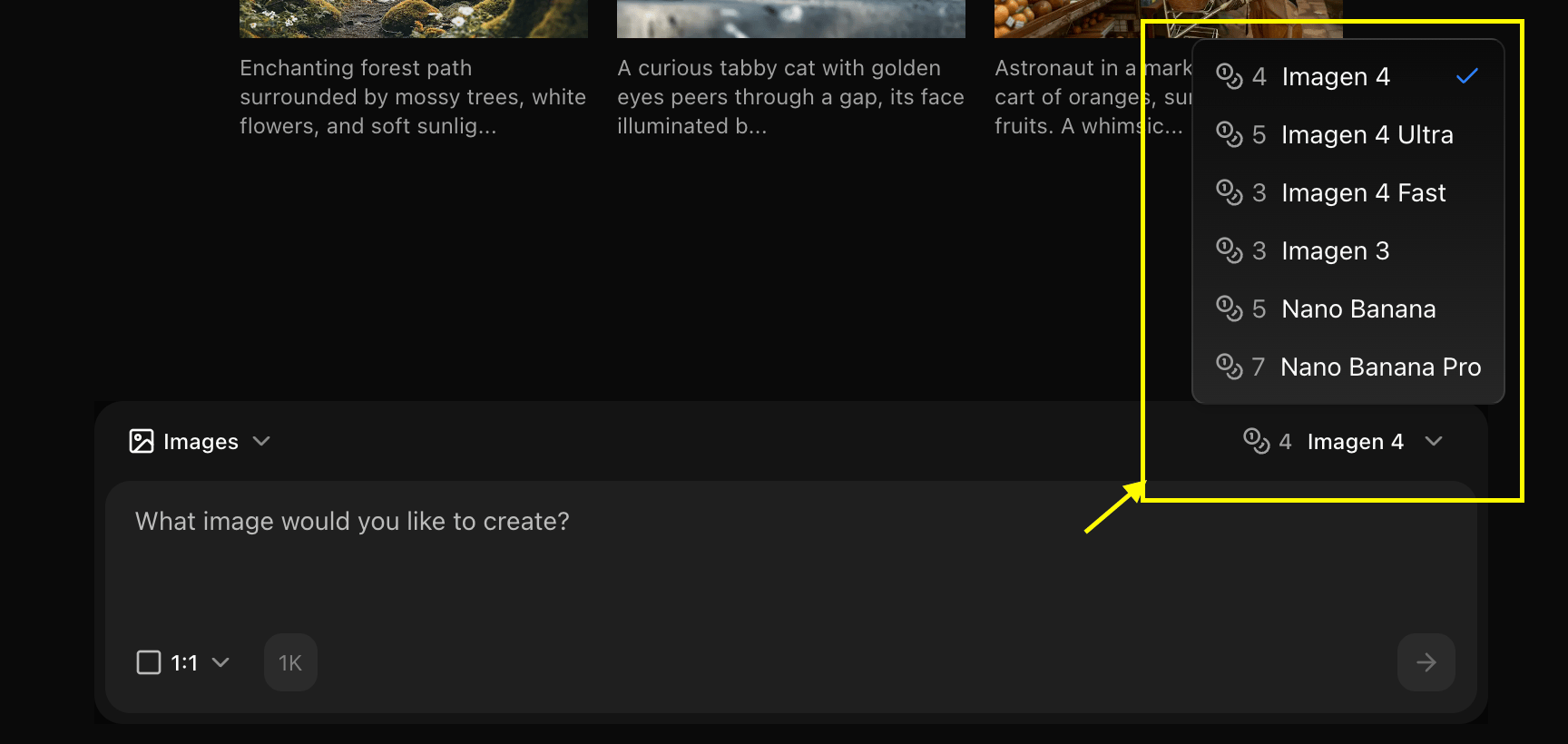
 Choose the appropriate AI model (e.g., Imagen 4 Fast, Nano Banana, Nano Banana 2) for your transformation.
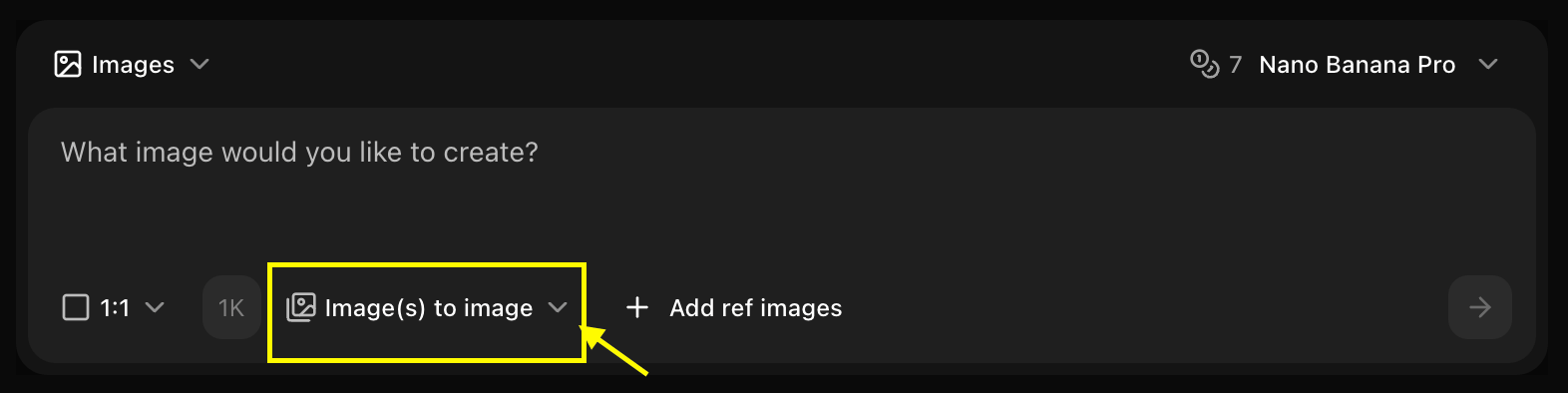
 Set your preferred aspect ratio, resolution, and choose **Image to Image** mode.
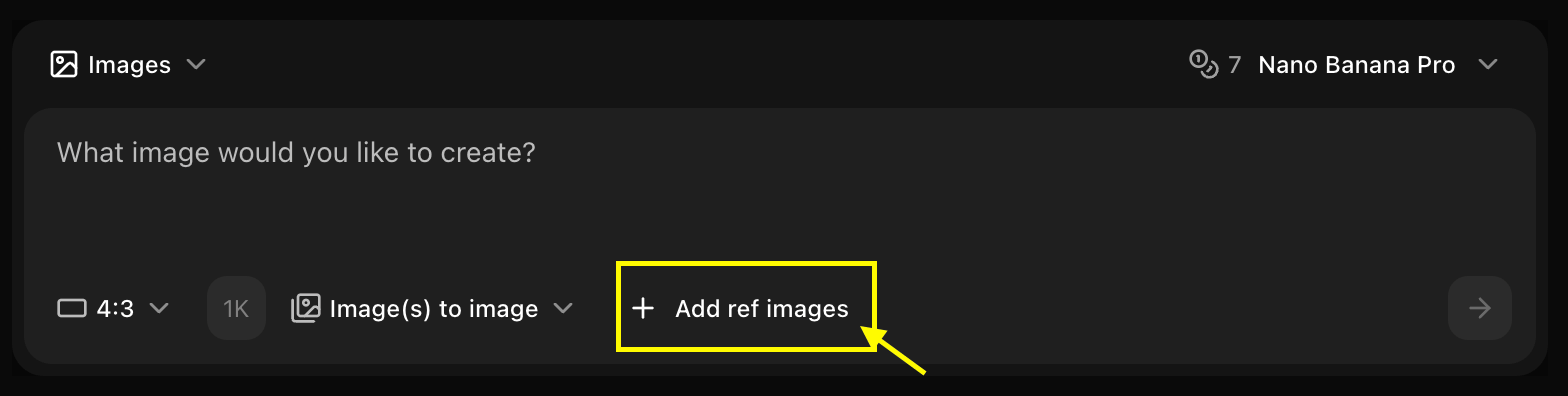
 Click on **Add Ref Image** to select and upload the image you want to use as a base.
 Enter a detailed description of how you want the AI to modify or enhance your reference image.
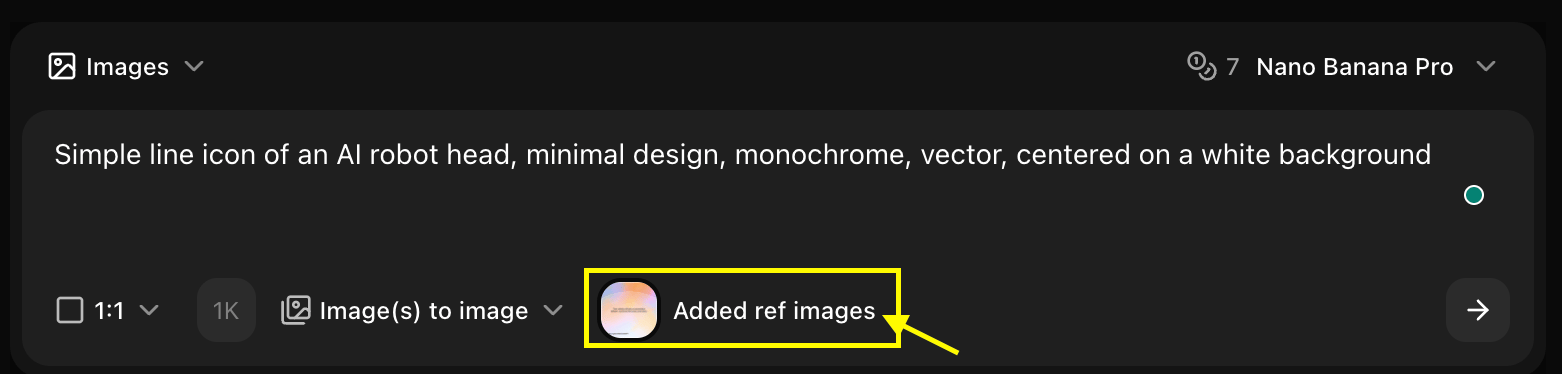 Click on **Generate** and wait a few seconds for your transformed image to be created.
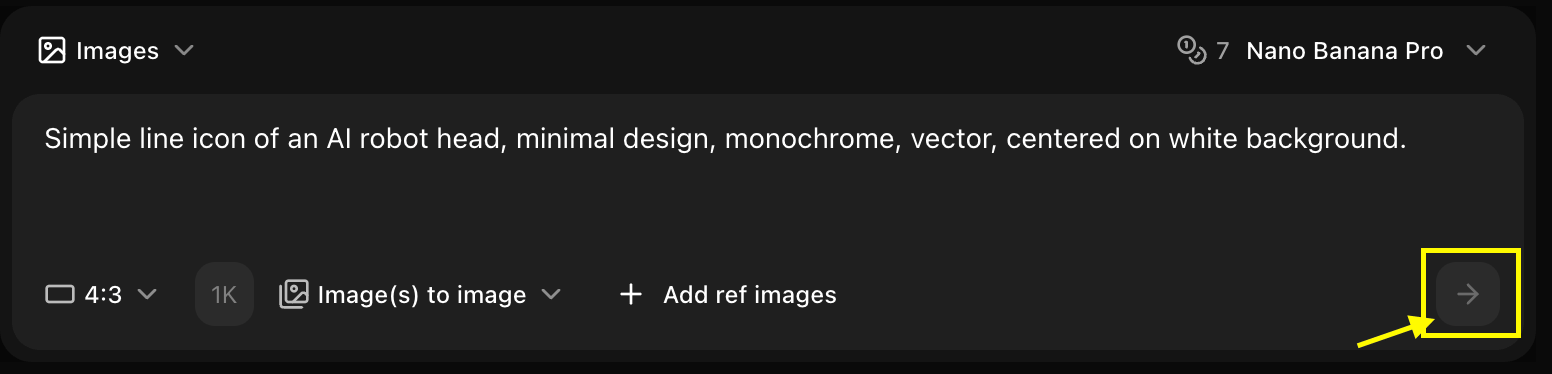 Save your generated image.
## Ref Image Requirements
### Technical Specifications
* **Formats**: JPG, PNG, WebP
* **Max Size**: 10MB
* **Recommended Resolution**: 1024x1024 or higher
* **Aspect Ratio**: Any, but square works best
### Content Guidelines
* Clear, well-lit images work best
* Higher resolution inputs produce better outputs
* Simple compositions are easier to transform
* Avoid heavily compressed or low-quality images
## Transformation Strength
The strength parameter controls how much the AI modifies your image:
**Subtle Changes**
* Minor adjustments
* Color corrections
* Small style tweaks
* Preserves most original details
**Best For:**
* Photo enhancement
* Color grading
* Minor style adjustments
**Moderate Changes**
* Noticeable transformations
* Style transfers
* Significant modifications
* Maintains composition
**Best For:**
* Artistic style transfers
* Season changes
* Mood alterations
**Major Changes**
* Dramatic transformations
* Complete reimagining
* Heavy stylization
* May alter composition
**Best For:**
* Artistic reinterpretations
* Genre changes
* Creative experiments
## Common Use Cases
### Style Transfer
Transform images into different artistic styles
```text Watercolor theme={null}
Transform this photo into a watercolor painting with soft colors and flowing brushstrokes.
```
```text Anime theme={null}
Convert this portrait into anime style with vibrant colors and clean linework
```
```text Oil Painting theme={null}
Reimagine this landscape as an oil painting in impressionist style.
```
### Enhancement
Improve and enhance existing images
```text Upscale theme={null}
Enhance image quality, increase sharpness, improve details, photorealistic
```
```text Lighting theme={null}
Improve lighting, add golden hour glow, enhance colors, professional photography
```
```text Restoration theme={null}
Restore old photo, remove noise, enhance clarity, fix colors
```
### Modification
Change specific elements or aspects
```text Season Change theme={null}
Change from summer to winter, add snow, cold atmosphere, winter lighting
```
```text Time of Day theme={null}
Transform to sunset scene, golden hour lighting, warm colors, dramatic sky
```
```text Weather theme={null}
Add rain and fog, moody atmosphere, wet surfaces, dramatic weather
```
### Creative Transformation
Completely reimagine the image
```text Futuristic theme={null}
Transform into cyberpunk style, neon lights, futuristic elements, sci-fi aesthetic
```
```text Fantasy theme={null}
Convert to fantasy art, magical elements, ethereal lighting, mystical atmosphere
```
```text Minimalist theme={null}
Simplify into minimalist design, clean lines, limited colors, modern aesthetic
```
## Best Practices
* Start with medium strength (0.5)
* Increase for more dramatic changes
* Decrease to preserve more original details
* Test different values to find the sweet spot
* Describe the desired transformation clearly
* Include style keywords
* Mention what to preserve from original
* Specify mood and atmosphere
* Use high-quality source images
* Ensure good lighting in original
* Simple compositions transform better
* Test with different images
## Advanced Techniques
### Iterative Refinement
1. Start with low strength
2. Generate and review
3. Adjust prompt and strength
4. Use output as new input for further refinement
### Composition Preservation
To maintain the original composition:
* Use lower strength (0.3-0.5)
* Focus prompt on style, not content
* Mention "same composition" in prompt
* Avoid adding new objects
### Multiple Variations
* Generate several versions with same settings
* Try different strength values
* Test various prompt phrasings
* Compare results to find best output
## Comparison: Text-to-Image vs Image-to-Image
| Feature | Text-to-Image | Image-to-Image |
| --------------- | ----------------- | ---------------- |
| **Input** | Text only | Image + Text |
| **Control** | Description-based | Structure-guided |
| **Consistency** | Variable | More predictable |
| **Use Case** | New creations | Transformations |
| **Speed** | Fast | Fast |
## Examples by Category
Convert photographs into paintings, drawings, or artistic styles
Combine elements from different artistic movements
Change weather, time of day, or season
Improve quality, lighting, and details
## Troubleshooting
* Reduce transformation strength
* Be more specific about preserving elements
* Use "same composition" in prompt
* Try a different model
* Increase transformation strength
* Make prompt more descriptive
* Use stronger style keywords
* Try multiple generations
* Use higher quality input image
* Adjust strength parameter
* Simplify the prompt
* Try different model
Keep your original images! You can always try different transformations with different prompts and strengths.
## Next Steps
Create images from scratch
Explore different AI models
Save your generated image.
## Ref Image Requirements
### Technical Specifications
* **Formats**: JPG, PNG, WebP
* **Max Size**: 10MB
* **Recommended Resolution**: 1024x1024 or higher
* **Aspect Ratio**: Any, but square works best
### Content Guidelines
* Clear, well-lit images work best
* Higher resolution inputs produce better outputs
* Simple compositions are easier to transform
* Avoid heavily compressed or low-quality images
## Transformation Strength
The strength parameter controls how much the AI modifies your image:
**Subtle Changes**
* Minor adjustments
* Color corrections
* Small style tweaks
* Preserves most original details
**Best For:**
* Photo enhancement
* Color grading
* Minor style adjustments
**Moderate Changes**
* Noticeable transformations
* Style transfers
* Significant modifications
* Maintains composition
**Best For:**
* Artistic style transfers
* Season changes
* Mood alterations
**Major Changes**
* Dramatic transformations
* Complete reimagining
* Heavy stylization
* May alter composition
**Best For:**
* Artistic reinterpretations
* Genre changes
* Creative experiments
## Common Use Cases
### Style Transfer
Transform images into different artistic styles
```text Watercolor theme={null}
Transform this photo into a watercolor painting with soft colors and flowing brushstrokes.
```
```text Anime theme={null}
Convert this portrait into anime style with vibrant colors and clean linework
```
```text Oil Painting theme={null}
Reimagine this landscape as an oil painting in impressionist style.
```
### Enhancement
Improve and enhance existing images
```text Upscale theme={null}
Enhance image quality, increase sharpness, improve details, photorealistic
```
```text Lighting theme={null}
Improve lighting, add golden hour glow, enhance colors, professional photography
```
```text Restoration theme={null}
Restore old photo, remove noise, enhance clarity, fix colors
```
### Modification
Change specific elements or aspects
```text Season Change theme={null}
Change from summer to winter, add snow, cold atmosphere, winter lighting
```
```text Time of Day theme={null}
Transform to sunset scene, golden hour lighting, warm colors, dramatic sky
```
```text Weather theme={null}
Add rain and fog, moody atmosphere, wet surfaces, dramatic weather
```
### Creative Transformation
Completely reimagine the image
```text Futuristic theme={null}
Transform into cyberpunk style, neon lights, futuristic elements, sci-fi aesthetic
```
```text Fantasy theme={null}
Convert to fantasy art, magical elements, ethereal lighting, mystical atmosphere
```
```text Minimalist theme={null}
Simplify into minimalist design, clean lines, limited colors, modern aesthetic
```
## Best Practices
* Start with medium strength (0.5)
* Increase for more dramatic changes
* Decrease to preserve more original details
* Test different values to find the sweet spot
* Describe the desired transformation clearly
* Include style keywords
* Mention what to preserve from original
* Specify mood and atmosphere
* Use high-quality source images
* Ensure good lighting in original
* Simple compositions transform better
* Test with different images
## Advanced Techniques
### Iterative Refinement
1. Start with low strength
2. Generate and review
3. Adjust prompt and strength
4. Use output as new input for further refinement
### Composition Preservation
To maintain the original composition:
* Use lower strength (0.3-0.5)
* Focus prompt on style, not content
* Mention "same composition" in prompt
* Avoid adding new objects
### Multiple Variations
* Generate several versions with same settings
* Try different strength values
* Test various prompt phrasings
* Compare results to find best output
## Comparison: Text-to-Image vs Image-to-Image
| Feature | Text-to-Image | Image-to-Image |
| --------------- | ----------------- | ---------------- |
| **Input** | Text only | Image + Text |
| **Control** | Description-based | Structure-guided |
| **Consistency** | Variable | More predictable |
| **Use Case** | New creations | Transformations |
| **Speed** | Fast | Fast |
## Examples by Category
Convert photographs into paintings, drawings, or artistic styles
Combine elements from different artistic movements
Change weather, time of day, or season
Improve quality, lighting, and details
## Troubleshooting
* Reduce transformation strength
* Be more specific about preserving elements
* Use "same composition" in prompt
* Try a different model
* Increase transformation strength
* Make prompt more descriptive
* Use stronger style keywords
* Try multiple generations
* Use higher quality input image
* Adjust strength parameter
* Simplify the prompt
* Try different model
Keep your original images! You can always try different transformations with different prompts and strengths.
## Next Steps
Create images from scratch
Explore different AI models