> ## Documentation Index
> Fetch the complete documentation index at: https://docs.zoice.com/llms.txt
> Use this file to discover all available pages before exploring further.
# Text to Image
> Text-to-Image generation is the core feature of Zoice's image creation tools. Simply describe what you want to see, and our AI models will create a unique image matching your description.
## Quick Start
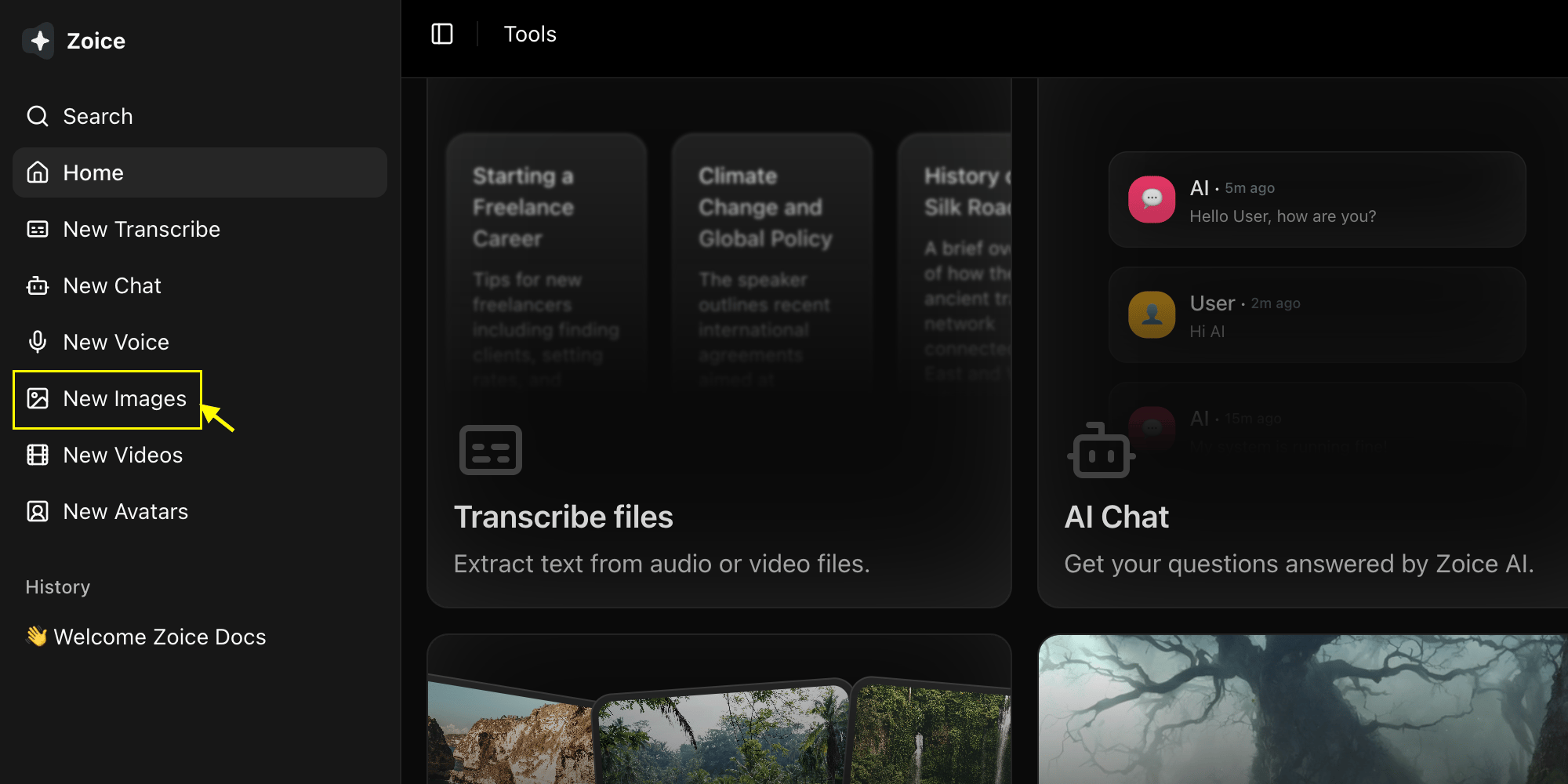
Go to the Image Generator tool in your Zoice dashboard by clicking on New Image.
 Choose an AI model (Imagen 4 Fast, Nano Banana 2, etc.) from the model selector.
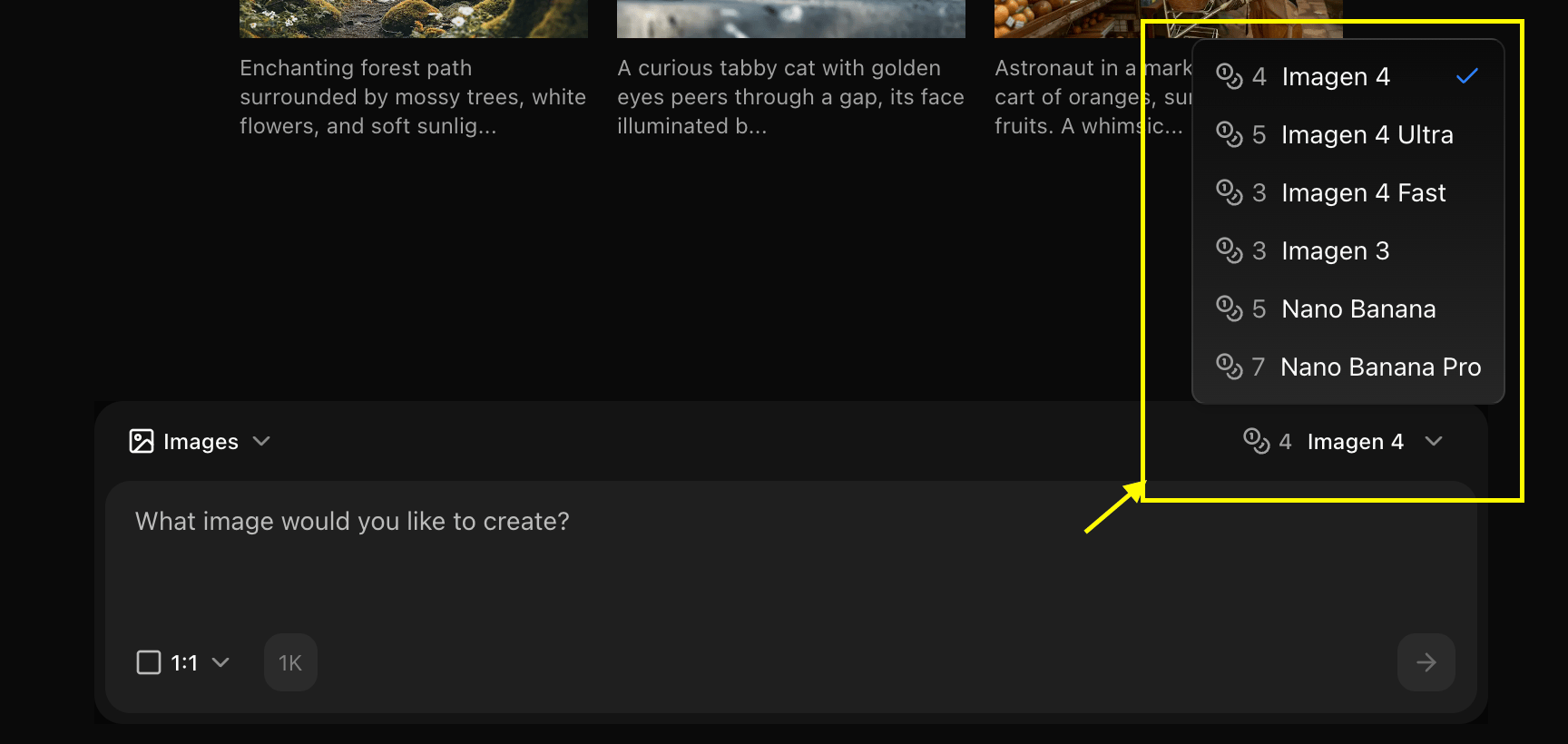 In the above image we have selected the `Nano Banana 2` model.
Set resolution, quality, and select text to image to get your idea into reality.
In the above image we have selected the `Nano Banana 2` model.
Set resolution, quality, and select text to image to get your idea into reality.
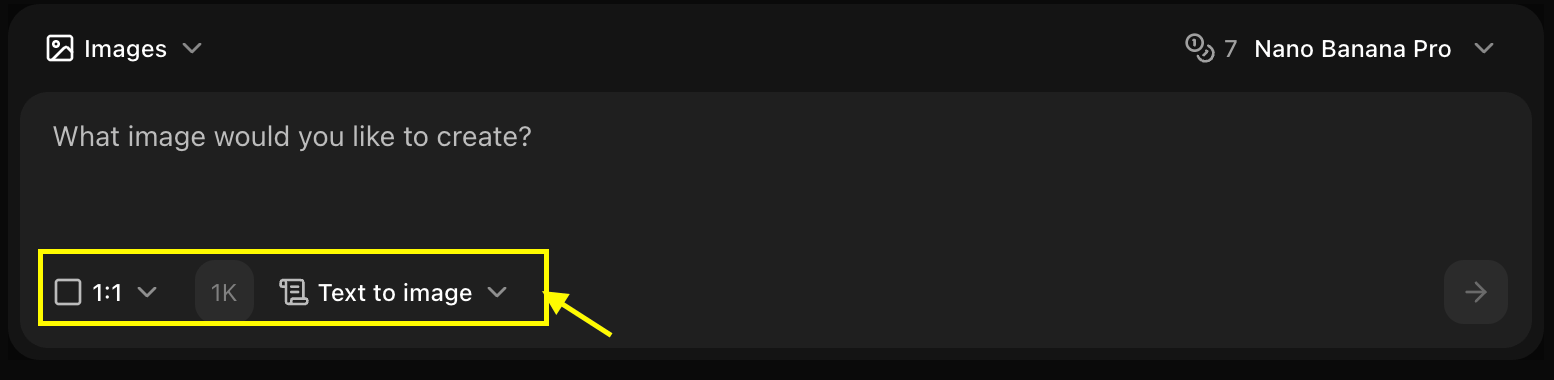 In the above image we have slected the `1:1` aspect ratio and `Ultra` quality with `text to image` mode.
Enter a detailed description of the image you want to create in the prompt box.
In the above image we have slected the `1:1` aspect ratio and `Ultra` quality with `text to image` mode.
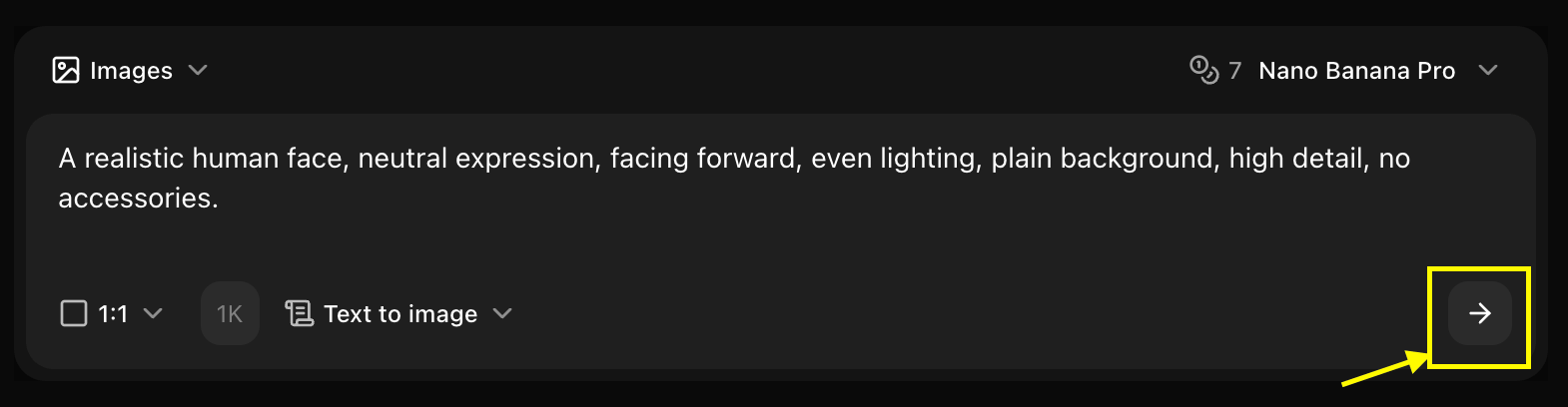
Enter a detailed description of the image you want to create in the prompt box.
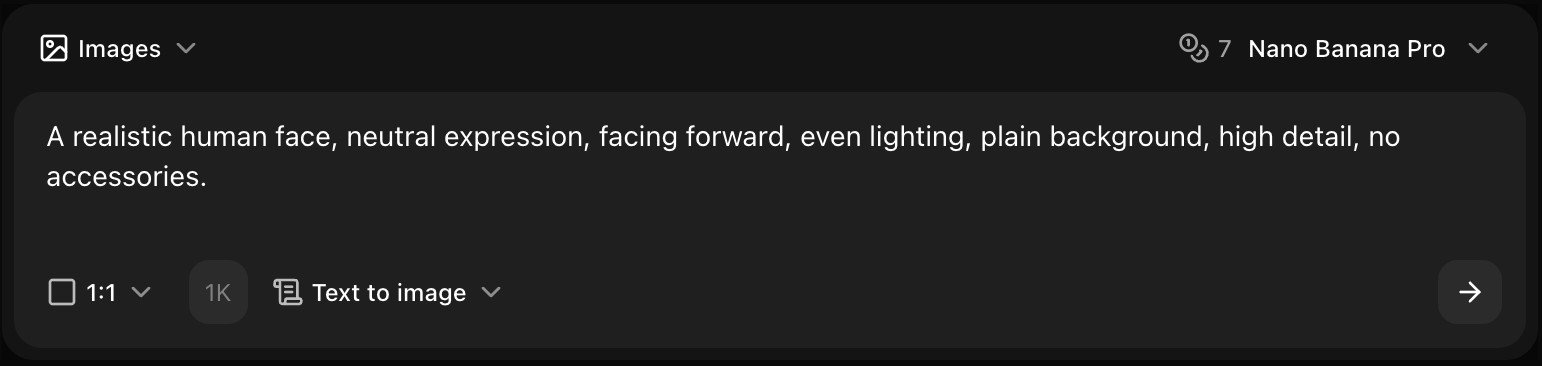 Click generate and wait few seconds for your image to be generated.
 Save your generated image
## Writing Effective Prompts
### Prompt Structure
A well-structured prompt typically includes:
1. **Subject**: What is the main focus?
2. **Style**: What artistic style or aesthetic?
3. **Details**: Colors, lighting, composition
4. **Quality**: Resolution, detail level descriptors
### Example Prompts
```text Simple theme={null}
A red sports car on a mountain road at sunset
```
```text Detailed theme={null}
A sleek red Ferrari driving on a winding mountain road during golden hour, dramatic clouds in the sky, cinematic lighting, photorealistic, 4K quality
```
```text Artistic theme={null}
An abstract watercolor painting of a city skyline, vibrant blues and purples, flowing brushstrokes, modern art style, high contrast
```
```text Product theme={null}
A minimalist product photo of a smartwatch on a white marble surface, soft studio lighting, professional photography, clean composition, sharp focus
```
## Generation Parameters
### Resolution Options
* **Standard**: 1024x1024 (fastest)
* **High**: 1536x1536 (balanced)
* **Ultra**: 2048x2048 (highest quality)
### Aspect Ratios
* **Square**: 1:1 (social media, profile pictures)
* **Portrait**: 3:4 or 9:16 (vertical content)
* **Landscape**: 16:9 or 4:3 (horizontal content)
* **Wide**: 21:9 (cinematic)
### Advanced Settings
Controls how closely the AI follows your prompt
* **Low (1-5)**: More creative, less literal
* **Medium (6-10)**: Balanced interpretation
* **High (11-15)**: Strict adherence to prompt
Use a specific seed number for reproducible results
* Leave blank for random generation
* Use same seed to recreate similar images
* Useful for iterating on a concept
Generate multiple variations
* 1-4 images per generation
* Each variation is unique
* Helps find the best result
## Prompt Tips by Category
**Key Elements:**
* Camera type and lens
* Lighting conditions
* Composition style
* Depth of field
**Example:**
"Professional portrait photo, 85mm lens, soft natural lighting, shallow depth of field, bokeh background"
**Popular Styles:**
* Oil painting
* Watercolor
* Digital art
* Anime/Manga
* Sketch/Line art
**Example:**
"Oil painting in the style of impressionism, visible brushstrokes, vibrant colors, outdoor scene"
**Key Elements:**
* Rendering engine
* Material properties
* Lighting setup
* Level of detail
**Example:**
"3D render, Octane render, metallic materials, studio lighting, highly detailed, 8K resolution"
**Key Elements:**
* Mood and atmosphere
* Color palette
* Abstract elements
* Symbolic meaning
**Example:**
"Abstract concept of innovation, flowing energy, blue and gold colors, futuristic, dynamic composition"
## Common Use Cases
Create social media graphics, ad visuals, and promotional images
Generate product concepts and visualization
Create custom header images for articles
Develop visual concepts for projects
## Troubleshooting
* Make your prompt more specific
* Increase guidance scale
* Try a different model
* Regenerate with variations
* Increase resolution setting
* Add quality keywords to prompt
* Use a higher-tier model
* Specify "detailed" or "sharp focus"
* Simplify your prompt
* Remove contradictory descriptions
* Be more explicit about what to exclude
* Try negative prompts if available
Save prompts that work well! Build a library of effective prompts for different use cases.
## Next Steps
Transform existing images
Learn about different AI models
Master prompt engineering
Save your generated image
## Writing Effective Prompts
### Prompt Structure
A well-structured prompt typically includes:
1. **Subject**: What is the main focus?
2. **Style**: What artistic style or aesthetic?
3. **Details**: Colors, lighting, composition
4. **Quality**: Resolution, detail level descriptors
### Example Prompts
```text Simple theme={null}
A red sports car on a mountain road at sunset
```
```text Detailed theme={null}
A sleek red Ferrari driving on a winding mountain road during golden hour, dramatic clouds in the sky, cinematic lighting, photorealistic, 4K quality
```
```text Artistic theme={null}
An abstract watercolor painting of a city skyline, vibrant blues and purples, flowing brushstrokes, modern art style, high contrast
```
```text Product theme={null}
A minimalist product photo of a smartwatch on a white marble surface, soft studio lighting, professional photography, clean composition, sharp focus
```
## Generation Parameters
### Resolution Options
* **Standard**: 1024x1024 (fastest)
* **High**: 1536x1536 (balanced)
* **Ultra**: 2048x2048 (highest quality)
### Aspect Ratios
* **Square**: 1:1 (social media, profile pictures)
* **Portrait**: 3:4 or 9:16 (vertical content)
* **Landscape**: 16:9 or 4:3 (horizontal content)
* **Wide**: 21:9 (cinematic)
### Advanced Settings
Controls how closely the AI follows your prompt
* **Low (1-5)**: More creative, less literal
* **Medium (6-10)**: Balanced interpretation
* **High (11-15)**: Strict adherence to prompt
Use a specific seed number for reproducible results
* Leave blank for random generation
* Use same seed to recreate similar images
* Useful for iterating on a concept
Generate multiple variations
* 1-4 images per generation
* Each variation is unique
* Helps find the best result
## Prompt Tips by Category
**Key Elements:**
* Camera type and lens
* Lighting conditions
* Composition style
* Depth of field
**Example:**
"Professional portrait photo, 85mm lens, soft natural lighting, shallow depth of field, bokeh background"
**Popular Styles:**
* Oil painting
* Watercolor
* Digital art
* Anime/Manga
* Sketch/Line art
**Example:**
"Oil painting in the style of impressionism, visible brushstrokes, vibrant colors, outdoor scene"
**Key Elements:**
* Rendering engine
* Material properties
* Lighting setup
* Level of detail
**Example:**
"3D render, Octane render, metallic materials, studio lighting, highly detailed, 8K resolution"
**Key Elements:**
* Mood and atmosphere
* Color palette
* Abstract elements
* Symbolic meaning
**Example:**
"Abstract concept of innovation, flowing energy, blue and gold colors, futuristic, dynamic composition"
## Common Use Cases
Create social media graphics, ad visuals, and promotional images
Generate product concepts and visualization
Create custom header images for articles
Develop visual concepts for projects
## Troubleshooting
* Make your prompt more specific
* Increase guidance scale
* Try a different model
* Regenerate with variations
* Increase resolution setting
* Add quality keywords to prompt
* Use a higher-tier model
* Specify "detailed" or "sharp focus"
* Simplify your prompt
* Remove contradictory descriptions
* Be more explicit about what to exclude
* Try negative prompts if available
Save prompts that work well! Build a library of effective prompts for different use cases.
## Next Steps
Transform existing images
Learn about different AI models
Master prompt engineering