> ## Documentation Index
> Fetch the complete documentation index at: https://docs.zoice.com/llms.txt
> Use this file to discover all available pages before exploring further.
# AI Video to Text Transcription
> Transcribe your videos into accurate text with Zoice's AI transcription tool. Supports 100+ languages, speaker identification, and multiple export formats like SRT and VTT.
## Quick Start
Convert spoken content in videos into written text with high accuracy.
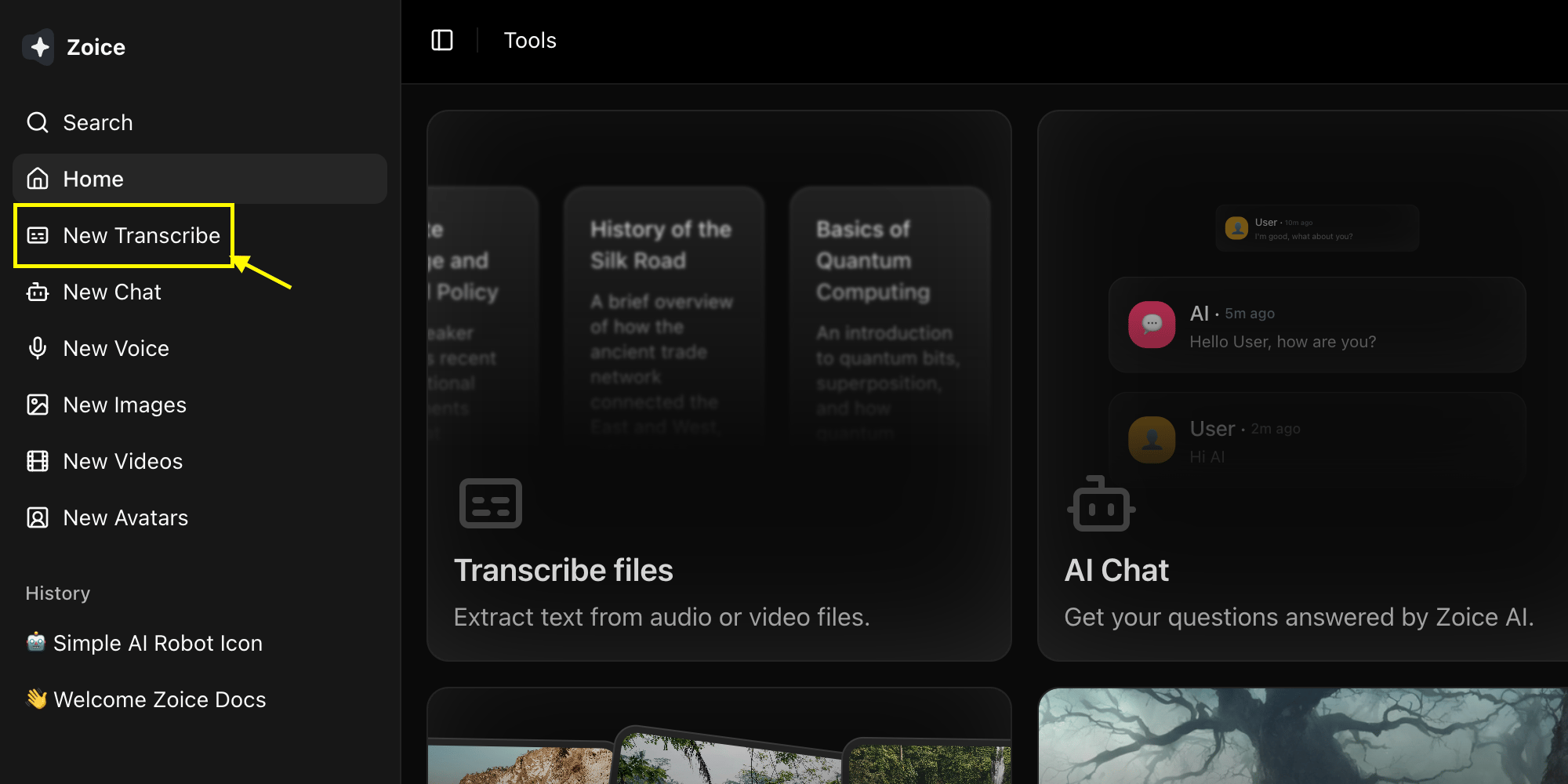
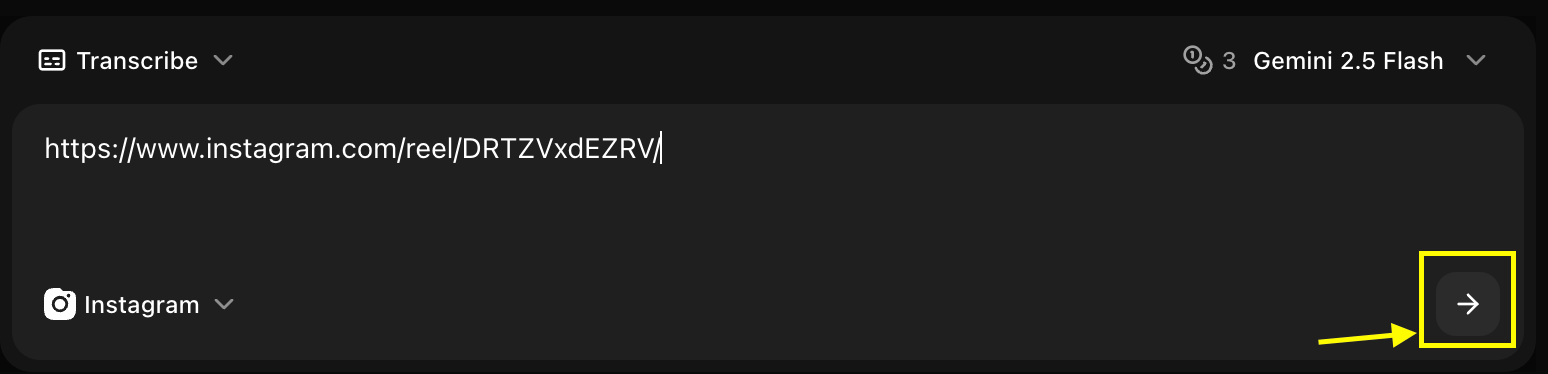
Navigate to the new transcribe section in your dashboard.
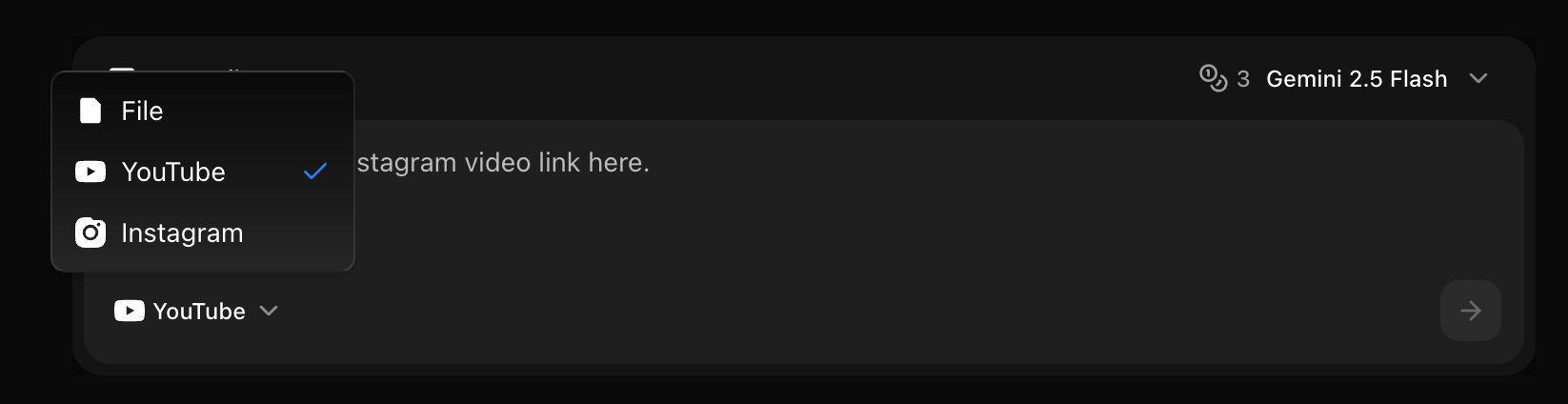
 Choose between YouTube, Instagram, or a media file from your device.
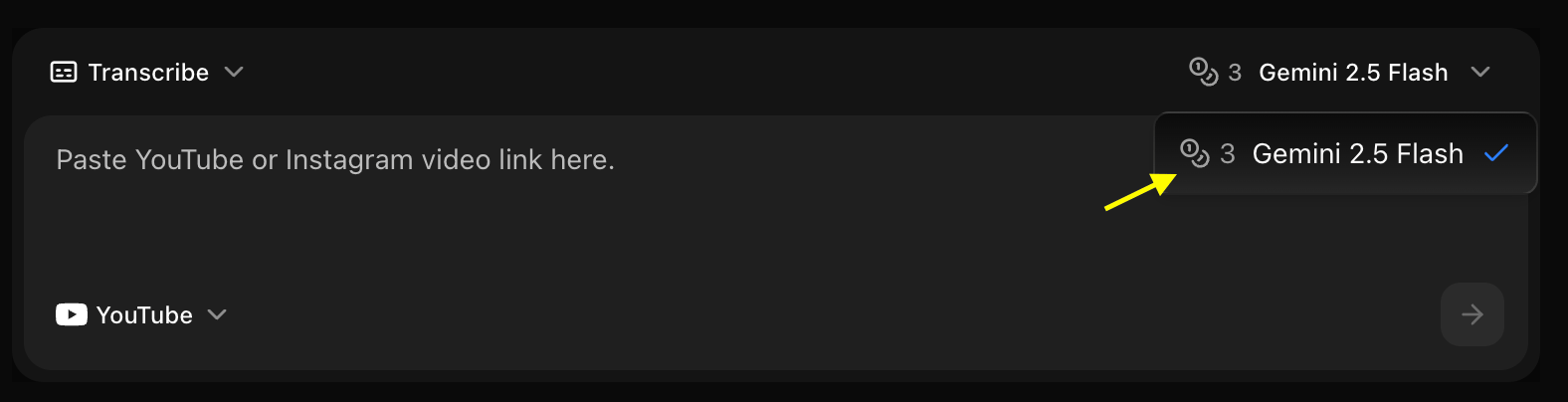
 Choose the AI model you want to use for transcription.
 Paste the video URL in the provided box (if applicable).
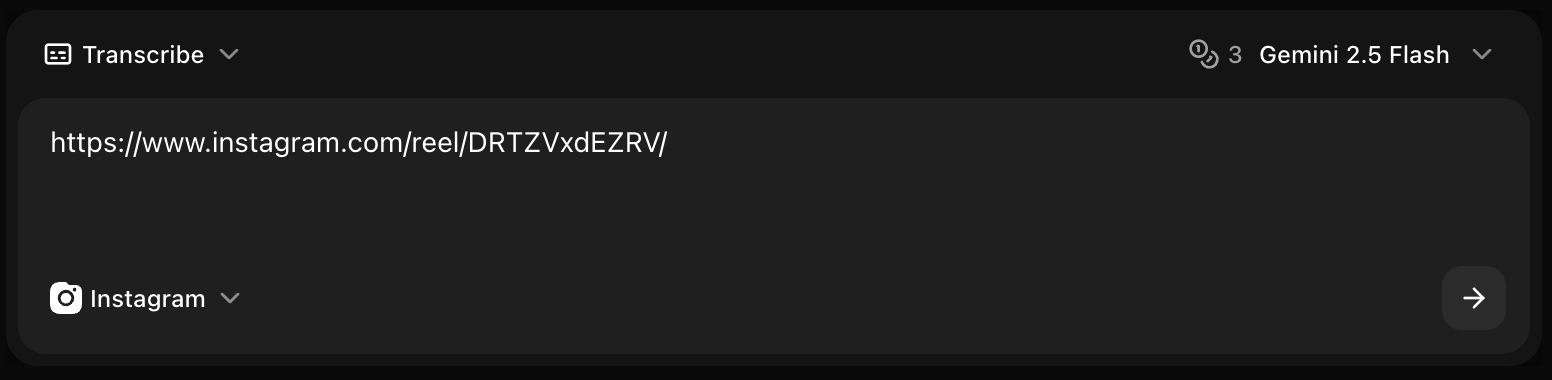 Click the **Generate** button to start the process.
 ## Supported Video Formats
### File Formats
* **MP4**: Most common, recommended
* **MOV**: Apple QuickTime
* **AVI**: Windows video
* **MKV**: Matroska video
* **WebM**: Web video format
* **FLV**: Flash video
### Specifications
* **Max File Size**: 2GB per file
* **Max Duration**: 3 hours per video
* **Resolution**: Any (audio quality matters most)
* **Audio**: Any codec, stereo or mono
## Language Support
### Supported Languages
Zoice transcription supports 100+ languages including:
* English (US, UK, Australian, Indian)
* Spanish (Spain, Latin America)
* French, German, Italian, Portuguese
* Mandarin, Cantonese, Japanese, Korean
* Hindi, Arabic, Russian, Turkish
* And many more...
### Auto-Detection
Enable automatic language detection for:
* Multilingual videos
* Unknown language content
* Mixed language segments
## Transcription Options
### Timestamp Formats
```srt theme={null}
1
00:00:00,000 --> 00:00:03,500
Welcome to our tutorial on AI transcription.
2
00:00:03,500 --> 00:00:07,000
Today we'll learn how to transcribe videos.
```
**Best For:** Subtitles, video players
```vtt theme={null}
WEBVTT
00:00:00.000 --> 00:00:03.500
Welcome to our tutorial on AI transcription.
00:00:03.500 --> 00:00:07.000
Today we'll learn how to transcribe videos.
```
**Best For:** Web videos, HTML5 players
```text theme={null}
[00:00:00] Welcome to our tutorial on AI transcription.
[00:00:03] Today we'll learn how to transcribe videos.
[00:00:07] Let's get started with the basics.
```
**Best For:** Documentation, notes
```text theme={null}
Welcome to our tutorial on AI transcription. Today we'll
learn how to transcribe videos. Let's get started with
the basics.
```
**Best For:** Articles, blog posts, SEO
### Advanced Features
Automatically detect and label different speakers:
```text theme={null}
[Speaker 1]: Welcome everyone to today's meeting.
[Speaker 2]: Thanks for having me.
[Speaker 1]: Let's begin with the agenda.
```
* Detects up to 10 speakers
* Labels speakers automatically
* Option to name speakers manually
Automatic punctuation and capitalization:
* Periods, commas, question marks
* Proper capitalization
* Paragraph breaks
* Number formatting
Options for handling profanity:
* **None**: Transcribe as-is
* **Asterisks**: Replace with f\*\*\*
* **Remove**: Omit profane words
* **Tag**: Mark but don't censor
Add custom words for better accuracy:
* Company names
* Product names
* Technical terms
* Industry jargon
* Proper nouns
## Accuracy Optimization
### For Best Results
* Clear audio without background noise
* Good microphone quality
* Minimal echo or reverb
* Consistent volume levels
* Clear pronunciation
* Moderate speaking pace
* Minimal overlapping speech
* Reduced background conversations
* Select correct primary language
* Add custom vocabulary
* Specify dialect if relevant
* Use auto-detect for mixed languages
* Specify content type (interview, lecture, etc.)
* Enable speaker detection if needed
* Set appropriate timestamp density
* Choose relevant formatting
## Use Cases
### Subtitle Creation
Generate subtitles for videos:
```
Output: SRT or VTT format
Timestamps: Every 2-5 seconds
Speaker ID: Optional
Use: Upload to YouTube, Vimeo, etc.
```
### Meeting Transcripts
Transcribe business meetings:
```
Output: Plain text with timestamps
Speaker ID: Enabled
Formatting: Paragraphs by speaker
Use: Meeting notes, documentation
```
### Content Repurposing
Convert video to blog posts:
```
Output: Plain text only
Formatting: Paragraphs
Editing: Manual cleanup
Use: Blog articles, social posts
```
### Accessibility
Make content accessible:
```
Output: SRT with descriptions
Timestamps: Detailed
Speaker ID: Enabled
Use: Closed captions, accessibility compliance
```
## Export Formats
### Text Formats
* **TXT**: Plain text
* **DOCX**: Microsoft Word
* **PDF**: Portable document
* **MD**: Markdown format
### Subtitle Formats
* **SRT**: SubRip subtitles
* **VTT**: WebVTT subtitles
* **ASS**: Advanced SubStation Alpha
* **SSA**: SubStation Alpha
### Data Formats
* **JSON**: Structured data with metadata
* **CSV**: Spreadsheet format
* **XML**: Extensible markup
## Post-Processing
### Built-in Editor
Edit transcripts before export:
* Fix errors or typos
* Adjust timestamps
* Merge or split segments
* Add speaker names
* Format text
### Batch Operations
* Find and replace
* Bulk timestamp adjustment
* Speaker renaming
* Format conversion
## Pricing & Credits
### Credit Usage
* **Standard Quality**: 1 credit per minute
* **High Accuracy**: 2 credits per minute
* **Speaker ID**: +0.5 credits per minute
* **Rush Processing**: 2x credits
### Processing Time
* **Standard**: 1x video length
* **Fast**: 0.5x video length
* **Rush**: 0.25x video length
## Common Scenarios
Create captions and transcripts
Generate show notes and transcripts
Transcribe interviews with speaker ID
Create study materials from lectures
## Troubleshooting
* Check audio quality
* Add custom vocabulary
* Verify language selection
* Use high accuracy mode
* Reduce background noise
* Increase audio volume
* Add words to custom vocabulary
* Check for audio dropouts
* Try high accuracy mode
* Manually correct in editor
* Ensure distinct voices
* Check microphone setup
* Reduce voice overlap
* Adjust timestamp density
* Check video sync
* Manually adjust in editor
* Verify frame rate
For best results, use videos with clear audio and minimal background noise. Consider using a noise reduction tool before transcription if needed.
## Privacy & Security
* **Encrypted Upload**: All videos encrypted in transit
* **Secure Storage**: Temporary storage, auto-deleted after 24 hours
* **No Training**: Your content is never used for model training
* **Confidential**: Transcripts are private to your account
## Next Steps
Convert text back to professional speech
Create video presentations with AI characters
Explore the main Voice Generator features
## Supported Video Formats
### File Formats
* **MP4**: Most common, recommended
* **MOV**: Apple QuickTime
* **AVI**: Windows video
* **MKV**: Matroska video
* **WebM**: Web video format
* **FLV**: Flash video
### Specifications
* **Max File Size**: 2GB per file
* **Max Duration**: 3 hours per video
* **Resolution**: Any (audio quality matters most)
* **Audio**: Any codec, stereo or mono
## Language Support
### Supported Languages
Zoice transcription supports 100+ languages including:
* English (US, UK, Australian, Indian)
* Spanish (Spain, Latin America)
* French, German, Italian, Portuguese
* Mandarin, Cantonese, Japanese, Korean
* Hindi, Arabic, Russian, Turkish
* And many more...
### Auto-Detection
Enable automatic language detection for:
* Multilingual videos
* Unknown language content
* Mixed language segments
## Transcription Options
### Timestamp Formats
```srt theme={null}
1
00:00:00,000 --> 00:00:03,500
Welcome to our tutorial on AI transcription.
2
00:00:03,500 --> 00:00:07,000
Today we'll learn how to transcribe videos.
```
**Best For:** Subtitles, video players
```vtt theme={null}
WEBVTT
00:00:00.000 --> 00:00:03.500
Welcome to our tutorial on AI transcription.
00:00:03.500 --> 00:00:07.000
Today we'll learn how to transcribe videos.
```
**Best For:** Web videos, HTML5 players
```text theme={null}
[00:00:00] Welcome to our tutorial on AI transcription.
[00:00:03] Today we'll learn how to transcribe videos.
[00:00:07] Let's get started with the basics.
```
**Best For:** Documentation, notes
```text theme={null}
Welcome to our tutorial on AI transcription. Today we'll
learn how to transcribe videos. Let's get started with
the basics.
```
**Best For:** Articles, blog posts, SEO
### Advanced Features
Automatically detect and label different speakers:
```text theme={null}
[Speaker 1]: Welcome everyone to today's meeting.
[Speaker 2]: Thanks for having me.
[Speaker 1]: Let's begin with the agenda.
```
* Detects up to 10 speakers
* Labels speakers automatically
* Option to name speakers manually
Automatic punctuation and capitalization:
* Periods, commas, question marks
* Proper capitalization
* Paragraph breaks
* Number formatting
Options for handling profanity:
* **None**: Transcribe as-is
* **Asterisks**: Replace with f\*\*\*
* **Remove**: Omit profane words
* **Tag**: Mark but don't censor
Add custom words for better accuracy:
* Company names
* Product names
* Technical terms
* Industry jargon
* Proper nouns
## Accuracy Optimization
### For Best Results
* Clear audio without background noise
* Good microphone quality
* Minimal echo or reverb
* Consistent volume levels
* Clear pronunciation
* Moderate speaking pace
* Minimal overlapping speech
* Reduced background conversations
* Select correct primary language
* Add custom vocabulary
* Specify dialect if relevant
* Use auto-detect for mixed languages
* Specify content type (interview, lecture, etc.)
* Enable speaker detection if needed
* Set appropriate timestamp density
* Choose relevant formatting
## Use Cases
### Subtitle Creation
Generate subtitles for videos:
```
Output: SRT or VTT format
Timestamps: Every 2-5 seconds
Speaker ID: Optional
Use: Upload to YouTube, Vimeo, etc.
```
### Meeting Transcripts
Transcribe business meetings:
```
Output: Plain text with timestamps
Speaker ID: Enabled
Formatting: Paragraphs by speaker
Use: Meeting notes, documentation
```
### Content Repurposing
Convert video to blog posts:
```
Output: Plain text only
Formatting: Paragraphs
Editing: Manual cleanup
Use: Blog articles, social posts
```
### Accessibility
Make content accessible:
```
Output: SRT with descriptions
Timestamps: Detailed
Speaker ID: Enabled
Use: Closed captions, accessibility compliance
```
## Export Formats
### Text Formats
* **TXT**: Plain text
* **DOCX**: Microsoft Word
* **PDF**: Portable document
* **MD**: Markdown format
### Subtitle Formats
* **SRT**: SubRip subtitles
* **VTT**: WebVTT subtitles
* **ASS**: Advanced SubStation Alpha
* **SSA**: SubStation Alpha
### Data Formats
* **JSON**: Structured data with metadata
* **CSV**: Spreadsheet format
* **XML**: Extensible markup
## Post-Processing
### Built-in Editor
Edit transcripts before export:
* Fix errors or typos
* Adjust timestamps
* Merge or split segments
* Add speaker names
* Format text
### Batch Operations
* Find and replace
* Bulk timestamp adjustment
* Speaker renaming
* Format conversion
## Pricing & Credits
### Credit Usage
* **Standard Quality**: 1 credit per minute
* **High Accuracy**: 2 credits per minute
* **Speaker ID**: +0.5 credits per minute
* **Rush Processing**: 2x credits
### Processing Time
* **Standard**: 1x video length
* **Fast**: 0.5x video length
* **Rush**: 0.25x video length
## Common Scenarios
Create captions and transcripts
Generate show notes and transcripts
Transcribe interviews with speaker ID
Create study materials from lectures
## Troubleshooting
* Check audio quality
* Add custom vocabulary
* Verify language selection
* Use high accuracy mode
* Reduce background noise
* Increase audio volume
* Add words to custom vocabulary
* Check for audio dropouts
* Try high accuracy mode
* Manually correct in editor
* Ensure distinct voices
* Check microphone setup
* Reduce voice overlap
* Adjust timestamp density
* Check video sync
* Manually adjust in editor
* Verify frame rate
For best results, use videos with clear audio and minimal background noise. Consider using a noise reduction tool before transcription if needed.
## Privacy & Security
* **Encrypted Upload**: All videos encrypted in transit
* **Secure Storage**: Temporary storage, auto-deleted after 24 hours
* **No Training**: Your content is never used for model training
* **Confidential**: Transcripts are private to your account
## Next Steps
Convert text back to professional speech
Create video presentations with AI characters
Explore the main Voice Generator features