> ## Documentation Index
> Fetch the complete documentation index at: https://docs.zoice.com/llms.txt
> Use this file to discover all available pages before exploring further.
# Image Ref to Video
> Image Reference to Video allows you to create videos that match the style, composition, or subject of a reference image. Upload an image and describe the motion or action you want, and the AI will generate a video that maintains visual consistency with your reference.
## Quick Start
The AI analyzes your reference image to understand composition, style, colors, and subject matter, then generates a video that incorporates these elements while adding the motion and action described in your prompt.
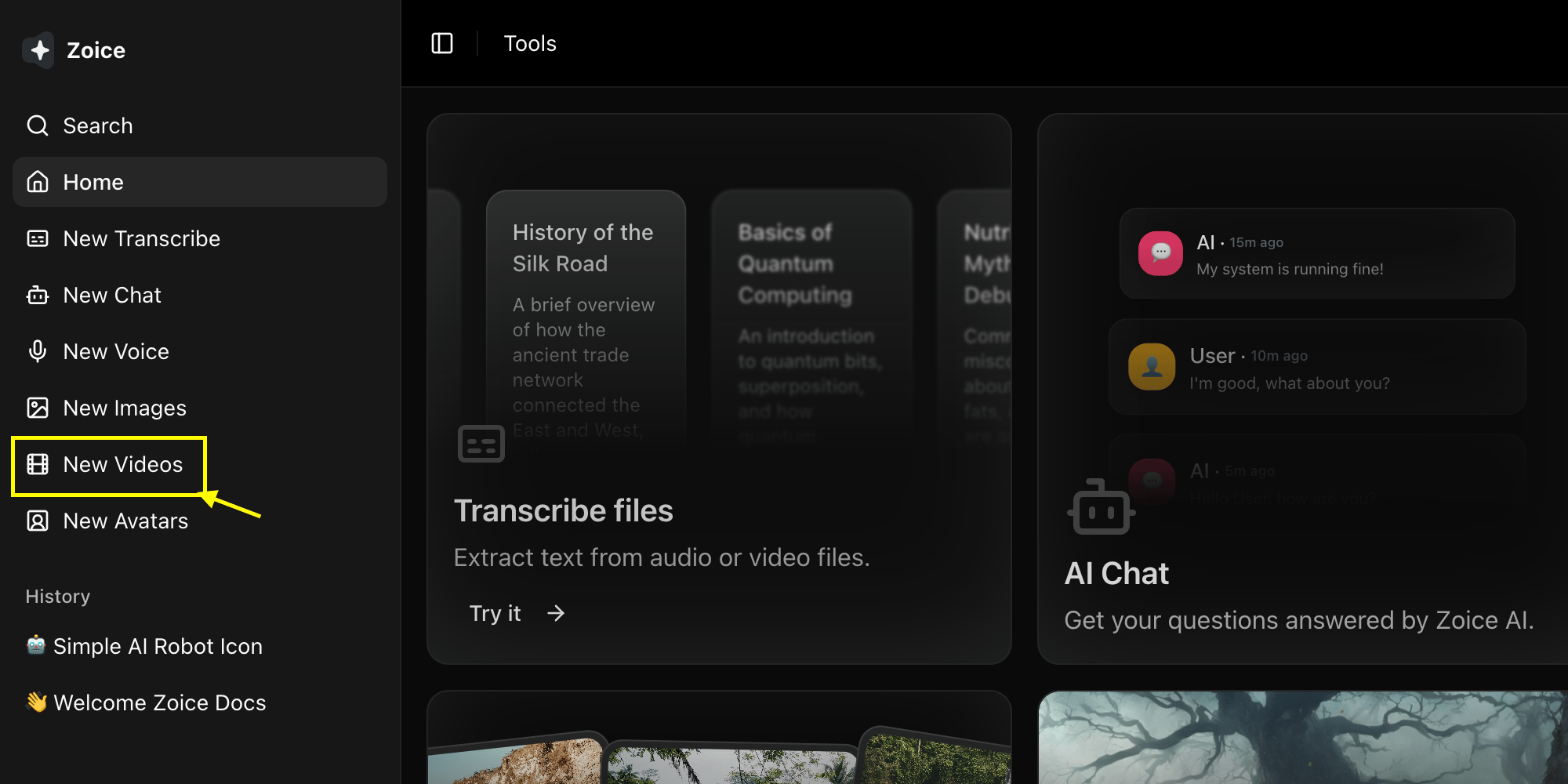
Go to the Video Generator tool in your Zoice dashboard by clicking on **New Video**.
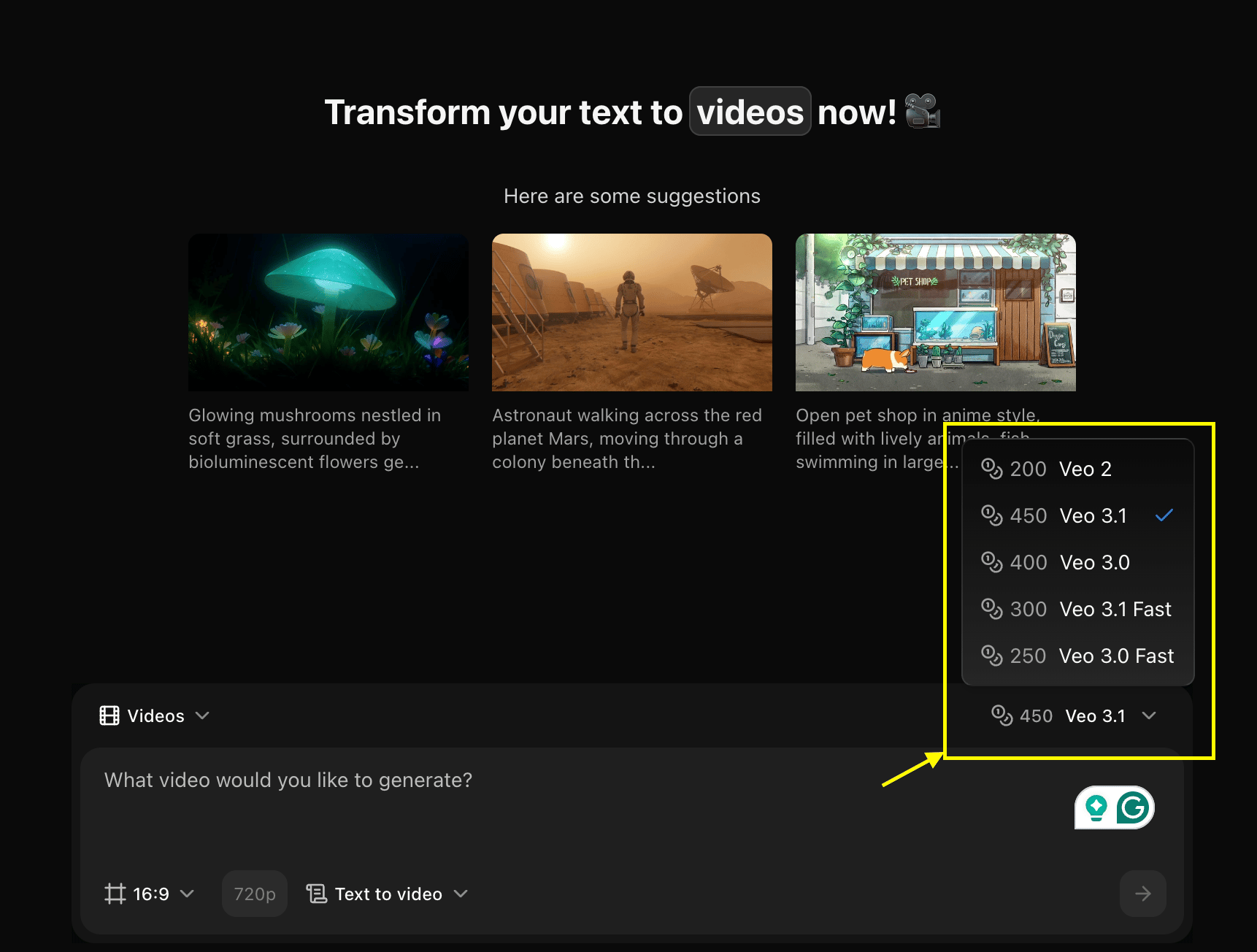
 Choose a Video model like **Veo 3.0** or **Veo 3.1** based on your project needs.
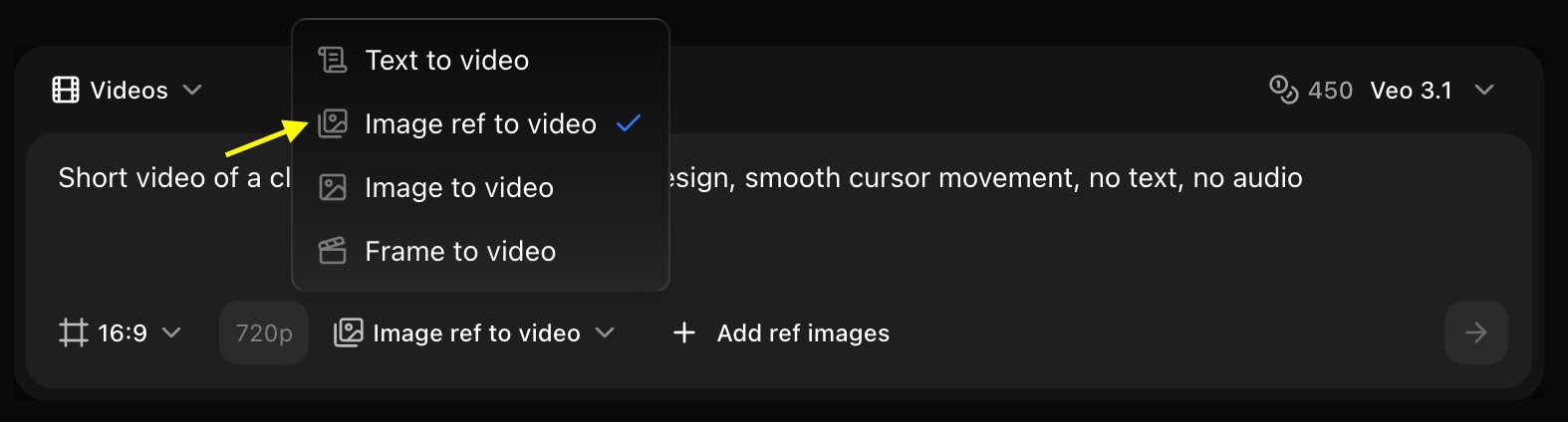
 Set dimensions, resolution, and choose **Image Ref to Video** mode.
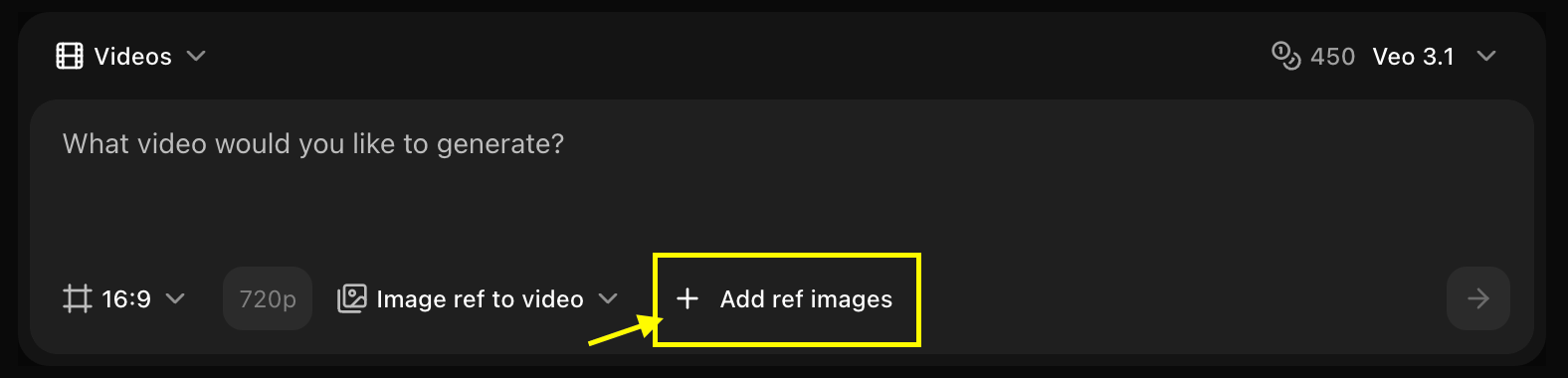
 Click on **Add Ref Images** to select and upload the image you want to use as a base for your video.
 Enter a detailed description of the scene and action you want the AI to generate based on your reference image.
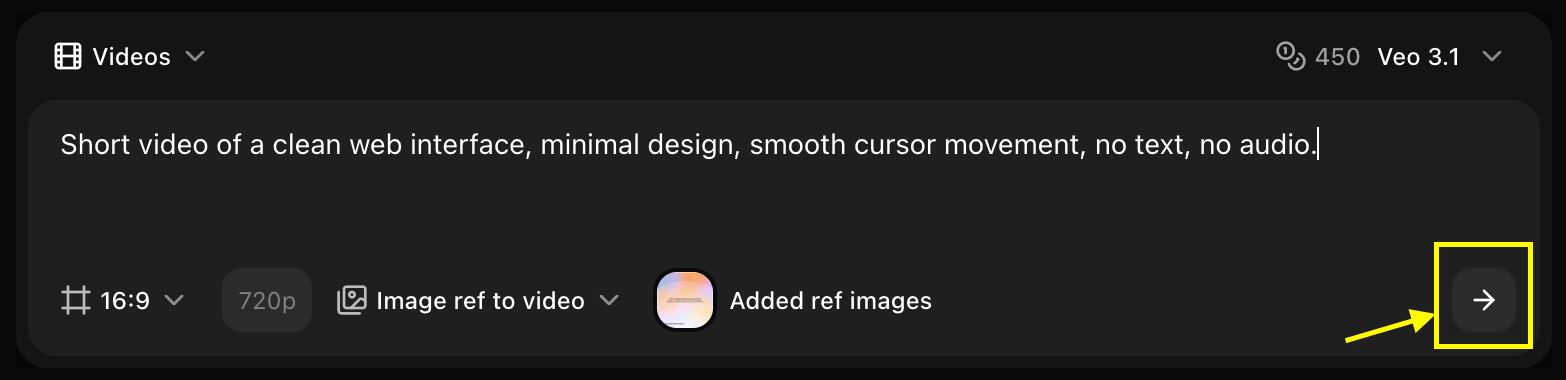
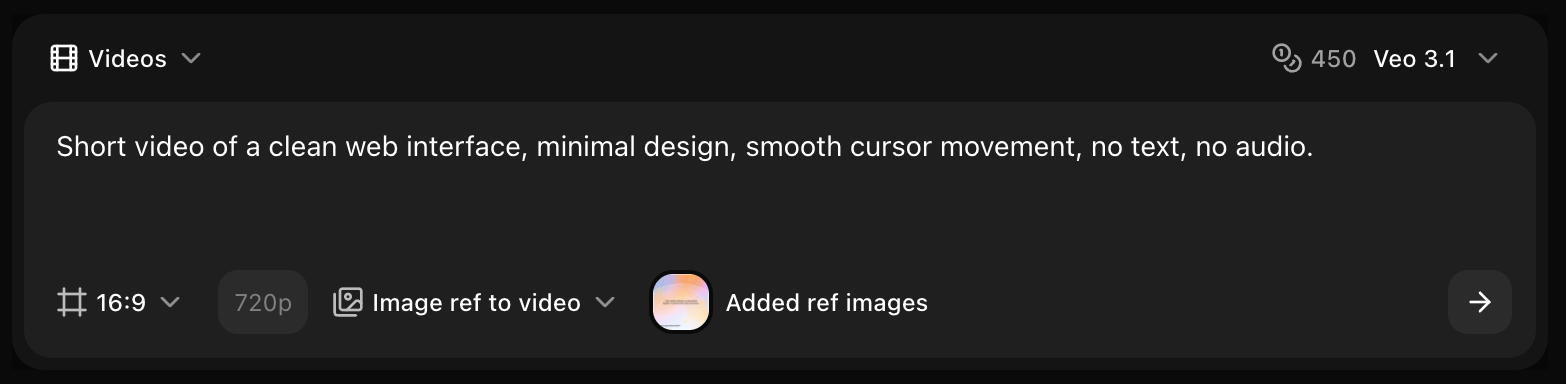 Click on the **Generate** button to begin creating your video.
 Save your generated video.
## Image Requirements
### Technical Specifications
* **Formats**: JPG, PNG, WebP
* **Max Size**: 10MB
* **Recommended Resolution**: 1024x1024 or higher
* **Aspect Ratio**: Match your desired video aspect ratio
### Content Guidelines
* Clear, well-composed images work best
* Good lighting and focus
* Relevant to the video you want to create
* High quality produces better results
## Reference Influence Strength
Control how much the video follows the reference image:
**Loose Inspiration**
* General style guidance
* Color palette reference
* Mood and atmosphere
* More creative freedom
**Best For:**
* Style inspiration
* Color scheme reference
* General aesthetic guidance
**Balanced Guidance**
* Maintains composition
* Follows style closely
* Preserves key elements
* Balanced creativity
**Best For:**
* Character consistency
* Scene recreation
* Product videos
**Strong Adherence**
* Very close to reference
* Minimal deviation
* Strict composition
* Limited creative variation
**Best For:**
* Animating static images
* Precise style matching
* Brand consistency
## Use Cases
### Animate Static Images
Bring photos and artwork to life
```text Portrait Animation theme={null}
Camera slowly zooming in, subject's hair gently moving
in breeze, subtle facial movements, natural lighting
```
```text Landscape Animation theme={null}
Clouds slowly drifting across sky, trees swaying gently,
water flowing, camera panning right, peaceful atmosphere
```
```text Product Animation theme={null}
Product rotating slowly, studio lighting, camera orbiting,
professional commercial style, clean background
```
### Style-Matched Videos
Create videos matching a specific visual style
```text Art Style Match theme={null}
Maintain this watercolor art style, gentle flowing motion,
soft colors, artistic animation, dreamy atmosphere
```
```text Brand Consistency theme={null}
Match this brand aesthetic, smooth camera movement,
professional commercial style, consistent color palette
```
### Scene Recreation
Recreate scenes with motion
```text Scene with Action theme={null}
Same composition and lighting, add walking people,
moving cars, dynamic city life, maintain atmosphere
```
```text Environment Animation theme={null}
Keep this environment, add weather effects, moving clouds,
swaying vegetation, dynamic natural elements
```
## Writing Effective Prompts
### Prompt Structure
When using reference images, your prompt should focus on:
1. **Motion/Action**: What should move and how
2. **Camera Work**: How the camera should move
3. **Preservation**: What to keep from the reference
4. **Additions**: New elements to add
### Example Prompts
```text Subtle Animation theme={null}
Gentle camera push in, subject's clothing moving slightly
in wind, hair flowing softly, maintain exact composition
and lighting from reference image
```
```text Dynamic Action theme={null}
Camera orbiting around subject, dramatic movement,
cinematic style, maintain color palette and mood from
reference, add motion blur for speed
```
```text Environmental Motion theme={null}
Static camera, clouds moving across sky, water rippling,
trees swaying, keep exact composition and framing from
reference image, natural movement
```
## Best Practices
* Use high-quality reference images
* Match aspect ratio to desired video
* Choose images with clear subjects
* Ensure good lighting and composition
* Describe motion clearly
* Specify what to preserve from reference
* Include camera movement details
* Mention style consistency
* Start with medium strength (0.6)
* Increase for closer matching
* Decrease for more creative freedom
* Test different values
## Common Scenarios
Animate photographs with subtle motion
Bring concept art and illustrations to life
Create product videos from product photos
Generate videos in specific artistic styles
## Advanced Techniques
### Layered Motion
Describe different motion for different elements:
```text theme={null}
Foreground: person walking slowly from left to right
Midground: cars passing by with motion blur
Background: clouds drifting, maintain reference composition
Camera: slight pan following main subject
```
### Temporal Consistency
For character or product consistency across multiple videos:
1. Use same reference image
2. Keep similar strength settings
3. Maintain consistent prompt structure
4. Use same model for all generations
### Hybrid Approach
Combine reference image with detailed text descriptions:
```text theme={null}
Using reference image for character appearance and style,
add dynamic action: character jumping and spinning,
camera slow motion, dramatic lighting, cinematic style,
maintain character design from reference
```
## Comparison: Text-Only vs Image Reference
| Aspect | Text-to-Video | Image Ref to Video |
| --------------- | ----------------- | ------------------ |
| **Control** | Description-based | Visual-guided |
| **Consistency** | Variable | More predictable |
| **Creativity** | High freedom | Guided creativity |
| **Use Case** | New concepts | Style matching |
| **Setup** | Faster | Requires image |
## Troubleshooting
* Increase reference strength
* Simplify motion prompt
* Use higher quality reference image
* Mention "maintain reference style" in prompt
* Decrease reference strength
* Add more dynamic motion descriptions
* Increase motion intensity setting
* Use more active verbs in prompt
* Increase reference strength
* Use clearer reference image
* Simplify the prompt
* Try different model
For best results, use reference images that clearly show the style, composition, or subject you want in your video.
## Next Steps
Create videos without reference images
Create videos from multiple images
Explore different AI models
Save your generated video.
## Image Requirements
### Technical Specifications
* **Formats**: JPG, PNG, WebP
* **Max Size**: 10MB
* **Recommended Resolution**: 1024x1024 or higher
* **Aspect Ratio**: Match your desired video aspect ratio
### Content Guidelines
* Clear, well-composed images work best
* Good lighting and focus
* Relevant to the video you want to create
* High quality produces better results
## Reference Influence Strength
Control how much the video follows the reference image:
**Loose Inspiration**
* General style guidance
* Color palette reference
* Mood and atmosphere
* More creative freedom
**Best For:**
* Style inspiration
* Color scheme reference
* General aesthetic guidance
**Balanced Guidance**
* Maintains composition
* Follows style closely
* Preserves key elements
* Balanced creativity
**Best For:**
* Character consistency
* Scene recreation
* Product videos
**Strong Adherence**
* Very close to reference
* Minimal deviation
* Strict composition
* Limited creative variation
**Best For:**
* Animating static images
* Precise style matching
* Brand consistency
## Use Cases
### Animate Static Images
Bring photos and artwork to life
```text Portrait Animation theme={null}
Camera slowly zooming in, subject's hair gently moving
in breeze, subtle facial movements, natural lighting
```
```text Landscape Animation theme={null}
Clouds slowly drifting across sky, trees swaying gently,
water flowing, camera panning right, peaceful atmosphere
```
```text Product Animation theme={null}
Product rotating slowly, studio lighting, camera orbiting,
professional commercial style, clean background
```
### Style-Matched Videos
Create videos matching a specific visual style
```text Art Style Match theme={null}
Maintain this watercolor art style, gentle flowing motion,
soft colors, artistic animation, dreamy atmosphere
```
```text Brand Consistency theme={null}
Match this brand aesthetic, smooth camera movement,
professional commercial style, consistent color palette
```
### Scene Recreation
Recreate scenes with motion
```text Scene with Action theme={null}
Same composition and lighting, add walking people,
moving cars, dynamic city life, maintain atmosphere
```
```text Environment Animation theme={null}
Keep this environment, add weather effects, moving clouds,
swaying vegetation, dynamic natural elements
```
## Writing Effective Prompts
### Prompt Structure
When using reference images, your prompt should focus on:
1. **Motion/Action**: What should move and how
2. **Camera Work**: How the camera should move
3. **Preservation**: What to keep from the reference
4. **Additions**: New elements to add
### Example Prompts
```text Subtle Animation theme={null}
Gentle camera push in, subject's clothing moving slightly
in wind, hair flowing softly, maintain exact composition
and lighting from reference image
```
```text Dynamic Action theme={null}
Camera orbiting around subject, dramatic movement,
cinematic style, maintain color palette and mood from
reference, add motion blur for speed
```
```text Environmental Motion theme={null}
Static camera, clouds moving across sky, water rippling,
trees swaying, keep exact composition and framing from
reference image, natural movement
```
## Best Practices
* Use high-quality reference images
* Match aspect ratio to desired video
* Choose images with clear subjects
* Ensure good lighting and composition
* Describe motion clearly
* Specify what to preserve from reference
* Include camera movement details
* Mention style consistency
* Start with medium strength (0.6)
* Increase for closer matching
* Decrease for more creative freedom
* Test different values
## Common Scenarios
Animate photographs with subtle motion
Bring concept art and illustrations to life
Create product videos from product photos
Generate videos in specific artistic styles
## Advanced Techniques
### Layered Motion
Describe different motion for different elements:
```text theme={null}
Foreground: person walking slowly from left to right
Midground: cars passing by with motion blur
Background: clouds drifting, maintain reference composition
Camera: slight pan following main subject
```
### Temporal Consistency
For character or product consistency across multiple videos:
1. Use same reference image
2. Keep similar strength settings
3. Maintain consistent prompt structure
4. Use same model for all generations
### Hybrid Approach
Combine reference image with detailed text descriptions:
```text theme={null}
Using reference image for character appearance and style,
add dynamic action: character jumping and spinning,
camera slow motion, dramatic lighting, cinematic style,
maintain character design from reference
```
## Comparison: Text-Only vs Image Reference
| Aspect | Text-to-Video | Image Ref to Video |
| --------------- | ----------------- | ------------------ |
| **Control** | Description-based | Visual-guided |
| **Consistency** | Variable | More predictable |
| **Creativity** | High freedom | Guided creativity |
| **Use Case** | New concepts | Style matching |
| **Setup** | Faster | Requires image |
## Troubleshooting
* Increase reference strength
* Simplify motion prompt
* Use higher quality reference image
* Mention "maintain reference style" in prompt
* Decrease reference strength
* Add more dynamic motion descriptions
* Increase motion intensity setting
* Use more active verbs in prompt
* Increase reference strength
* Use clearer reference image
* Simplify the prompt
* Try different model
For best results, use reference images that clearly show the style, composition, or subject you want in your video.
## Next Steps
Create videos without reference images
Create videos from multiple images
Explore different AI models