> ## Documentation Index
> Fetch the complete documentation index at: https://docs.zoice.com/llms.txt
> Use this file to discover all available pages before exploring further.
# Text to Video
> Text-to-Video generation creates dynamic video content from written descriptions. Describe the scene, action, and style you want, and Zoice's AI will generate a high-quality video clip.
## Quick Start
Generate videos from text prompts using Zoice’s AI video generation models.
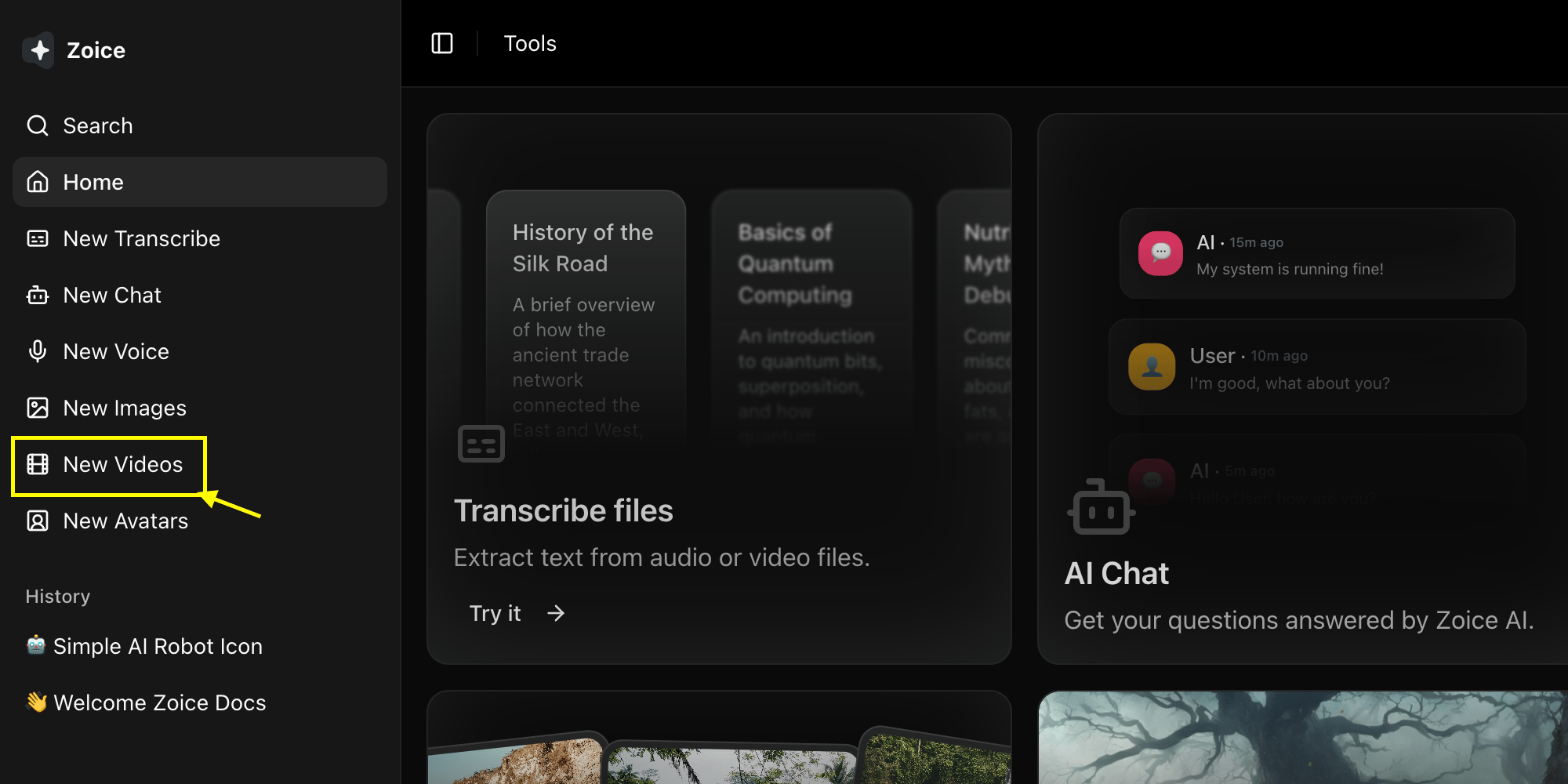
Go to the Video Generator tool in your Zoice dashboard by clicking on **New Video**.
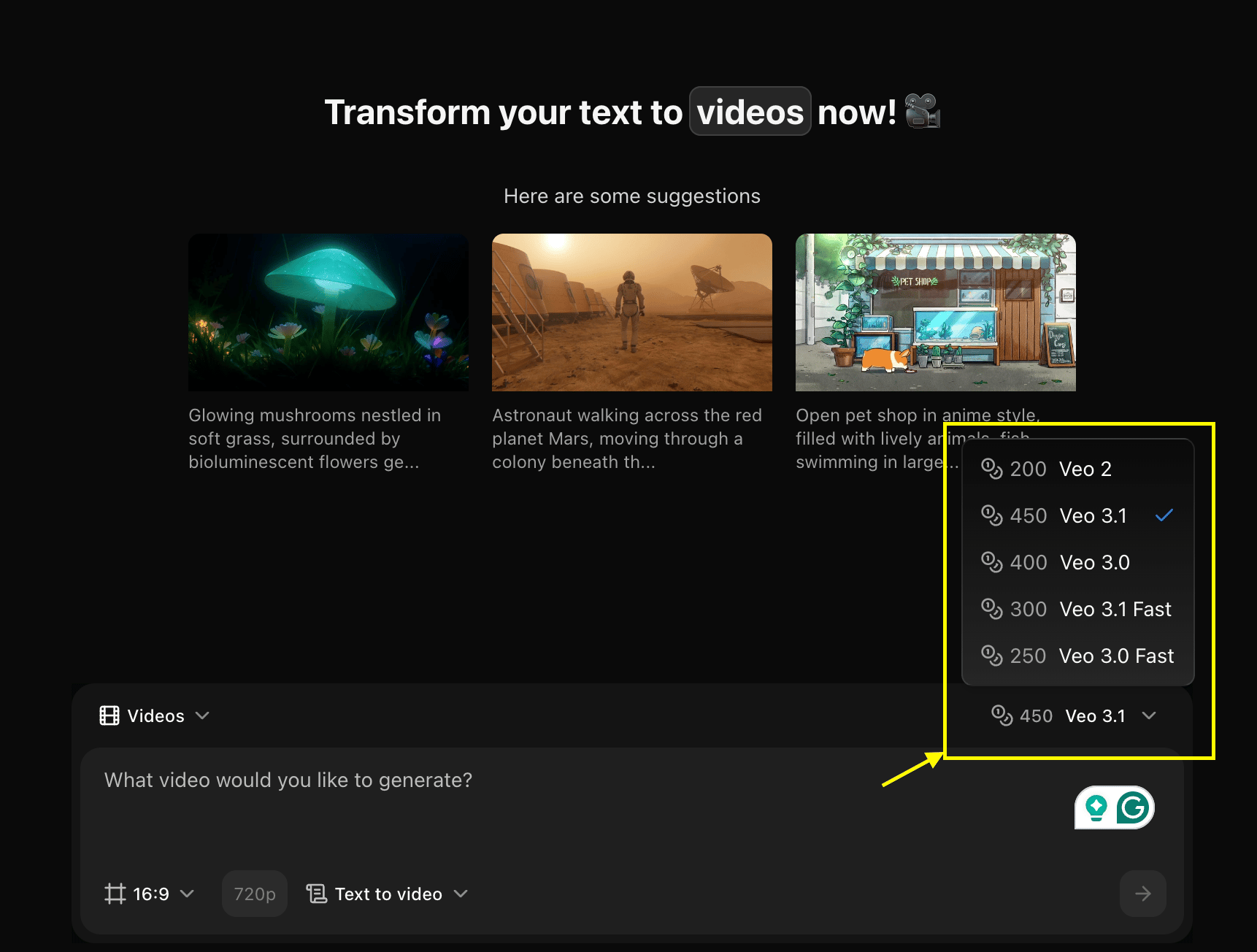
 Choose a Video model like **Veo 3.0** or **Veo 3.1** based on your project needs.
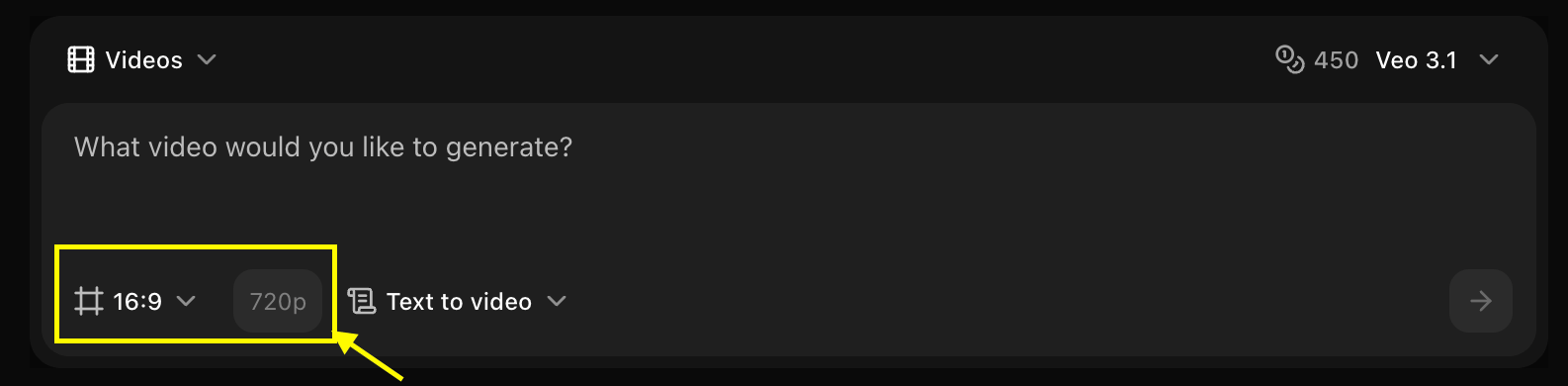
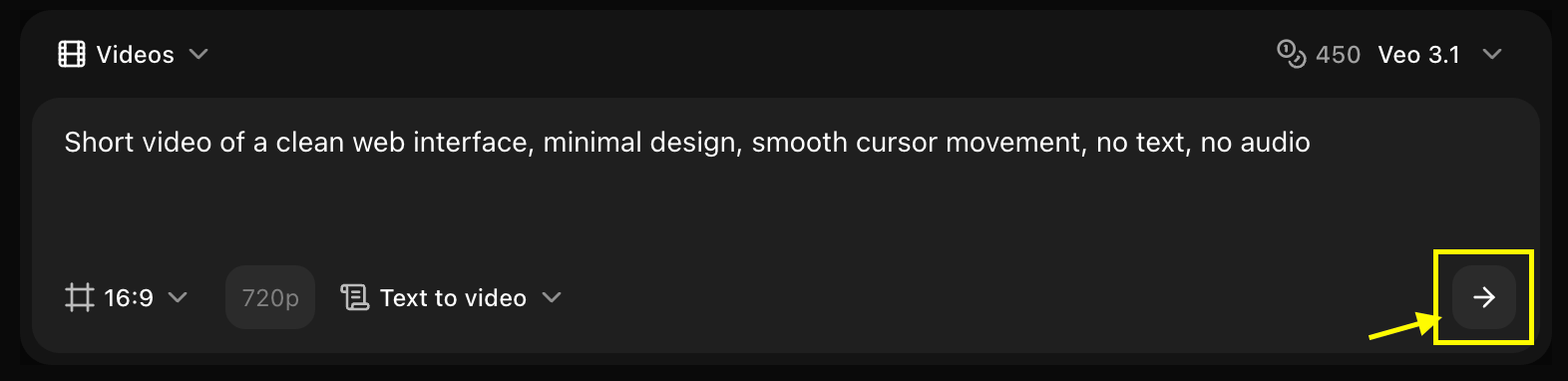
 Set dimensions, resolution, and choose **Text to Video** mode.
 Enter a detailed description of the scene and action you want to create in the prompt box.
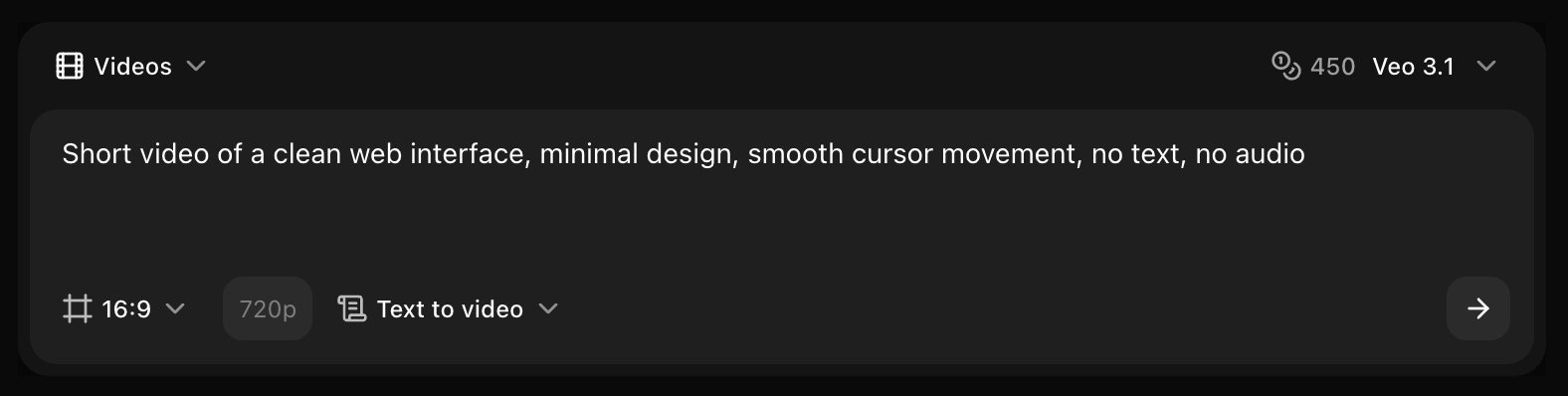 Click on the **Generate** button to begin creating your video.
 Save your generated video.
## Writing Video Prompts
### Essential Elements
A good video prompt includes:
1. **Subject/Scene**: What's happening
2. **Action/Movement**: How things move
3. **Camera Work**: Camera angles and movements
4. **Lighting/Atmosphere**: Mood and lighting
5. **Style**: Visual aesthetic
### Example Prompts
```text Simple theme={null}
A cat playing with a ball of yarn in a sunny room
```
```text Detailed theme={null}
A fluffy orange cat playfully batting at a red ball of yarn on a hardwood floor, sunlight streaming through a window creating warm shadows, camera slowly panning right, cozy home atmosphere
```
```text Cinematic theme={null}
Aerial drone shot flying over a misty mountain valley at sunrise, camera moving forward and descending, golden light breaking through clouds, cinematic color grading, 4K quality
```
```text Product theme={null}
Close-up shot of a smartphone rotating on a white surface, studio lighting with soft shadows, camera orbiting around the product, professional commercial style, clean and minimal
```
## Video Parameters
### Duration
* **Short**: 2-3 seconds (quick clips)
* **Medium**: 4-6 seconds (standard)
* **Long**: 7-10 seconds (detailed scenes)
Longer videos take more time to generate and may cost more credits.
### Resolution
* **720p**: Fast generation, smaller file size
* **1080p**: High quality, recommended for most uses
### Motion Intensity
* **Low**: Subtle movements, static scenes
* **Medium**: Moderate action and camera movement
* **High**: Dynamic action, fast camera movements
## Camera Movement Keywords
Use these keywords to control camera work:
* **Close-up**: Tight shot of subject
* **Wide shot**: Full scene view
* **Aerial view**: Bird's eye perspective
* **Low angle**: Camera looking up
* **High angle**: Camera looking down
* **Eye level**: Straight-on view
* **Pan left/right**: Horizontal rotation
* **Tilt up/down**: Vertical rotation
* **Dolly in/out**: Move toward/away
* **Tracking shot**: Follow subject
* **Orbit**: Circle around subject
* **Crane shot**: Vertical movement
* **Slow motion**: Slowed action
* **Time-lapse**: Sped up time
* **Zoom in/out**: Lens zoom
* **Rack focus**: Focus shift
* **Handheld**: Shaky, dynamic feel
* **Steady cam**: Smooth, stable
## Lighting & Atmosphere
### Lighting Conditions
* **Golden hour**: Warm, soft sunset/sunrise light
* **Blue hour**: Cool twilight tones
* **Studio lighting**: Professional, controlled
* **Natural light**: Realistic outdoor lighting
* **Dramatic lighting**: High contrast, shadows
* **Soft lighting**: Diffused, even illumination
### Weather & Atmosphere
* **Sunny**: Bright, clear conditions
* **Cloudy**: Overcast, soft light
* **Rainy**: Wet surfaces, rain effects
* **Foggy**: Misty, atmospheric
* **Stormy**: Dramatic, dark clouds
* **Snowy**: Winter conditions
## Style Keywords
Film-like quality, color grading, professional
Realistic, natural, observational
Polished, professional, product-focused
Creative, stylized, experimental
## Best Practices
* Start with the main subject and action
* Add camera movement for dynamic videos
* Include lighting and atmosphere details
* Specify style and mood
* Keep prompts focused and clear
* Use active verbs (running, flying, spinning)
* Describe speed and intensity
* Mention direction of movement
* Include interaction between elements
* Describe foreground and background
* Mention key visual elements
* Include environmental details
* Specify color palette if important
## Common Use Cases
### Marketing & Advertising
```text theme={null}
Product showcase video, smartphone rotating on pedestal,
studio lighting, camera orbiting smoothly, professional
commercial style, clean white background
```
### Social Media Content
```text theme={null}
Trendy lifestyle shot, coffee being poured into a cup,
steam rising, morning sunlight, camera slow motion,
Instagram aesthetic, warm tones
```
### Nature & Landscape
```text theme={null}
Majestic waterfall in lush forest, water cascading down
rocks, camera slowly moving forward, misty atmosphere,
golden hour lighting, cinematic nature documentary style
```
### Abstract & Creative
```text theme={null}
Colorful liquid paint swirling and mixing, vibrant colors
blending together, macro close-up, slow motion, artistic
abstract style, high contrast
```
## Troubleshooting
* Make prompt more specific
* Add more descriptive details
* Try different model
* Simplify complex scenes
* Adjust motion intensity
* Simplify camera movements
* Use smoother action descriptions
* Try different duration
* Increase resolution to 1080p
* Use quality keywords (4K, cinematic, detailed)
* Try a higher-tier model
* Ensure prompt is clear and focused
Start with shorter videos (2-4 seconds) to test your prompts, then increase duration once you're happy with the results.
## Advanced Techniques
### Combining Multiple Elements
```text theme={null}
[Subject] + [Action] + [Camera Movement] + [Lighting] + [Style]
Example: A red sports car driving on coastal highway,
speeding along curves, aerial drone following from above,
sunset golden hour lighting, cinematic commercial style
```
### Creating Loops
For looping videos, describe cyclical actions:
```text theme={null}
Ocean waves gently rolling onto sandy beach, continuous
motion, camera static, soft natural lighting, seamless loop
```
## Next Steps
Use reference images for video generation
Explore different video AI models
Master prompt engineering
Save your generated video.
## Writing Video Prompts
### Essential Elements
A good video prompt includes:
1. **Subject/Scene**: What's happening
2. **Action/Movement**: How things move
3. **Camera Work**: Camera angles and movements
4. **Lighting/Atmosphere**: Mood and lighting
5. **Style**: Visual aesthetic
### Example Prompts
```text Simple theme={null}
A cat playing with a ball of yarn in a sunny room
```
```text Detailed theme={null}
A fluffy orange cat playfully batting at a red ball of yarn on a hardwood floor, sunlight streaming through a window creating warm shadows, camera slowly panning right, cozy home atmosphere
```
```text Cinematic theme={null}
Aerial drone shot flying over a misty mountain valley at sunrise, camera moving forward and descending, golden light breaking through clouds, cinematic color grading, 4K quality
```
```text Product theme={null}
Close-up shot of a smartphone rotating on a white surface, studio lighting with soft shadows, camera orbiting around the product, professional commercial style, clean and minimal
```
## Video Parameters
### Duration
* **Short**: 2-3 seconds (quick clips)
* **Medium**: 4-6 seconds (standard)
* **Long**: 7-10 seconds (detailed scenes)
Longer videos take more time to generate and may cost more credits.
### Resolution
* **720p**: Fast generation, smaller file size
* **1080p**: High quality, recommended for most uses
### Motion Intensity
* **Low**: Subtle movements, static scenes
* **Medium**: Moderate action and camera movement
* **High**: Dynamic action, fast camera movements
## Camera Movement Keywords
Use these keywords to control camera work:
* **Close-up**: Tight shot of subject
* **Wide shot**: Full scene view
* **Aerial view**: Bird's eye perspective
* **Low angle**: Camera looking up
* **High angle**: Camera looking down
* **Eye level**: Straight-on view
* **Pan left/right**: Horizontal rotation
* **Tilt up/down**: Vertical rotation
* **Dolly in/out**: Move toward/away
* **Tracking shot**: Follow subject
* **Orbit**: Circle around subject
* **Crane shot**: Vertical movement
* **Slow motion**: Slowed action
* **Time-lapse**: Sped up time
* **Zoom in/out**: Lens zoom
* **Rack focus**: Focus shift
* **Handheld**: Shaky, dynamic feel
* **Steady cam**: Smooth, stable
## Lighting & Atmosphere
### Lighting Conditions
* **Golden hour**: Warm, soft sunset/sunrise light
* **Blue hour**: Cool twilight tones
* **Studio lighting**: Professional, controlled
* **Natural light**: Realistic outdoor lighting
* **Dramatic lighting**: High contrast, shadows
* **Soft lighting**: Diffused, even illumination
### Weather & Atmosphere
* **Sunny**: Bright, clear conditions
* **Cloudy**: Overcast, soft light
* **Rainy**: Wet surfaces, rain effects
* **Foggy**: Misty, atmospheric
* **Stormy**: Dramatic, dark clouds
* **Snowy**: Winter conditions
## Style Keywords
Film-like quality, color grading, professional
Realistic, natural, observational
Polished, professional, product-focused
Creative, stylized, experimental
## Best Practices
* Start with the main subject and action
* Add camera movement for dynamic videos
* Include lighting and atmosphere details
* Specify style and mood
* Keep prompts focused and clear
* Use active verbs (running, flying, spinning)
* Describe speed and intensity
* Mention direction of movement
* Include interaction between elements
* Describe foreground and background
* Mention key visual elements
* Include environmental details
* Specify color palette if important
## Common Use Cases
### Marketing & Advertising
```text theme={null}
Product showcase video, smartphone rotating on pedestal,
studio lighting, camera orbiting smoothly, professional
commercial style, clean white background
```
### Social Media Content
```text theme={null}
Trendy lifestyle shot, coffee being poured into a cup,
steam rising, morning sunlight, camera slow motion,
Instagram aesthetic, warm tones
```
### Nature & Landscape
```text theme={null}
Majestic waterfall in lush forest, water cascading down
rocks, camera slowly moving forward, misty atmosphere,
golden hour lighting, cinematic nature documentary style
```
### Abstract & Creative
```text theme={null}
Colorful liquid paint swirling and mixing, vibrant colors
blending together, macro close-up, slow motion, artistic
abstract style, high contrast
```
## Troubleshooting
* Make prompt more specific
* Add more descriptive details
* Try different model
* Simplify complex scenes
* Adjust motion intensity
* Simplify camera movements
* Use smoother action descriptions
* Try different duration
* Increase resolution to 1080p
* Use quality keywords (4K, cinematic, detailed)
* Try a higher-tier model
* Ensure prompt is clear and focused
Start with shorter videos (2-4 seconds) to test your prompts, then increase duration once you're happy with the results.
## Advanced Techniques
### Combining Multiple Elements
```text theme={null}
[Subject] + [Action] + [Camera Movement] + [Lighting] + [Style]
Example: A red sports car driving on coastal highway,
speeding along curves, aerial drone following from above,
sunset golden hour lighting, cinematic commercial style
```
### Creating Loops
For looping videos, describe cyclical actions:
```text theme={null}
Ocean waves gently rolling onto sandy beach, continuous
motion, camera static, soft natural lighting, seamless loop
```
## Next Steps
Use reference images for video generation
Explore different video AI models
Master prompt engineering