

Overview
Veo 3.1 supports reference images for precise style and content control, perfect for branded content and consistent visual styles.Quick Start
The AI analyzes your reference image to understand composition, style, and subject matter, then generates a video with the motion and action described in your prompt.1
Navigate to New Video
Go to the Video Generator tool by clicking on New Video.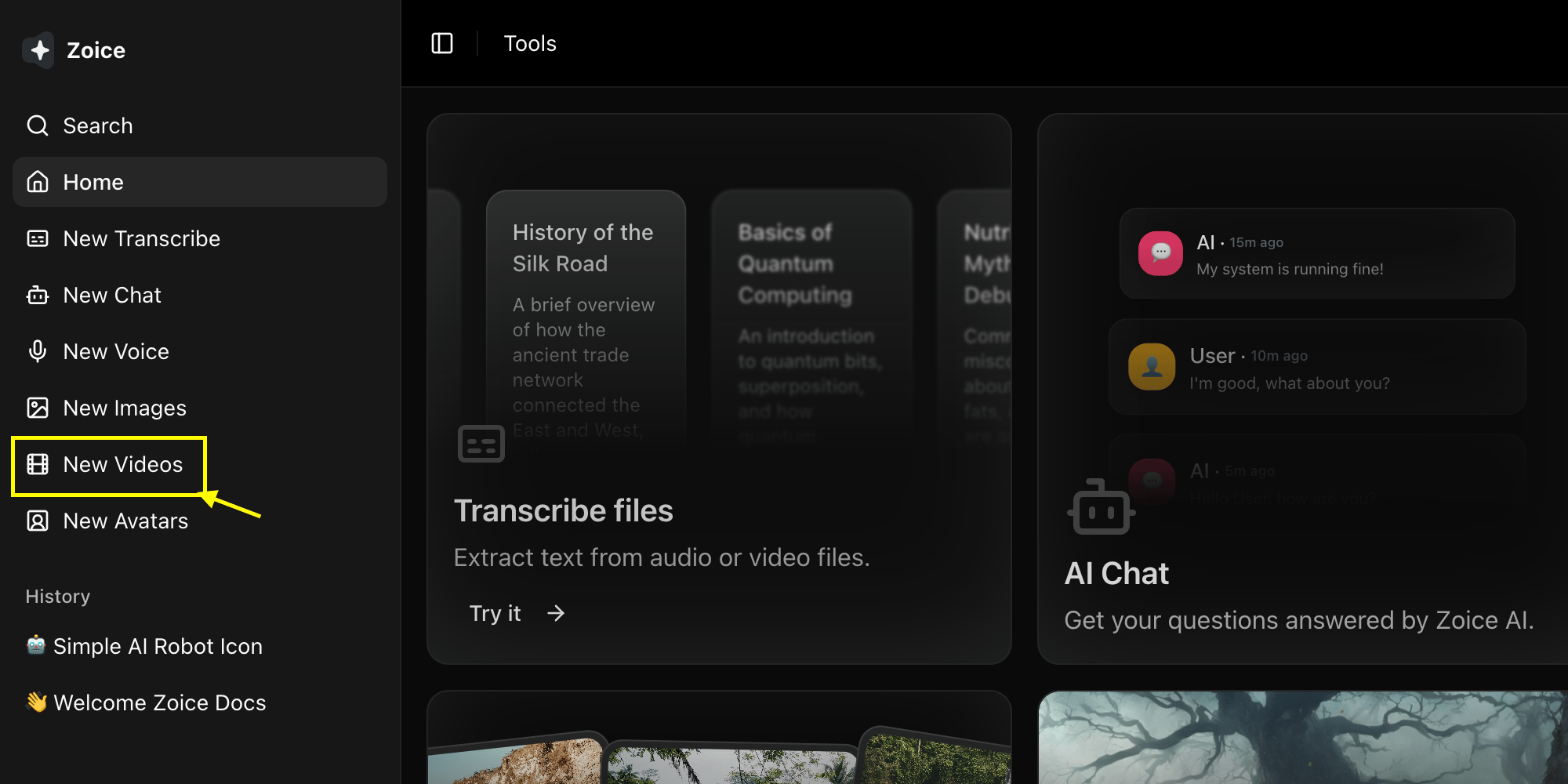
2
Select Veo 3.1 Model
Choose Veo 3.1 from the model selector.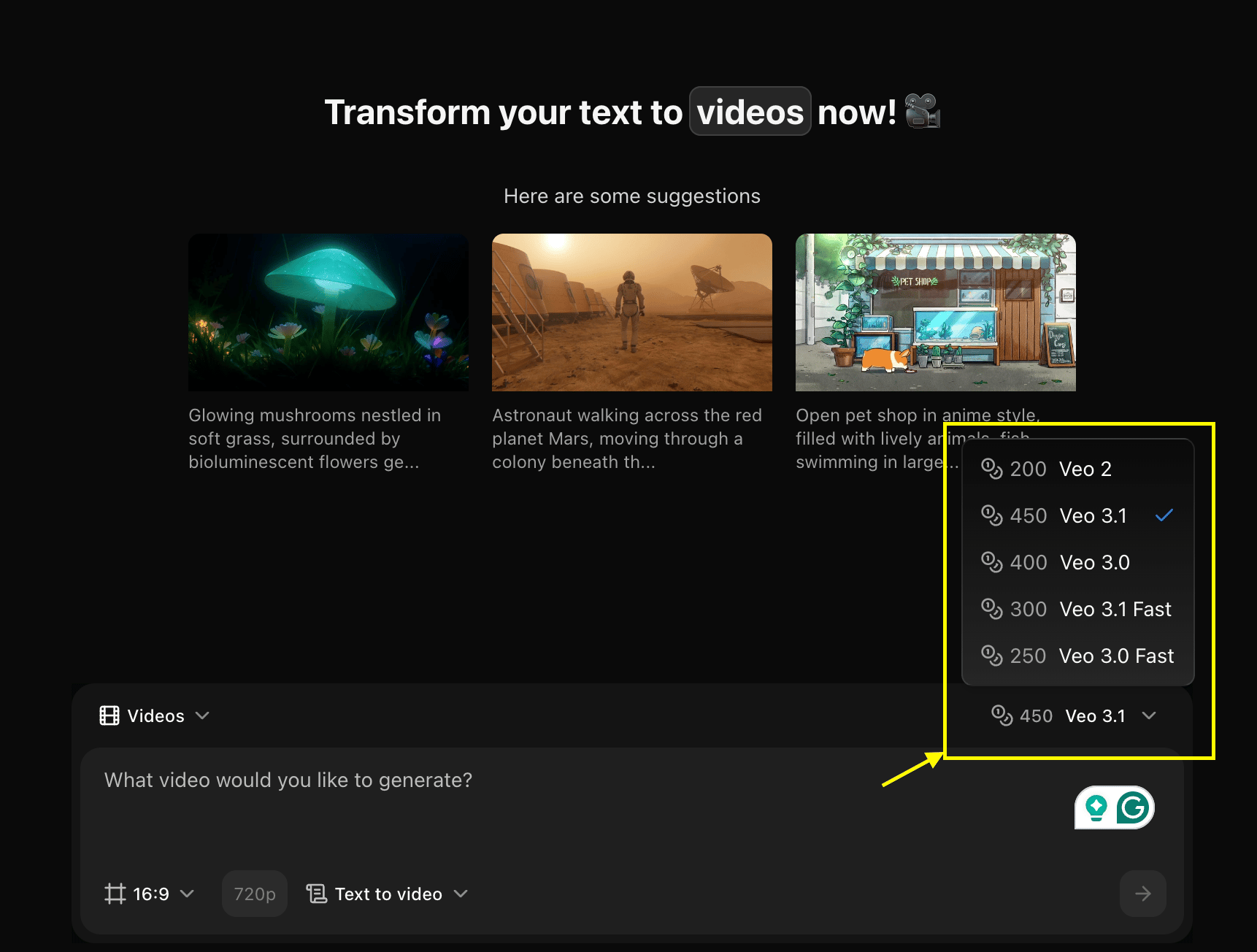
3
Configure Settings for Video
Set dimensions, resolution, and choose Image Ref to Video mode.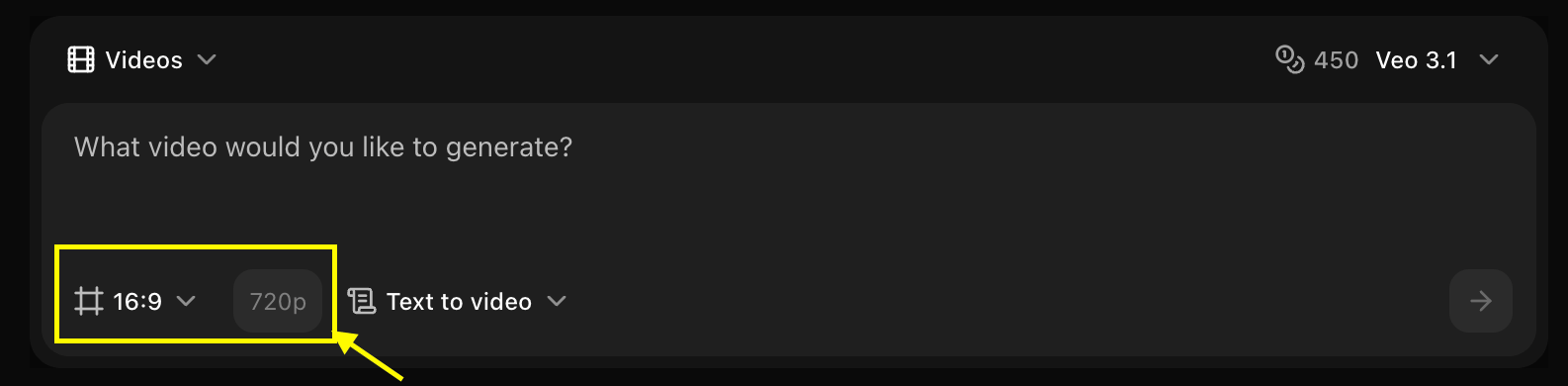
4
Add Reference Image
Upload the image you want to use as a base for your video.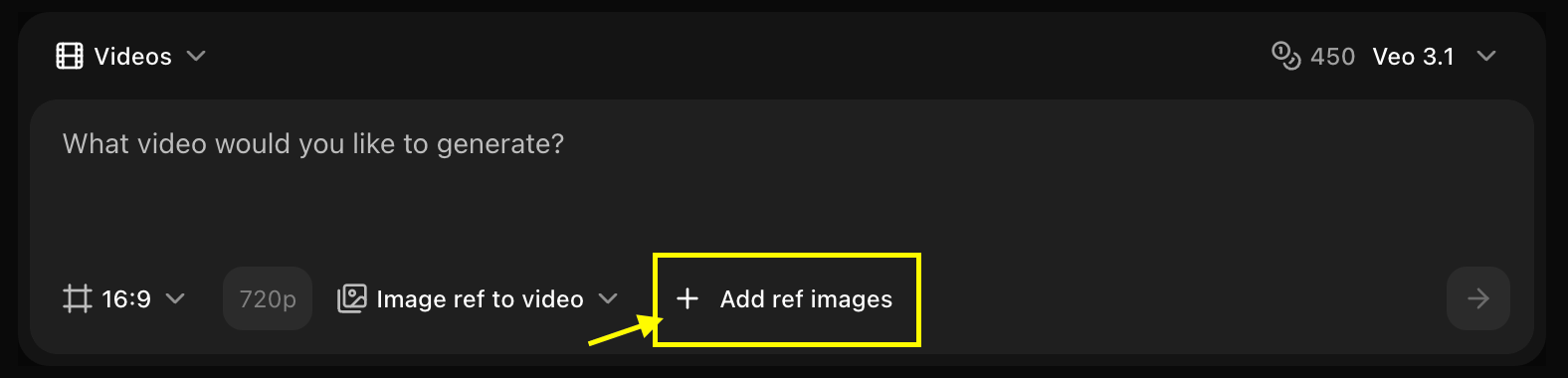
5
Write Your Text Prompt
Enter a description of the scene and action you want the AI to generate.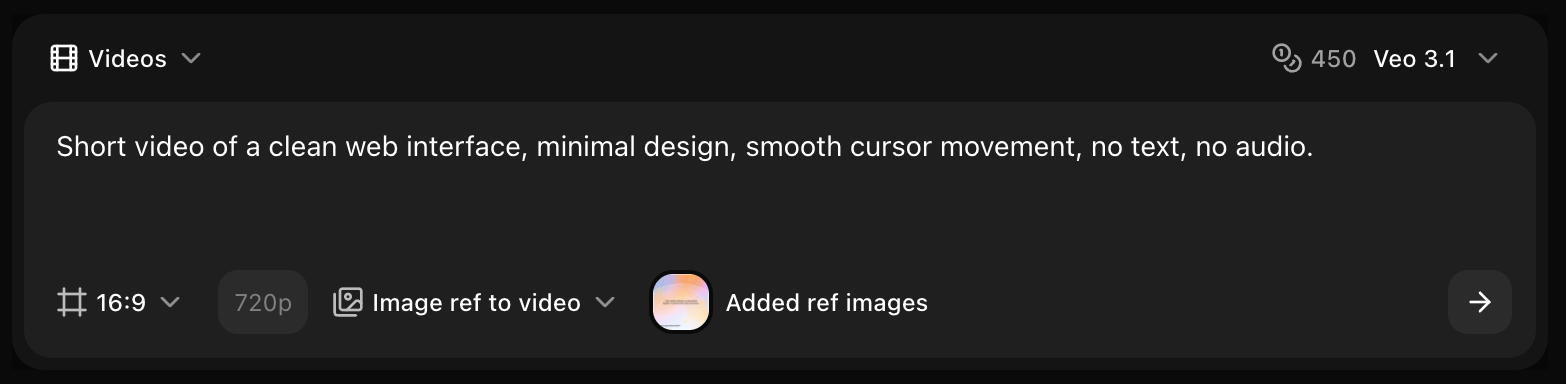
6
Click on Generate
Click on the Generate button to begin creating your video.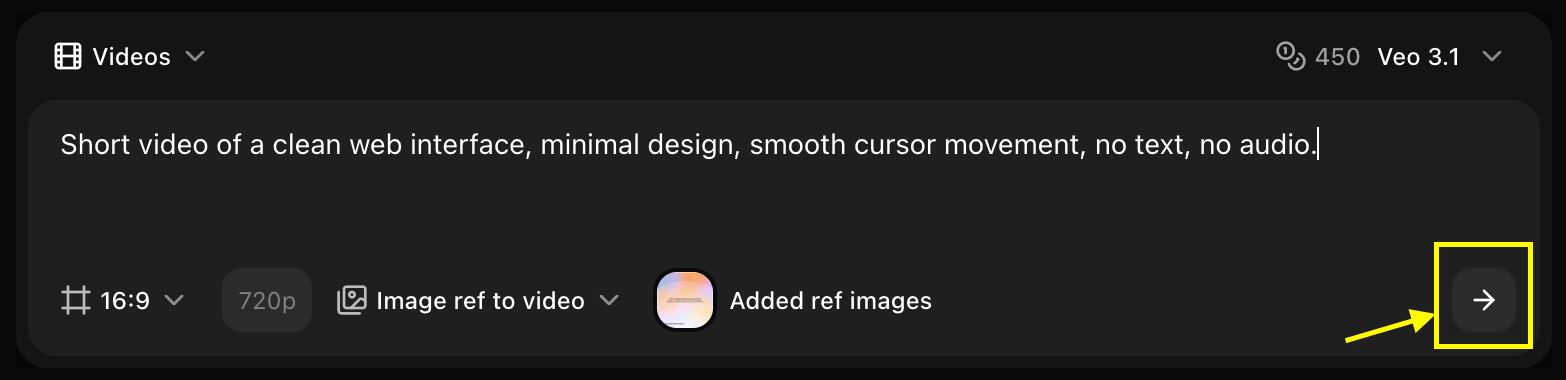
7
Download
Save your generated video.
Best Practices
- Use high-quality references
- Describe desired motion
- Specify camera work
- Set appropriate strength
Next Steps
Text to Video
Generate without reference
Video Generator Tool
Back to the main Video Generator guide