

Overview
Nano Banana 2 offers improved quality over standard Nano Banana while maintaining fast generation times, perfect for professional work with quick turnaround.Quick Start
1
Navigate to Image Generator by Clicking on New Image
Go to the Image Generator tool in your Zoice dashboard by clicking on New Image.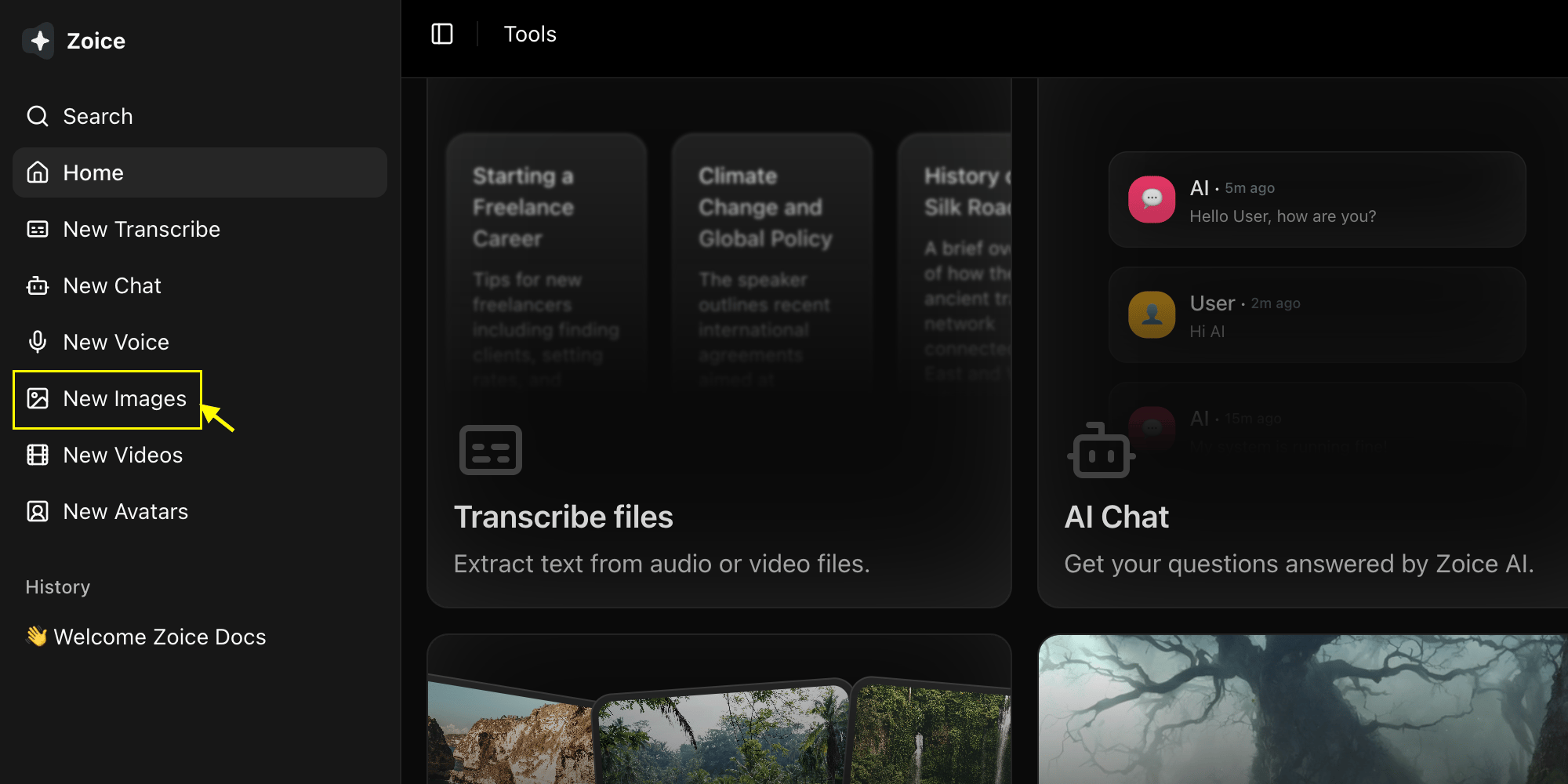
2
Select Nano Banana 2 Model
Choose “Nano Banana 2” from the model selector.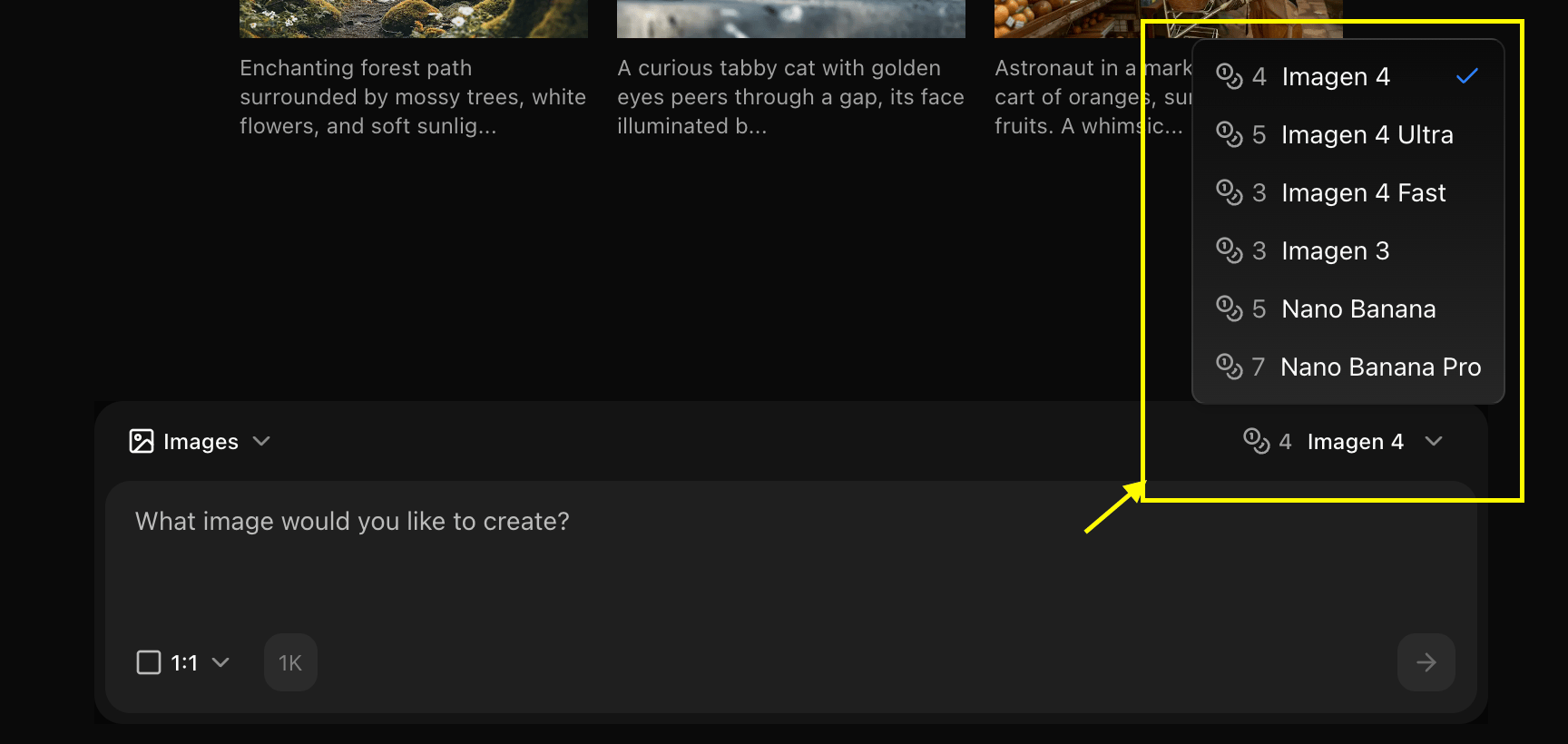
3
Configure Settings for Image
Set resolution and quality for the image you want to generate.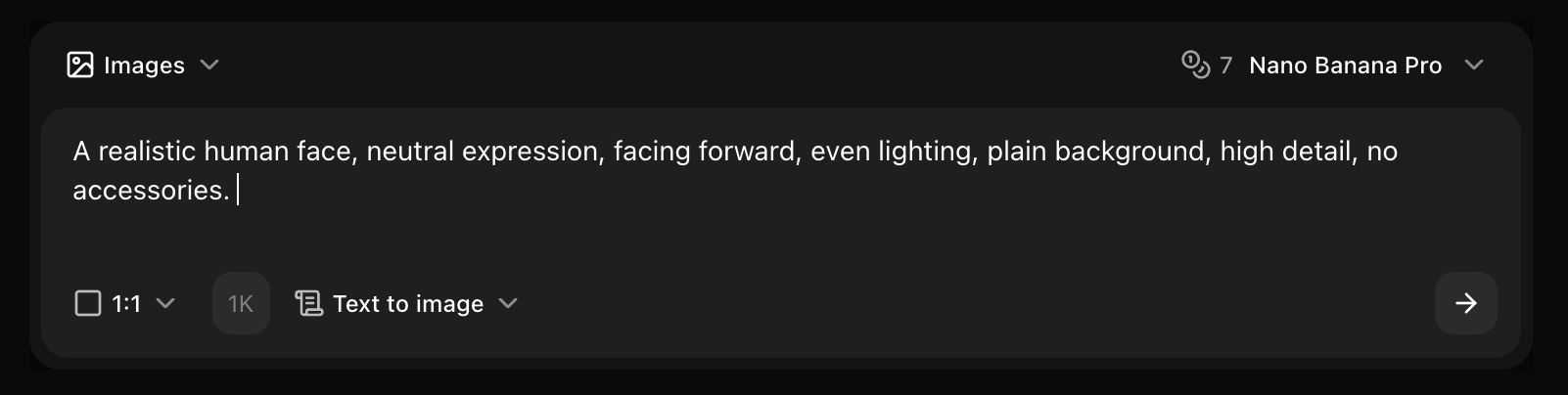
4
Write Your Prompt
Enter a description of the image you want to create in the prompt box.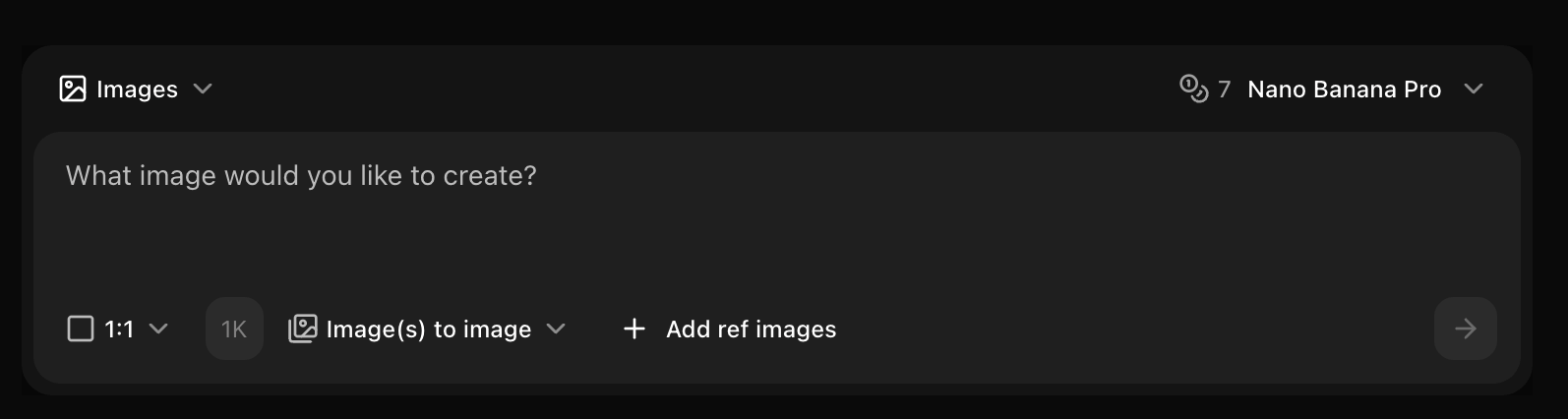
5
Click on Generate
Click generate and wait few seconds for your image to be generated.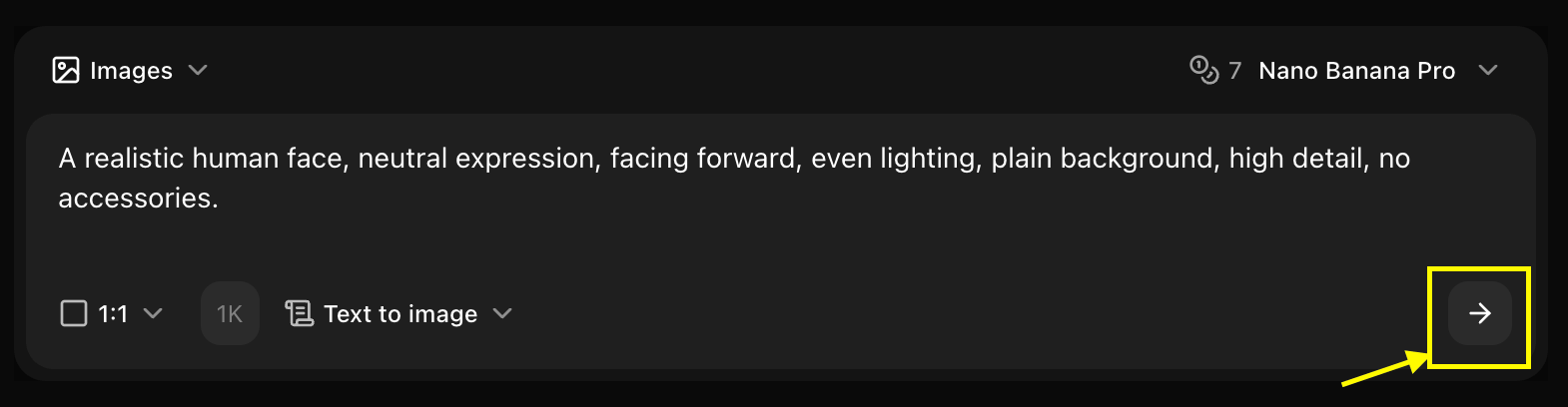
6
Download
Save your generated image
Best Practices
- Clear, focused prompts
- Include quality keywords
- Leverage speed for iterations
Next Steps
Model Overview
Learn about Nano Banana 2
Reference Images
Use reference images
Image Generator Tool
Back to the main Image Generator guide