

Overview
Veo 3.1 Fast’s Frame to Video mode allows you to upload multiple frames and generate smooth video transitions between them, perfect for creating animations and controlled video sequences.Quick Start
Upload multiple frames and let the AI generate smooth transitions and motion between them to create a cohesive video.1
Navigate to New Video
Go to the Video Generator tool by clicking on New Video.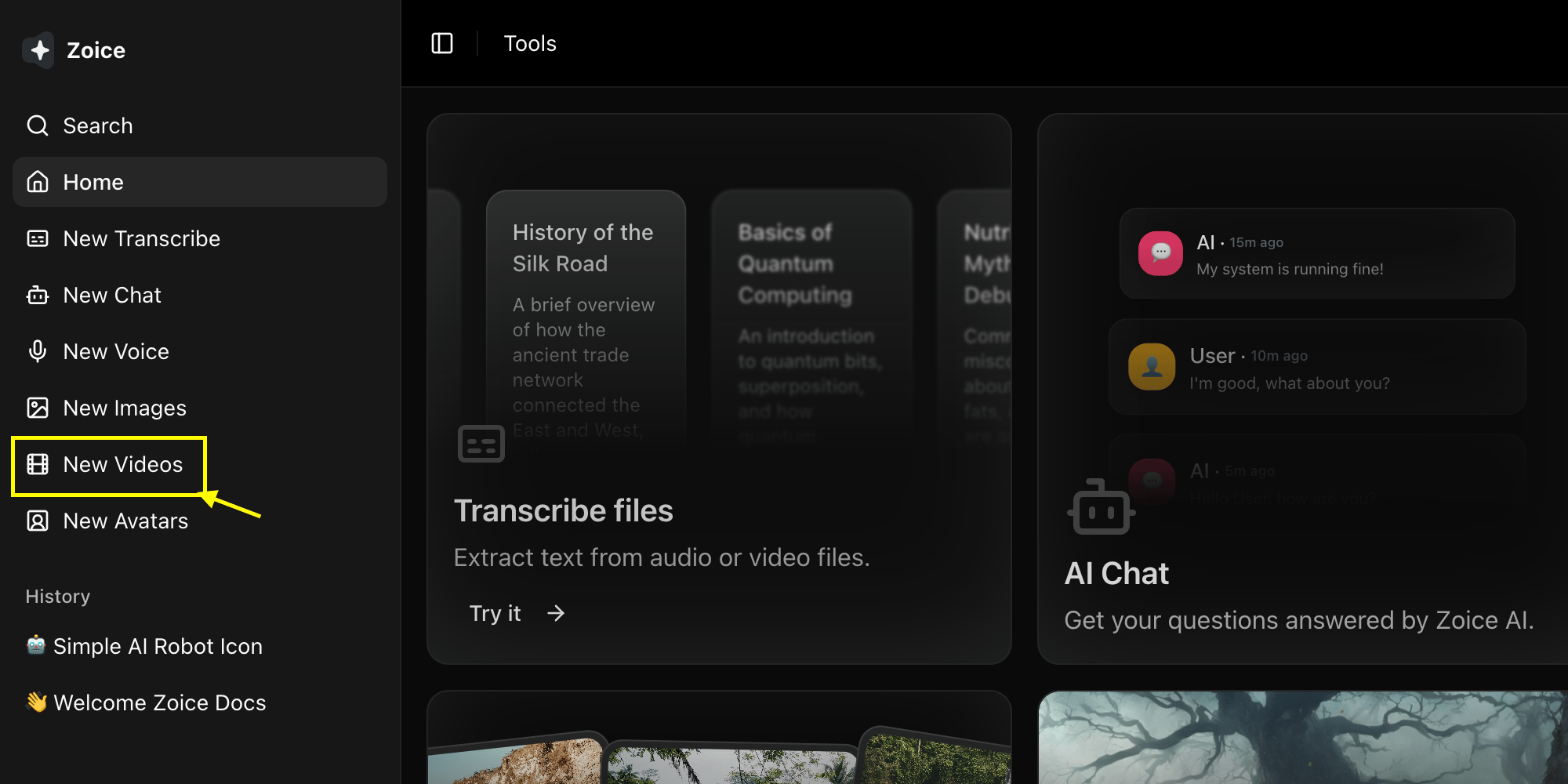
2
Select Veo 3.1 Fast Model
Choose Veo 3.1 Fast from the model selector.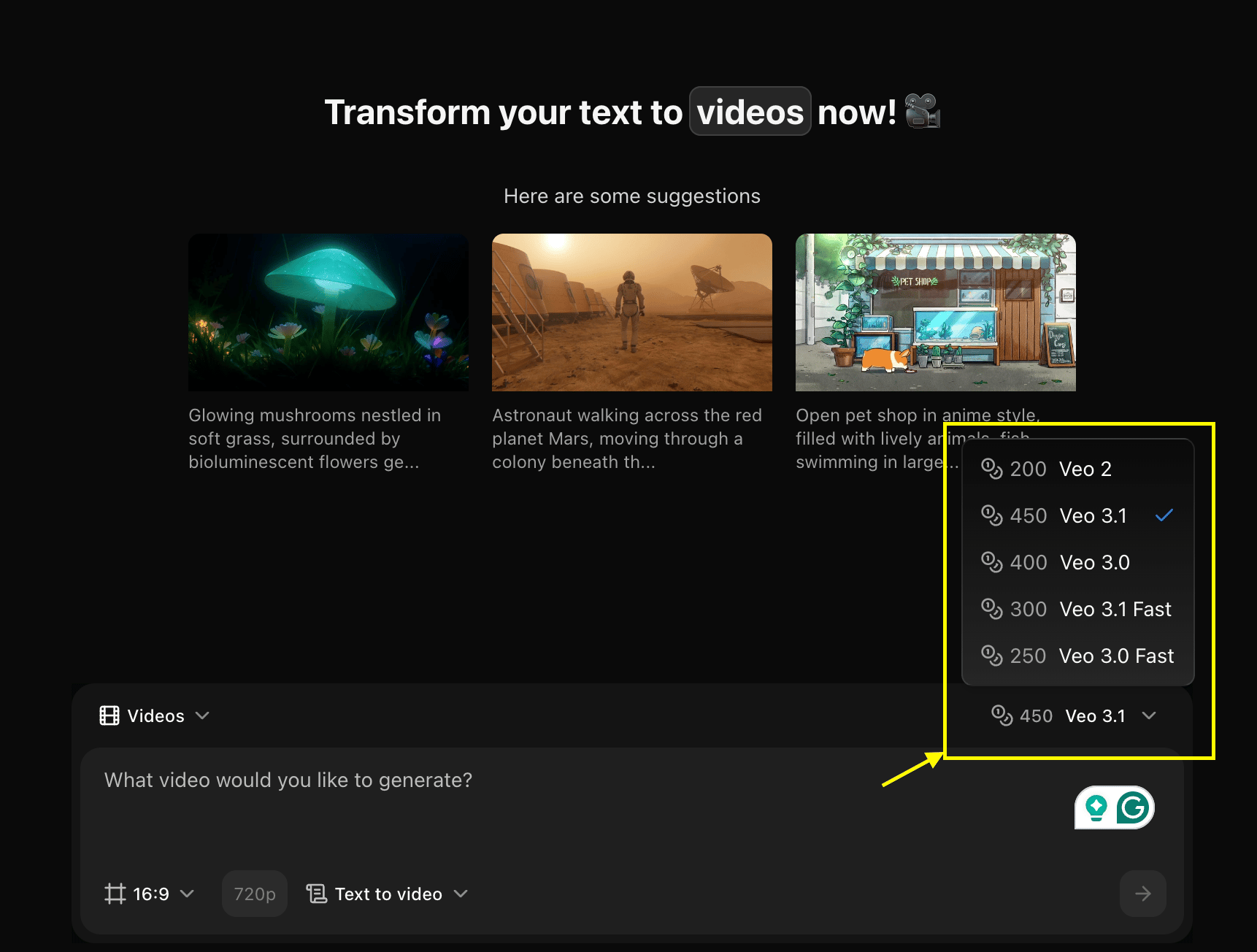
3
Configure Settings for Video
Set dimensions, resolution, and choose Frame to Video mode.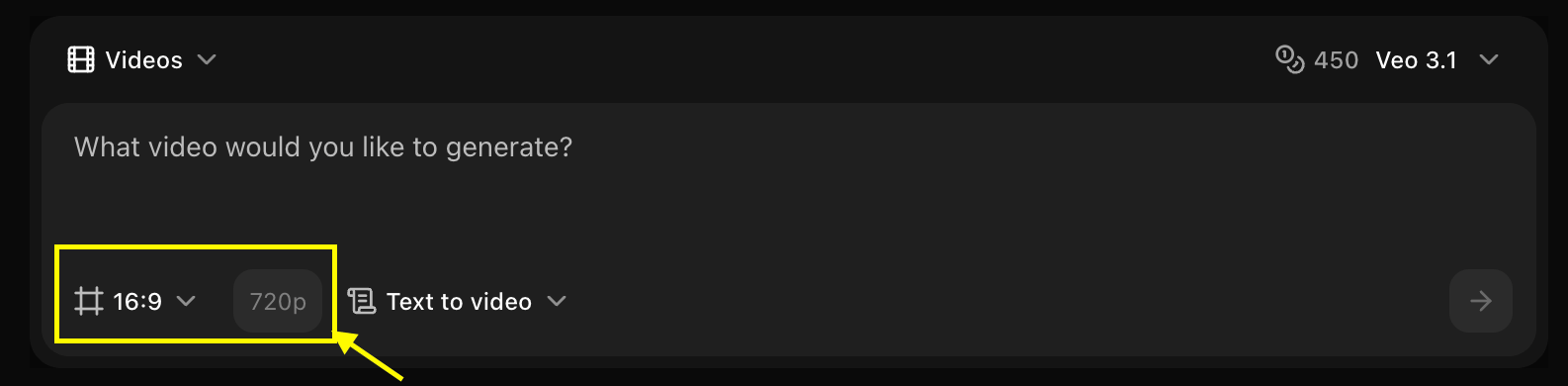
4
Upload Your Frames
Upload multiple frames in sequence that you want to animate.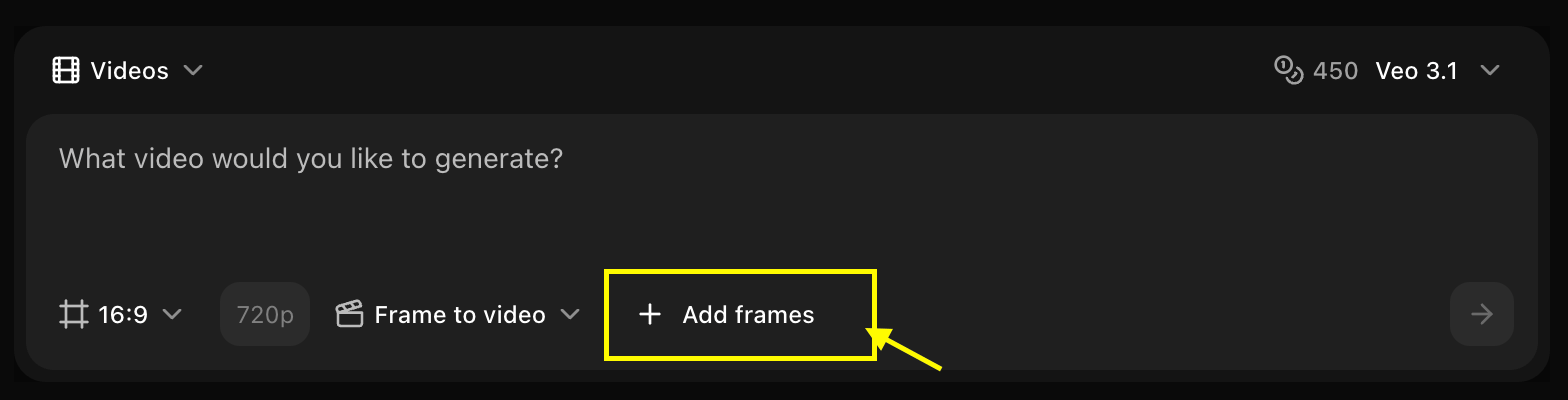
5
Write Your Text Prompt (Optional)
Add a description to guide the animation style and motion between frames.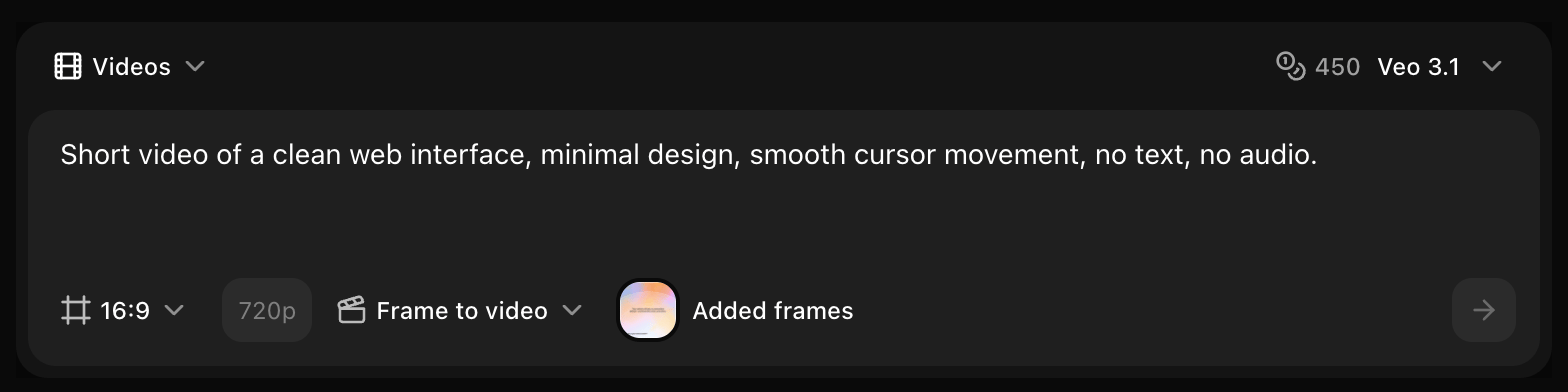
6
Click on Generate
Click on the Generate button to begin creating your video.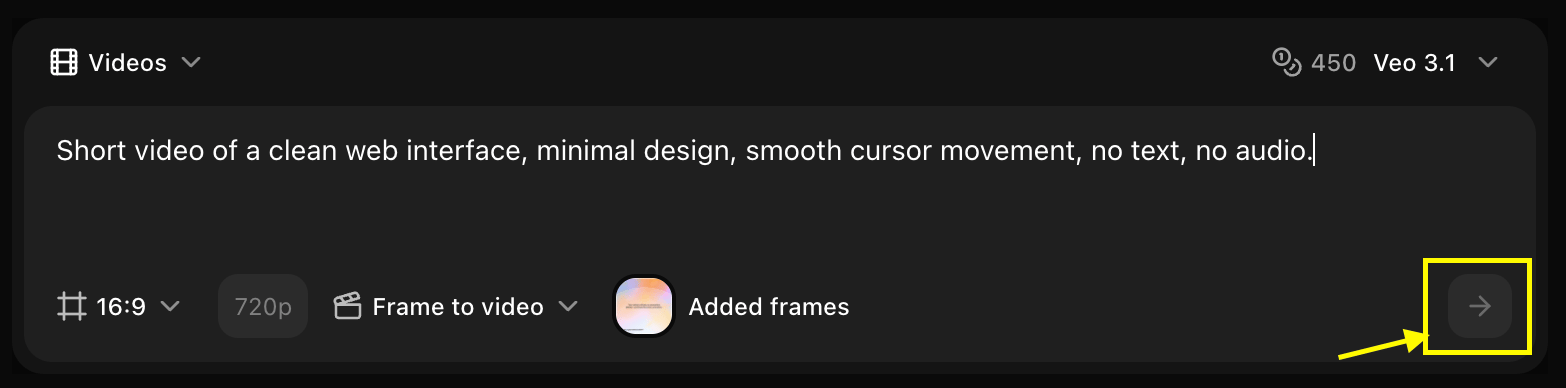
7
Download
Save your generated video.
Best Practices
- Use consistent frame sizes
- Maintain visual continuity
- Add descriptive prompts for better transitions
- Leverage speed for quick iterations
Next Steps
Text to Video
Generate from text only
Image to Video
Generate from reference image