

Key Features
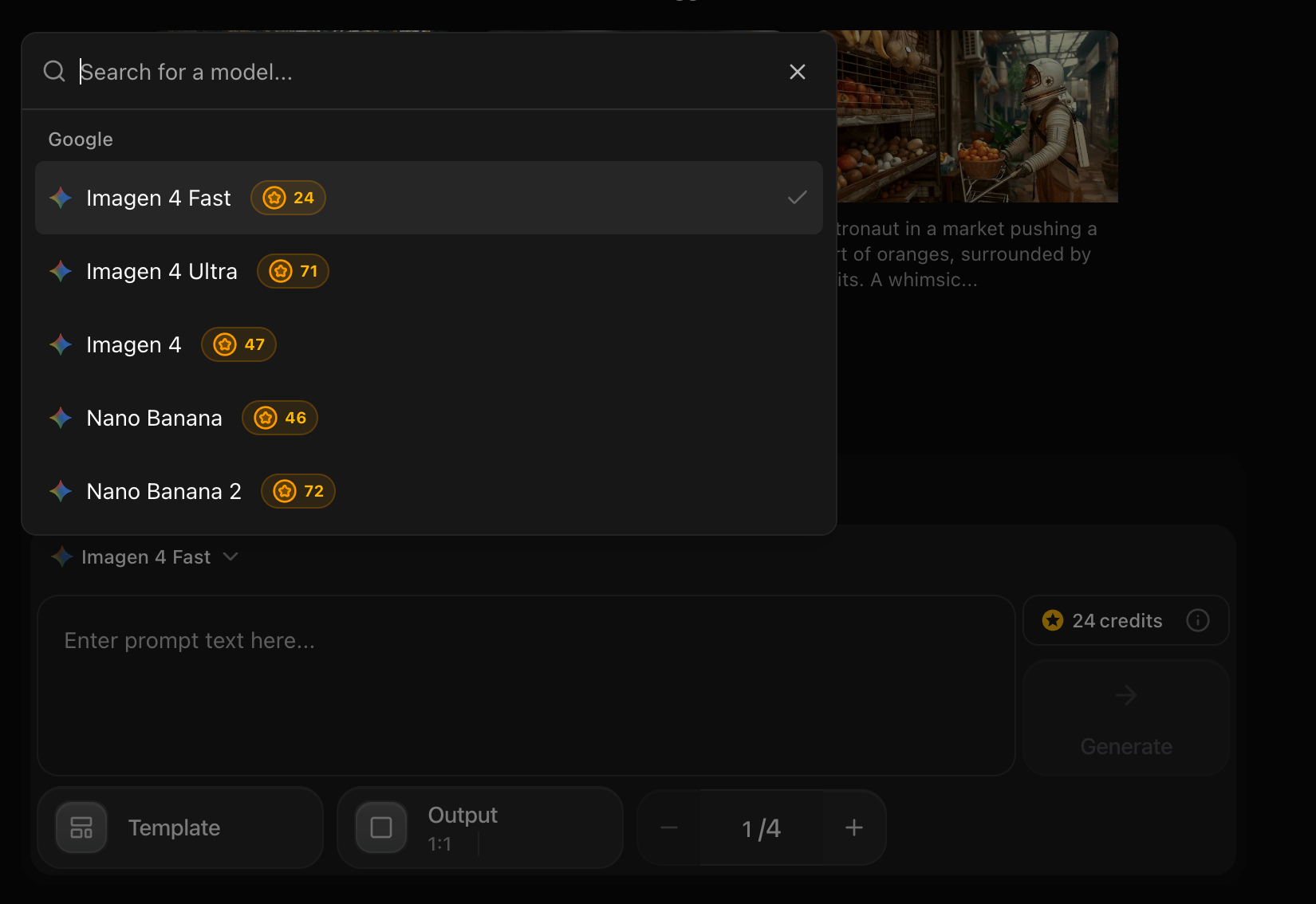
Zoice’s Image Generator allows you to create high-quality, unique images from simple text descriptions. Whether you need artwork, graphics, product mockups, or creative visuals, our AI-powered image generation makes it easy to bring your ideas to life.- Integrated Model Selector: Select your preferred AI model (e.g., Imagen 4 Fast) directly within the prompt input panel for a cleaner, unified workspace.
- Prompt Suggestions: Get inspired with clickable suggestion cards displaying pre-configured sample prompts and sample generated images.
- Template Styles: Apply preset templates and visual styles with a single click using the Template selector.
- Aspect Ratio Controls: Set the precise output size (e.g.,
1:1,16:9) using the Output settings button. - Batch Generation: Customize the number of images to generate (from 1 to 4) using the batch count counter (
- / +). - Real-Time Credit Costs: View the required credit cost per generation dynamically on the dashboard before clicking Generate.
- Text-to-Image & Image-to-Image: Feed descriptions or upload visual references to guide the AI’s generation.
Use Cases
Marketing Materials
Create eye-catching visuals for social media, ads, and campaigns
Product Design
Generate concept art and product mockups
Content Creation
Produce unique images for blogs, articles, and websites
Creative Projects
Bring artistic visions to life for personal or professional projects
How It Works
- Navigate to Images: Go to the Image Generator section in your Zoice dashboard.
- Select a Model: Choose your desired AI model (e.g., Imagen 4 Fast) from the dropdown menu located at the top-left of the input panel.
- Use Suggestions (Optional): Click on one of the suggested cards under the header to instantly populate a prompt.
- Enter Your Prompt: Type the details of the image you want to create in the main prompt input textarea.
- Configure Parameters:
- Choose a Template style to apply preconfigured aesthetics.
- Adjust the Output layout to change the aspect ratio.
- Select the number of images (1 to 4) to generate simultaneously using the batch counter.
- Check Credit Cost: Confirm the credit cost (e.g., 24 credits) indicated next to the Generate button.
- Generate: Click the Generate button to create your images.
- Download: Save your generated images in high quality.
Getting Started
1
Navigate to Images
Go to the Image Generator section in your Zoice dashboard.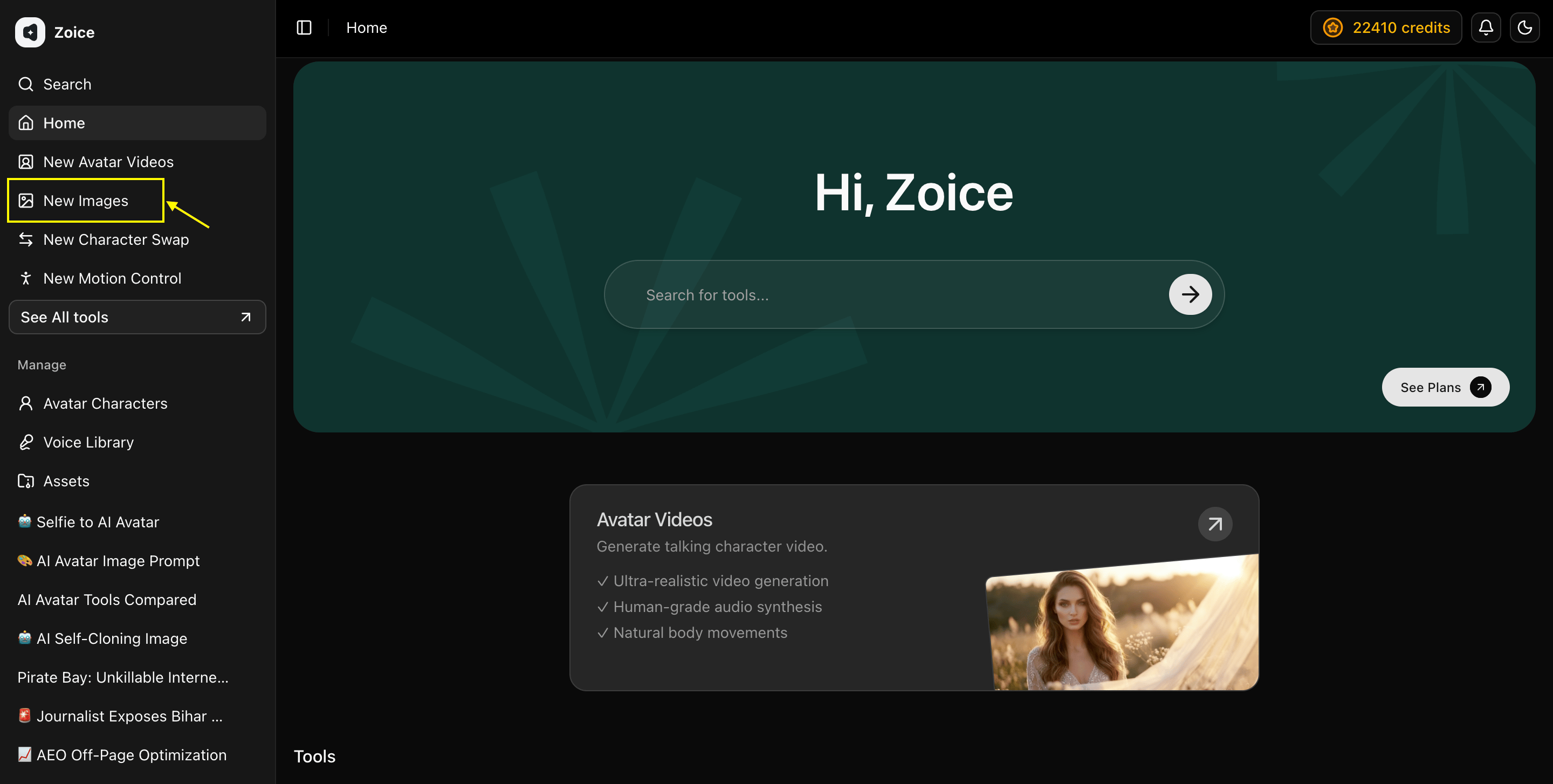
2
Select Model
Select the AI model you want to use from the model dropdown selector nested directly within the generation card, under the tool selector dropdown.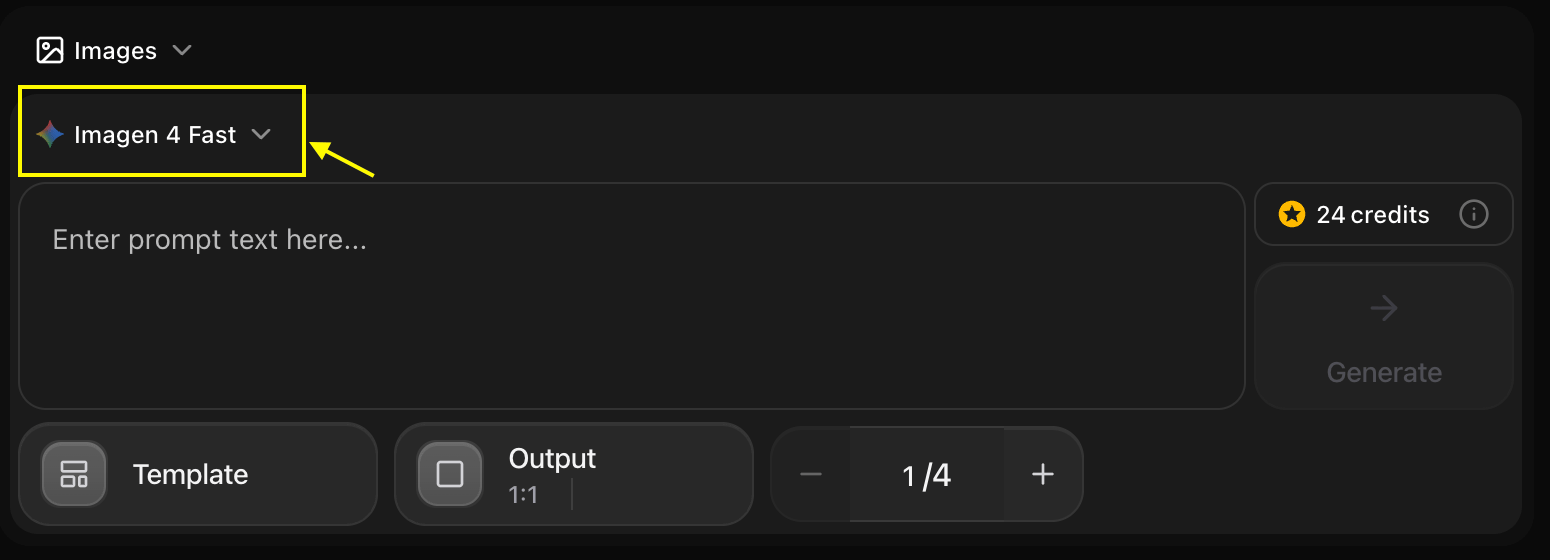
3
Configure Settings
Set your generation styles with Template, choose the layout using Output, and adjust the batch size (1 to 4 images) using the counter.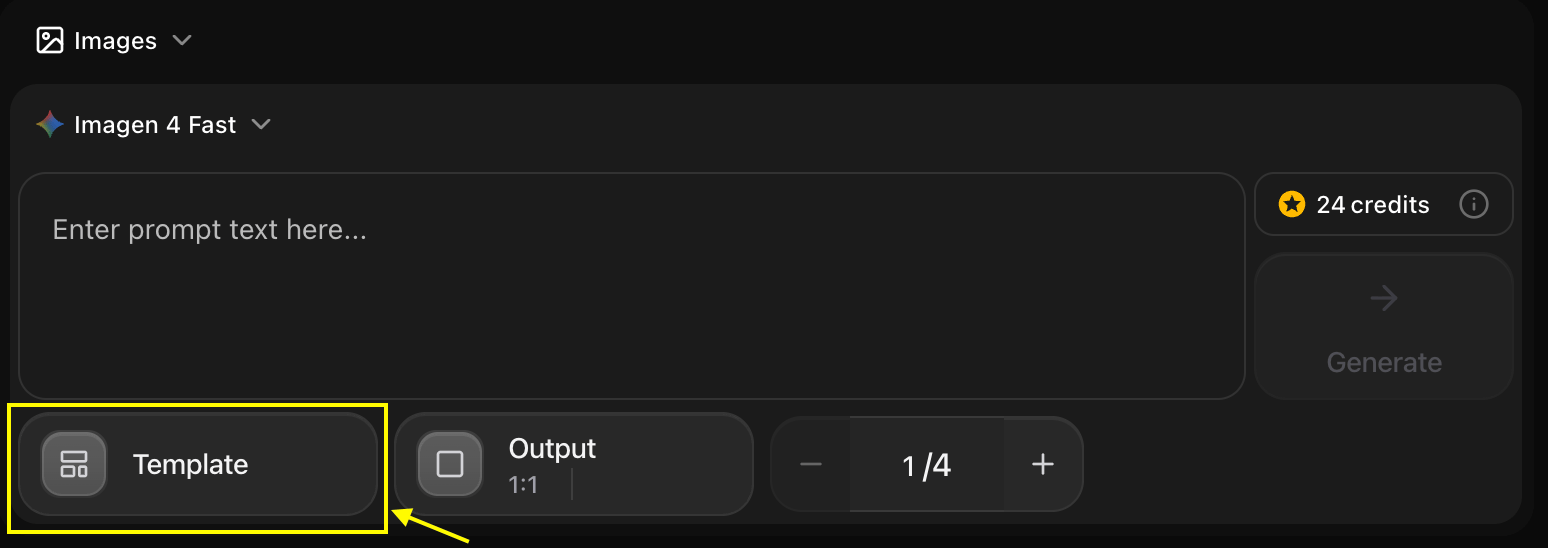
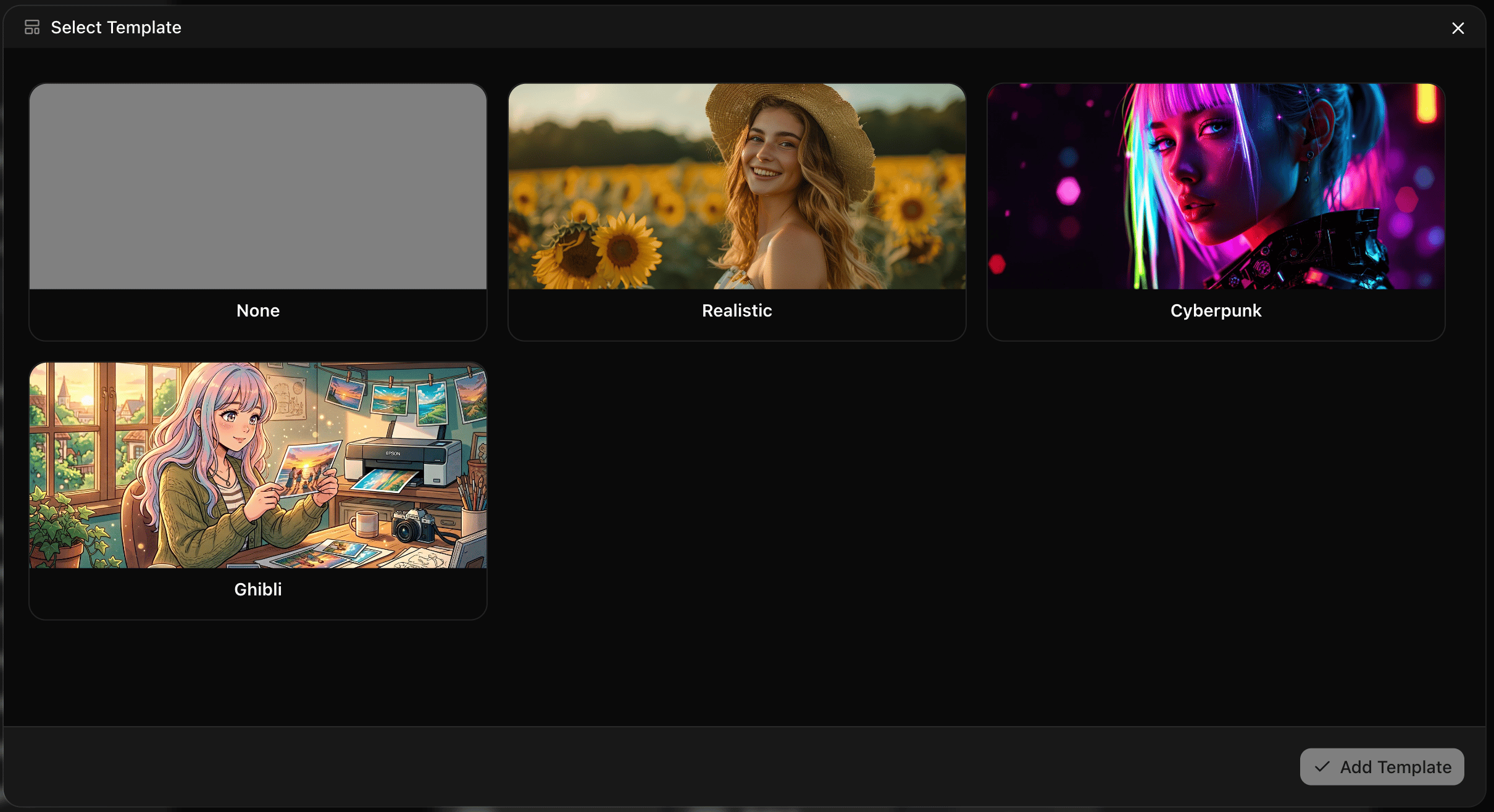
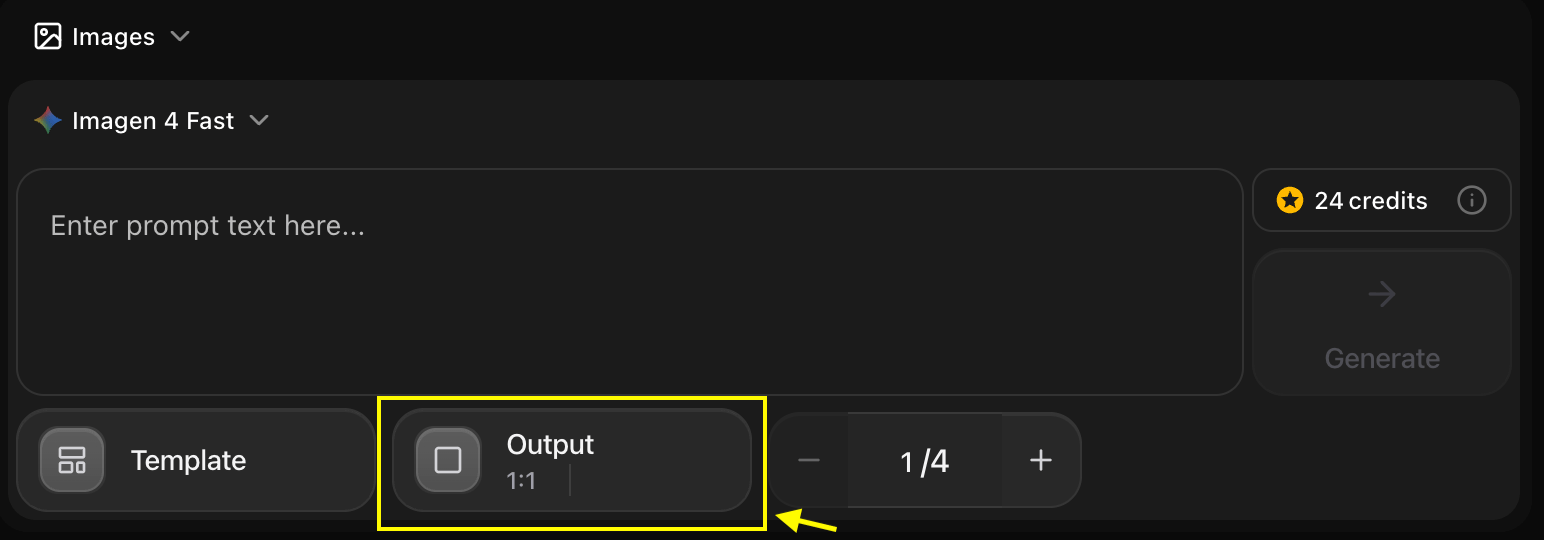
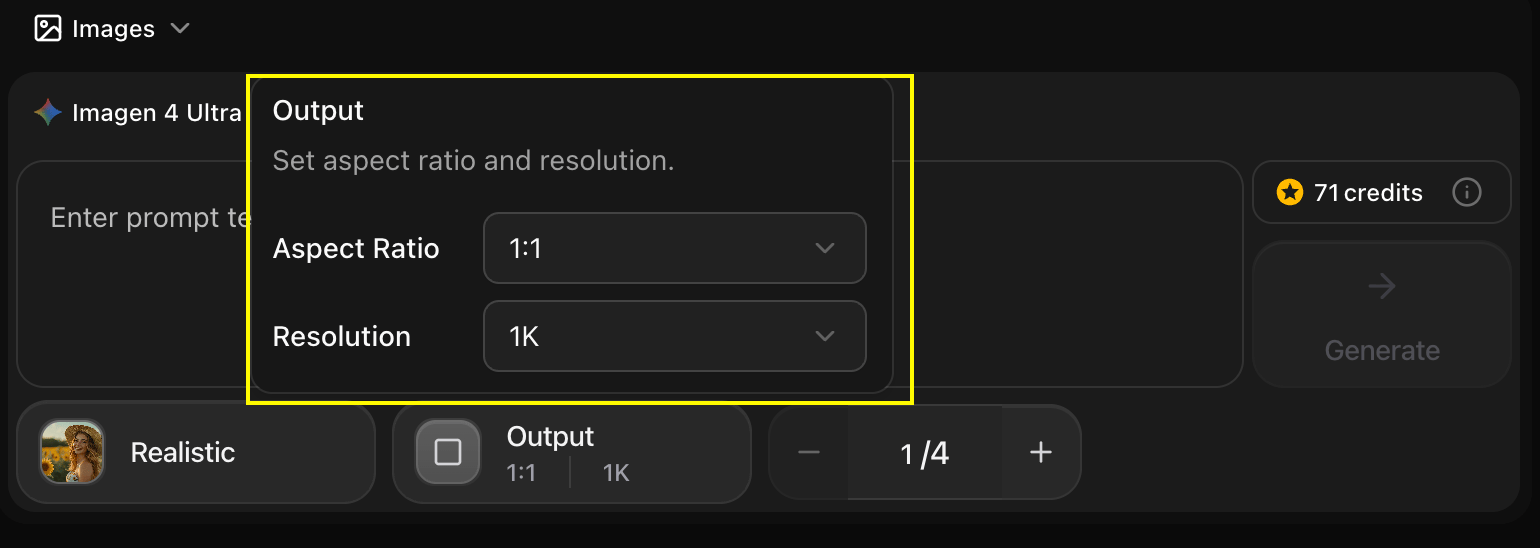
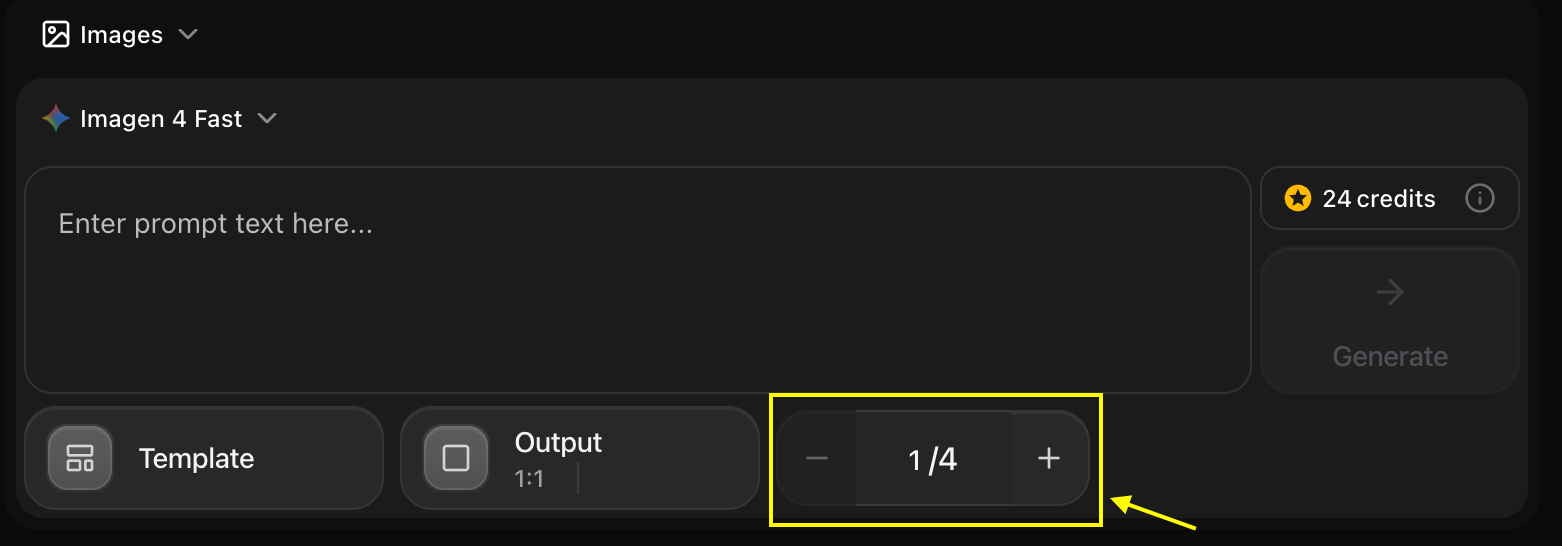
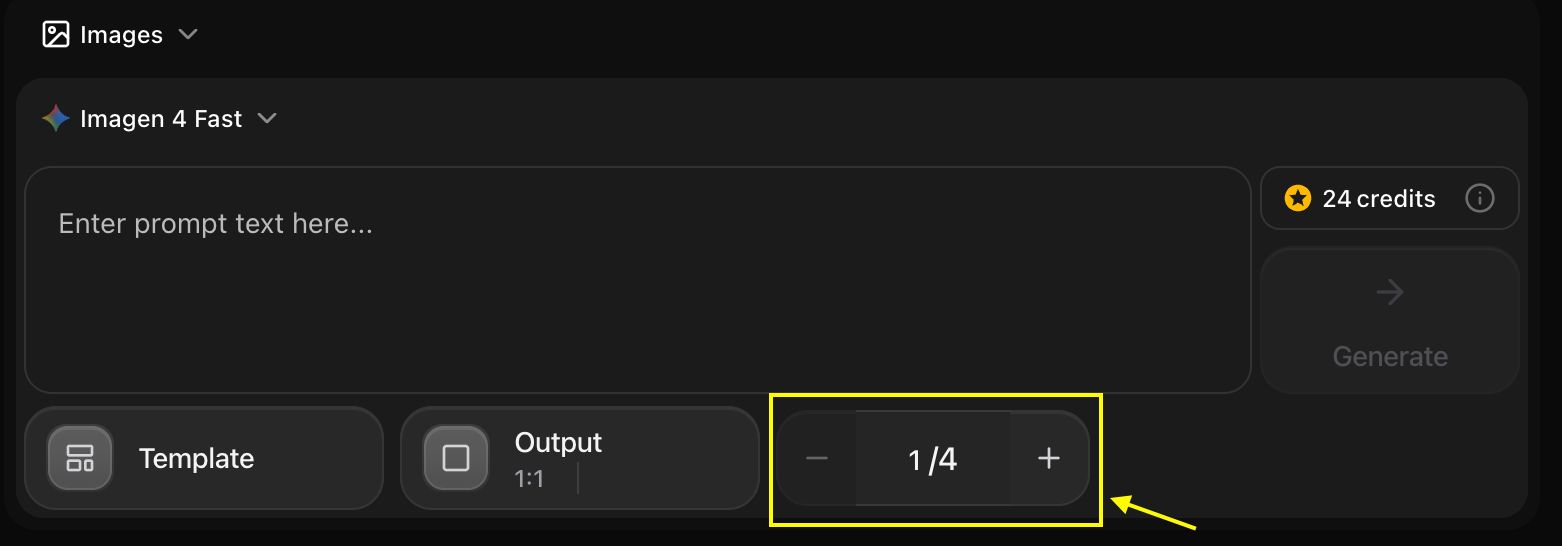
- Click on template to change the style.
- Click on output to change the aspect ratio.
- Click on counter to change the batch size.
4
Write Prompt or Choose Suggestion
Write a detailed prompt in the text area, or click one of the suggested prompt cards above the generator panel to populate the prompt field automatically.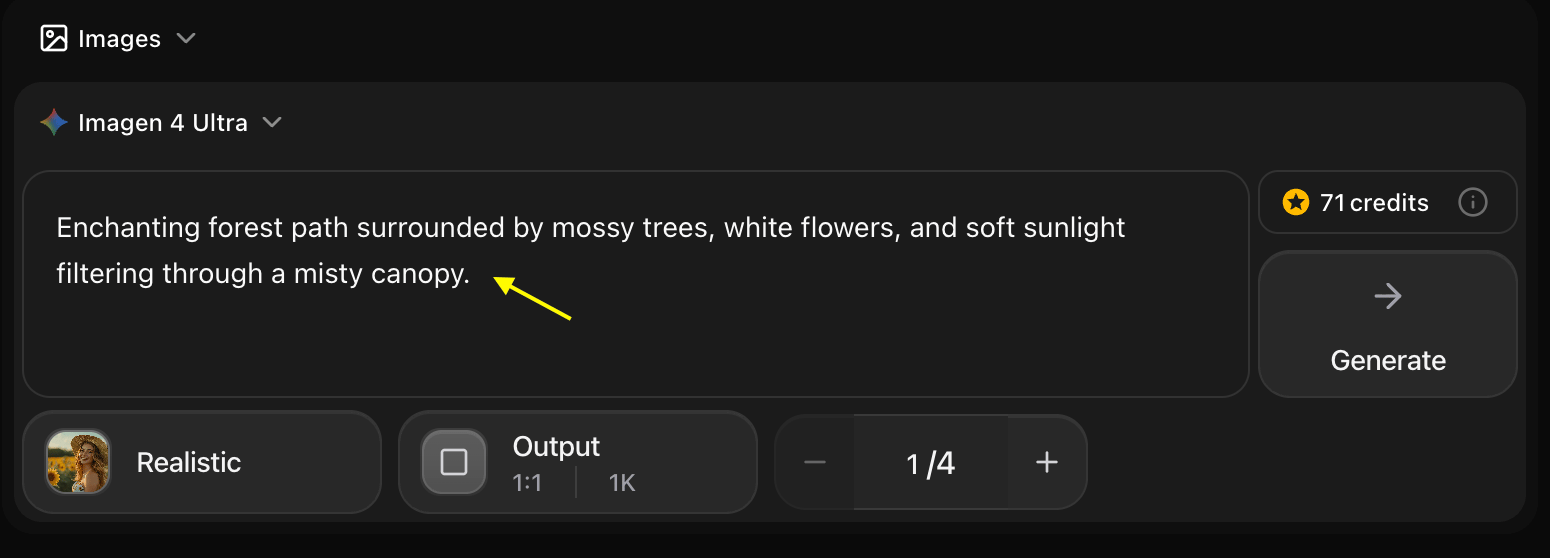
5
Generate
Check the credit cost on the right side of the input panel and click the Generate button.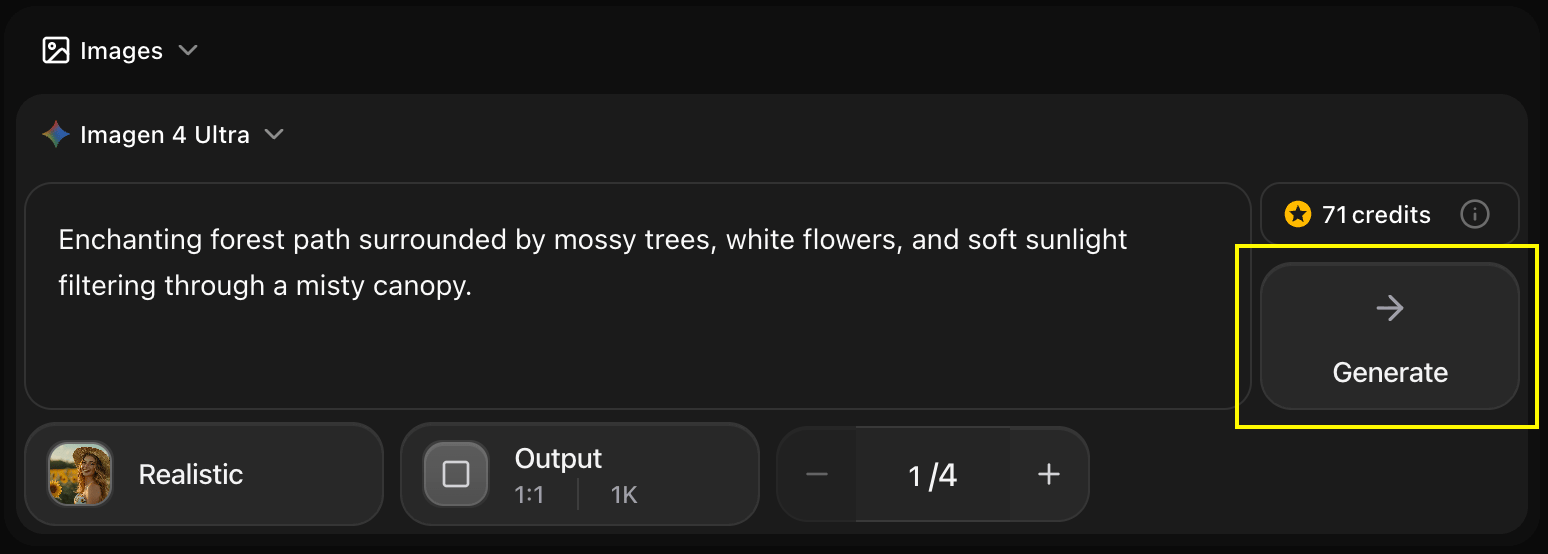
6
Download
Save your generated images to your device.
Next Steps
Nano Banana (Fast)
Our fastest model for rapid prototyping and social media.
Imagen 4 (Premium)
Professional photorealistic quality for marketing and print.
Text-to-Image Guide
Detailed steps for generating images from text.
Prompt Guide
Master the art of writing effective AI prompts.