

Key Features
Zoice’s Video Generator empowers you to create engaging, high-quality videos using AI. From marketing content to creative projects, transform your ideas into dynamic video content with just a text description.- Multiple Video Generation Modes: Create videos using Text to Video, Image to Video, Image Reference to Video, or Frame to Video.
- Advanced Video Models: Choose from Veo 2, Veo 3.0, Veo 3.1, and fast variants based on quality or speed requirements.
- Aspect Ratio Control: Generate videos in supported formats such as 16:9.
- Resolution Selection: Start video generation at 720p, with higher resolutions available depending on the selected model.
- Prompt-Based Creation: Describe scenes using natural language to control visuals, motion, and style.
- Visual Guidance Support: Use reference images or frames to guide composition, consistency, and motion.
- Flexible Workflow: Switch between video generation modes directly from the interface without restarting.
Use Cases
Social Media Content
Create engaging videos for Instagram, TikTok, and YouTube
Marketing Campaigns
Generate promotional videos and advertisements
Product Demos
Showcase products with dynamic video presentations
Creative Storytelling
Bring stories and concepts to life with AI-generated video
How It Works
- Navigate to AI Videos: From the Zoice dashboard, click See All Tools in the left navigation, then click the AI Videos card
- Select a Model: Choose your preferred Veo model (e.g., Veo 3.1 Fast) from the model selector in the generation panel
- Choose Generation Mode: Select Text to Video, Image to Video, or another mode from the mode dropdown
- Write Your Prompt: Type a detailed scene description in the prompt input box
- Check Output Settings: Verify the aspect ratio (e.g., 16:9) and resolution (e.g., 720p) at the bottom of the panel
- Generate: Review the credit cost and click Generate
- Download: Save your finished video in high quality
Getting Started
1
Navigate to AI Videos
Go to the Zoice dashboard and click See All Tools in the left sidebar.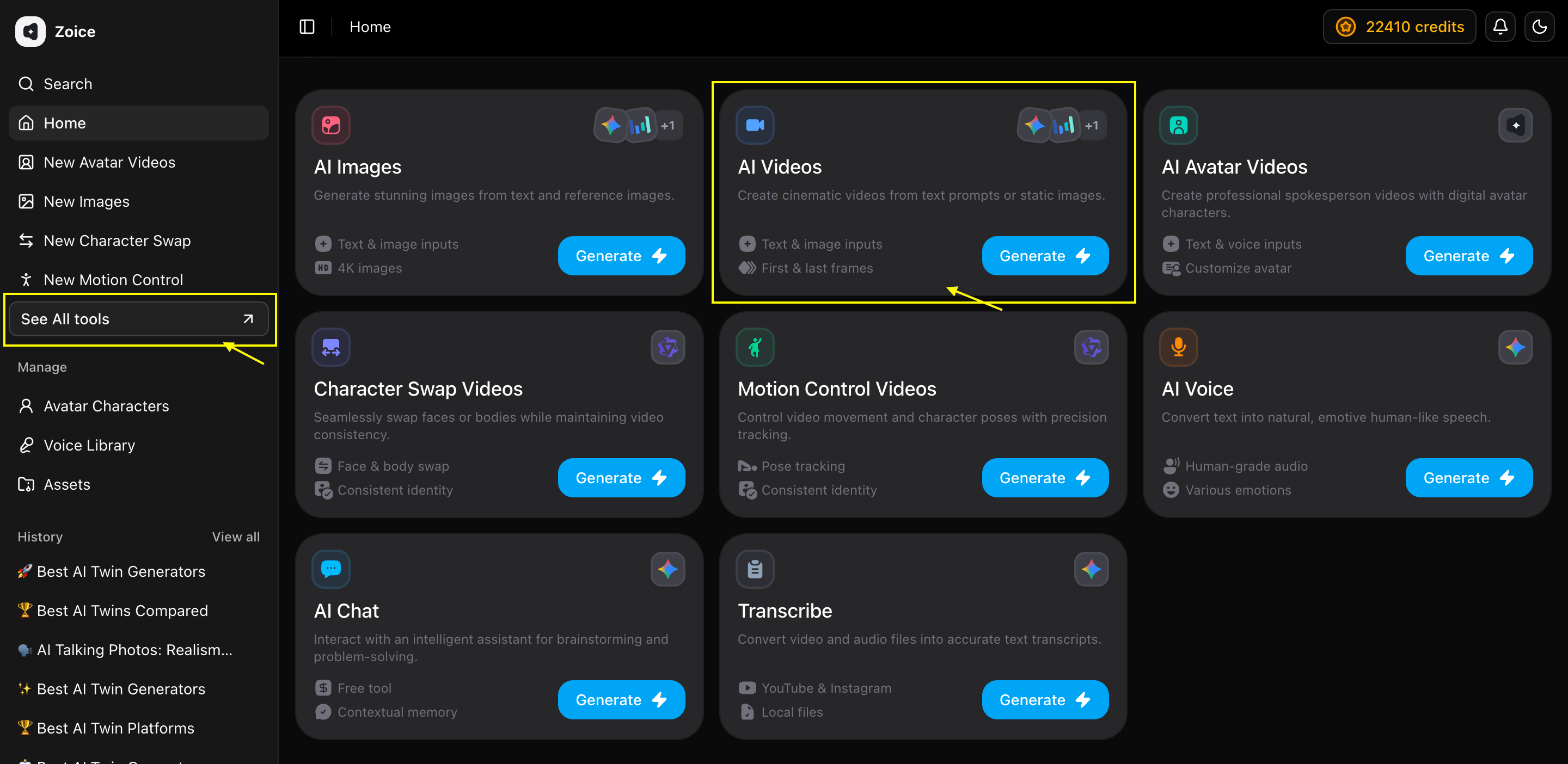
2
Select AI Model
In the generation panel, click the model selector (e.g., Veo 3.1 Fast) to choose your preferred AI model.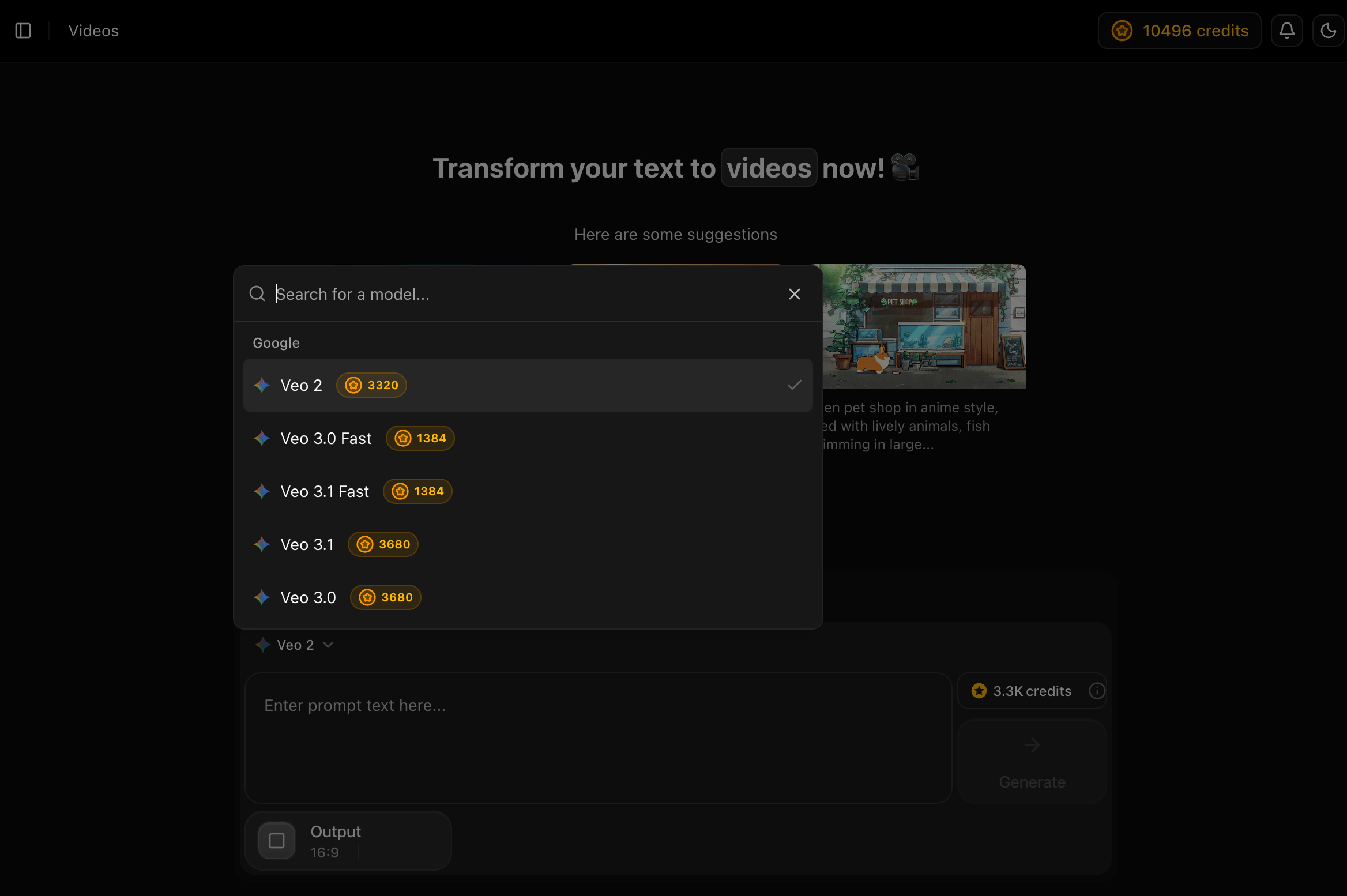
3
Select Generation Mode
Click the mode dropdown next to the model selector and choose your generation mode.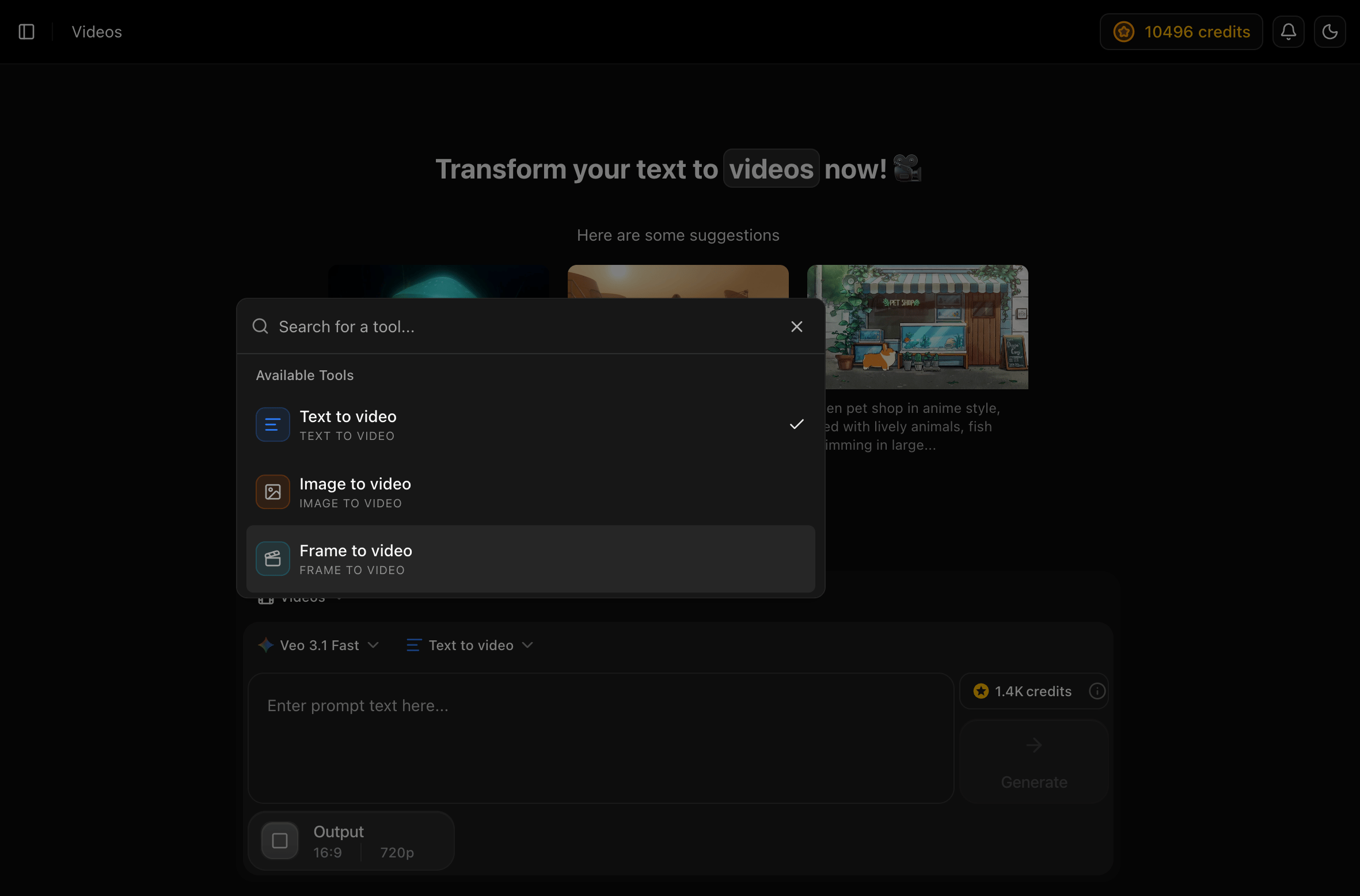
4
Write Your Prompt
Type a detailed description of the video scene you want to create in the prompt input box.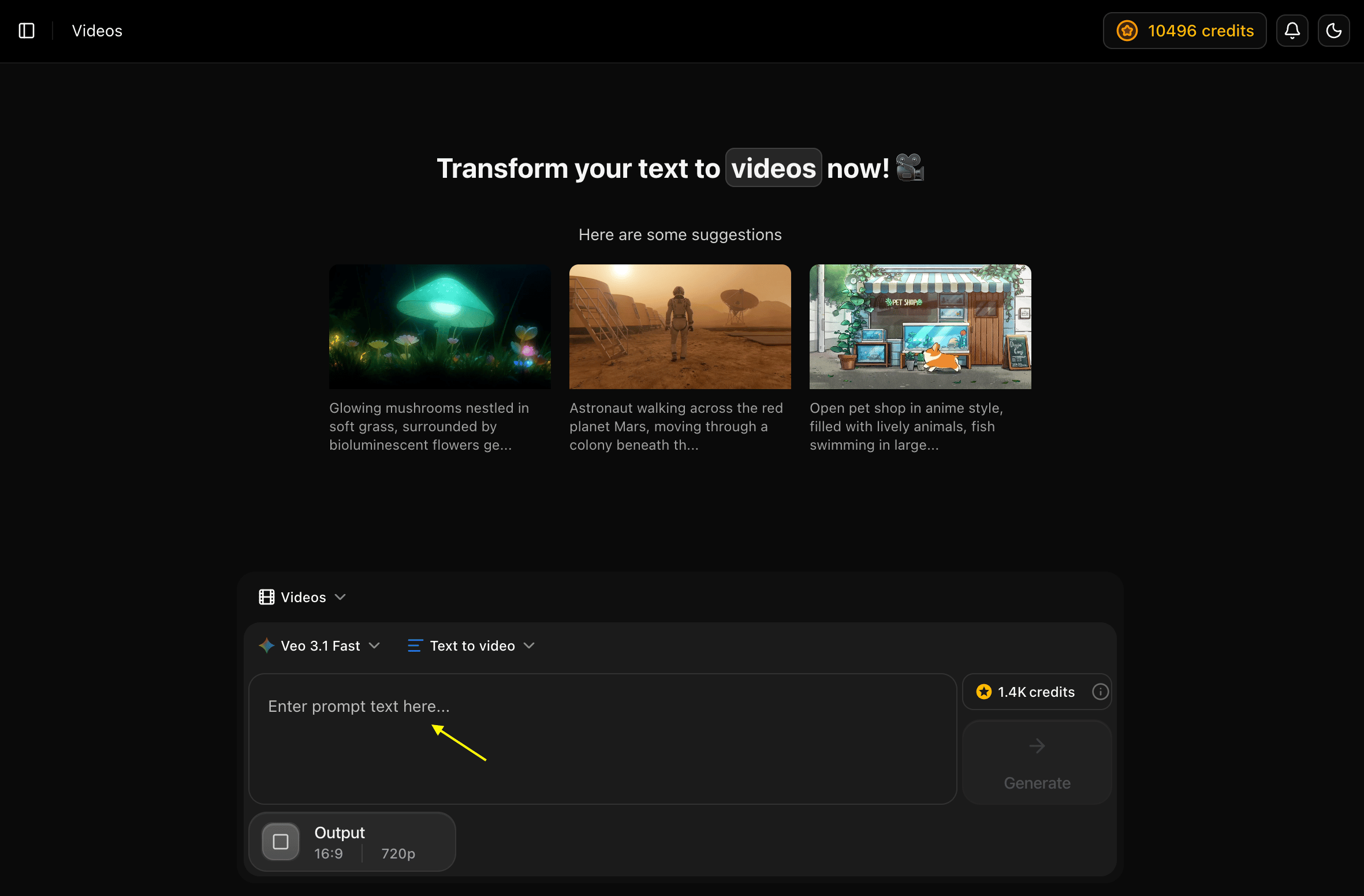
5
Generate
Check the credit cost displayed next to the Generate button and verify the Output settings (e.g., 16:9 aspect ratio, 720p resolution) at the bottom of the panel. Then click Generate.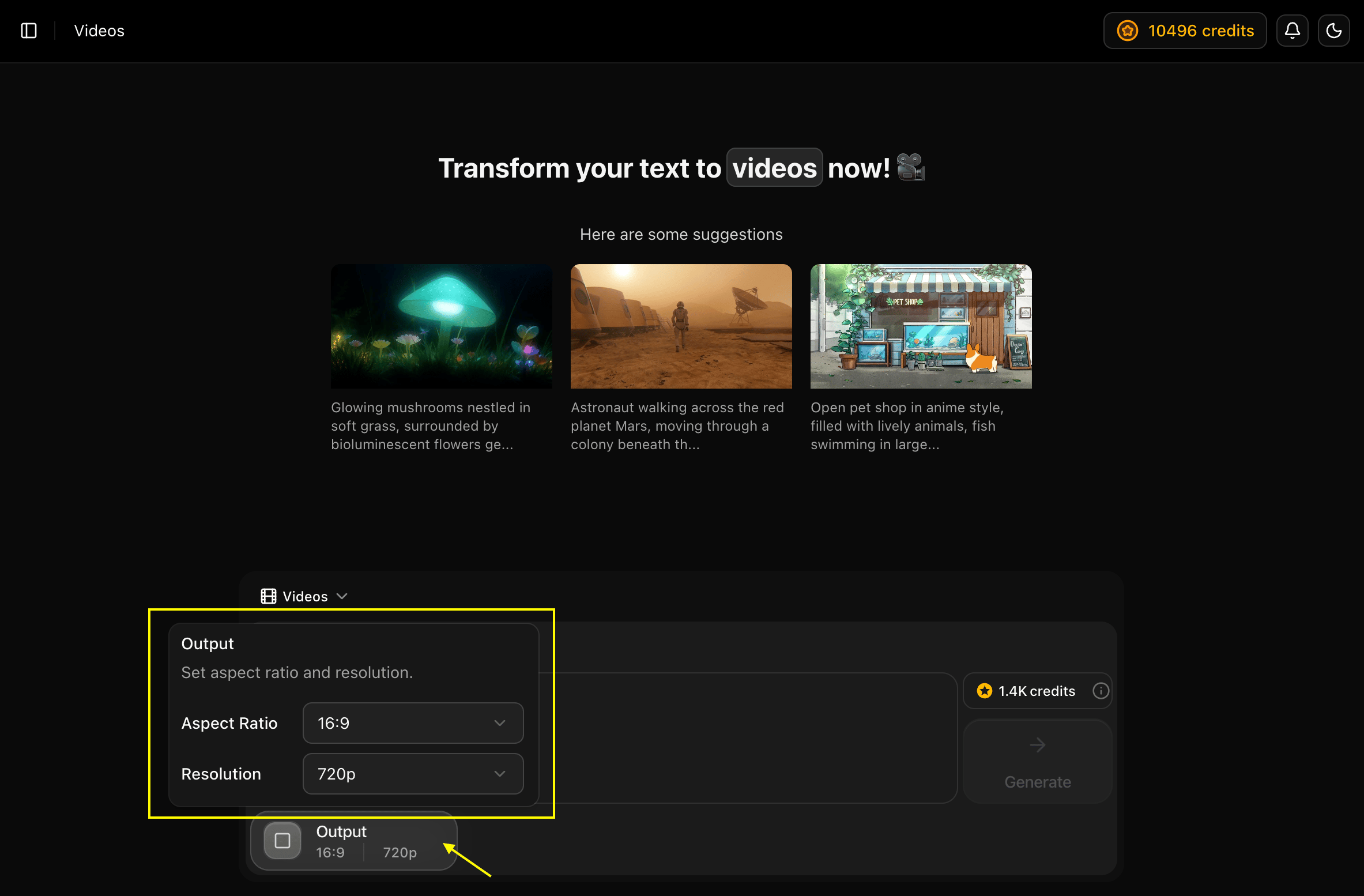
6
Download
Once your video is ready, save it to your device in high quality.
Next Steps
Veo 3.1 (Latest)
Our most advanced video model with enhanced realism and motion.
Text-to-Video Guide
Step-by-step instructions for creating video from text.
Image-to-Video Guide
Learn how to animate your photos using AI.
Prompt Guide
Master technical video prompting