

Quick Start
1
Navigate to Image Generator by Clicking on New Image
Go to the Image Generator tool in your Zoice dashboard by clicking on New Image.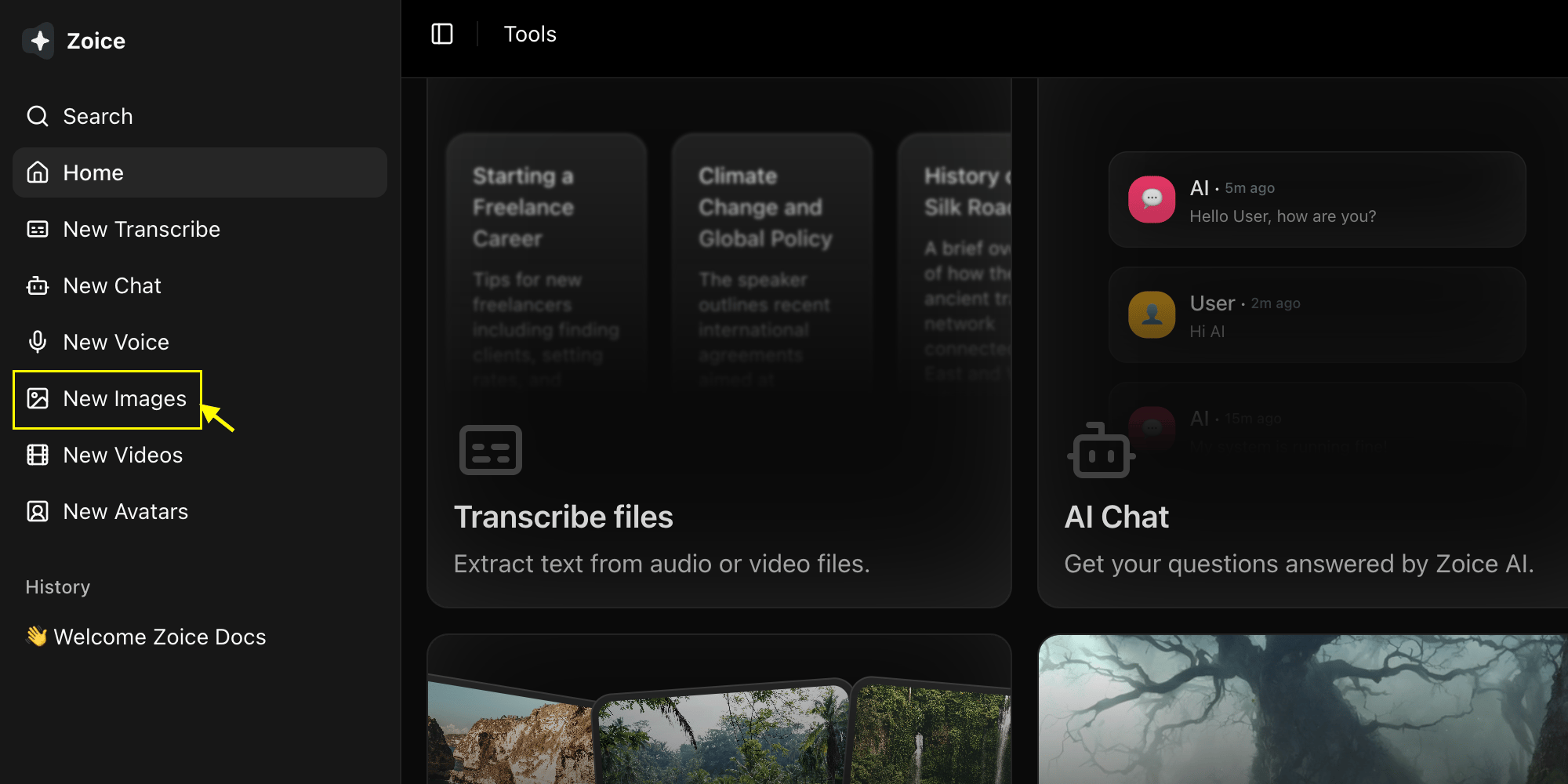
2
Select AI Model
Choose an AI model (Imagen 4 Fast, Nano Banana 2, etc.) from the model selector.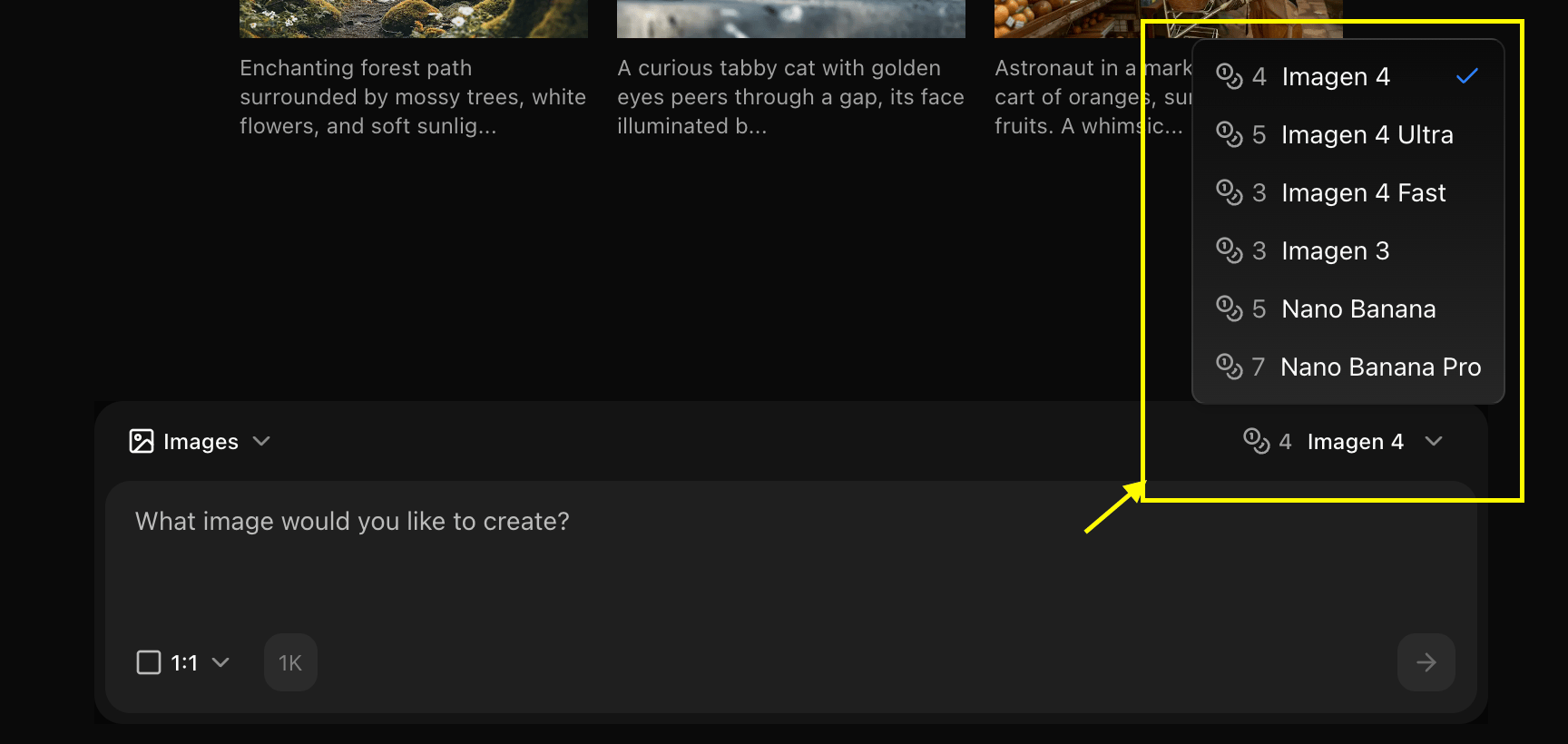
Nano Banana 2 model.3
Configure Settings
Set resolution, quality, and select text to image to get your idea into reality.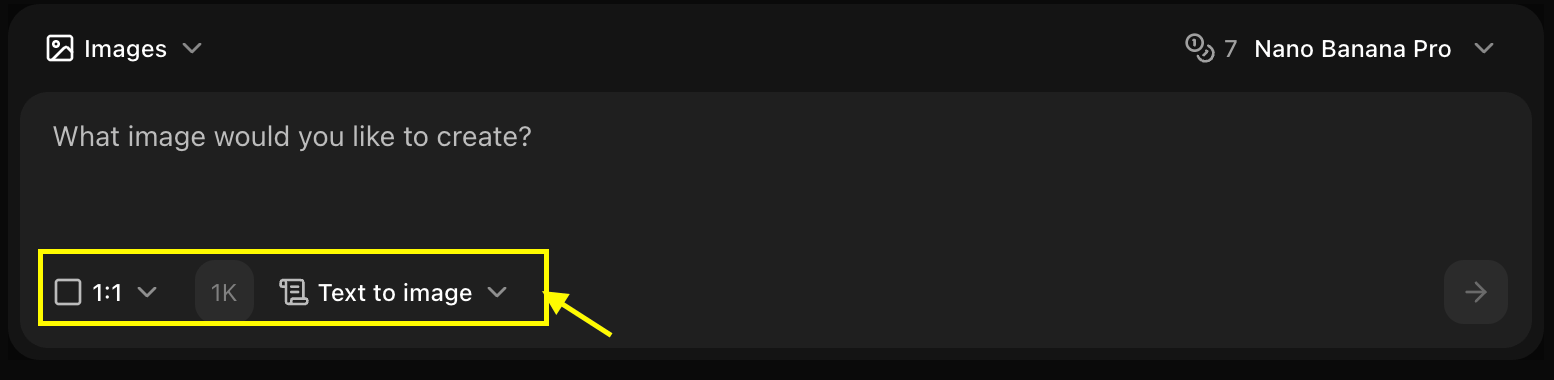
1:1 aspect ratio and Ultra quality with text to image mode.4
Write Your Prompt
Enter a detailed description of the image you want to create in the prompt box.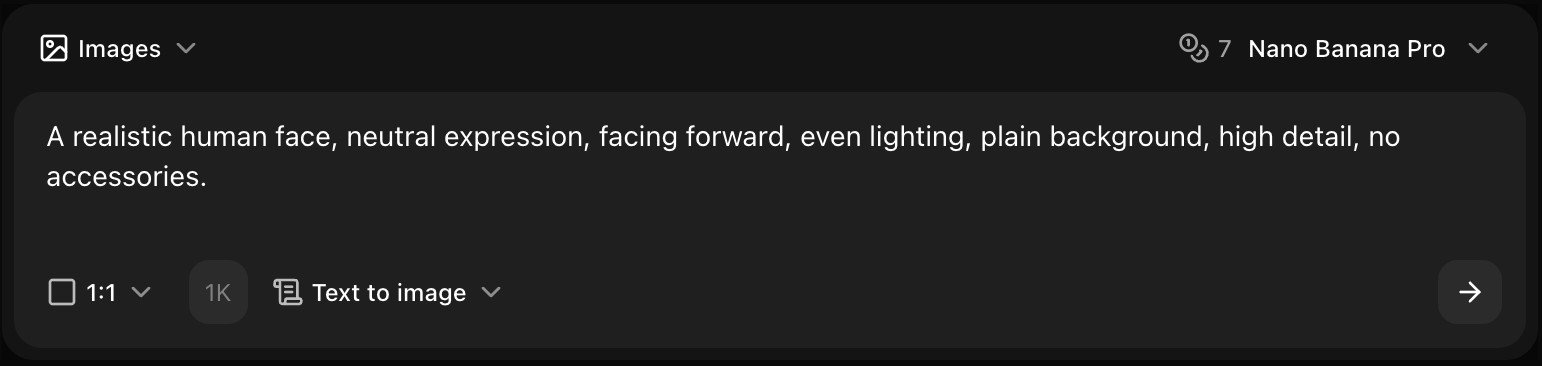
5
Generate
Click generate and wait few seconds for your image to be generated.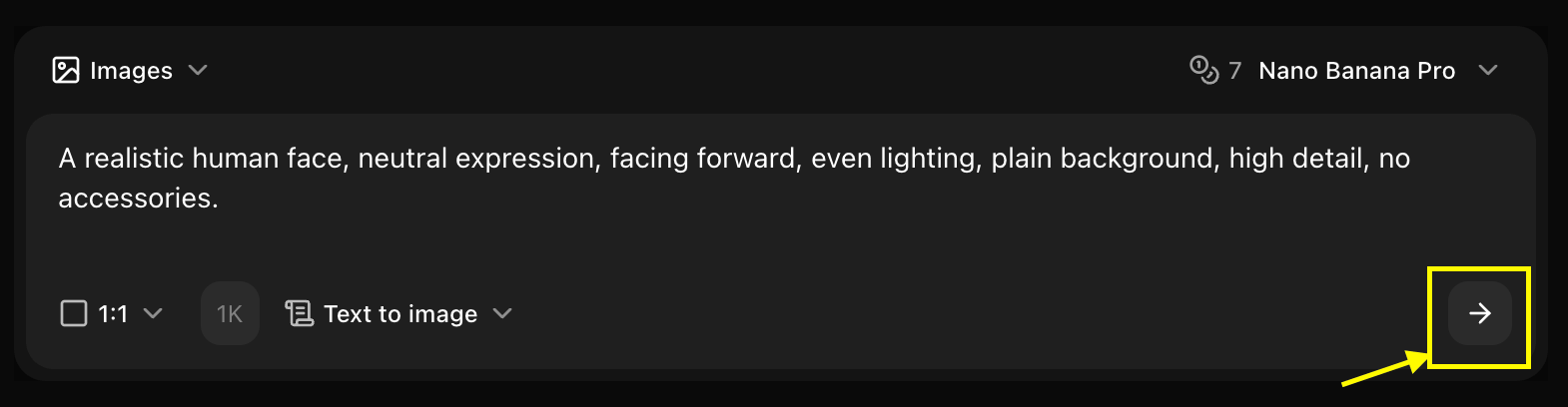
6
Download
Save your generated image
Writing Effective Prompts
Prompt Structure
A well-structured prompt typically includes:- Subject: What is the main focus?
- Style: What artistic style or aesthetic?
- Details: Colors, lighting, composition
- Quality: Resolution, detail level descriptors
Example Prompts
Generation Parameters
Resolution Options
- Standard: 1024x1024 (fastest)
- High: 1536x1536 (balanced)
- Ultra: 2048x2048 (highest quality)
Aspect Ratios
- Square: 1:1 (social media, profile pictures)
- Portrait: 3:4 or 9:16 (vertical content)
- Landscape: 16:9 or 4:3 (horizontal content)
- Wide: 21:9 (cinematic)
Advanced Settings
Guidance Scale
Guidance Scale
Controls how closely the AI follows your prompt
- Low (1-5): More creative, less literal
- Medium (6-10): Balanced interpretation
- High (11-15): Strict adherence to prompt
Seed
Seed
Use a specific seed number for reproducible results
- Leave blank for random generation
- Use same seed to recreate similar images
- Useful for iterating on a concept
Number of Images
Number of Images
Generate multiple variations
- 1-4 images per generation
- Each variation is unique
- Helps find the best result
Prompt Tips by Category
- Photography
- Art Styles
- 3D Renders
- Concepts
Key Elements:
- Camera type and lens
- Lighting conditions
- Composition style
- Depth of field
Common Use Cases
Marketing Assets
Create social media graphics, ad visuals, and promotional images
Product Mockups
Generate product concepts and visualization
Blog Headers
Create custom header images for articles
Concept Art
Develop visual concepts for projects
Troubleshooting
Image doesn't match prompt
Image doesn't match prompt
- Make your prompt more specific
- Increase guidance scale
- Try a different model
- Regenerate with variations
Low quality results
Low quality results
- Increase resolution setting
- Add quality keywords to prompt
- Use a higher-tier model
- Specify “detailed” or “sharp focus”
Unexpected elements
Unexpected elements
- Simplify your prompt
- Remove contradictory descriptions
- Be more explicit about what to exclude
- Try negative prompts if available
Next Steps
Image to Image
Transform existing images
Explore Models
Learn about different AI models
Prompt Guide
Master prompt engineering