

Quick Start
The AI analyzes your reference image to understand composition, style, colors, and subject matter, then generates a video that incorporates these elements while adding the motion and action described in your prompt.1
Navigate to New Video
Go to the Video Generator tool in your Zoice dashboard by clicking on New Video.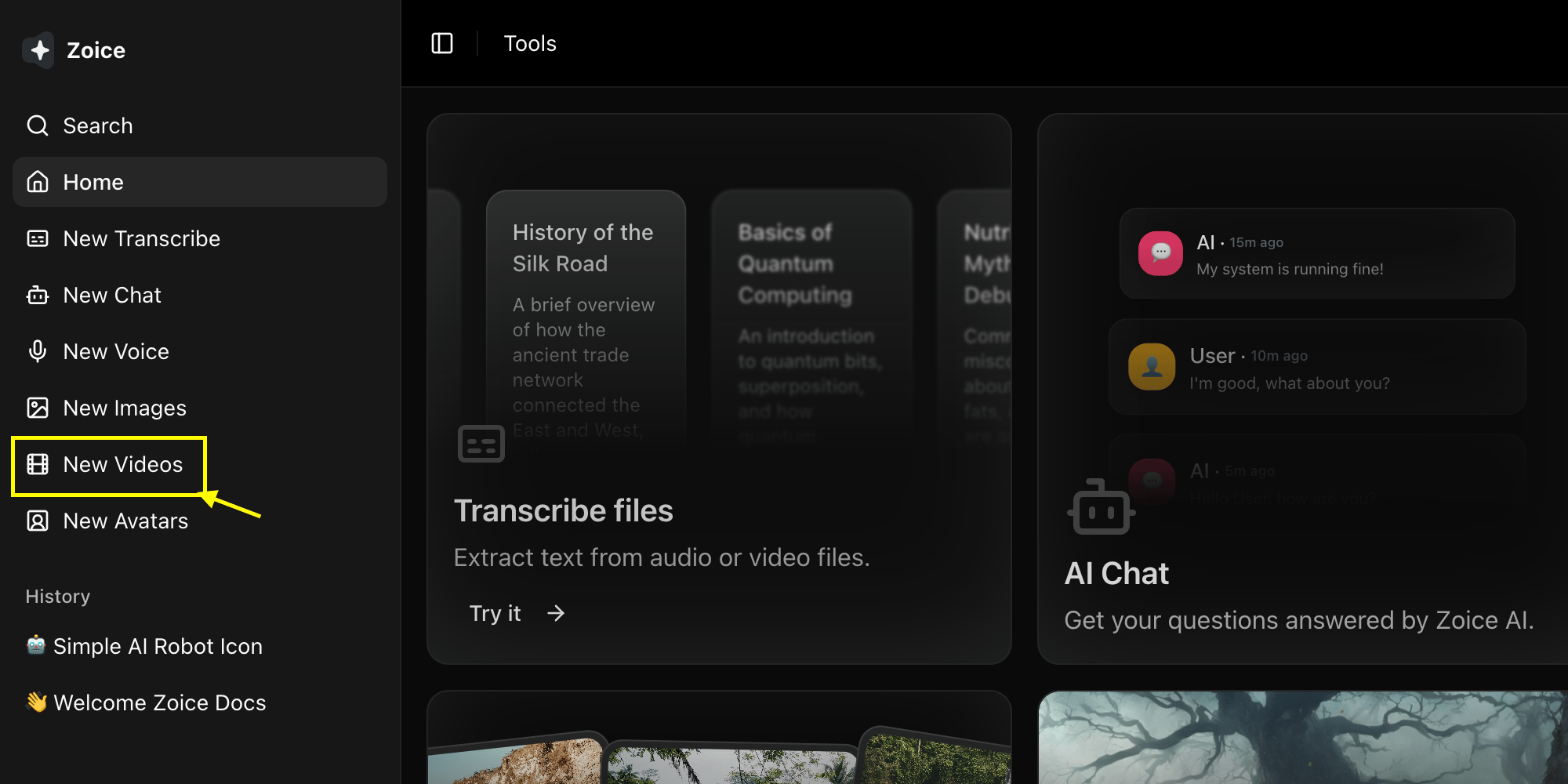
2
Select Model
Choose a Video model like Veo 3.0 or Veo 3.1 based on your project needs.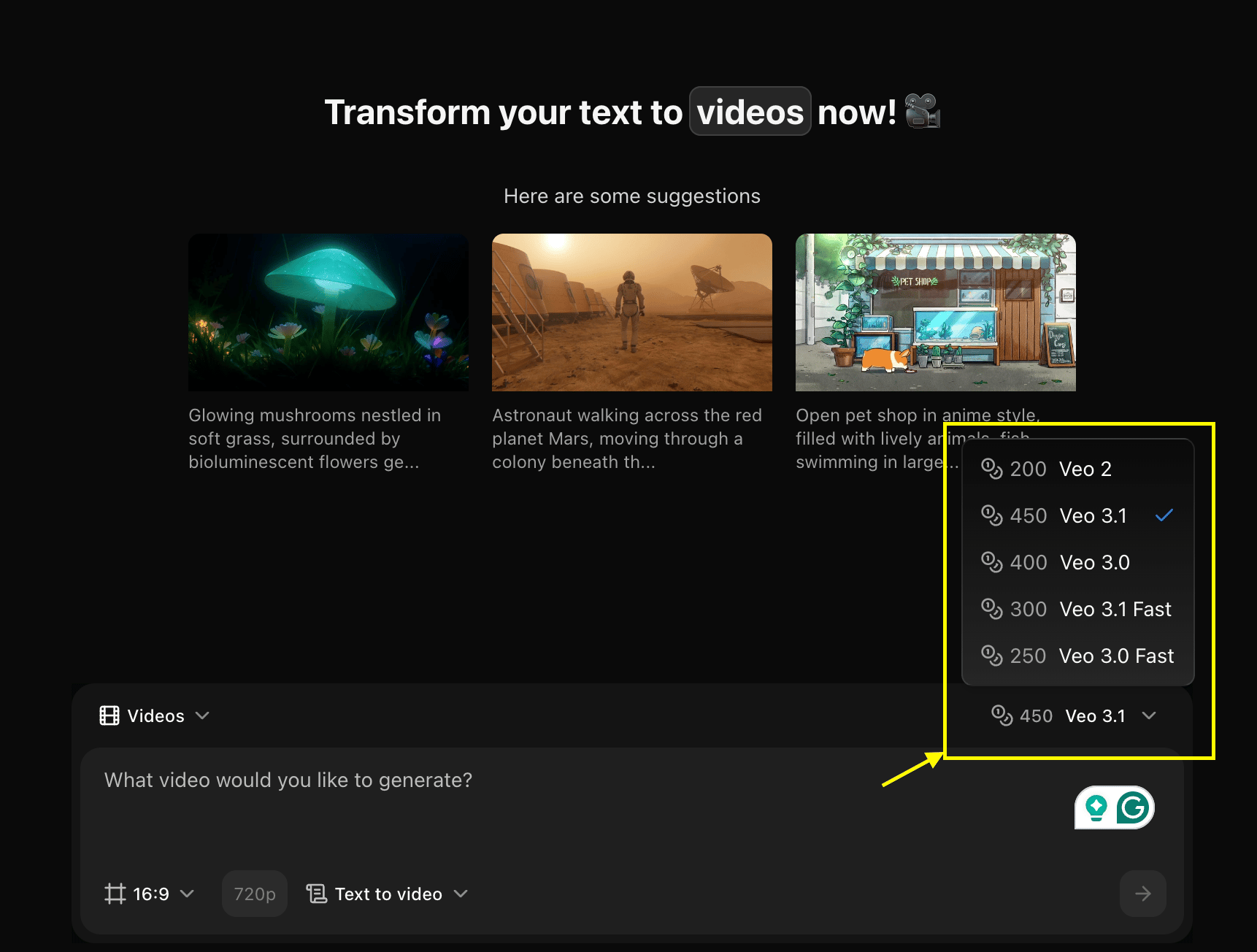
3
Configure Settings and Select Image Ref to Video Mode
Set dimensions, resolution, and choose Image Ref to Video mode.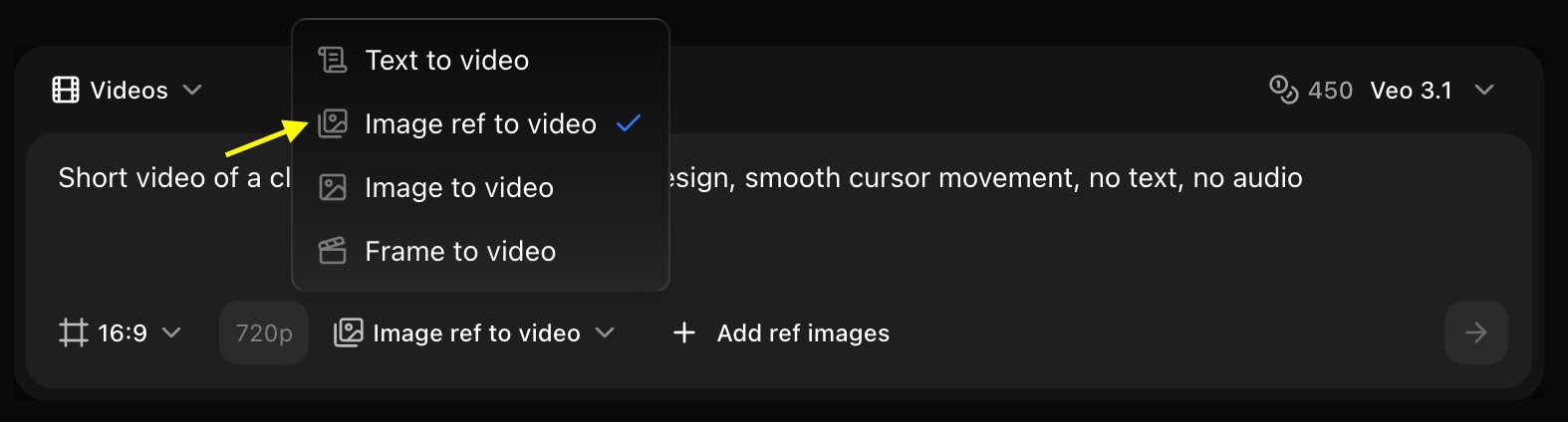
4
Add Reference Image
Click on Add Ref Images to select and upload the image you want to use as a base for your video.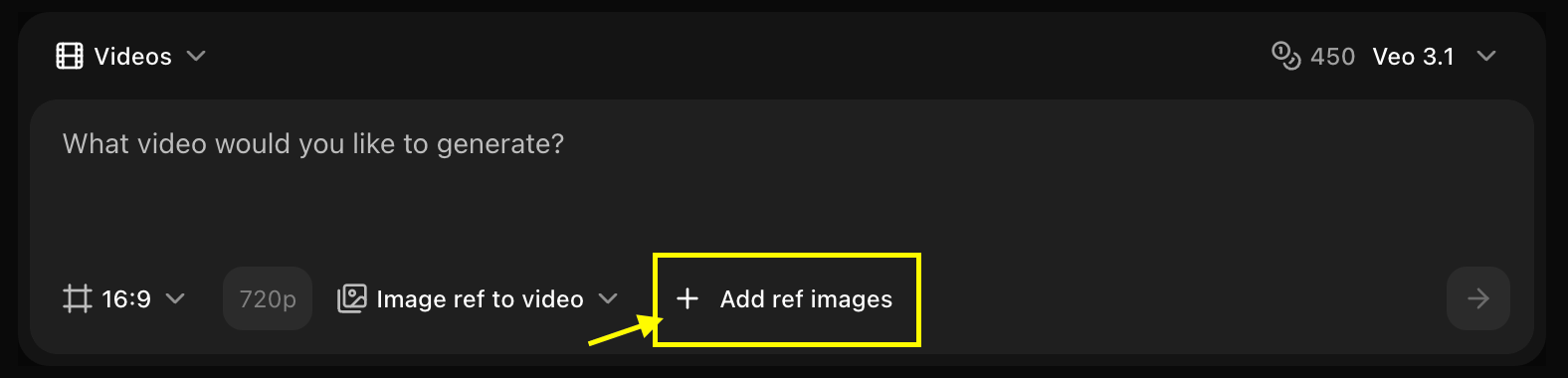
5
Write Your Text Prompt
Enter a detailed description of the scene and action you want the AI to generate based on your reference image.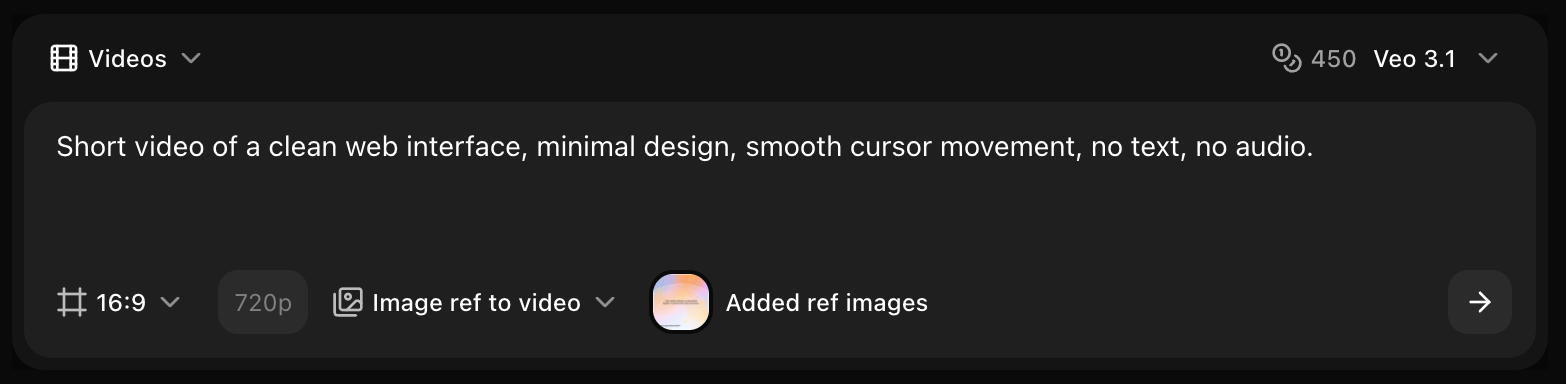
6
Click on Generate
Click on the Generate button to begin creating your video.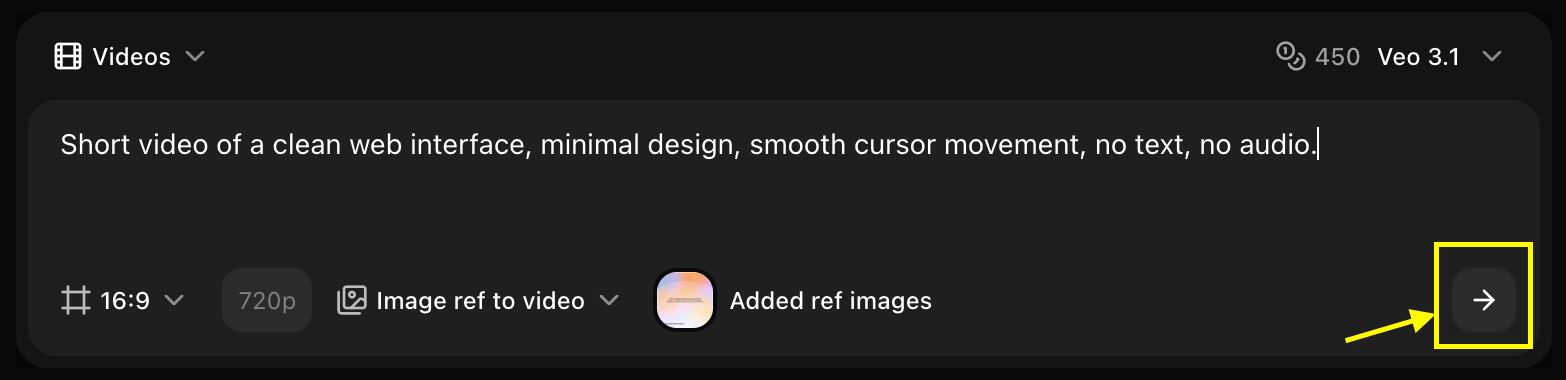
7
Download
Save your generated video.
Image Requirements
Technical Specifications
- Formats: JPG, PNG, WebP
- Max Size: 10MB
- Recommended Resolution: 1024x1024 or higher
- Aspect Ratio: Match your desired video aspect ratio
Content Guidelines
- Clear, well-composed images work best
- Good lighting and focus
- Relevant to the video you want to create
- High quality produces better results
Reference Influence Strength
Control how much the video follows the reference image:- Low (0.2-0.4)
- Medium (0.5-0.7)
- High (0.8-1.0)
Loose Inspiration
- General style guidance
- Color palette reference
- Mood and atmosphere
- More creative freedom
- Style inspiration
- Color scheme reference
- General aesthetic guidance
Use Cases
Animate Static Images
Bring photos and artwork to lifeStyle-Matched Videos
Create videos matching a specific visual styleScene Recreation
Recreate scenes with motionWriting Effective Prompts
Prompt Structure
When using reference images, your prompt should focus on:- Motion/Action: What should move and how
- Camera Work: How the camera should move
- Preservation: What to keep from the reference
- Additions: New elements to add
Example Prompts
Best Practices
Image Selection
Image Selection
- Use high-quality reference images
- Match aspect ratio to desired video
- Choose images with clear subjects
- Ensure good lighting and composition
Prompt Writing
Prompt Writing
- Describe motion clearly
- Specify what to preserve from reference
- Include camera movement details
- Mention style consistency
Strength Adjustment
Strength Adjustment
- Start with medium strength (0.6)
- Increase for closer matching
- Decrease for more creative freedom
- Test different values
Common Scenarios
Photo to Video
Animate photographs with subtle motion
Concept Art
Bring concept art and illustrations to life
Product Showcase
Create product videos from product photos
Style Transfer
Generate videos in specific artistic styles
Advanced Techniques
Layered Motion
Describe different motion for different elements:Temporal Consistency
For character or product consistency across multiple videos:- Use same reference image
- Keep similar strength settings
- Maintain consistent prompt structure
- Use same model for all generations
Hybrid Approach
Combine reference image with detailed text descriptions:Comparison: Text-Only vs Image Reference
Troubleshooting
Video doesn't match reference
Video doesn't match reference
- Increase reference strength
- Simplify motion prompt
- Use higher quality reference image
- Mention “maintain reference style” in prompt
Too similar to static image
Too similar to static image
- Decrease reference strength
- Add more dynamic motion descriptions
- Increase motion intensity setting
- Use more active verbs in prompt
Inconsistent style
Inconsistent style
- Increase reference strength
- Use clearer reference image
- Simplify the prompt
- Try different model
Next Steps
Text to Video
Create videos without reference images
Images to Video
Create videos from multiple images
Video Models
Explore different AI models