

Overview
Images-to-Video allows you to create video content by combining multiple images into a single video sequence. Perfect for slideshows, transitions, storytelling, or creating videos from image sequences.How It Works
Upload multiple images and Zoice will combine them into a video, with options for transitions, timing, and effects. You can also add AI-generated transitions and motion between images.Quick Start
1
Navigate to New Video
Go to the Video Generator tool in your Zoice dashboard by clicking on New Video.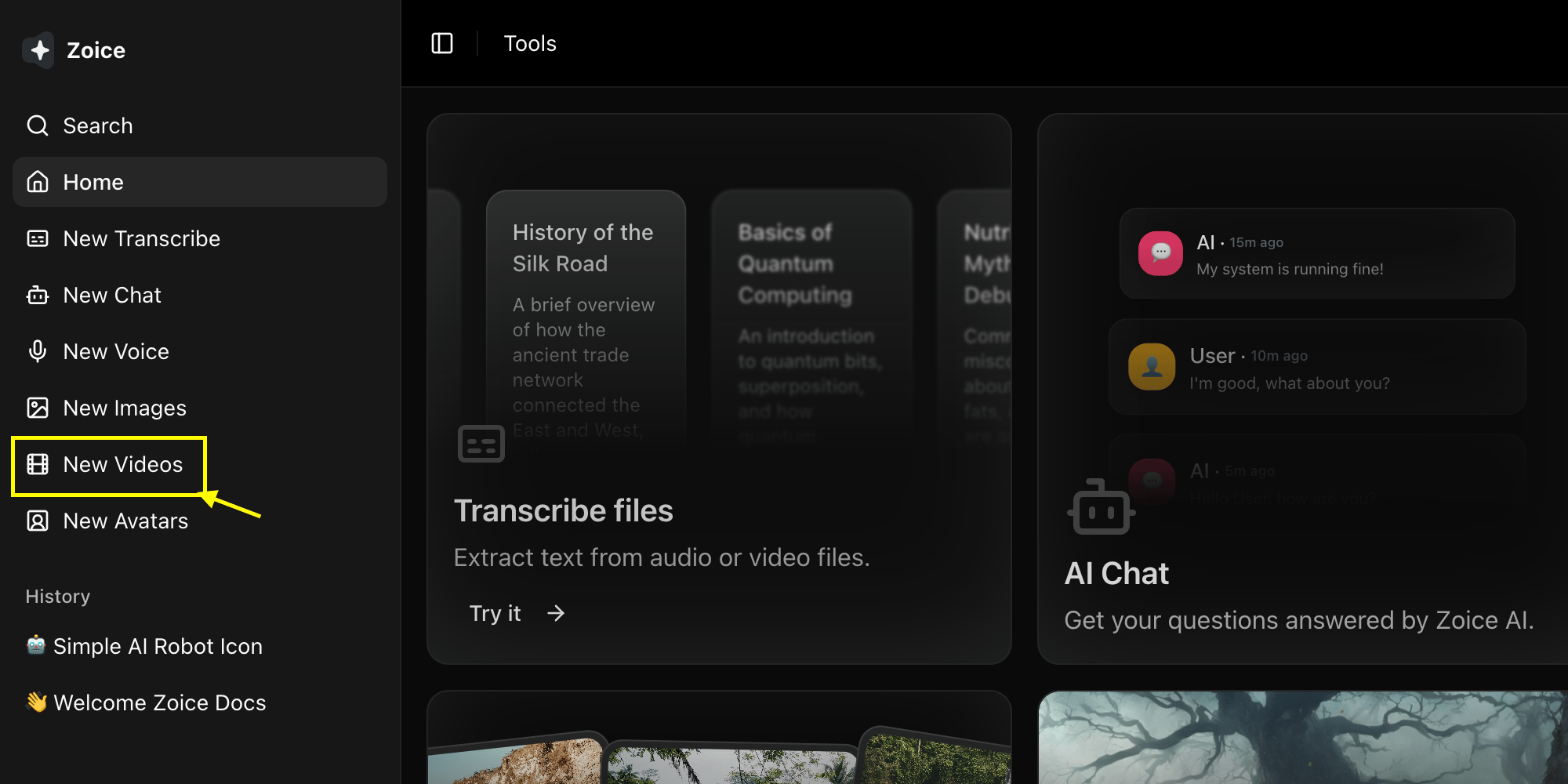
2
Select Model
Choose a Video model like Veo 3.0 or Veo 3.1 based on your project needs.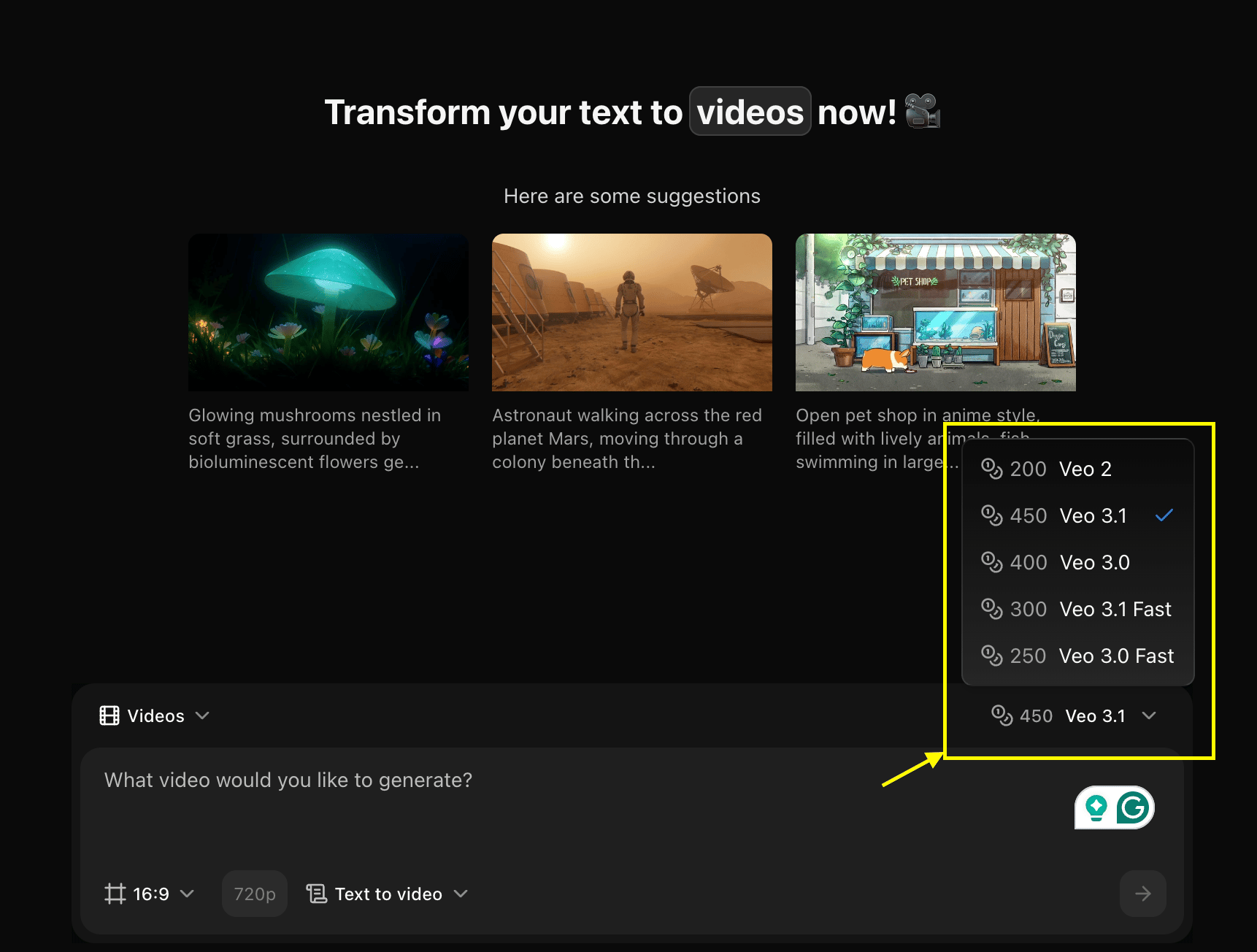
3
Configure Settings and Select Images to Video Mode
Set dimensions, resolution, and choose Images to Video mode.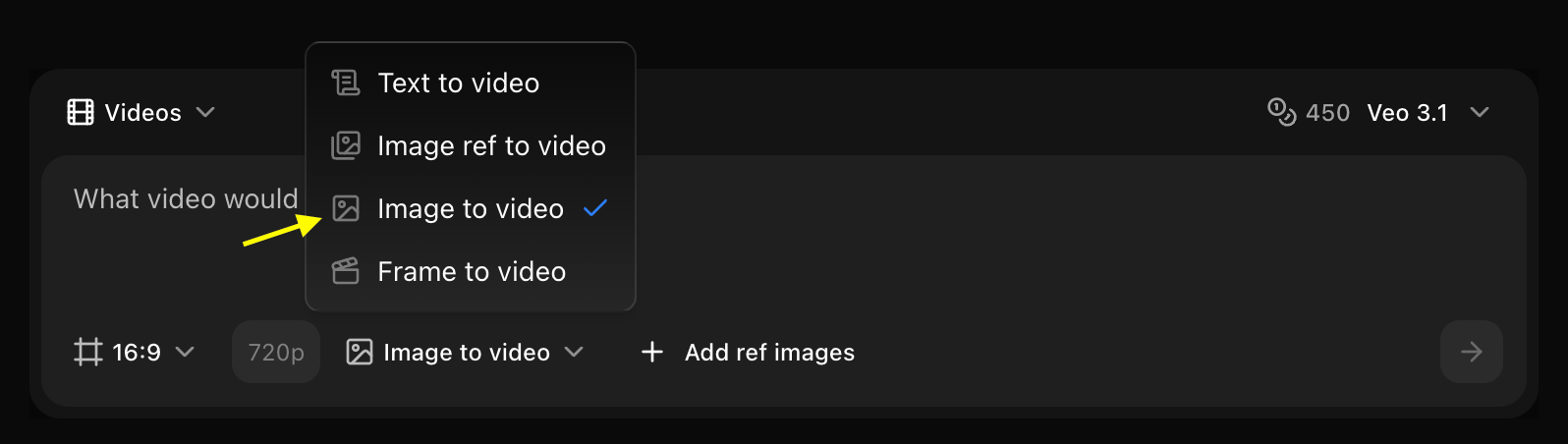
4
Add Reference Images
Click on Add Ref Images to select and upload the images you want to use for your video.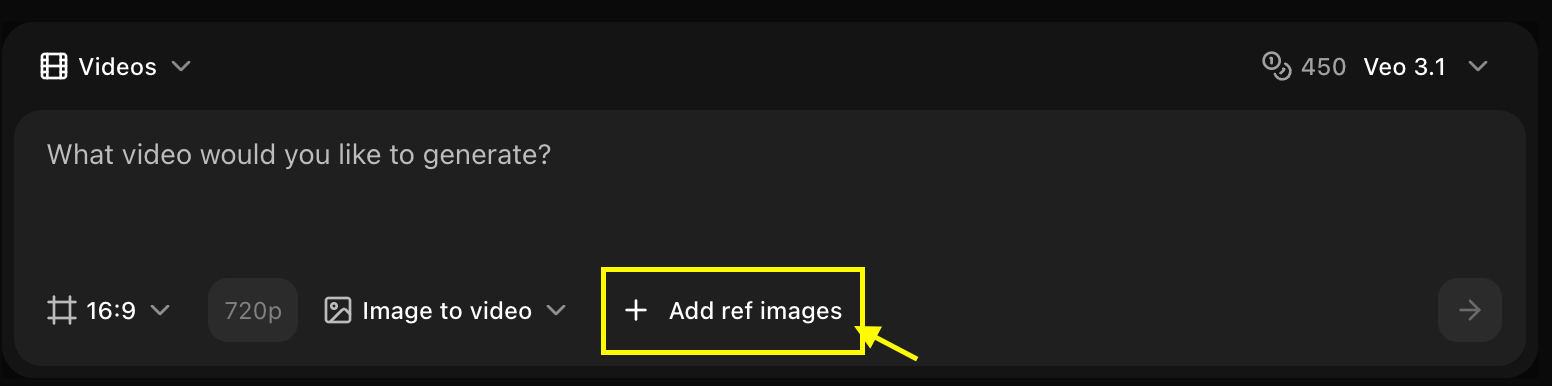
5
Write Your Text Prompt
Enter a detailed description of the motion or transitions you want the AI to create between your images.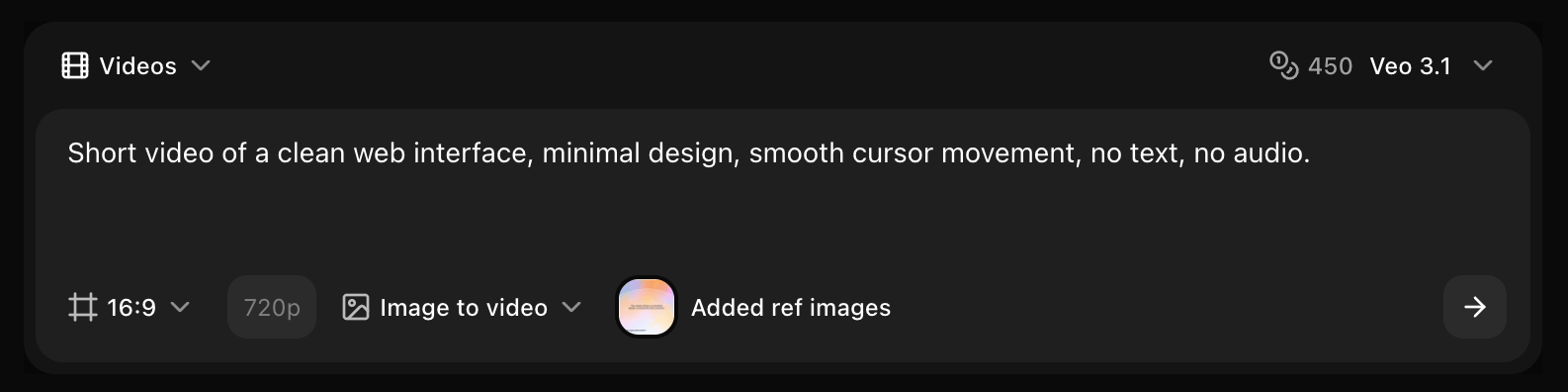
6
Click on Generate
Click on the Generate button to begin creating your video.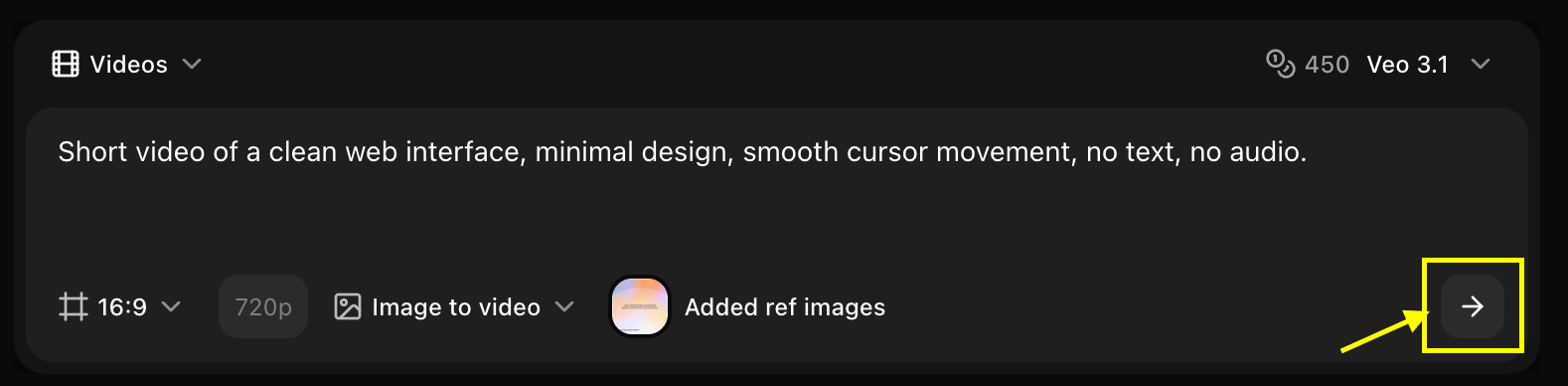
7
Download
Save your generated video.
Ref Image Requirements
Technical Specifications
- Number of Images: 2-10 images per video
- Formats: JPG, PNG, WebP
- Max Size: 10MB per image
- Recommended Resolution: 1920x1080 or higher
- Aspect Ratio: Consistent across all images recommended
Content Guidelines
- Related images work best for cohesive videos
- Similar lighting and style create smoother transitions
- Consistent aspect ratios prevent cropping
- High-quality images produce better results
Transition Styles
- Cut
- Fade
- Slide
- AI Morph
Instant Transition
- Direct cut between images
- No transition effect
- Fast-paced, dynamic
- Best for: Quick slideshows, montages
Timing Settings
Per-Image Duration
- Fast: 1-2 seconds per image
- Medium: 3-4 seconds per image
- Slow: 5-6 seconds per image
- Custom: Set individual timing for each image
Transition Duration
- Quick: 0.3-0.5 seconds
- Standard: 0.8-1.0 seconds
- Slow: 1.5-2.0 seconds
Motion Effects
Add dynamic movement to static images:Ken Burns Effect
Ken Burns Effect
Slow zoom and pan across images
- Creates cinematic feel
- Adds depth to static images
- Customizable zoom direction
- Adjustable speed
Parallax
Parallax
Layered movement effect
- Creates depth perception
- Works best with foreground/background
- Subtle 3D effect
- Modern, dynamic look
Zoom
Zoom
Zoom in or out on images
- Emphasizes subjects
- Creates focus
- Smooth or dramatic
- Directional options
Pan
Pan
Horizontal or vertical camera movement
- Reveals image gradually
- Works well with wide images
- Smooth scrolling effect
- Customizable direction
Use Cases
Slideshow Presentations
Create professional presentations from imagesProduct Showcases
Display multiple product anglesBefore/After Comparisons
Show transformations or progressStorytelling Sequences
Create narrative from image seriesBest Practices
Image Selection
Image Selection
- Choose related images that tell a story
- Maintain consistent quality across images
- Use similar color palettes for cohesion
- Order images logically
Transition Selection
Transition Selection
- Match transition style to content
- Use AI Morph for creative projects
- Keep it simple for professional content
- Consistent transitions throughout
Timing Optimization
Timing Optimization
- Allow enough time to view each image
- Match pace to content type
- Vary timing for emphasis
- Consider viewer reading time if text present
Effects Usage
Effects Usage
- Don’t overuse effects
- Match effect intensity to style
- Use Ken Burns for static scenes
- Keep movements subtle for professional look
Advanced Features
Custom Sequencing
Control the exact order and timing:- Upload all images
- Drag to reorder
- Set individual durations
- Choose transition for each pair
- Preview and adjust
Audio Integration
Add background music or narration:- Upload audio file
- Auto-sync to video length
- Fade in/out options
- Volume control
Text Overlays
Add captions or titles:- Text on each image
- Customizable fonts and colors
- Animation options
- Position control
Common Scenarios
Portfolio
Showcase work with smooth transitions
Travel Videos
Combine travel photos into video
Event Recap
Create event highlights from photos
Product Demo
Show product from multiple angles
Tips for Different Content Types
Photography Portfolios
- Use fade transitions
- 4-5 seconds per image
- Subtle Ken Burns effect
- Consistent pacing
Product Catalogs
- Slide transitions
- 3 seconds per image
- Slight zoom on product
- Clean, professional
Event Highlights
- Mix of cuts and fades
- Variable timing (2-4 seconds)
- Dynamic effects
- Energetic pacing
Educational Content
- Simple transitions
- Longer duration (5-6 seconds)
- Minimal effects
- Clear, focused
Troubleshooting
Inconsistent quality
Inconsistent quality
- Use images of similar resolution
- Ensure all images are high quality
- Match aspect ratios
- Avoid mixing portrait and landscape
Jarring transitions
Jarring transitions
- Increase transition duration
- Use softer transition styles
- Ensure images are related
- Reduce motion effects
Video too short/long
Video too short/long
- Adjust per-image duration
- Add or remove images
- Modify transition lengths
- Use custom timing
Export Options
- Resolution: 720p, 1080p, or 4K
- Format: MP4 (H.264)
- Frame Rate: 24, 30, or 60 fps
- Quality: Standard, High, or Maximum
Next Steps
Frame to Video
Create videos from frame sequences
Image Ref to Video
Use single image as reference
Text to Video
Generate videos from text prompts