

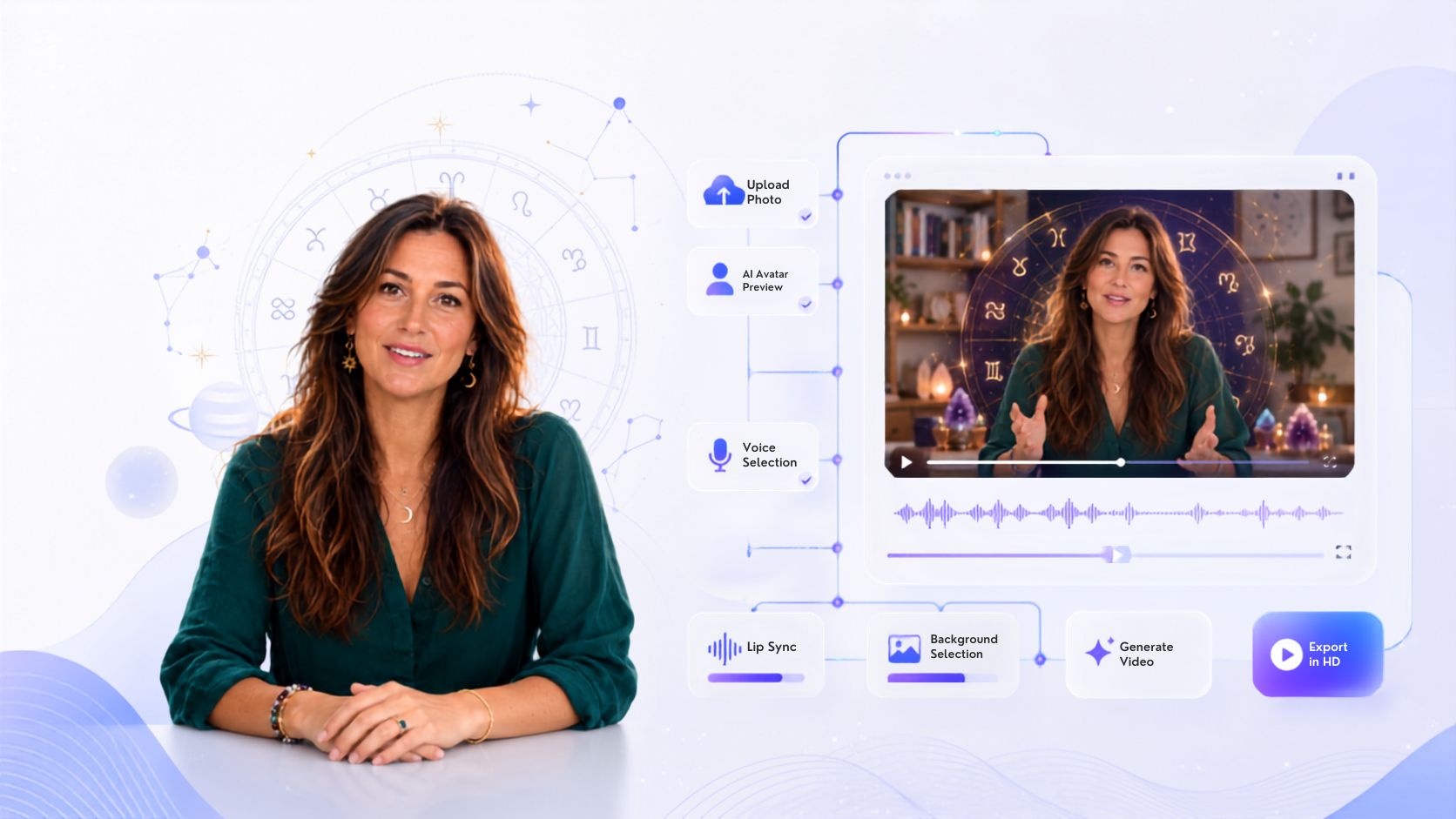
 Astrology and spiritual guidance content is highly engaging, and creating it is now easier with artificial intelligence. Content creators, astrologers, and wellness brands use AI videos to share daily horoscopes, zodiac insights, and cosmic updates faster.
Traditionally, creating these videos required filming setups, mystical backdrops, recording equipment, and editing. This process took significant time, especially when creating daily content for all twelve zodiac signs.
AI avatar technology makes this process easier by allowing you to create realistic astrologer videos from a simple script. Instead of recording yourself, you can create a digital cosmic guide that delivers readings with natural speech, expressive facial movements, and an engaging presence.
Whether you want to create daily horoscopes, tarot reading explanations, or spiritual wellness content, AI avatars help you produce professional videos without complicated production setups.
In this article, you will learn how to create AI astrologer videos using Zoice by following a complete step-by-step process.
Astrology and spiritual guidance content is highly engaging, and creating it is now easier with artificial intelligence. Content creators, astrologers, and wellness brands use AI videos to share daily horoscopes, zodiac insights, and cosmic updates faster.
Traditionally, creating these videos required filming setups, mystical backdrops, recording equipment, and editing. This process took significant time, especially when creating daily content for all twelve zodiac signs.
AI avatar technology makes this process easier by allowing you to create realistic astrologer videos from a simple script. Instead of recording yourself, you can create a digital cosmic guide that delivers readings with natural speech, expressive facial movements, and an engaging presence.
Whether you want to create daily horoscopes, tarot reading explanations, or spiritual wellness content, AI avatars help you produce professional videos without complicated production setups.
In this article, you will learn how to create AI astrologer videos using Zoice by following a complete step-by-step process.
What Are AI Astrologer Videos?
AI astrologer videos are cosmic or spiritual guidance videos created using artificial intelligence tools. These videos use AI avatars, mystical AI voices, and video generation technology to explain astrological events in a captivating way. Instead of a real person recording every reading, an AI avatar acts as your virtual astrologer and delivers your prepared script. For example, you can create an AI avatar video explaining: “Welcome, Leo. Here is your daily horoscope for today” or “What the upcoming Mercury Retrograde means for your sign” The AI avatar reads the script naturally, creating a professional and immersive video that your audience can connect with.How to Create an AI Astrologer Video Using Zoice
Creating astrologer videos with an AI avatar is simple. Follow the steps below to create a professional video.Step 1: Visit Zoice.com and Click Sign In
Go to Zoice.com in your browser and click the Sign In button available at the top-right corner of the homepage. This will open the login page where you can access your Zoice account.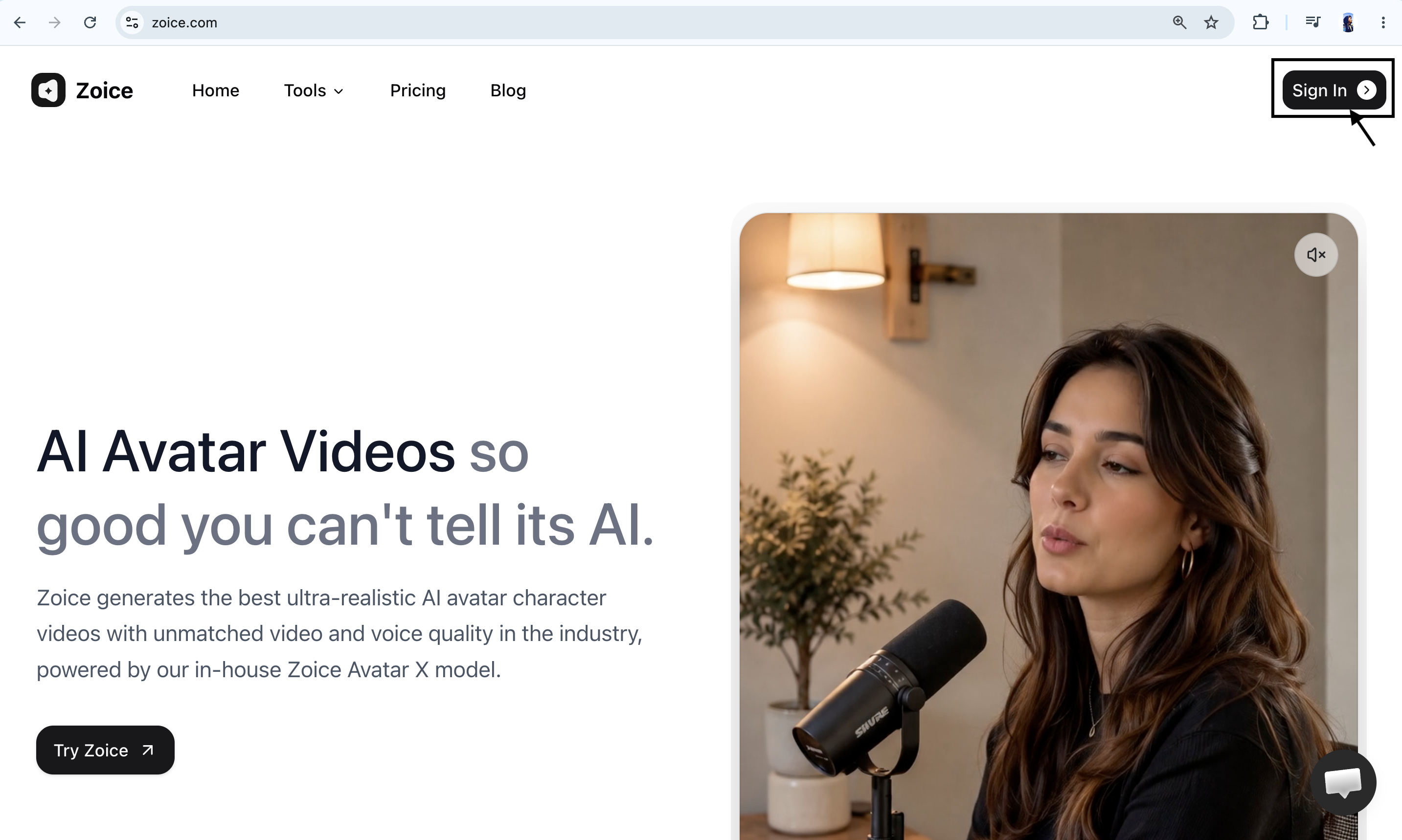
Step 2: Sign In to Your Zoice Account
If you already have a Zoice account, enter your registered email address and password, then click Sign In. You can also choose Sign in with Google if your account is connected with Google. After successfully signing in, you will be redirected to the Zoice dashboard.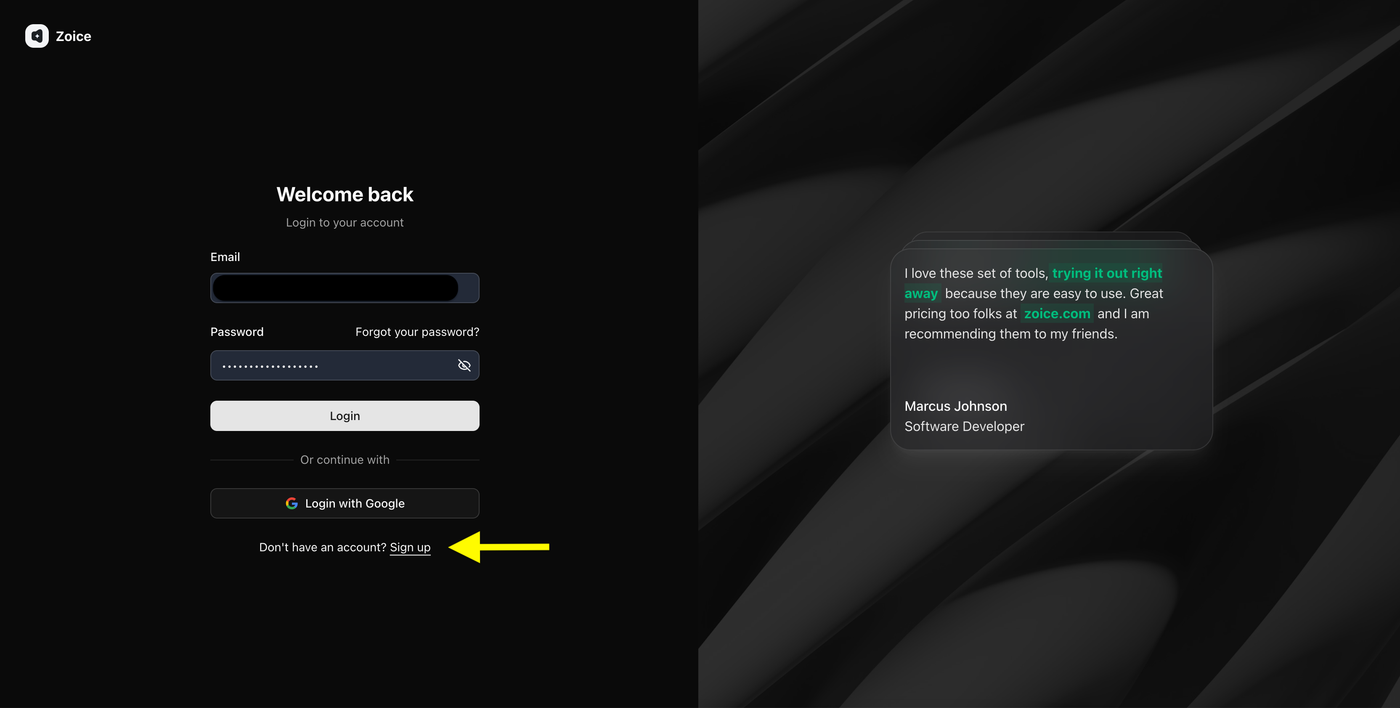
Step 3: Create a New Zoice Account (For New Users)
If you are using Zoice for the first time, click Sign Up to create a new account.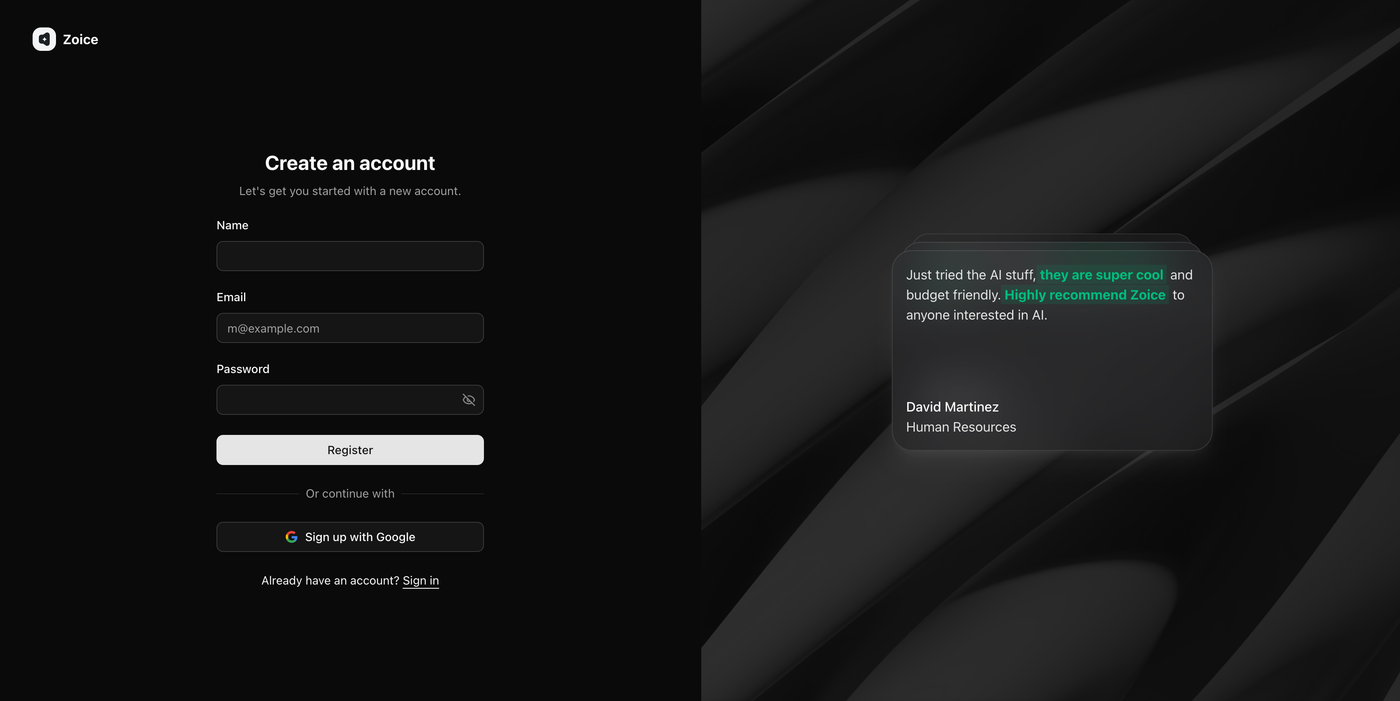 Enter the required details:
- Name
- Email address
- Password
Step 4: Navigate to Avatar Characters
After logging in, you will reach the Zoice dashboard. From the left sidebar, click Avatar Characters under the Manage section.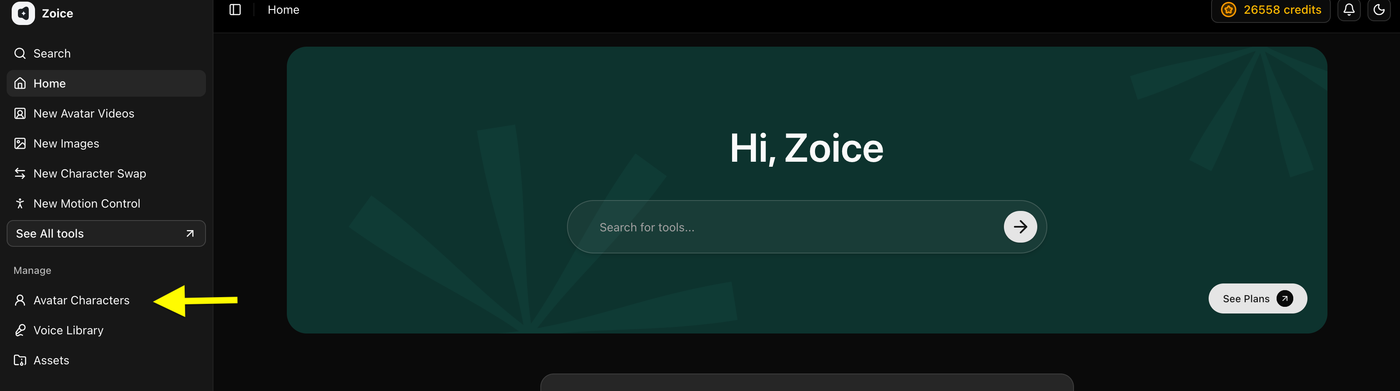 This section allows you to create, customize, and manage AI avatars that you can use for astrology readings, spiritual content, and other AI-generated videos.
Step 5: Click Create New Avatar
On the Avatar Characters page, click the Create New button to start creating your custom AI astrologer avatar.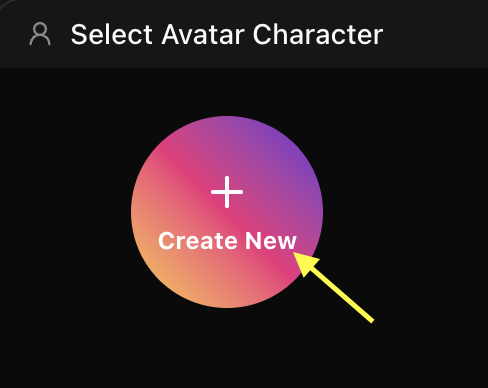 This will open the avatar creation page where you can create your avatar by uploading an image or generating one using an AI prompt.
Step 6A: Create Your Avatar Using an Image (Go to step 6B if you don’t have an image)
Upload a clear, high-quality image of a mystic or spiritual presenter that you want to convert into an AI avatar. Add an avatar name so you can easily identify it later in your avatar library.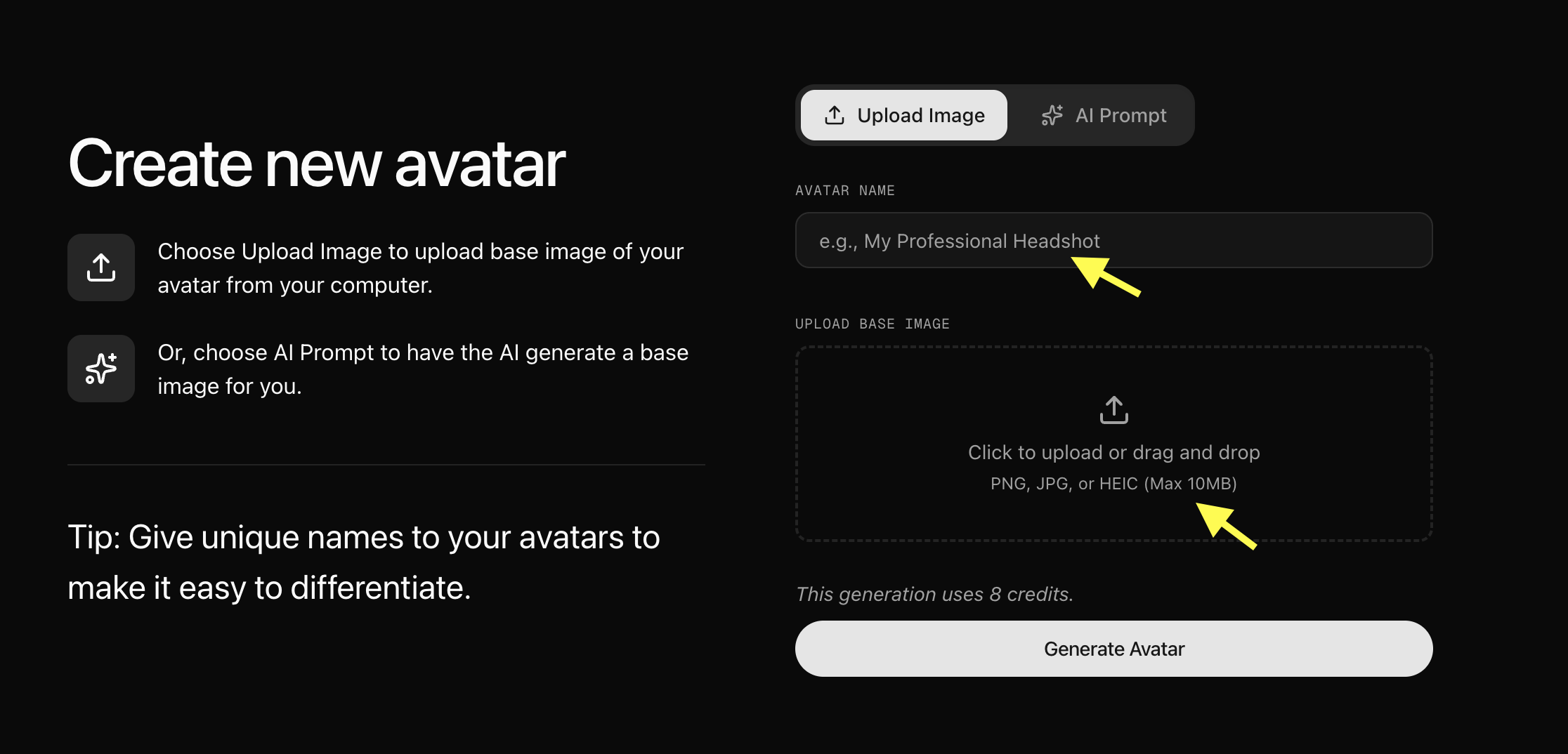 For better results, use an image with:
- Clear face visibility
- Good lighting
- Front-facing angle
- High image quality
Step 6B: Generate Avatar Using AI Prompt (Skip if you uploaded an image)
If you don’t have an image, select the AI Prompt option to create an avatar using text description. Enter an Avatar Name, describe the type of astrologer avatar you want (for example: “A mystical astrologer in starry robes, sitting before a glowing crystal ball, cosmic background”), and click Generate Image. Once you are happy with the generated image, click Generate Avatar.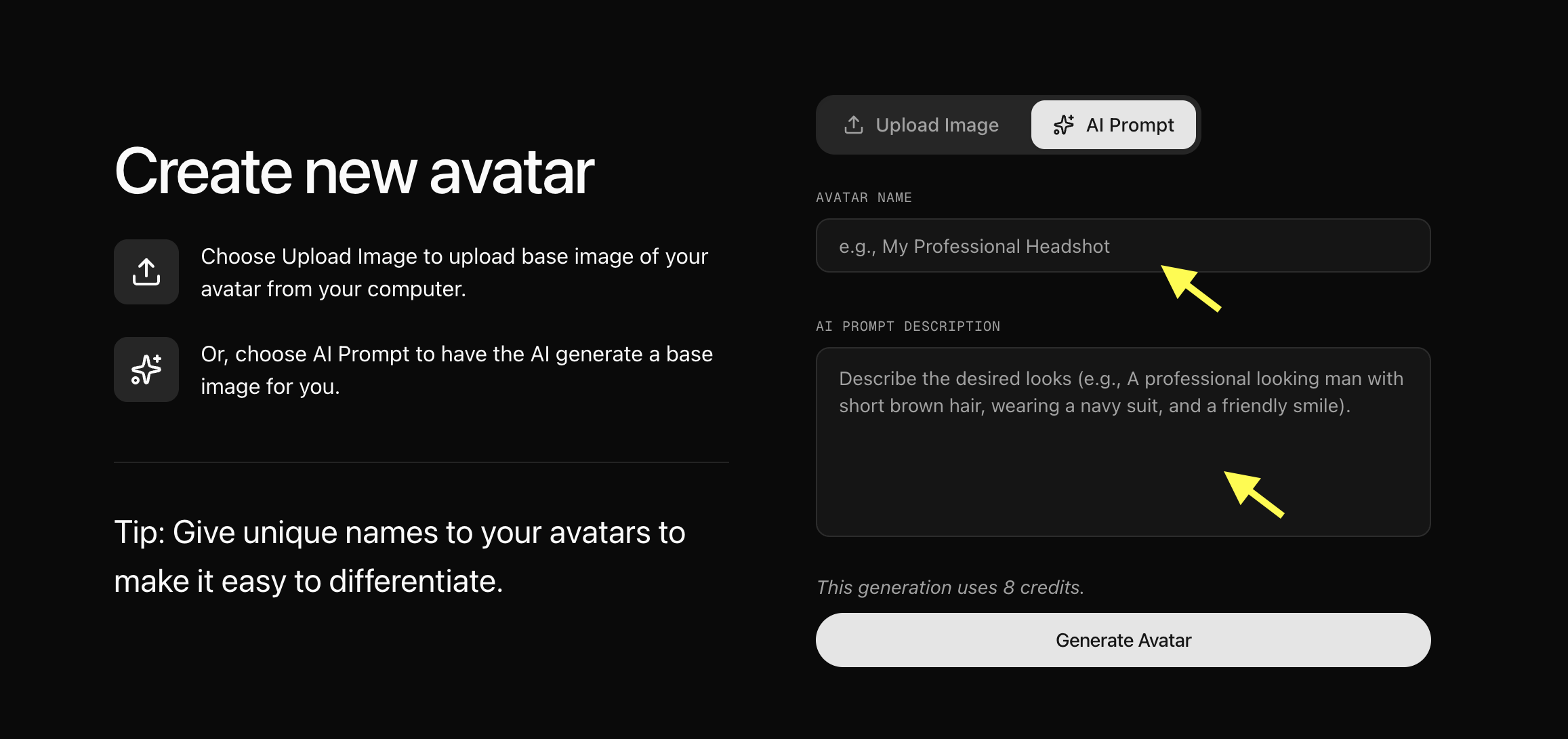
Step 7: Upload Your Avatar Image and Generate Avatar
Now upload the image you want to convert into an AI astrologer avatar. Add a unique Avatar Name so you can easily find and manage your avatar later, and click Generate Avatar. Zoice will process your image and create your AI avatar profile.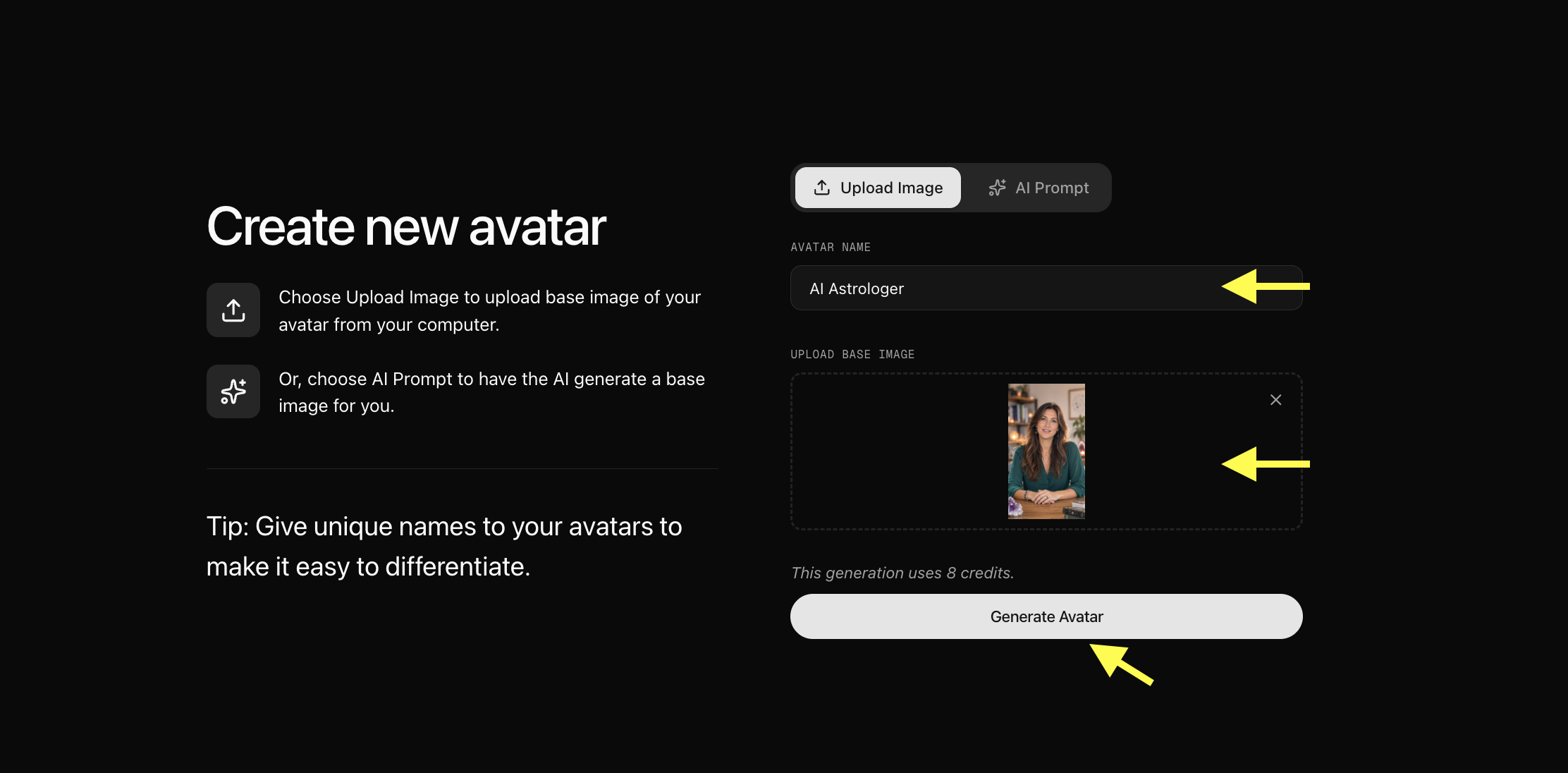 Note: The images referenced are examples; your interface will reflect your uploaded astrologer image.
Step 8: Select Your Created Avatar
After your AI avatar profile is generated, go back to the Avatar Characters section. Your newly created avatar will appear in the avatar library. Click on the avatar you created to select it.Step 9: Click On Avatar Settings (Optional)
Update your avatar basic settings like name, age, gender, and Ethnicity. Also, choose the voice for your avatar.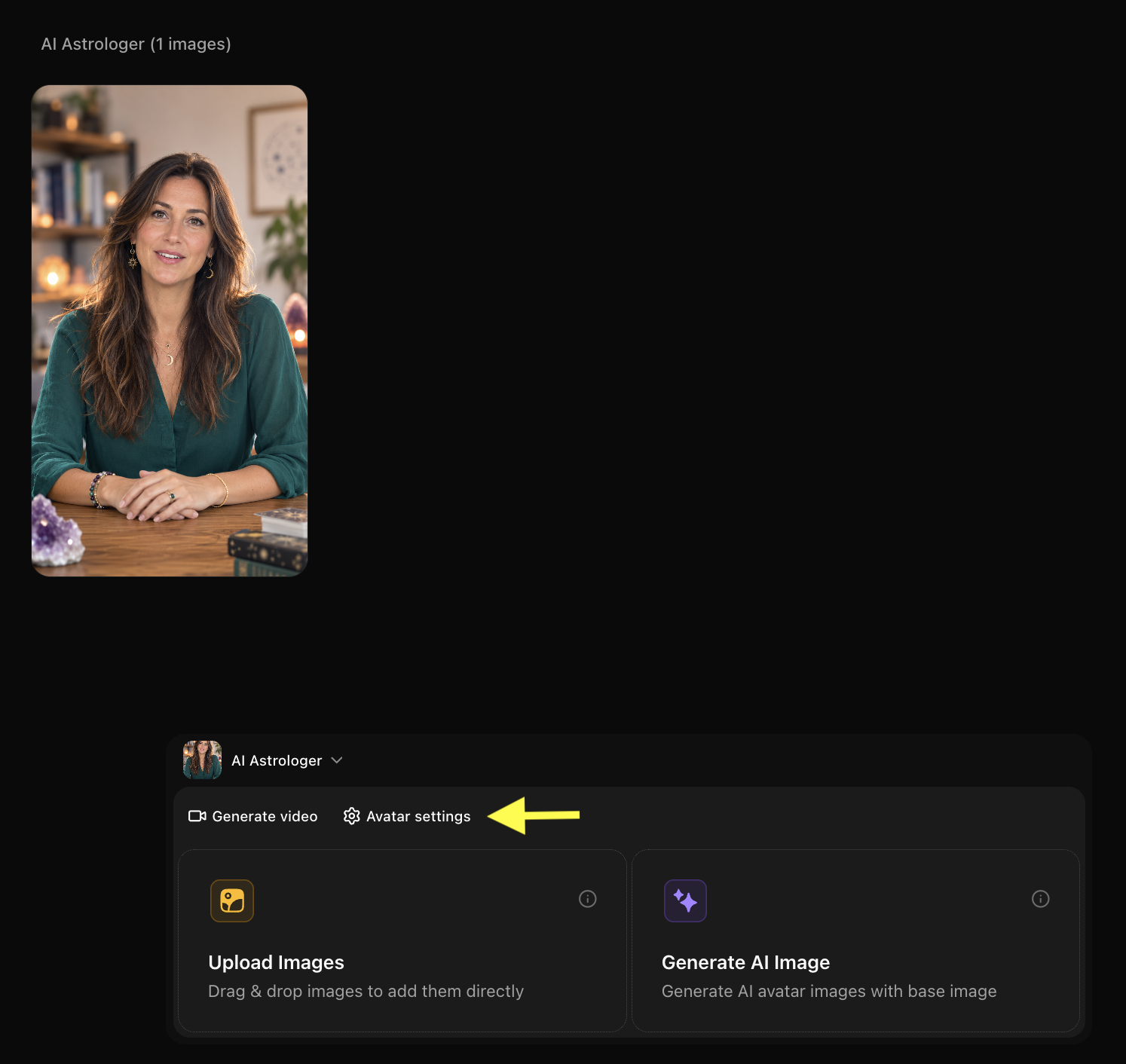
Step 10: Click Generate Video
After selecting the avatar you want to use for your video from the library, click Generate Video to open the video creation workspace page.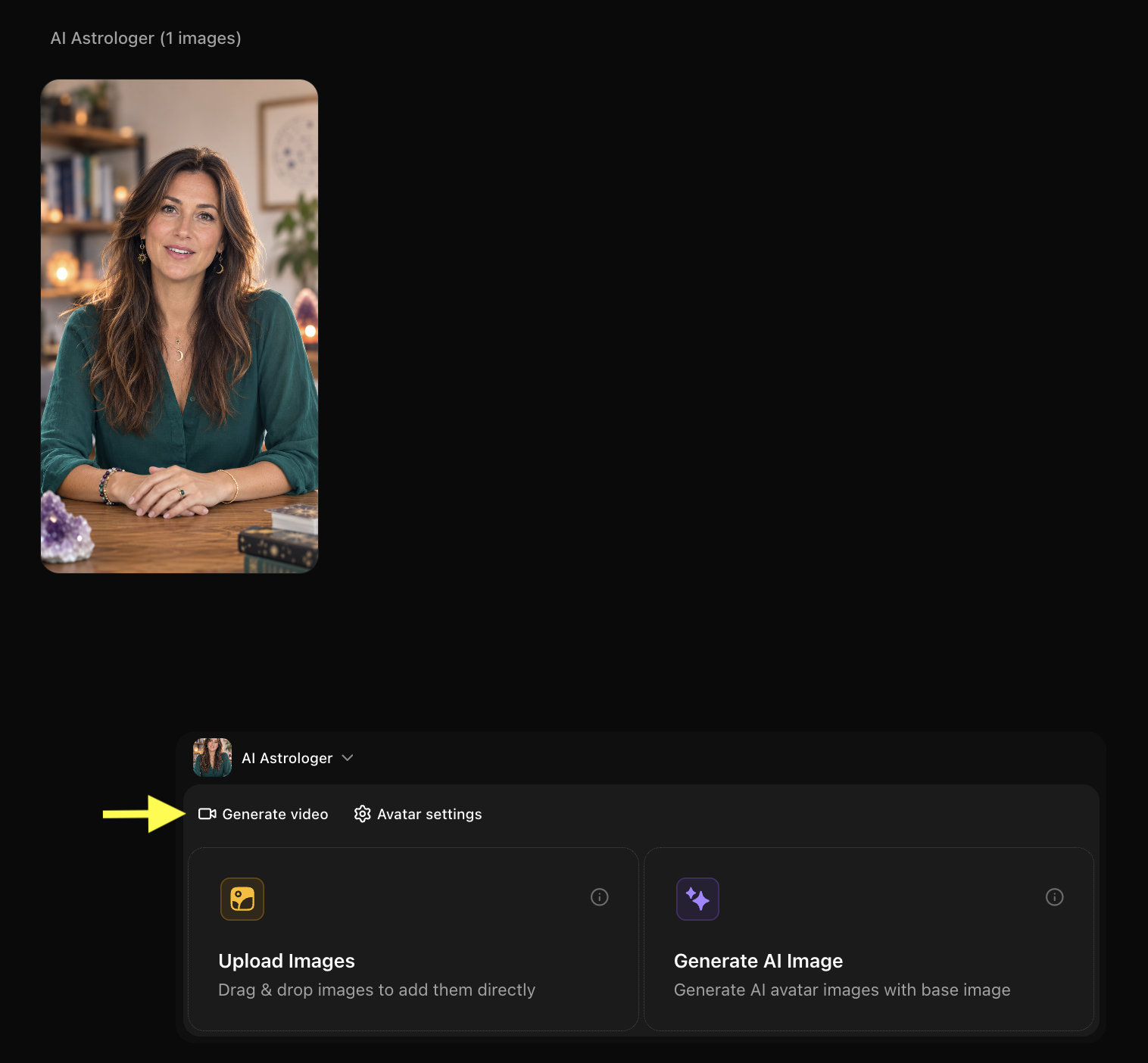
Step 11: Add Script and Configure Video Settings
After opening the avatar video creator, you can customize your video by entering a script, selecting a voice, choosing the output format, and adding an action prompt.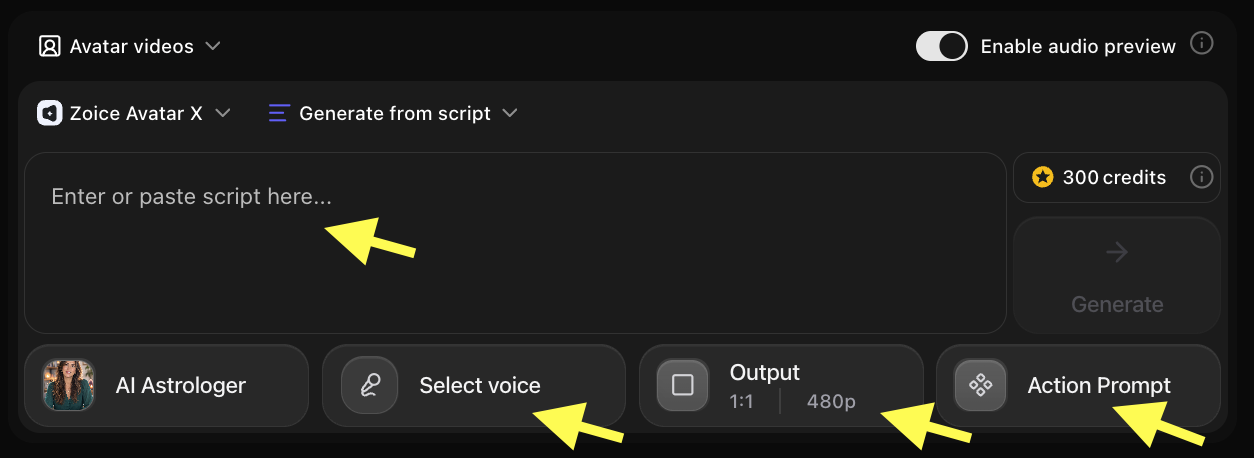
Step 12: Add Script
Click on the script box. A popup window will appear where you can write the detailed script. Add the script that your AI astrologer avatar will speak in the video.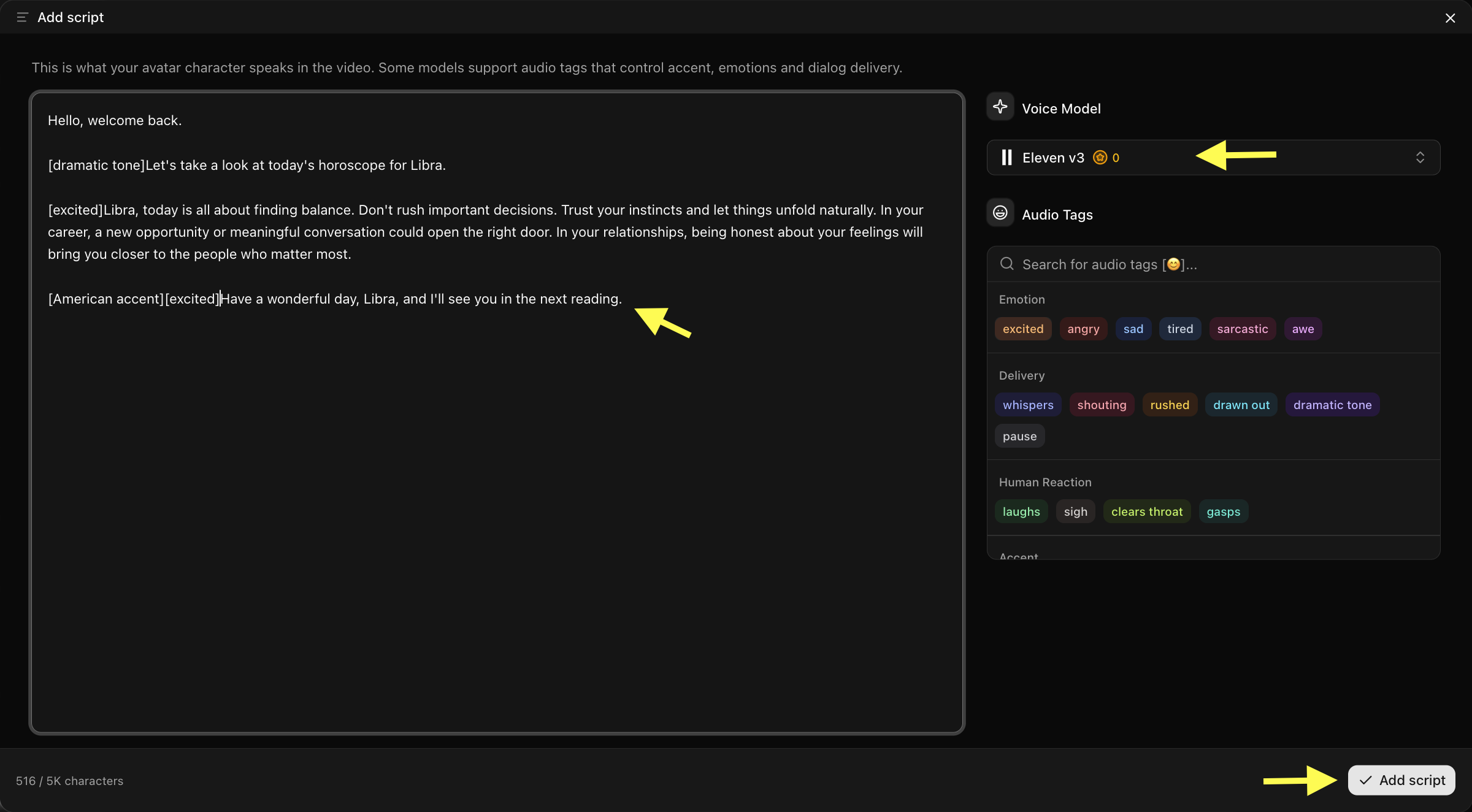 Tip: For astrology videos, write in a calming, mystical, and authoritative tone to connect with your viewers on a spiritual level.
Step 12: Click on Select Voice
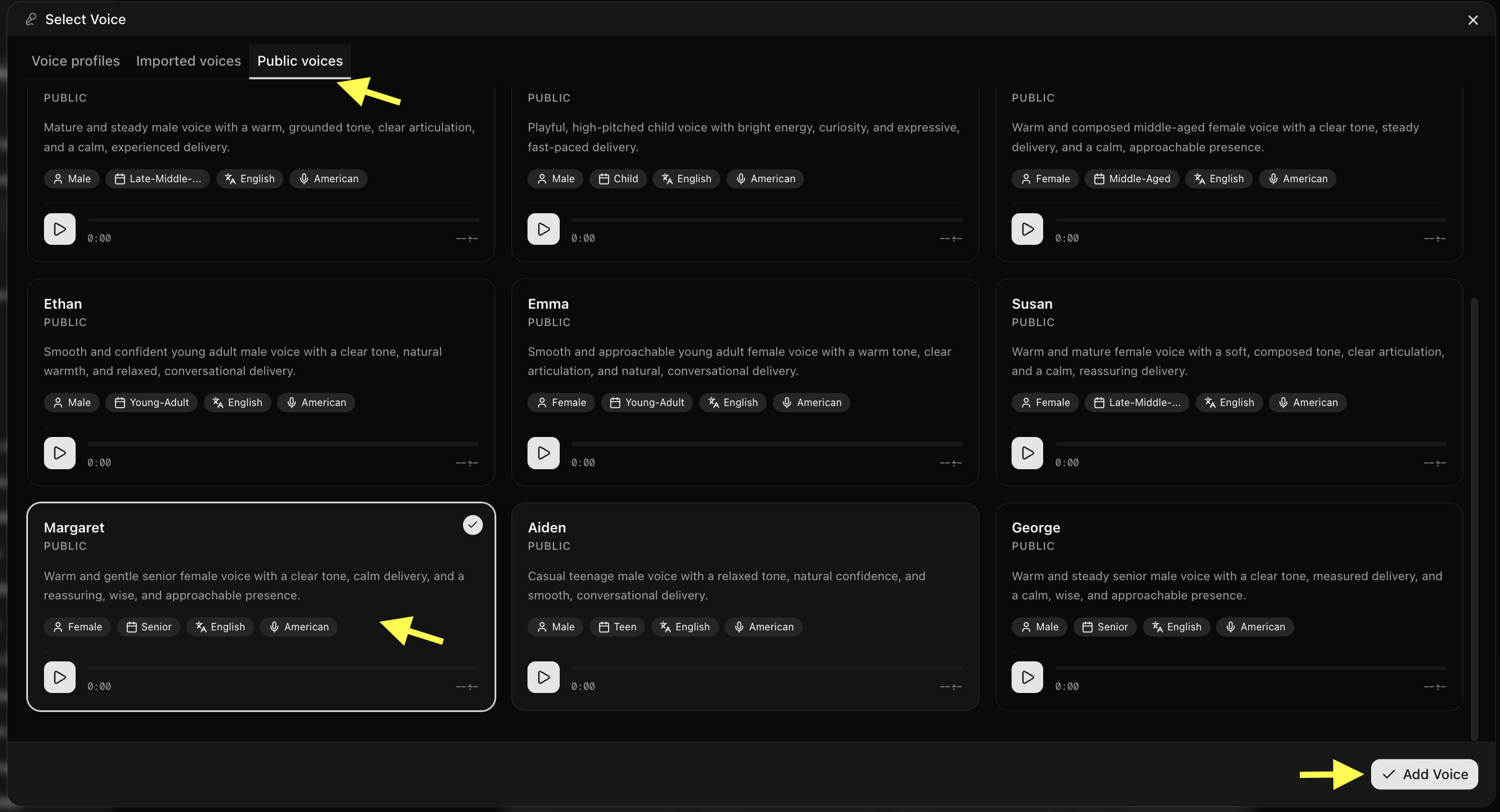
Click on the Select Voice option. You can browse through the available public voices, listen to voice previews, or upload your own voice. Select a deep, soothing, or mystical AI voice model that matches your astrologer persona.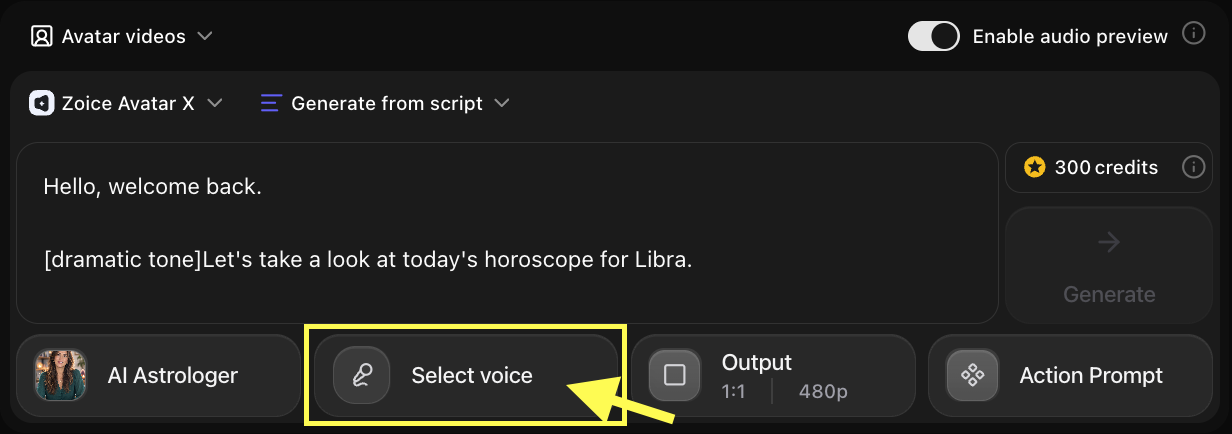
-
Choose the Voice for your AI astrologer
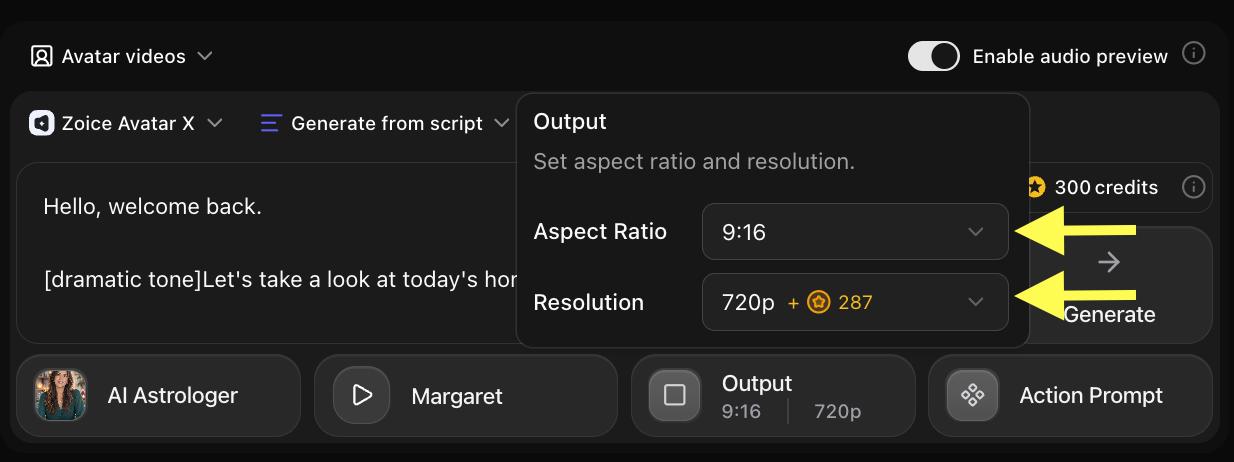
Step 13: Choose Video Output Settings
Click on Output Settings. Choose the aspect ratio and resolution based on where you want to publish your video:- Aspect Ratio: 16:9 for YouTube videos/website embeds, or 9:16 for YouTube Shorts, Instagram Reels, and TikTok.
- Resolution: Select 1080p or up to 4K for high-quality professional output.
Step 14: Add Action Prompt
Click on Action Prompt to control how your AI avatar behaves during the video. You can write your own instructions or select suggested action styles (such as: “calm and mystical expression, slow graceful hand movements, maintaining deep eye contact”).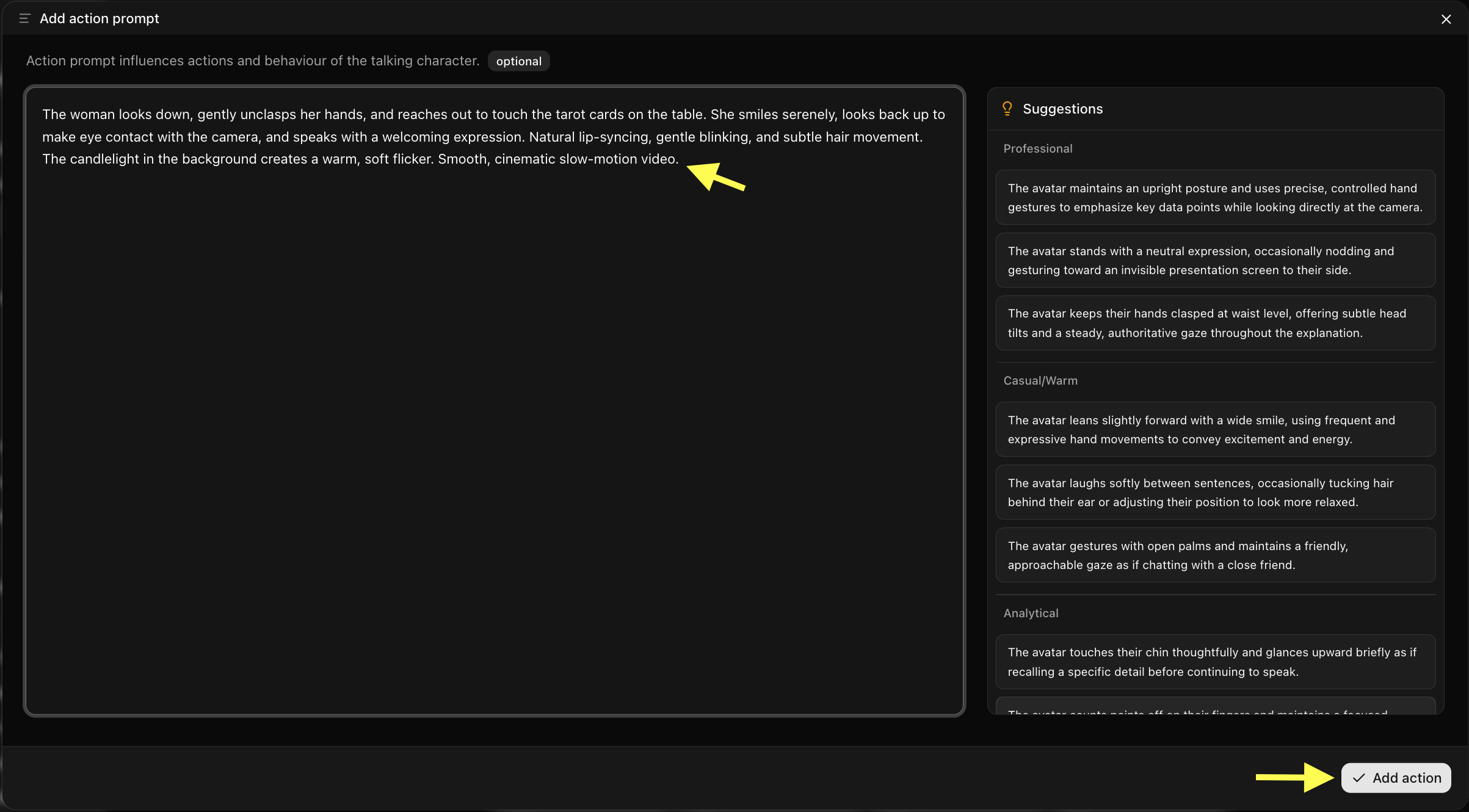
Step 15: Generate Your AI Astrologer Video
After setting up the script, voice, output settings, and action prompt, review all your configuration options. Click Generate to start processing your AI astrologer video.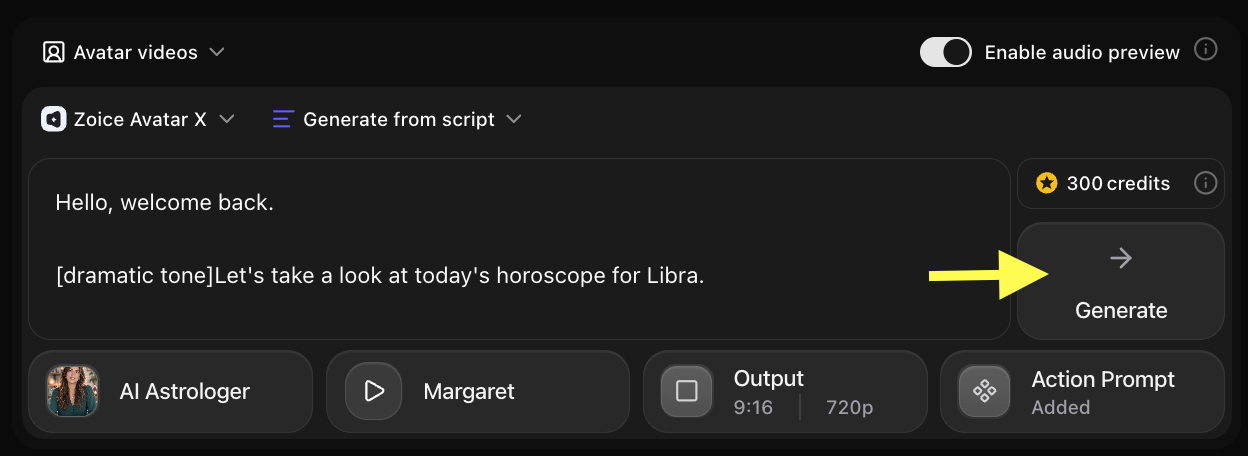
Step 16: Preview Audio and Click on Generate Avatar Video
Before generating the final video, Zoice creates an audio preview so you can verify how your script sounds. Check pronunciation, clarity, and pacing. If everything sounds correct, click Generate Avatar Video to create the final talking video.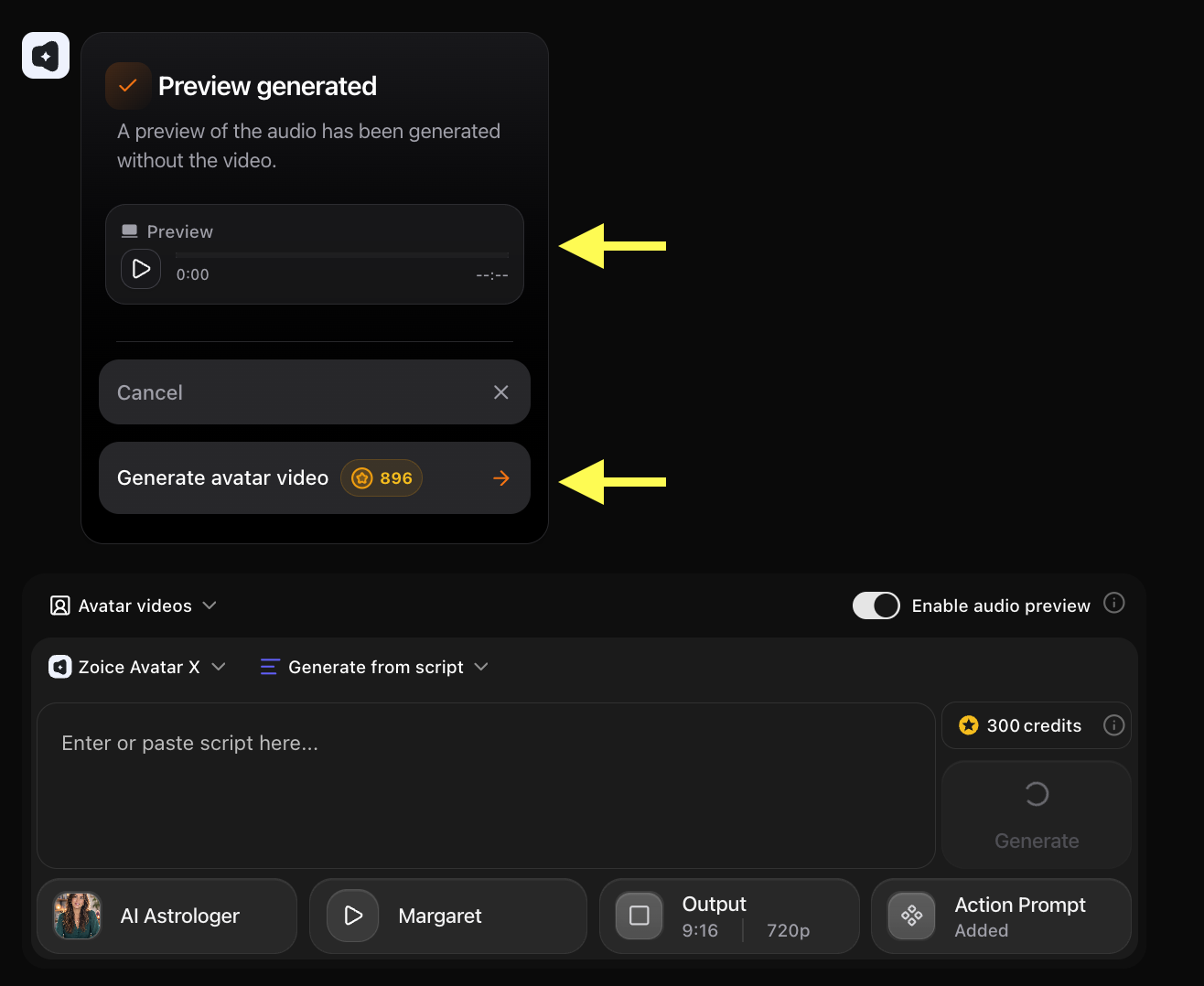
Step 17: Preview and Download Your AI Astrologer Video
Once the AI avatar video finishes processing, play the final result to check the avatar movements, voice synchronization, and video quality.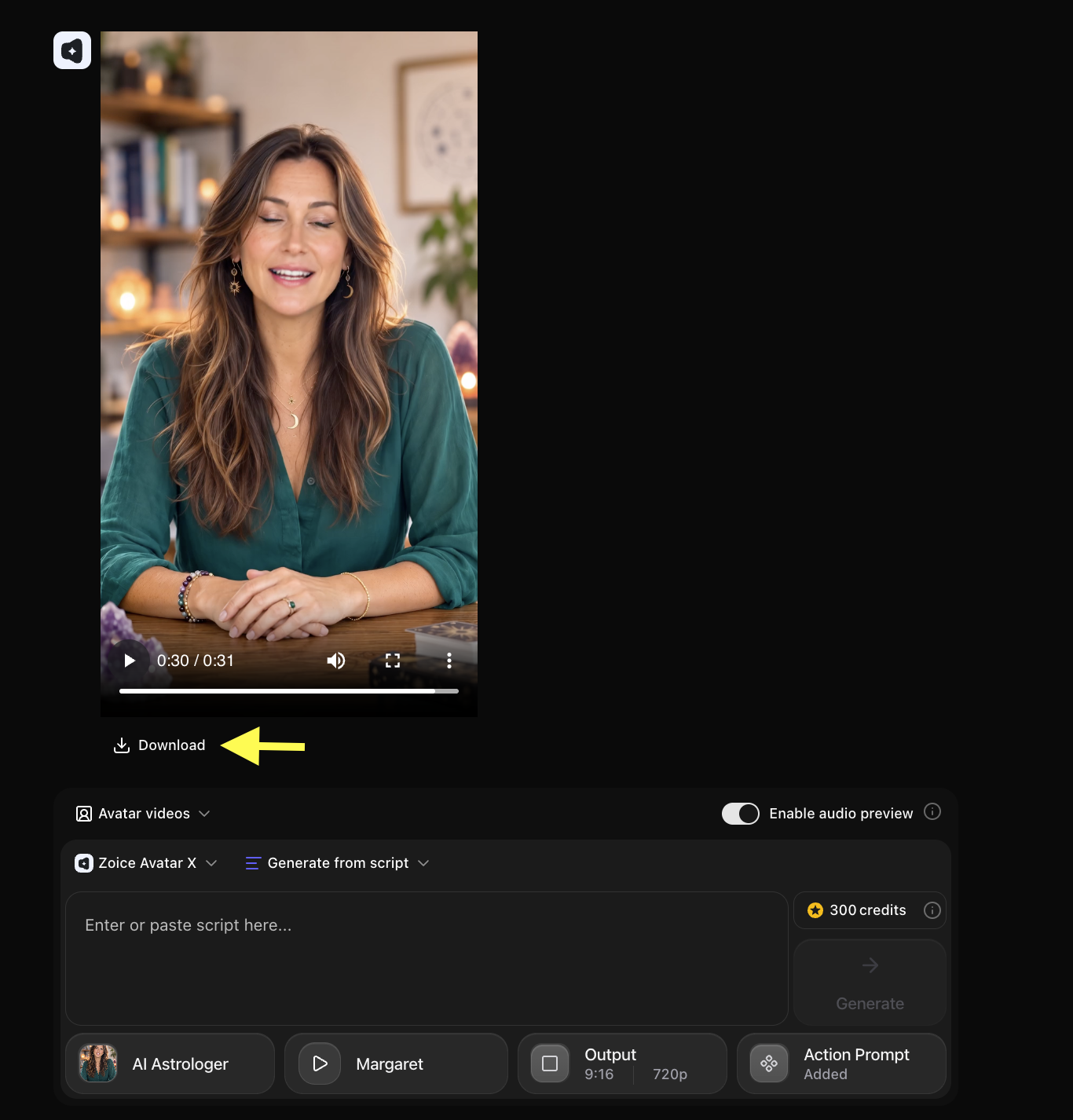 If you are satisfied, click Download to save the video to your device. Your AI astrologer video is now ready to use for daily horoscopes, spiritual guidance, or engaging social media content!
Example Input Image, Script, Action Prompt & Output Video
To help you get started, here is an example of an input image, script, action prompt, and generated AI astrologer video.Used Image
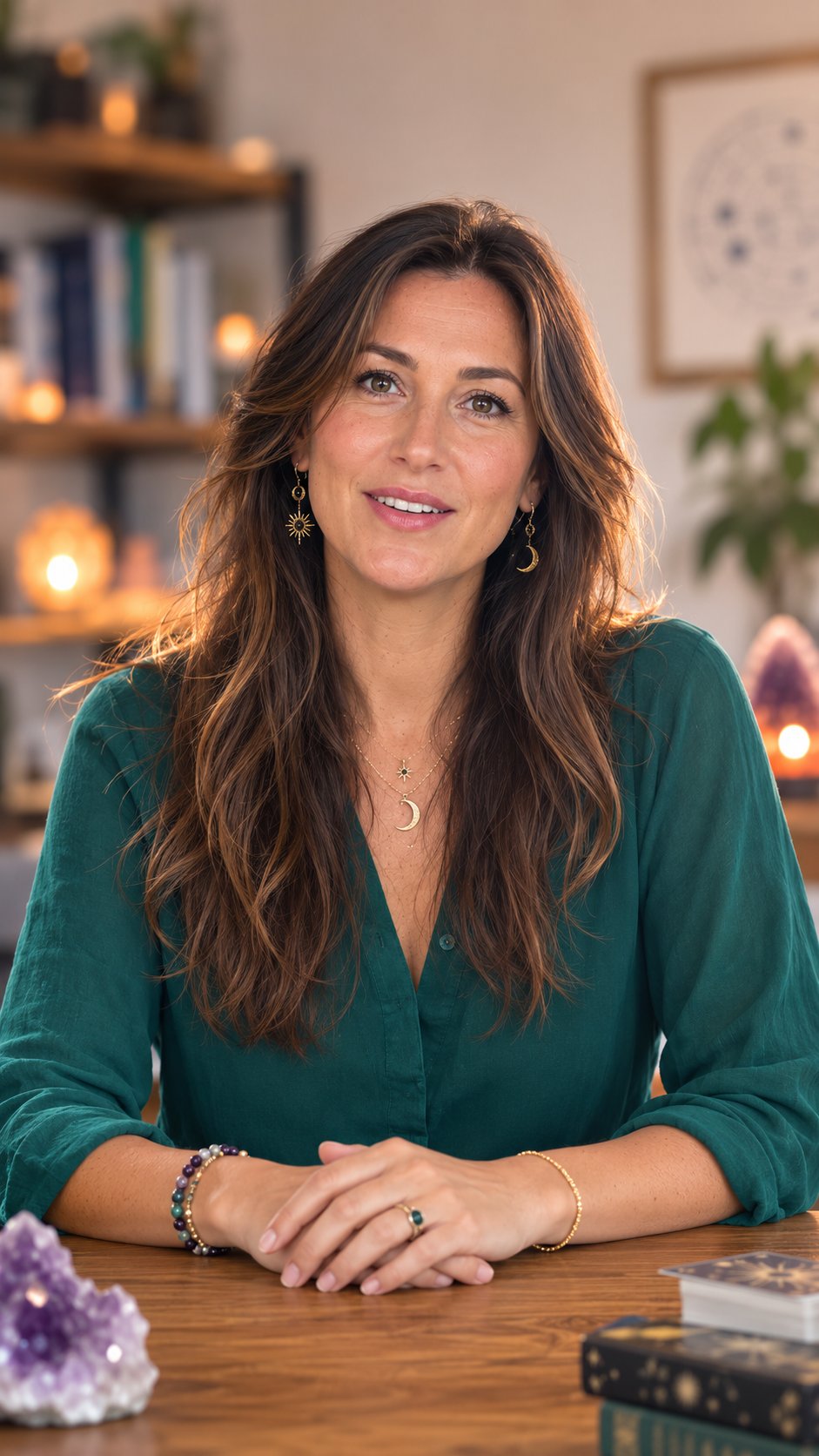
Used Script
Used Action Prompt
Output Result Video
Below is the rendered AI astrologer video based on the input script:Tips for Creating Better AI Astrologer Videos
- Use a Fitting Aesthetic: Choose an avatar image with a cosmic, starry, or mystical background to set the right mood.
- Write Engaging Scripts: Structure your horoscopes with a hook, the main insight, and a positive closing affirmation.
- Select a Soothing Voice: Astrology content is often calming. Avoid overly energetic commercial voices and opt for warm, soothing tones.
- Pacing is Key: Add slight pauses between important astrological insights to give the viewer time to reflect.
- Be Specific: If doing zodiac content, mention the sign clearly at the beginning so viewers know the video is for them.
AI Astrologer Videos Can Be Used For
- Daily, weekly, or monthly horoscope videos
- Zodiac sign personality breakdowns
- Tarot card reading explanations
- Full moon and new moon spiritual updates
- Planetary alignment and retrograde warnings
- Manifestation and spiritual coaching tips
- Astrology brand marketing and promotions
Where AI Astrologer Videos Are Used
- YouTube Astrology channels and Shorts
- TikTok and Instagram Reels (highly viral platforms for this niche)
- Astrology and spirituality apps
- Website landing pages and blogs
- Paid advertising for astrology services
- Exclusive Patreon or subscription content
Final Words
Creating AI astrologer videos with Zoice is a fast and simple process. By setting up your mystic avatar and uploading your script, you can generate personalized cosmic content in minutes. Whether you want to build a spiritual community, share daily horoscopes, or scale your astrology brand, AI avatars help you produce professional-quality videos without a camera or complicated editing.Next Steps
AI Podcast Guide
Create engaging AI-powered podcast videos with professional voice narration.
Healthcare AI Avatar
Build professional AI healthcare presenter videos.