

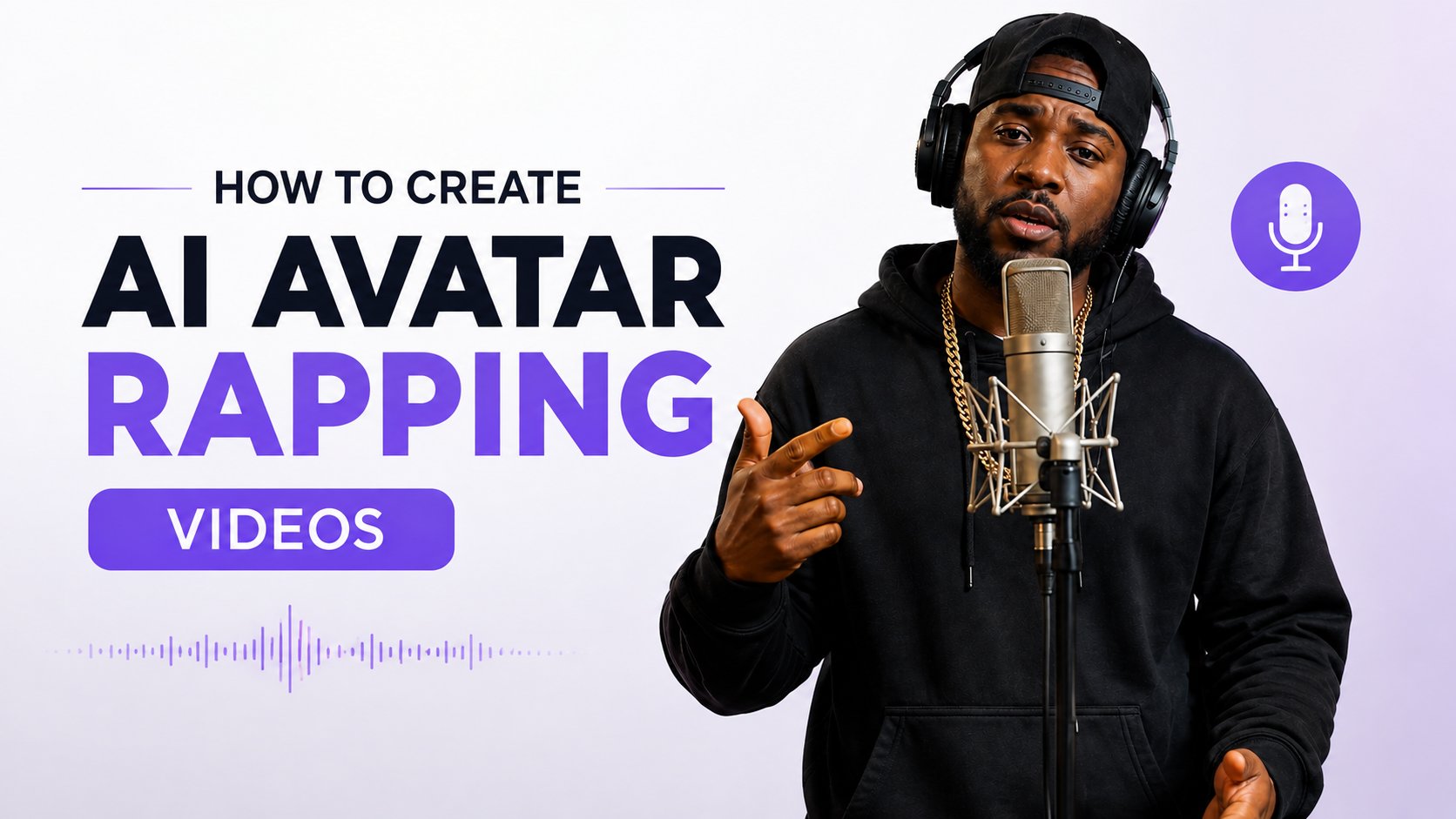
What is a Rapping AI Avatar?
A rapping AI avatar is a digital character that performs rap songs using artificial intelligence. Instead of recording yourself on camera, the AI analyzes your uploaded audio and animates an avatar with realistic lip movements, fast vocal synchronization, and natural head motions. Rapping AI avatars help creators produce engaging videos in minutes while maintaining a polished, professional appearance. They are widely used for music content, promotional videos, social shorts, and digital entertainment.How to Create AI Avatar Rapping Videos Using AI
Creating an AI avatar rapping video with Zoice takes only a few minutes. To begin, create or choose an AI avatar, upload your rap audio, configure the output settings, and generate your video. Follow the detailed steps below to get started.Step 1: Visit Zoice.com
Go to Zoice.com in your web browser. This is the main portal where you can access all of Zoice’s AI creation tools.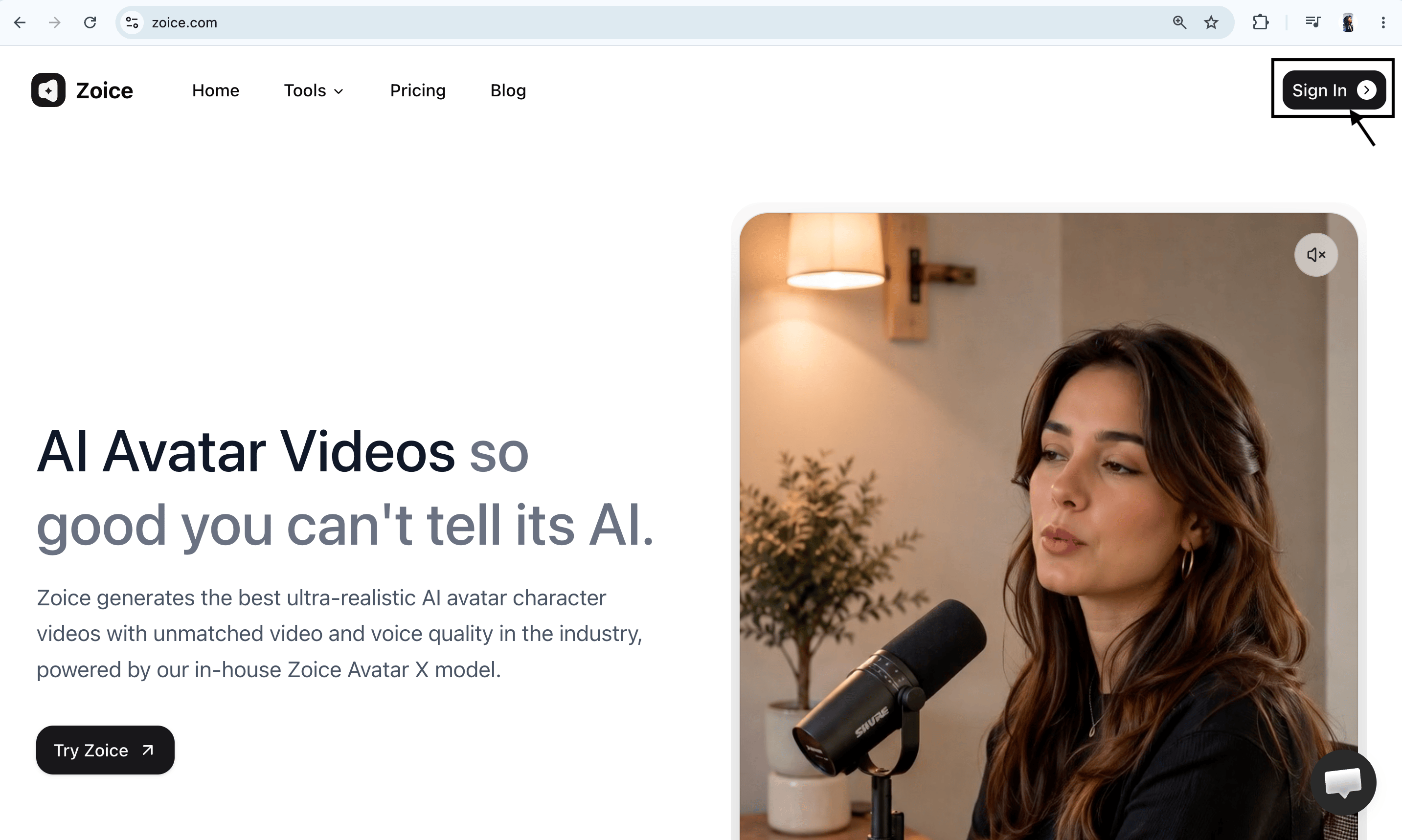
Step 2: Sign In to Your Zoice Account
Click the Sign In button in the top-right corner of the homepage. Enter your registered email address and password, or choose Sign in with Google to access your dashboard quickly.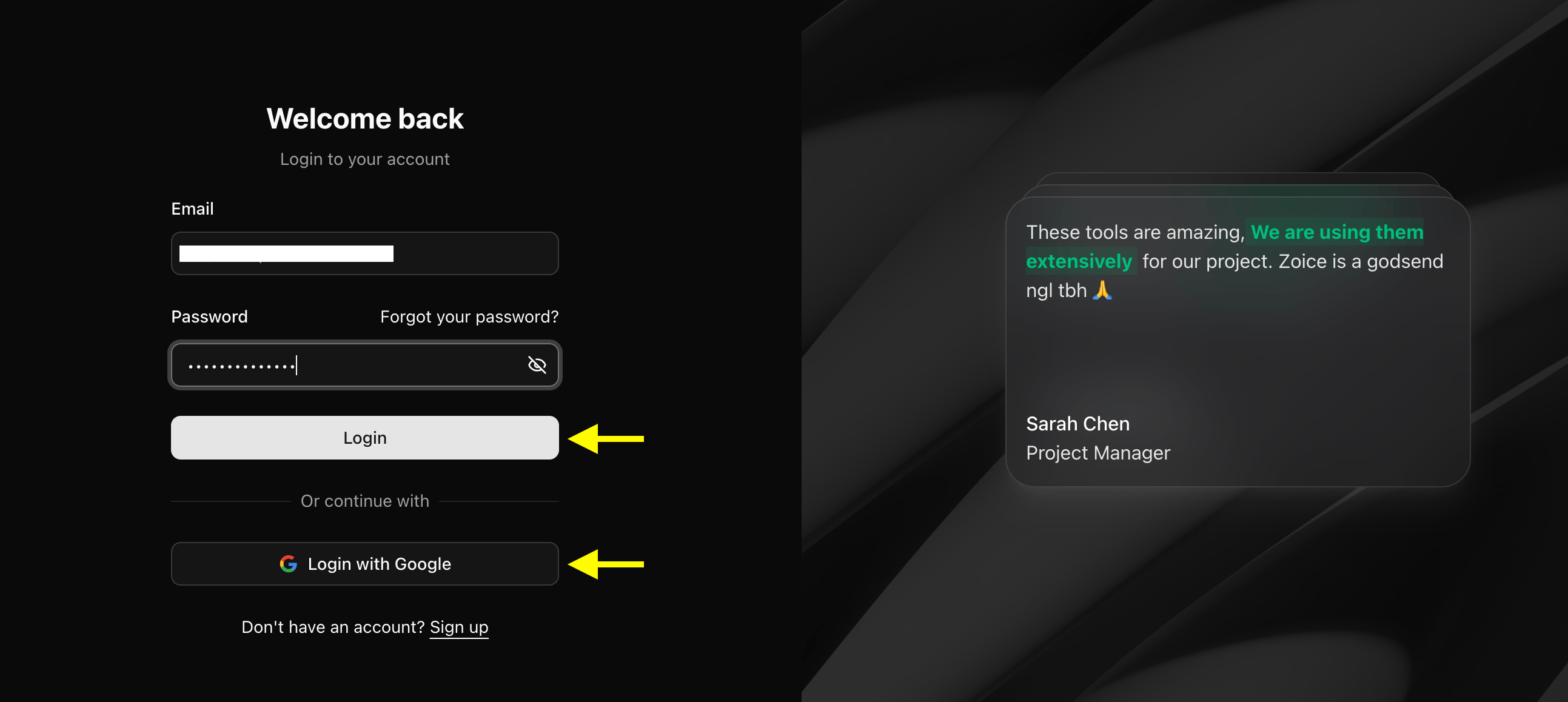
Step 3: Create a New Zoice Account (For New Users)
If you don’t have a Zoice account yet, click Sign Up on the login page. Fill in your details (name, email, and password) or select Sign up with Google to create a new account in one click.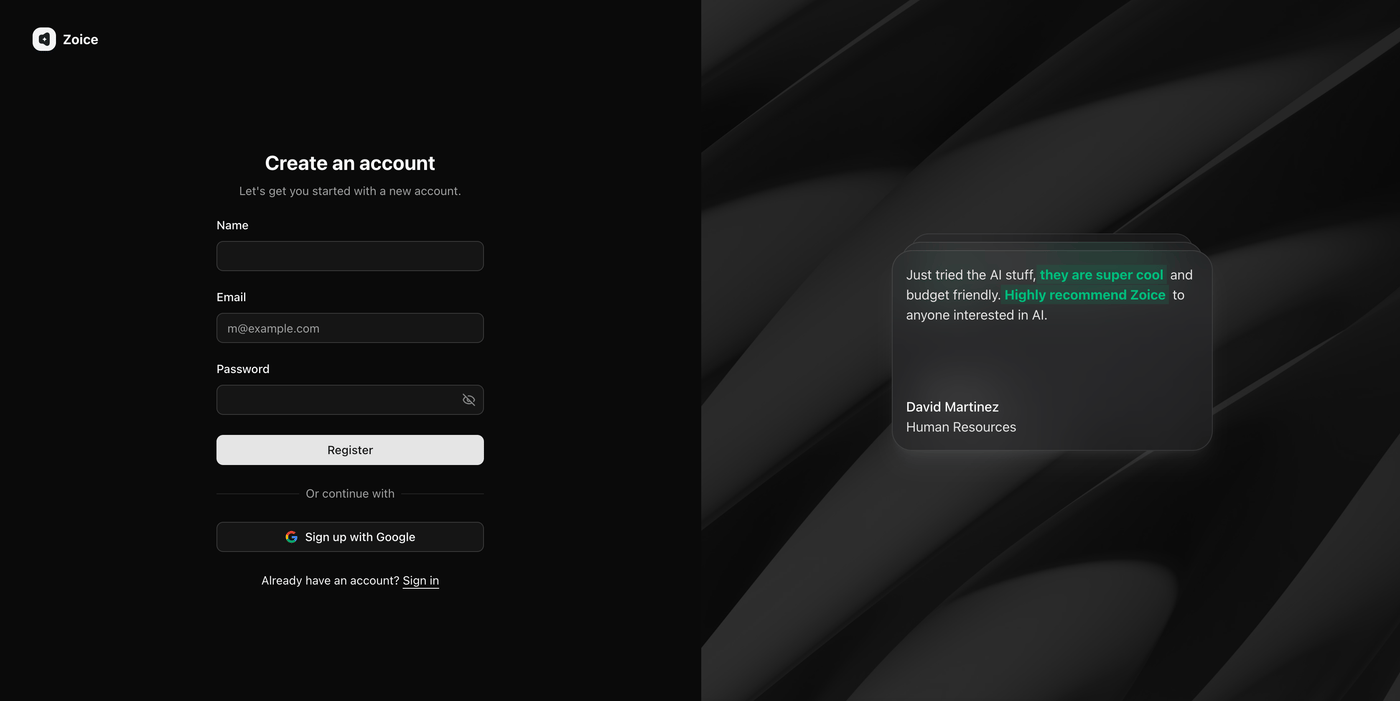
Step 4: Click Avatar Characters
Click Avatar Characters to begin creating a new AI avatar. If you already have an avatar character, you can choose it from your library and proceed to the next step. Creating a custom avatar allows you to generate personalized rapping videos that match your appearance or brand identity.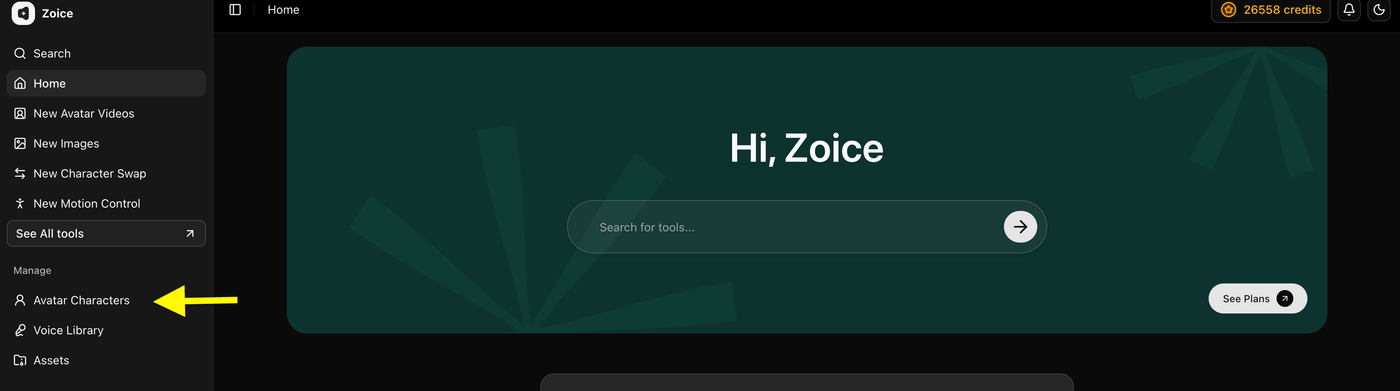
- Click on Create New
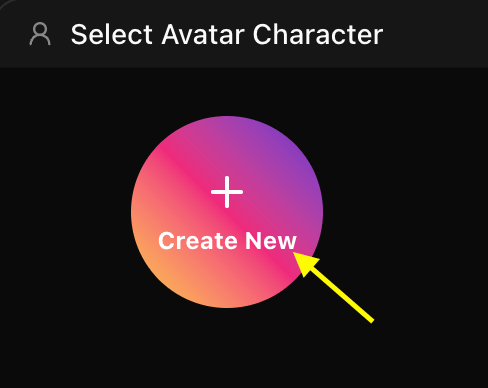
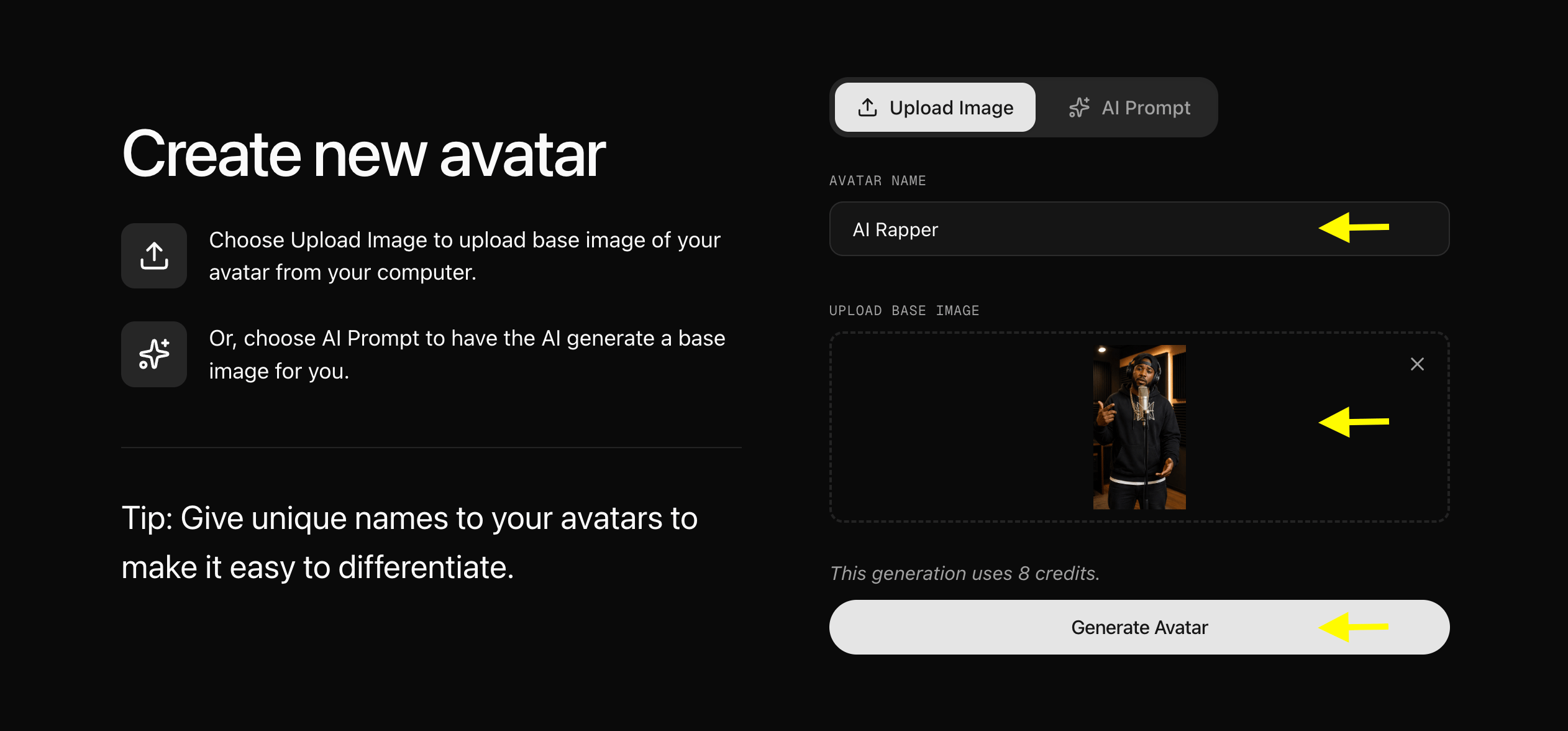
Step 5: Upload or Generate Avatar Image
Now, you have two options to set up your AI rapper avatar:- Upload a Photo: Upload a clear portrait image from your computer and give your rapper a name.
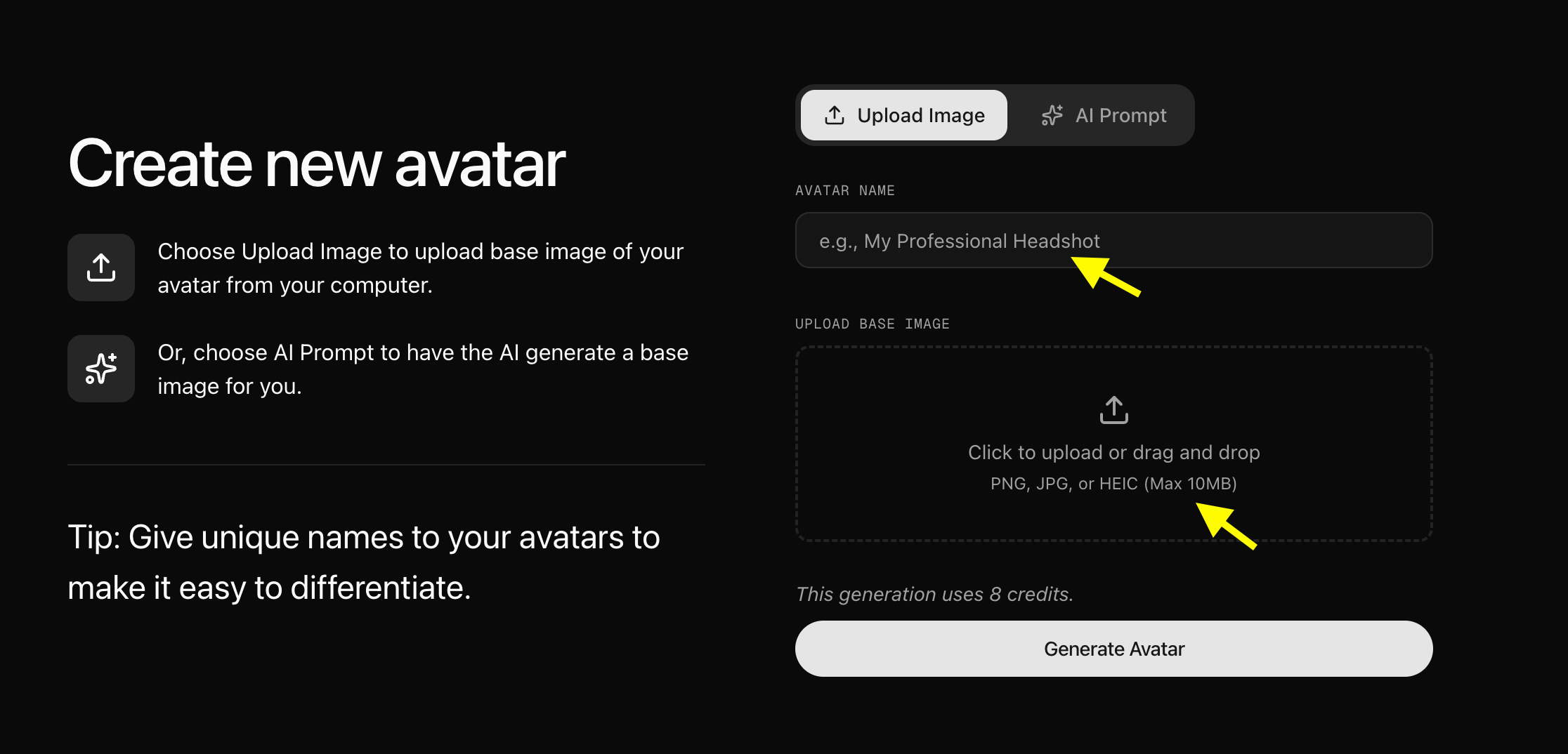
- Use an AI Prompt: Toggle the AI Prompt option.
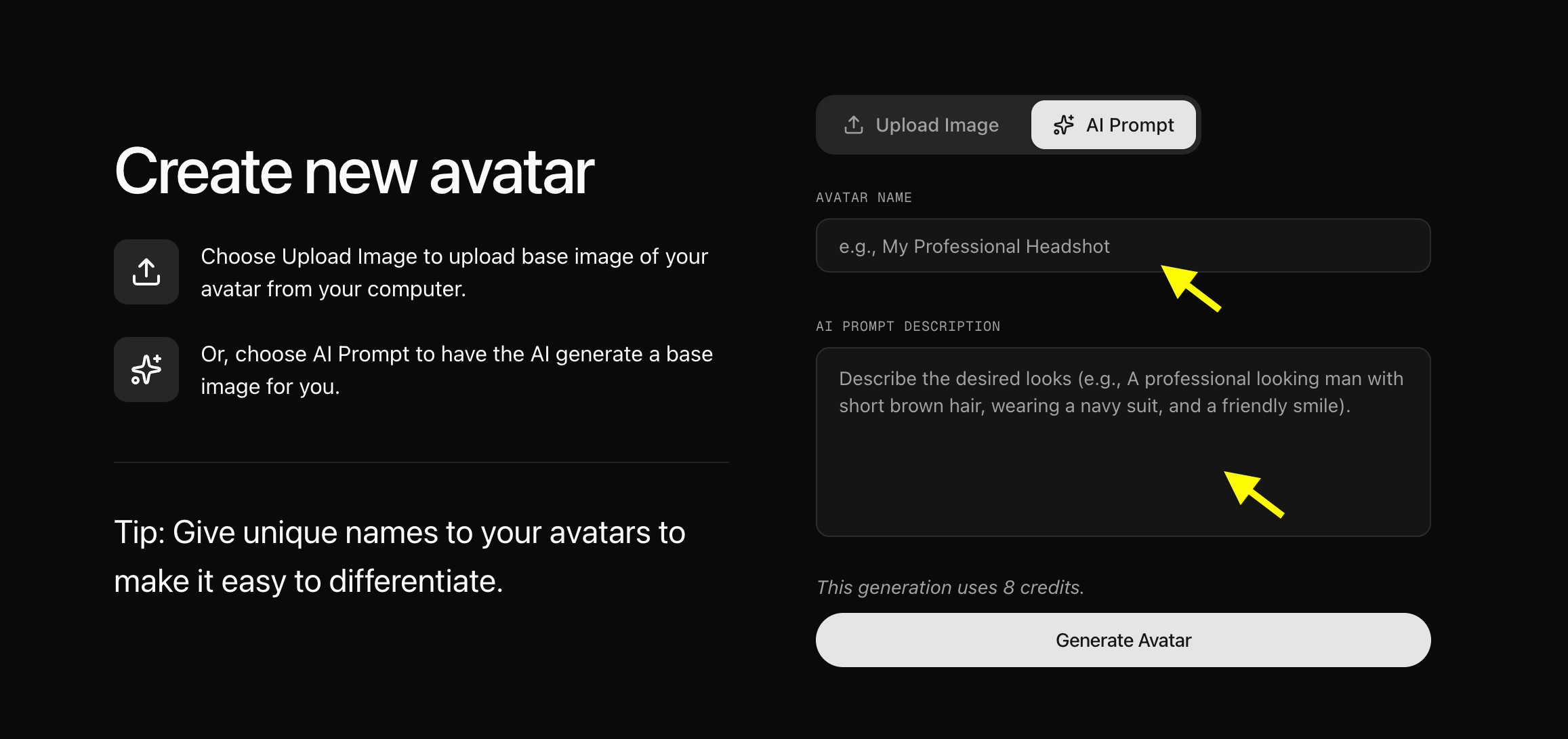
Step 6: Configure Avatar Settings (Optional)
After adding the image to your library, click Avatar Setting to add basic details such as Name, Gender, Age, and Ethnicity. Providing these details helps achieve better, more personalized results. Once done, save and close the avatar settings window.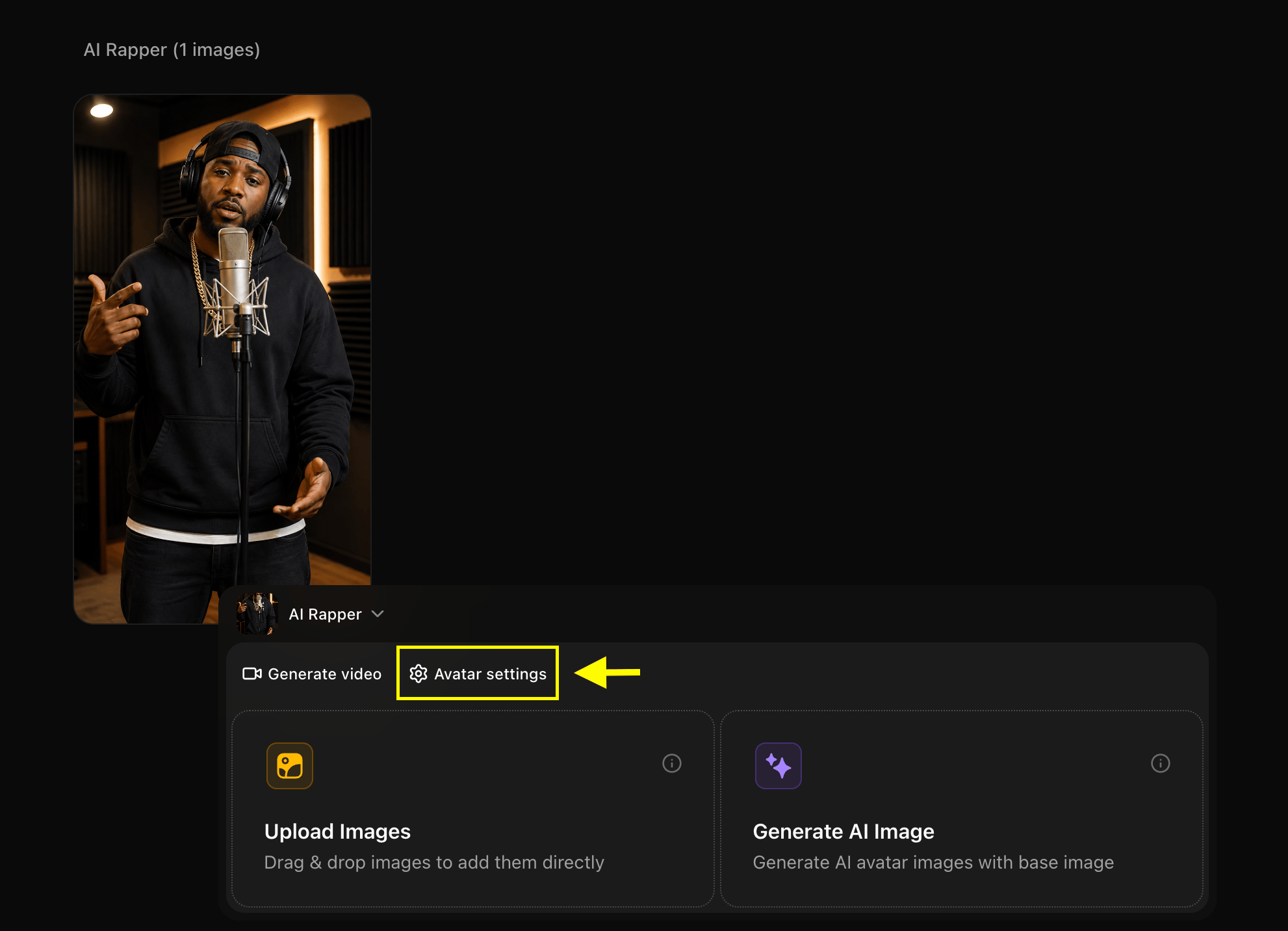
Step 7: Click Generate Video
With your avatar profile ready, click Generate Video to open the video editor and add your rapping audio.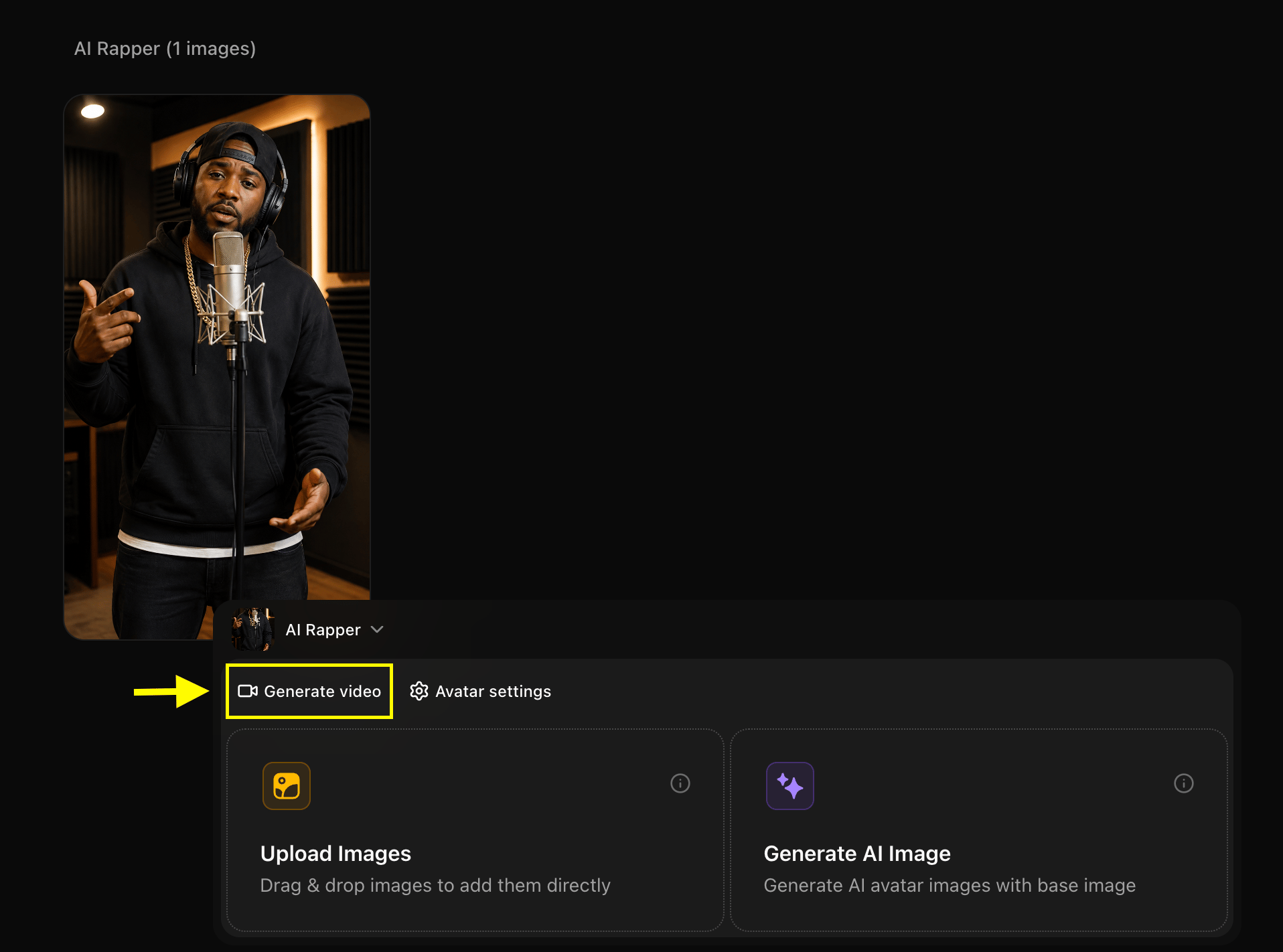
Step 8: Select Generate from Audio
Switch the input mode from Generate from Script to Generate from Audio to create a rapping avatar using a sound file. You can either record your voice directly within Zoice or upload a pre-recorded audio file (such as a rap verse or vocal track).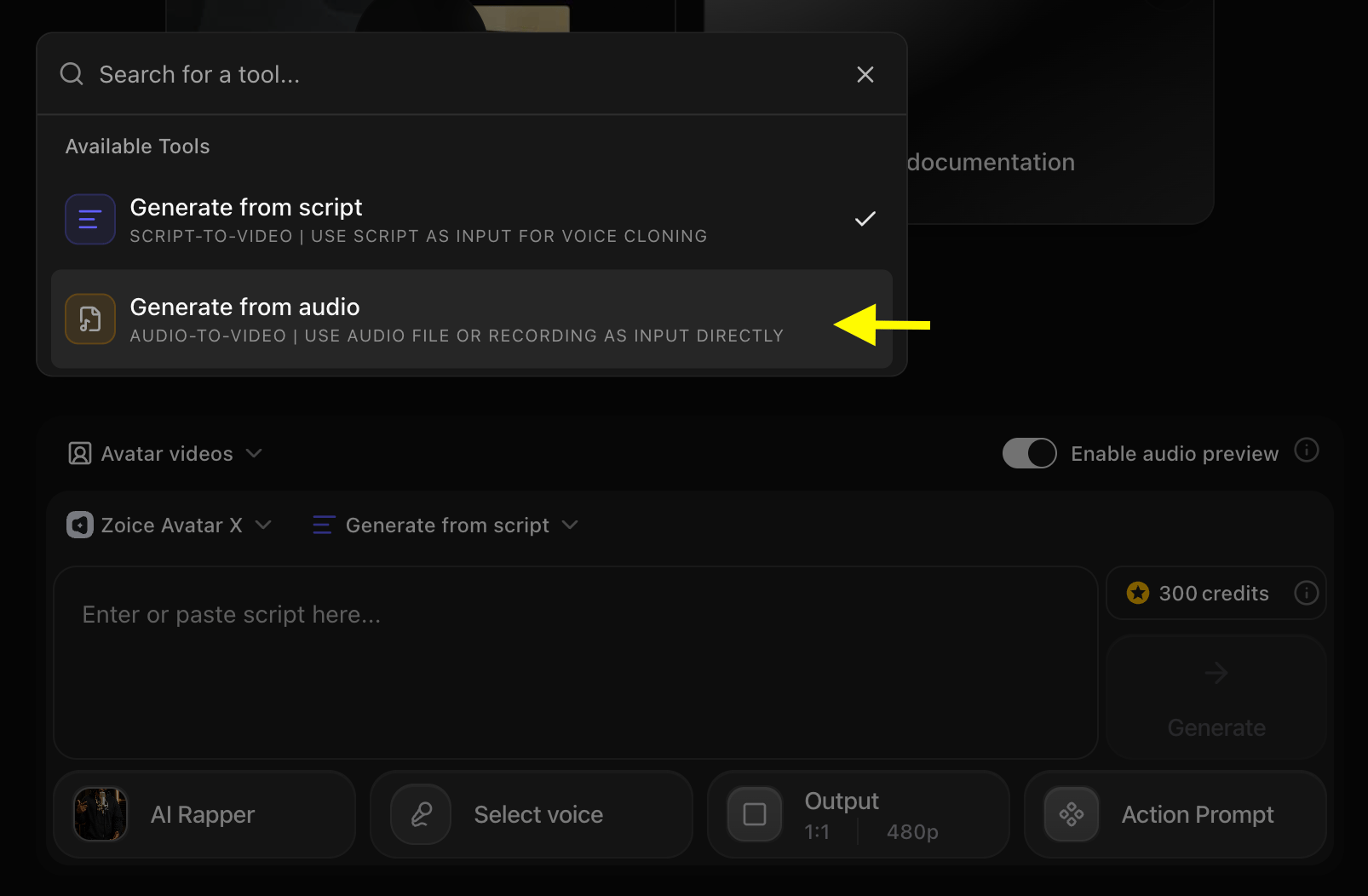
Step 9: Upload or Record Audio
Select Upload Audio to upload a pre-recorded rap verse or song stem from your computer, or click Record Audio to record your rap voiceover directly.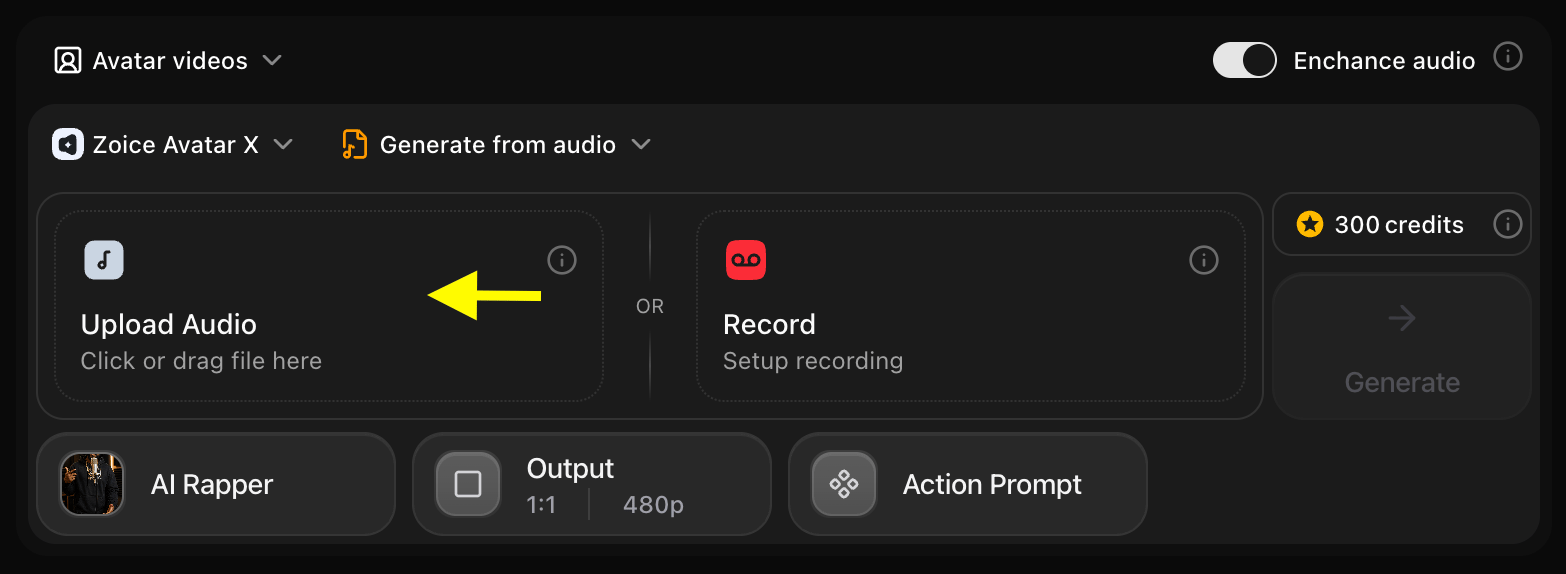
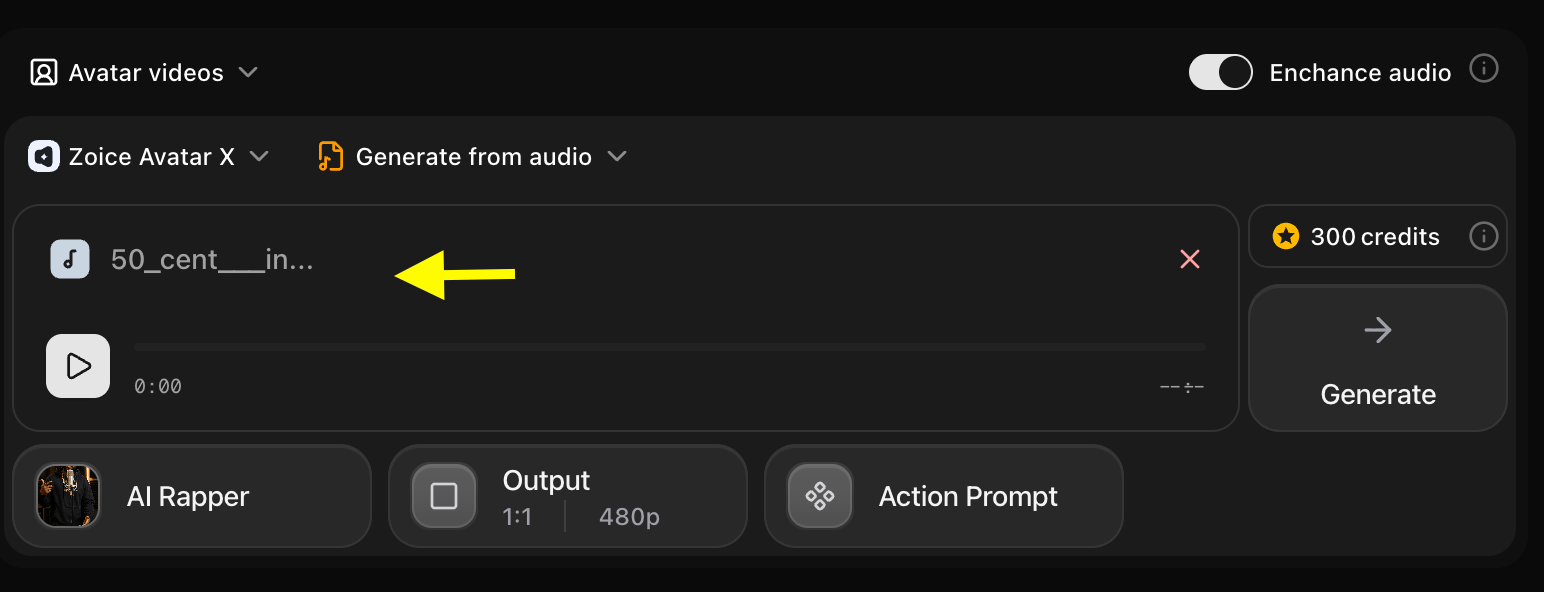
Step 10: Update Output Settings
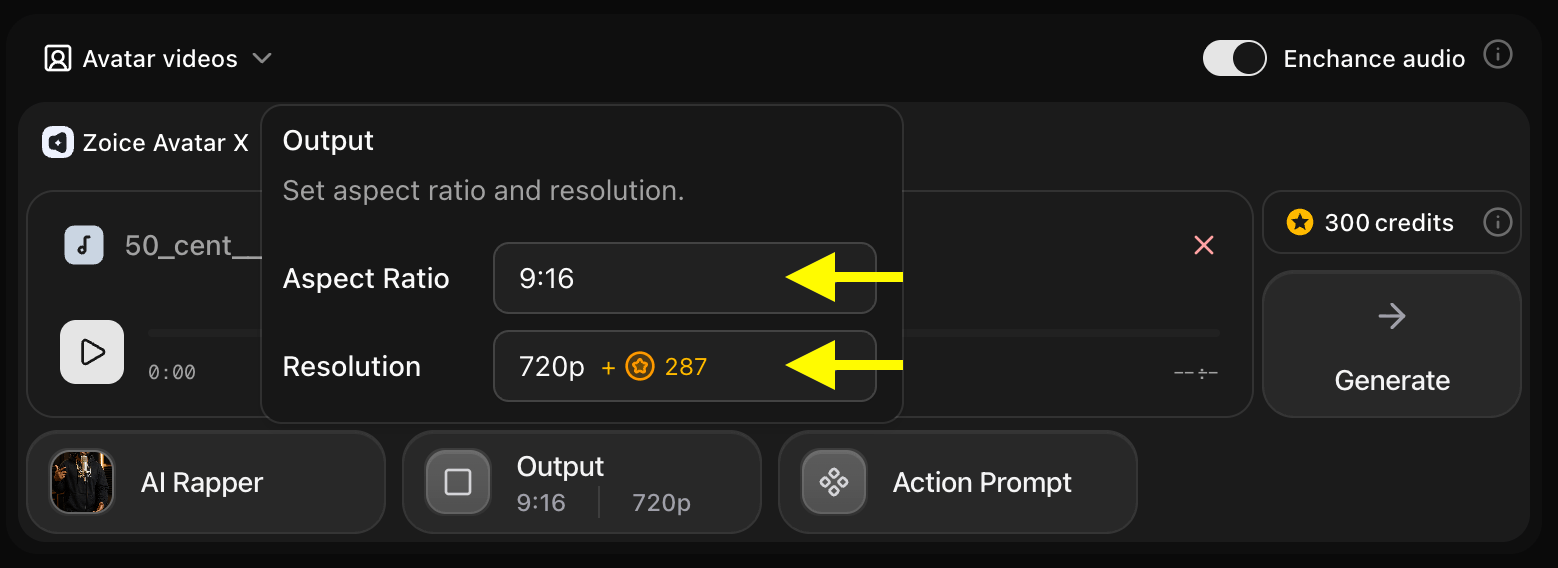
Configure the output settings to suit your target platform:- Aspect Ratio: Choose the aspect ratio matching your target platform (e.g., 9:16 for portrait/social shorts, 16:9 for landscape/YouTube).
- Resolution: Set the resolution up to 4K for maximum clarity.
Step 11: Configure the Action Prompt
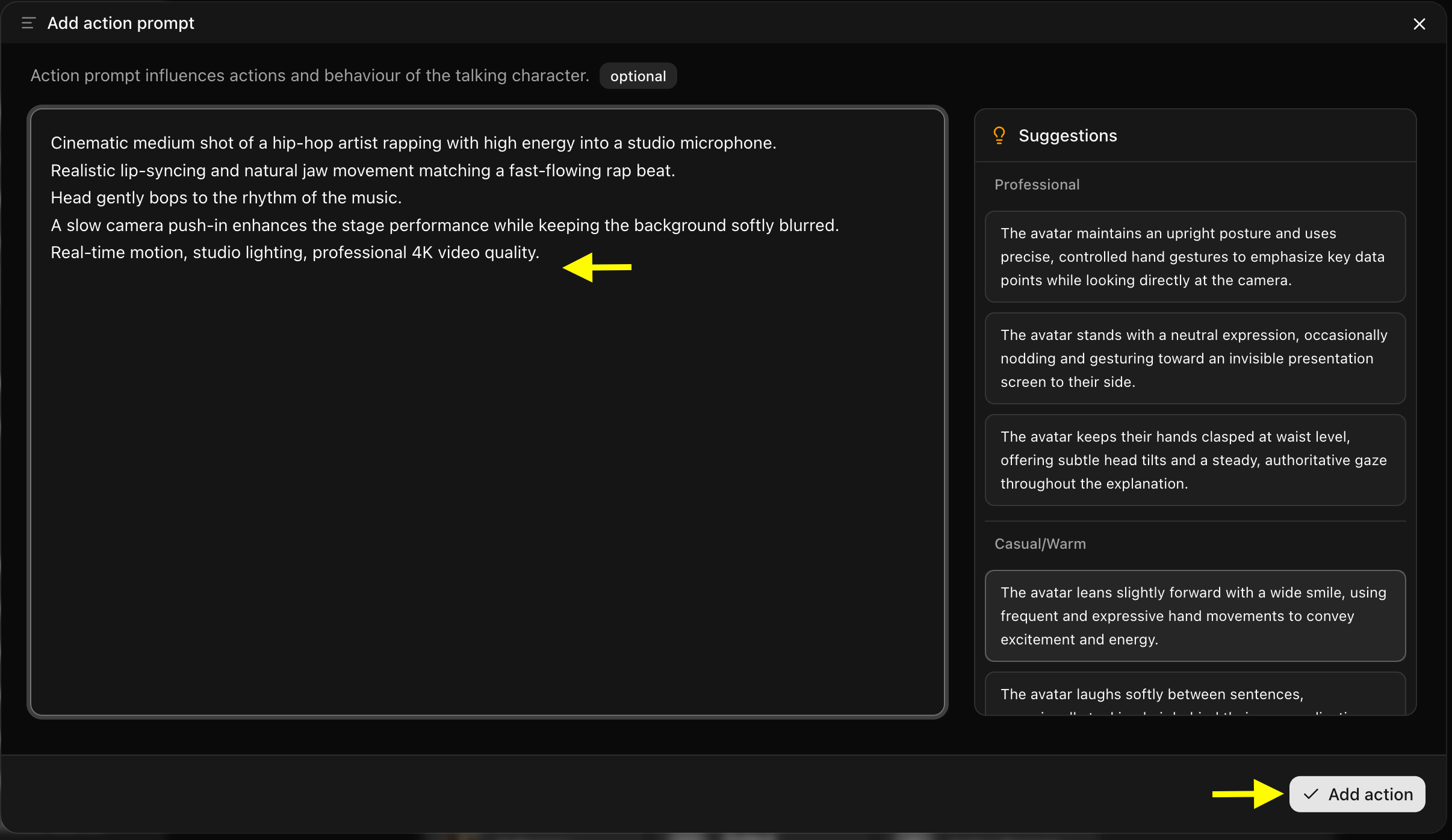
Click Action Prompt to define the facial expressions and physical gestures of your rapping avatar. This will open the action prompt box where you can select one of the suggested action prompts or write a custom prompt to specify your avatar’s expressions (such as “confident rapper nodding to the beat with fast lip-syncing and energetic stage presence”).
Step 12: Generate Your Rapping Avatar Video
Once all settings are configured, click the Generate button to begin the generation process.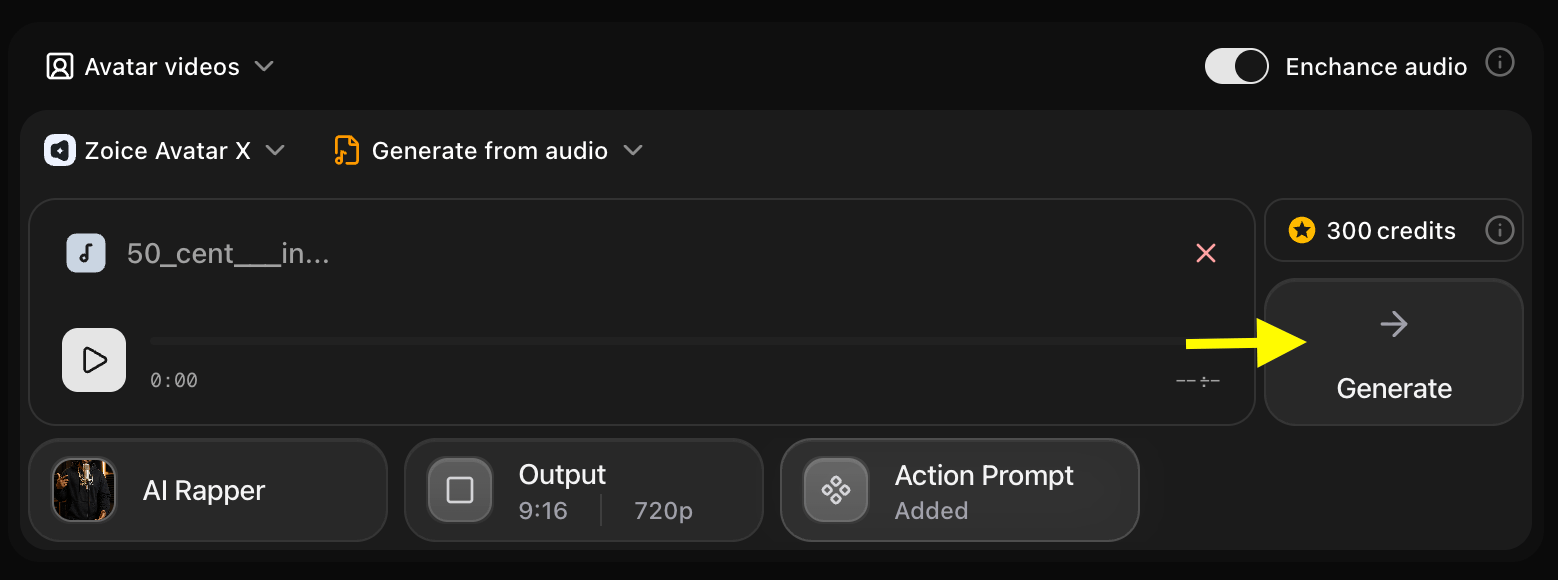
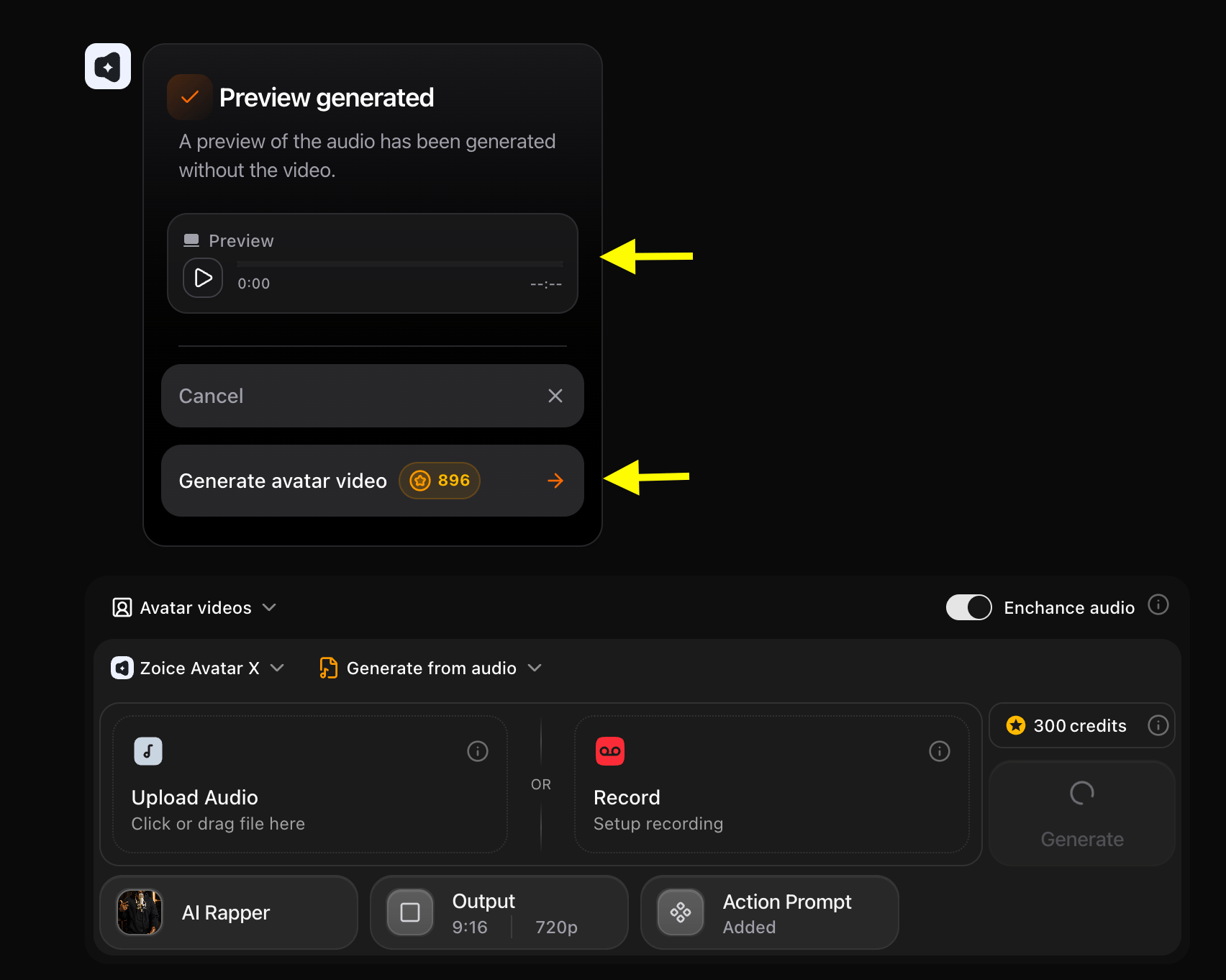
Step 13: Preview the Generated Audio
Before processing the final video, Zoice generates an audio preview. Listen to the preview to verify:- Audio Quality: Ensure there is no noise or distortion.
- Voice Pacing: Verify the fast rhythm and timing.
- Overall Flow: Confirm it aligns with your expectations.
Step 14: Download Your Rapping AI Avatar Video
Once the rendering is complete and you are satisfied with the result, click the Download button to save the video to your device. It is now ready to share or publish.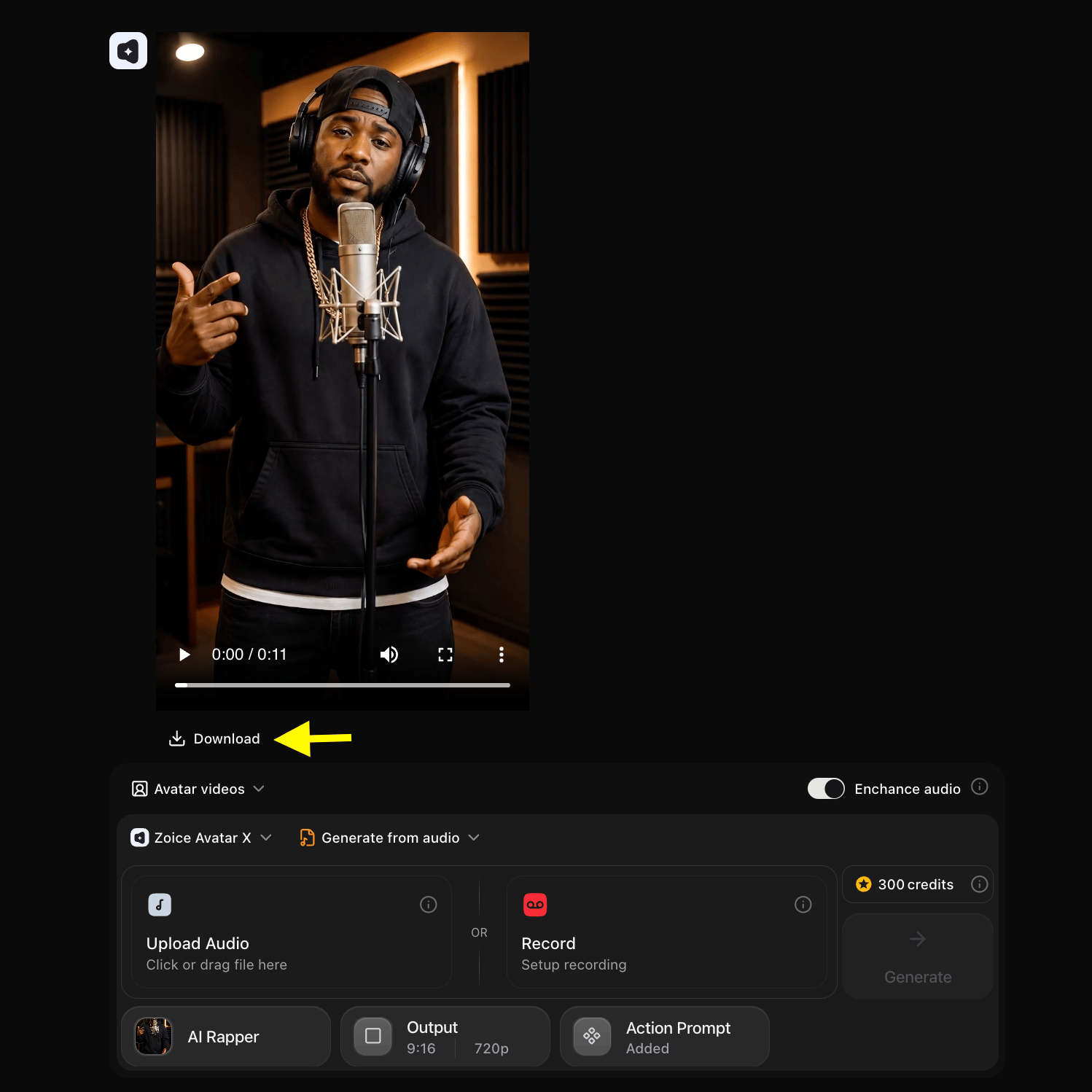
[!NOTE] Adding Background Music: Zoice generates the lip-synced vocal performance video without background music tracks. To add background music or beat tracks to your avatar video, open any video editor (such as CapCut, Premiere Pro, or Canva), import your generated Zoice avatar video, and add your music track as an additional audio layer.
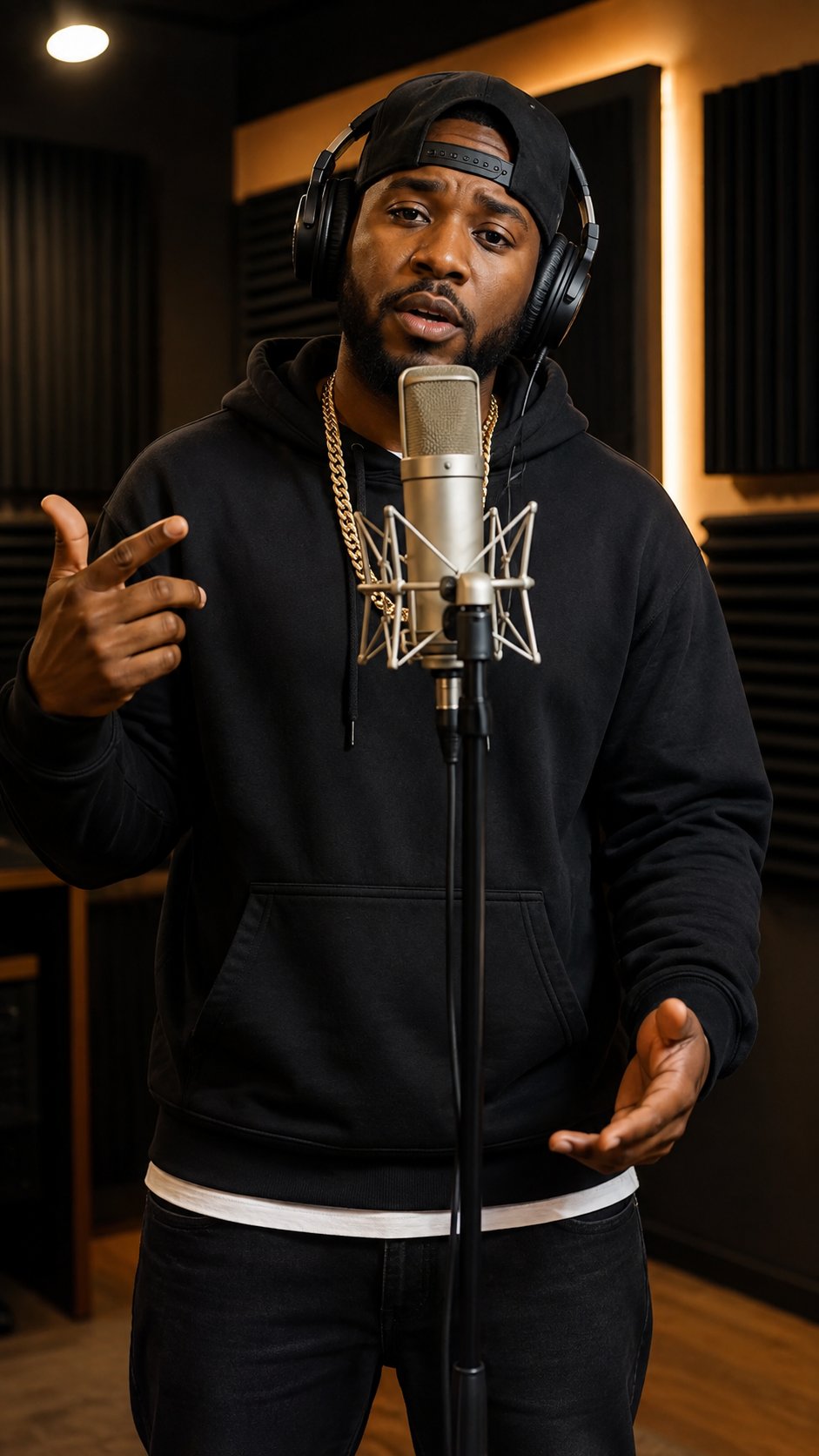
Example Input Image, Voice, Action Prompt & Output Video
To help you get started, here is an example of an input voice, action prompt, and generated rapping AI avatar video.Used Image
Used Voice
🎵 Click here to listen to the voice sampleUsed Action Prompt
Output Result Video
Below is the rendered rapping AI avatar video based on the input track:What AI Rapping Avatars Can Be Used For
AI rapping avatars are suitable for many personal and professional projects, including:- Music Videos & Visualizers: Animate and visualize your rap tracks.
- Social Media Content: Create viral posts for YouTube Shorts, Instagram Reels, TikTok, and Facebook.
- Marketing & Branding: Enhance product promotions, brand campaigns, and creative ad hooks.
- Educational Material: Design engaging rhyming tutorials and educational content.
- Creative Storytelling: Bring digital stories and presentations to life.
- Personal Branding: Stand out with unique digital hip-hop content.
Where AI Rapping Avatar Videos Are Used
Rapping AI avatar videos are widely used across different industries to create engaging visual content:- Music Industry: Independent rap artists and labels use avatars to release visualizers and lyric videos.
- Digital Marketing & Advertising: Agencies leverage interactive rap avatars to capture audience attention.
- Social Media & Influencer Marketing: Creators use rapping characters to trend on viral audio beats.
- E-Learning & Education: Platforms use rhyming tutors to deliver educational presentations.
- Corporate & Events: Companies use avatars for creative product reveals and event promotions.
Final Words
Creating a rapping AI avatar video with Zoice is a fast, intuitive, and highly efficient process. By following this guide from creating your custom avatar to uploading your track, fine-tuning your settings, and generating the output, you can produce high-quality, realistic rapping videos in minutes. Whether you are looking to boost engagement on social media, run a creative marketing campaign, or experiment with digital music videos, Zoice provides the tools to generate professional grade AI avatar animations with flawless lip-syncing and expressive facial movements.Next Steps
Singing Avatar Guide
Learn how to create realistic singing AI avatar videos.
Voice Generator Guide
Explore text-to-voice generation to create natural AI vocal tracks.