

What is AI Lip-Sync Animation?
AI lip-sync animation is a machine-learning process that animates static pictures based on audio frequencies. The model analyzes vocal files to identify specific sound groups (phonemes) and adjusts corresponding facial points (visemes) on the photo, such as the lip width, jaw position, and eye shape. This allows you to generate singing animations without needing manual frame manipulation, motion tracking rigs, or complicated 3D animation skills.How to Create Lip Sync Photo to Song
Follow these detailed steps to learn how to create lip sync photo to song and generate realistic talking animations in minutes.Step 1: Access the Zoice Platform
Open your web browser and go to Zoice.com to access the central dashboard.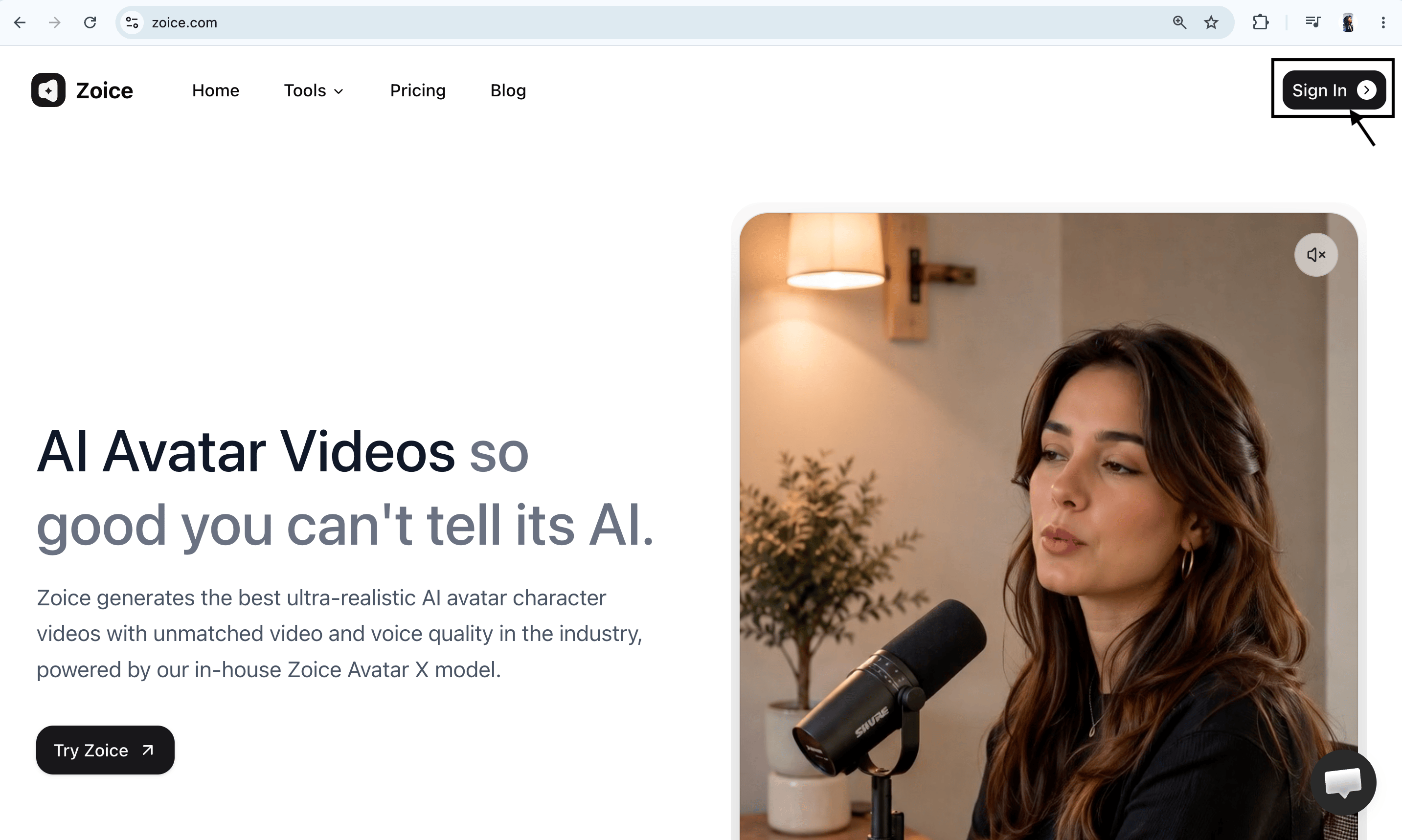
Step 2: Access Your Account
Click Sign In in the top-right corner. Enter your email and password, or choose the Google login option to access your workspace.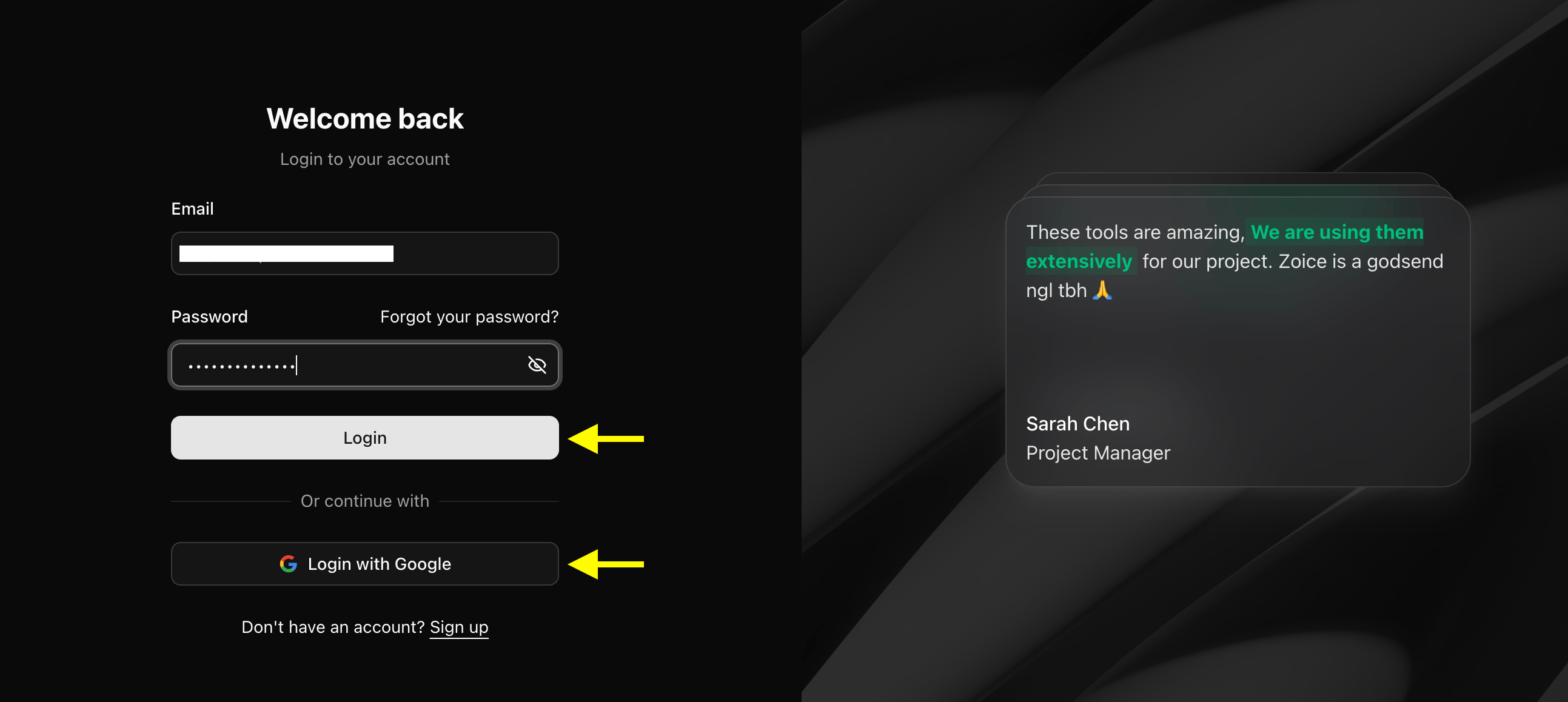
Step 3: Register a New Profile (For New Users)
If you are visiting for the first time, click Sign Up to create an account. Input your registration details to start.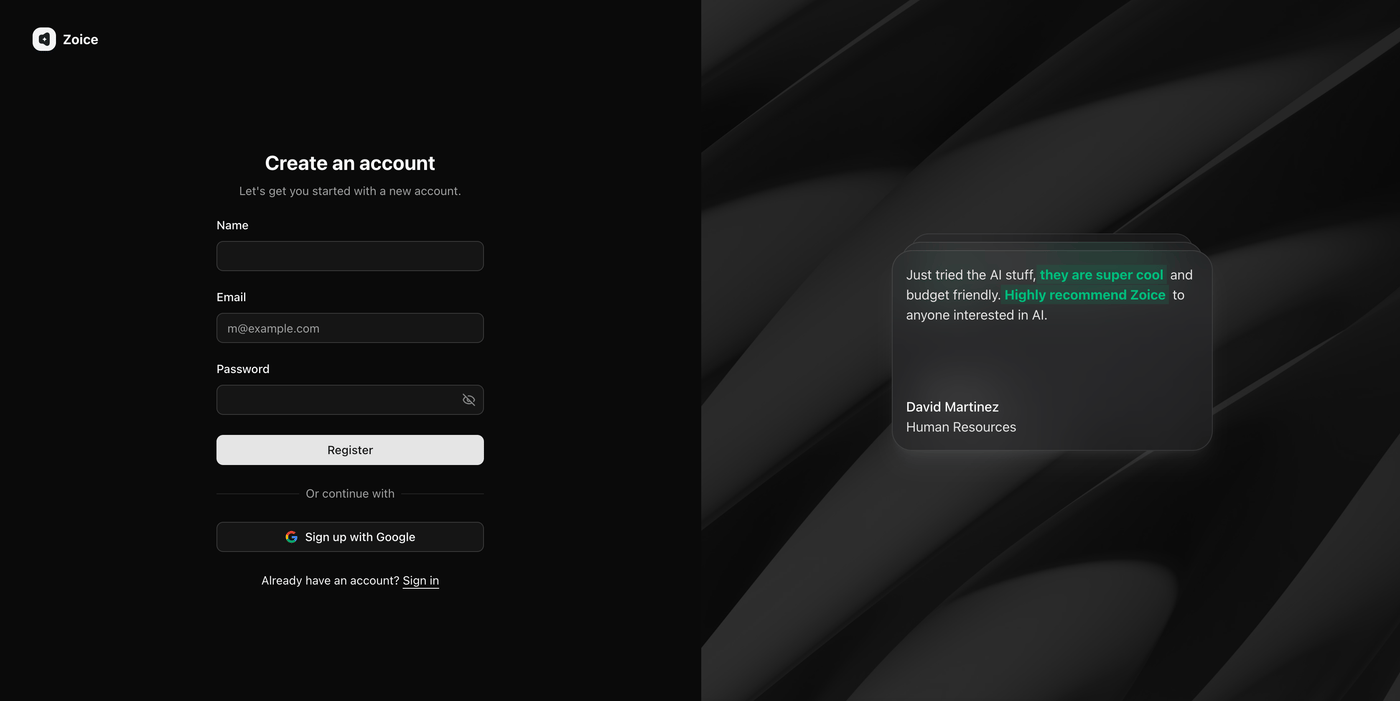
Step 4: Access the Dashboard
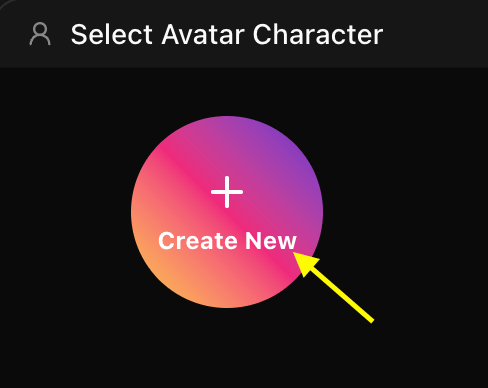
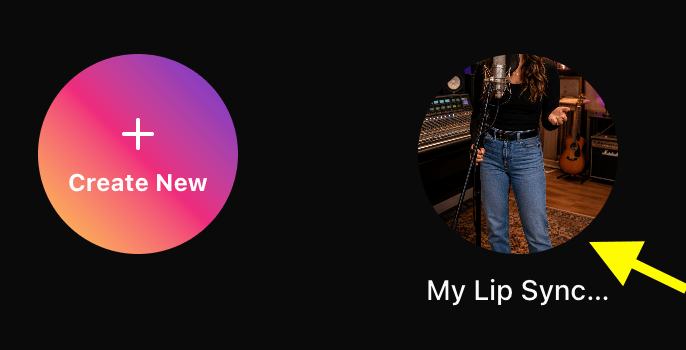
On the dashboard, click on the Avatar Characters tab. Select a previously created avatar, or click Create New to upload a new portrait.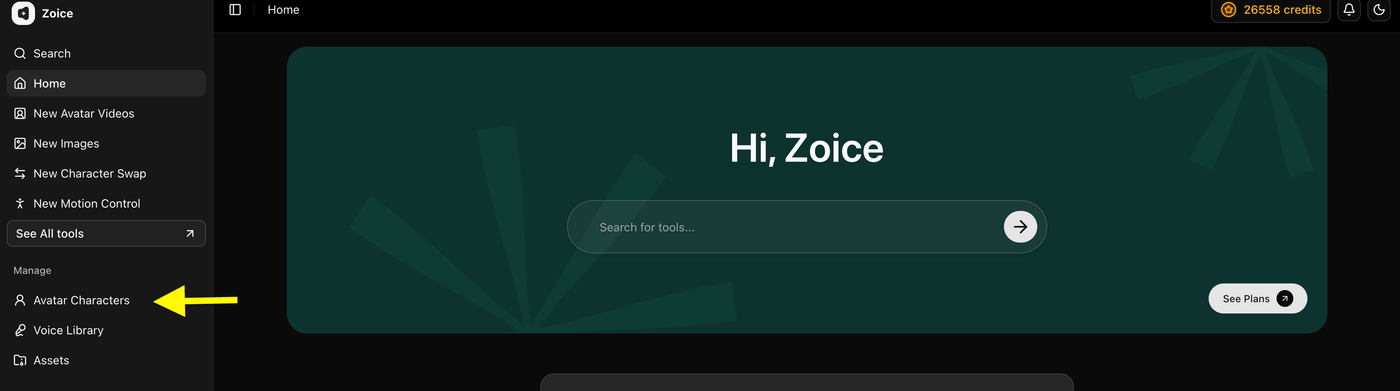
- Click on Create New
Step 5: Upload Your Photo Asset
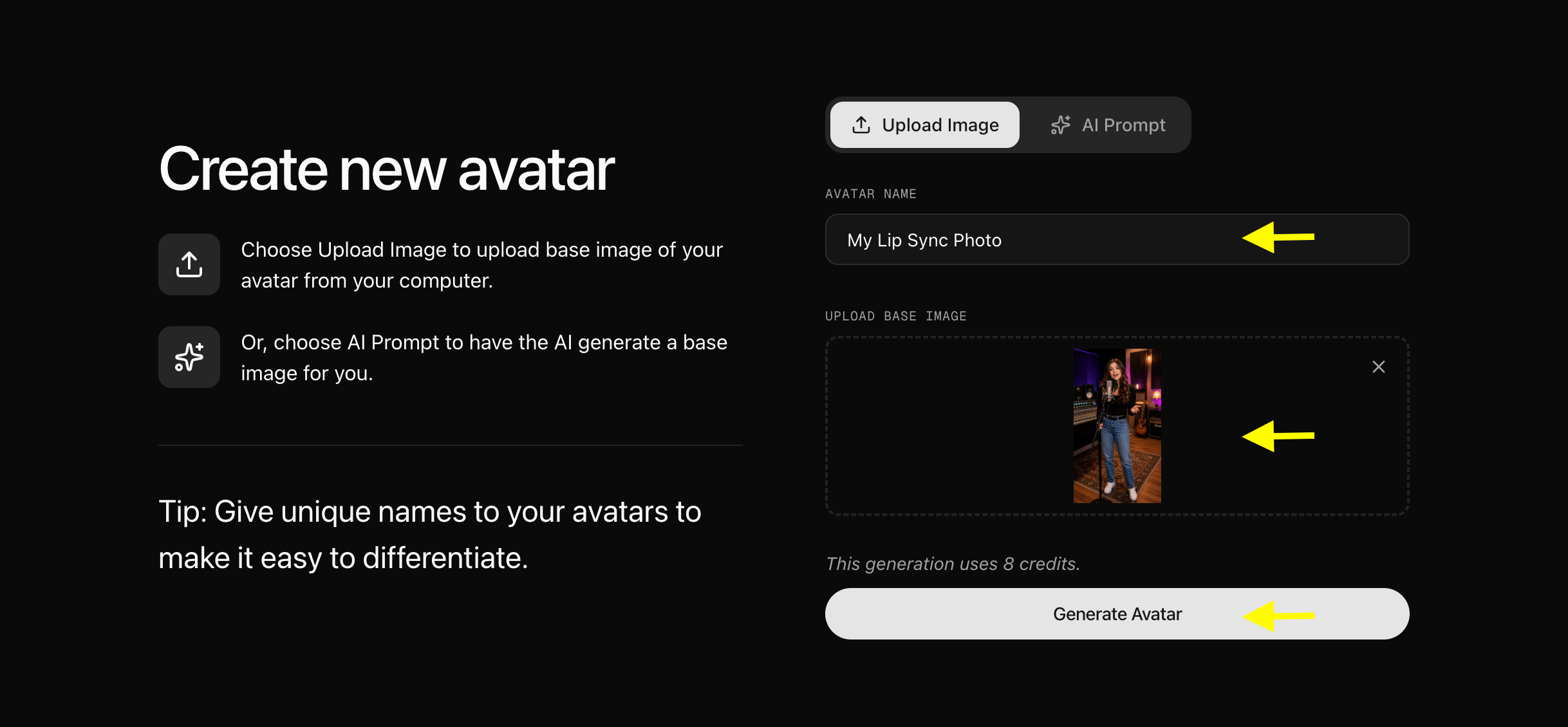
Choose Upload a Photo to upload your portrait from your device. Give the character a descriptive name (e.g., “Singing Presenter Portrait”).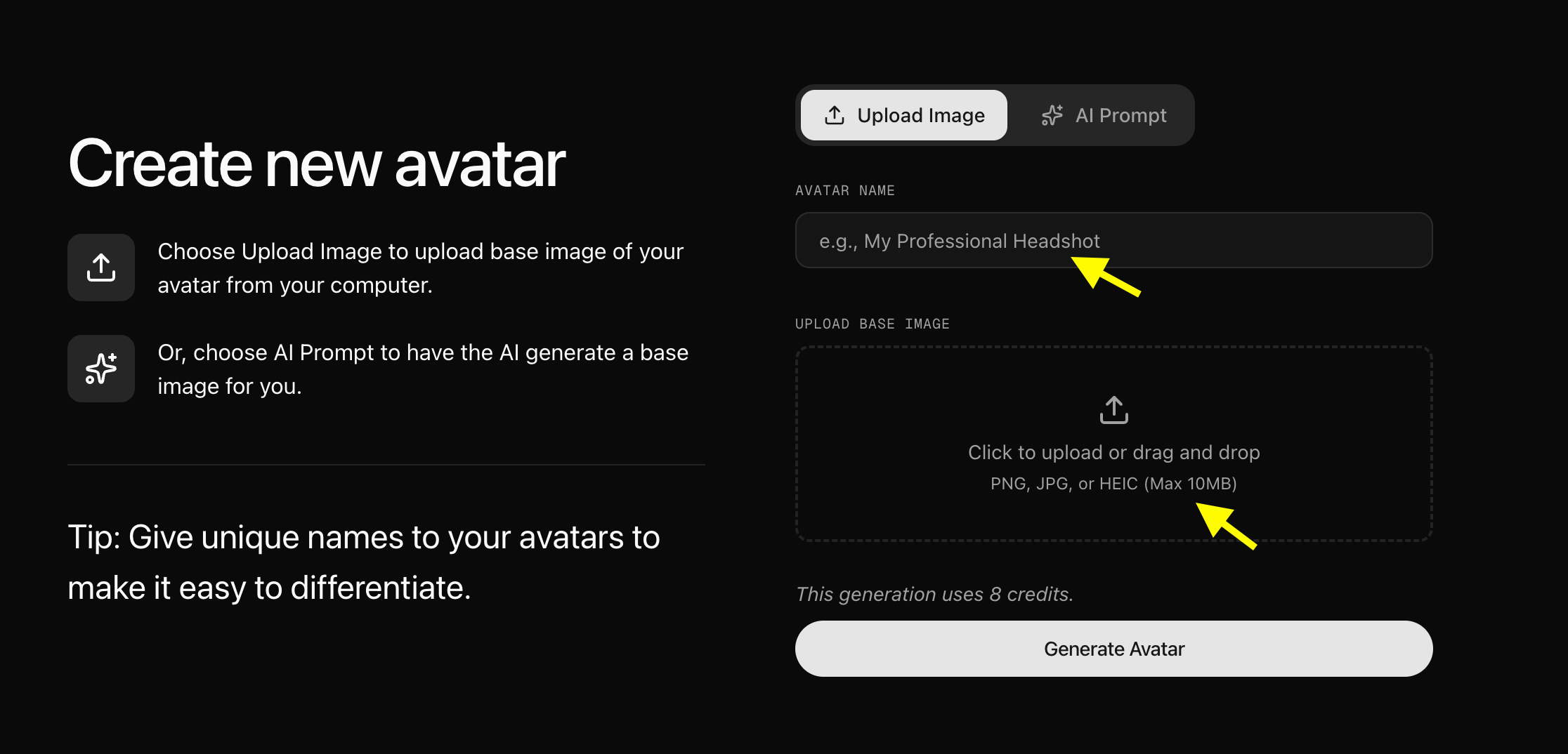
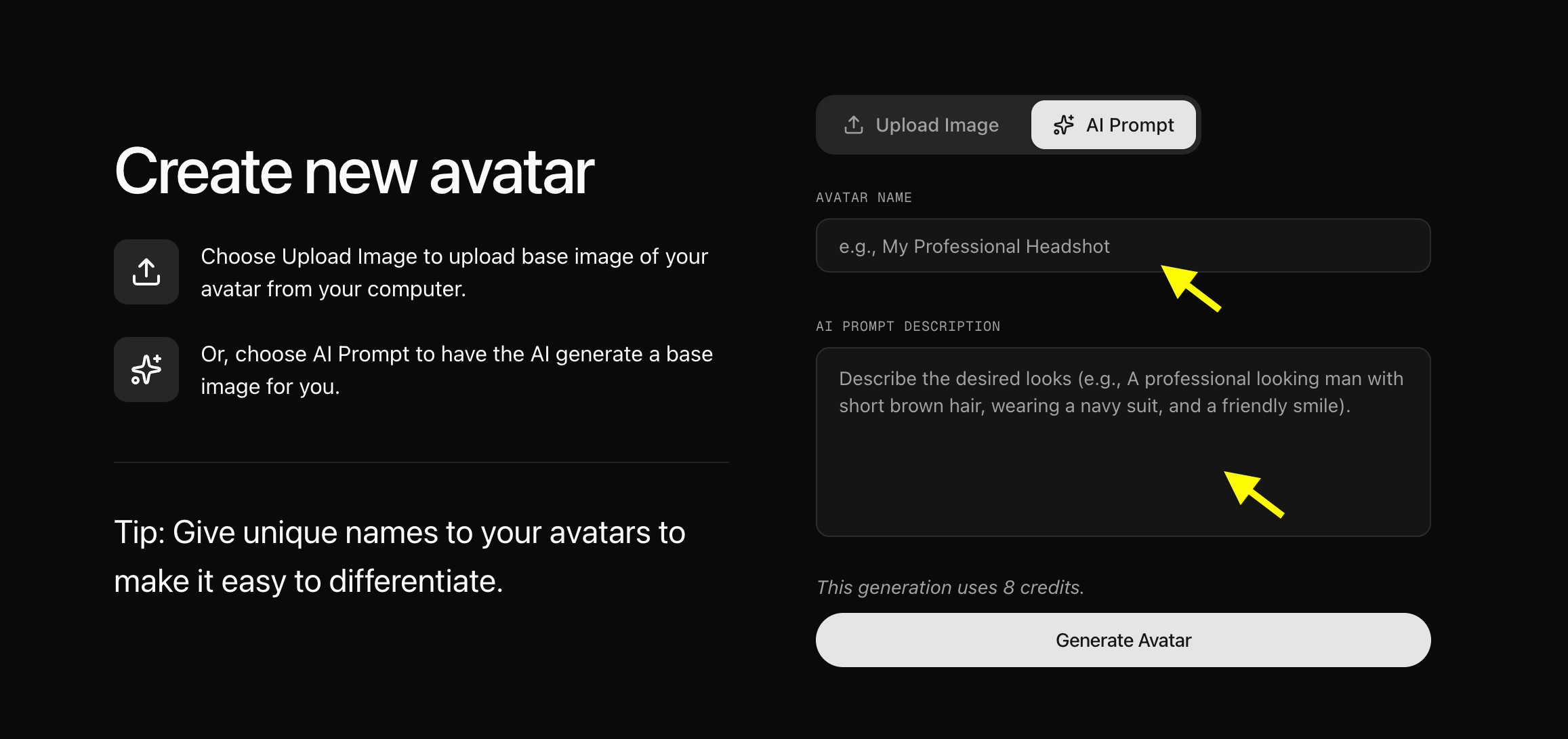
Step 6: Edit Avatar Settings
Click Avatar Setting to define the gender and age properties. This details help the neural network map expressions more accurately. Click save to store updates.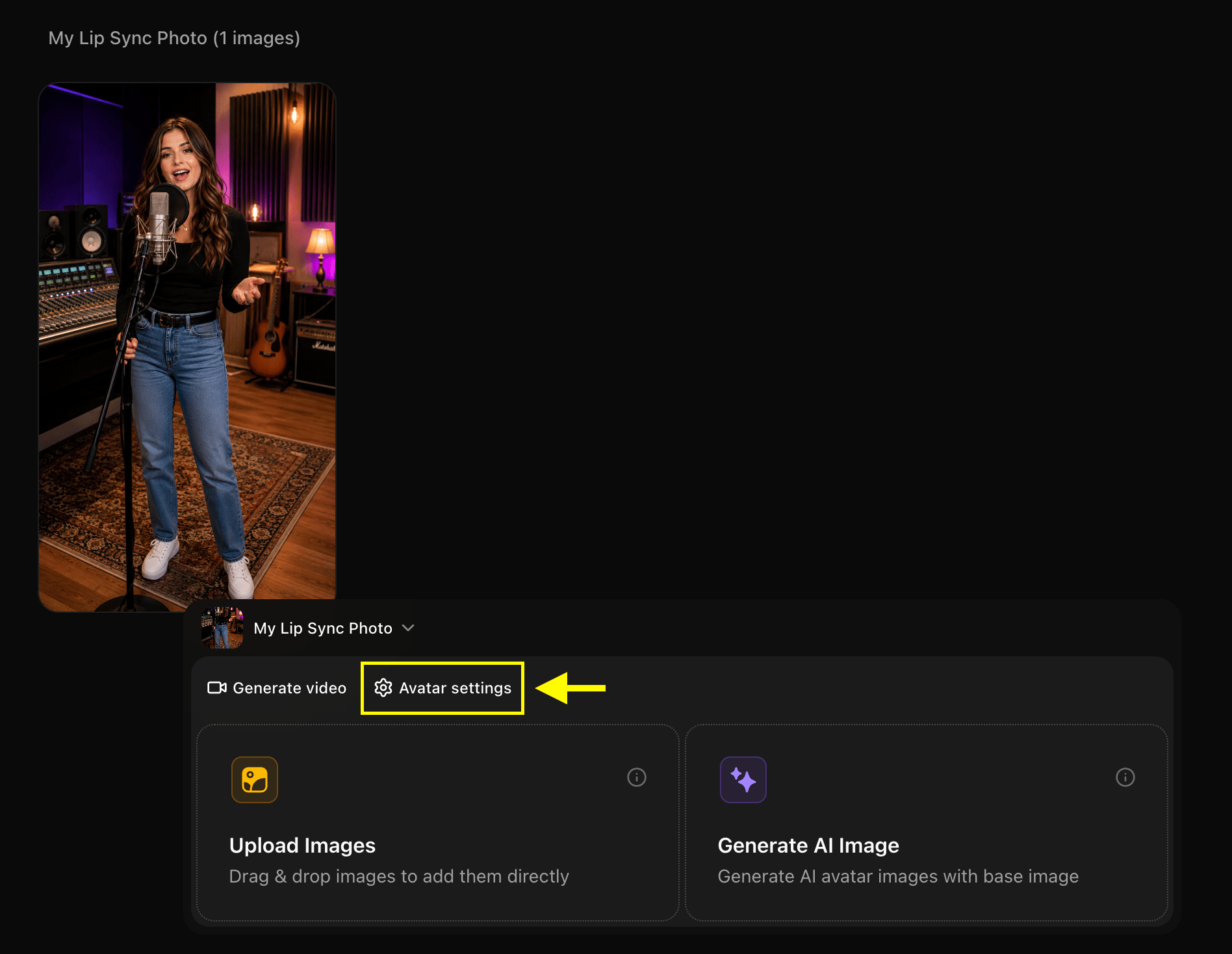
Step 7: Open the Creation Timeline
Select your saved avatar card and click the Generate Video button to open the timeline editor.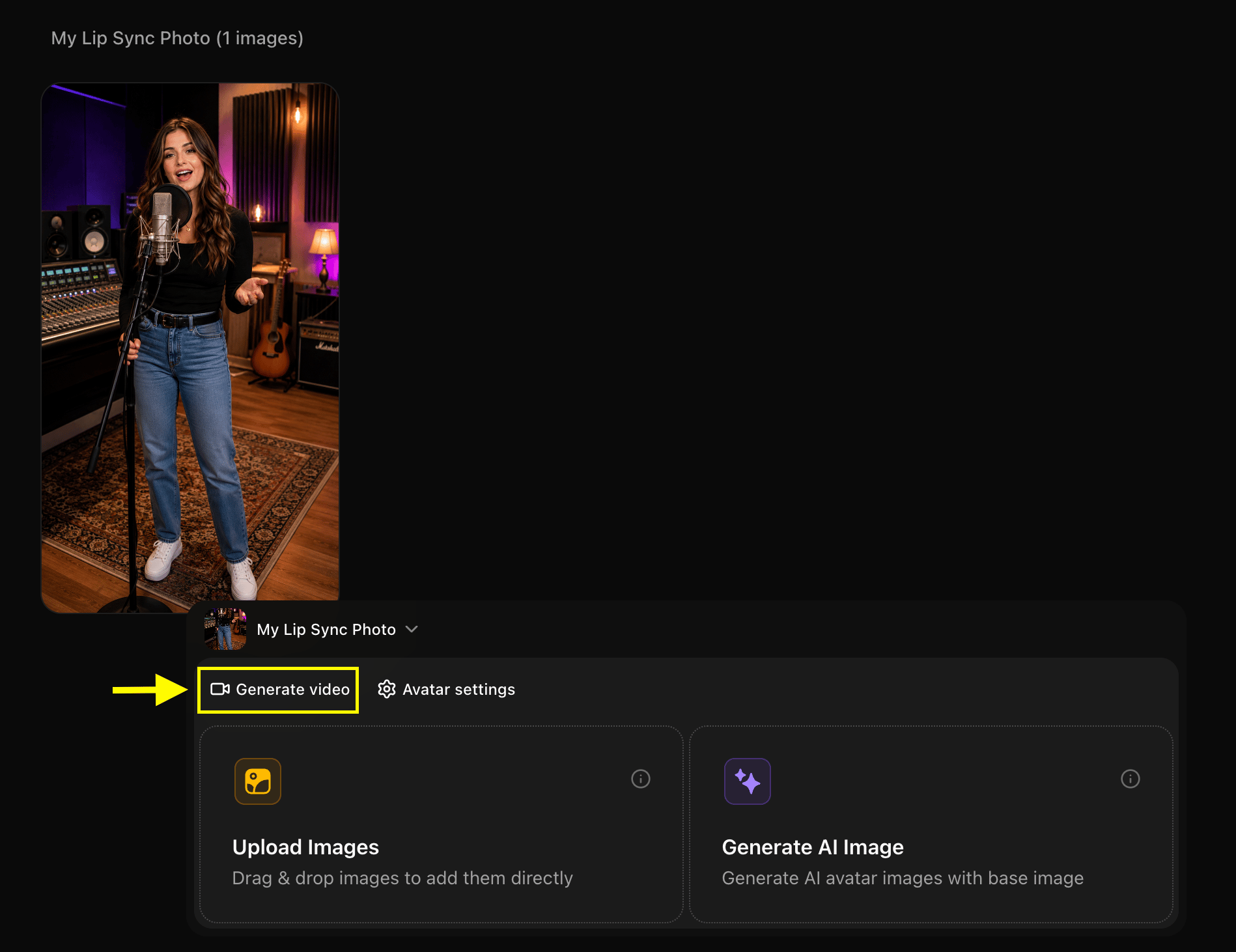
Step 8: Choose Generate from Audio
Toggle the dropdown menu from Generate from script to Generate from audio. This will display two options: Upload Audio (to upload a song file from your device) and Record (to capture live audio directly).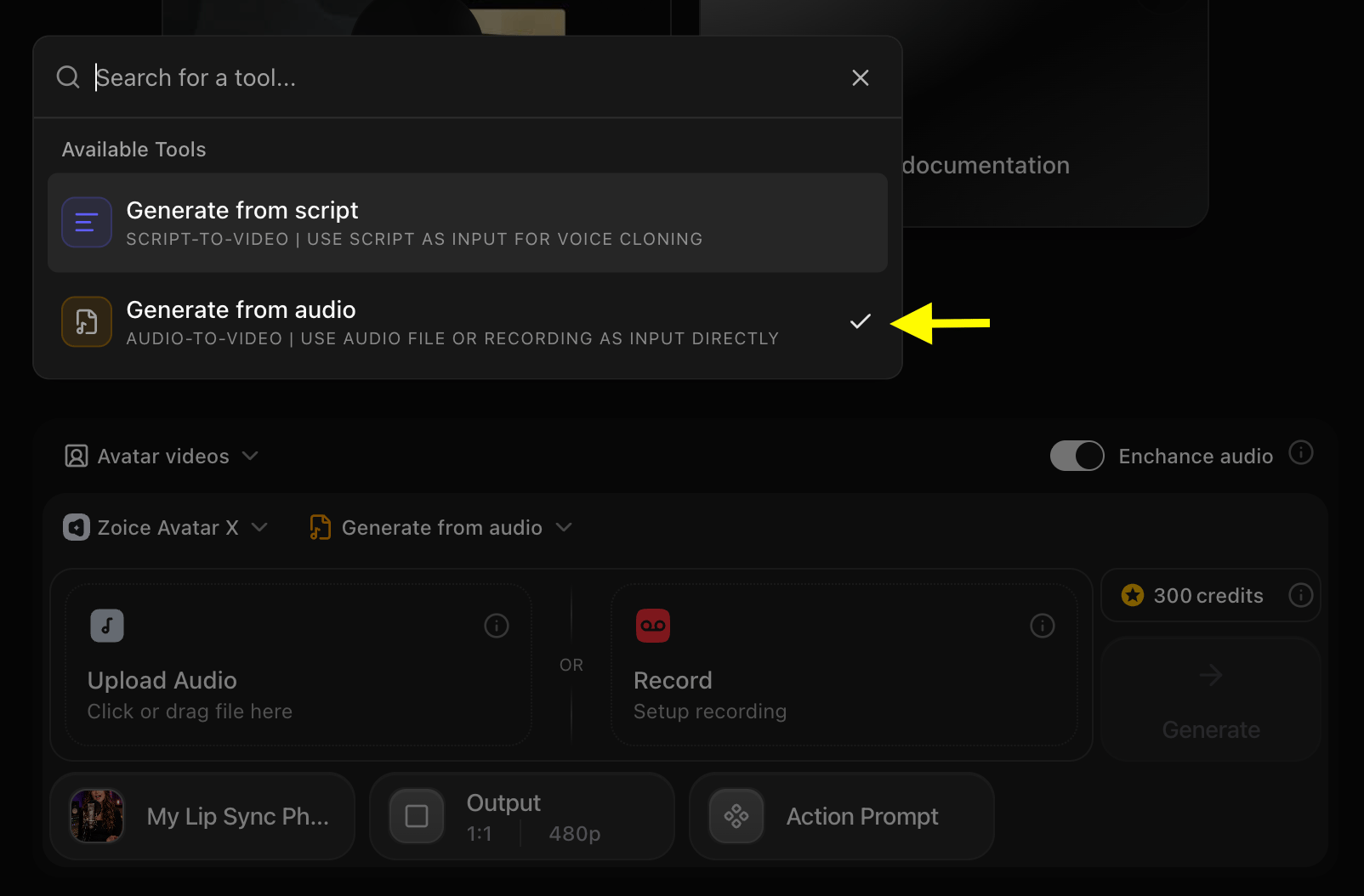
Step 9: Upload Your Music Track
Upload the audio file (MP3, WAV, or M4A) containing the vocals you want the photo to lip-sync. You can select a file from your device or browse the Zoice song list.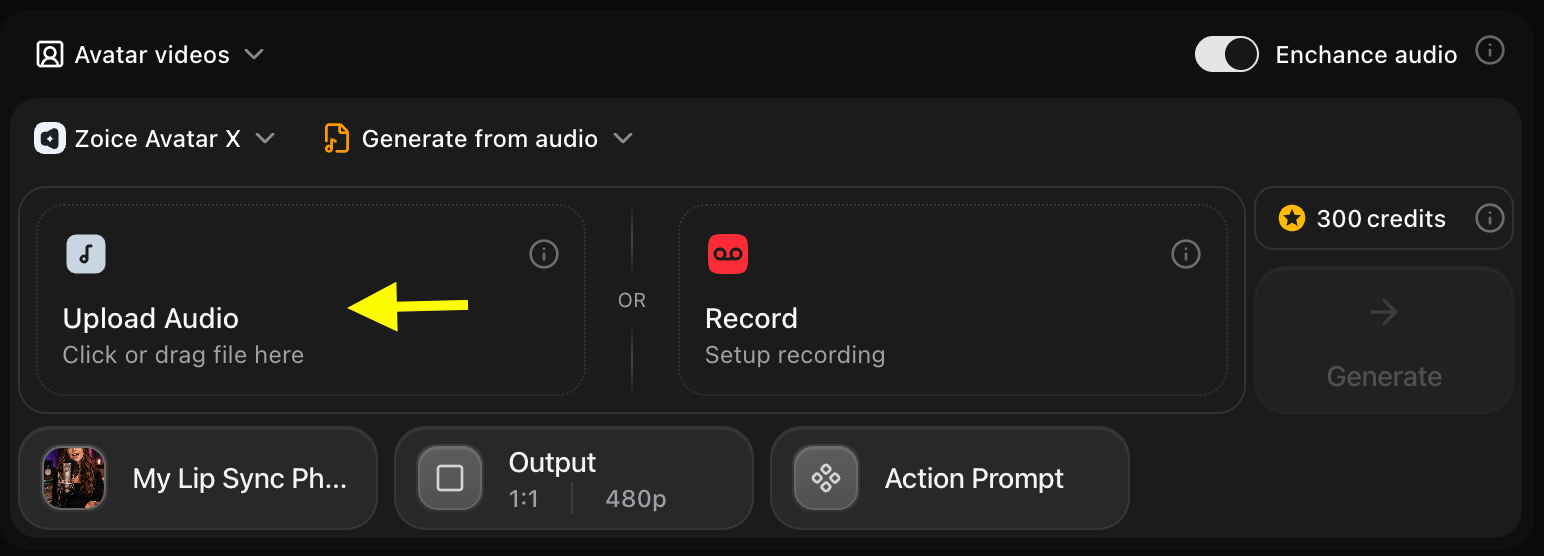
Step 10: Playback Your Audio
Use the Preview playback button to check the sound quality and ensure the audio starts at the correct segment.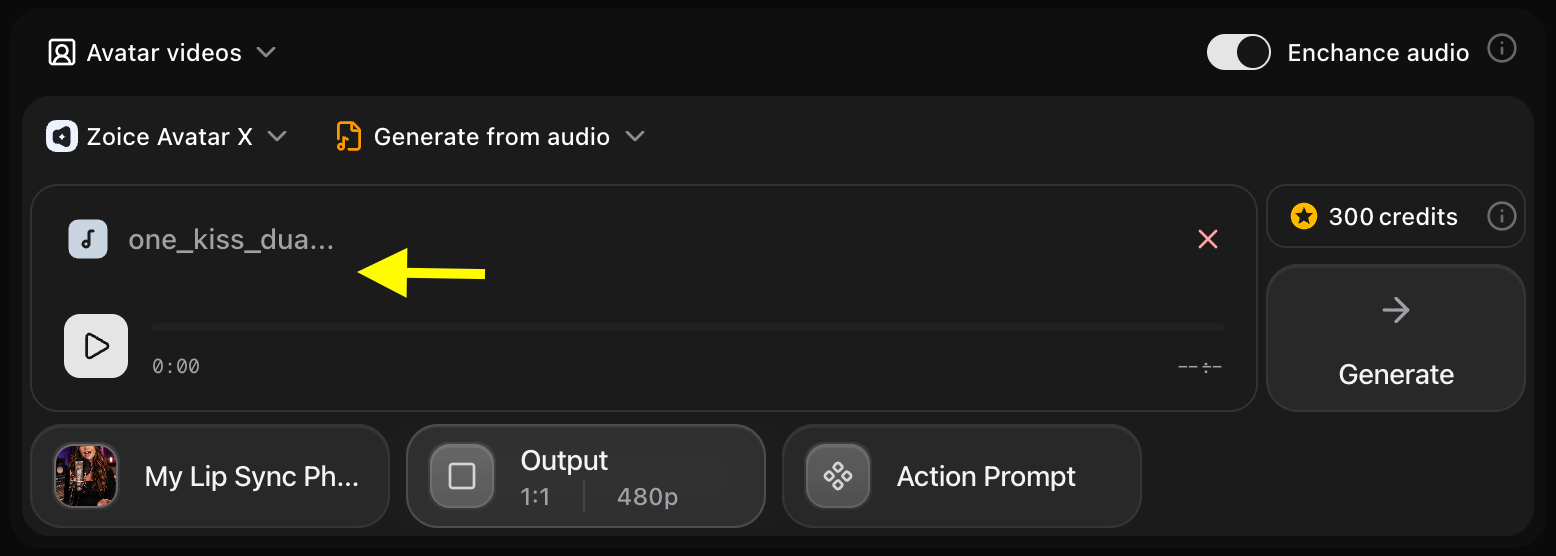
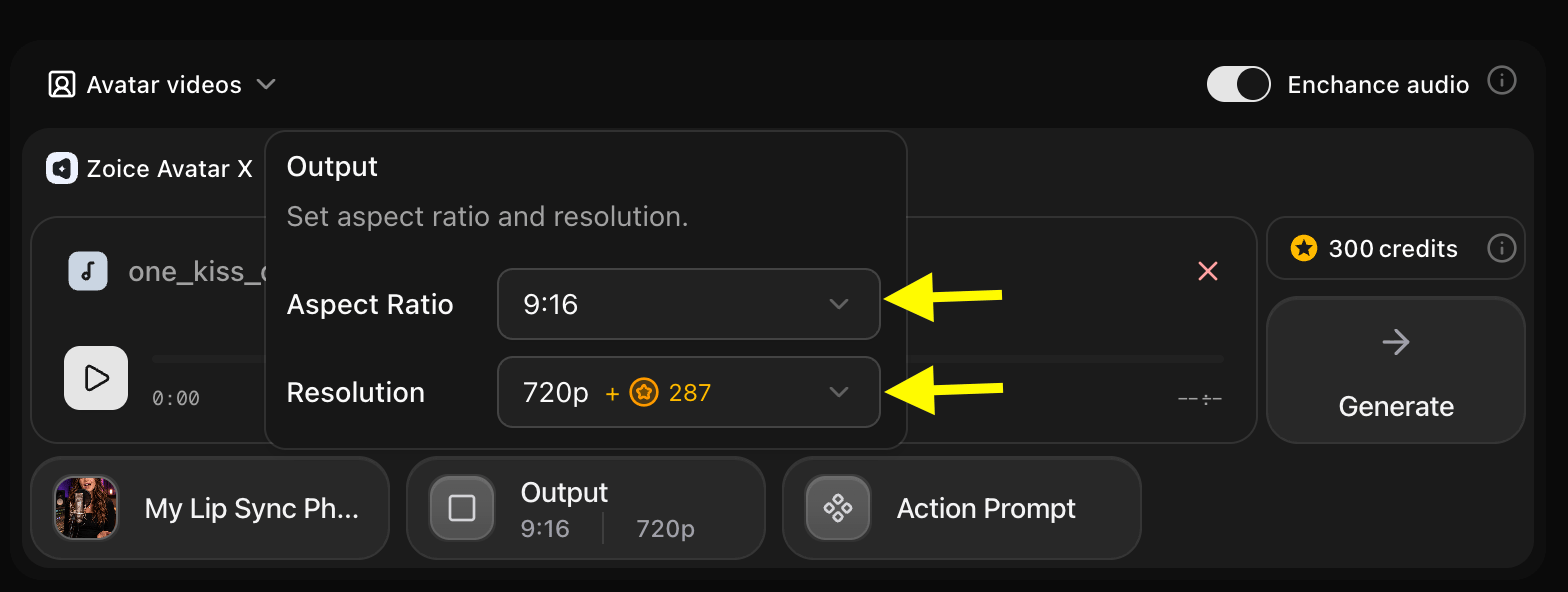
Step 11: Configure Output Dimensions
Adjust your output video settings:- Aspect Ratio: Use 9:16 for vertical mobile platforms (Reels, TikTok, Shorts) or 16:9 for landscape formats.
- Resolution: Select up to 4K resolution to maintain maximum detail.
Step 12: Select Action Prompt
Click the Action Prompt button to choose the physical movements of your avatar during the song performance.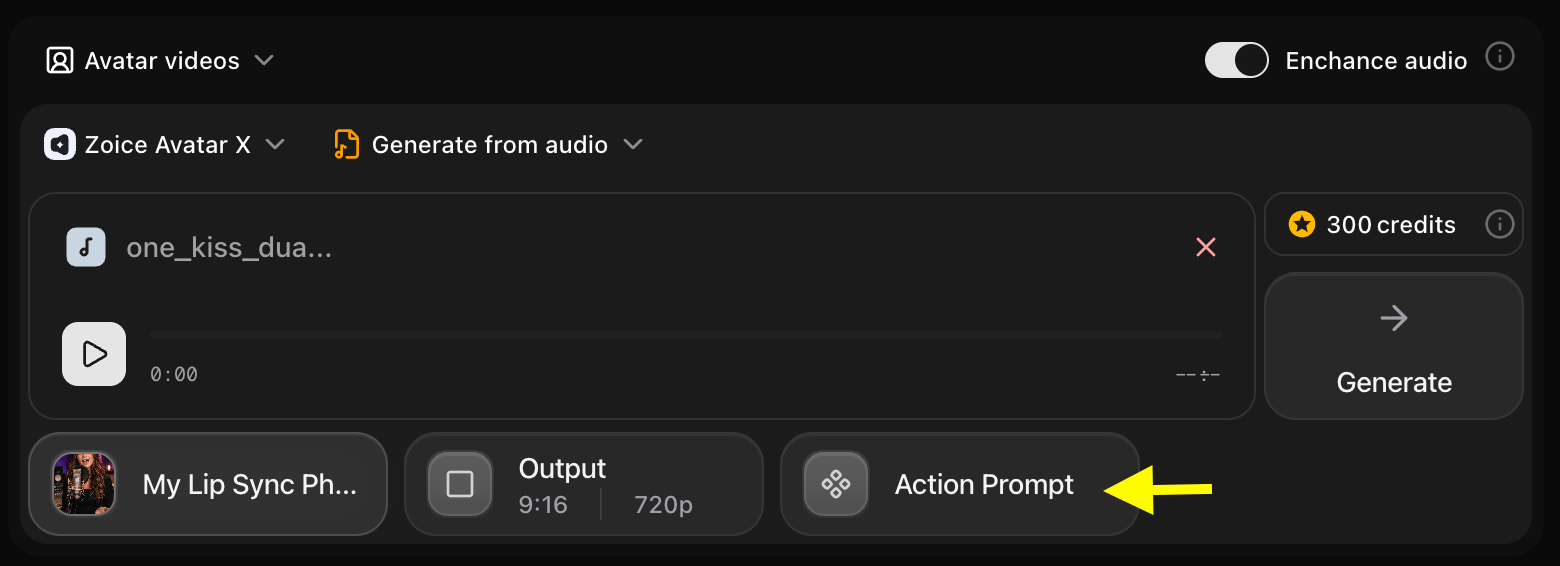
Step 13: Write a Custom Lip-Sync Instruction
Input a detailed animation prompt describing the performance style (e.g., “Singing with passion, head swaying side to side, natural lip movement matching vocal rhythm”).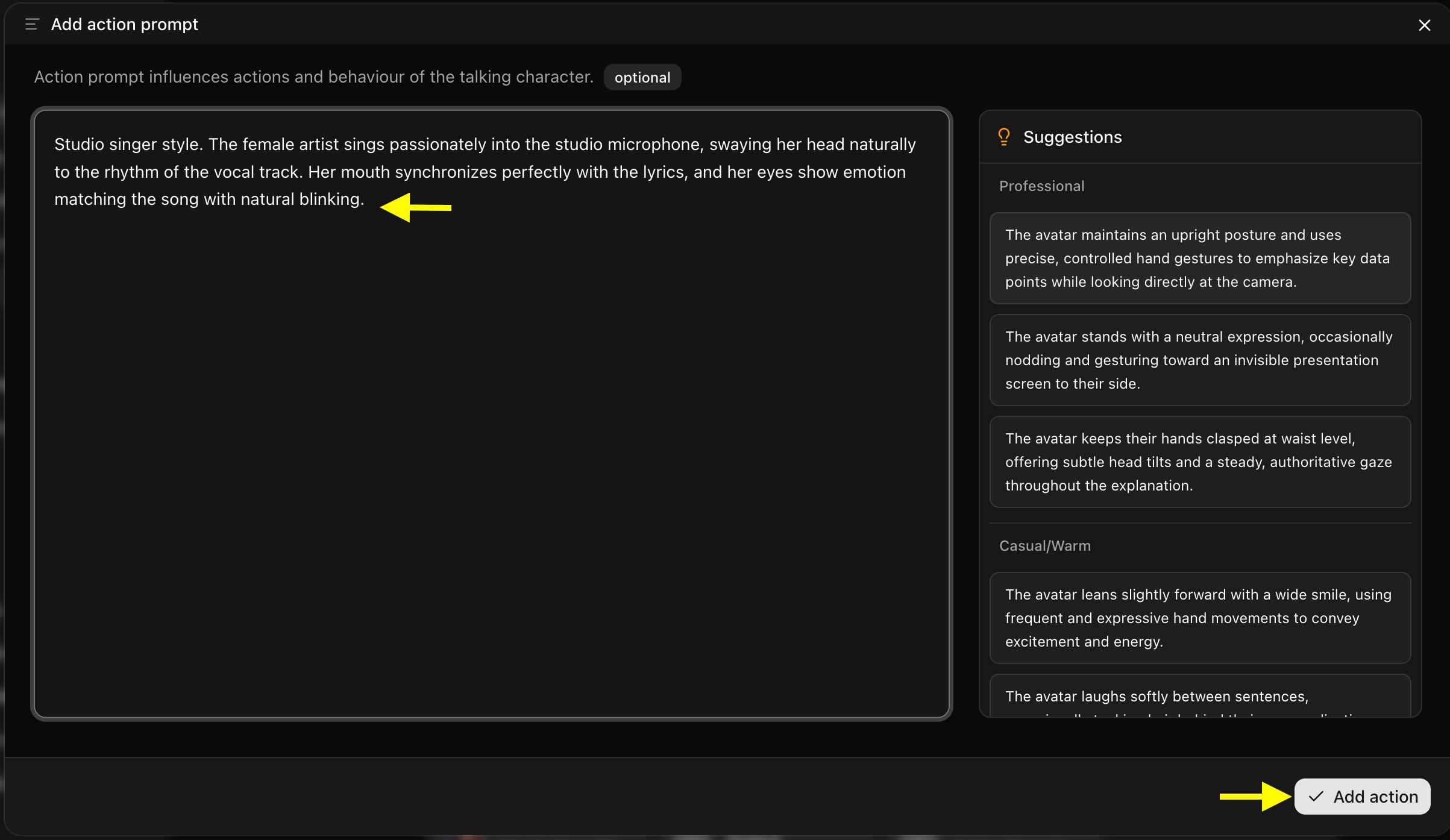
Step 14: Queue the Animation
Verify your settings and click the Generate button to submit the job to our queue.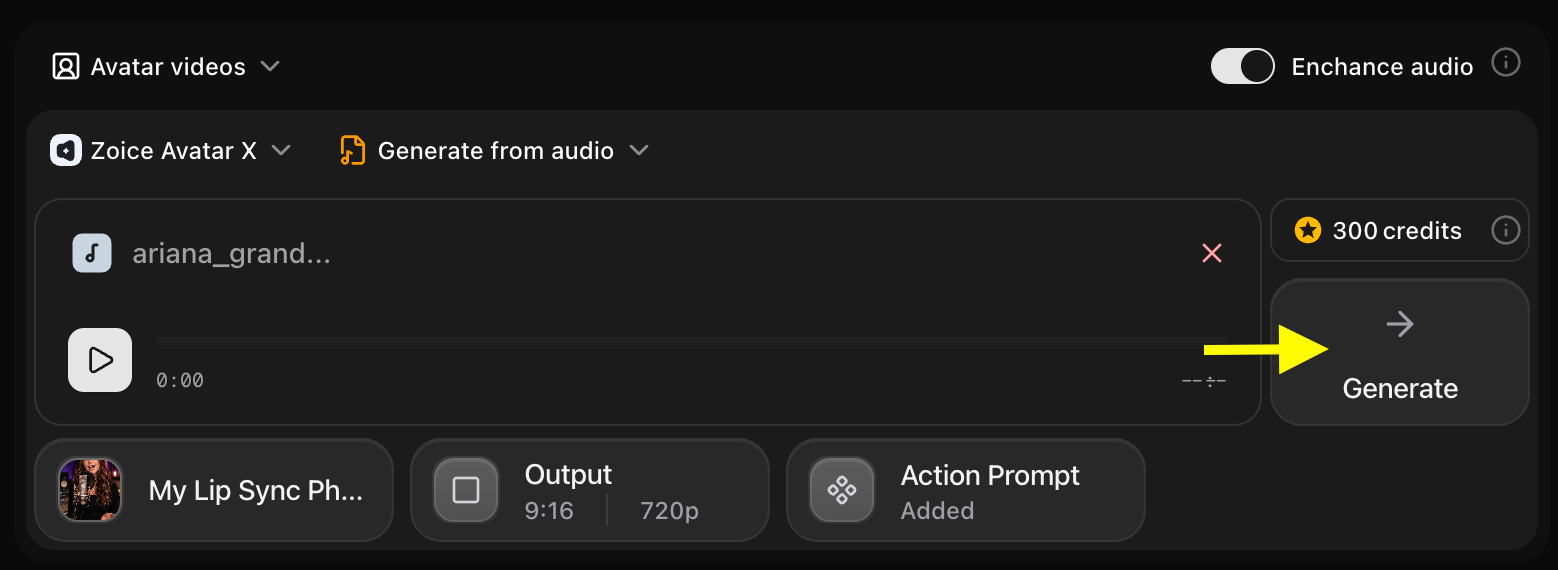
Step 15: Play the Audio Preview
Review the generated audio preview. If it matches the rhythm and has no noise, click Generate Avatar Video to render the final video.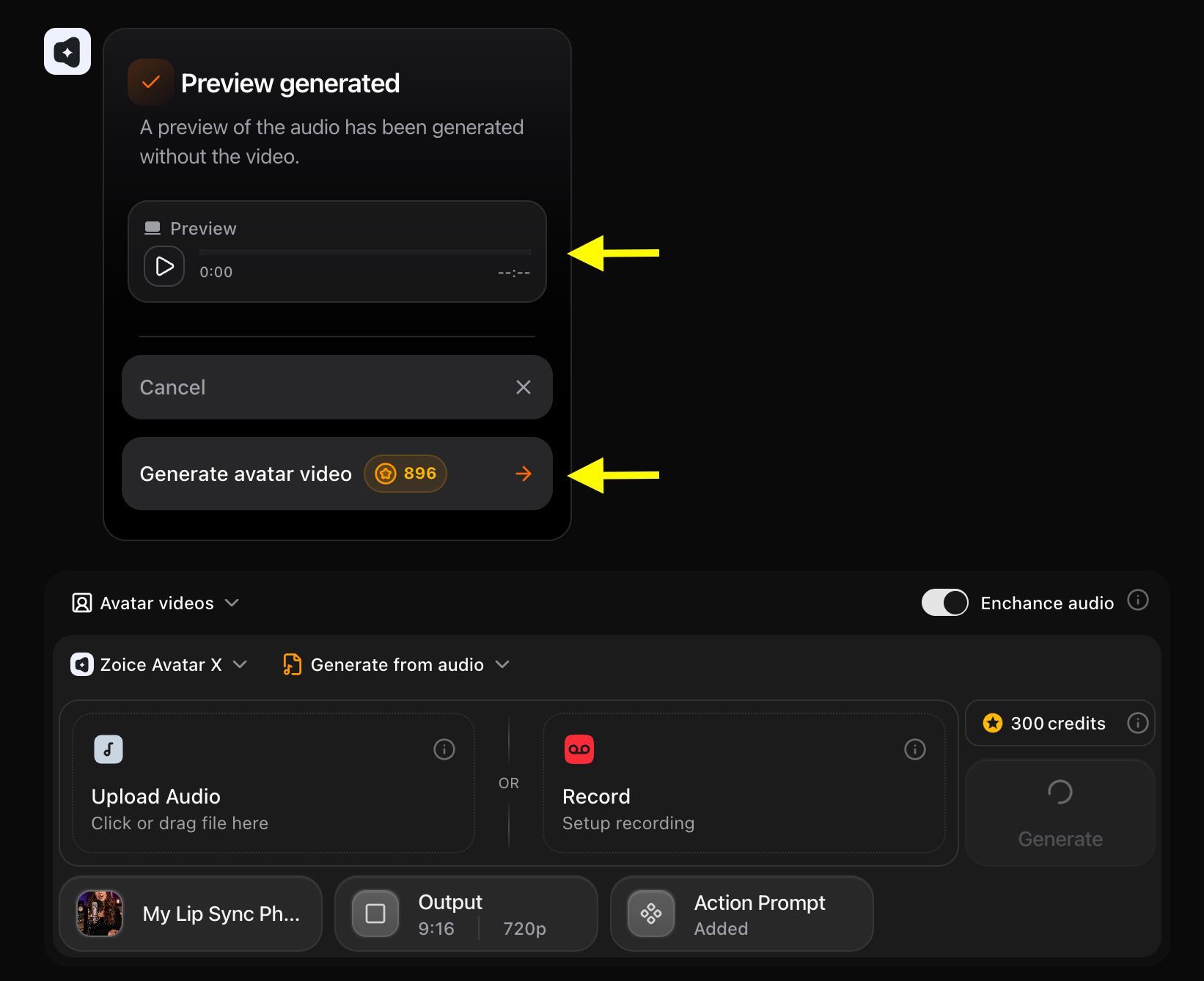
Step 16: Download Your Video File
Once rendering is complete, click the Download button to save the MP4 video directly to your files.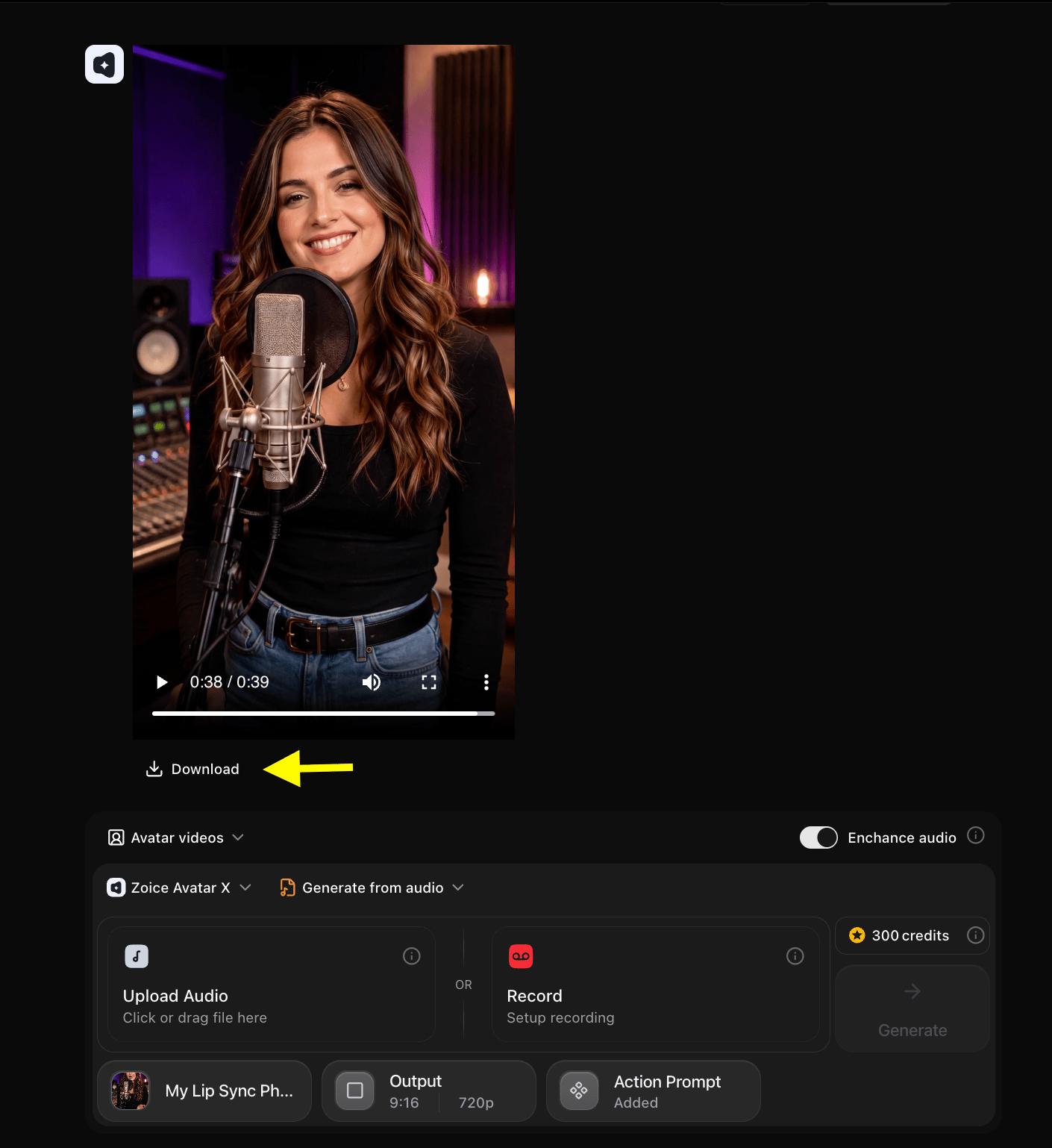
[!NOTE] Adding Background Music: Zoice generates the lip-synced vocal performance video without background music tracks. To add background music or instrumental tracks to your video, open any video editor (such as CapCut, Premiere Pro, or Canva), import your generated Zoice avatar video, and add your music track as an additional audio layer.
Example Inputs & Result
Here is a preview of how you can create lip sync photo to song:Photo Asset
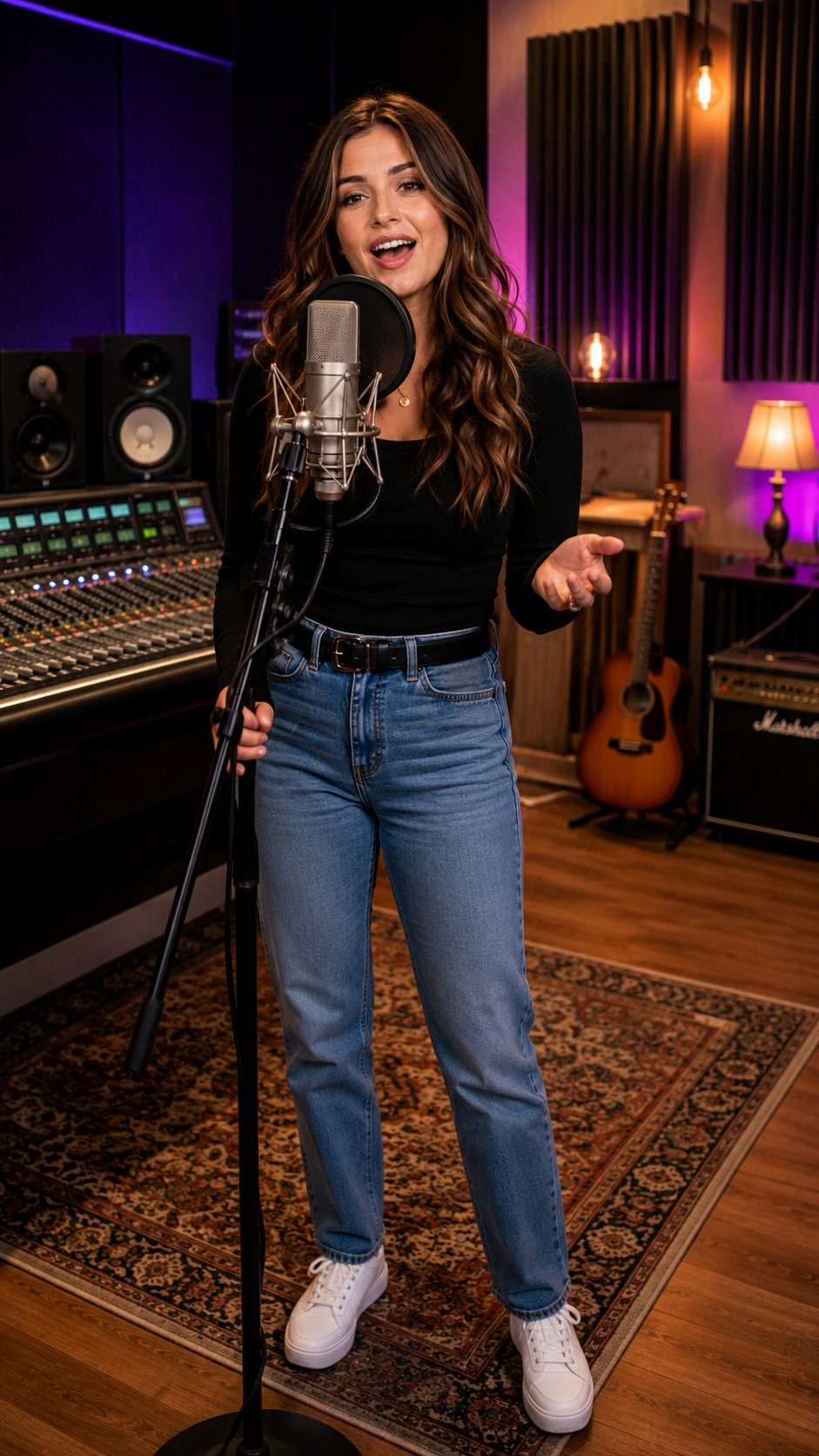
Song Audio
🎵 Listen to the singing track sampleUsed Action Prompt
Output Result Video
Below is the rendered singing video:Tips for Creating Better Lip Sync Photo Videos
To ensure high-quality syncing when you create lip sync photo to song animations, follow these configuration practices:- High-Resolution Face Mapping: Use front-facing images with clear lip structures and high lighting contrast so the neural network maps visemes accurately.
- Control Action Dynamics: Specify clean head bobbing and blink frequencies in the Action Prompt to prevent distortion.
- Filter Background Noise: Ensure your song vocals are isolated or use the Enhance Audio toggle to produce clean lipsync movement.
Lip Sync Photo to Song Animations Can Be Used For?
This generative lip-sync technology is perfect for multiple media use cases:- Music Video Visualizers: Animate album art illustrations or portraits of singers to visualize new audio releases.
- Meme and Parody Content: Match classical paintings, historical figures, or cartoon sketches to trending audio hooks.
- Rapid Social Media Production: Produce talking or singing content quickly without filming with physical cameras.
- Virtual Presenters: Create speech animations for business decks and presentations.
Where Lip Sync Photo to Song Videos Are Used?
Lip-sync creations perform exceptionally well on modern digital media channels:- Short-Form Channels: TikTok, Instagram Reels, and YouTube Shorts.
- Online Music Streaming Pages: Video visualizers on YouTube and Spotify canvas formats.
- Corporate and Learning decks: Added to interactive training presentations.