

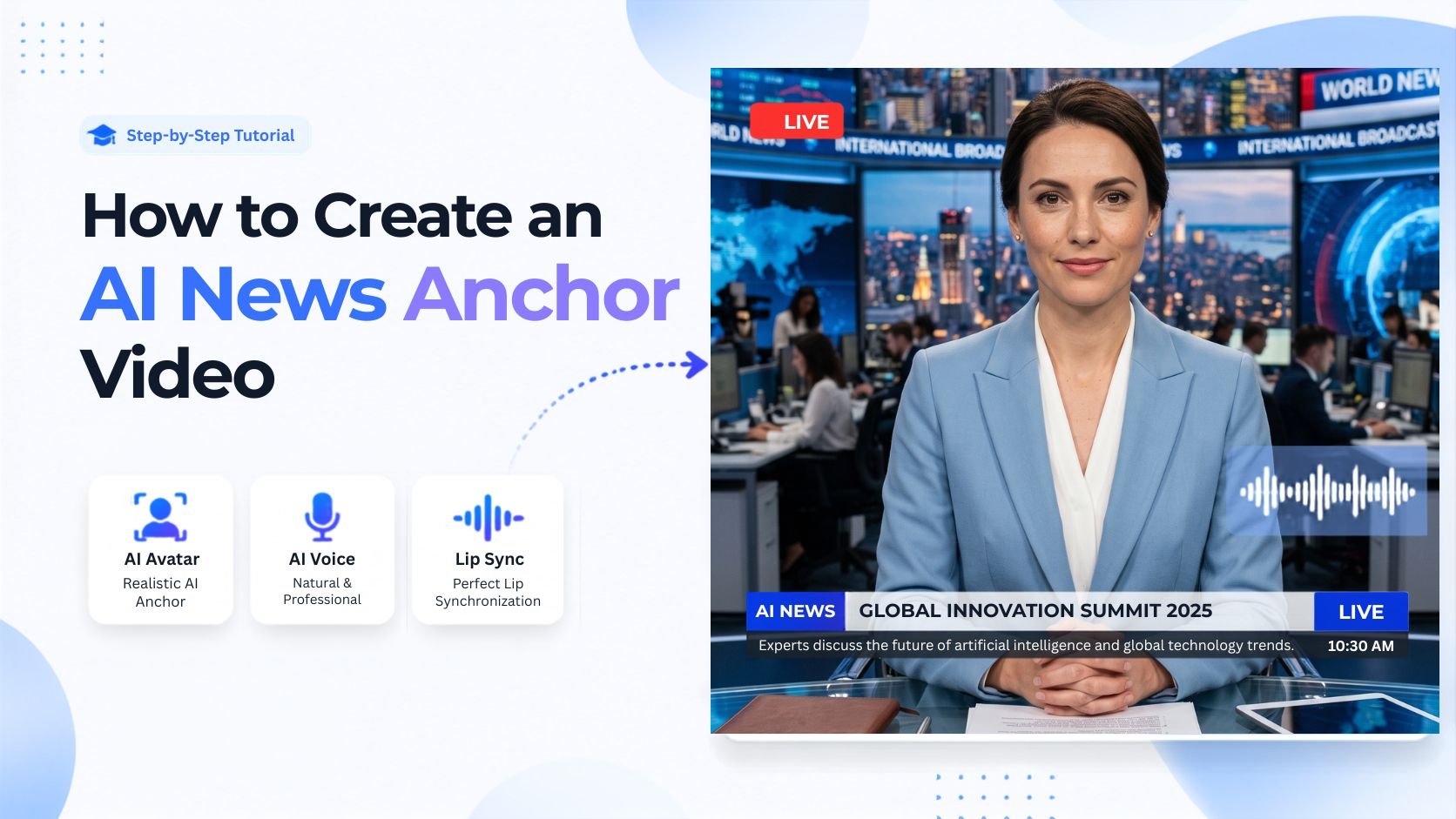
What Are AI News Anchor Videos?
AI news anchor videos are broadcast-style videos generated using artificial intelligence. They feature a realistic AI avatar—often styled in professional attire behind a news desk or in a studio—reading a script with an authoritative, clear voice. You simply write the script (the “news copy”), and the AI handles the performance, animating the avatar to deliver the news naturally. For example, you can create an AI avatar video for: “Good morning, here are the top headlines for today…” or “In company news, our Q3 earnings have exceeded expectations…” The AI avatar delivers the script professionally, making it an excellent tool for digital journalism, company newsletters, and daily social media updates.How to Create an AI News Anchor Video Using Zoice
Creating a news broadcast with an AI anchor is simple. Follow the steps below to create a professional news video.Step 1: Visit Zoice.com and Click Sign In
Go to Zoice.com in your browser and click the Sign In button available at the top-right corner of the homepage. This will open the login page where you can access your Zoice account.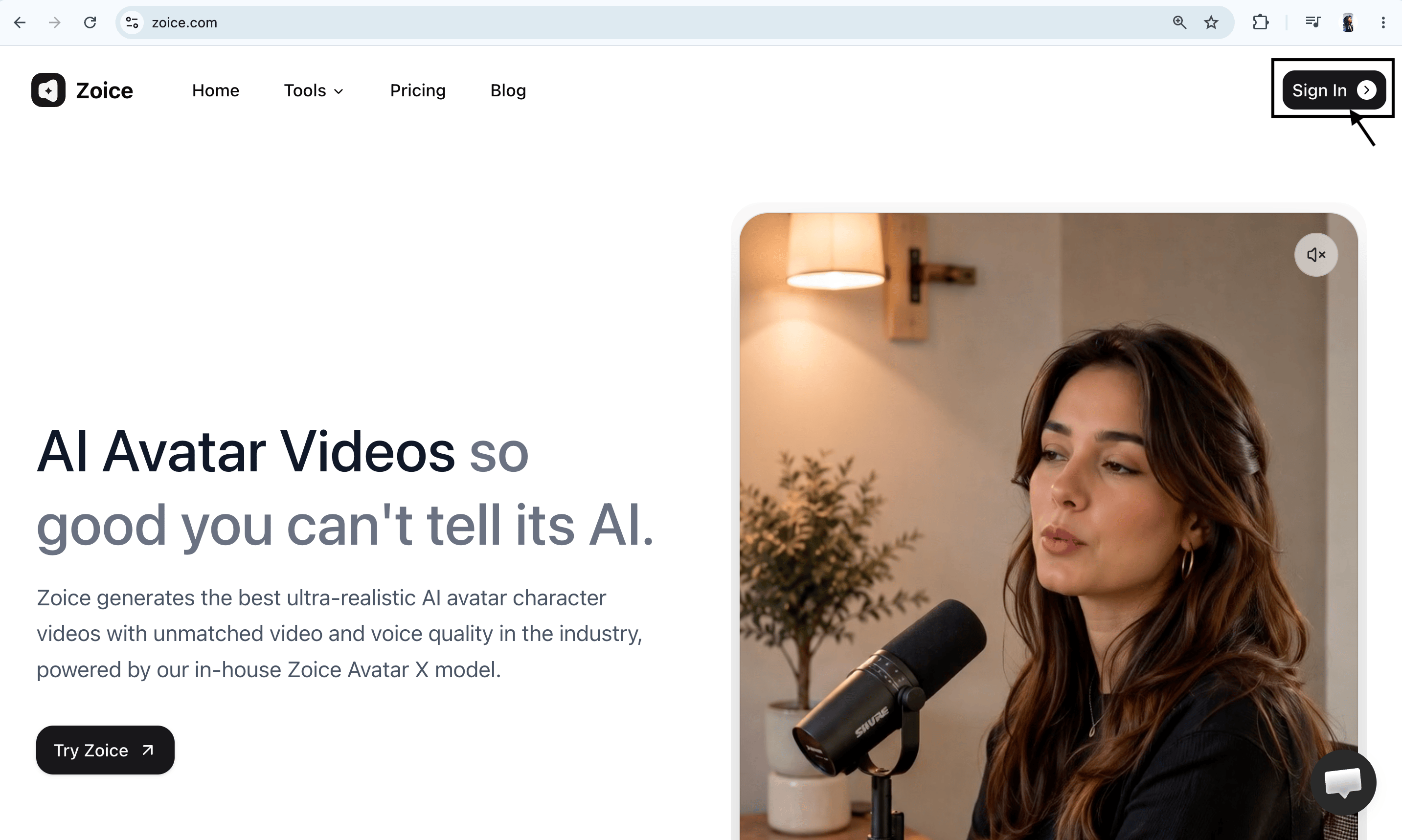
Step 2: Sign In to Your Zoice Account
If you already have a Zoice account, enter your registered email address and password, then click Sign In. You can also choose Sign in with Google if your account is connected with Google. After successfully signing in, you will be redirected to the Zoice dashboard.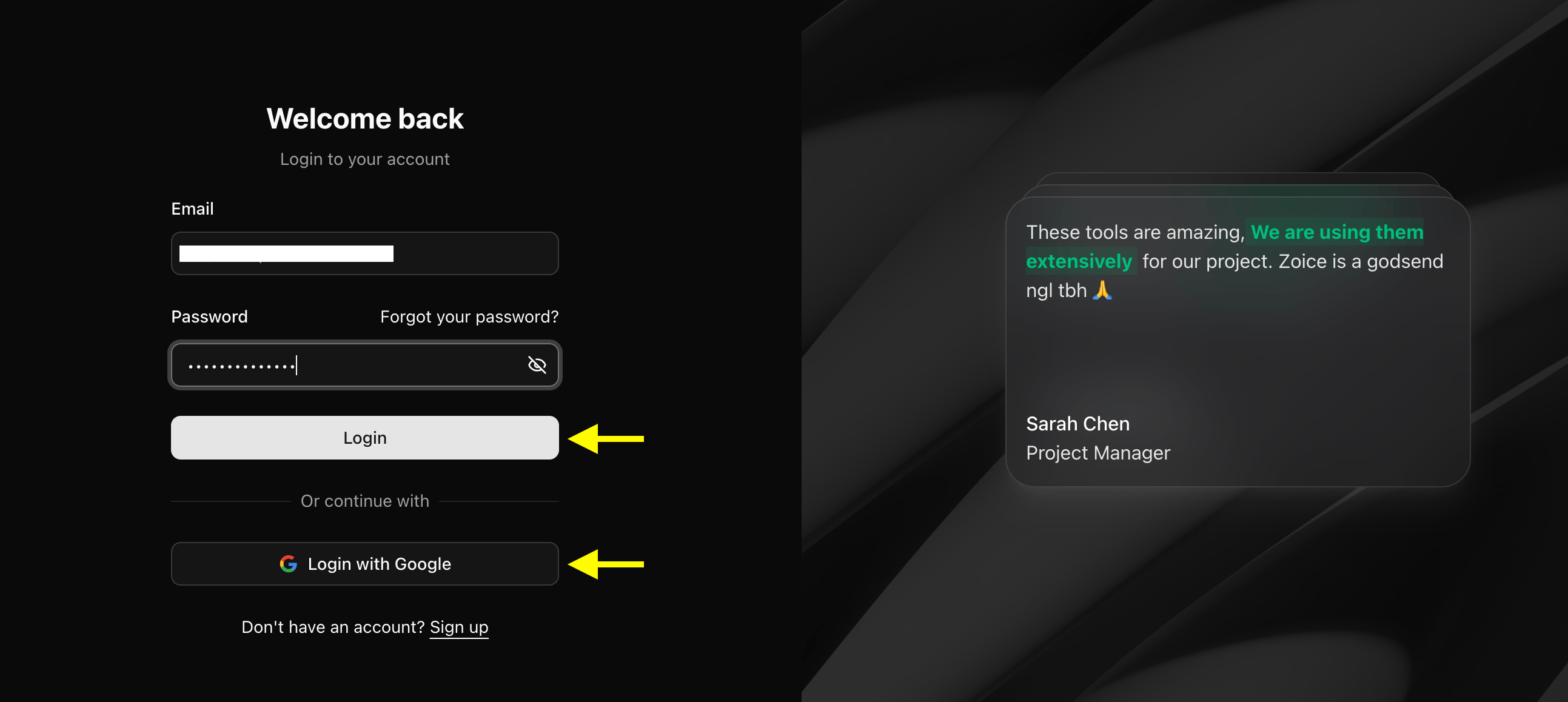
Step 3: Create a New Zoice Account (For New Users)
If you are using Zoice for the first time, click Sign Up to create a new account.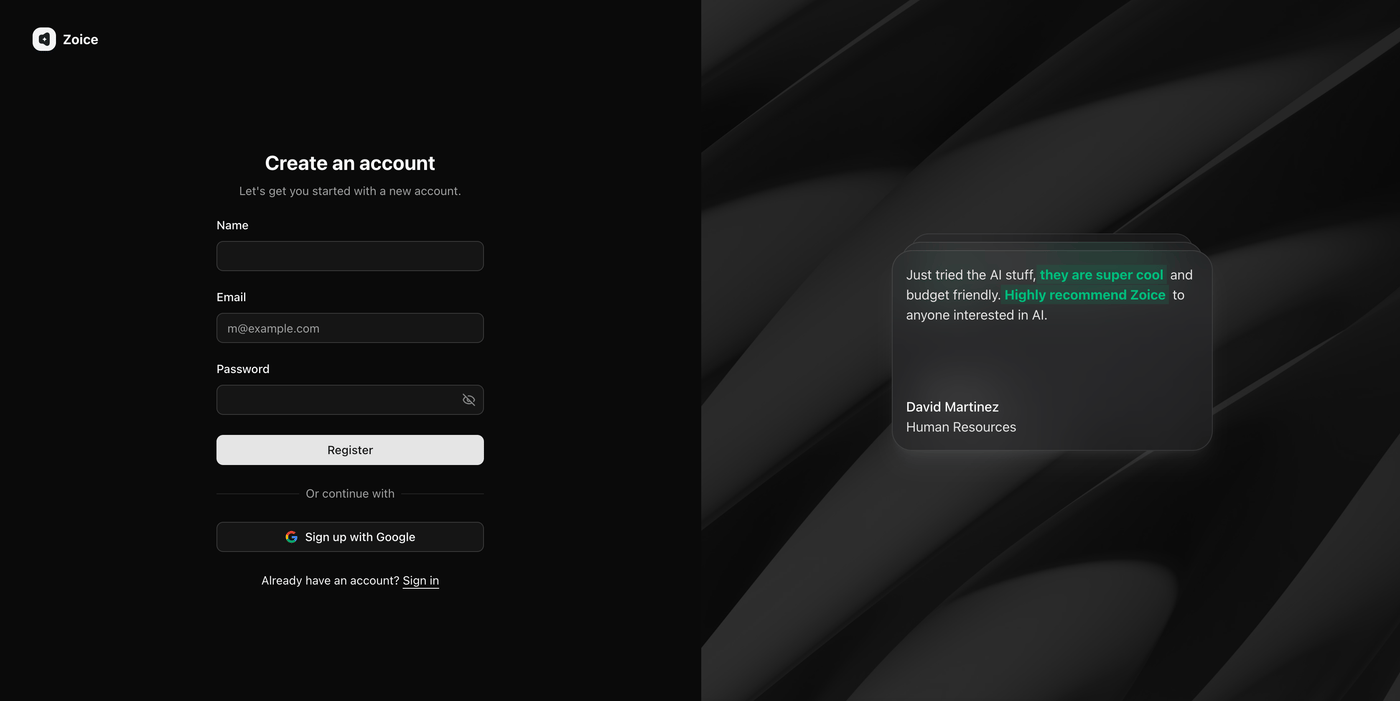
- Name
- Email address
- Password
Step 4: Navigate to Avatar Characters
After logging in, you will reach the Zoice dashboard. From the left sidebar, click Avatar Characters under the Manage section.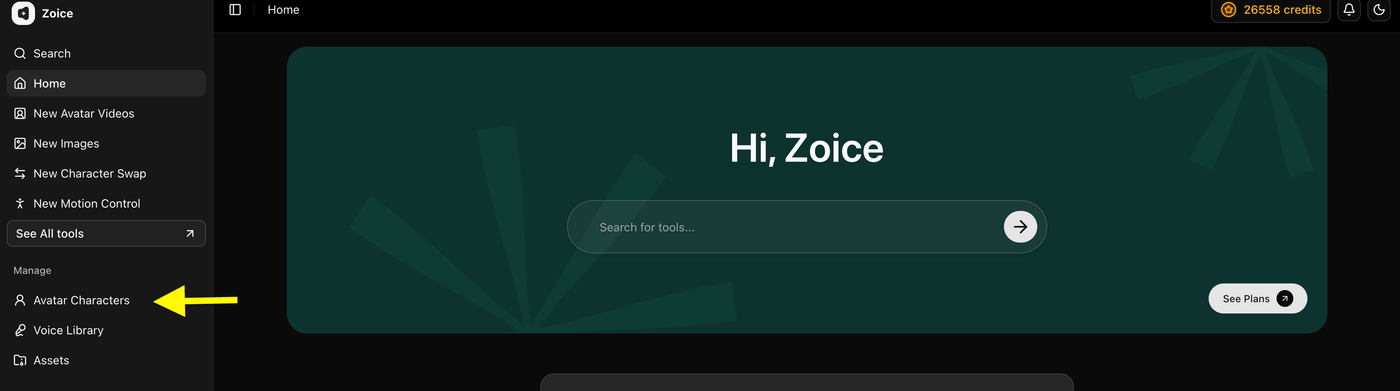
Step 5: Click Create New Avatar
On the Avatar Characters page, click the Create New button to start creating your custom AI news anchor.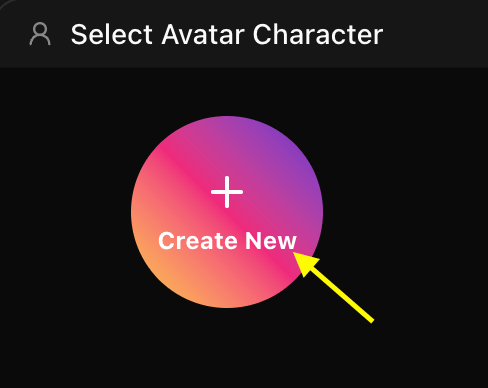
Step 6A: Create Your Avatar Using an Image (Skip to step 6B if you don’t have an image)
Upload a clear, high-quality image of a host or presenter that you want to convert into a news anchor. Add an avatar name so you can easily identify it later in your avatar library.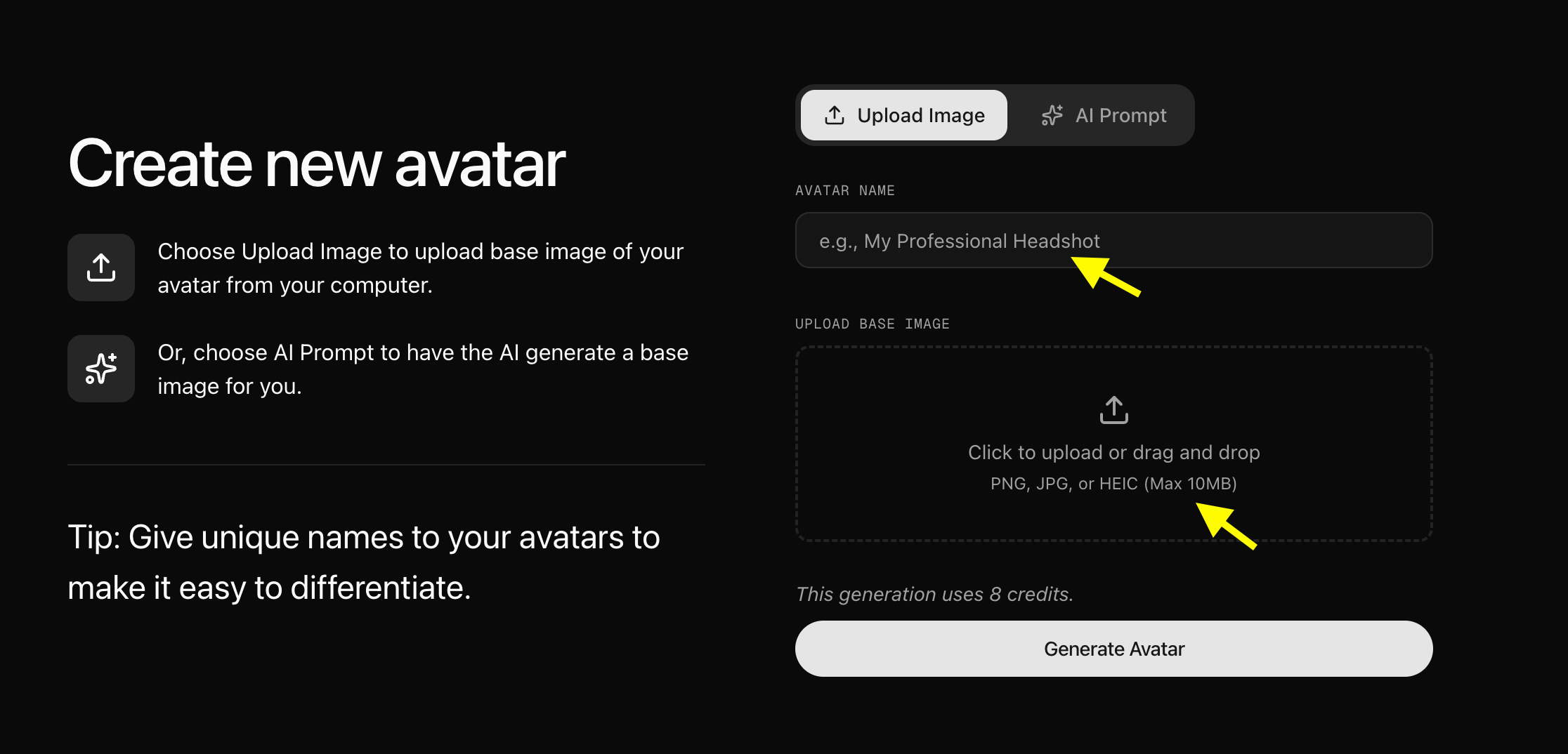
- Clear face visibility
- Professional attire
- Front-facing angle
- High image quality
Step 6B: Generate Avatar Using AI Prompt (Skip if you uploaded an image)
If you don’t have an image, select the AI Prompt option to create an avatar using a text description. Enter an Avatar Name, describe the type of news anchor you want (for example: “A professional male news anchor in a sharp navy suit, sitting behind a modern news desk, broadcast studio lighting”), and click Generate Image. Once you are happy with the generated image, click Generate Avatar.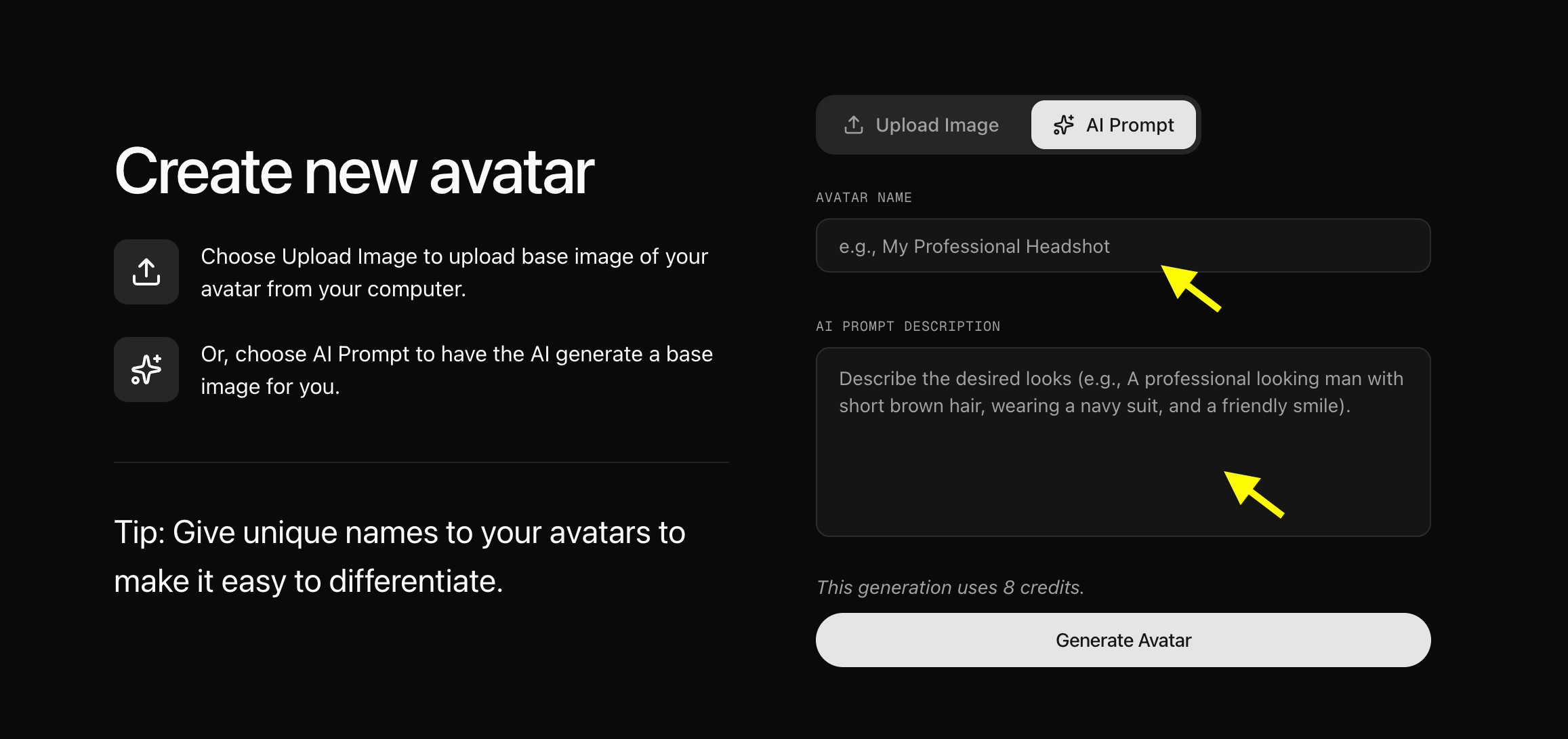
Step 7: Upload Your Avatar Image and Generate Avatar
Now upload the image you want to convert into your AI news anchor. Add a unique Avatar Name so you can easily find and manage your avatar later, and click Generate Avatar. Zoice will process your image and create your AI avatar profile.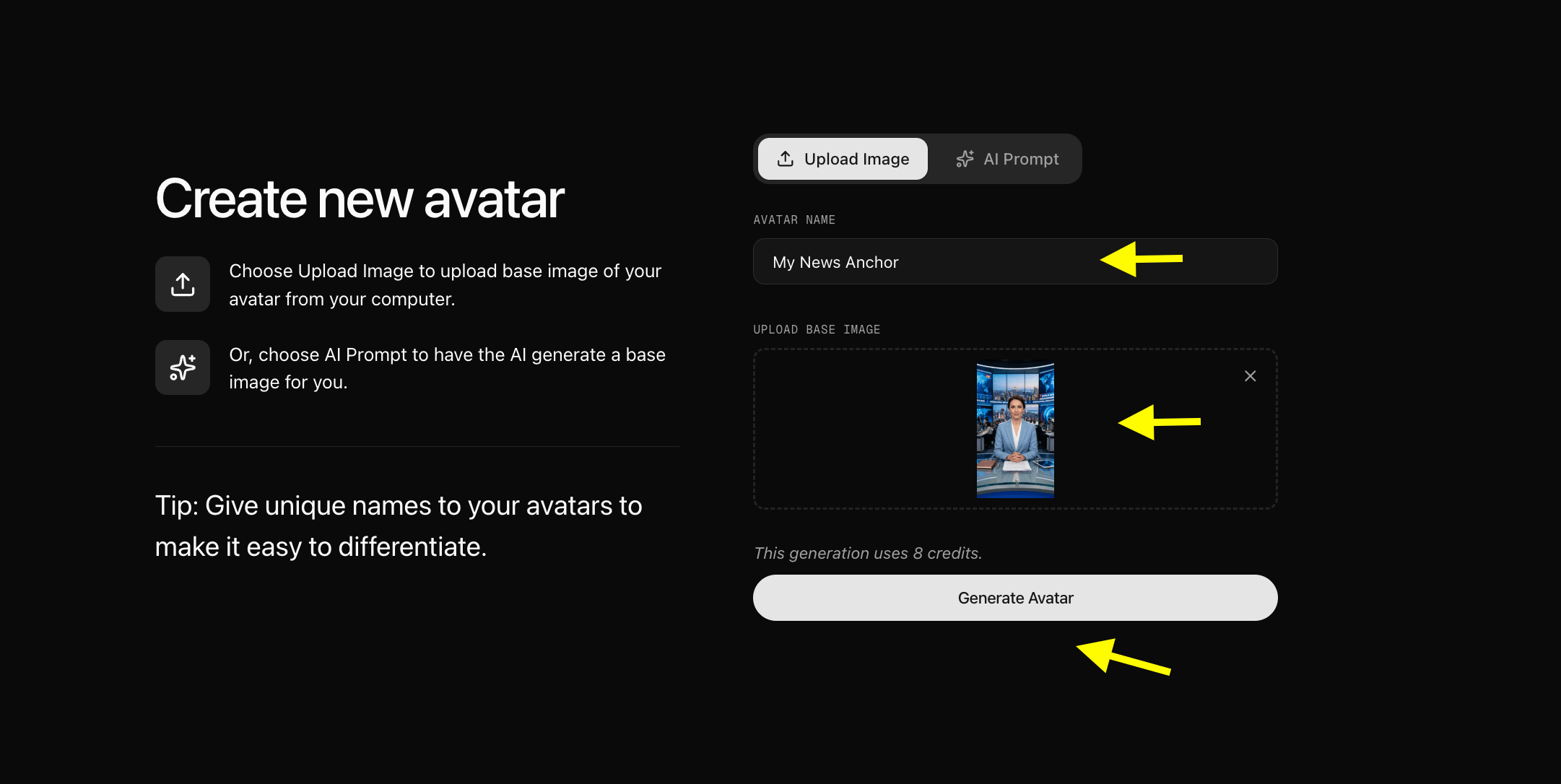
Step 8: Select Your Created Avatar
After your AI avatar profile is generated, go back to the Avatar Characters section. Your newly created avatar will appear in the avatar library. Click on the avatar you created to select it.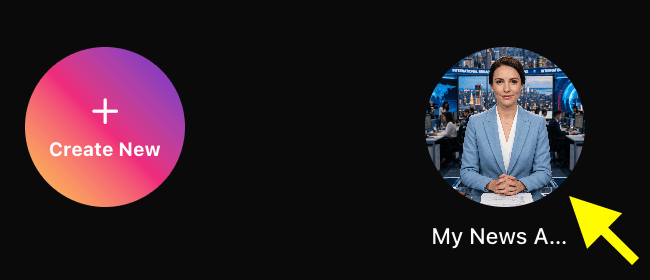
Step 9: Go to Avatar settings
Click on Avatar Setting to add details about the AI Anchor, like Gender, Ethnicity, Age, Voice, and Accent.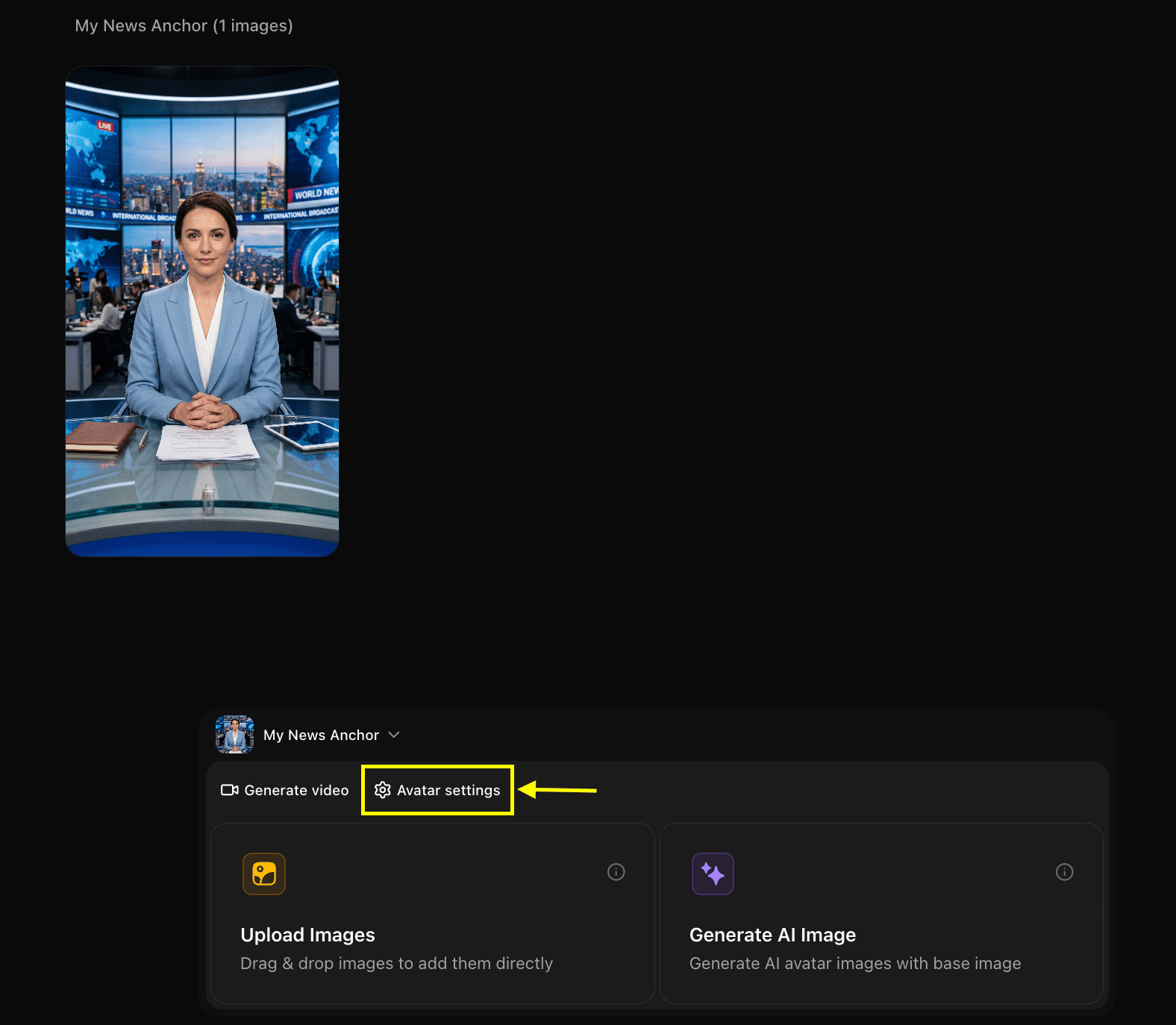
Step 10: Click Generate Video
After selecting the avatar you want to use for your broadcast from the library, click Generate Video to open the video creation workspace page.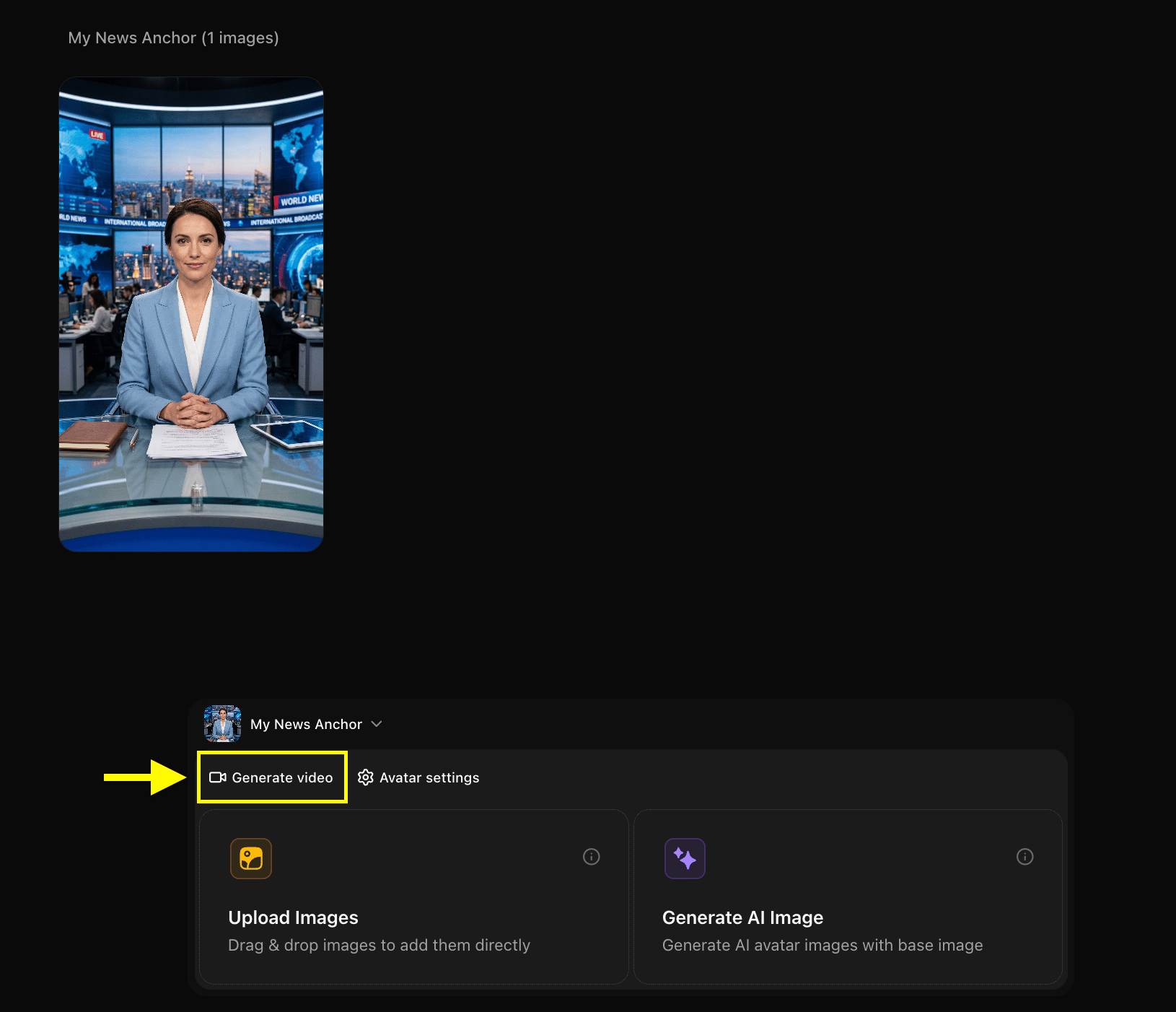
Step 11: Add Script and Configure Video Settings
After opening the avatar video creator, you can customize your video by entering a script, selecting a voice, choosing the output format, and adding an action prompt.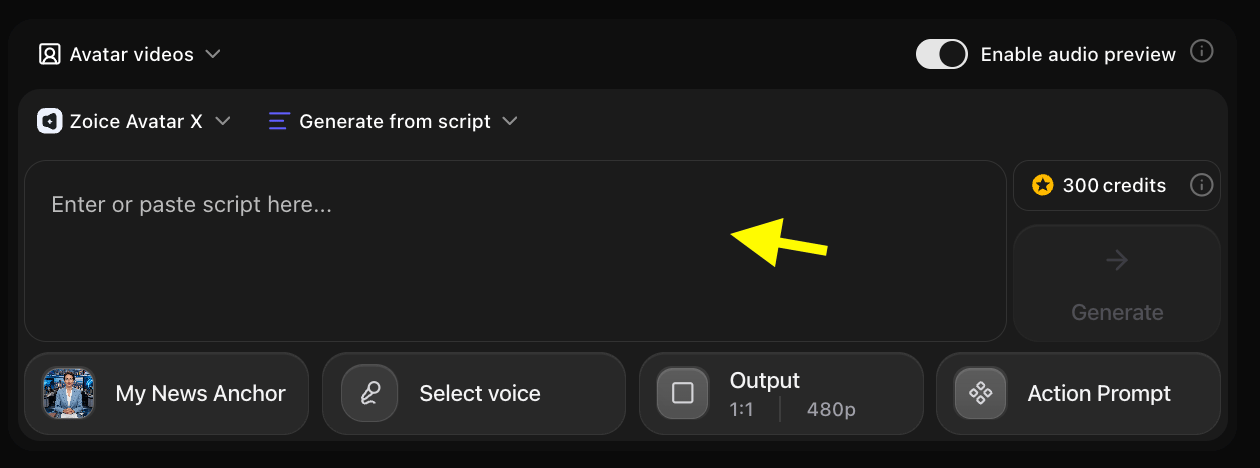
Step 12: Add Your Script and Choose Voice Model
Click on the script box. A popup window will appear where you can write the detailed news script. Add the script that your AI anchor will speak in the broadcast. Choose the Voice Model from the right dropdown, and click on Add Script.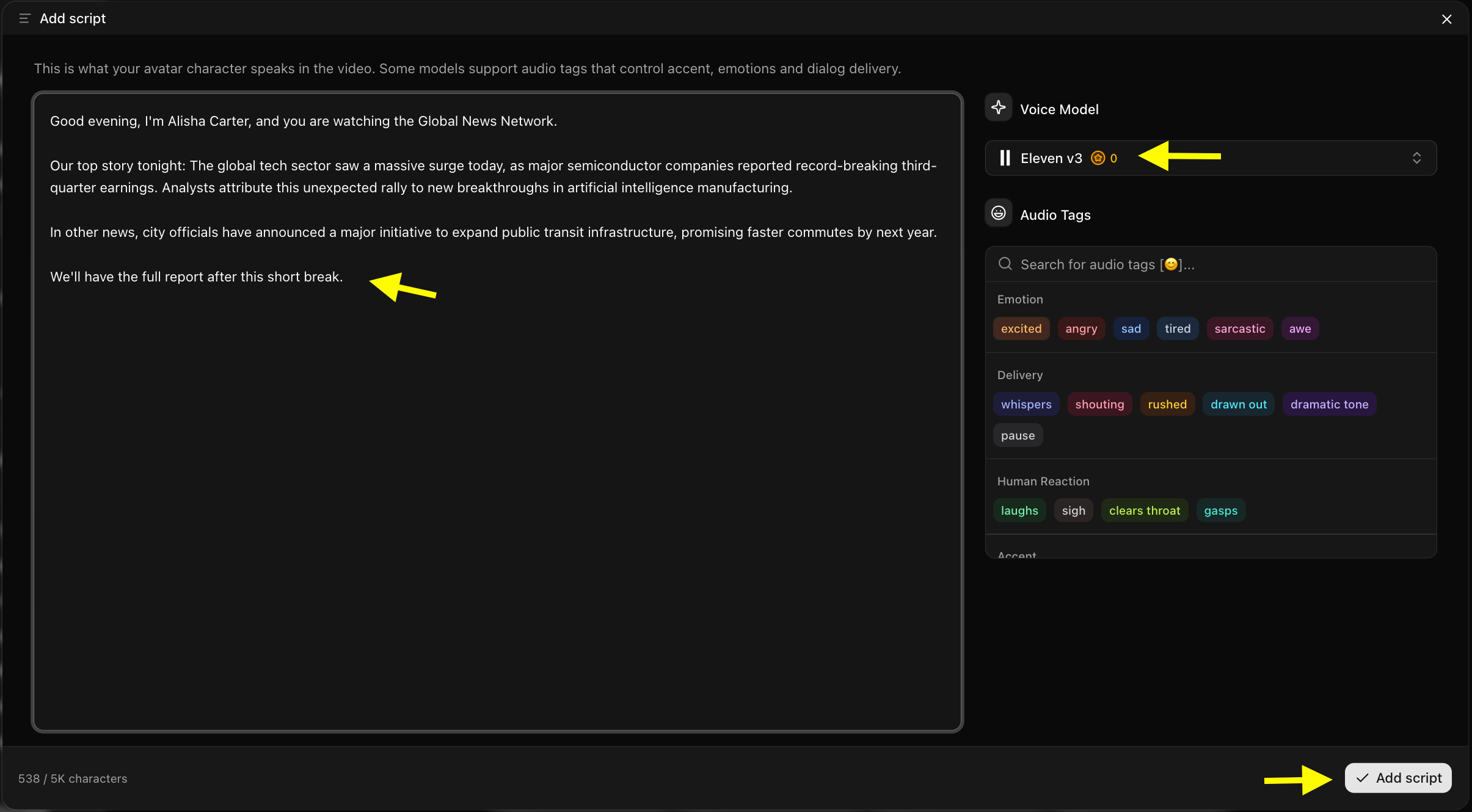
Step 13: Click on Select Voice
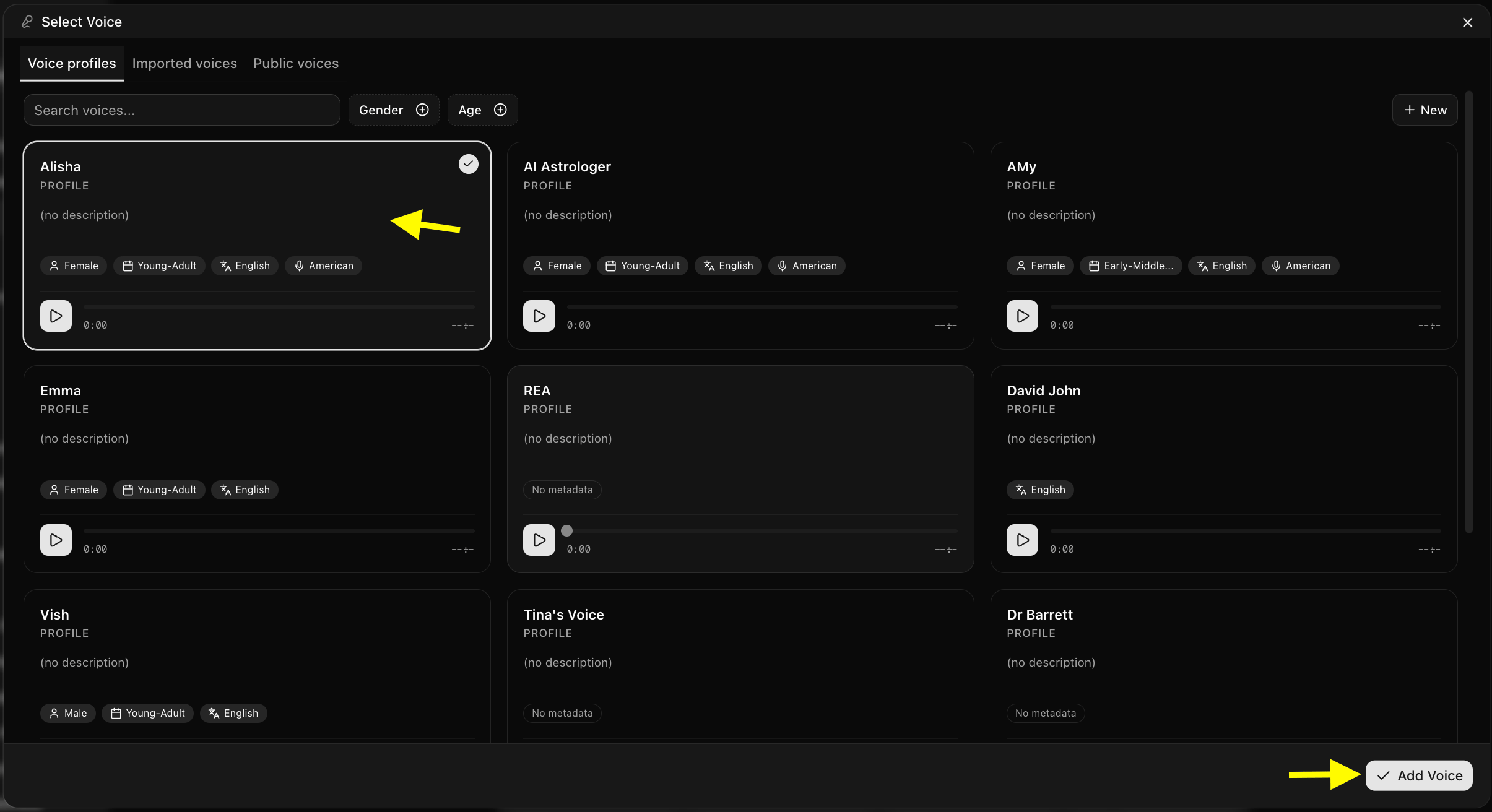
Click on the Select Voice option. You can browse through the available public voices, listen to voice previews, or upload your own voice. Select a formal, authoritative, and articulate AI voice model that matches a professional news broadcast tone.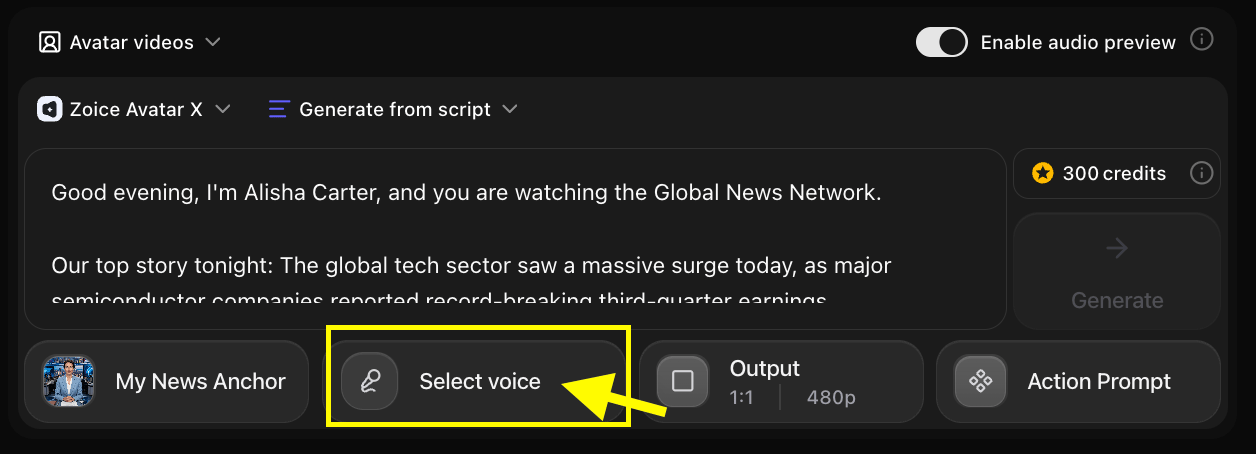
-
Choose the Voice for your AI news anchor
Step 14: Choose Video Output Settings
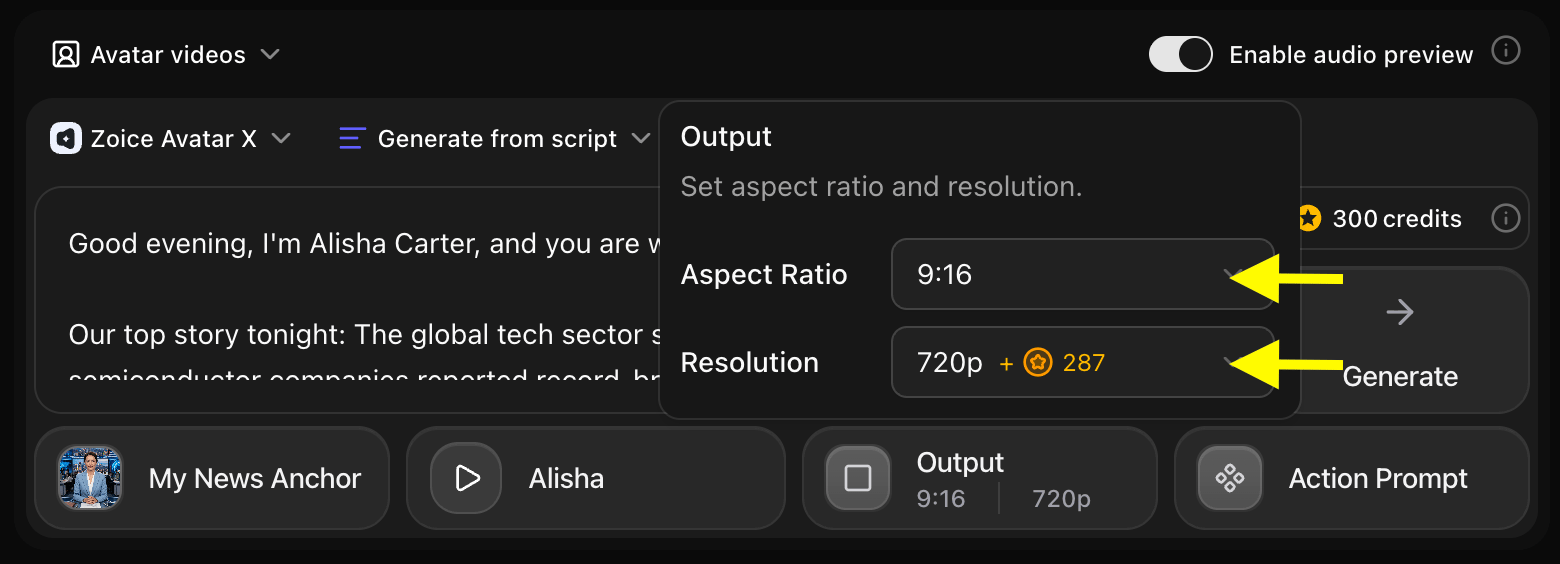
Click on Output Settings. Choose the aspect ratio and resolution based on where you want to publish your news video:- Aspect Ratio: 16:9 for YouTube videos, website embeds, or LinkedIn, or 9:16 for TikTok, Instagram Reels, and YouTube Shorts (perfect for quick news updates).
- Resolution: Select 1080p or up to 4K for high-quality professional output.
Step 15: Add Action Prompt
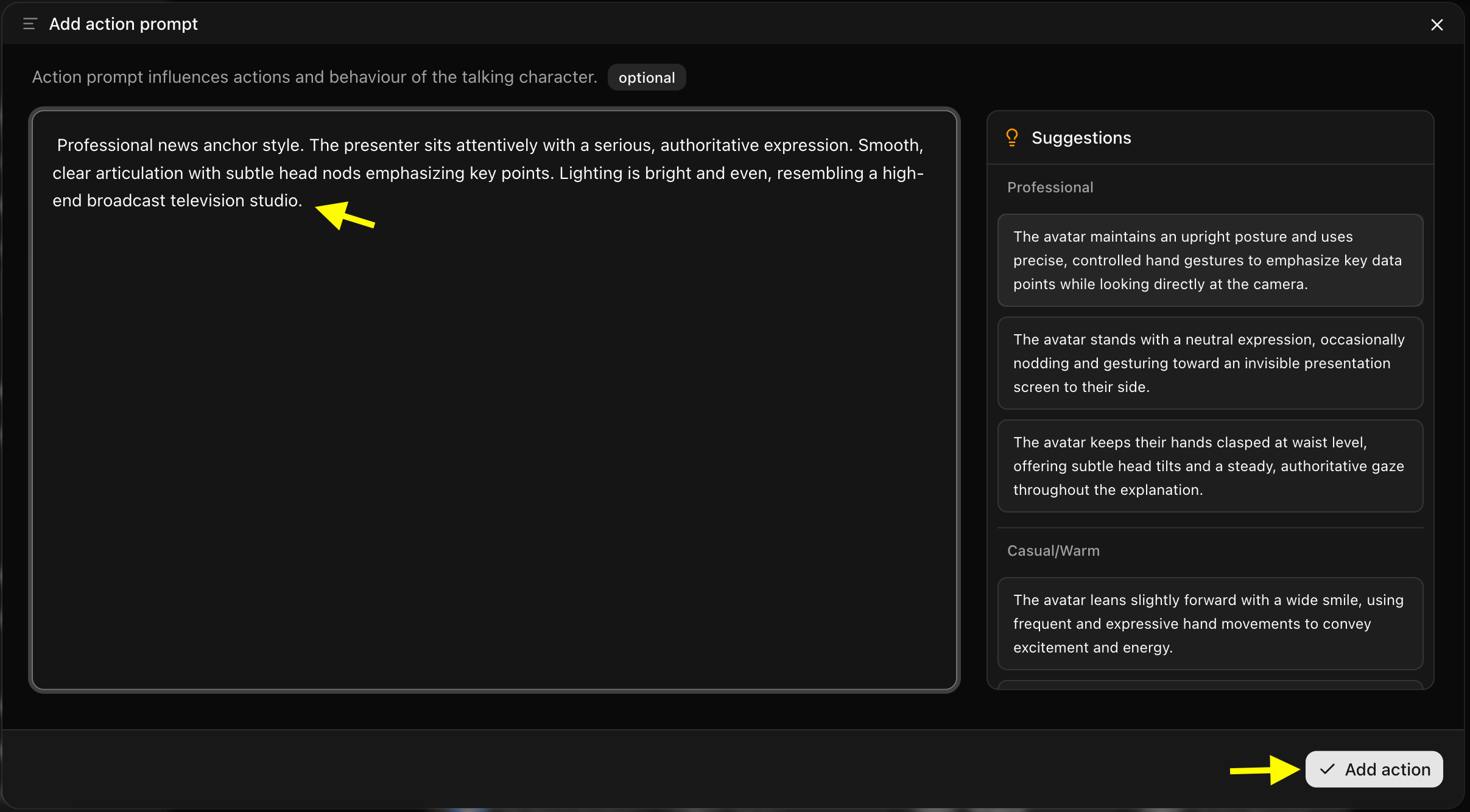
Click on Action Prompt to control how your AI avatar behaves during the broadcast. You can write your own instructions or select suggested action styles (such as: “serious and professional expression, subtle nods, maintaining strong eye contact with the camera”).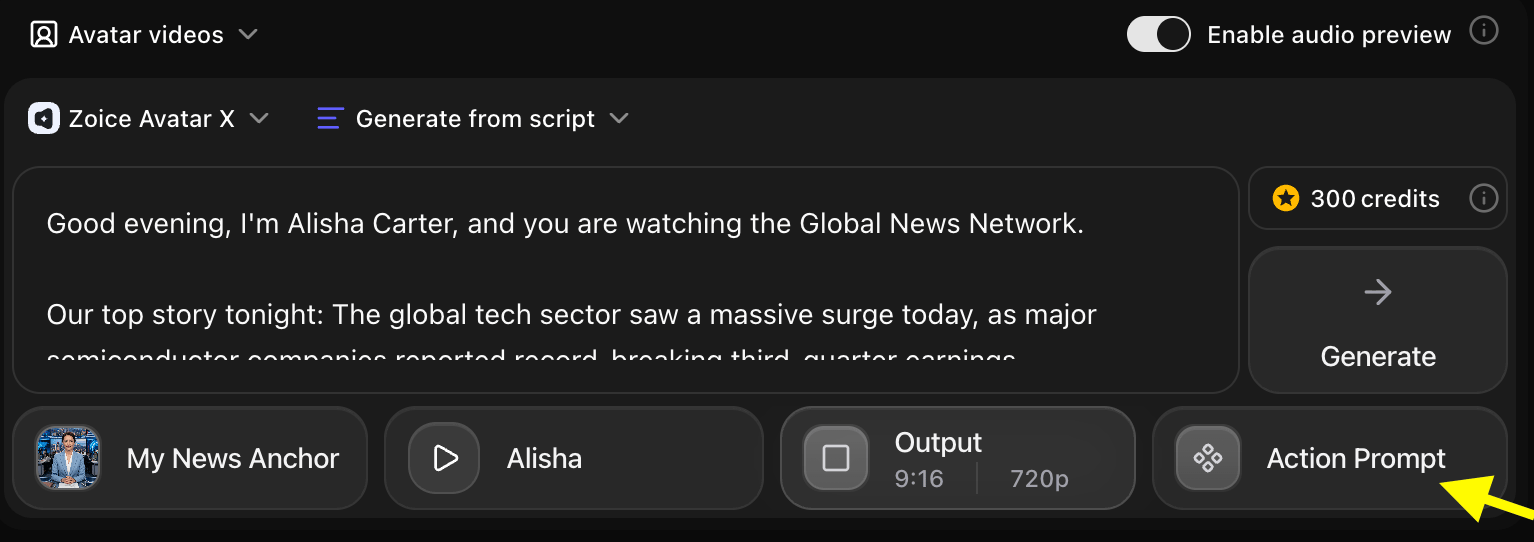
- Now add an action prompt for the avatar.
Step 16: Generate Your AI News Anchor Video
After setting up the script, voice, output settings, and action prompt, review all your configuration options. Click Generate to start processing your AI news video.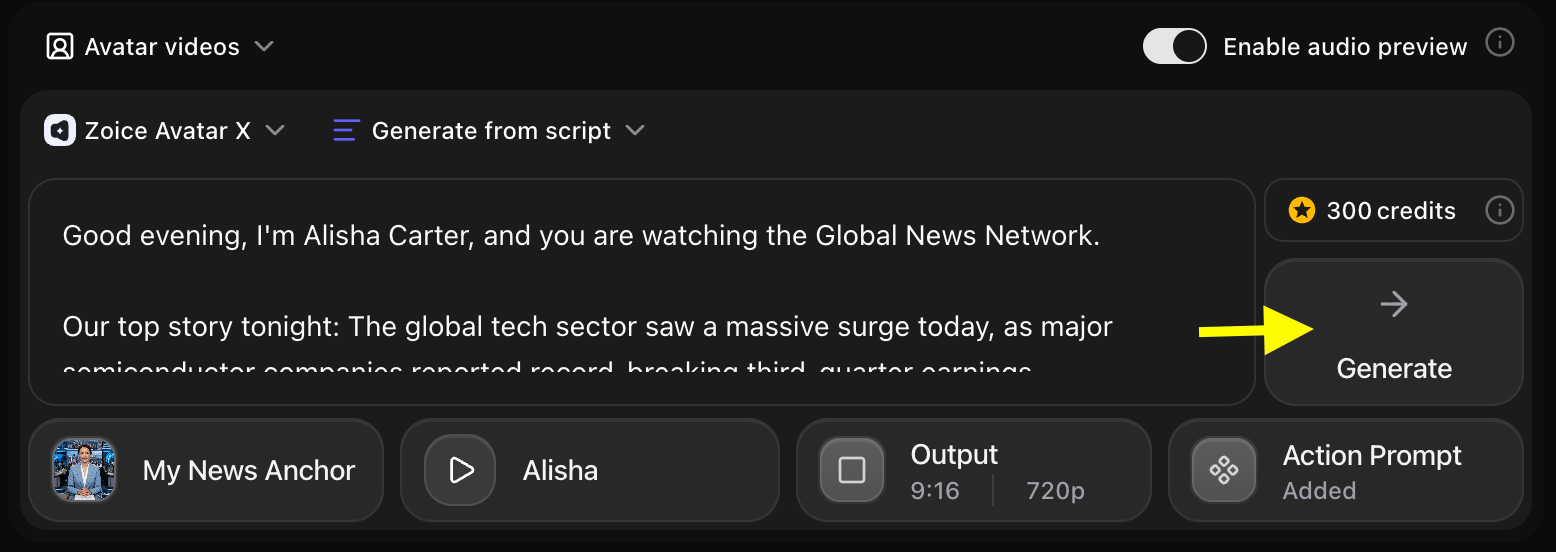
Step 17: Preview Audio and Click on Generate Avatar Video
Before generating the final video, Zoice creates an audio preview so you can verify how your script sounds. Check pronunciation, clarity, and pacing. If everything sounds correct, click Generate Avatar Video to create the final talking video.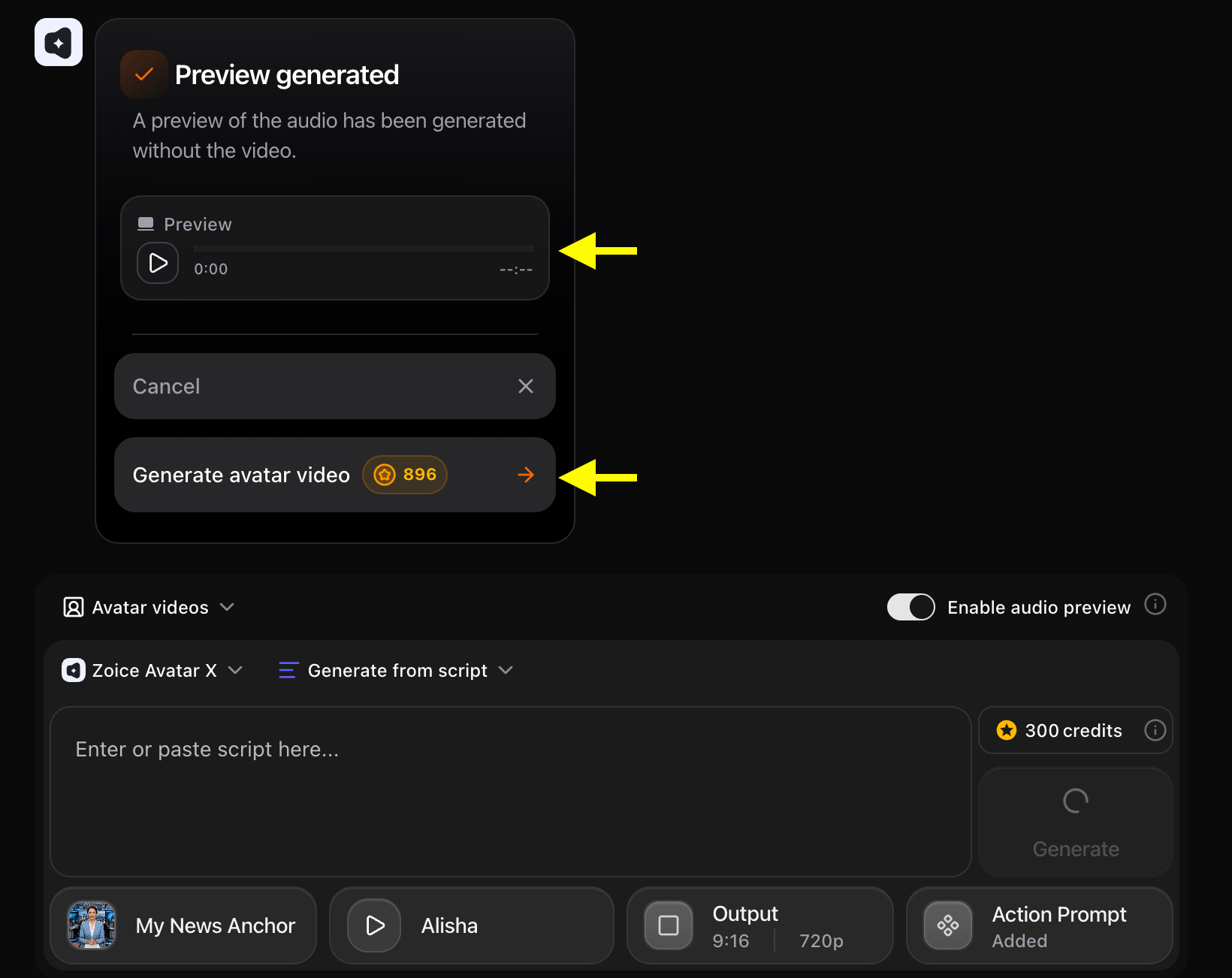
Step 18: Preview and Download Your AI News Anchor Video
Once the AI avatar video finishes processing, play the final result to check the avatar movements, voice synchronization, and video quality.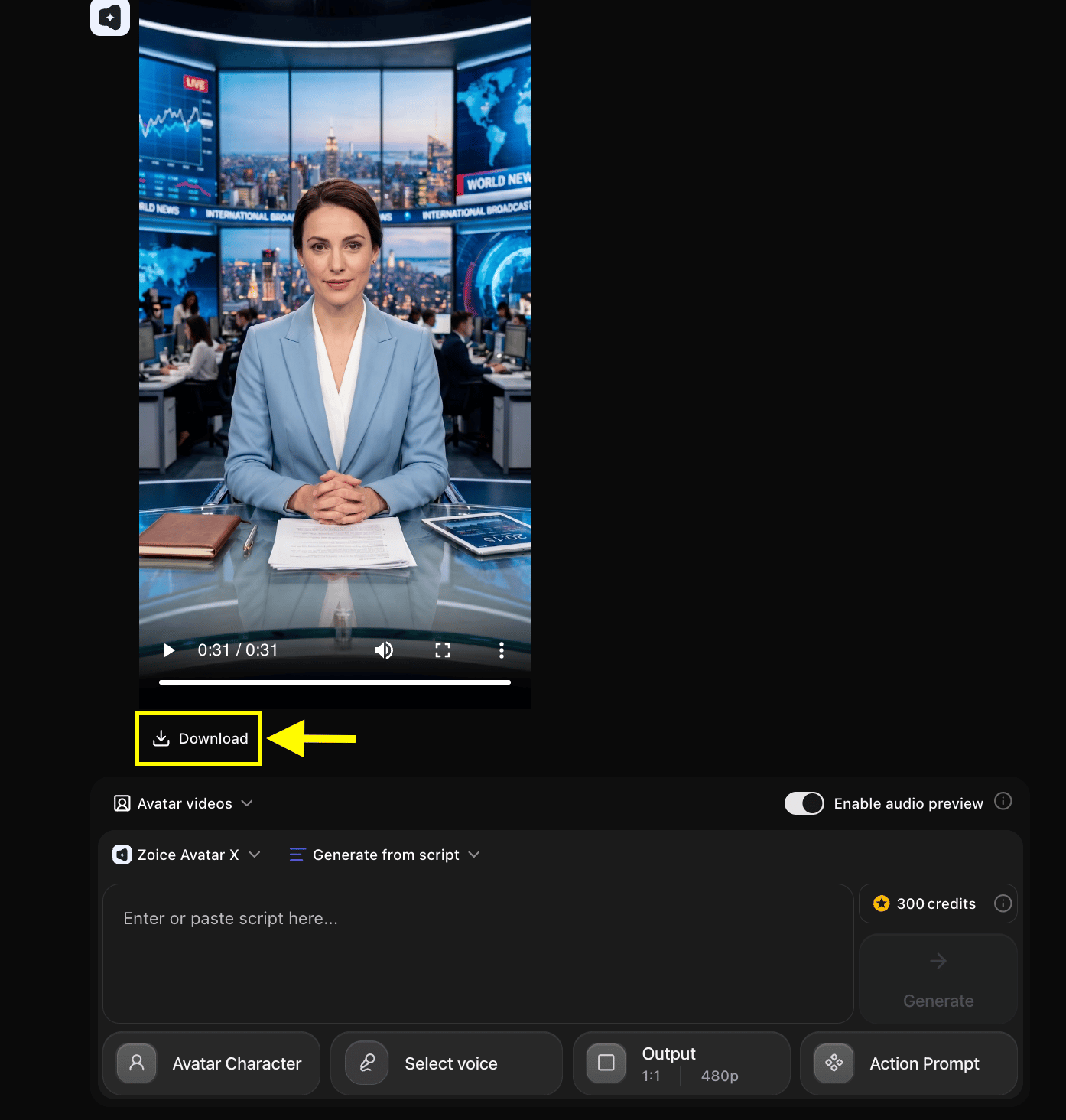
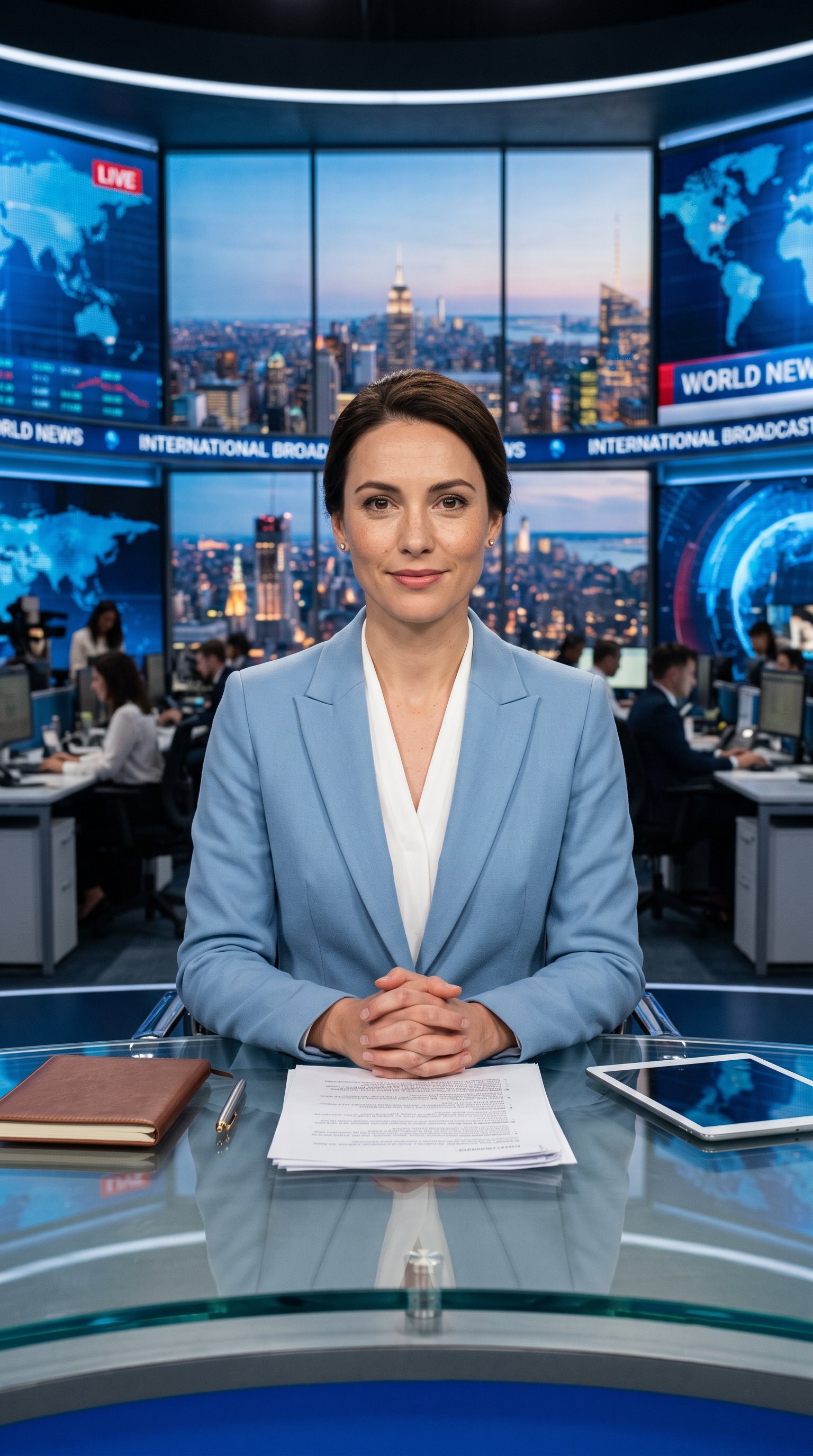
Example Input Image, Script, Action Prompt & Output Video
To help you get started, here is an example of an input image, script, action prompt, and generated AI news anchor video.Used Image
Used Script
Used Action Prompt
Output Result Video
Below is the rendered AI news anchor video based on the input script:Tips for Creating Better AI News Anchor Videos
- Use Professional Backgrounds: A news desk, a city skyline, or a branded studio background gives your avatar immediate credibility.
- Write Like a Broadcaster: Keep sentences concise. Use an active voice and get straight to the point.
- Select an Authoritative Voice: Avoid overly excited or overly casual voices. Look for tones labeled “News,” “Formal,” or “Authoritative.”
- Keep it Brisk: News moves fast. Adjust the speech speed slightly if the default reading pace feels too slow for a news segment.
- Add Lower Thirds in Post: After downloading your Zoice video, use editing software to add graphic “lower thirds” (the text banners at the bottom of the screen) for a true broadcast feel.
AI News Anchor Videos Can Be Used For
- Daily or weekly industry news roundups
- Corporate communications and company-wide announcements
- Breaking news updates for niche journalism sites
- Financial market and crypto daily summaries
- Weather and local community updates
- Tech and gadget news reviews
Where AI News Anchor Videos Are Used
- YouTube News channels and web series
- LinkedIn for professional company updates
- Twitter/X for fast-moving breaking news clips
- Company intranet portals for employee communications
- Instagram and TikTok for “News in 60 Seconds” formats
Final Words
Creating AI news anchor videos with Zoice is an incredibly efficient way to produce professional broadcast content. By setting up a polished avatar and typing out your news copy, you can generate authoritative video updates in minutes. Whether you are running an independent digital news outlet, managing corporate communications, or creating a daily social media briefing, AI avatars help you deliver the news professionally without the overhead of a real television studio.Next Steps
AI Podcast Video
Learn how to create long-form video podcasts with conversational avatars.
Real Estate AI Avatar
Create professional property tours and market updates.