

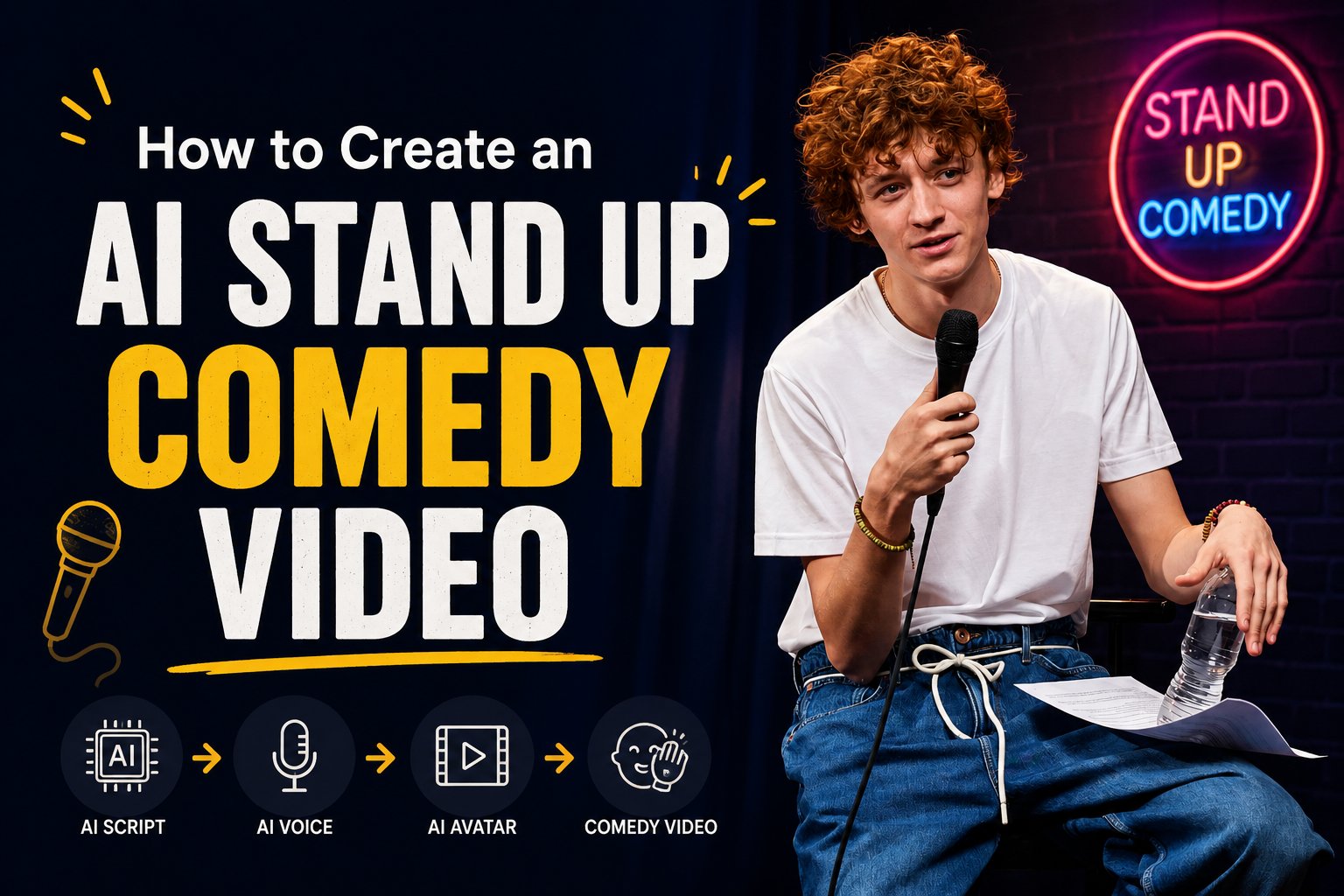
What is an AI Stand Up Comedy Video?
An AI stand up comedy video is a digital performance video generated using artificial intelligence. It features a realistic or stylized AI avatar acting as a comedian on stage, delivering a stand-up routine or telling jokes. The AI automatically analyzes your comedy script, matches the timing, and animates the avatar’s lip movements, head tilts, and facial expressions (like smiling, winking, or looking surprised) to match the delivery of the jokes. This allows anyone to bring a comedic script to life, making it highly effective for:- YouTube Shorts, TikToks, and Instagram Reels
- Testing stand-up comedy scripts and delivery
- Creating animated comedy web series
- Producing lighthearted marketing campaigns
How to Create an AI Stand Up Comedy Video Using Zoice
Creating an AI stand up comedy video with Zoice takes only a few minutes. Follow the detailed steps below to generate your comedy video.Step 1: Visit Zoice and Click Sign In
Go to the Zoice website and click the Sign In button at the top-right corner of the homepage.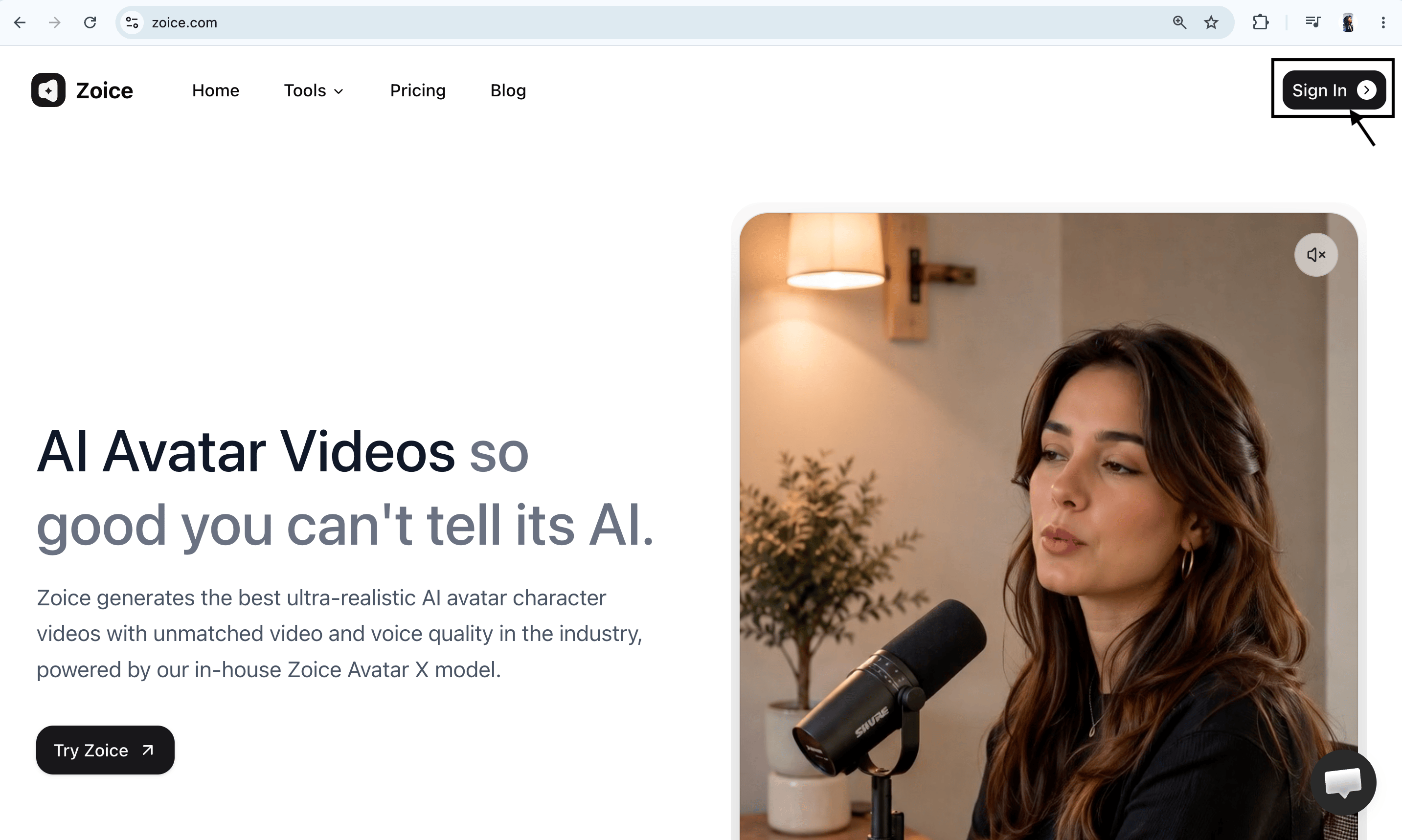
Step 2: Create a New Zoice Account (For New Users)
If you are using Zoice for the first time, click Sign Up to create a new account.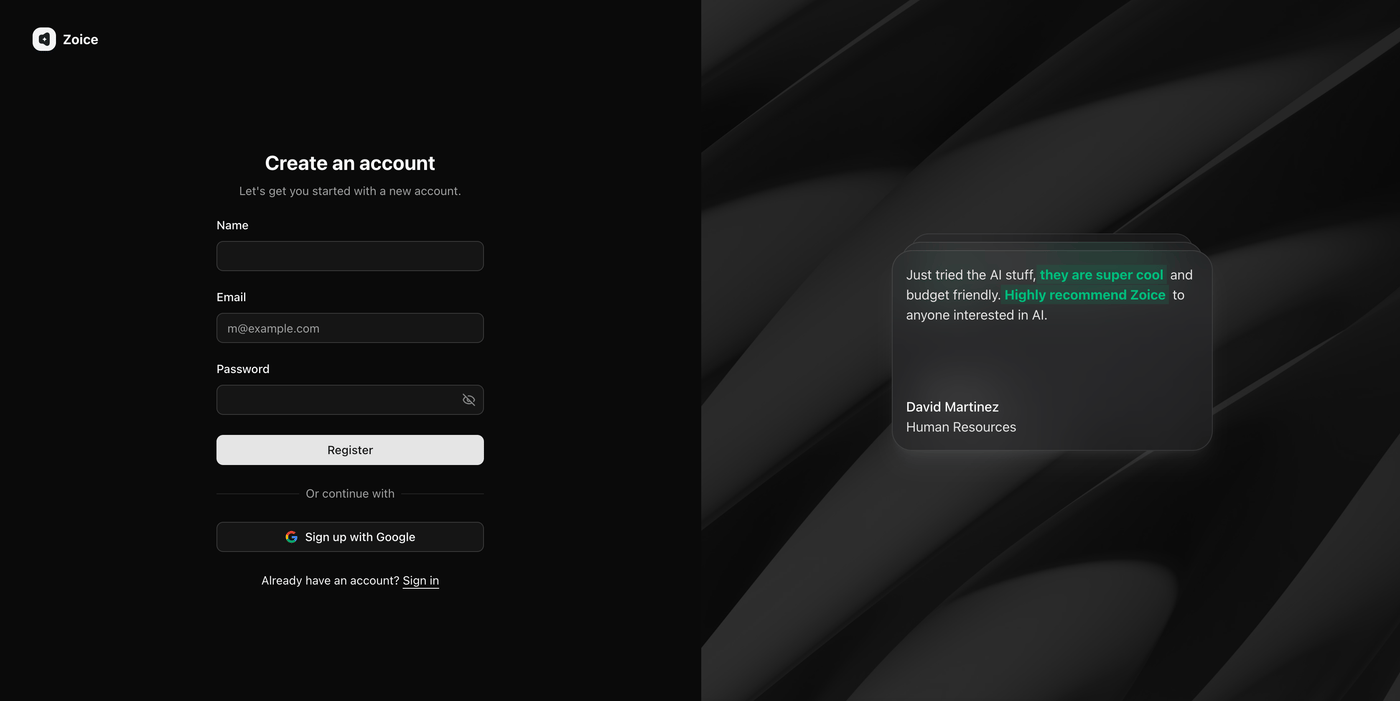
Step 3: Sign In to Your Zoice Account
Once registered, sign in with your email and password or use the Google sign-in option to access the dashboard.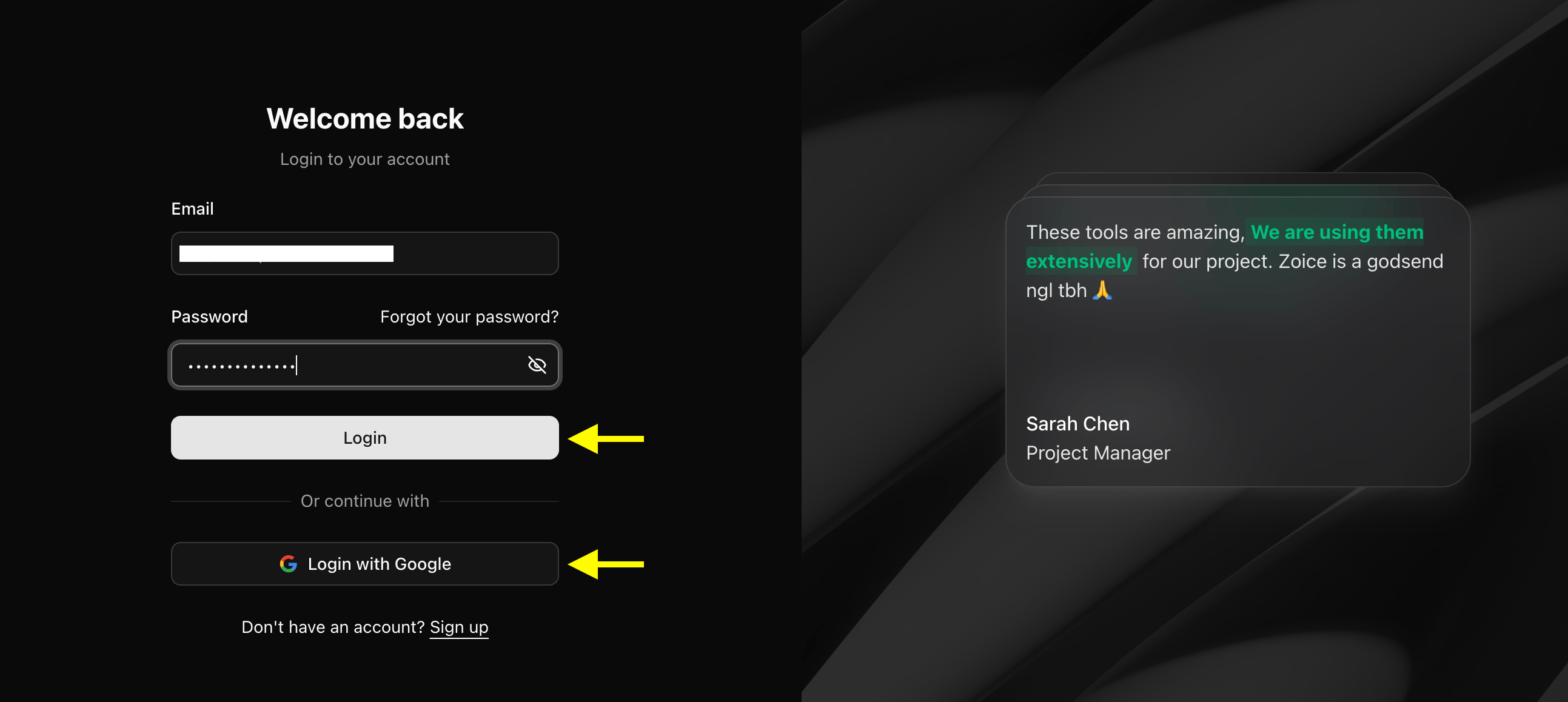
Step 4: Navigate to Avatar Characters
From the left sidebar of the Zoice dashboard, click Avatar Characters under the Manage section.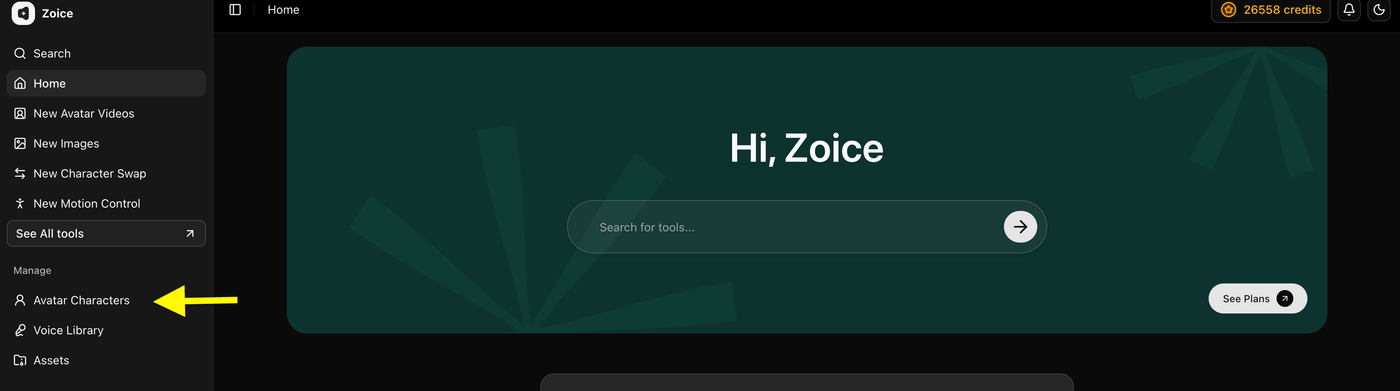
Step 5: Click Create New Avatar
Click the Create New button to open the avatar creator tool.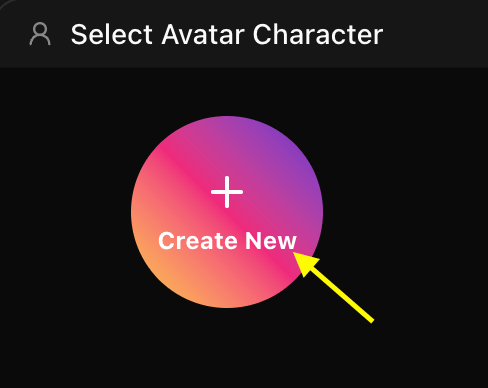
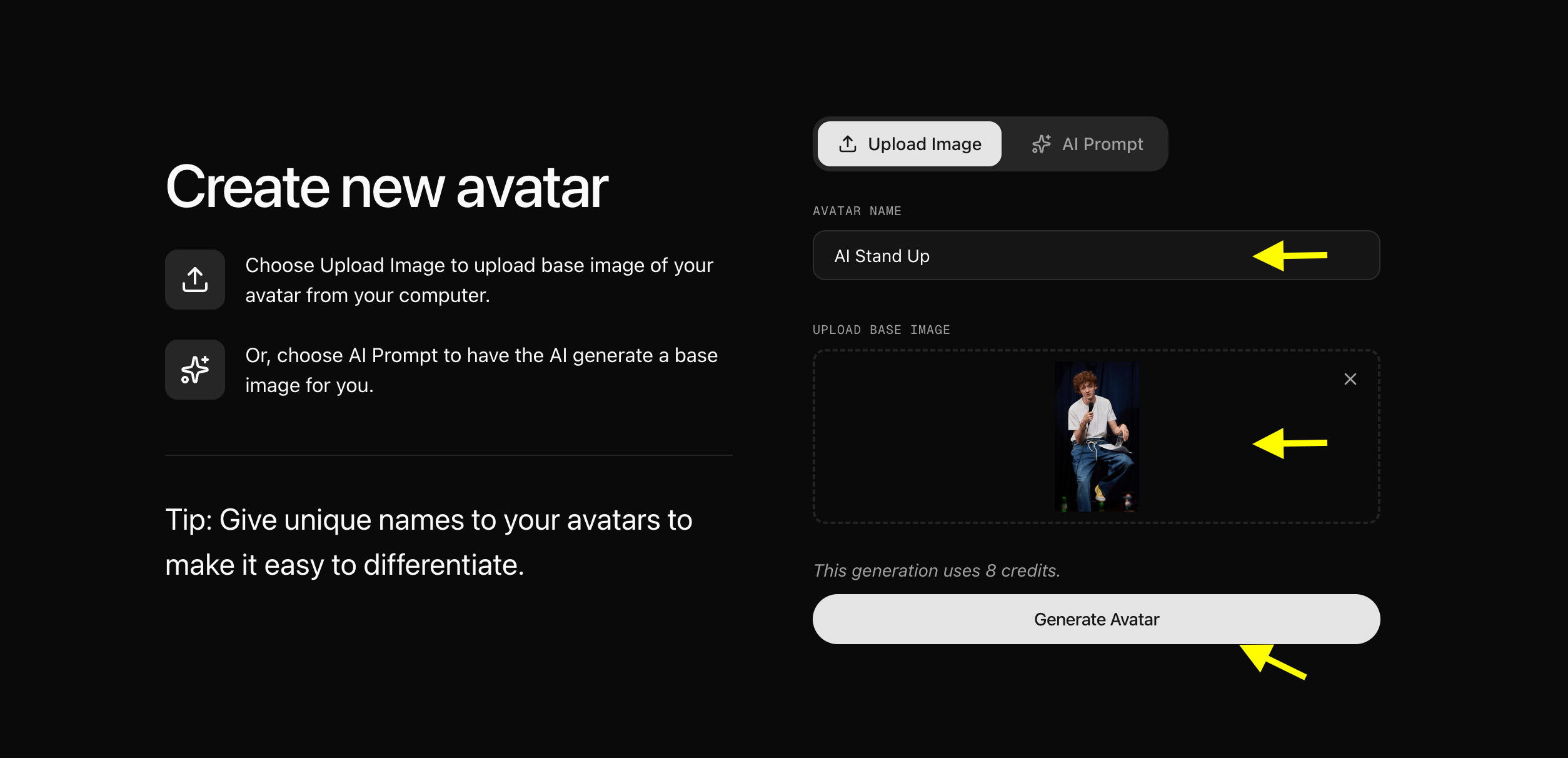
Step 6: Upload Your Comedian Image and Name Your Avatar
Upload a clear, high-quality comedian image that you want to bring to life.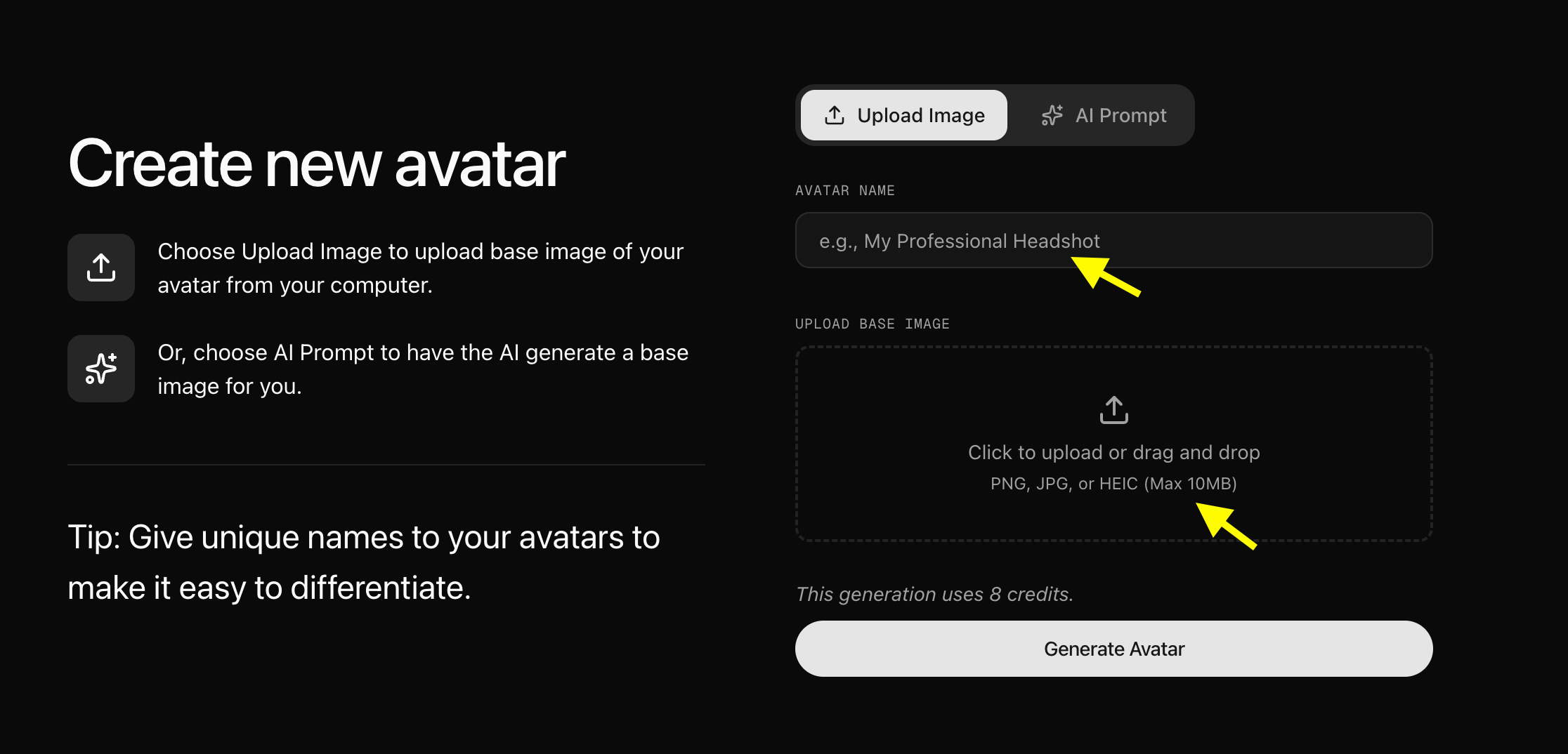
- Clear face visibility and forward-facing angle
- Good contrast between character and background
- Closed or neutral mouth position
-
No blurry or low-quality images
- Upload Your Image or Generate an Avatar Using AI Prompt
- Upload Image: Upload a clear comedian image directly from your device.
- AI Prompt: If you don’t have an image, select the AI Prompt option and describe the comedian you want to create. Zoice will generate a custom AI image based on your prompt.
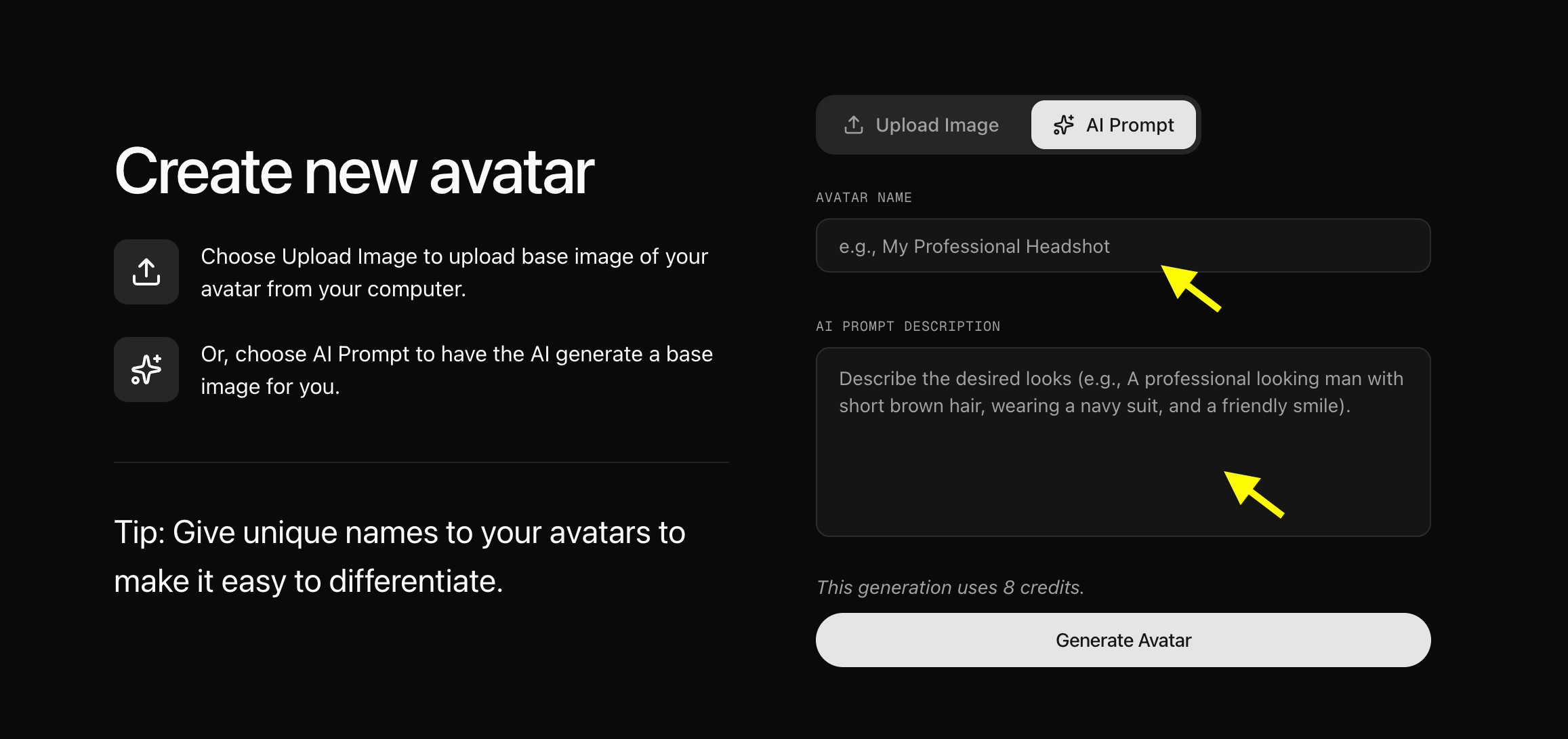
- We upload the image of our comedian.
Step 7: Click Generate Video
Once you selected your comedian avatar, click the Generate Video button to open the video generation settings panel.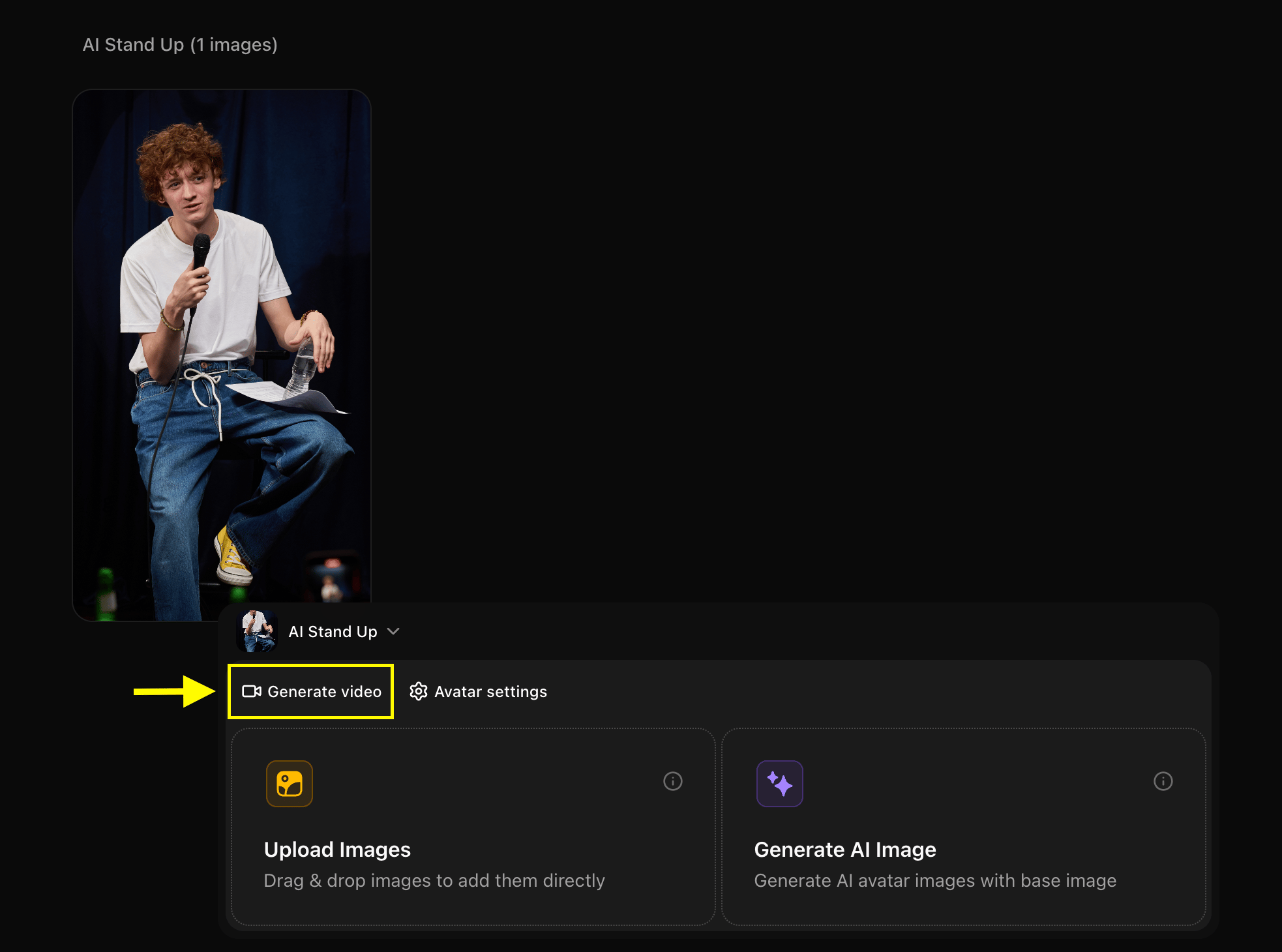
Step 8: Add Your Comedy Script
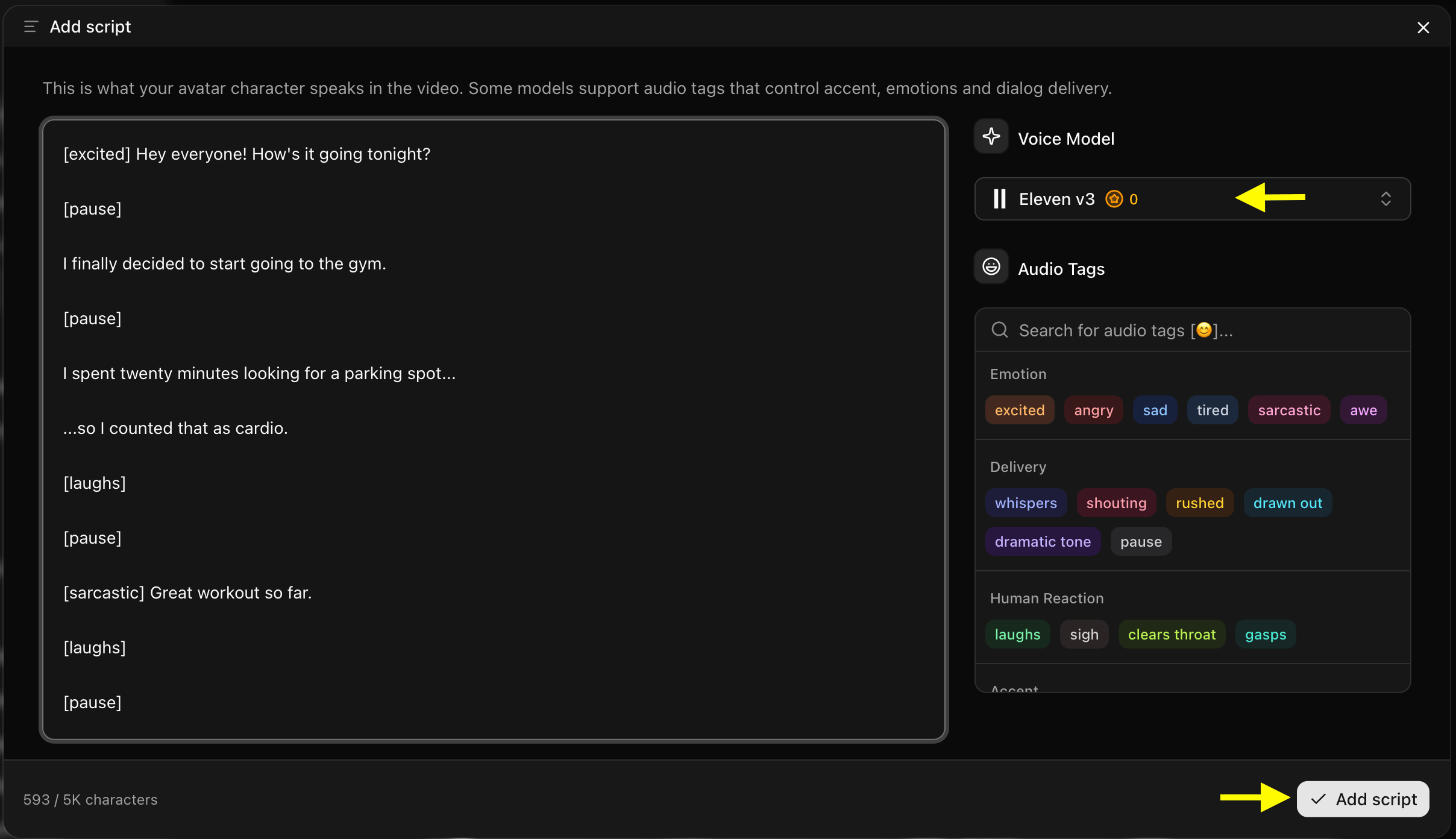
In the video generation panel, Click on script box the popup window will appear here we write the detailed script also select the voice model and audio tag like emotion accent, delivery and then click on Add Script.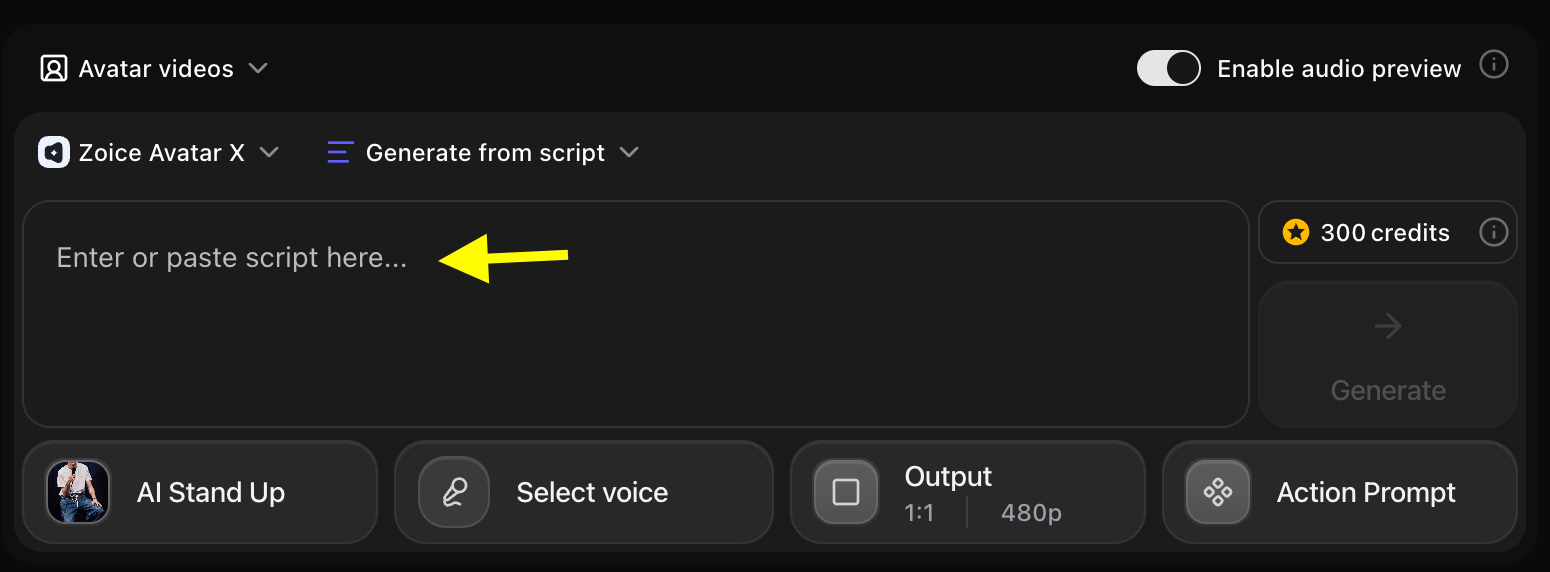
- Once the window pops up then we have to write the script in the script box and also select the voice model and audio tag like emotion accent, delivery and then click on Add Script.
Step 9: Click on Select Voice
After adding the script, Click on Select Voice option, and you will see few public voice and also you can upload your own voice for comedian avatar.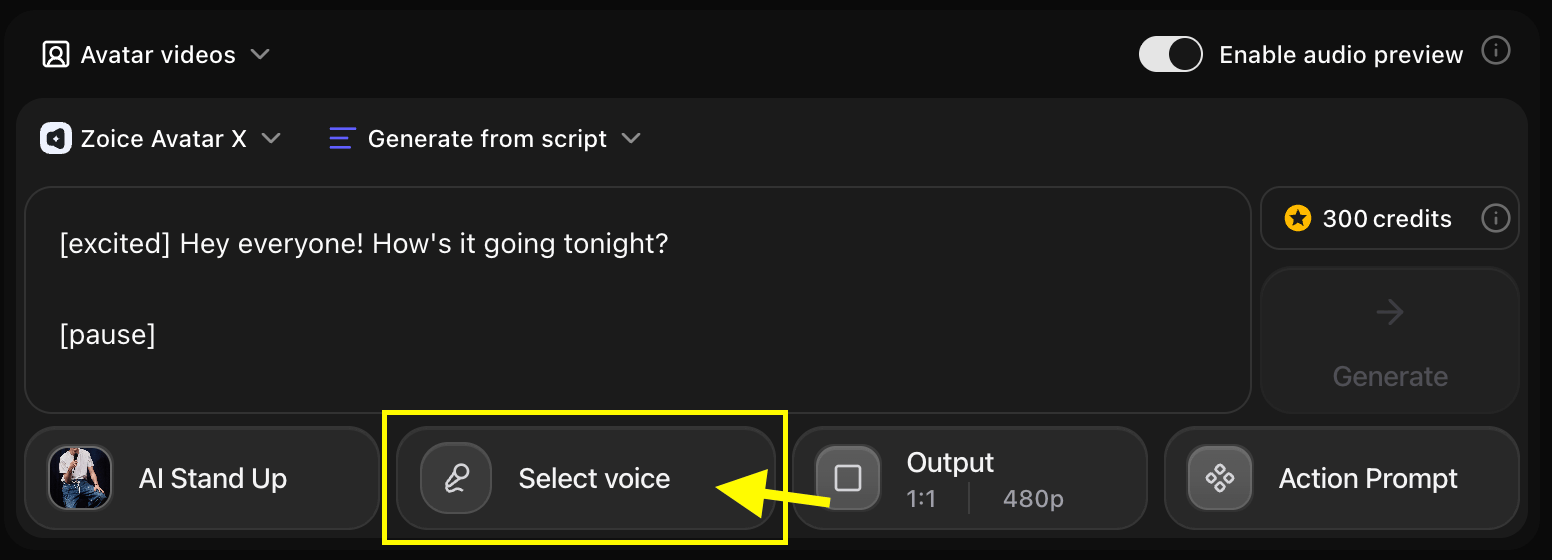
Step 10: Choose a Voice for Your Comedian Avatar
Browse through the available voices and click on the one that matches your comedian’s style. You can preview each voice before selecting it to make sure it fits your comedian’s personality.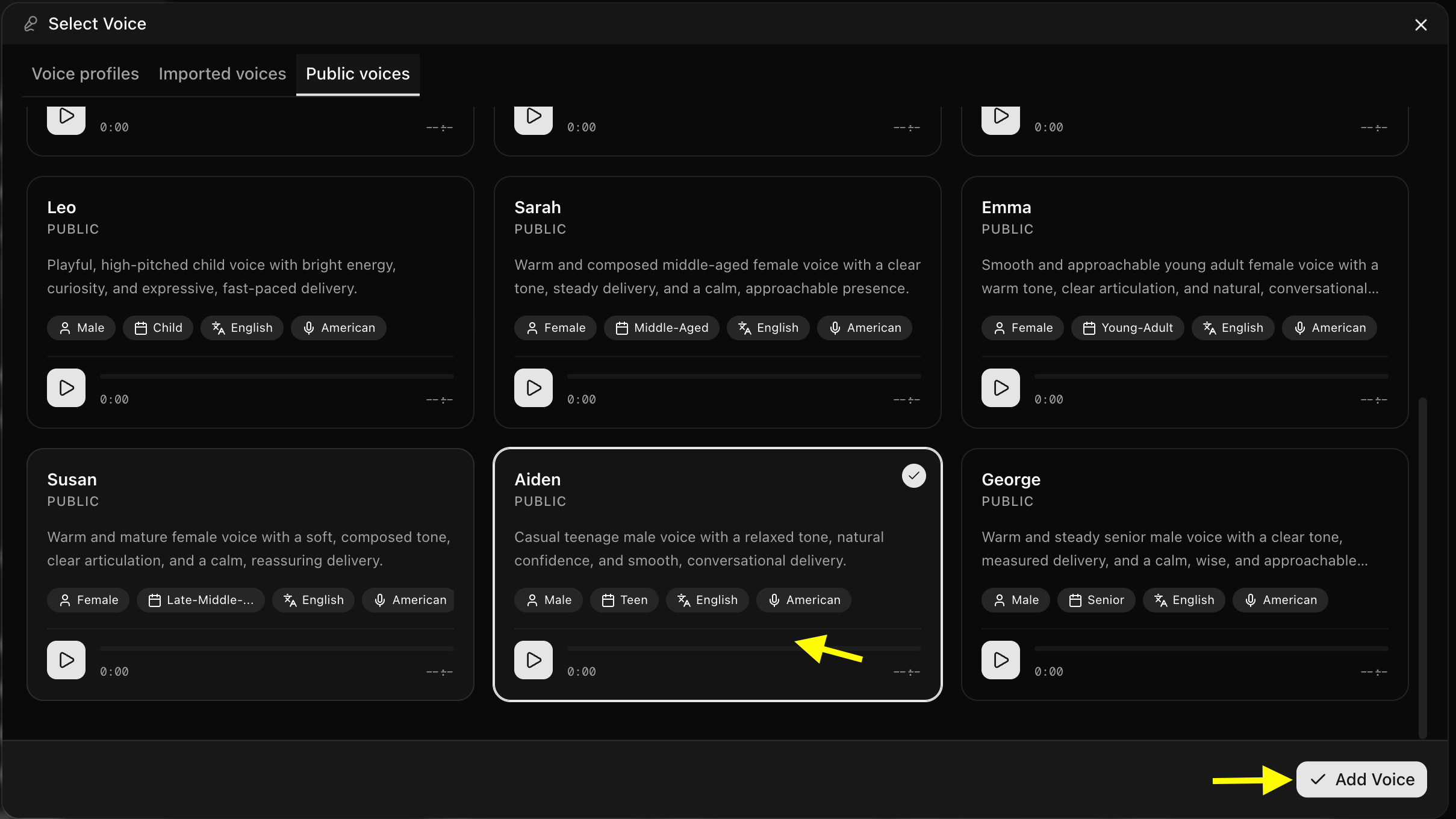
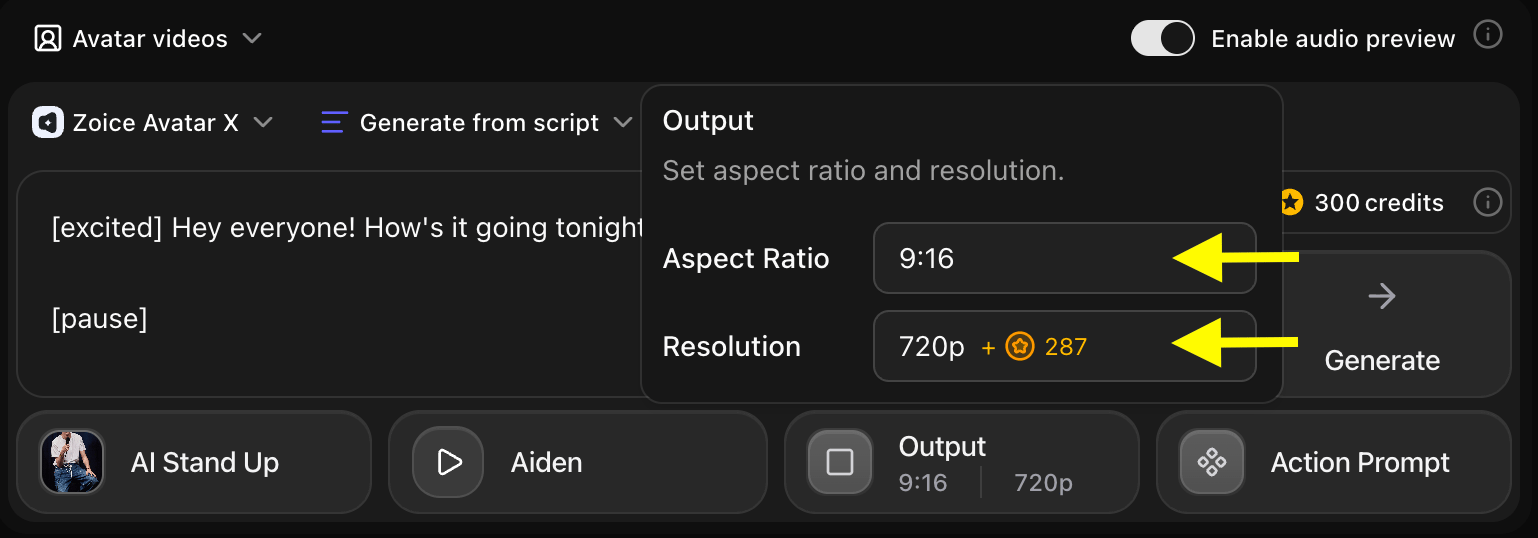
Step 11: Choose Output Settings
After selecting a voice, customize the video output settings based on your platform needs:- Aspect Ratio: 16:9 for YouTube, 9:16 for TikTok or Instagram Reels, 1:1 for social media posts
- Resolution: Up to 4K for high-quality output
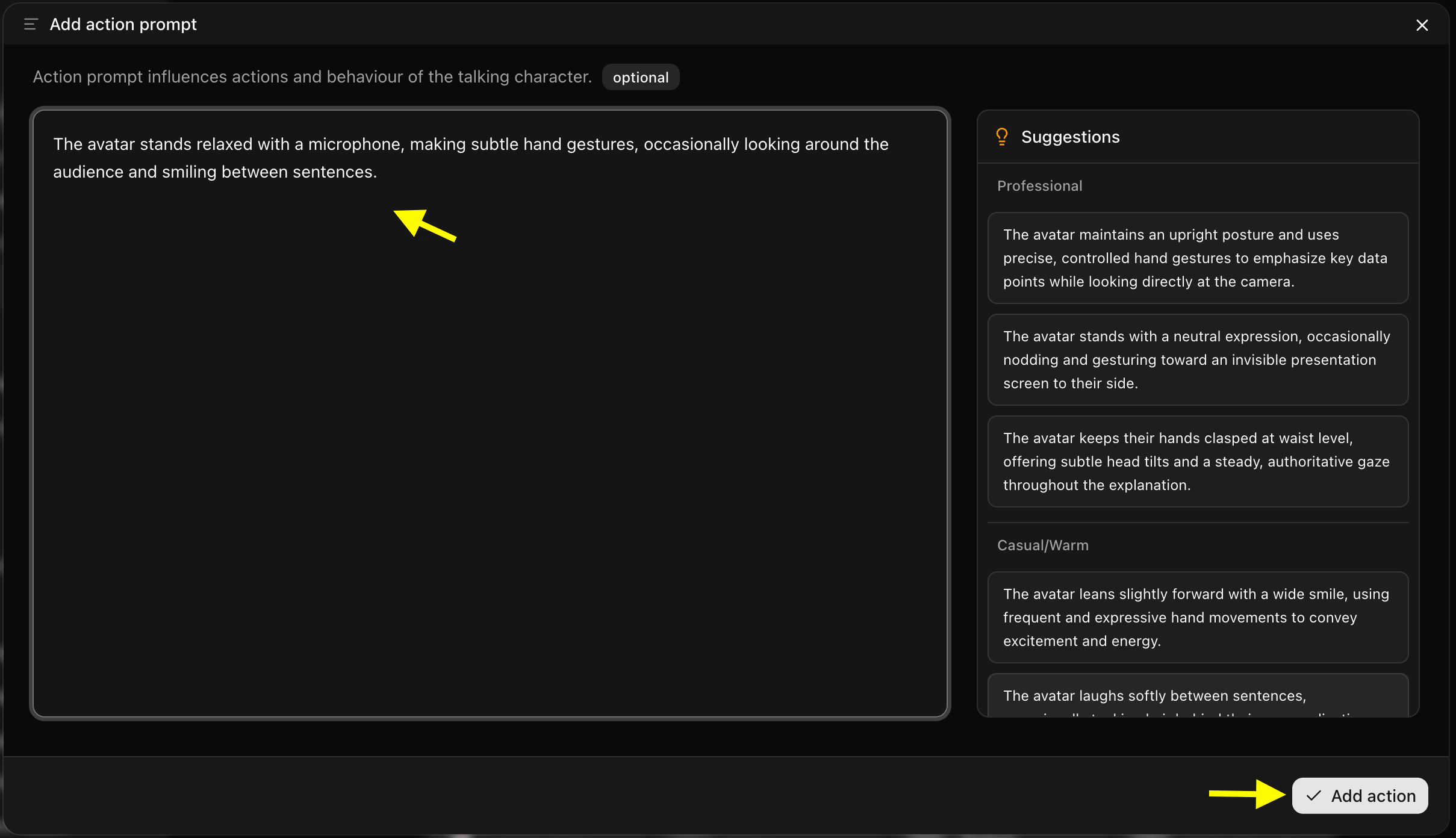
Step 12: Add an Action Prompt
Click on Action Prompt to set the expression and animated actions of your comedian character. Select or write a custom action prompt that matches the mood and tone of your video content.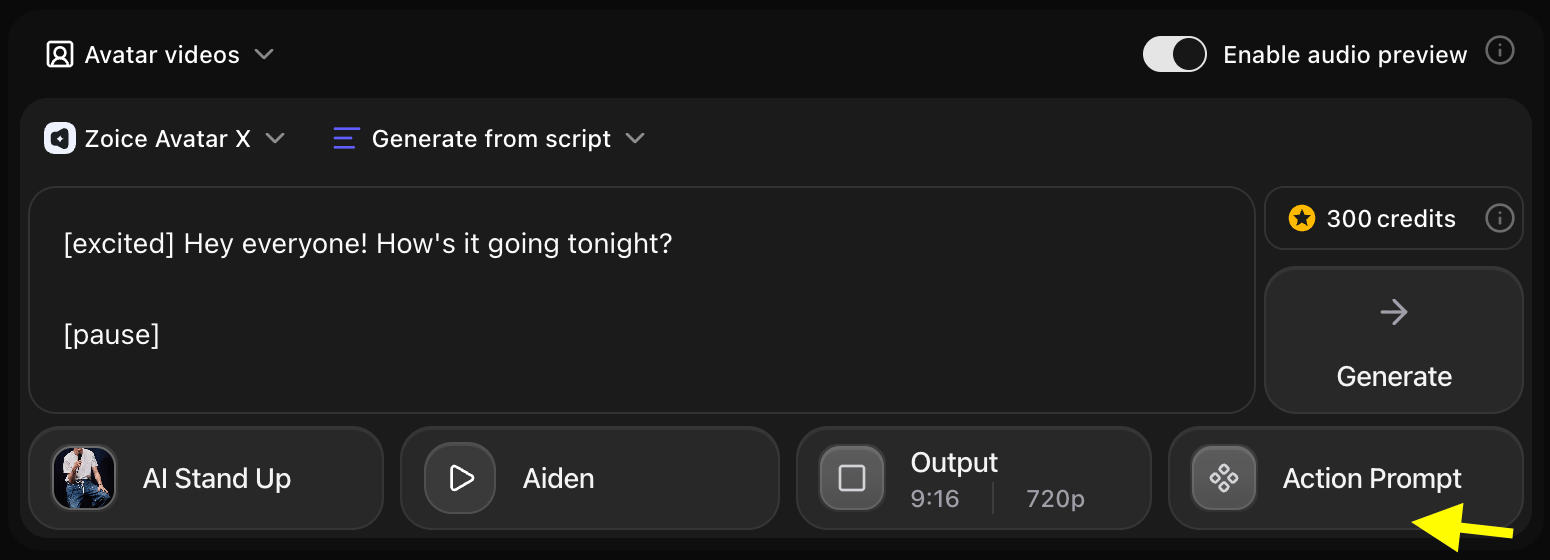
- We have written a prompt for our comedian avatar.
Step 13: Generate Your AI Stand Up Comedy Video
Once all your settings are ready, click the Generate button. Zoice will process your script and comedian avatar to create the talking video.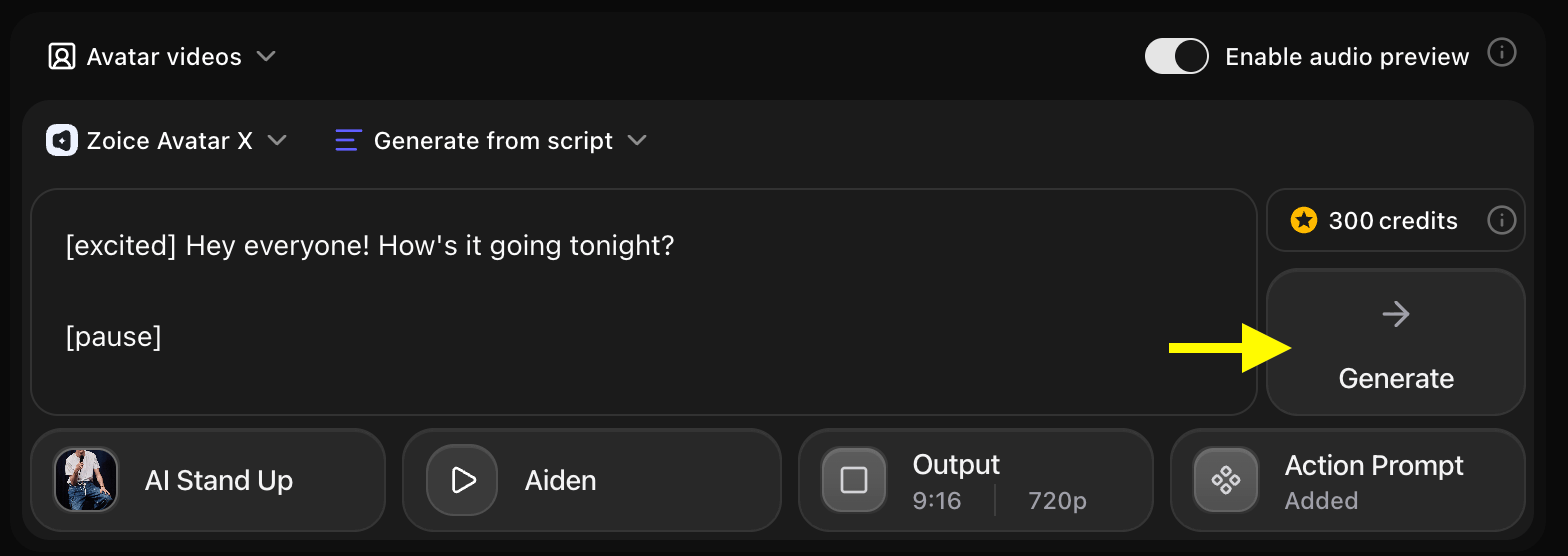
Step 14: Preview the Audio and Generate the Video
Before generating the final video, Zoice creates an audio preview. Listen carefully to check:- Voice quality and clarity
- Timing and pacing of the speech
- Overall tone and expression
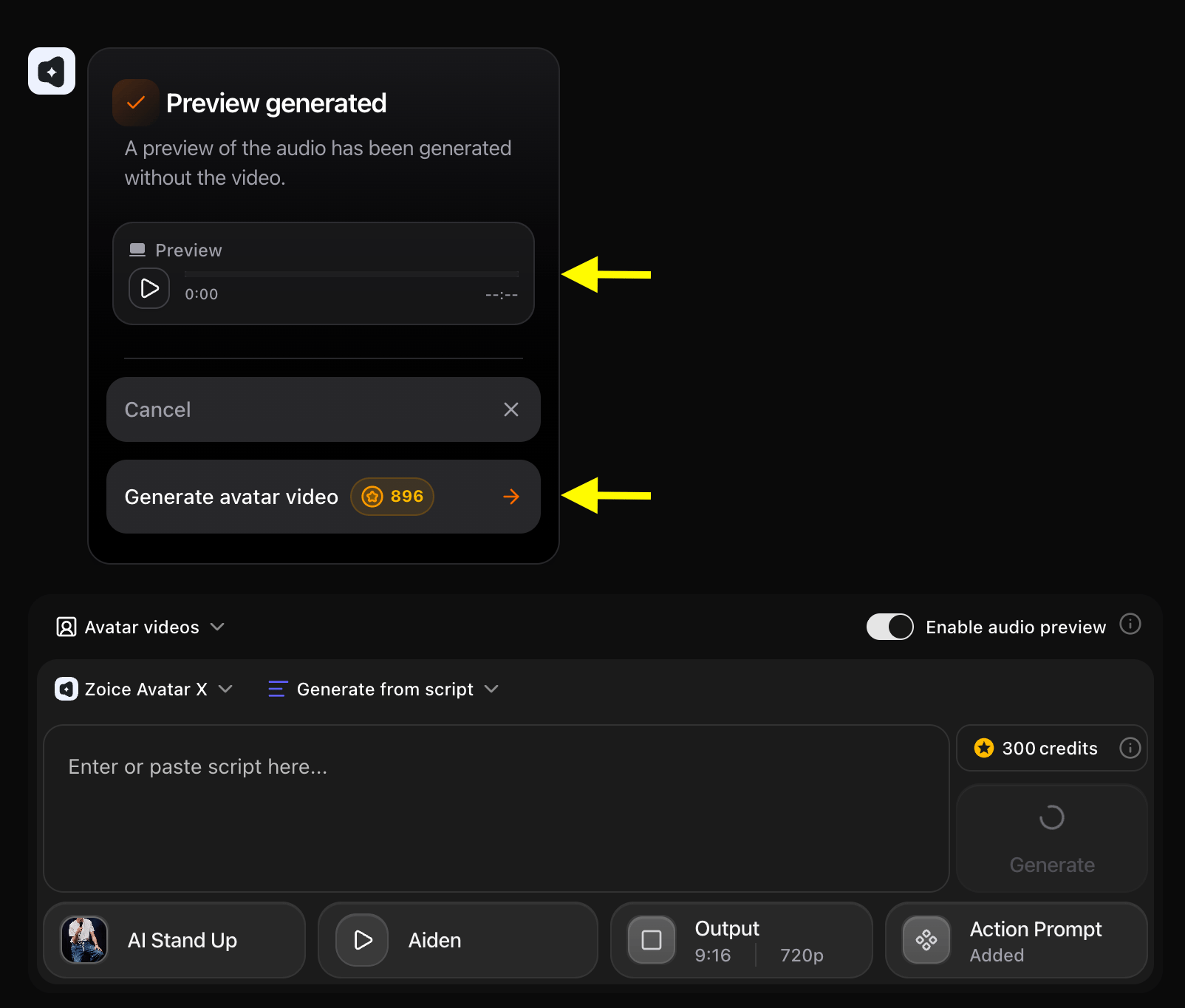
Step 15: Wait for Your Comedian Avatar Video to Process
Zoice will now process and render your stand up comedy video. Processing time may vary depending on the length of your script and selected resolution. You can stay on the page or return later to check on the progress.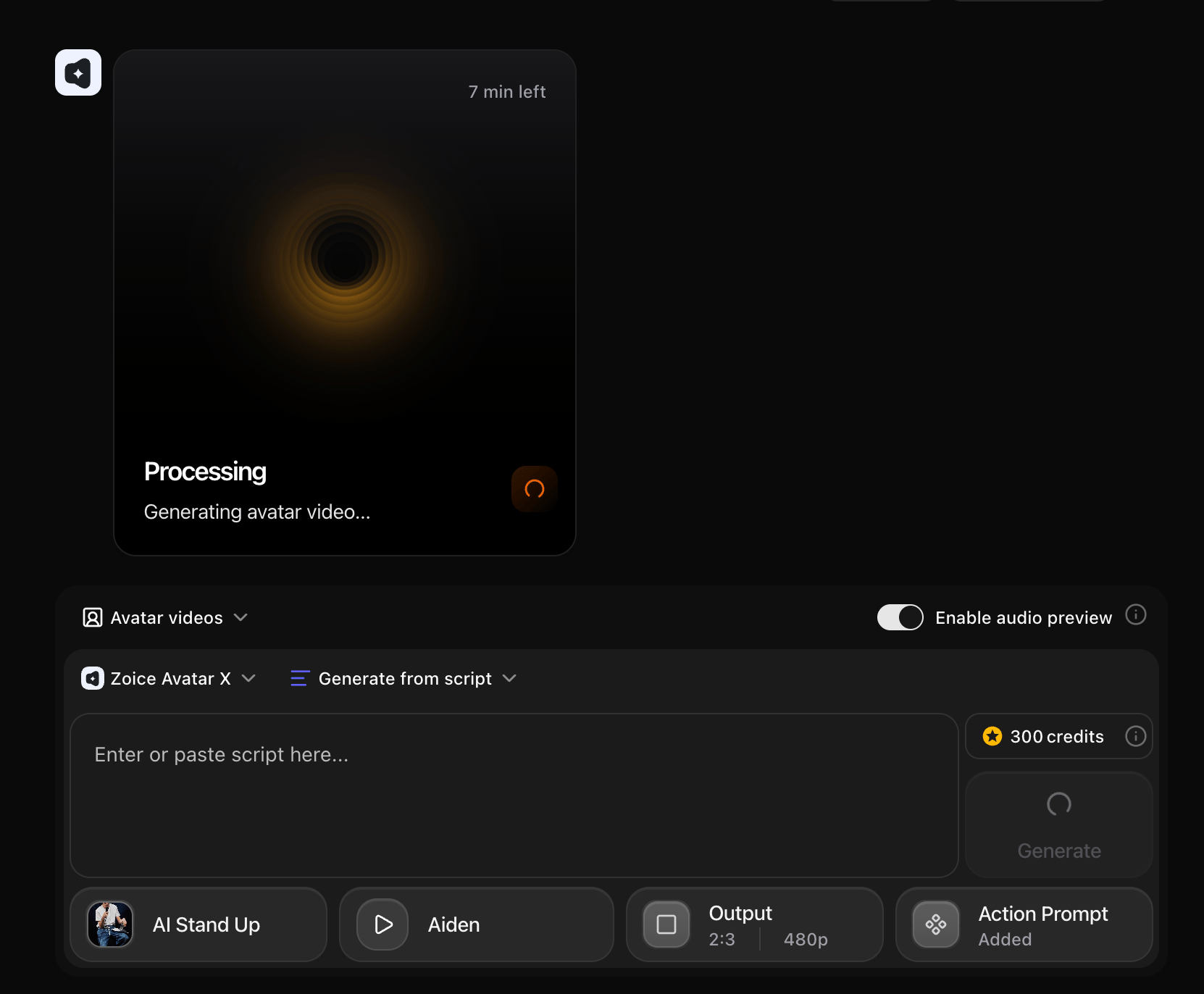
Step 16: Preview and Download Your AI Stand Up Comedy Video
Once your video is ready, preview it to confirm the lip-sync quality, voice match, and overall output.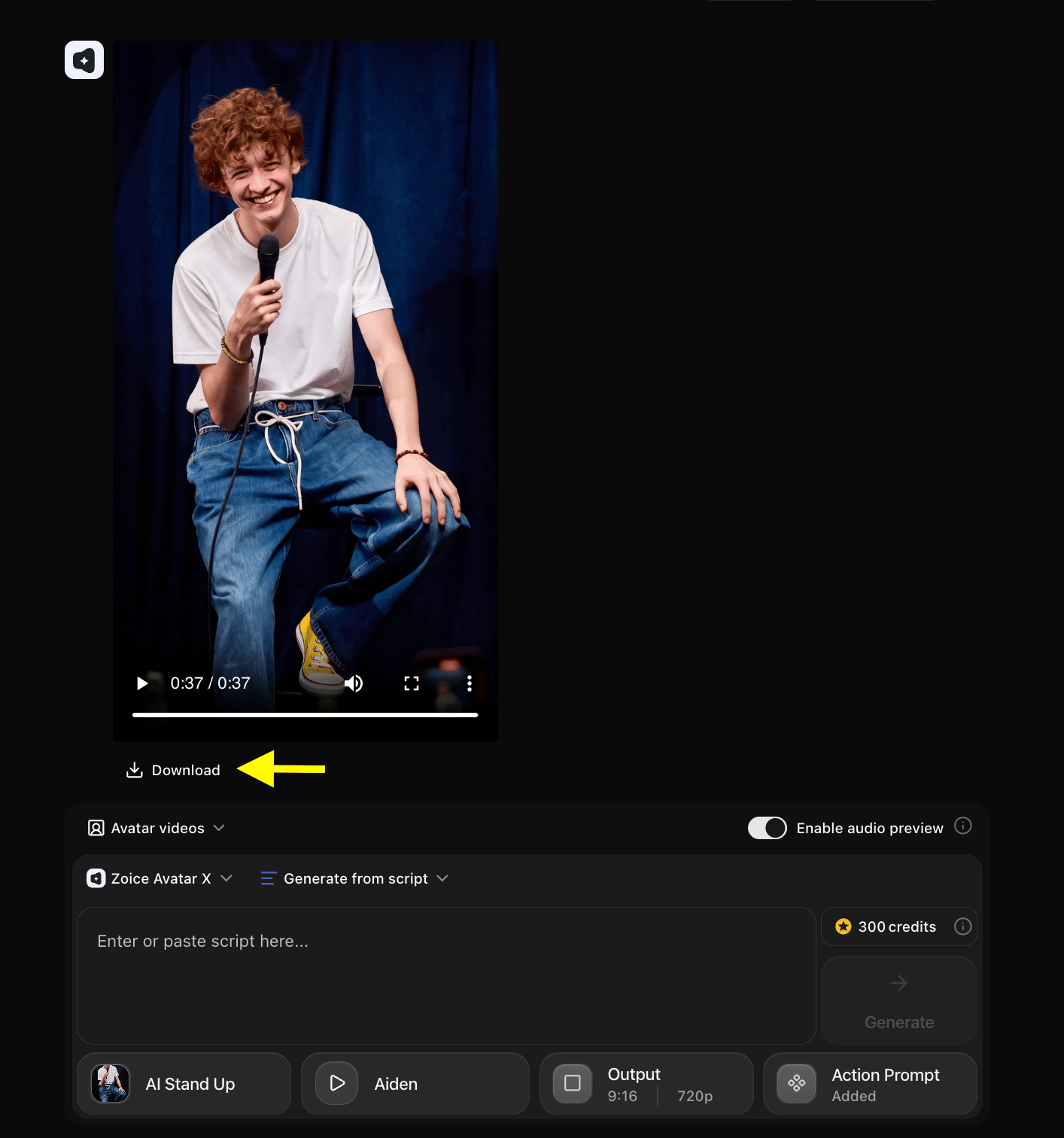
Example Input Image, Action Prompt & Output Video
Here is an example setup for generating an AI stand up comedy video.Used Image
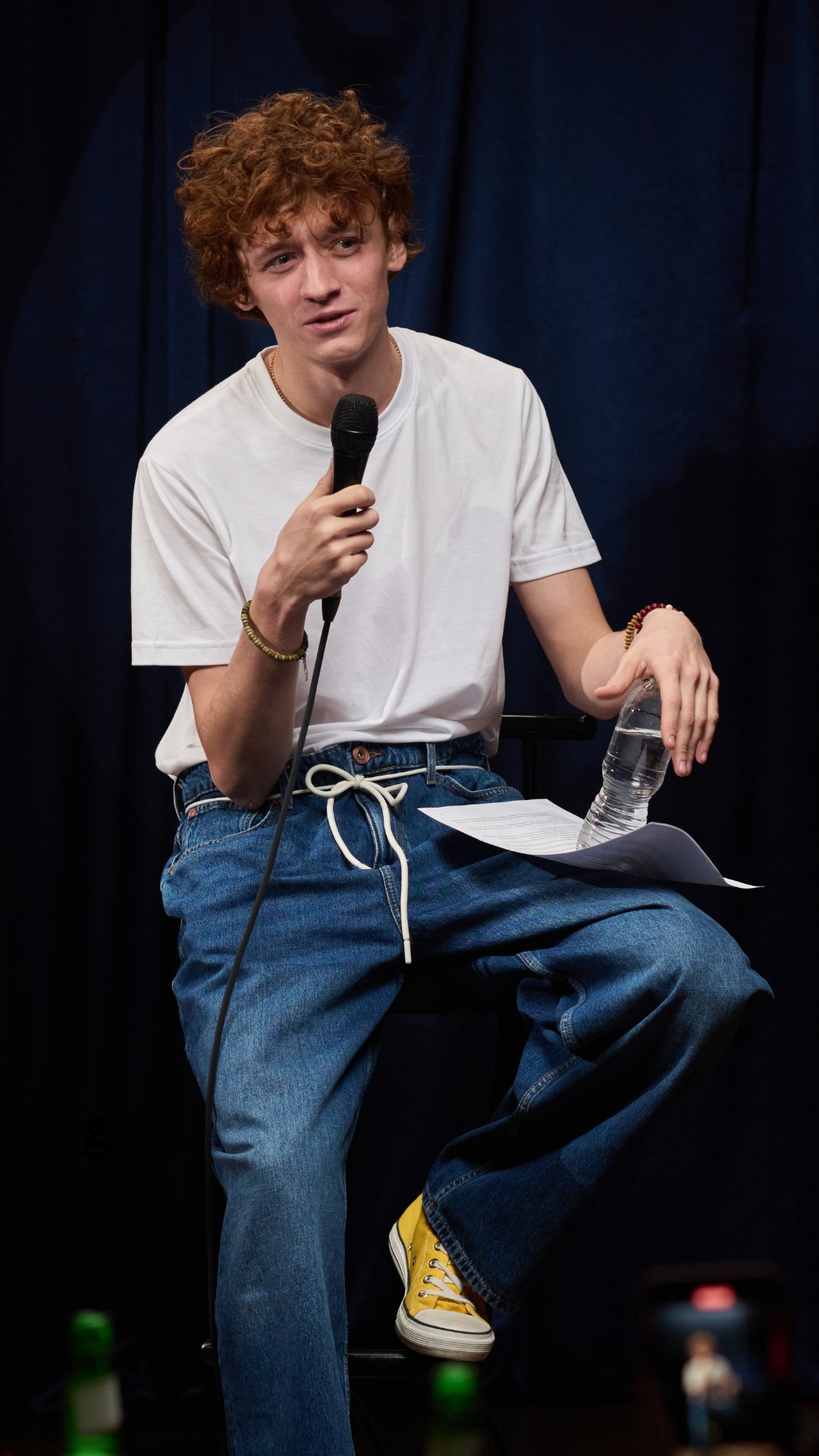
Used Script
Used Action Prompt
Output Result Video
Below is the rendered AI stand up comedy video:[!NOTE] Just a little bit of editing and boom, your AI stand-up comedian avatar is ready to rock!
Final Words
Creating an AI stand up comedy video with Zoice is a fast and simple process. By choosing a character, writing a funny script, and letting AI handle the animations and voice-over, you can produce high-quality comedic content in minutes. Whether you want to create YouTube Shorts, engage your social media followers, or make your friends laugh, Zoice has the tools you need to bring your comedy routines to life.Next Steps
Talking Pet Avatar
Learn how to make a talking pet avatar video.
Singing AI Avatar
Make your avatar sing with vocal tracks.