

- Create Your Digital Twin: Turn your own photo and cloned voice into a hyper-realistic virtual presenter that looks and sounds just like you.
- Create an AI Character Avatar: Design a custom AI avatar or fictional character persona to be the signature host for your YouTube channel.
What is a Faceless YouTube Channel with AI Avatar?
A faceless YouTube channel with an AI avatar is a content automation model where videos are hosted by virtual digital presenters or Digital Twins rather than real people on camera. The AI avatar reads your video script, maintains engaging eye contact, and delivers natural facial micro-expressions synchronized to synthetic voiceovers, voice clones, or pre-recorded audio tracks. Key capabilities of faceless AI avatar channels include:- Digital Twin or AI Character Host: Choose between creating your personalized Digital Twin or designing a unique AI character avatar to host your channel.
- Consistent Brand Spokesperson: Reusing the same avatar host across every video upload to build an authentic, recognizable YouTube channel identity.
- Multilingual Channel Expansion: Re-dubbing your YouTube videos in over 100 languages with localized AI voices while keeping your avatar host intact.
- Rapid Production Automation: Generating high-definition presenter videos in minutes without recording sessions.
- Niche Versatility: Producing content across finance, technology, health tips, history documentaries, and pop culture commentary.
Key Benefits of Running a Faceless AI Avatar YouTube Channel
Launching a faceless channel powered by AI avatars offers significant strategic advantages:- Complete Creator Privacy: Build a successful, monetized YouTube presence without revealing your personal identity on camera.
- Dramatic Cost and Time Savings: Eliminate camera gear, studio rentals, hair and makeup, and tedious video retakes.
- Unmatched Channel Scalability: Manage 3 to 5 niche YouTube channels simultaneously by automating script presentation.
- Higher Viewer Retention: Professional presenter-led videos keep audience attention significantly longer than static slides or robotic voiceovers.
Popular Niches for Faceless AI Avatar Channels
Faceless AI avatar hosts excel across several high-CPM YouTube categories:- Finance and Wealth Management: Explaining stock market trends, crypto guides, and personal budgeting tips.
- Technology and AI News: Reviewing new software tools, gadgets, and tech industry updates.
- Educational and Explainer Channels: Presenting science facts, history timelines, and digital tutorials.
- Self-Improvement and Motivation: Delivering morning routines, productivity hacks, and book summaries.
- Real Estate and Travel Guides: Showcasing virtual property listings and city destination guides.
How to Make a Faceless YouTube Channel with AI Avatar Using Zoice
Follow the step-by-step guide below to create automated videos for your faceless YouTube channel.Step 1: Visit Zoice.com and Sign In
Go to Zoice.com in your web browser and click the Sign In button in the top-right corner. Enter your email and password, or choose Sign in with Google to access your account instantly.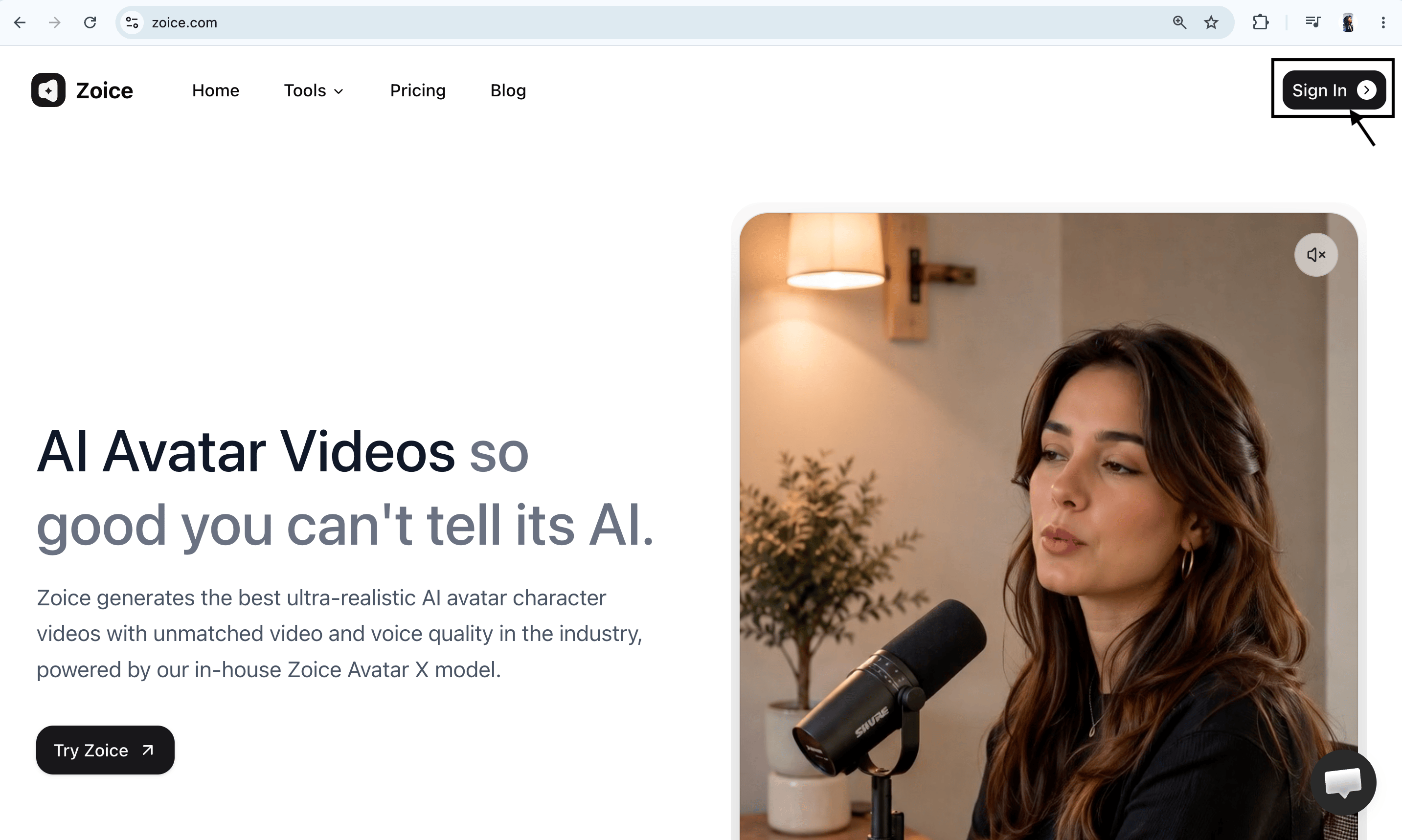
Step 2: Navigate to Avatar Characters
From the Zoice dashboard, click Avatar Characters in the left sidebar under the Manage section.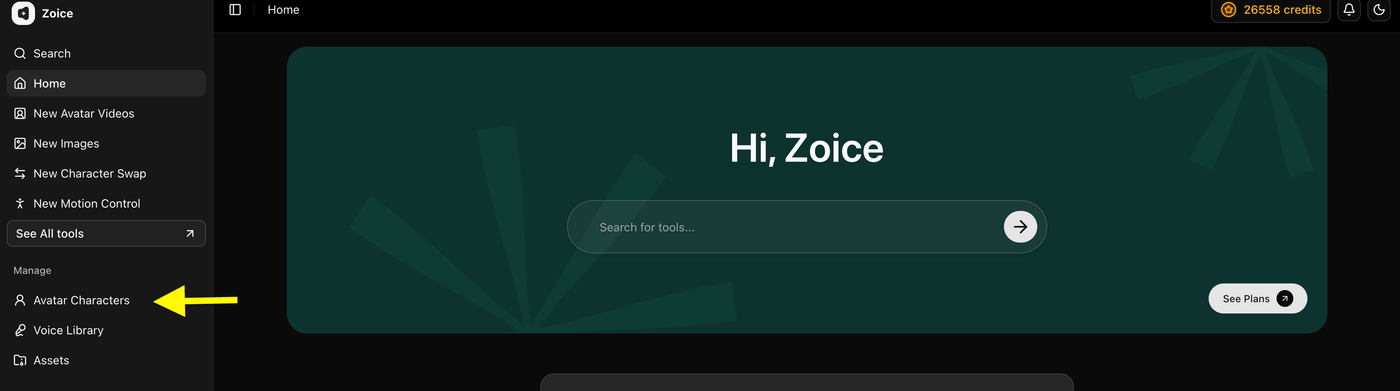
Step 3: Upload Your Channel Presenter Photo
Click Upload Image and select a clear, front-facing photo of your channel host avatar from your device. This image will represent your virtual presenter across all YouTube uploads. Give your avatar a recognizable name (such as “Finance Channel Host”).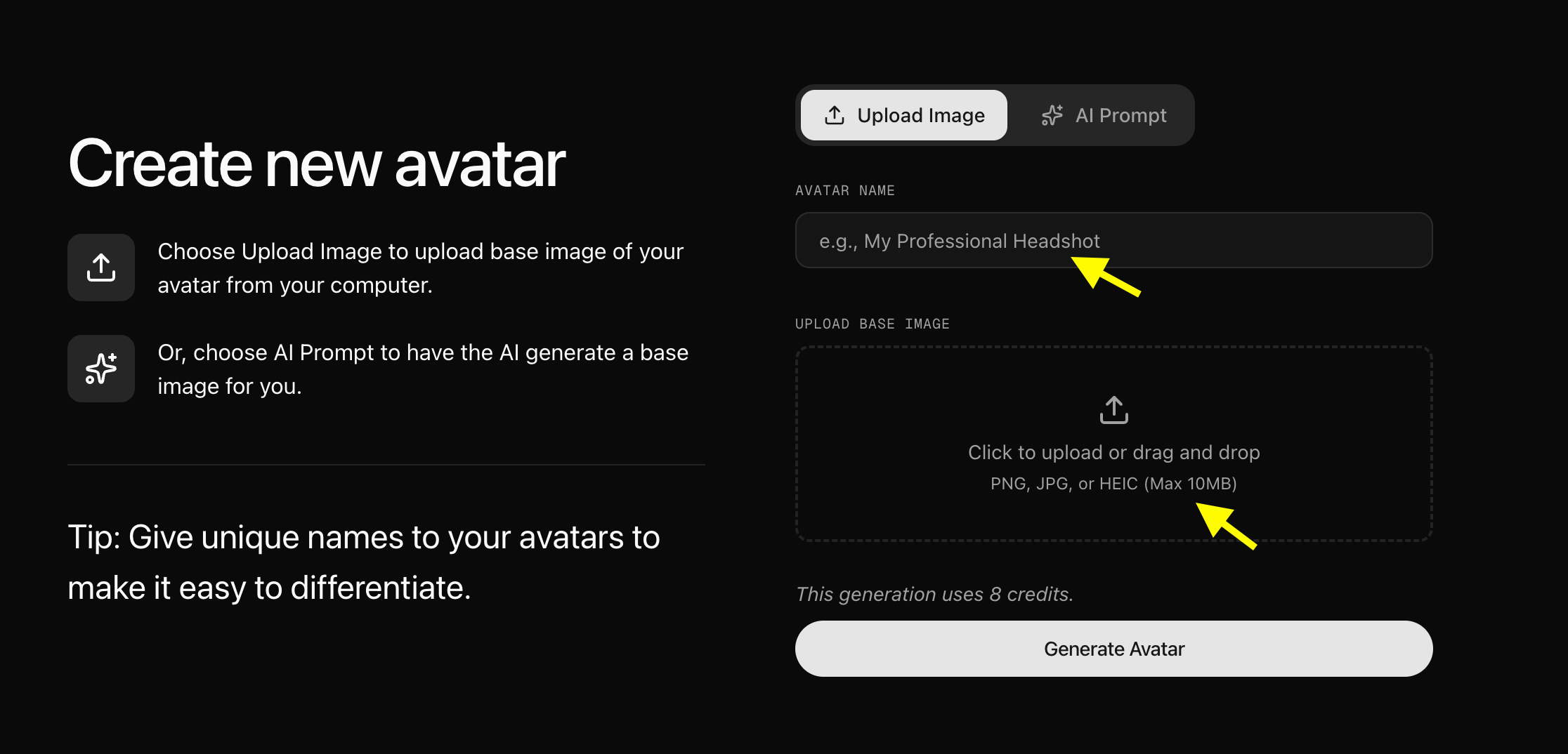
Step 4: Generate Your Avatar Profile
Once you have uploaded your presenter photo and named your avatar, click Generate Avatar. Zoice will analyze your photo and create your animated avatar profile in a few moments.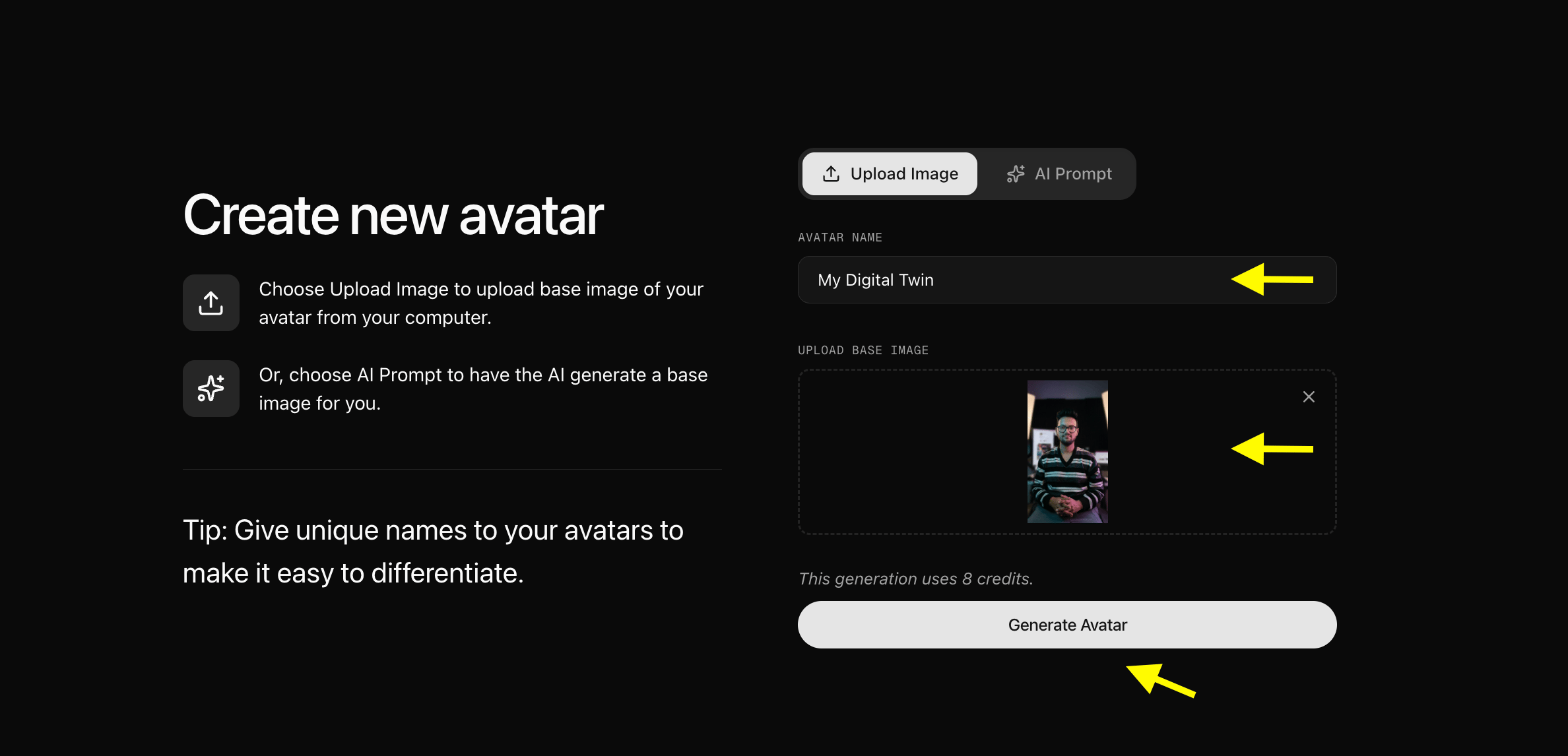
Step 5: Configure Your Avatar Settings
Click Avatar Setting to specify supporting details that help produce more accurate and natural facial animations.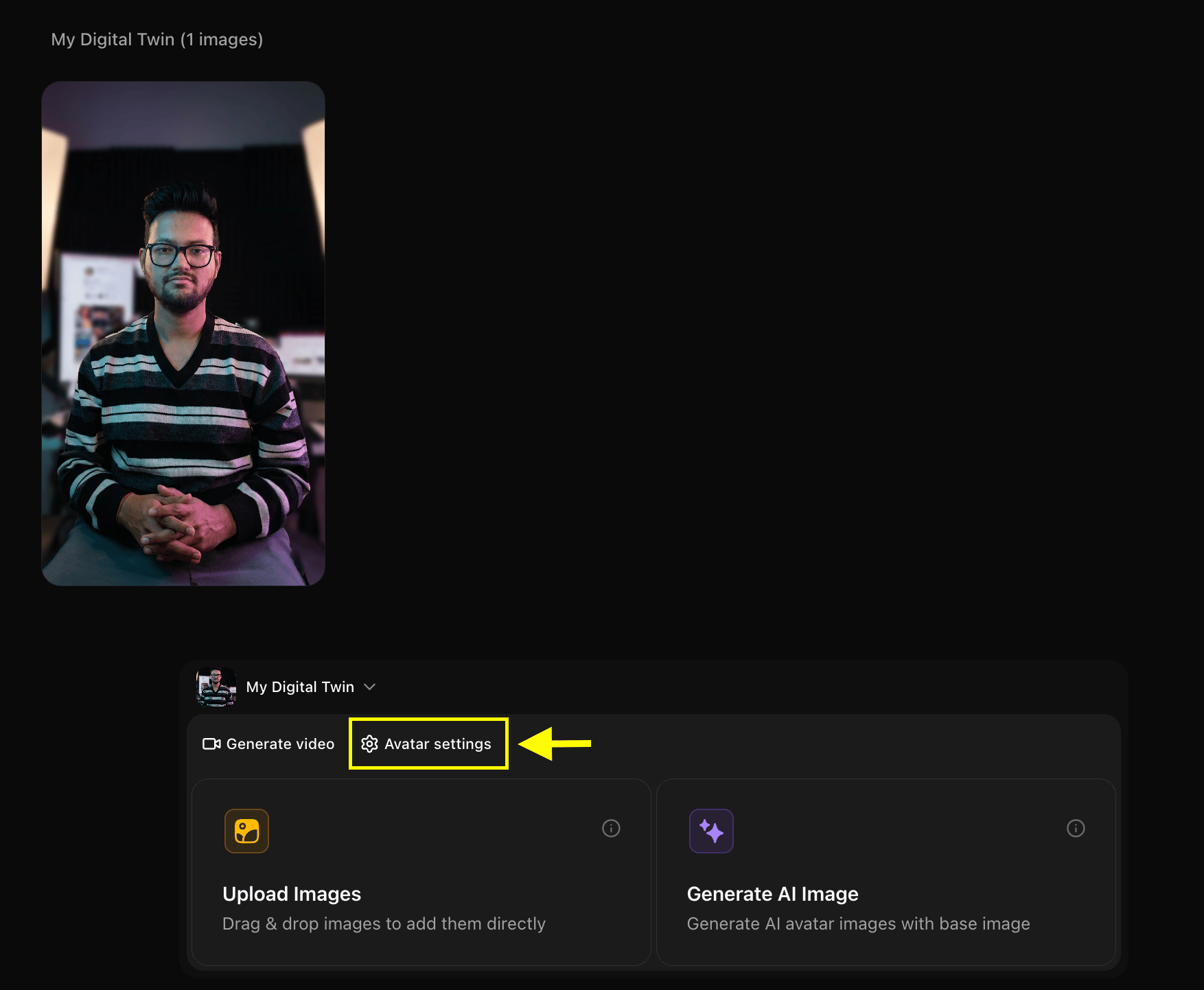
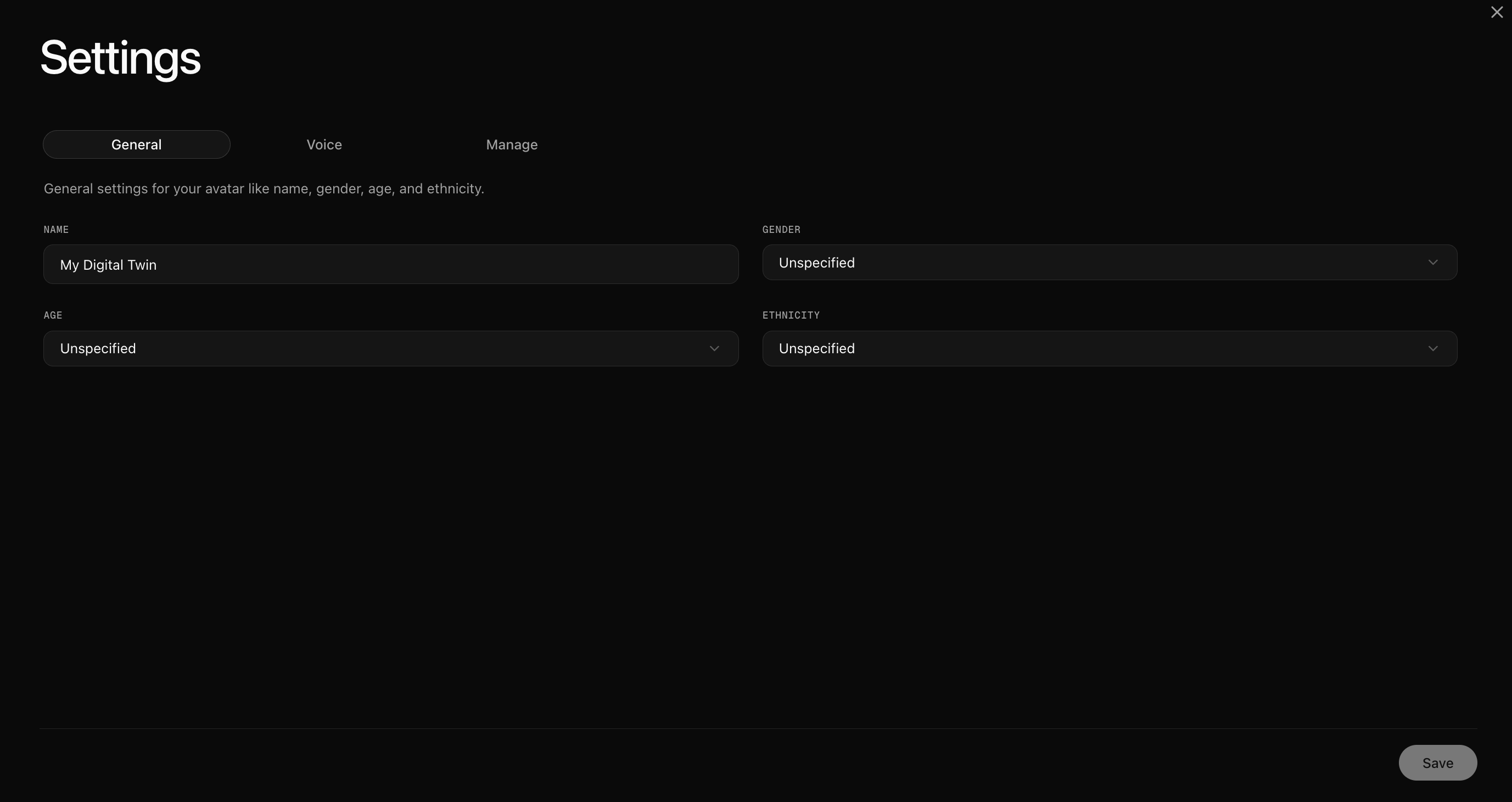
Step 6: Select Your Avatar and Click Generate Video
Go back to your Avatar Characters library, select your faceless channel host avatar, and click Generate Video to open the video creation workspace.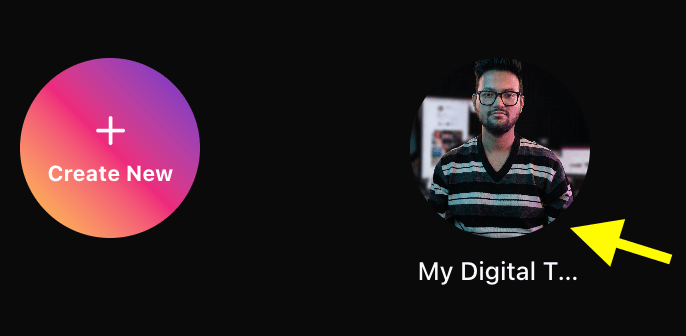
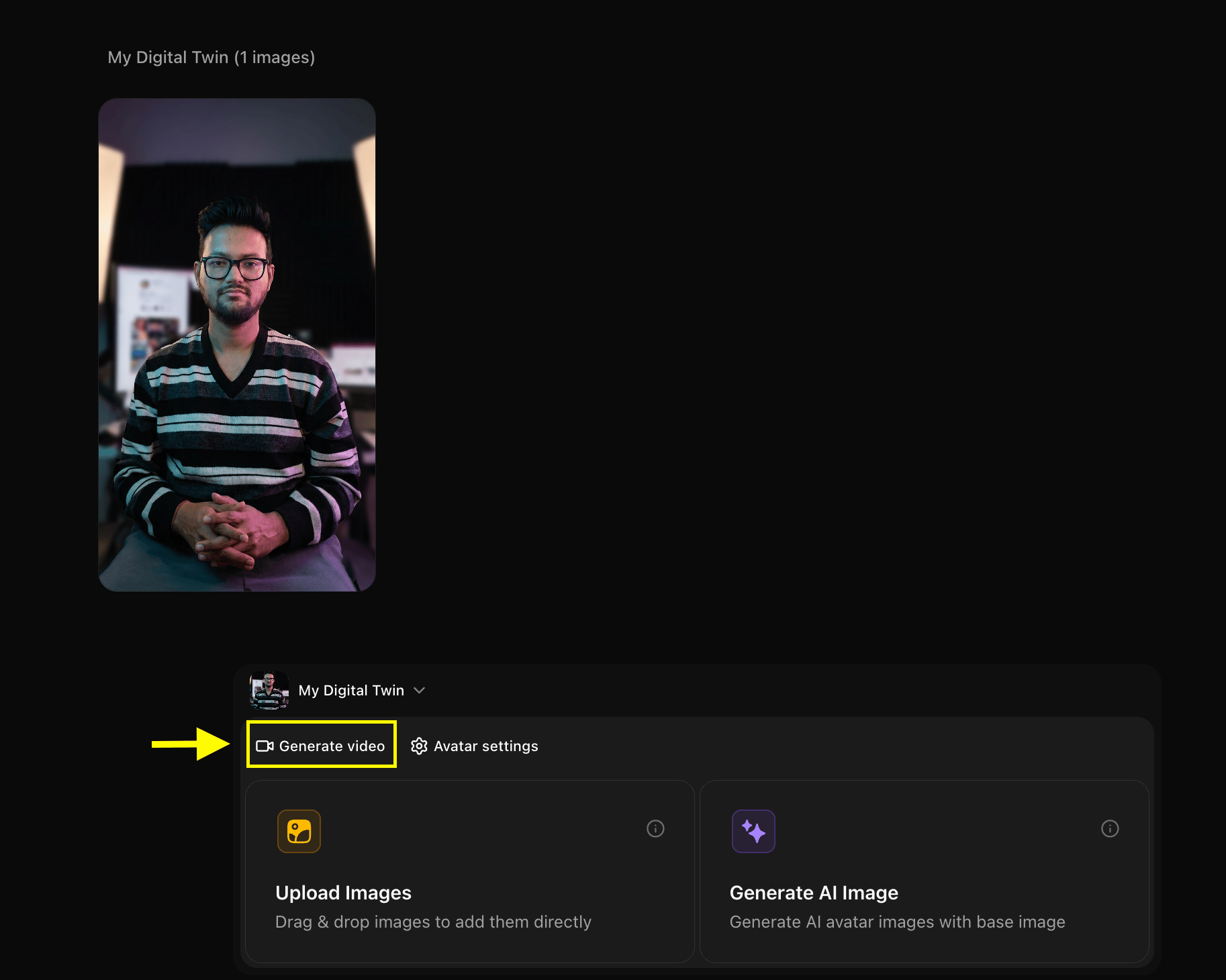
Step 7: Add Your YouTube Video Script
Click on the Script Box in the video creation studio.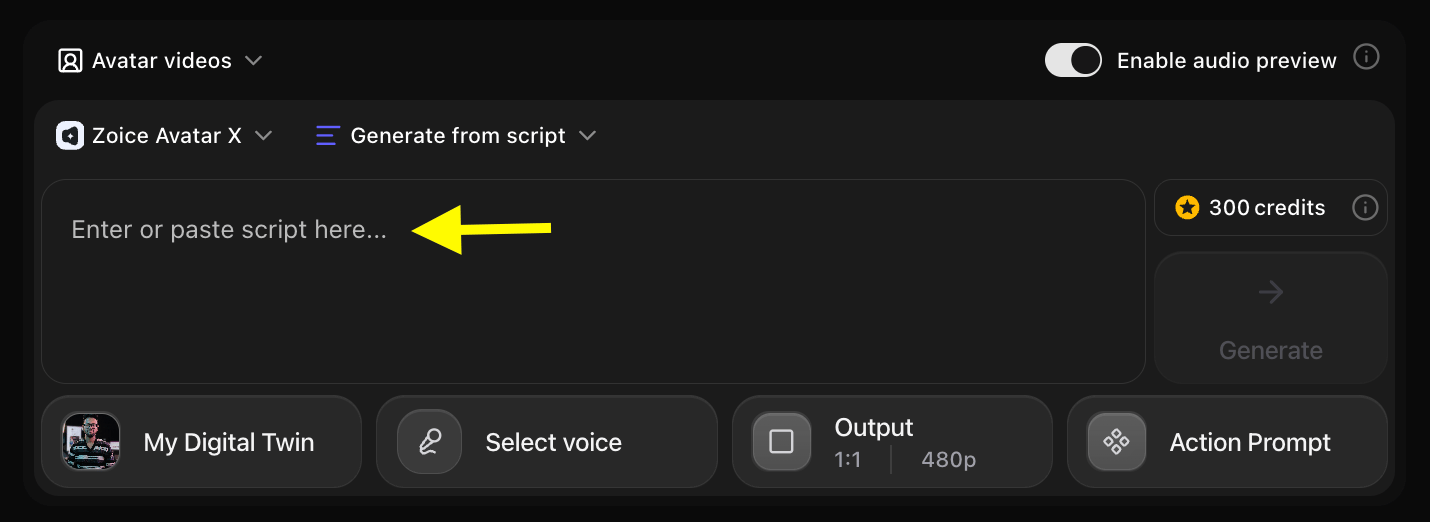
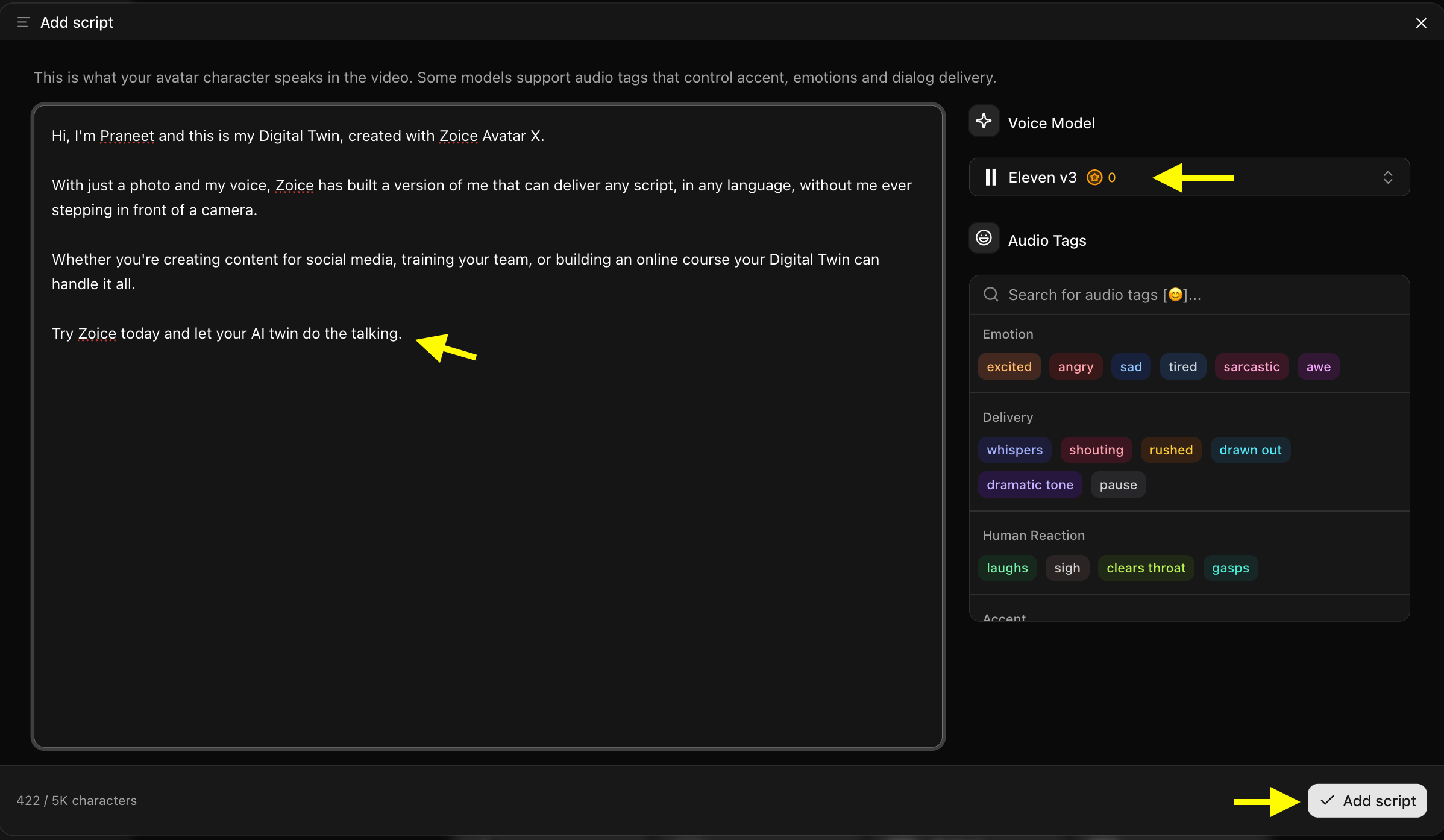
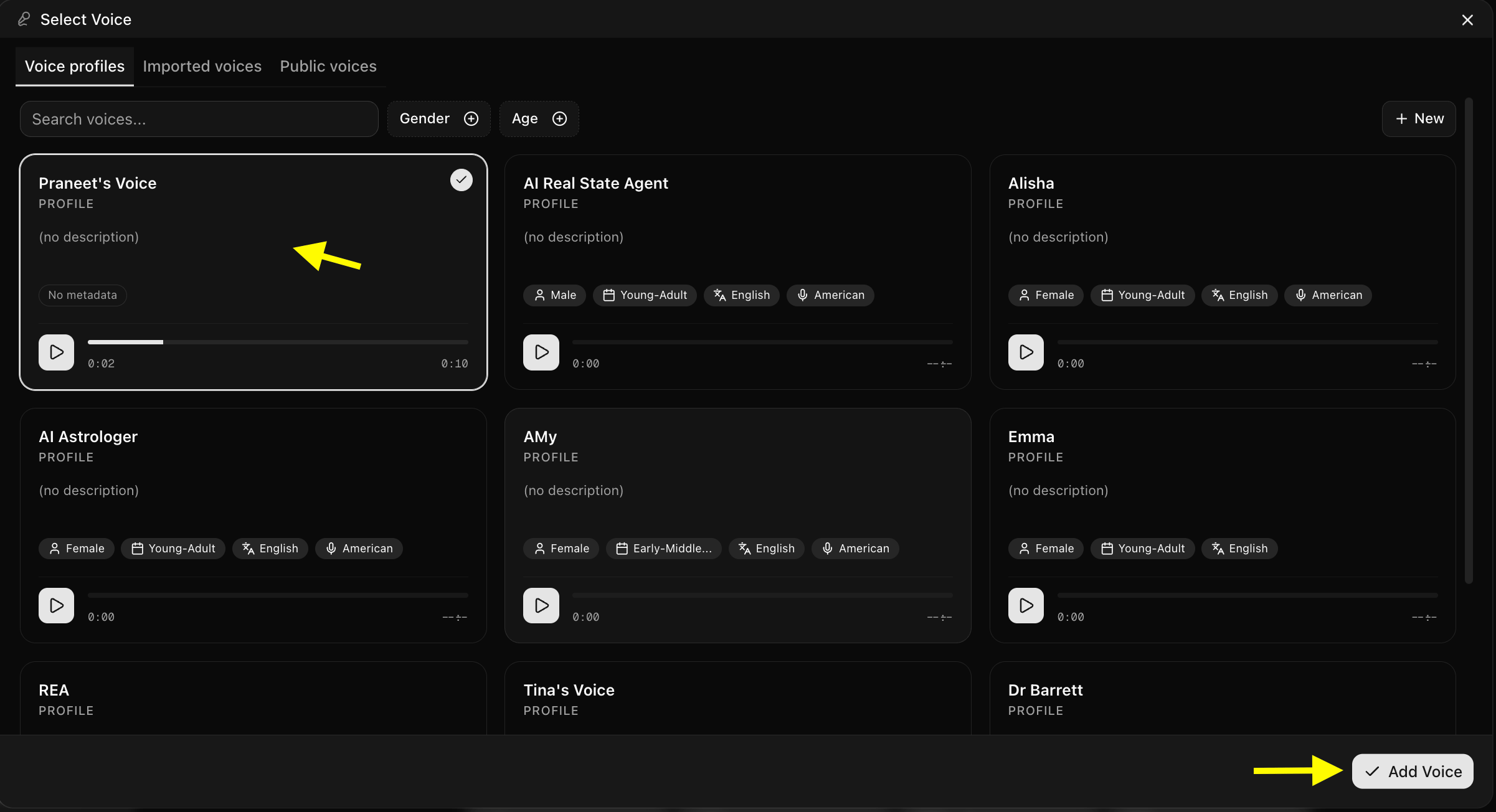
Step 8: Select Your Channel AI Voice
Click the Select Voice button to choose an AI voice actor for your channel presenter.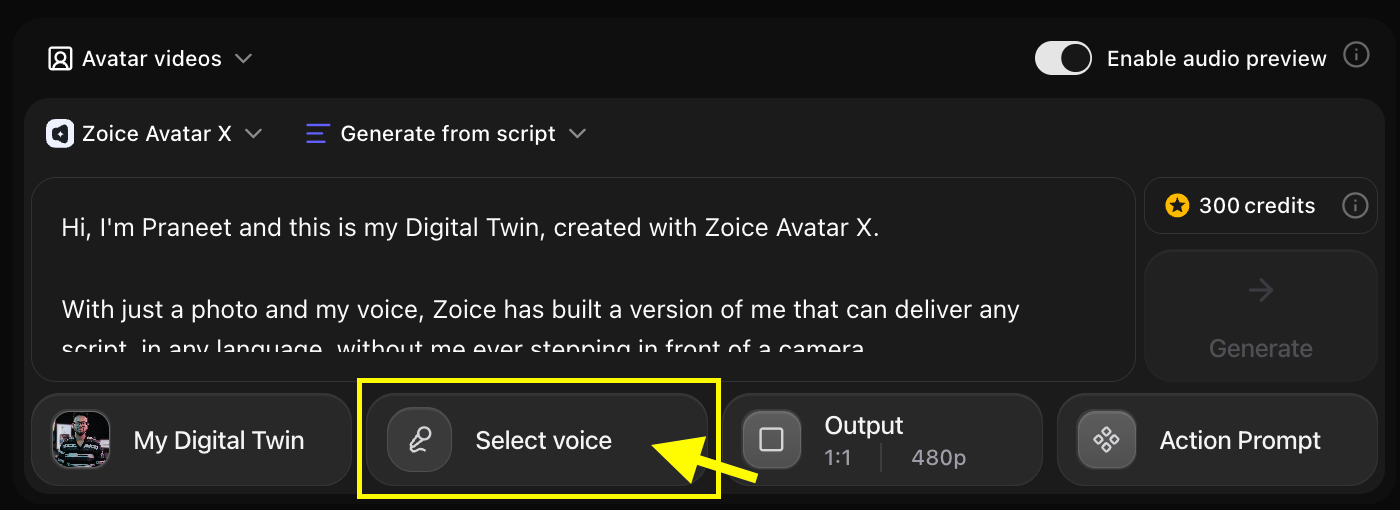
Step 9: Choose Output Settings
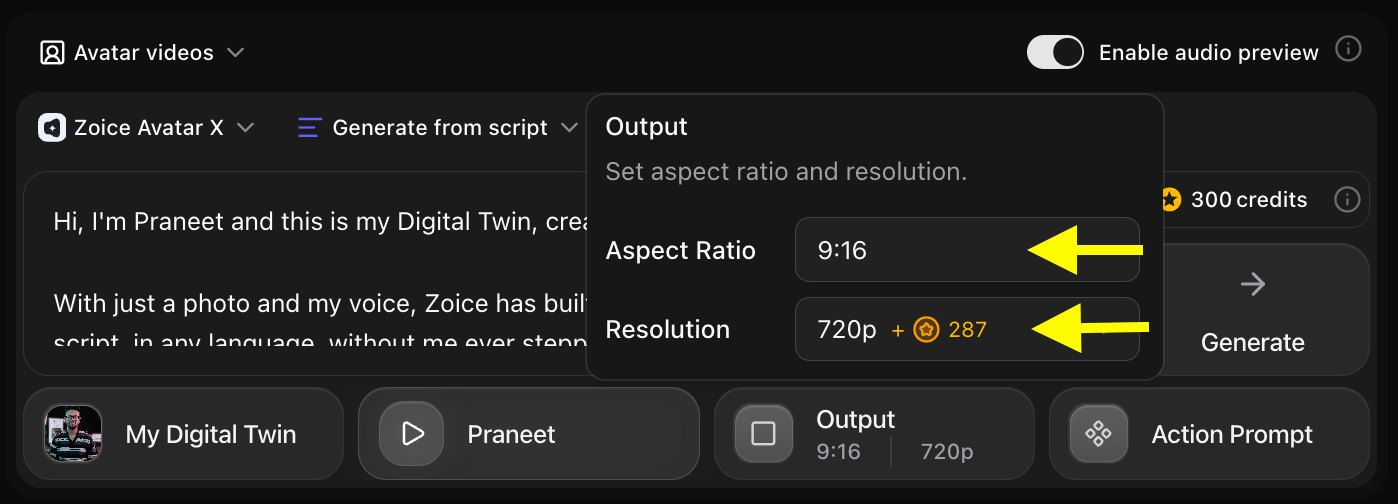
Click Output Settings to select your video format:- Aspect Ratio: 16:9 for YouTube longform videos, or 9:16 for YouTube Shorts
- Resolution: Up to 4K for maximum clarity
Step 10: Add an Action Prompt
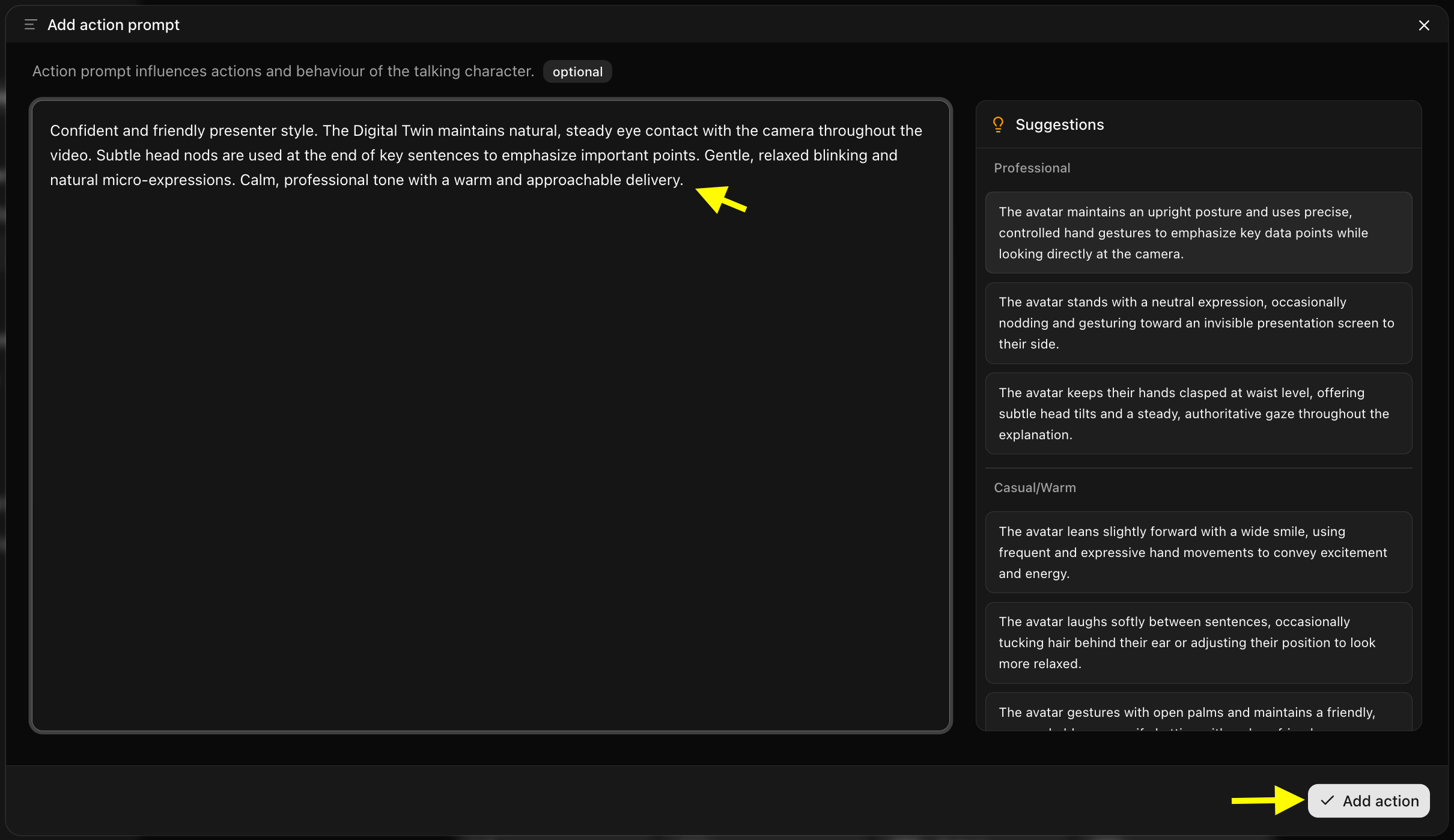
Click Action Prompt to direct your host avatar’s performance, facial expressions, and head movements.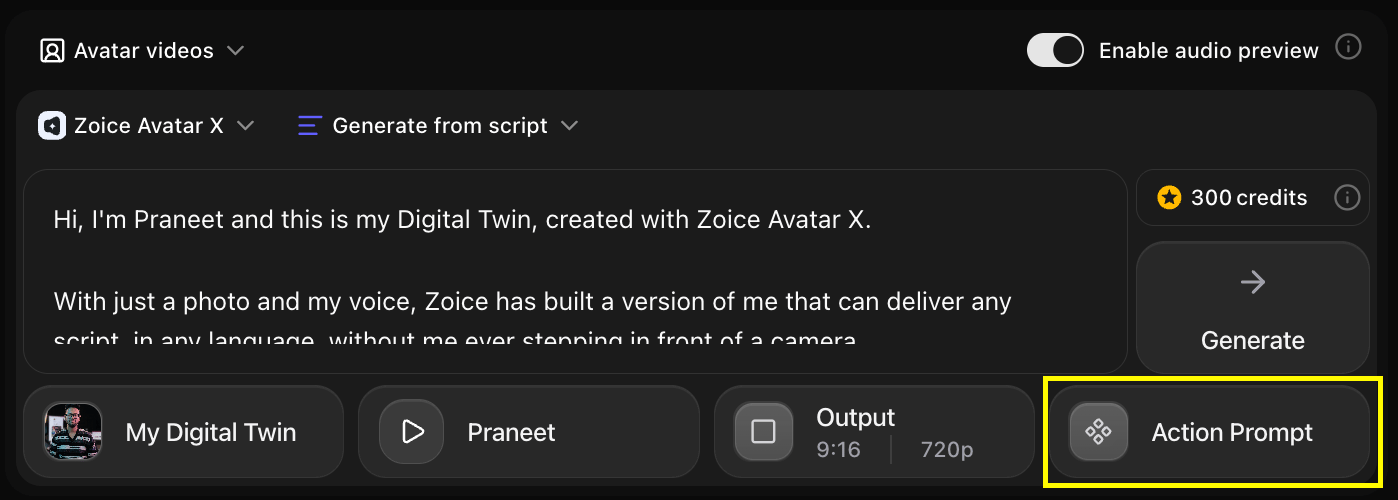
Step 11: Generate Your Video
Once your script, voice, output settings, and action prompt are configured, click Generate to start the video creation process.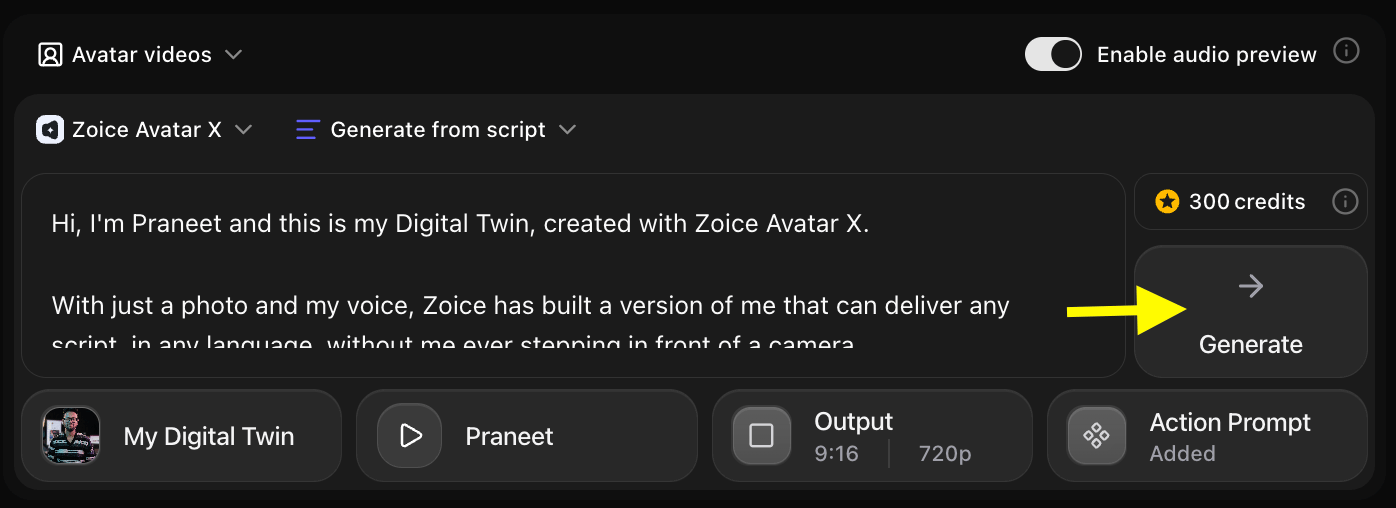
Step 12: Preview Audio and Click Generate Avatar Video
Before the final video renders, Zoice creates an audio preview so you can verify voice quality, pronunciation, and pacing. Listen carefully and confirm everything sounds right, then click Generate Avatar Video to render the final output.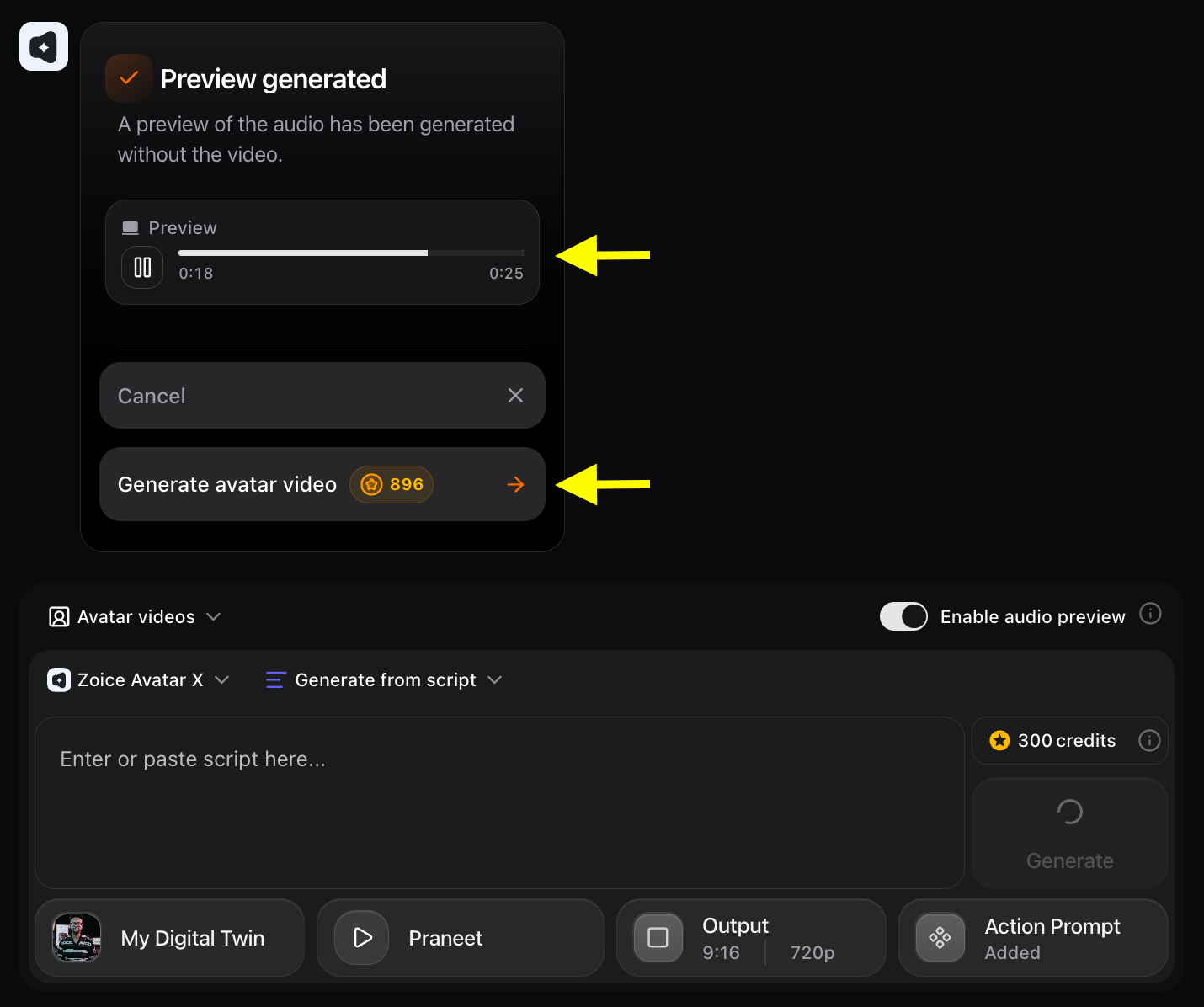
Step 13: Preview and Download Your Faceless Video
Once rendering is complete, play the final video preview to inspect avatar mouth movements and facial animation. Click Download to save the video file to your computer.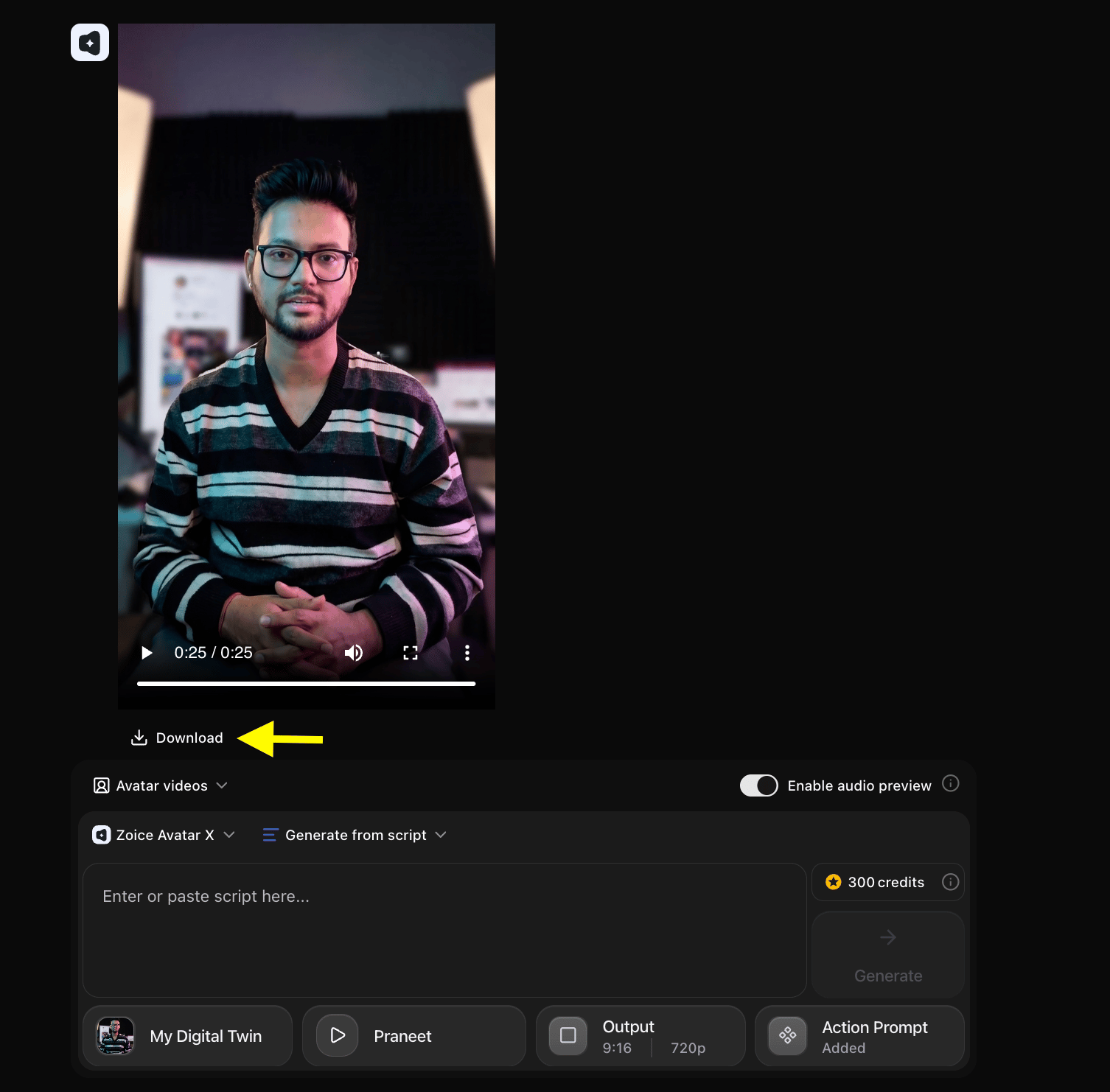
Example Input Image, Script, Action Prompt & Output Video
To help you get started, here is an example of an input channel host image, script, action prompt, and generated faceless YouTube video.Used Channel Host Image

Used Script
Used Action Prompt
Output Result Video
Below is the rendered faceless YouTube channel video:Best Practices for Building a Profitable Faceless Channel
To maximize subscriber growth and watch time on your faceless YouTube channel:- Hook Viewers in the First 5 Seconds: Start your script immediately with a compelling question or bold teaser to boost audience retention.
- Maintain a Consistent Virtual Host: Use the same avatar character and voice model across all videos within a niche to build strong brand recognition.
- Leverage Eye-Catching Thumbnails: Pair your high-quality AI avatar presenter with bold thumbnail text and contrasting background elements.
- Post Content Consistently: Use Zoice’s rapid generation workflow to upload 2 to 3 high-quality presenter videos every week.
Conclusion
Making a faceless YouTube channel with an AI avatar using Zoice allows you to automate video creation, protect your privacy, and build scalable digital assets. Start creating your AI channel hosts today to launch your automated YouTube channel!Next Steps
Podcast Guide
Learn how to produce automated AI video podcast episodes.
News Anchor Guide
Discover how to create AI news presenter videos for breaking announcements.