

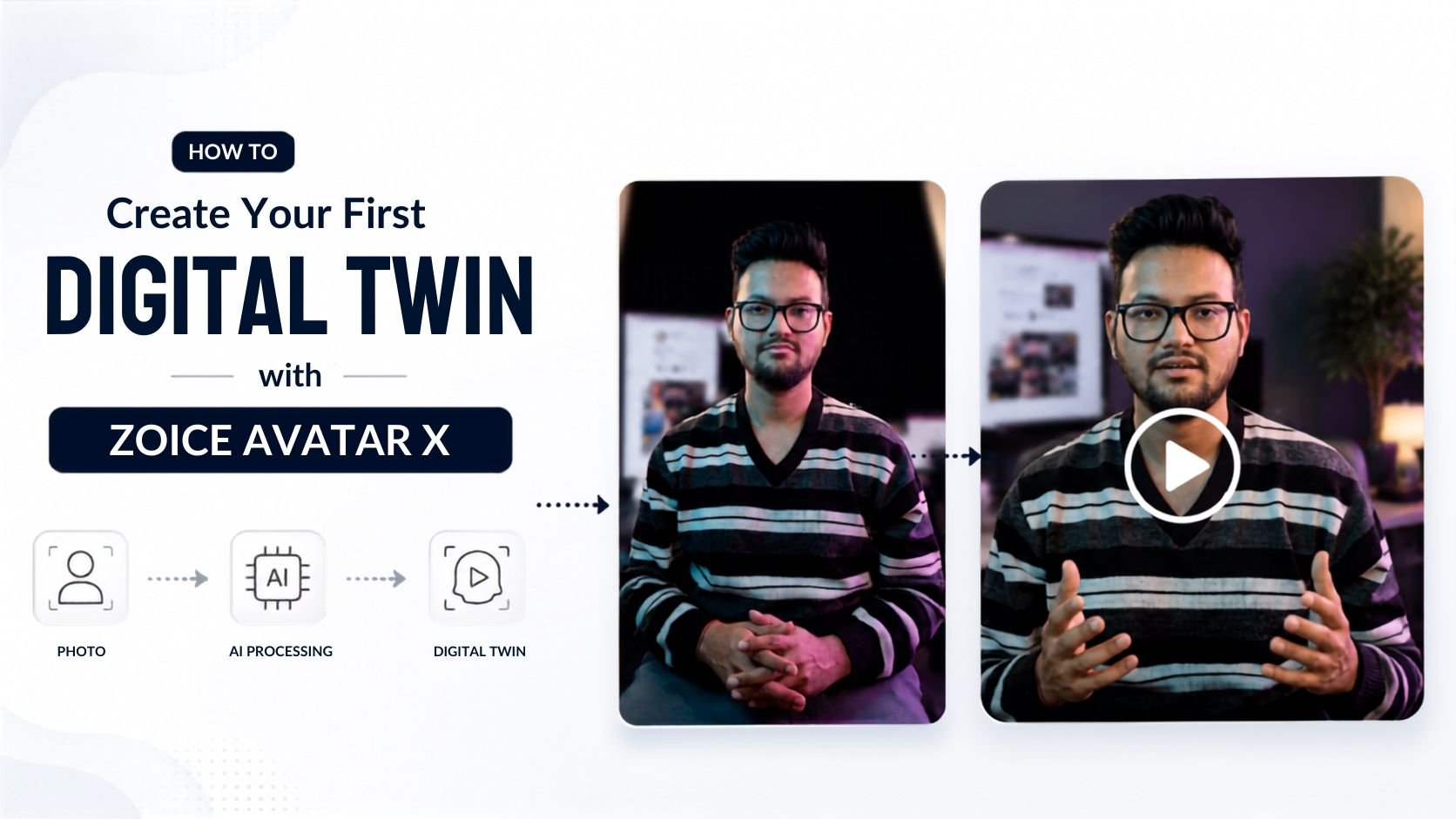
What is a Digital Twin?
A Digital Twin is a hyper-realistic AI-animated version of you, created from your own photo and voice. It is not a generic stock avatar — it is built from your likeness, so every video it generates looks and sounds like you personally recorded it. Zoice Avatar X can:- Capture and replicate your facial structure, skin tone, and appearance from a single photo
- Clone your voice using a short audio sample, preserving your tone, accent, and natural speech rhythm
- Lip-sync to any script with frame-accurate mouth movements
- Deliver content in 100+ languages while preserving your voice characteristics
- Produce videos in up to 4K resolution with natural head movements and expressions
The key difference: A regular AI avatar uses a stock character. Your Digital Twin uses you as the source, making every video feel like you genuinely recorded it.
What Can You Create With Your Digital Twin?
Once your Digital Twin is set up, the same avatar can be reused across unlimited videos for any purpose:- Social Media: YouTube, Instagram Reels, TikTok, LinkedIn updates
- Product Demos: Walk customers through your product without scheduling a shoot
- Online Courses: Record entire course modules from a single script
- Customer Support: Create FAQ videos and onboarding walkthroughs
- News & Announcements: Weekly company updates or press releases
- Multilingual Content: Deliver the same message in French, Hindi, Spanish, Arabic, and more
How to Create Your Digital Twin in Few Simple Steps
Creating your Digital Twin with Zoice Avatar X takes less than 10 minutes. Here is the complete process:Step 1: Visit Zoice.com and Sign In
Go to Zoice.com in your web browser and click the Sign In button in the top-right corner. Enter your email and password, or choose Sign in with Google to access your account instantly.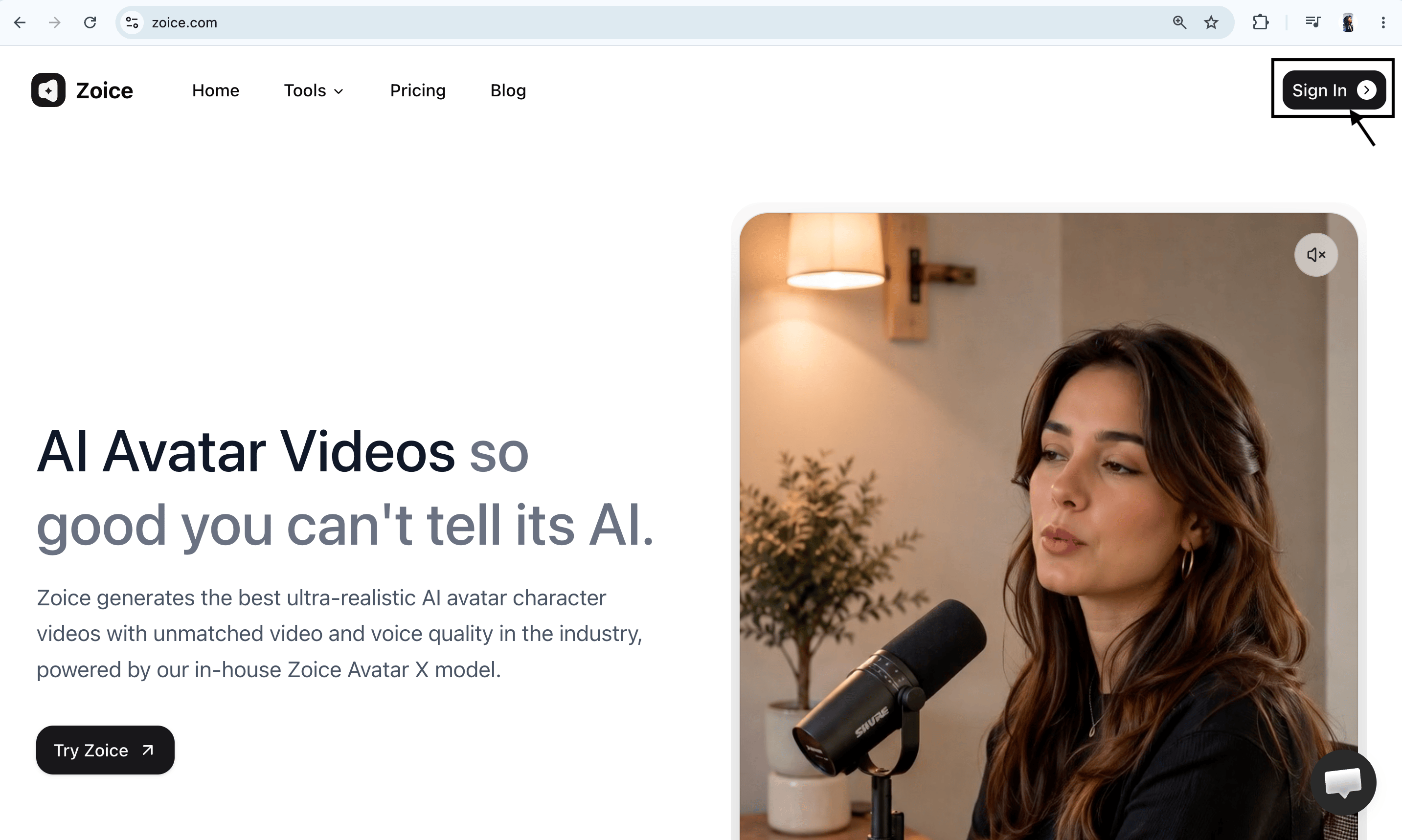
Step 2: Navigate to Avatar Characters
From the Zoice dashboard, click Avatar Characters in the left sidebar under the Manage section.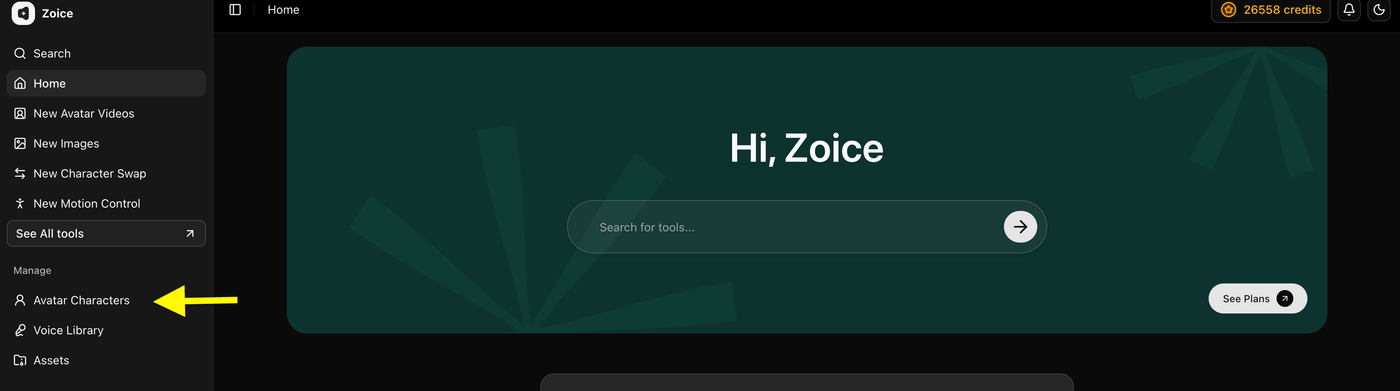
Step 3: Upload Your Own Photo
On the avatar creation page, click Upload Image and select a clear, front-facing photo of yourself from your device. This photo is the foundation of your Digital Twin — Avatar X uses it to replicate your face, skin tone, and expressions. Give your avatar a recognizable name (for example: “My Digital Twin” or “John — Professional Presenter”) so you can find it easily later.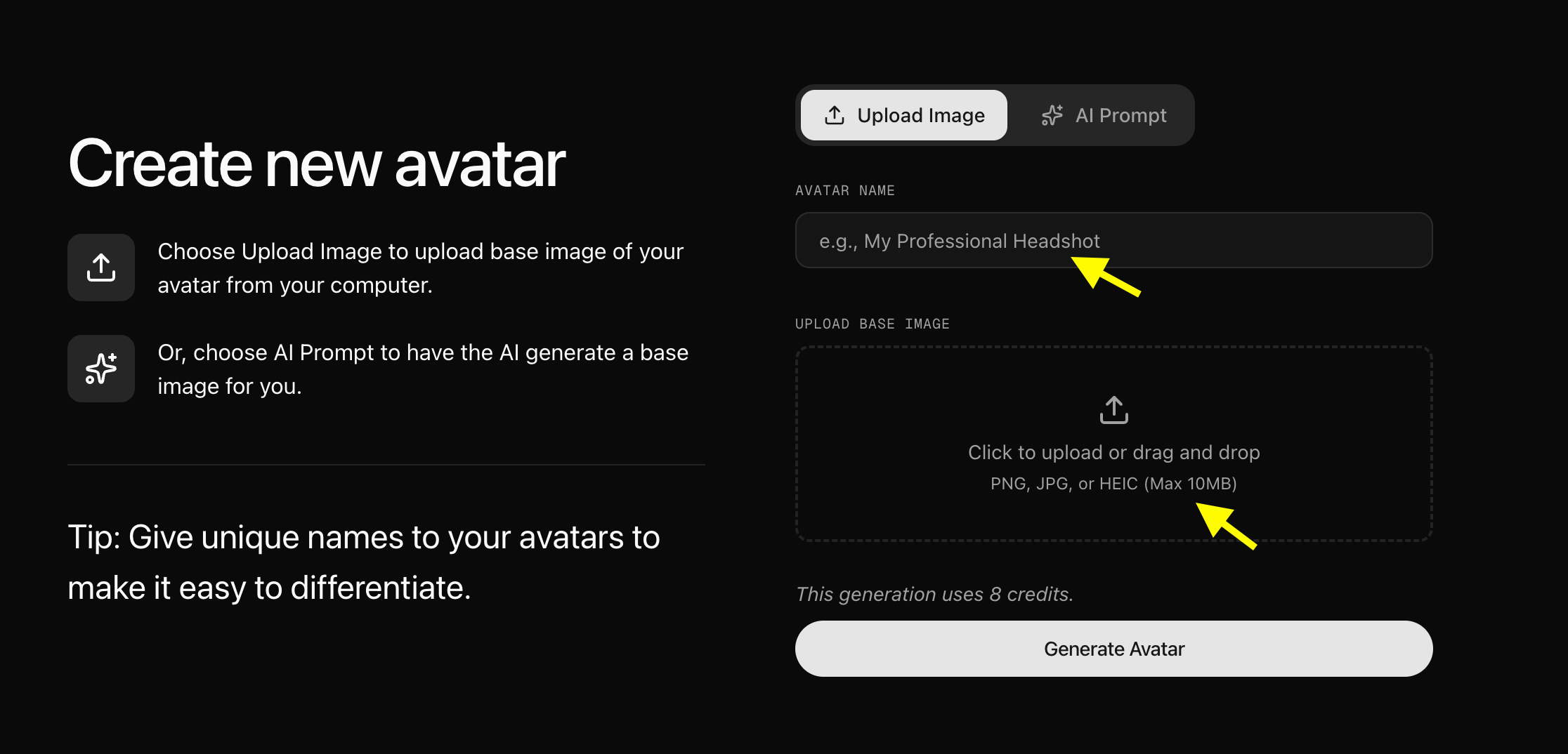
Step 4: Generate Your Avatar Profile
Once you have uploaded your photo and added your avatar name, click Generate Avatar. Zoice Avatar X will analyze your photo and create your animated avatar profile in a few moments.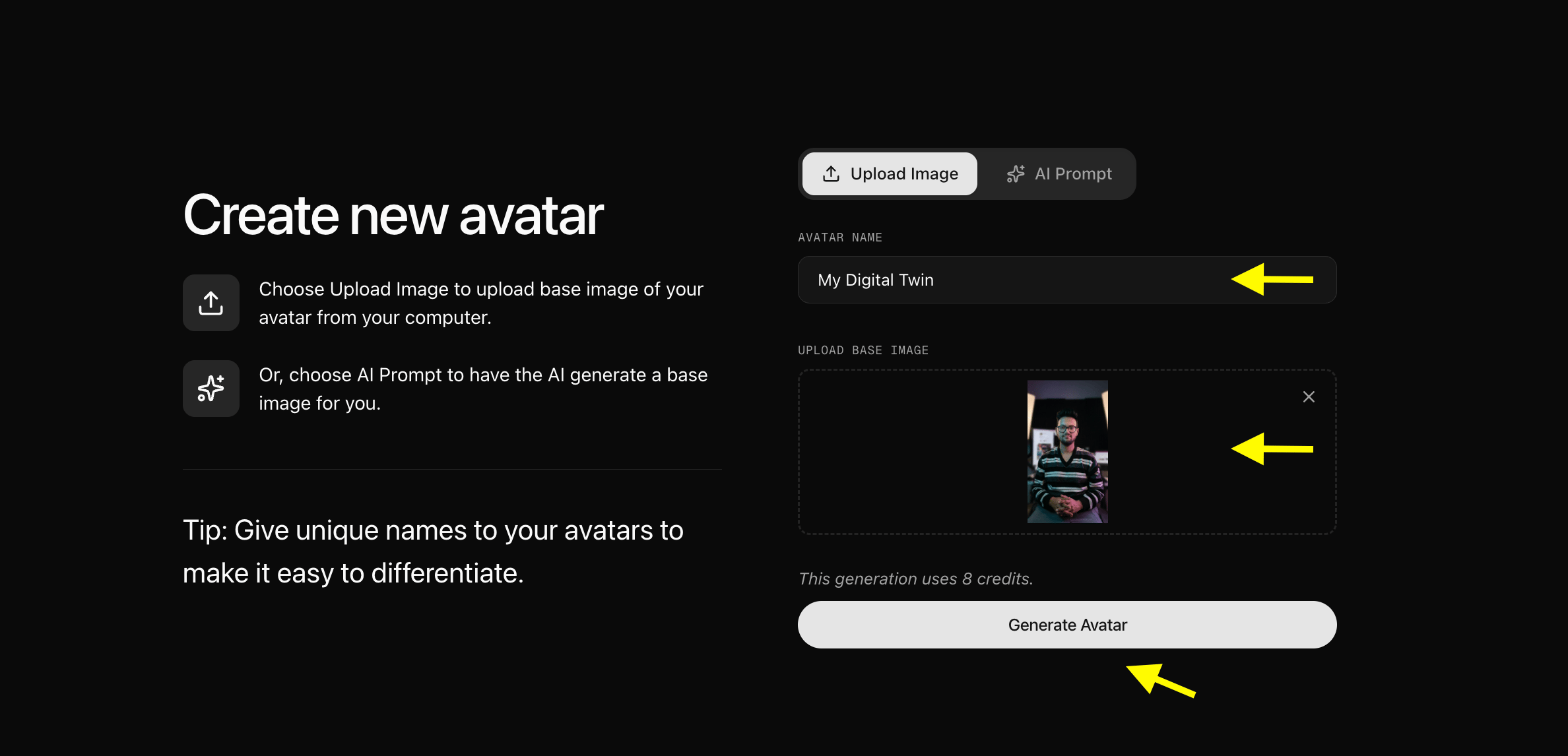
Step 5: Configure Your Avatar Settings
After your avatar profile is created, click Avatar Setting to add supporting details that help Avatar X produce more accurate and natural animations.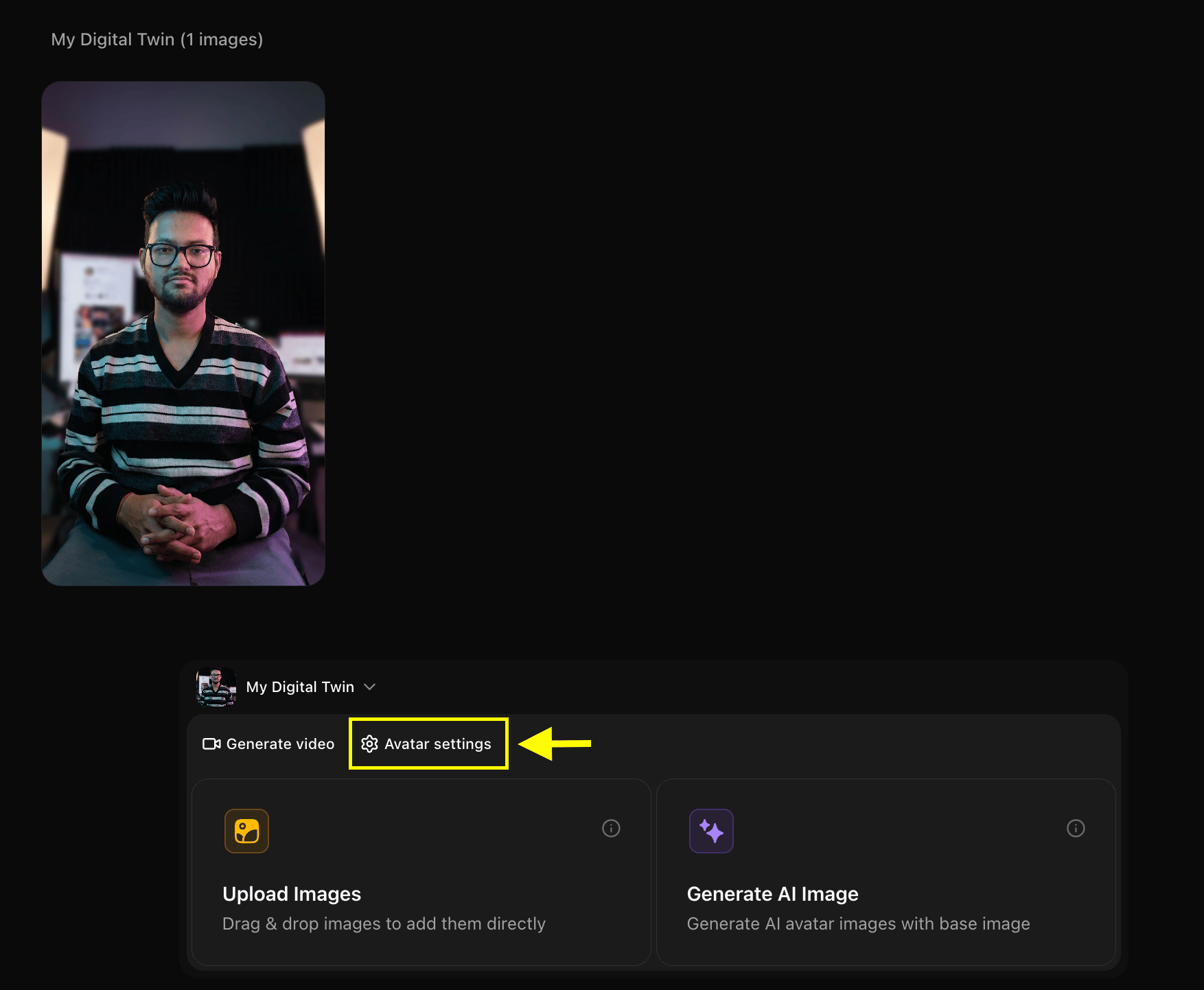
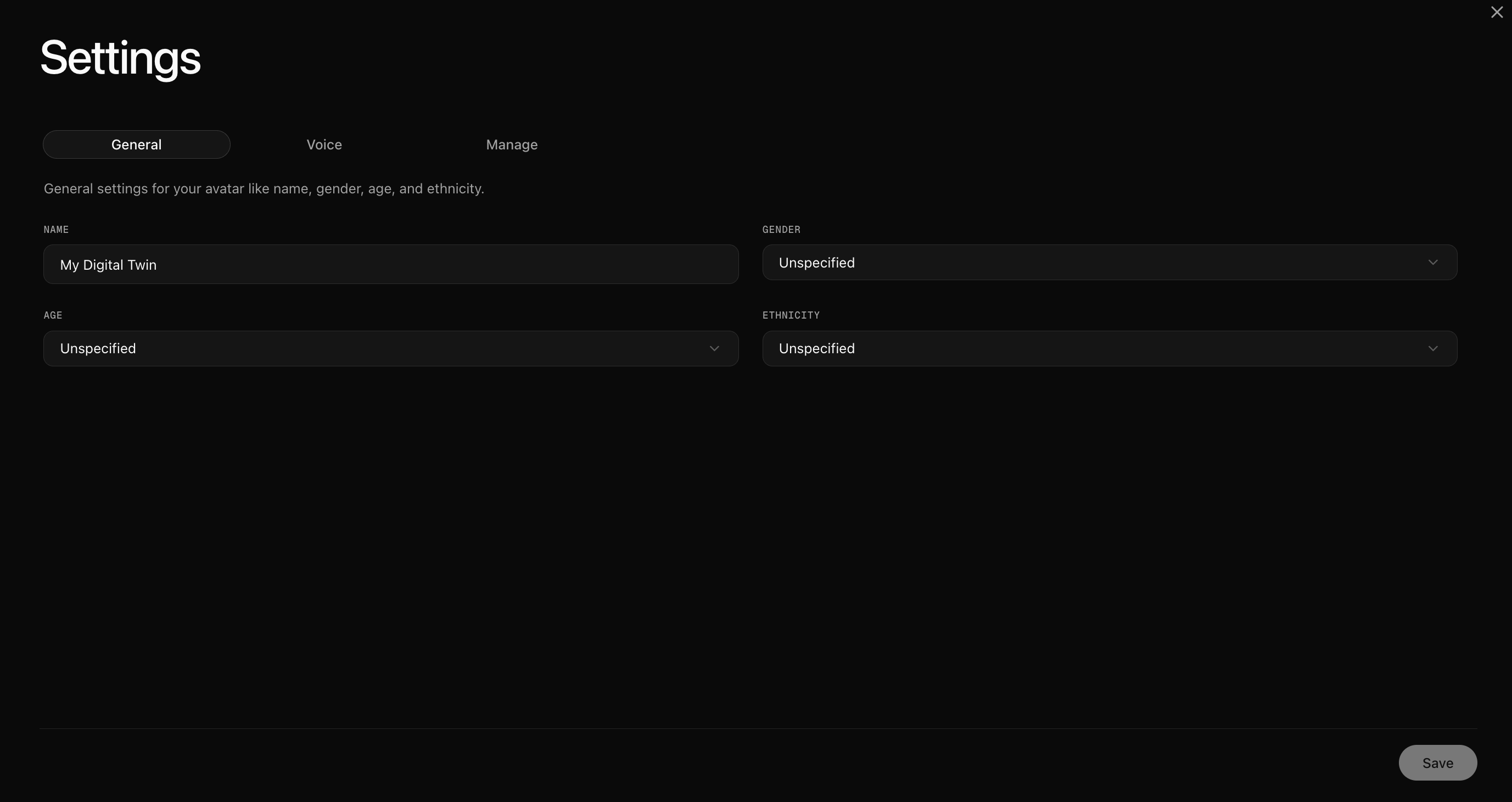
- Avatar Name: A recognizable label for this profile
- Gender: Male or Female
- Age: Young Adult, Adult, or Senior
- Ethnicity: Helps Avatar X calibrate facial expression rendering and skin tone accuracy
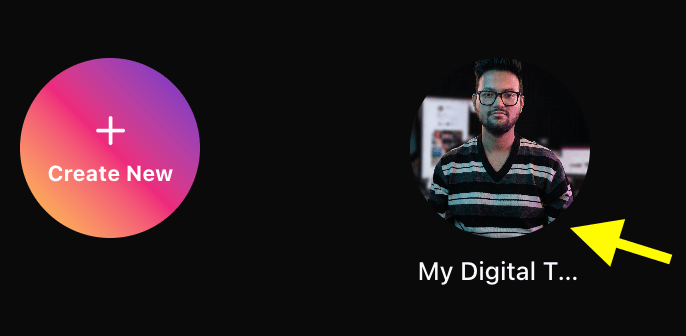
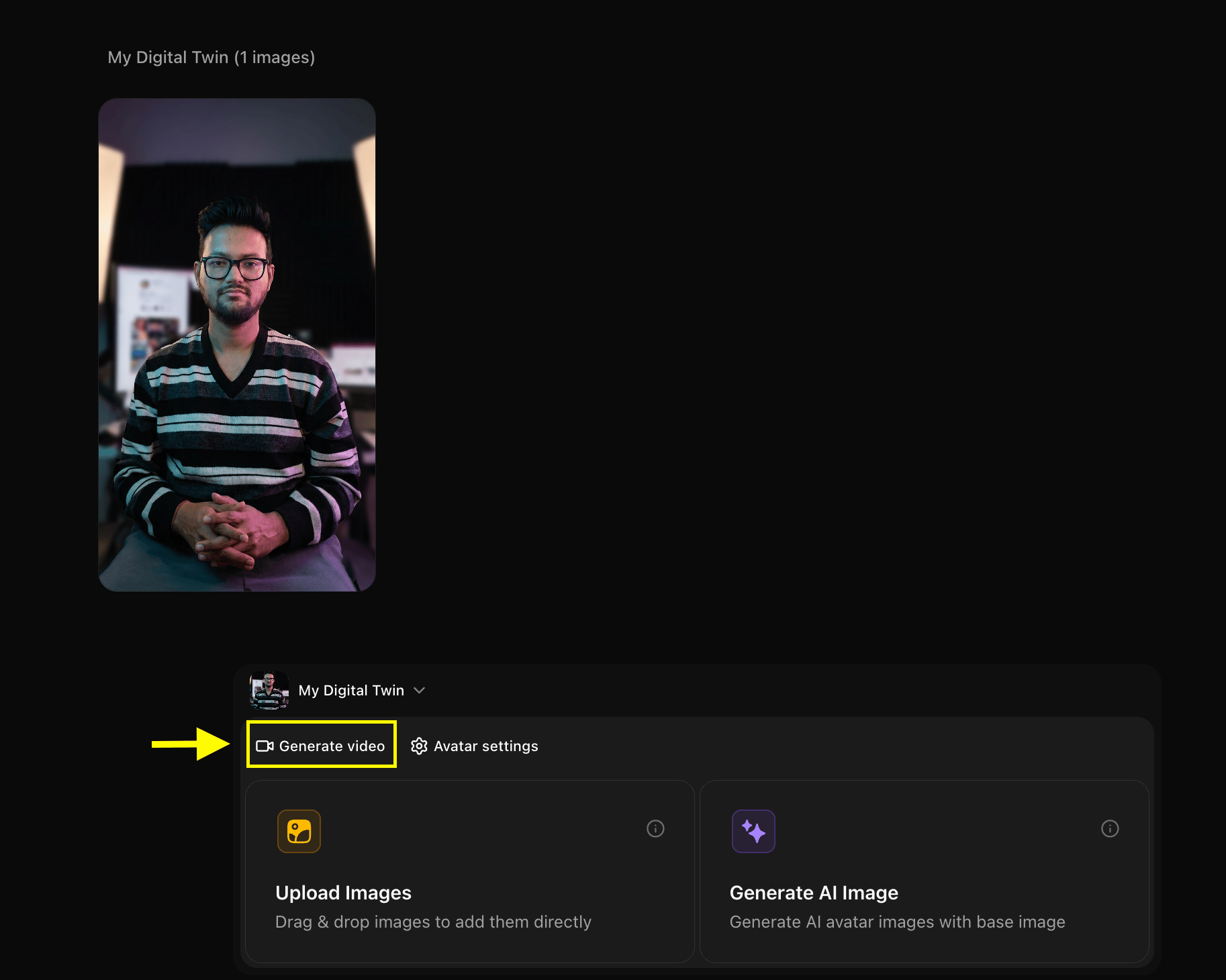
Step 6: Select Your Digital Twin and Click Generate Video
Step 7: Add Your Script
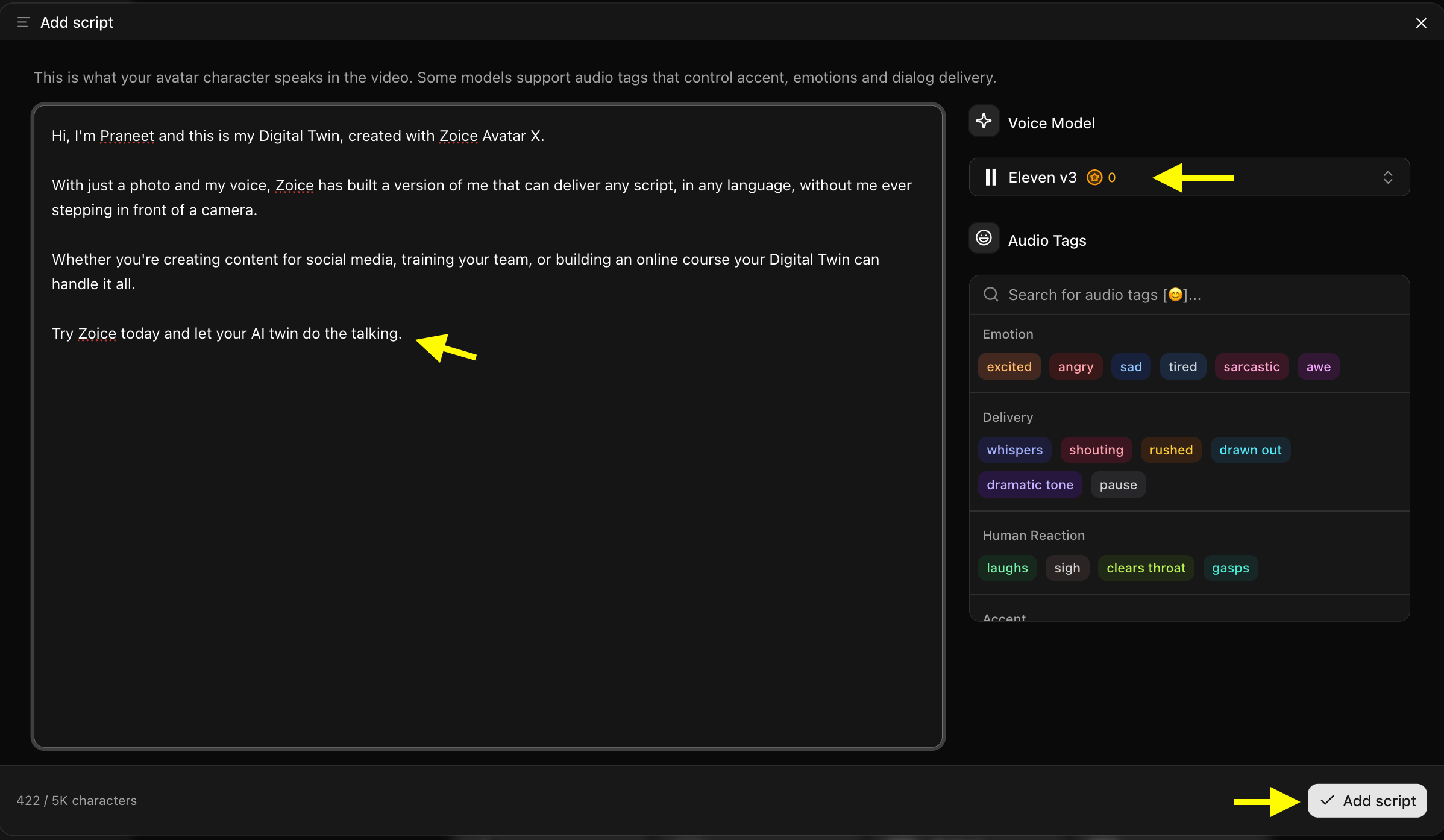
In the video creation workspace, click on the Script Box. A popup will appear where you can type or paste the text you want your Digital Twin to deliver.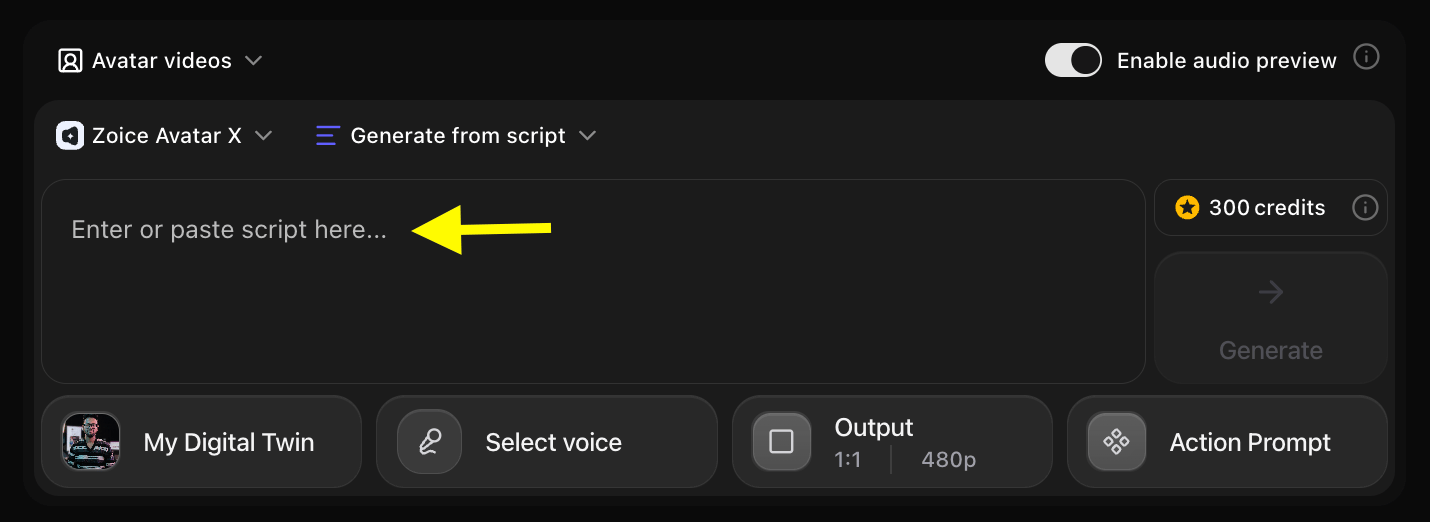
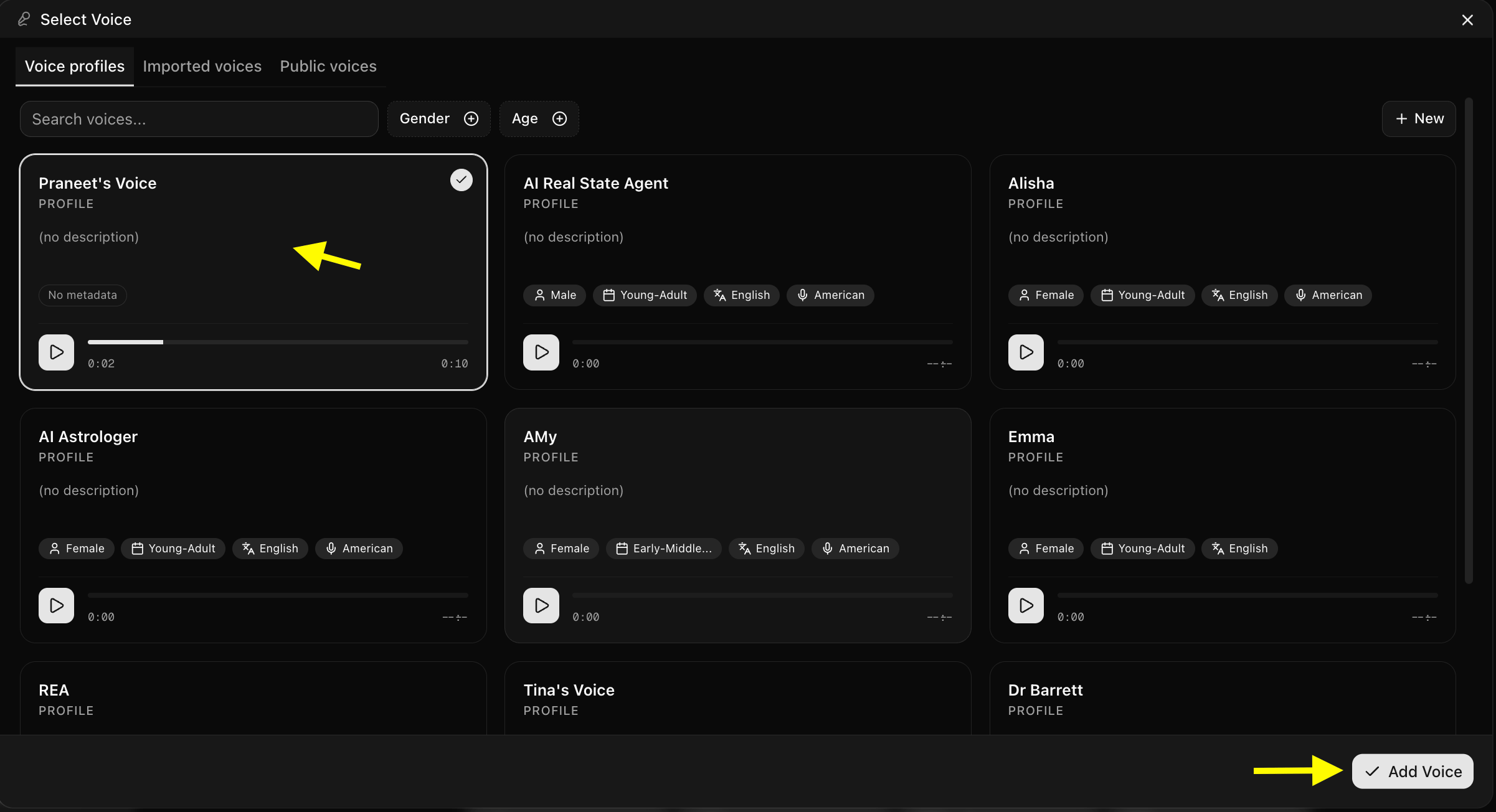
Step 8: Select Your Cloned Voice
Click the Select Voice button and choose your cloned voice profile from the list. Preview it to confirm it sounds right, then confirm your selection.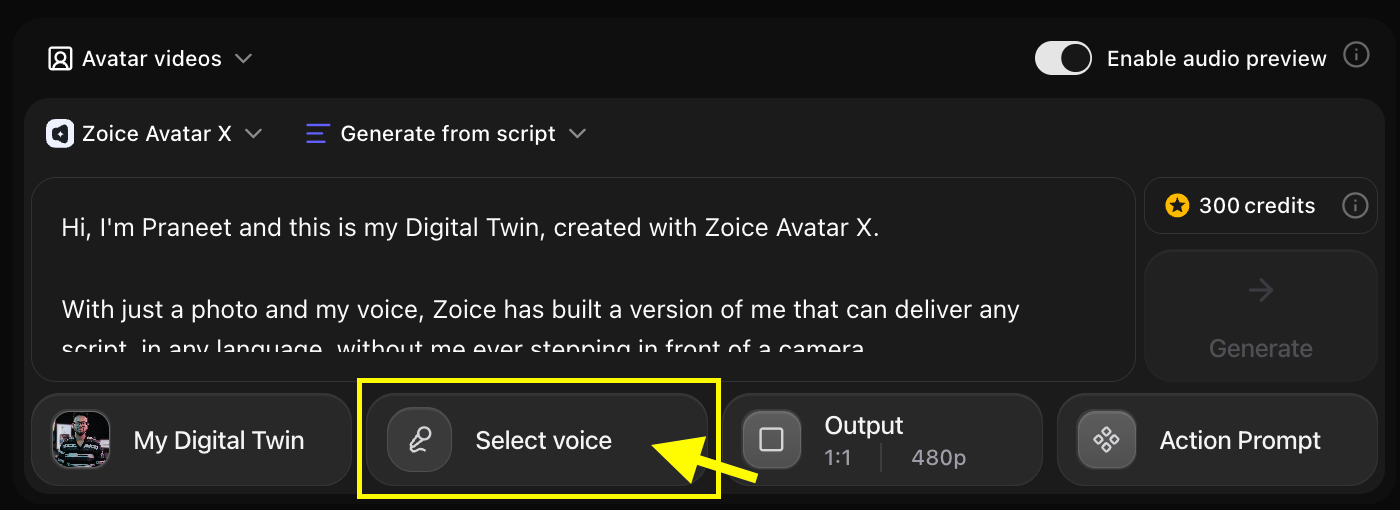
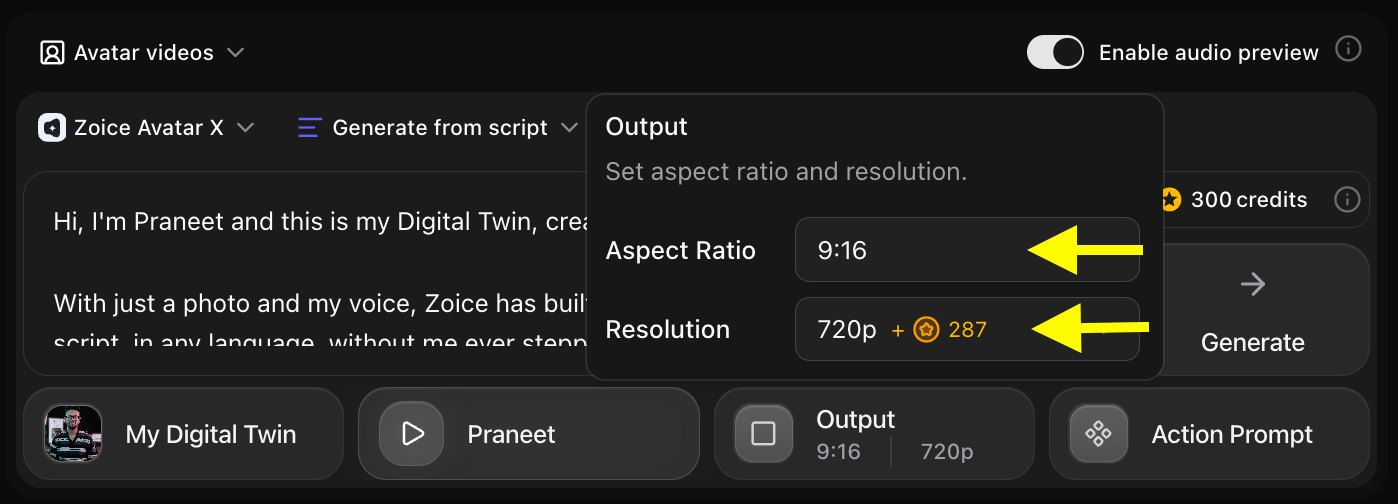
Step 9: Choose Output Settings
Click Output Settings to set the video format:- Aspect Ratio: 16:9 for YouTube, websites, or LinkedIn — or 9:16 for Instagram Reels, TikTok, or YouTube Shorts
- Resolution: Up to 4K for maximum video clarity
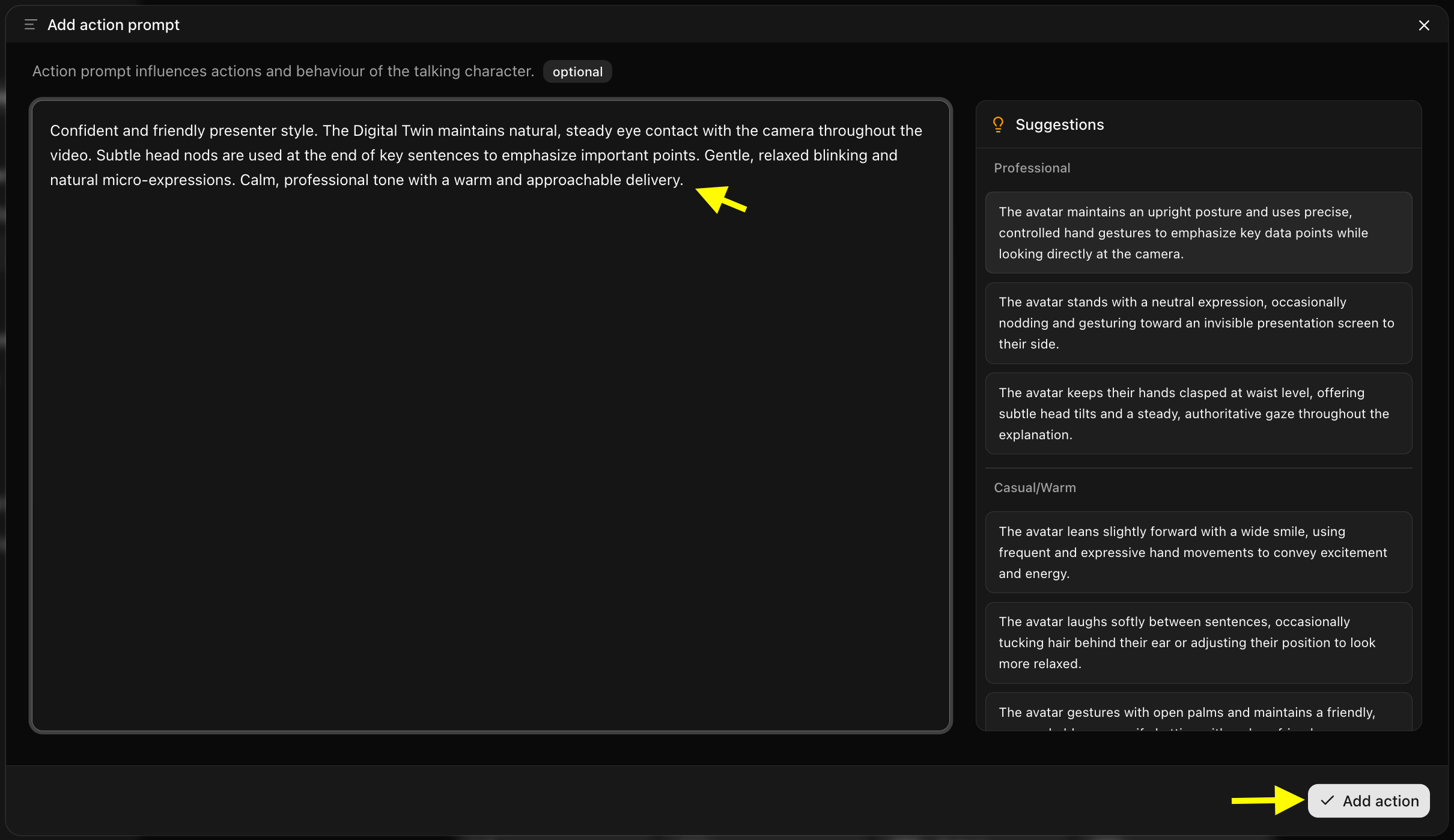
Step 10: Add an Action Prompt (Optional)
Click Action Prompt to control how your Digital Twin behaves and moves during the video — including head movements, facial expressions, gestures, and overall delivery style.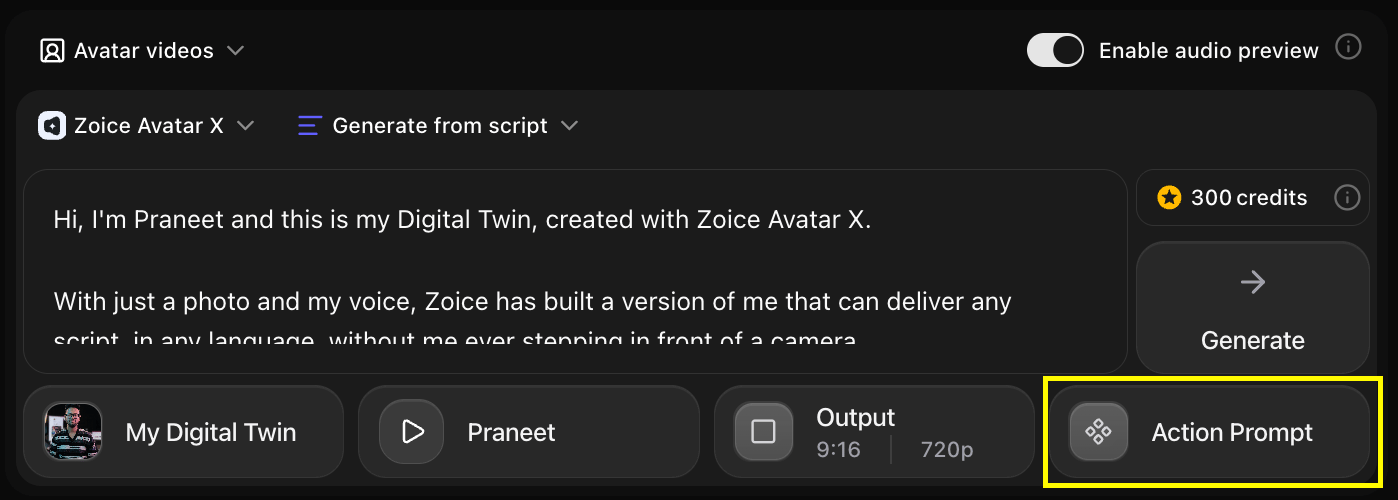
Step 11: Generate Your Digital Twin Video
Once your script, voice, output settings, and action prompt are all configured, click the Generate button to start the Avatar X rendering process.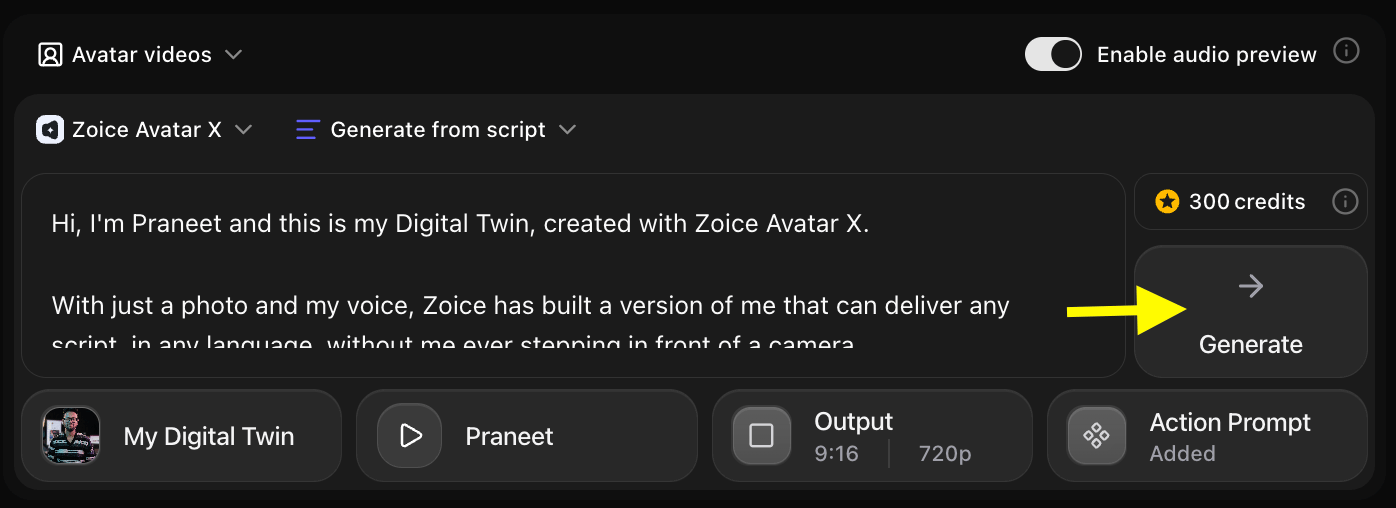
Step 12: Preview Audio and Click Generate Avatar Video
Before the final video renders, Zoice creates an audio preview so you can verify the voice quality, pronunciation, and pacing of your script. Listen carefully and confirm everything sounds correct, then click Generate Avatar Video to render the final output.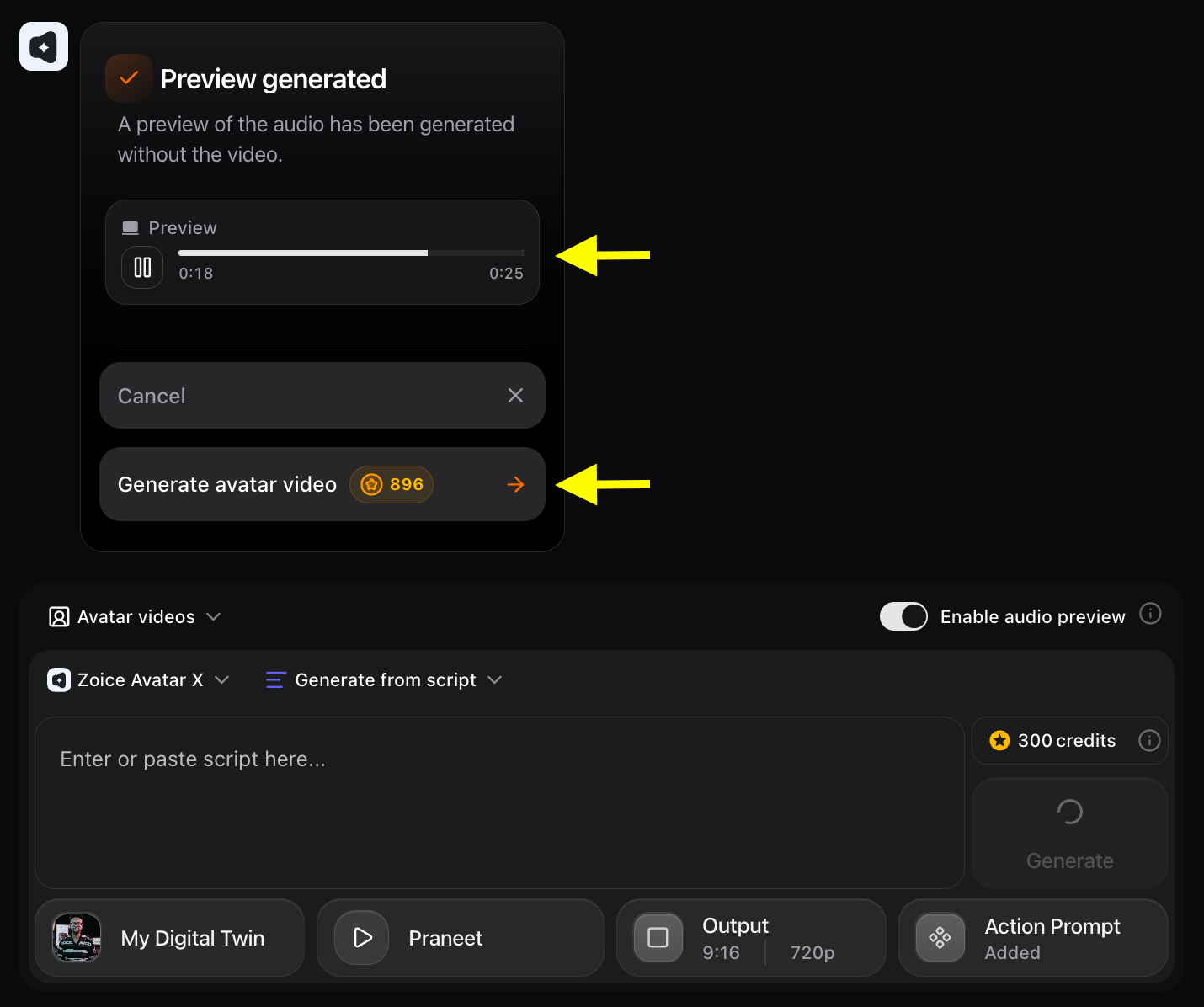
Step 13: Preview and Download Your Digital Twin Video
Once processing is complete, play the final video to review the avatar’s lip-sync accuracy, head movements, expression quality, and overall video appearance.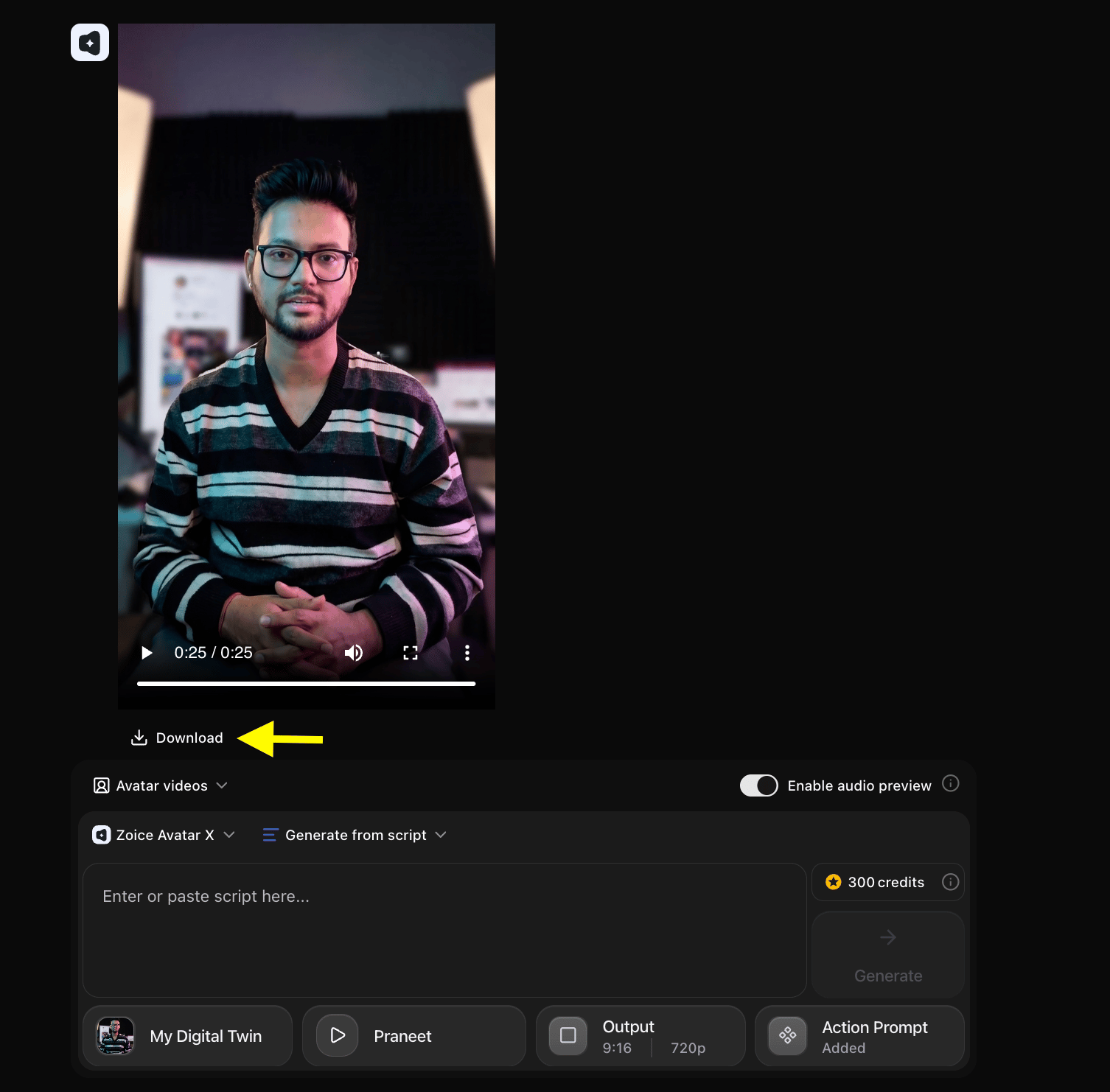
Output Result Video
Below is a sample Digital Twin video generated using Zoice Avatar X, based on the script and action prompt shown in this guide:Tips for Getting the Best Results from Avatar X
Photo Quality Tips
The quality of your input photo is the single biggest factor in Digital Twin realism. Keep these guidelines in mind:- Use a well-lit, front-facing photo. Avoid sunglasses, heavy shadows across the face, or extreme side angles.
- Keep the background clean and simple. A plain wall or neutral backdrop helps Avatar X isolate your face accurately.
- Use a recent photo. Avatar X replicates your current appearance, so use a photo that reflects how you look today.
- Higher resolution means better output. A sharp, high-resolution image produces smoother, more realistic animations.
- Neutral expression works best. A relaxed, neutral, or gently smiling expression gives the AI more flexibility to animate a wide range of emotions.
Voice Recording Tips
- Record in a quiet room. Even mild background noise or room echo significantly reduces voice cloning quality.
- Speak at your normal pace. Do not rush or slow down unnaturally. The AI clones your natural rhythm.
- Use at least 30 seconds of clean audio. The more clear audio you provide, the more accurate the voice clone.
- Avoid music, sound effects, or background noise in your sample recording.
- Speak naturally and expressively. If you record in a flat, monotone voice, your Digital Twin’s delivery will reflect that.
Script Writing Tips
- Write conversationally. Your Digital Twin performs best with natural, spoken-style language rather than dense formal writing.
- Use punctuation to control pacing. Commas create natural pauses. Periods signal the end of a thought. Use them intentionally.
- Keep sentences short. Long, complex sentences can sound unnatural when spoken. Break them into smaller chunks.
- Test with a short script first. Before generating a long video, create a 20-30 second test clip to verify that the voice and avatar match your expectations.
Frequently Asked Questions
Can I create multiple Digital Twins? Yes. There is no hard limit on the number of avatar profiles you can create, as long as you have available credits. How many voice profiles can I create? The number of voice profiles depends on your subscription plan. Check your plan details for specifics. Can I upload audio instead of typing a script? Yes. In the video creation workspace, you can switch to Generate from Audio mode and upload an MP3, WAV, or M4A file directly instead of typing a script. Can I use my Digital Twin to speak in a different language? Absolutely. Zoice Avatar X supports 100+ languages. Simply paste your script in the target language and select a matching voice. Your avatar will deliver the content while preserving your visual likeness. Can I import voices from platforms like ElevenLabs? Yes. You can connect your ElevenLabs account via API key in your Zoice voice settings to import custom voice profiles. How long does it take to generate a Digital Twin video? Most videos are processed within a few minutes, depending on script length and current server load. What image formats are supported? Zoice accepts JPG, JPEG, and PNG image formats for avatar creation. What if my avatar does not look accurate? Try using a higher-resolution photo with better lighting and a cleaner background. A front-facing photo with a neutral expression almost always produces the best results. Filling in the Avatar Settings (gender, age, ethnicity) also significantly improves output accuracy. Still need help? If you run into any issues or have questions not covered here, reach out to the Zoice support team at [email protected] and they will be happy to assist you.Next Steps
AI News Anchor Tutorial
Use your Digital Twin as a professional news anchor or corporate spokesperson.
Healthcare AI Avatar
Create patient education and health awareness videos with an AI presenter.
AI Podcast Video
Host a podcast series using your Digital Twin as the on-screen presenter.
Real Estate AI Avatar
Present property listings and market updates with your AI agent.