

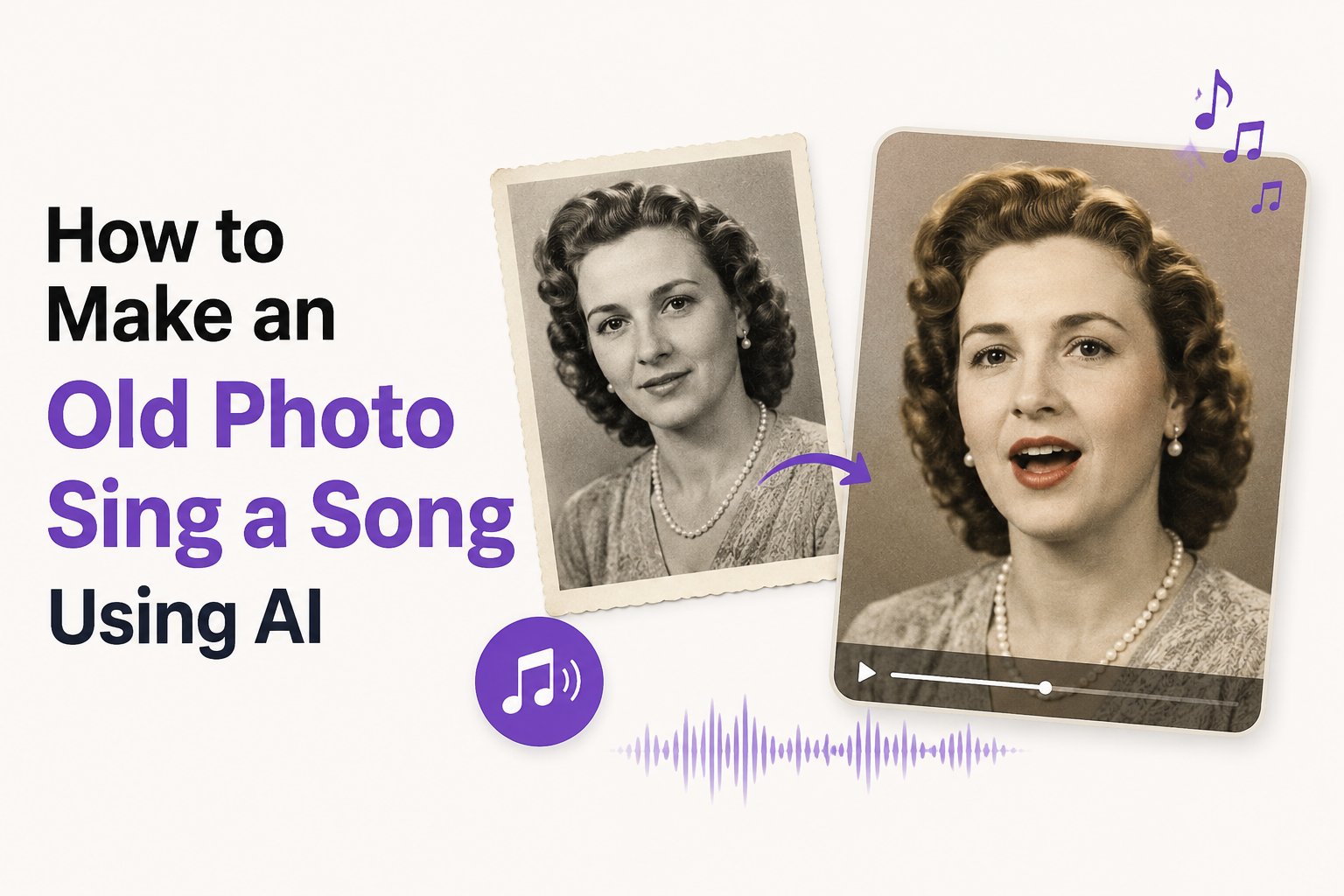
What is a Singing Vintage Photo?
A singing vintage photo is an AI-animated video generated from a static historical portrait. Rather than using complex 3D modeling, the artificial intelligence tracks facial landmarks in the old picture—such as the eyes, eyebrows, nose, and lips—and coordinates their motion with the audio track. The result is a fluid, expressive performance where the person in the photograph appears to be singing the lyrics, complete with realistic blinking and head tilts.How to Make an Old Photo Sing a Song Using AI
Transforming a historical photo into a singing video with Zoice takes only a few quick steps. Follow our guide below to get started.Step 1: Open the Zoice Dashboard
Launch your internet browser and navigate to Zoice.com to access the central creative platform.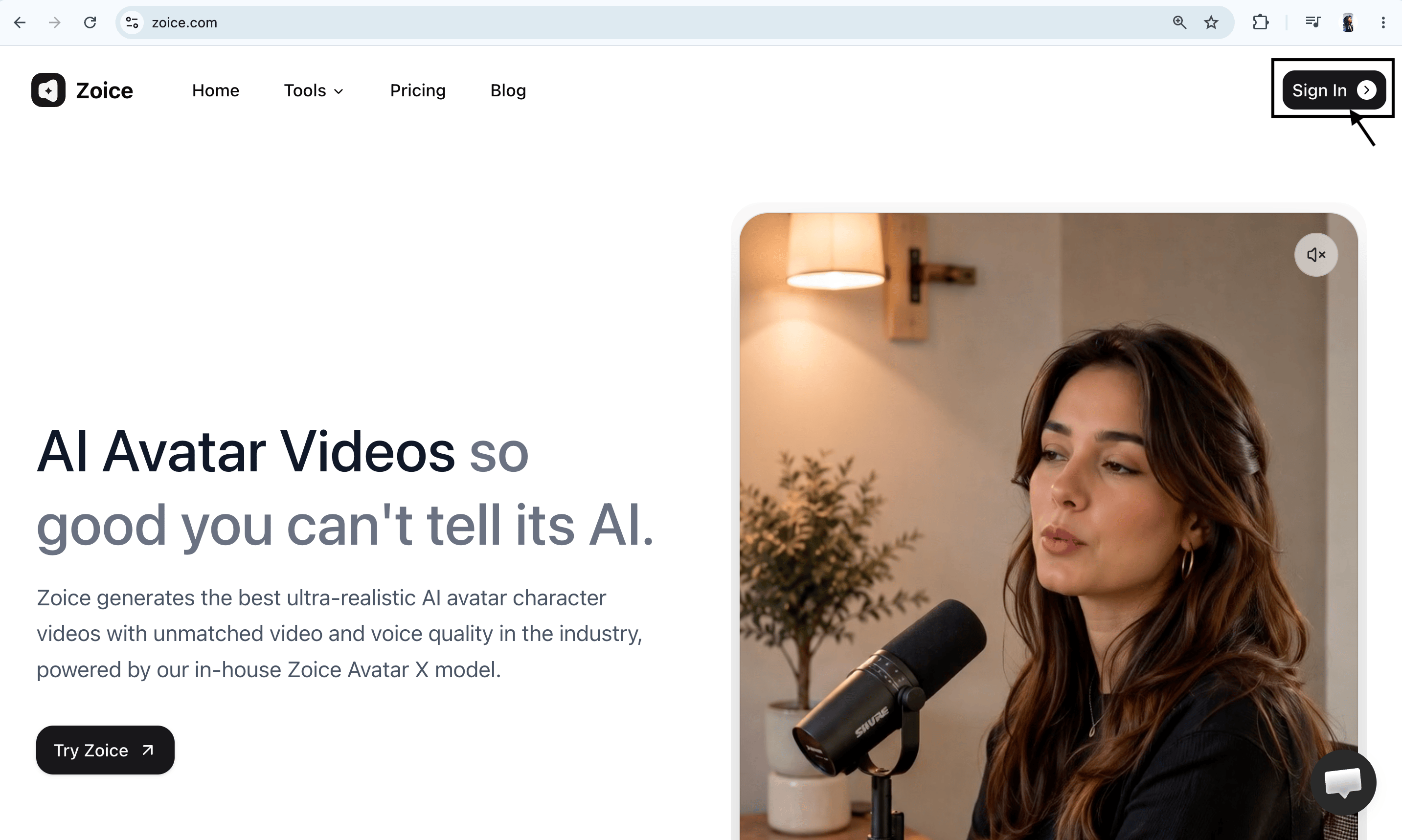
Step 2: Sign In to Your Creative Account
Select Sign In in the top-right corner. Enter your email and password, or proceed instantly using your linked Google account to access the creator dashboard.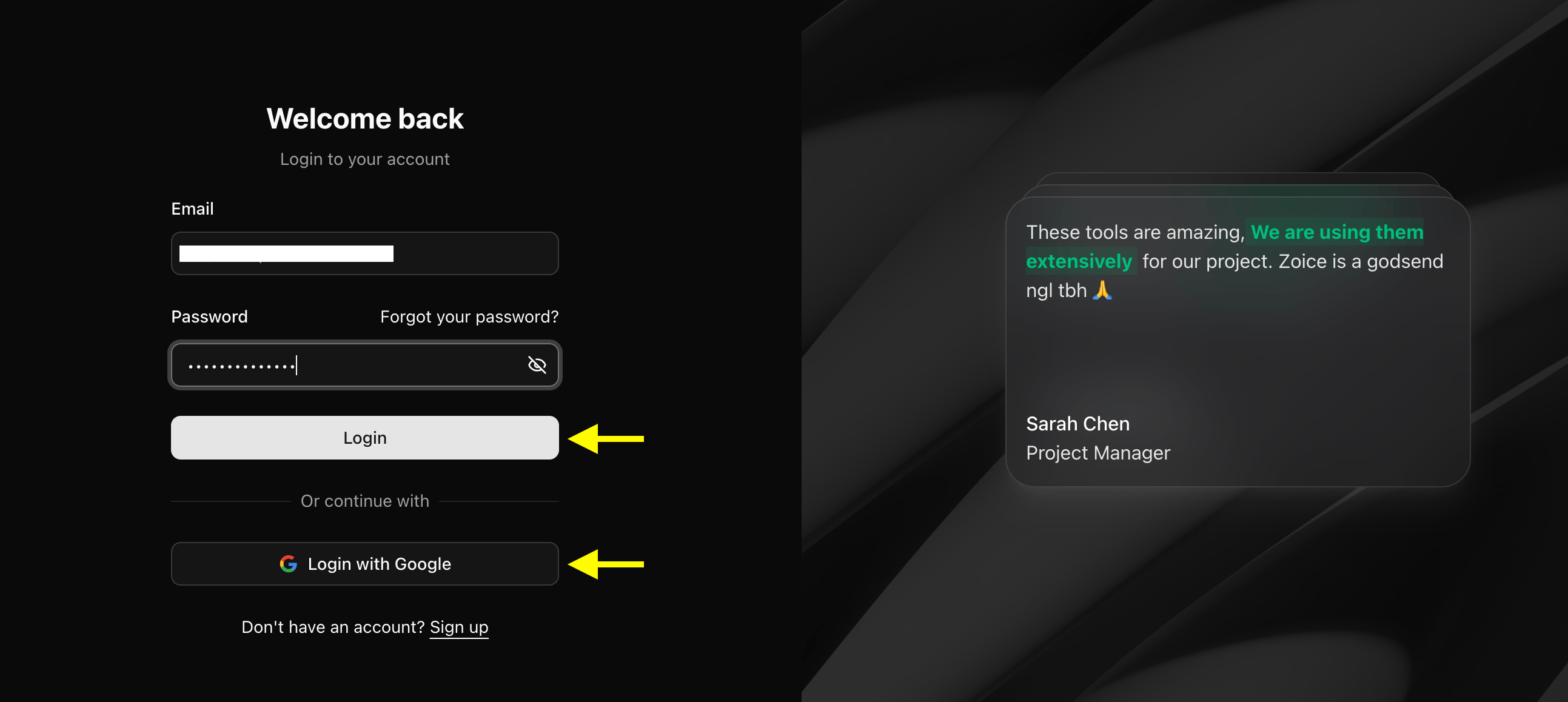
Step 3: Create a New Zoice Account
If you are new to the platform, click Sign Up to configure a new creator profile. Fill in your name, email, and password to register.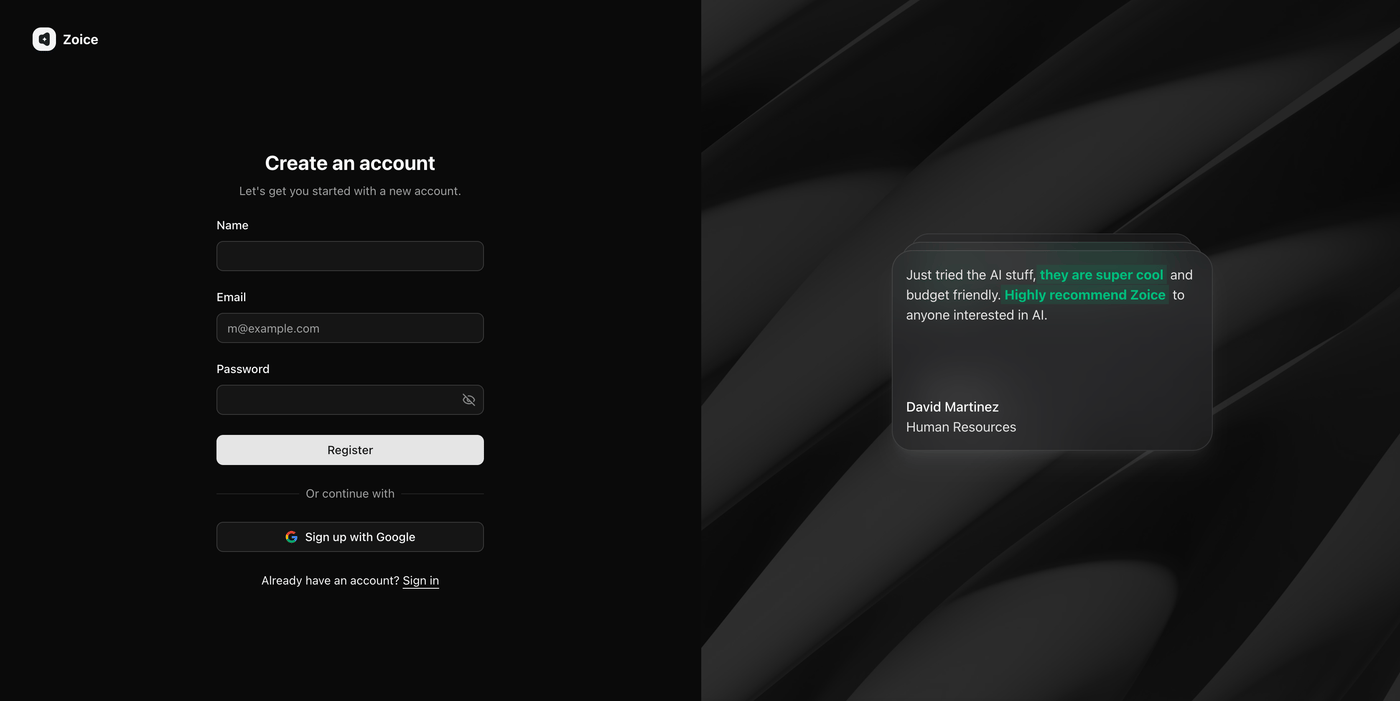
Step 4: Access the Avatar Panel
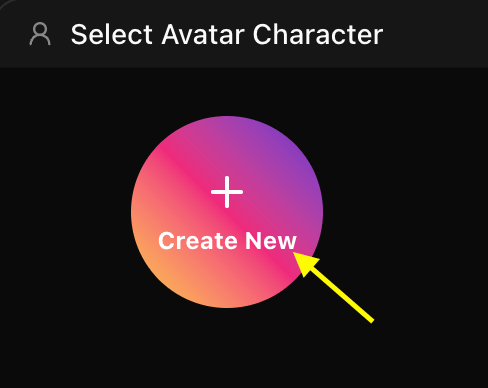
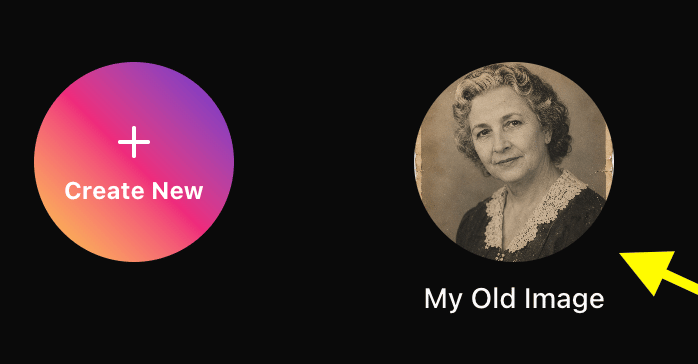
On the dashboard sidebar, select the Avatar Characters menu. If you have previously saved custom avatars, you can click on them, or click Create New to start with a fresh image.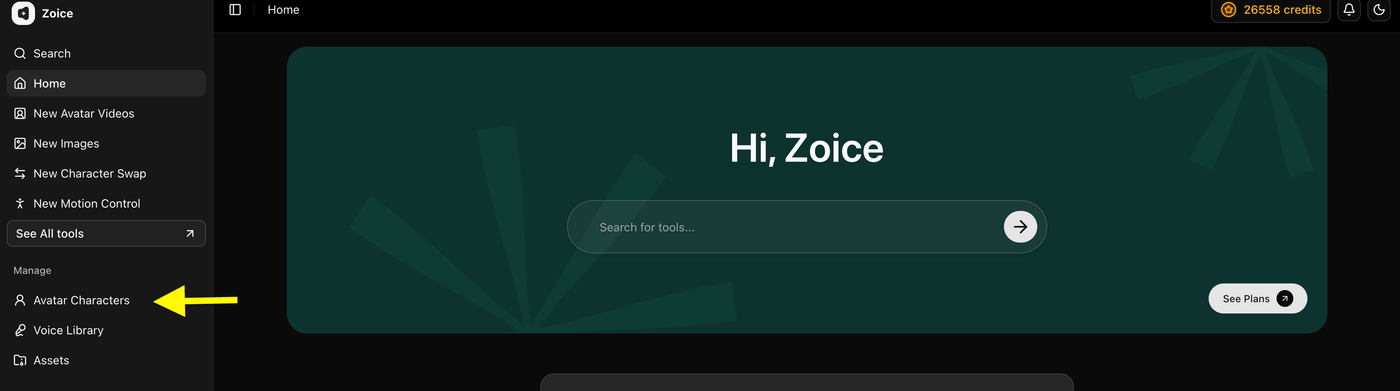
- Click on Create New
Step 5: Upload Your Vintage Photograph
To proceed, choose the Upload a Photo tab. Select a clear, high-resolution portrait from your files and name the character (for example, “1920s Jazz Portrait”).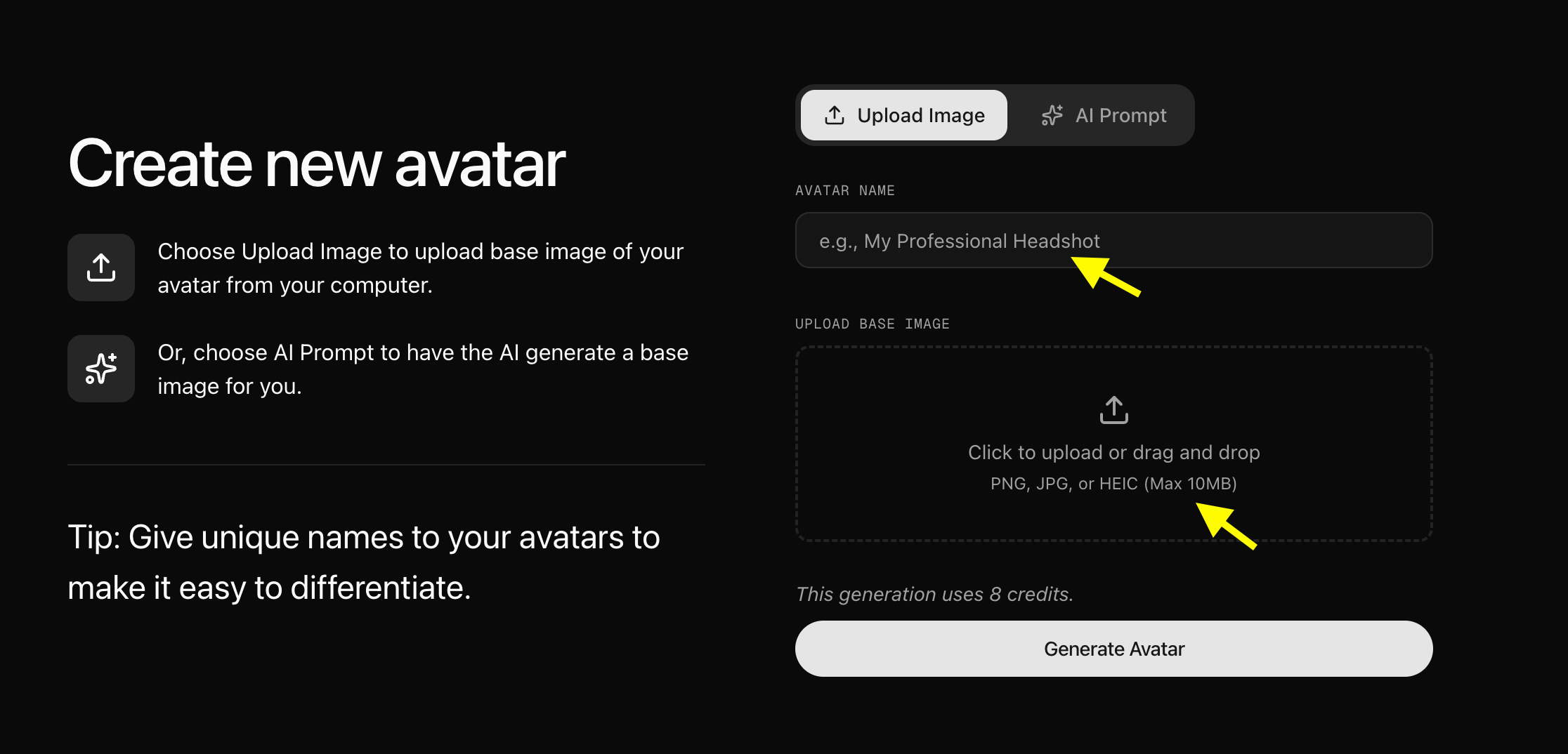
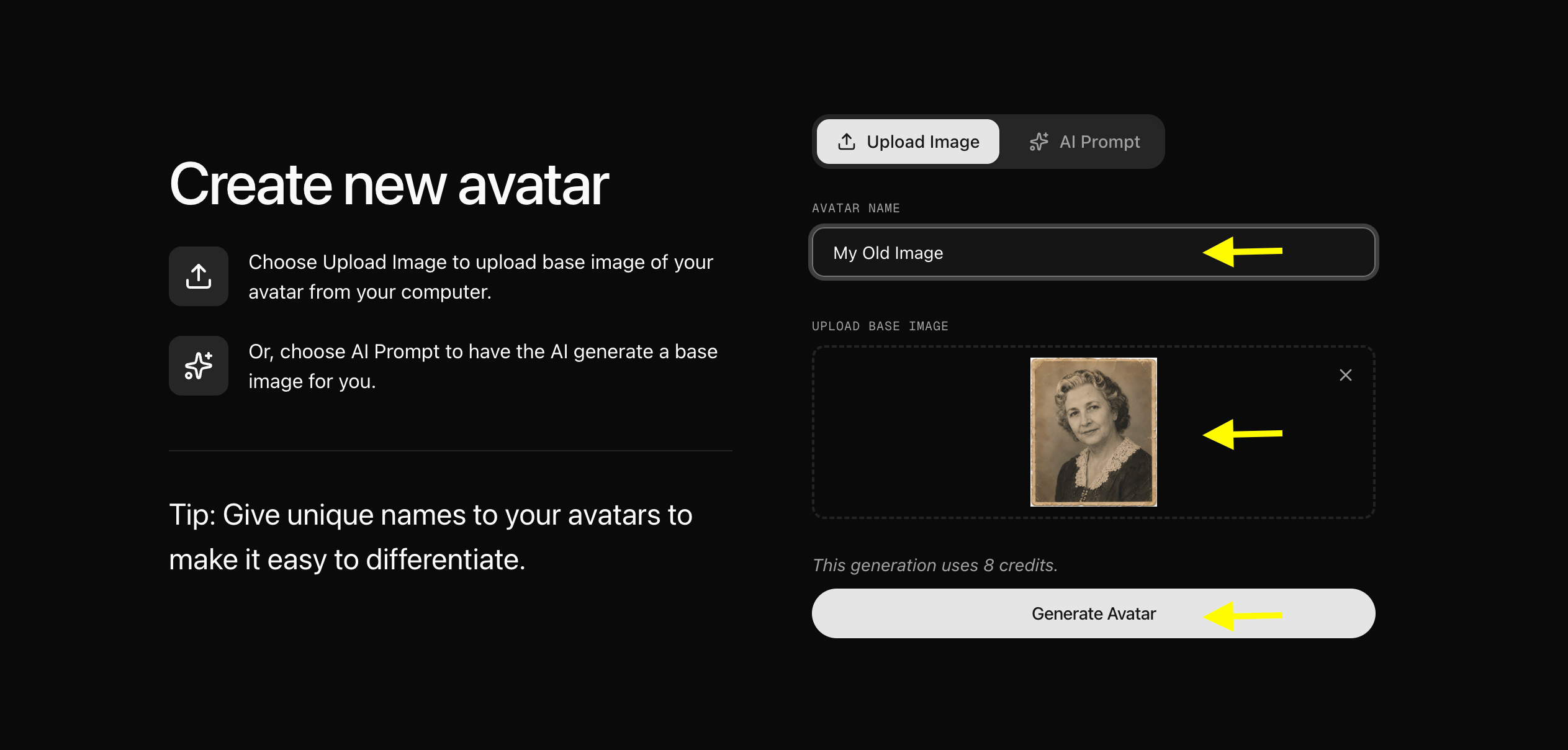
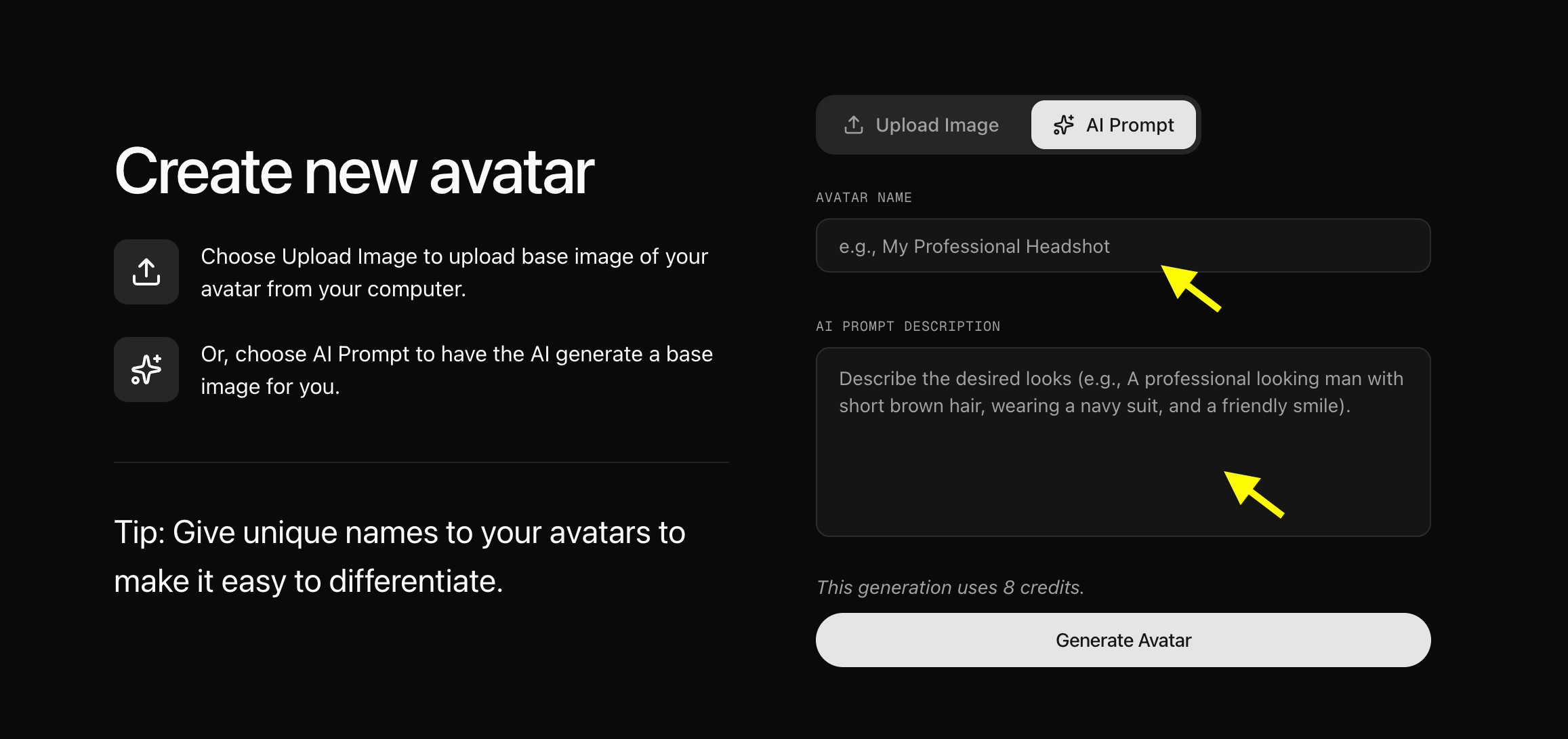
Step 6: Define Avatar Settings
Click Avatar Setting to specify basic properties like Name, Gender, and Age range. This metadata helps the model output more appropriate, natural facial expressions. Click save to store the settings.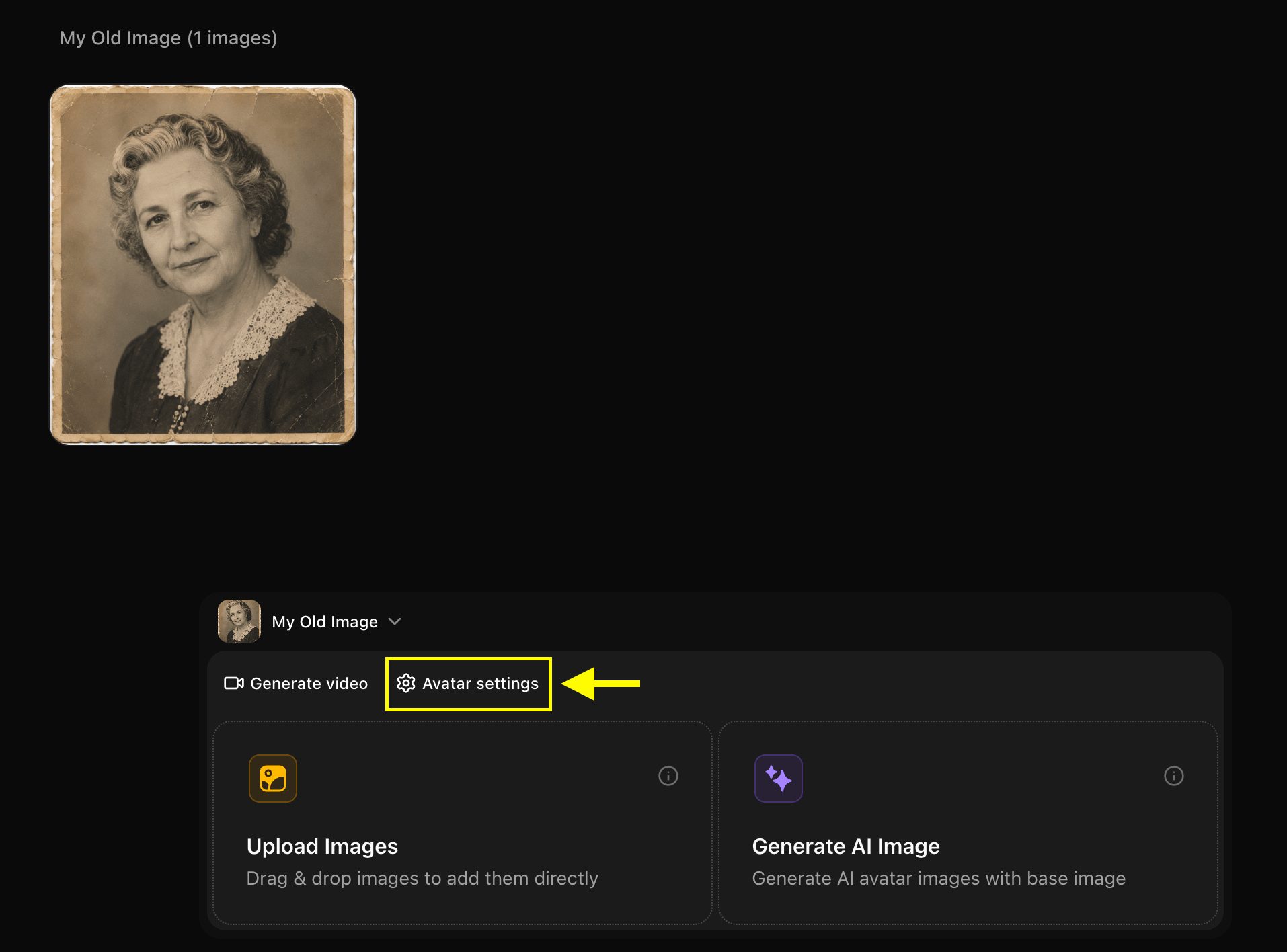
Step 7: Click on Generate Video
Click the Generate Video button on your vintage avatar card to open the timeline interface and add your music track.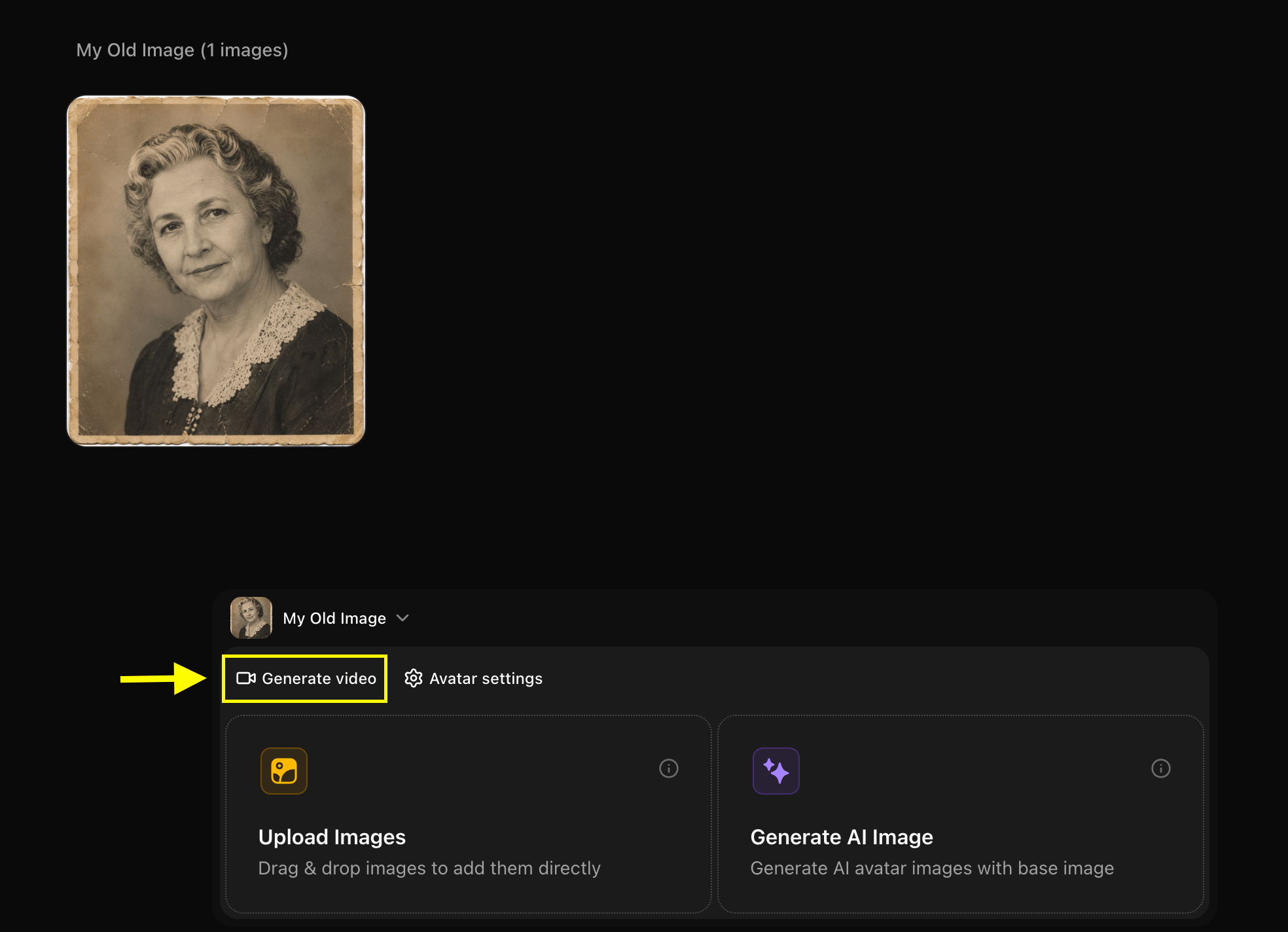
Step 8: Choose Generate from Audio
Toggle the dropdown menu from Generate from script to Generate from audio.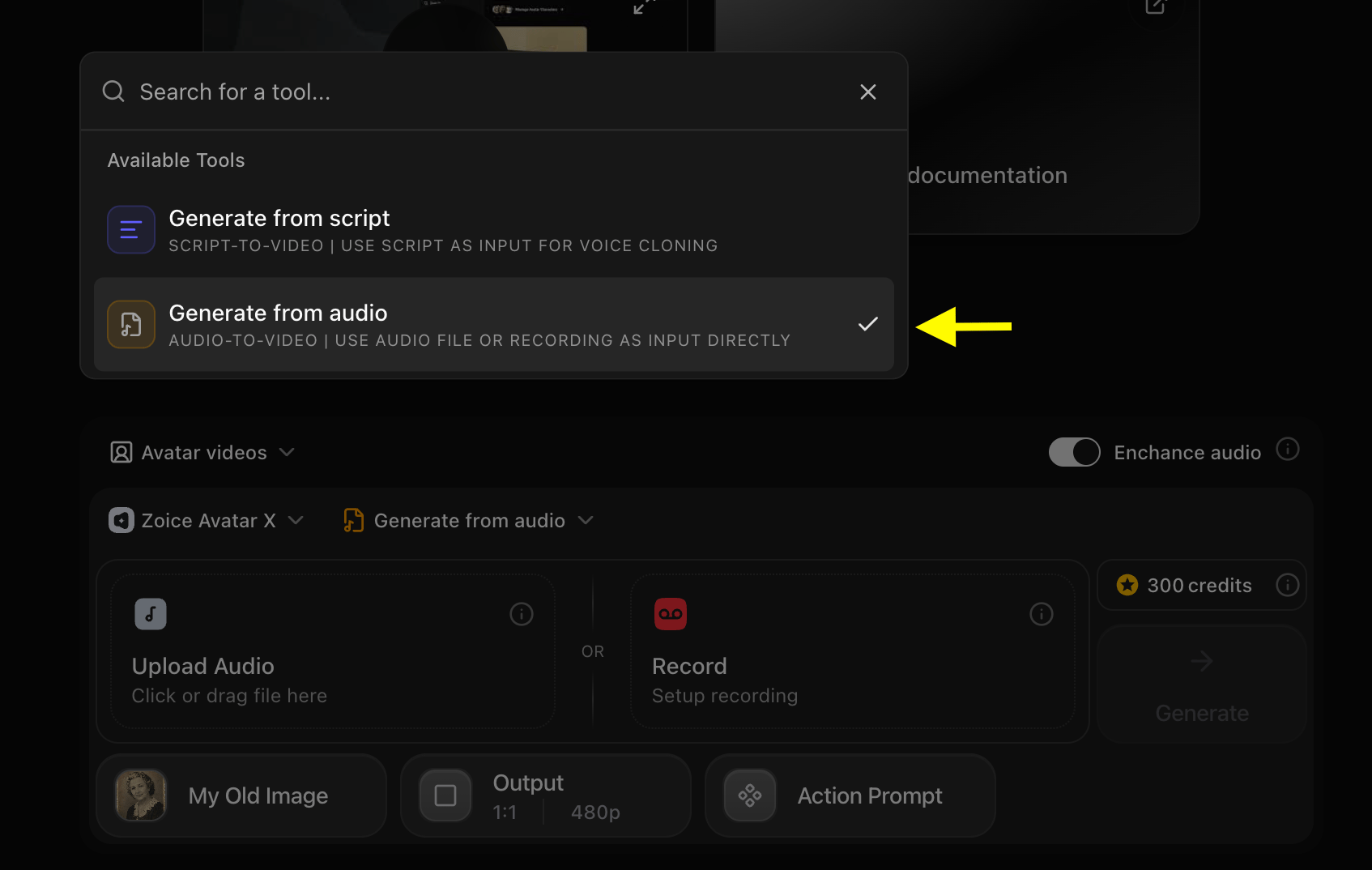
Step 9: Upload Your Song File
Click the Upload Audio button to upload the MP3 or WAV audio file that you want the character to sing. You can select a file from your computer or choose from Zoice’s built-in media library.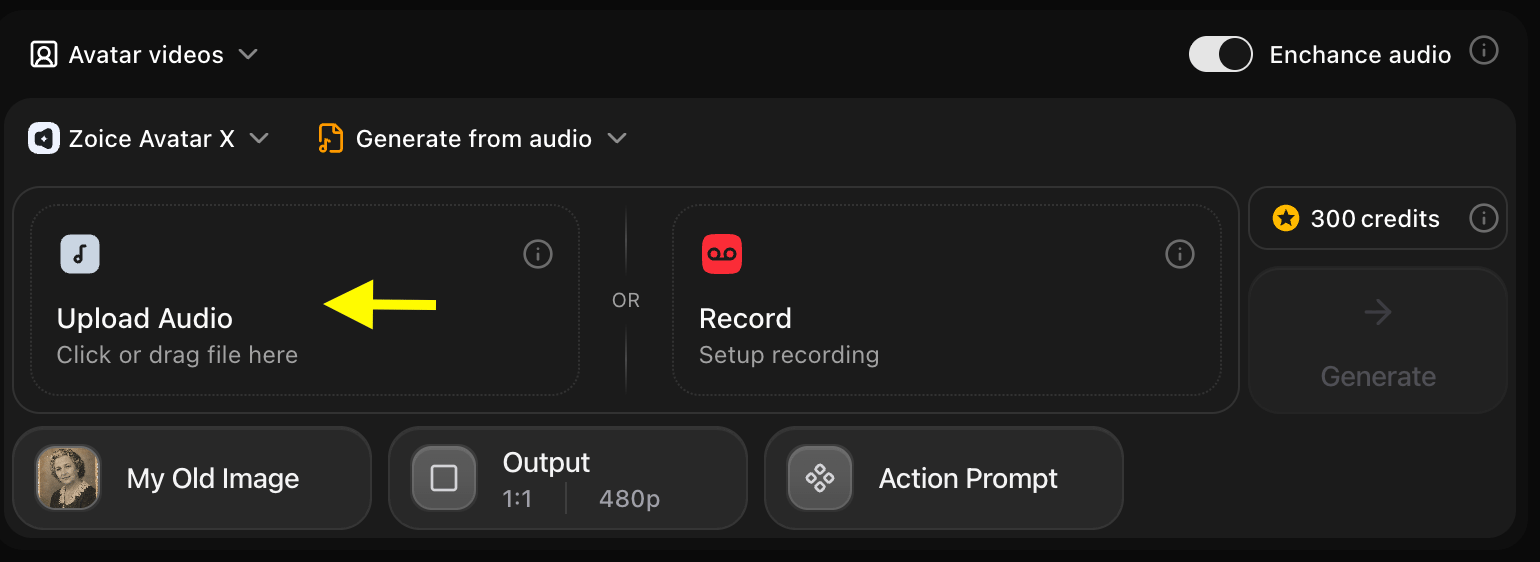
Step 10: Preview Your Track
Listen to the uploaded audio using the Preview button to ensure the track plays correctly and aligns with the desired start time.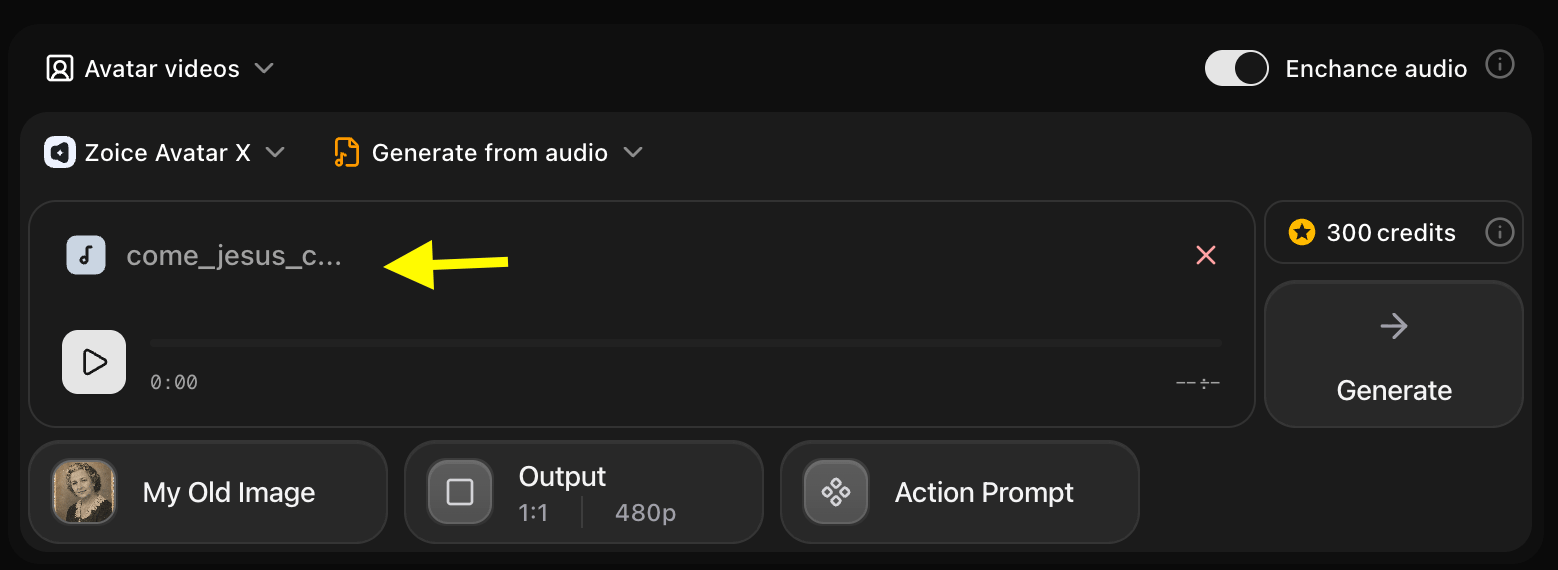
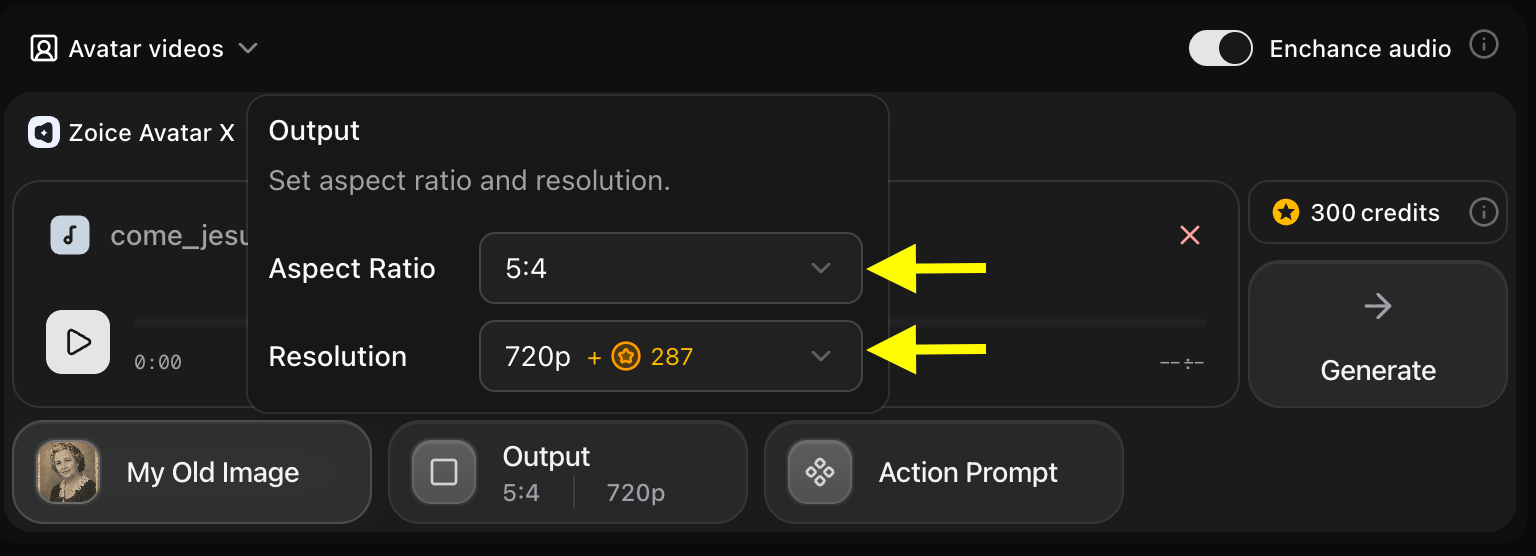
Step 11: Set Output Dimensions
Adjust your video dimensions based on where you plan to share it:- Aspect Ratio: Use 9:16 for vertical reels, TikTok, or Shorts; use 16:9 for landscape formats.
- Resolution: Select up to 4K resolution to maintain maximum detail of the original photo.
Step 12: Open the Action Prompts
Click the Action Prompt button at the bottom-right of the panel (next to the Output dimensions) to configure the facial movements and expressions of the person in the photo.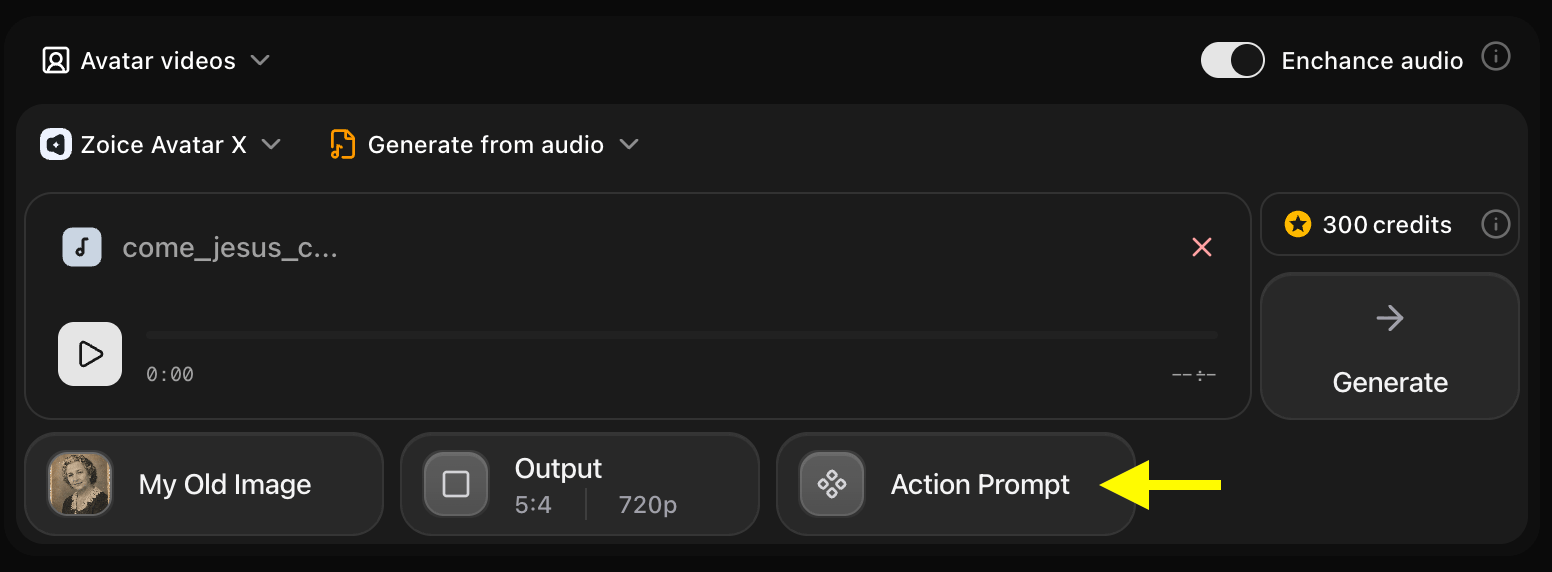
Step 13: Write a Custom Action Prompt
In the Add action prompt modal, write a custom description of the facial sways and expressions you want for the vintage photo on the left text field, or choose a template preset from the Suggestions list on the right (like Professional or Casual/Warm). Once satisfied, click Add action at the bottom-right of the modal.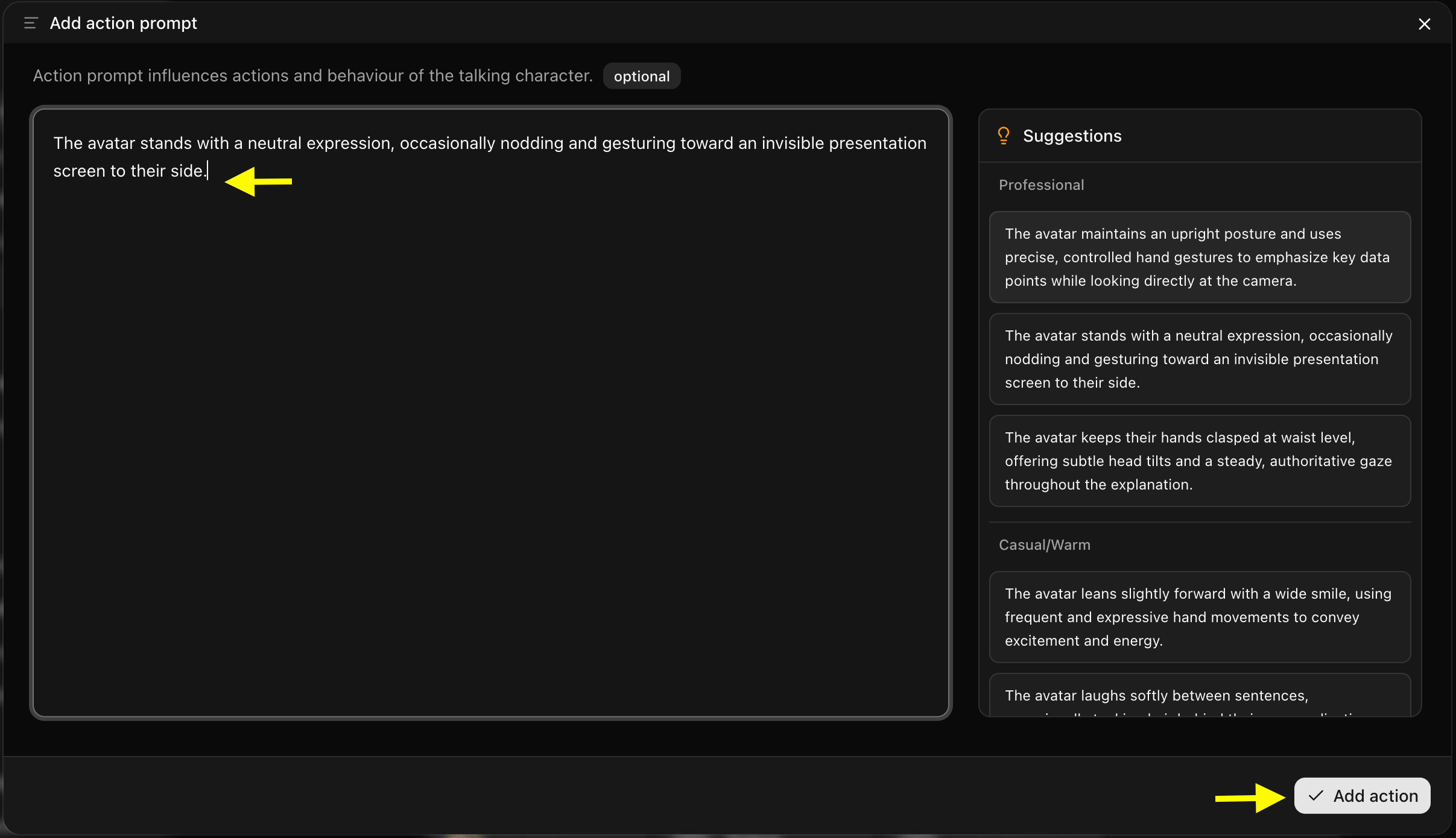
Step 14: Queue the Generation
Verify your selections and click Generate to queue the video rendering process.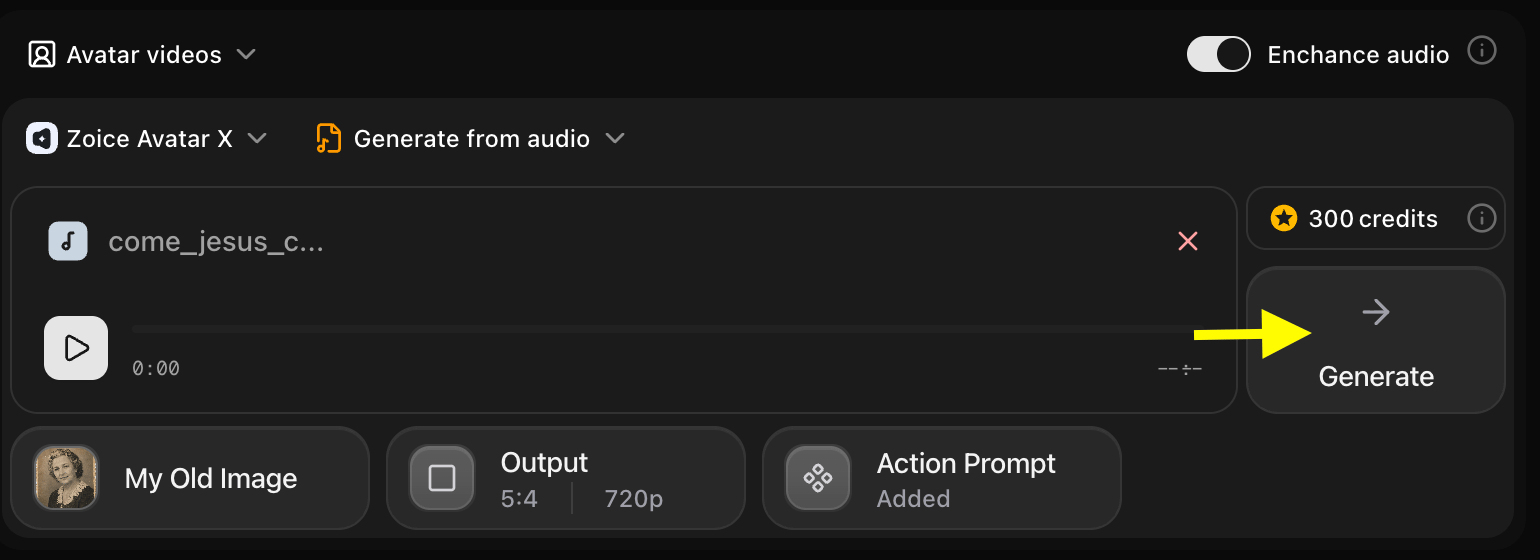
Step 15: Review the Audio Preview
Zoice provides an audio preview before compiling the final video. Check the pacing, and if it sounds good, click Generate Avatar Video to render the full animation.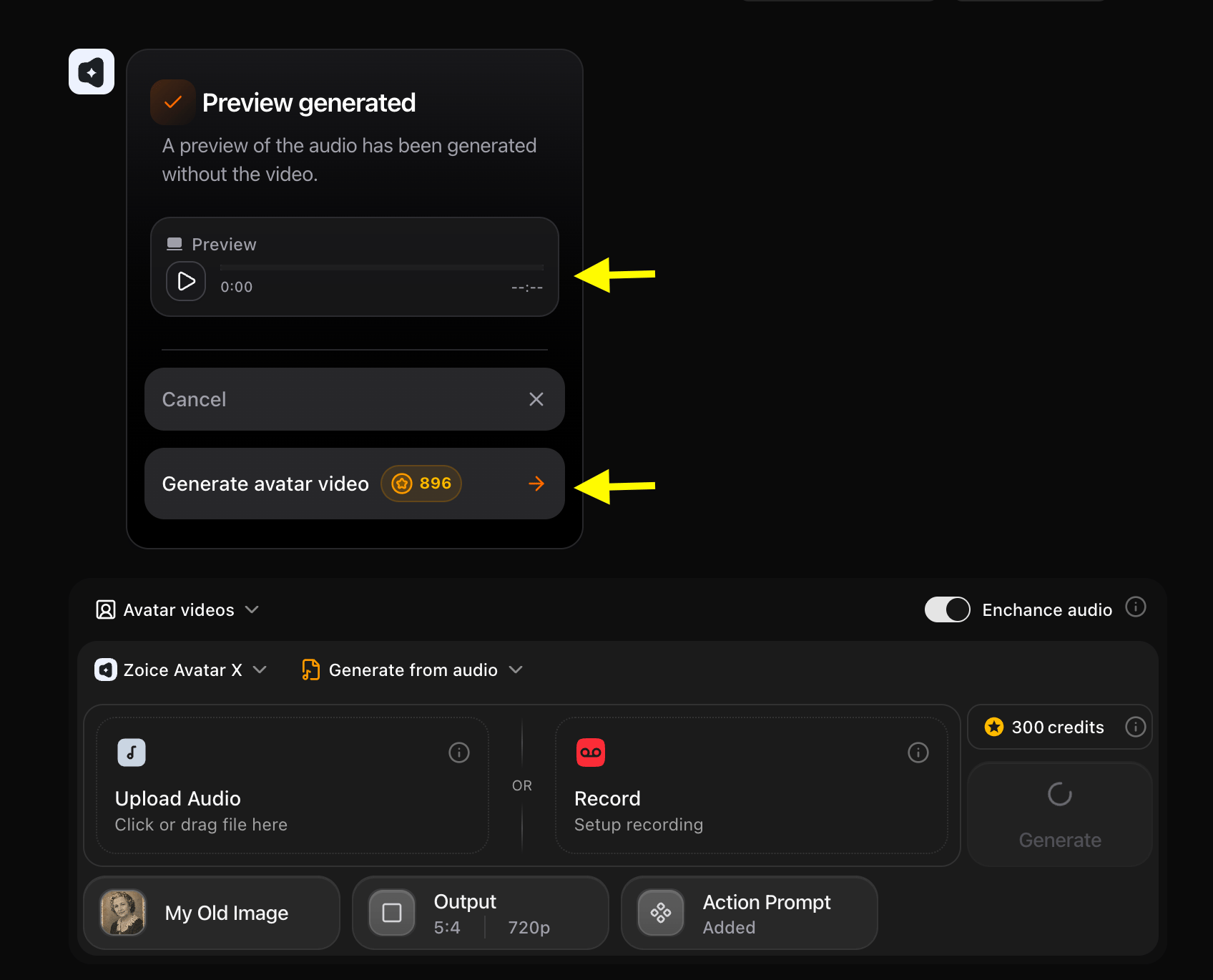
Step 16: Download the Video
Once rendering is complete, click Download to save your new singing old photo video directly to your desktop.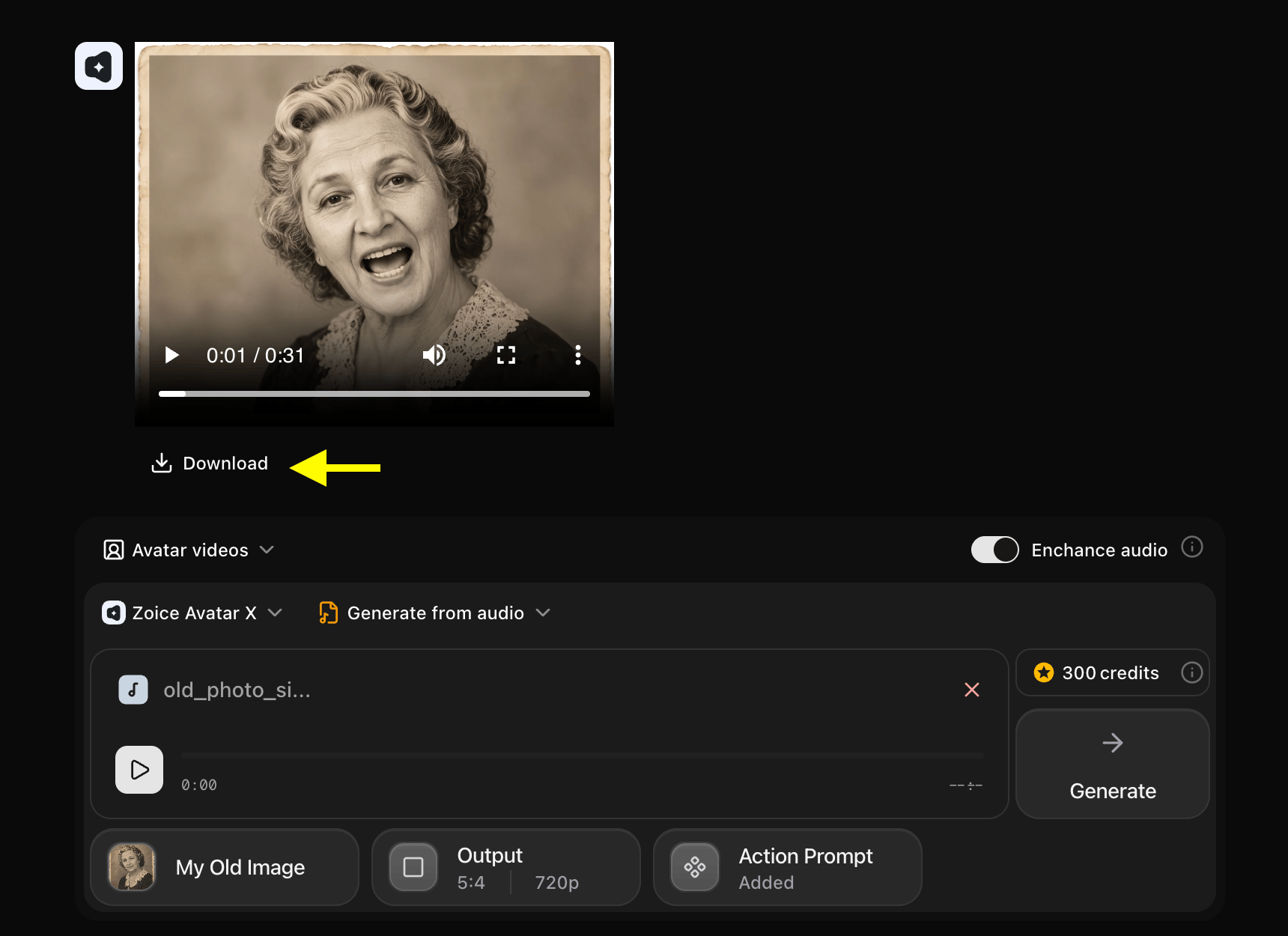
[!NOTE] Adding Background Music: Zoice generates the lip-synced vocal performance video without background music tracks. To add background music or instrumental accompaniment to your singing old photo video, open any video editor (such as CapCut, Premiere Pro, or Canva), import your generated Zoice avatar video, and add your music track as an additional audio layer.
Example Inputs & Result
Here is an example setup to show how you can make old photo sing a song:Uploaded Photo
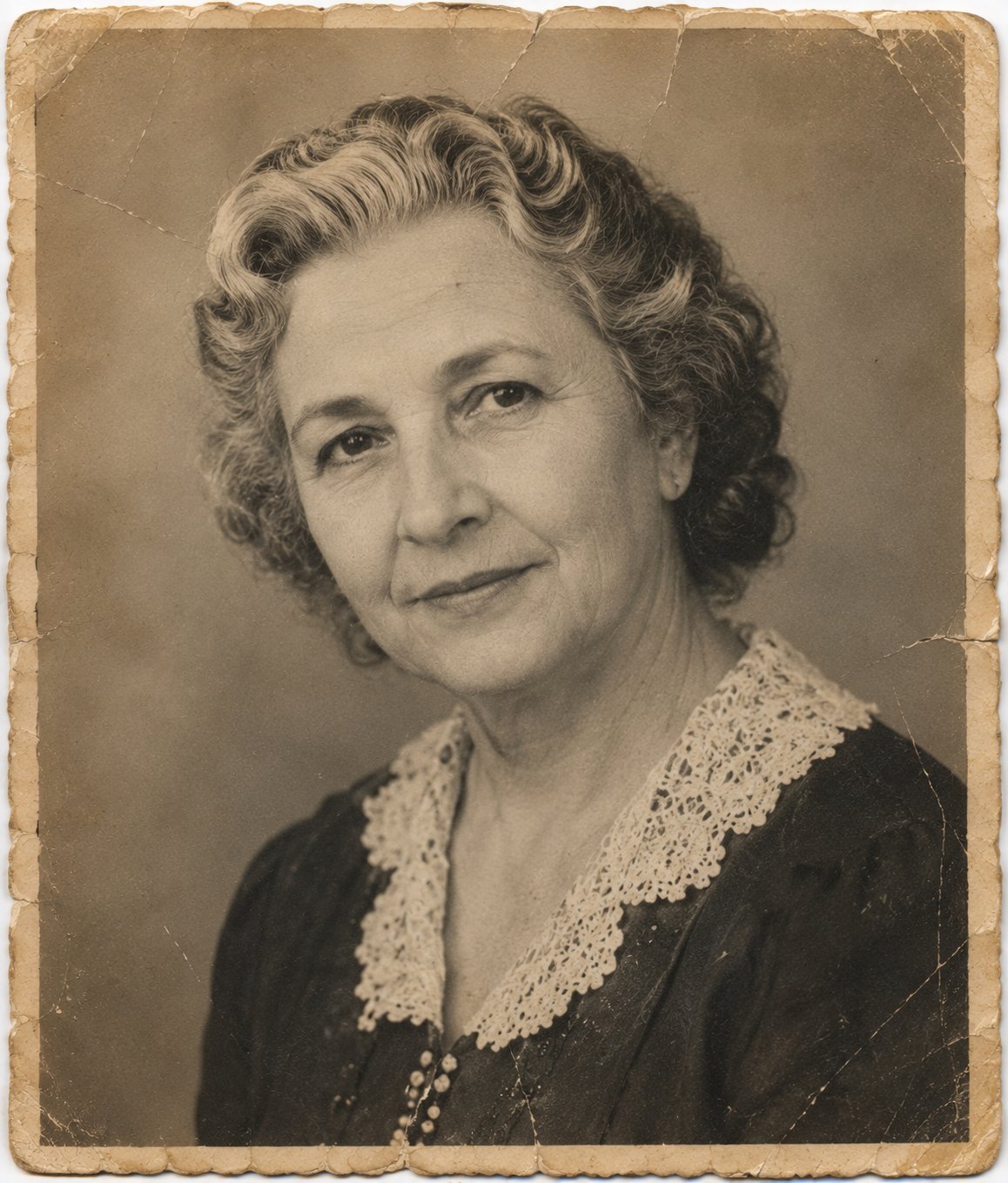
Uploaded Song
🎵 Listen to the singing track sampleUsed Action Prompt
Output Result Video
Below is the final rendered output:Tips for Creating Better Old Photo Singing Videos
To get the highest quality animations when you make old photo sing a song, follow these styling tips:- Select Clear Faces: Use front-facing vintage photos with clear facial features, good lighting, and open eyes for precise neural mapping.
- Enhance Audio Quality: Use the built-in Enhance Audio tool to clean historical recording noise and emphasize vocals.
- Write Restored Expressions: In the Action Prompt, specify natural head motions and soft blinking styles to keep the video looking realistic rather than artificial.
Old Photo Singing Avatar Can Be Used For?
Creating animated historical portraits is highly versatile and perfect for:- Family Reunions: Surprise relatives with animated tributes of ancestors singing traditional family songs.
- Tribute Videos: Commemorate late loved ones by animating their photos to their favorite melodies.
- Historical Exhibits: Animate classical portraits, artwork, or oil paintings to sing iconic periods pieces.
- Creative Visualizers: Present retro musical covers using historical photography.
Where Old Photo Singing Avatar Videos Are Used?
Singing vintage videos are widely shared across digital formats:- Short-Form Feeds: TikTok, Instagram Reels, and YouTube Shorts for history or storytelling channels.
- Heritage Exhibitions: Local museums, historical societies, and virtual family archives.
- Private Messages: Sent directly to relatives via chat apps to share family keepsakes.