

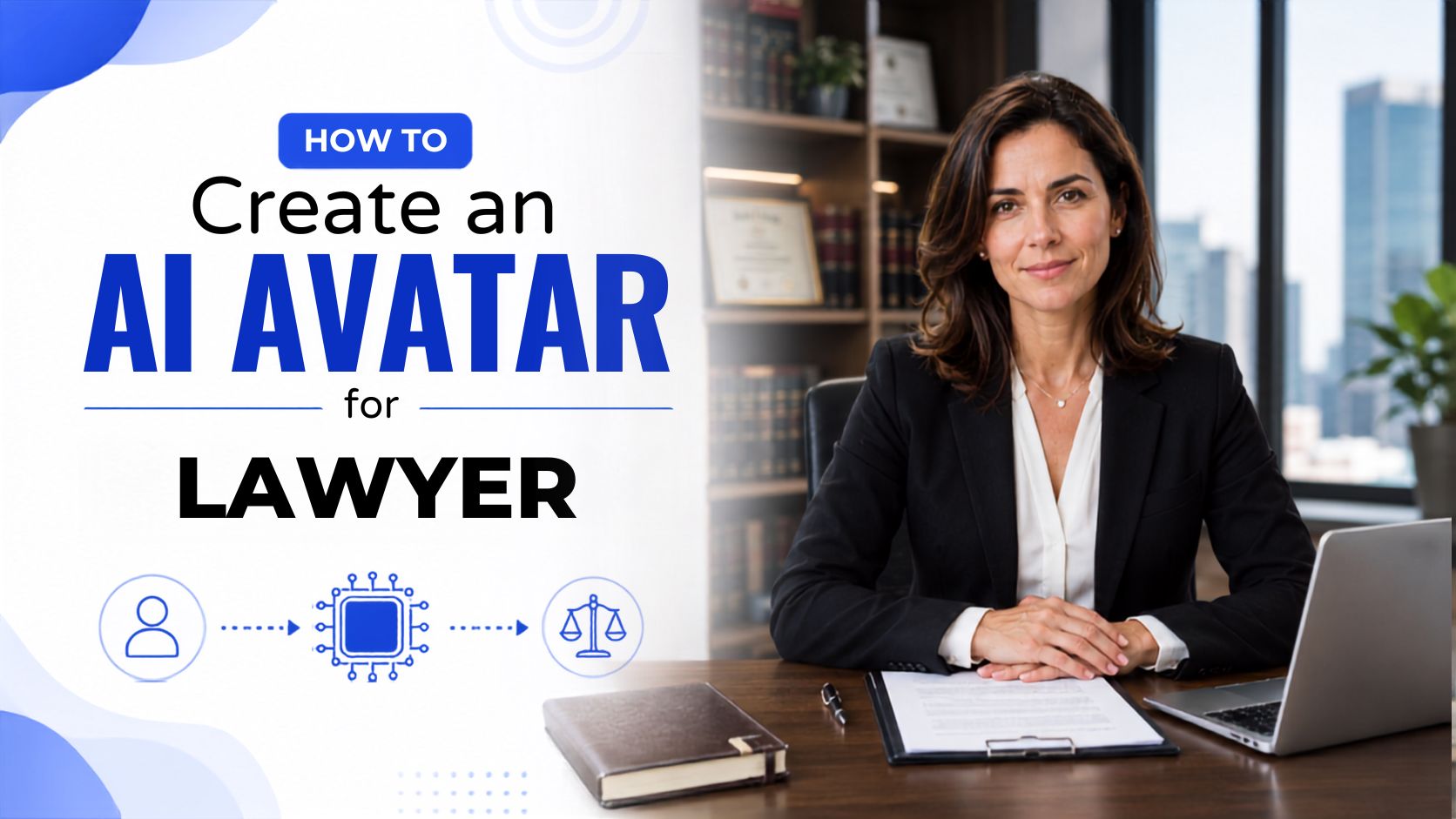
 The legal industry is embracing artificial intelligence to reach more clients, simplify complex legal topics, and build stronger digital presence. Law firms, independent attorneys, legal aid organizations, and legal educators now use AI avatar videos to explain legal rights, promote their services, and keep clients informed at every step of a case.
Traditionally, producing legal videos required booking recording time, preparing attorneys to speak on camera, and working with video editors to produce a polished result. For busy legal professionals, this made regular video content creation difficult to maintain alongside client work.
AI avatar technology changes this by allowing legal professionals to produce professional-quality presenter videos directly from a typed script. Instead of recording yourself, you can create a virtual attorney or legal expert that explains legal concepts clearly, builds client trust, and promotes your practice.
Whether you want to create legal explainer videos, know-your-rights content, law firm introductions, case type overviews, or client FAQ videos, Zoice makes it straightforward to produce authoritative legal content without ever stepping in front of a camera.
In this article, you will learn how to create AI lawyer videos using Zoice by following a complete step-by-step process.
The legal industry is embracing artificial intelligence to reach more clients, simplify complex legal topics, and build stronger digital presence. Law firms, independent attorneys, legal aid organizations, and legal educators now use AI avatar videos to explain legal rights, promote their services, and keep clients informed at every step of a case.
Traditionally, producing legal videos required booking recording time, preparing attorneys to speak on camera, and working with video editors to produce a polished result. For busy legal professionals, this made regular video content creation difficult to maintain alongside client work.
AI avatar technology changes this by allowing legal professionals to produce professional-quality presenter videos directly from a typed script. Instead of recording yourself, you can create a virtual attorney or legal expert that explains legal concepts clearly, builds client trust, and promotes your practice.
Whether you want to create legal explainer videos, know-your-rights content, law firm introductions, case type overviews, or client FAQ videos, Zoice makes it straightforward to produce authoritative legal content without ever stepping in front of a camera.
In this article, you will learn how to create AI lawyer videos using Zoice by following a complete step-by-step process.
What Are AI Lawyer Videos?
AI lawyer videos are professional or educational videos created using artificial intelligence tools. These videos use AI avatars, AI voices, and automated video generation technology to explain legal topics, promote legal services, or answer common legal questions in a clear and professional manner. Instead of a real attorney recording every video, an AI avatar acts as a virtual legal presenter and delivers your prepared legal content directly to viewers. For example, a law firm can create an AI avatar video explaining: “What to do immediately after a workplace accident” or “Understanding your rights during a landlord-tenant dispute” The AI avatar delivers the script professionally, creating a trustworthy legal video that potential and existing clients can access at any time.How to Create an AI Avatar for Lawyer Videos Using Zoice
Creating AI lawyer videos is simple with Zoice. Follow the steps below to create a professional legal video.Step 1: Visit Zoice.com and Click Sign In
Go to Zoice.com in your browser and click the Sign In button available at the top-right corner of the homepage. This will open the login page where you can access your Zoice account.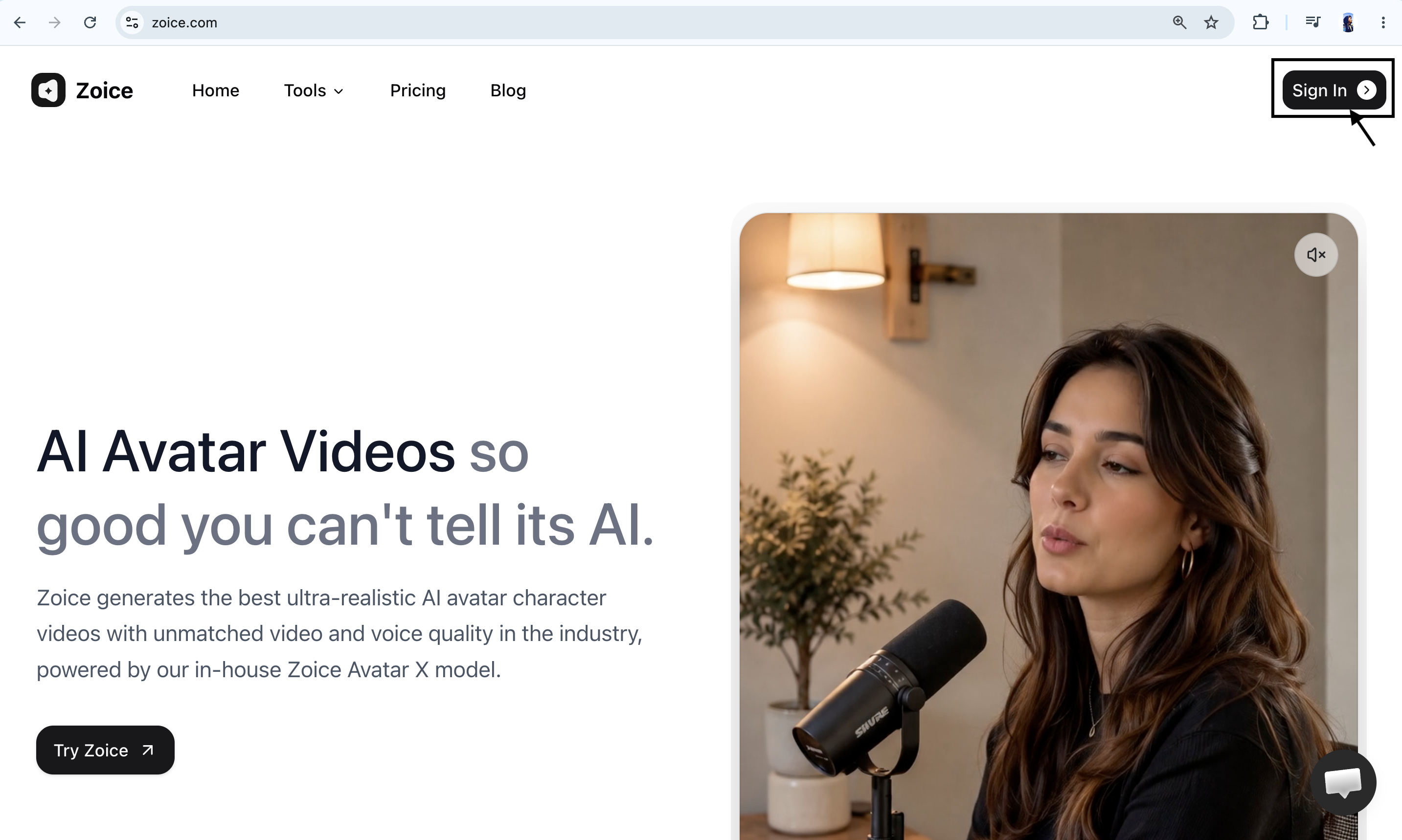
Step 2: Sign In to Your Zoice Account
If you already have a Zoice account, enter your registered email address and password, then click Sign In. You can also choose Sign in with Google if your account is connected with Google. After successfully signing in, you will be redirected to the Zoice dashboard.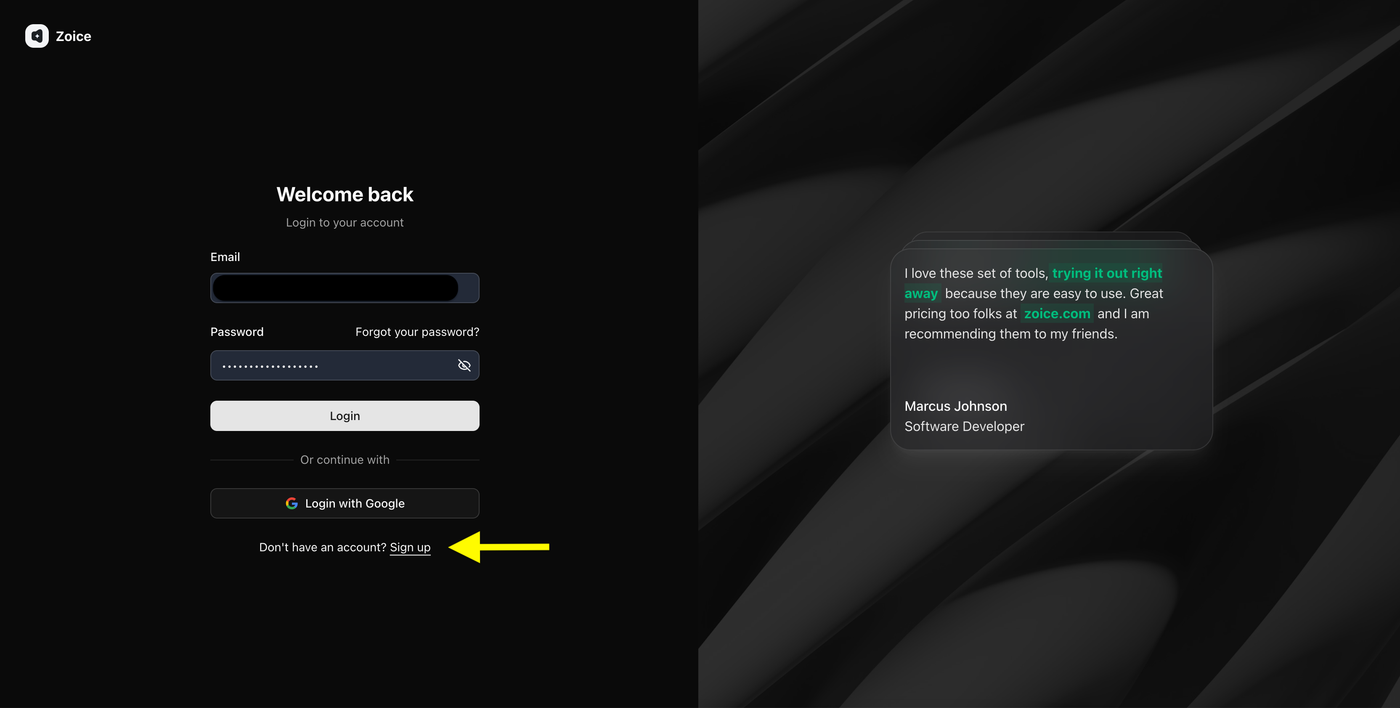
Step 3: Create a New Zoice Account (For New Users)
If you are using Zoice for the first time, click Sign Up to create a new account.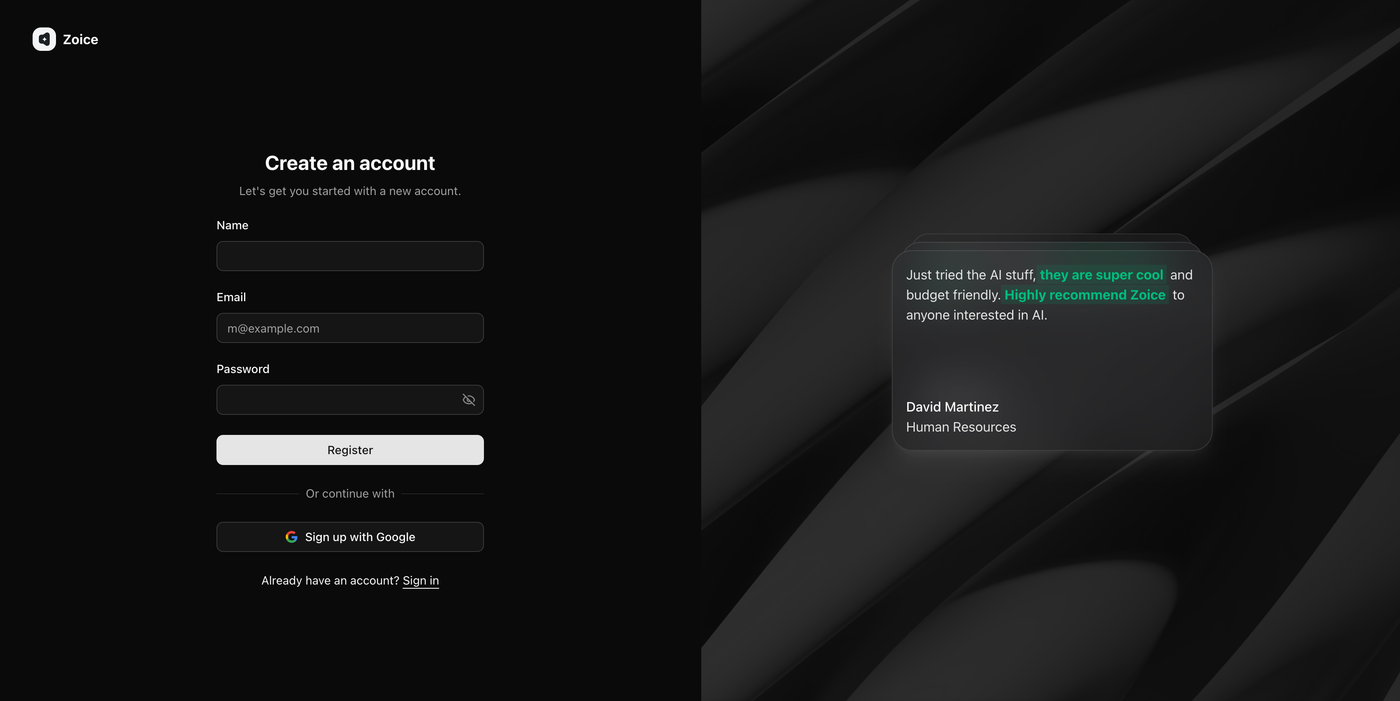 Enter the required details:
- Name
- Email address
- Password
Step 4: Navigate to Avatar Characters
After logging in, you will reach the Zoice dashboard. From the left sidebar, click Avatar Characters under the Manage section.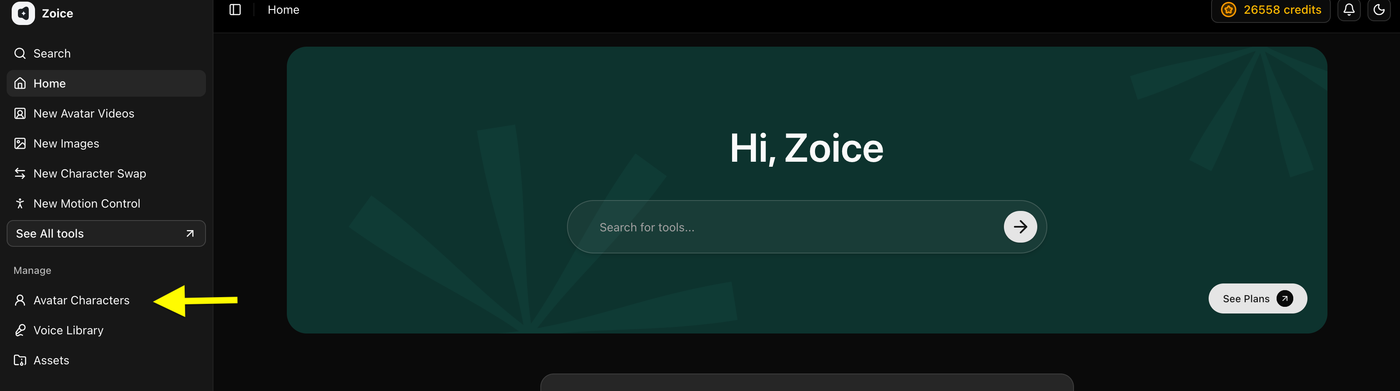 This section allows you to create, customize, and manage AI avatars that you can use for legal explainer videos, client education content, law firm marketing, and other AI-generated videos.
Step 5: Click Create New Avatar
On the Avatar Characters page, click the Create New button to start creating your custom AI lawyer avatar.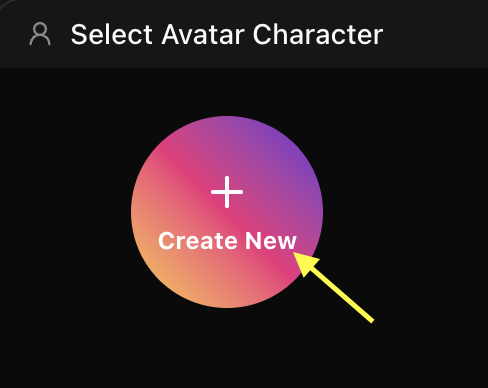 This will open the avatar creation page where you can create your avatar by uploading an image or generating one using an AI prompt.
Step 6A: Create Your Avatar Using an Image (Skip to Step 6B if you don’t have an image)
Upload a clear, high-quality image of an attorney or legal professional that you want to convert into an AI avatar. Add an avatar name so you can easily identify it later in your avatar library.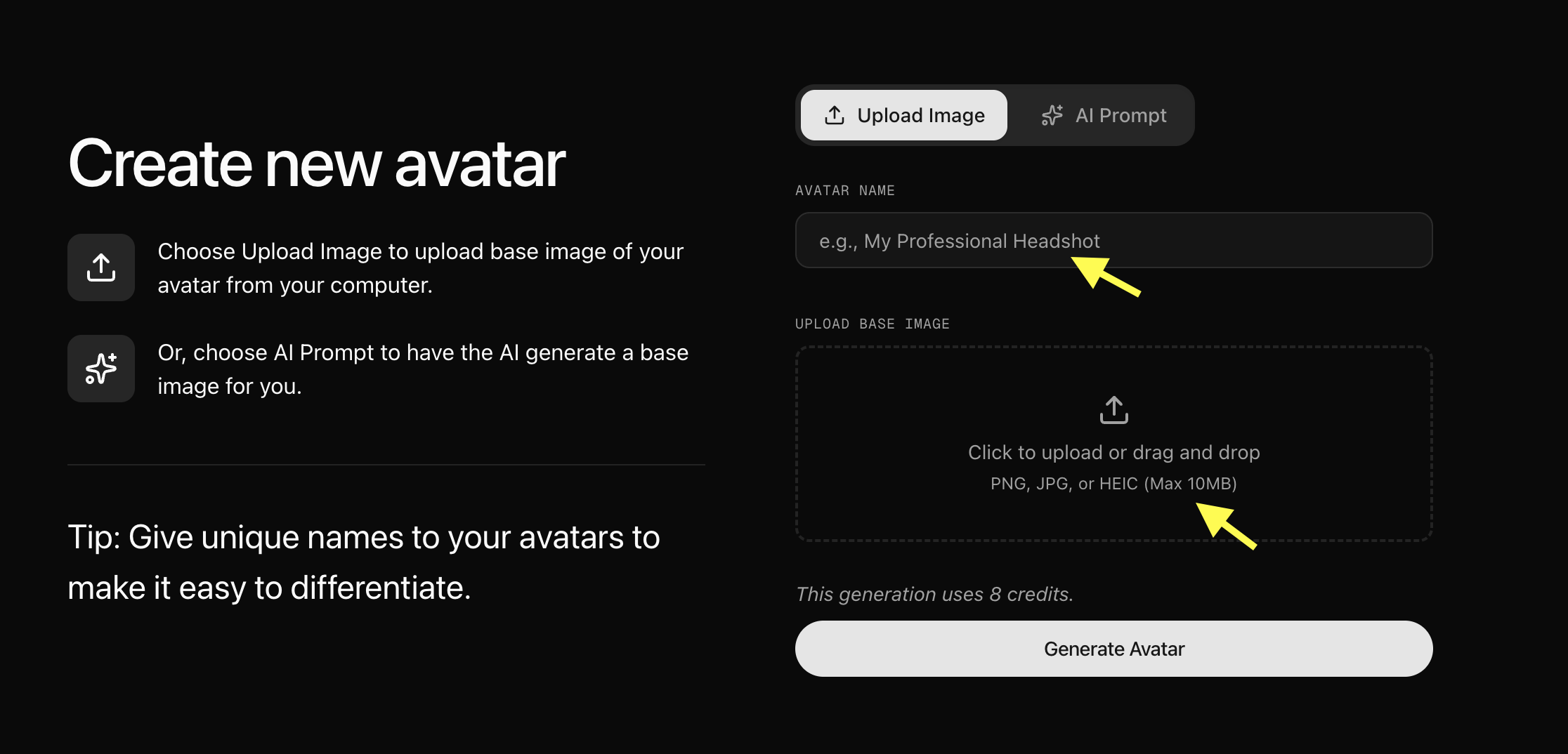 For better results, use an image with:
- Clear face visibility
- Good lighting
- Front-facing angle
- High image quality
Step 6B: Generate Avatar Using AI Prompt (Skip if you uploaded an image)
If you don’t have an image, select the AI Prompt option to create an avatar using a text description. Enter an Avatar Name, describe the type of legal avatar you want (for example: “A professional female attorney in a formal black blazer, sitting at a law office desk, serious and trustworthy expression, clean studio lighting with bookshelves in the background”), and click Generate Image. Once you are happy with the generated image, click Generate Avatar.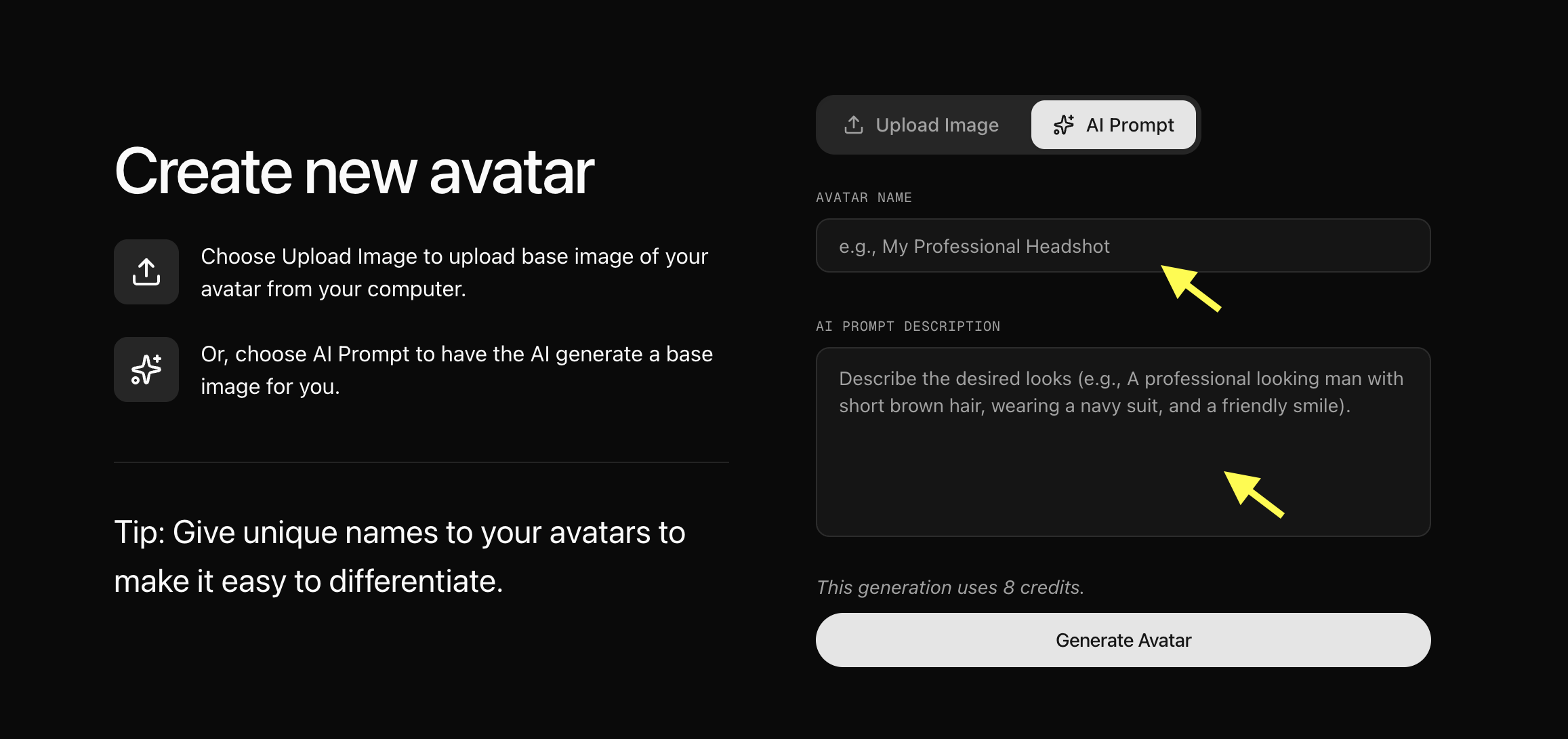
Step 7: Upload Your Avatar Image and Generate Avatar
Now upload the image you want to convert into an AI lawyer avatar. Add a unique Avatar Name so you can easily find and manage your avatar later, and click Generate Avatar. Zoice will process your image and create your AI avatar profile.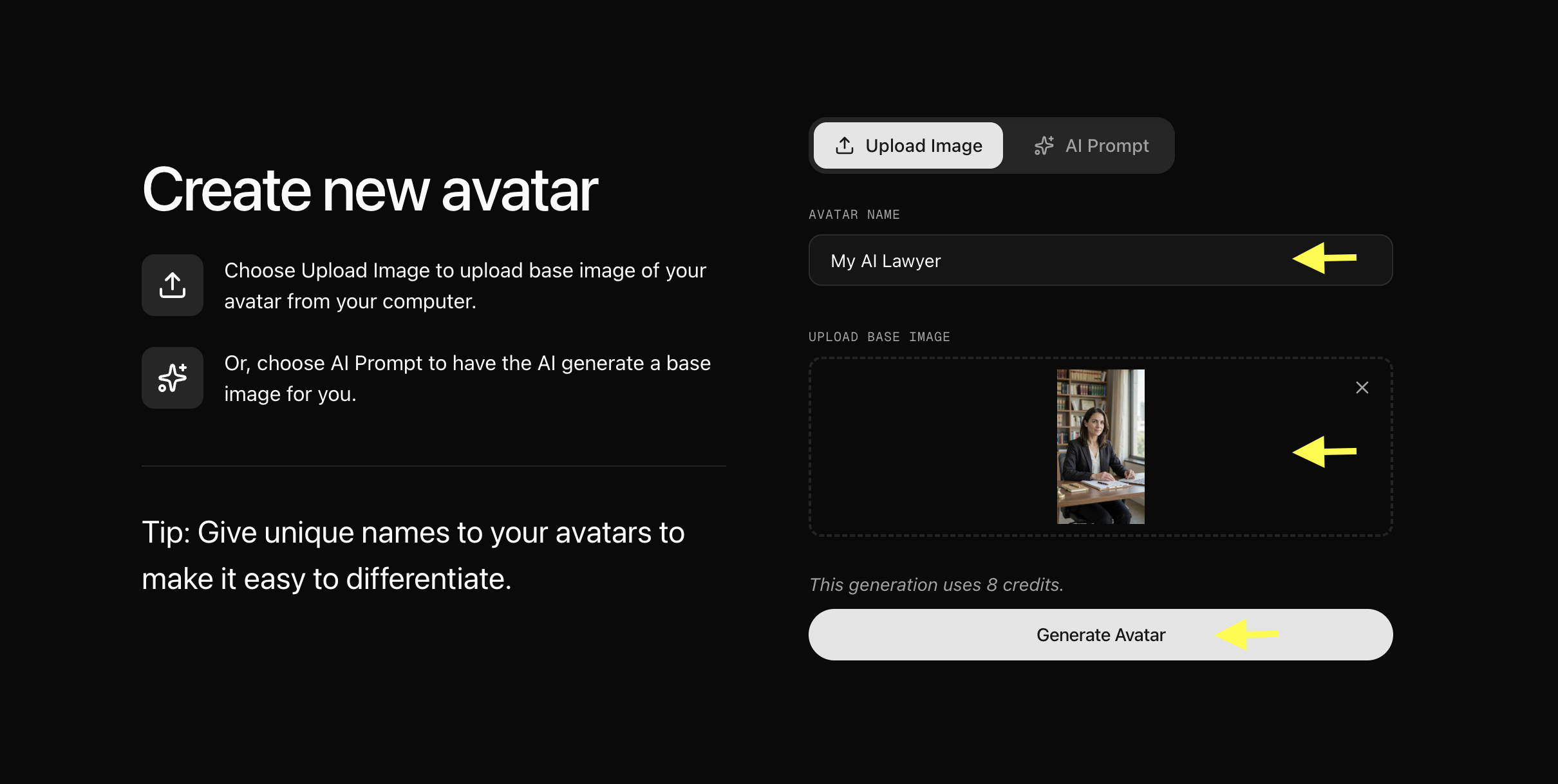
Step 8: Select Your Created Avatar
After your AI avatar profile is generated, go back to the Avatar Characters section. Your newly created avatar will appear in the avatar library. Click on the avatar you created to select it.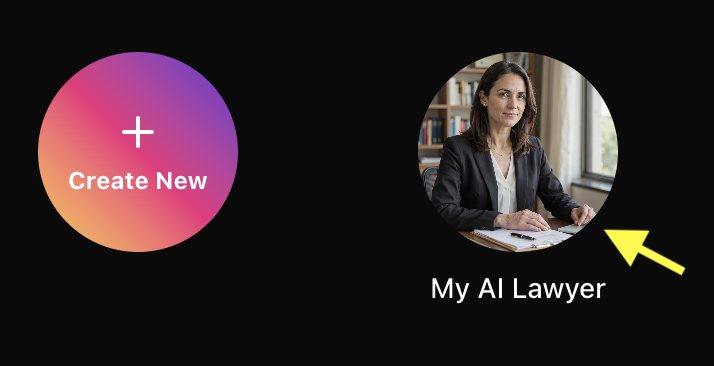
Step 9: Go to Avatar Settings
Click on Avatar Setting to add details about the AI Lawyer avatar, like Gender, Ethnicity, Age, Voice, and Accent.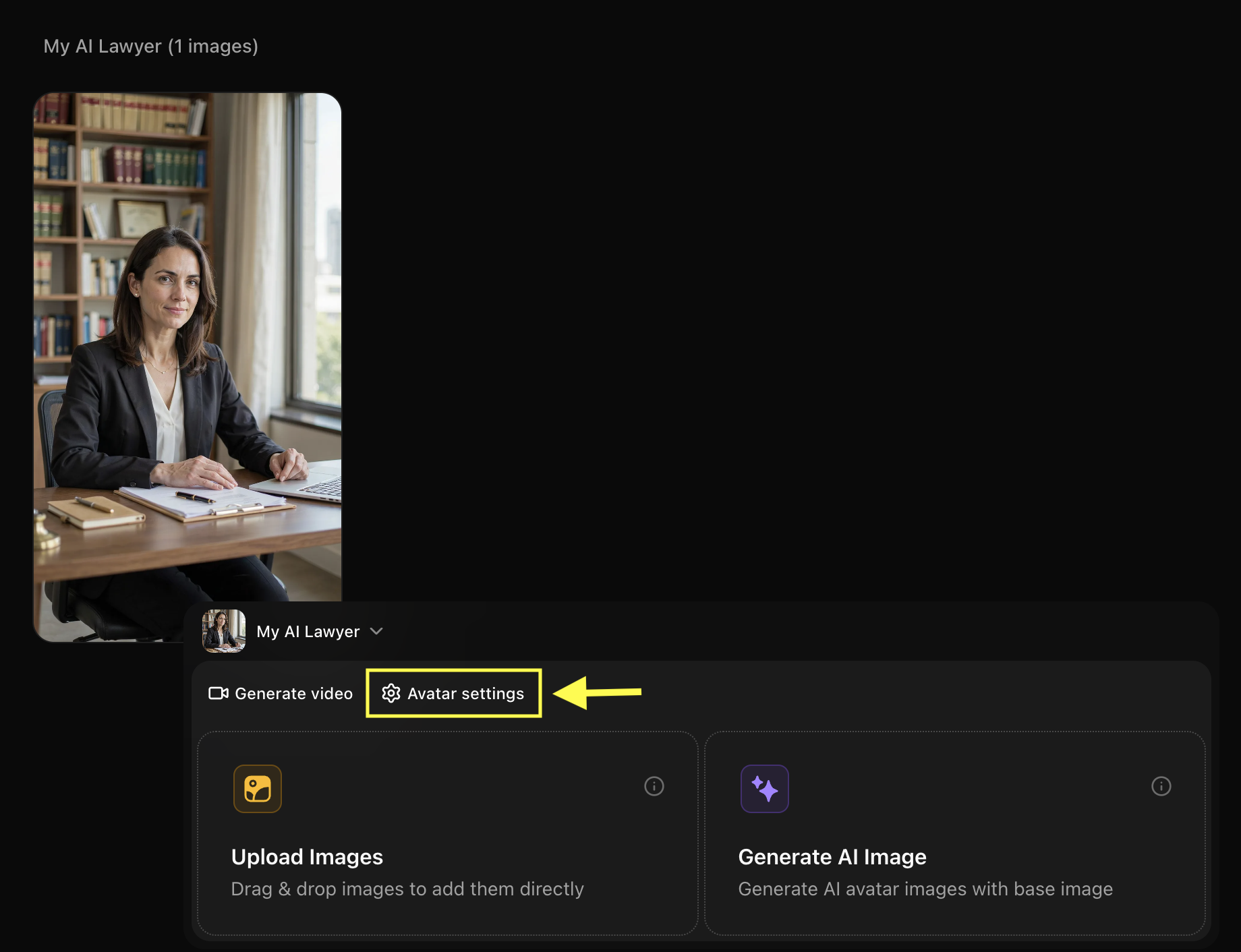
Step 10: Click Generate Video
After selecting the avatar you want to use for your legal video from the library, click Generate Video to open the video creation workspace page.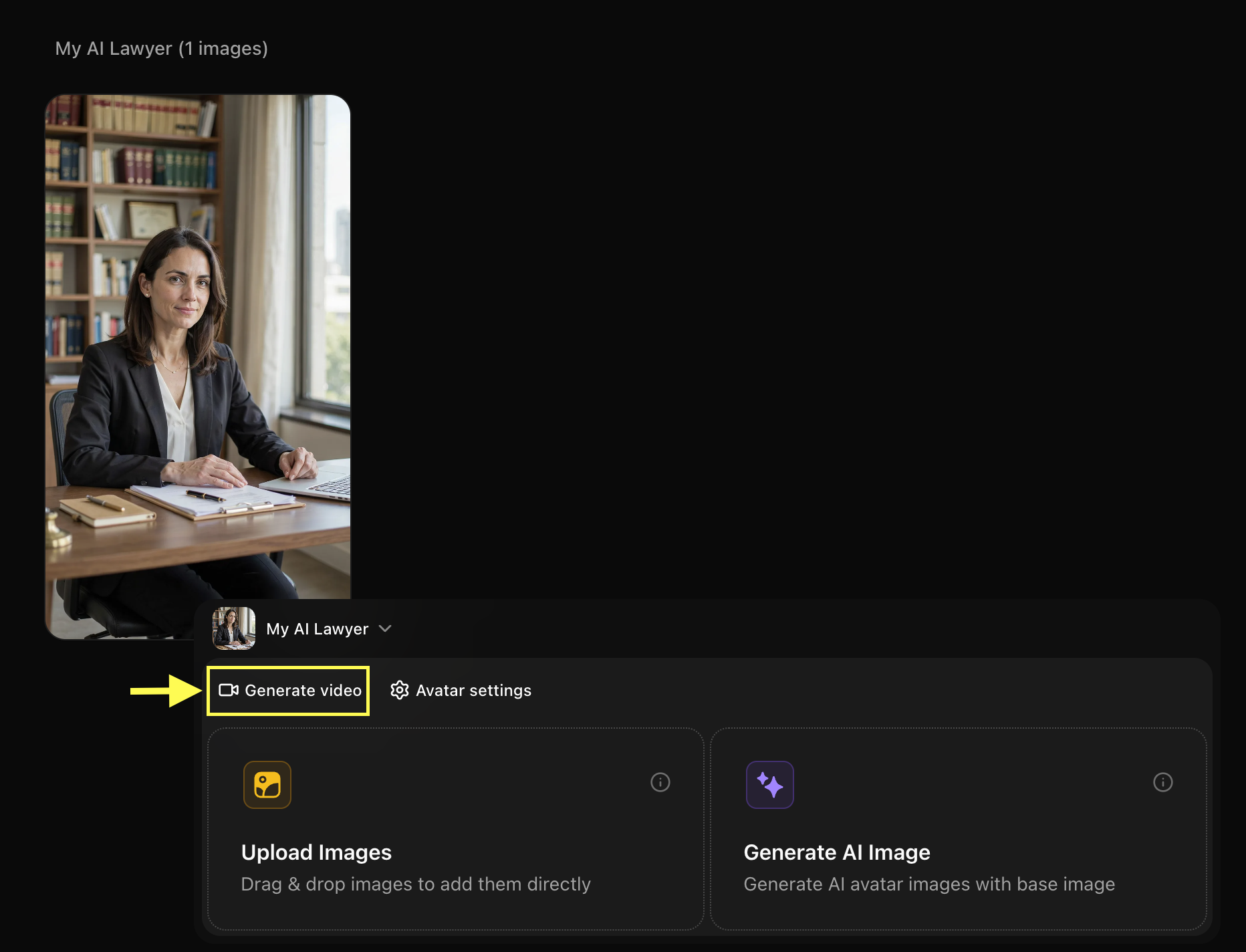
Step 11: Add Script and Configure Video Settings
After opening the avatar video creator, you can customize your video by entering a script, selecting a voice, choosing the output format, and adding an action prompt.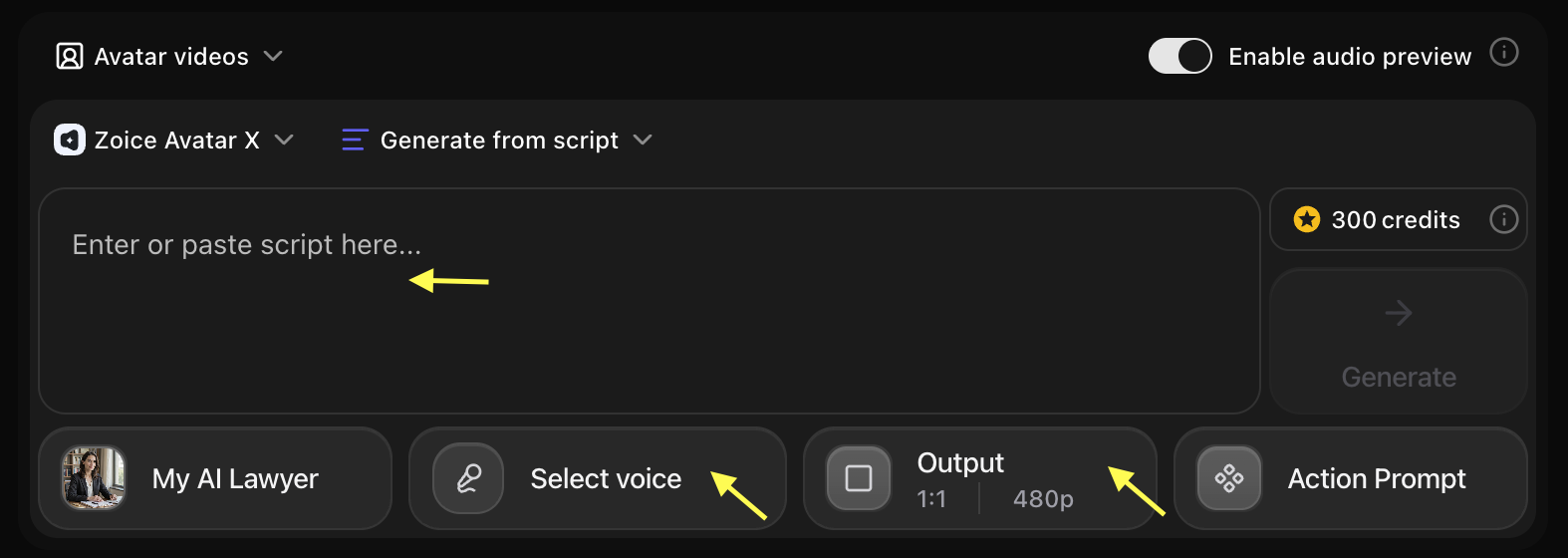
Step 12: Add Your Script and Select Voice Model
Click on the script box. A popup window will appear where you can write the detailed script. Add the script that your AI lawyer avatar will deliver in the video.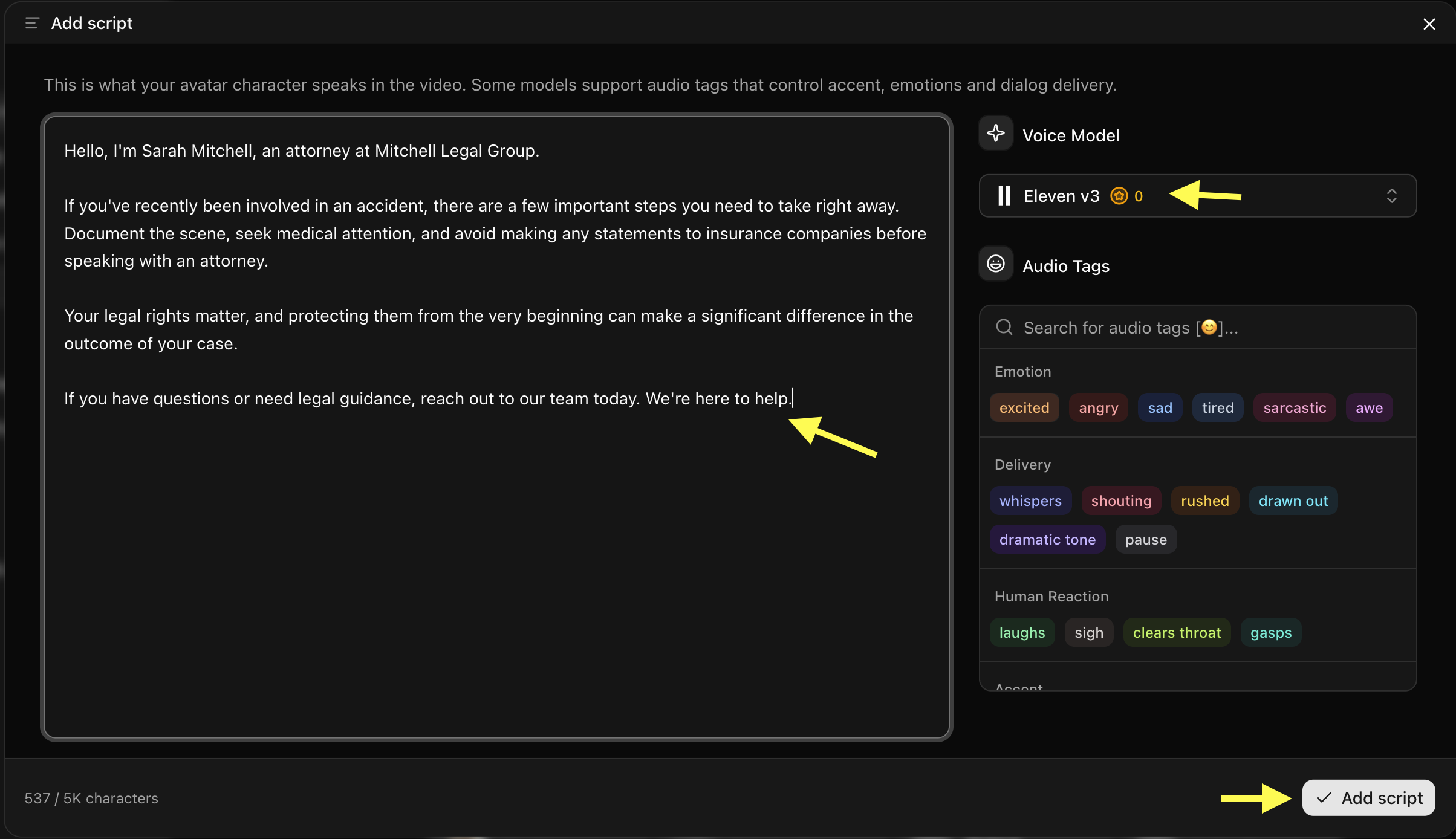 Tip: For legal videos, write in plain, accessible language that non-lawyers can follow. Avoid heavy legalese and always include a disclaimer that the video content is for informational purposes only and does not constitute legal advice.
Step 13: Click on Select Voice
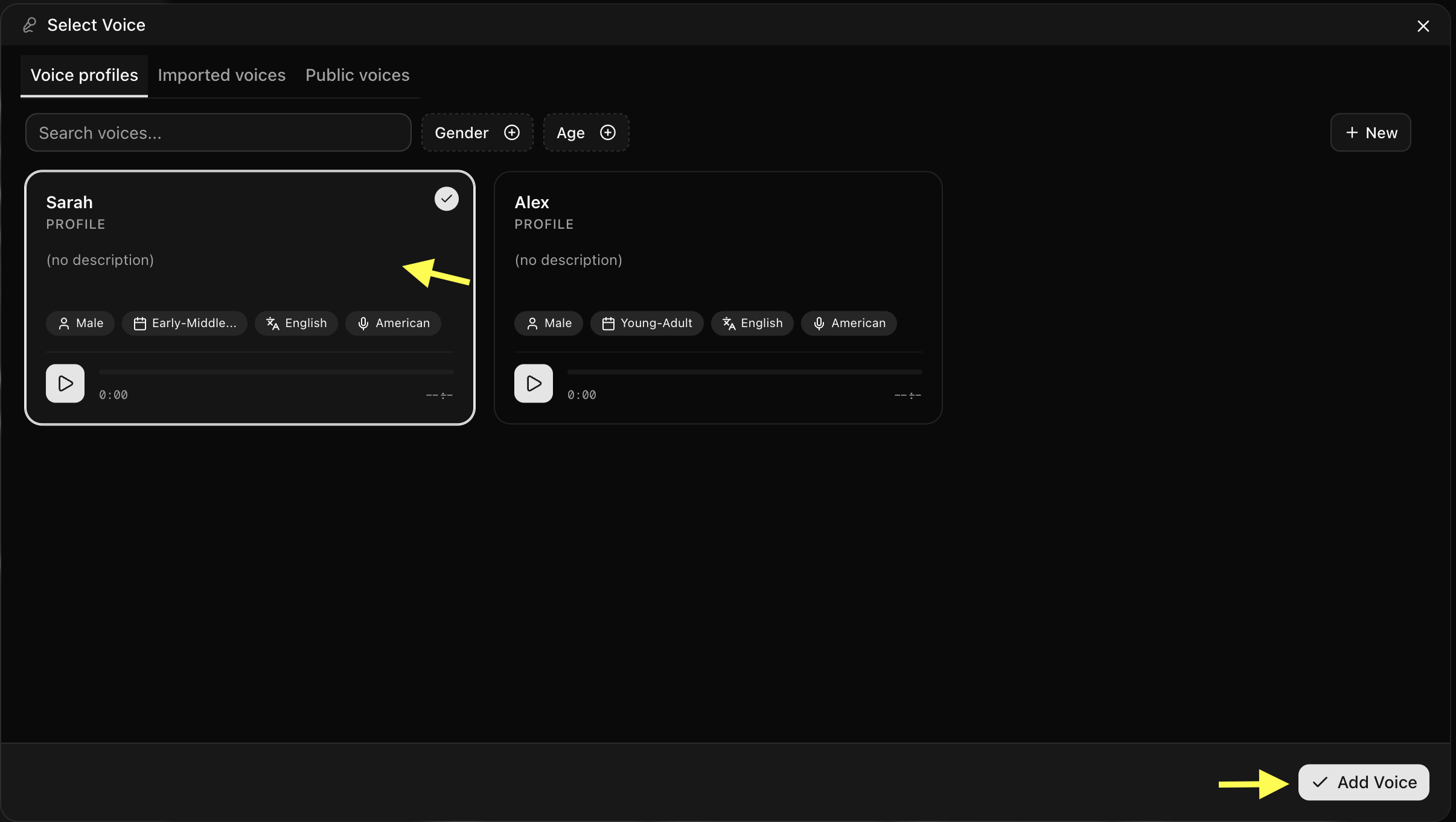
Click on the Select Voice option. You can browse through the available public voices, listen to voice previews, or upload your own voice. Select a professional, clear, and authoritative AI voice model that matches the tone of a trusted legal advisor.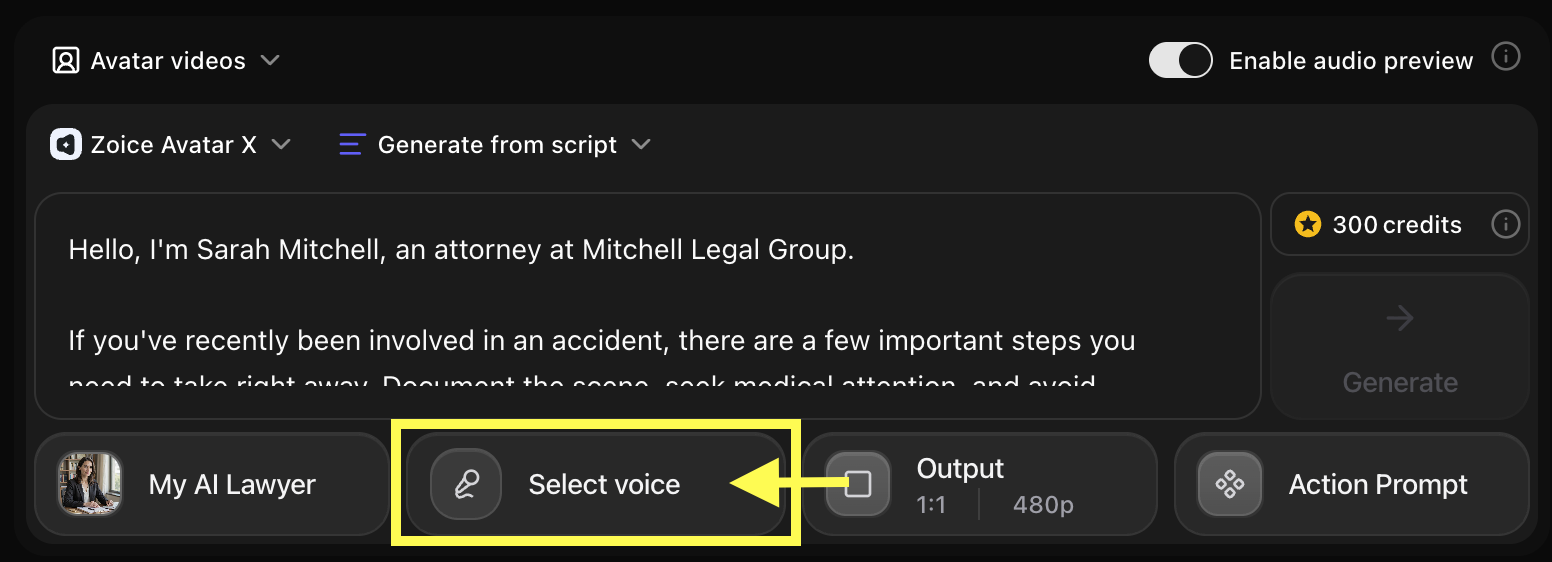
-
Choose the Voice for your AI Lawyer
Step 14: Choose Video Output Settings
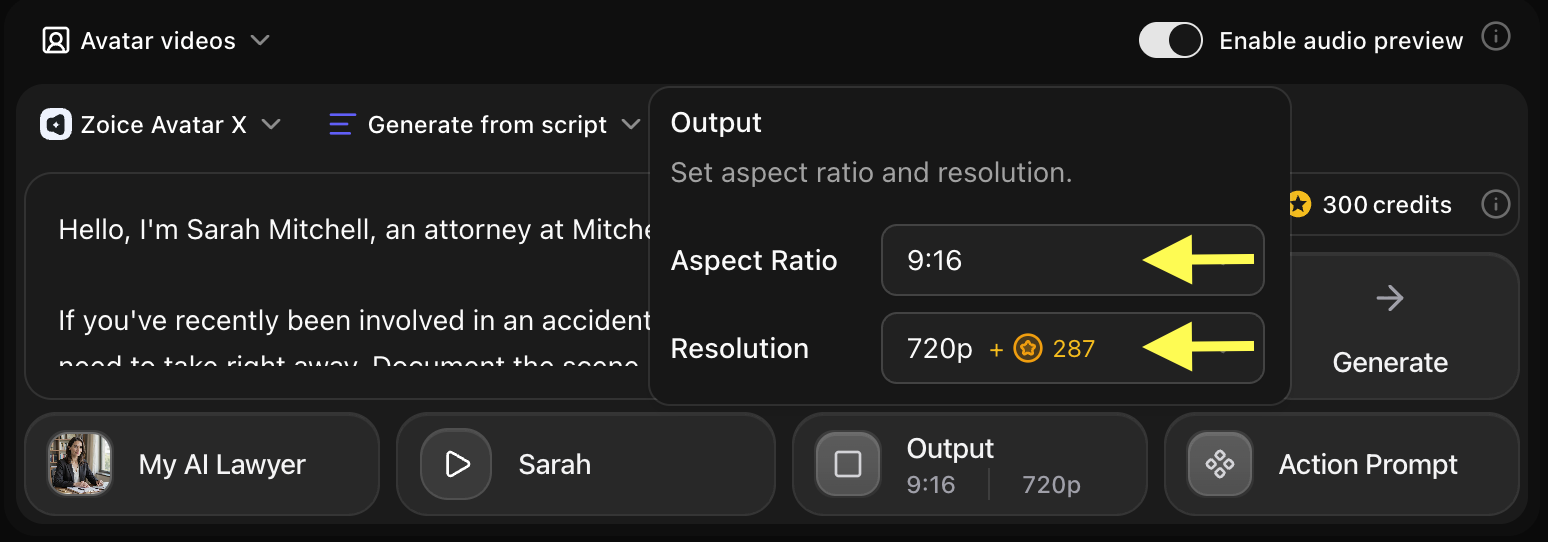
Click on Output Settings. Choose the aspect ratio and resolution based on where you want to publish your legal video:- Aspect Ratio: 16:9 for YouTube videos or website embeds, or 9:16 for YouTube Shorts, Instagram Reels, and TikTok.
- Resolution: Select 1080p or up to 4K for high-quality professional output.
Step 15: Add Action Prompt
Click on Action Prompt to control how your AI avatar behaves during the video. You can write your own instructions or select suggested action styles (such as: “calm and authoritative legal presenter style, steady eye contact with the viewer, measured and deliberate speech with minimal head movement”).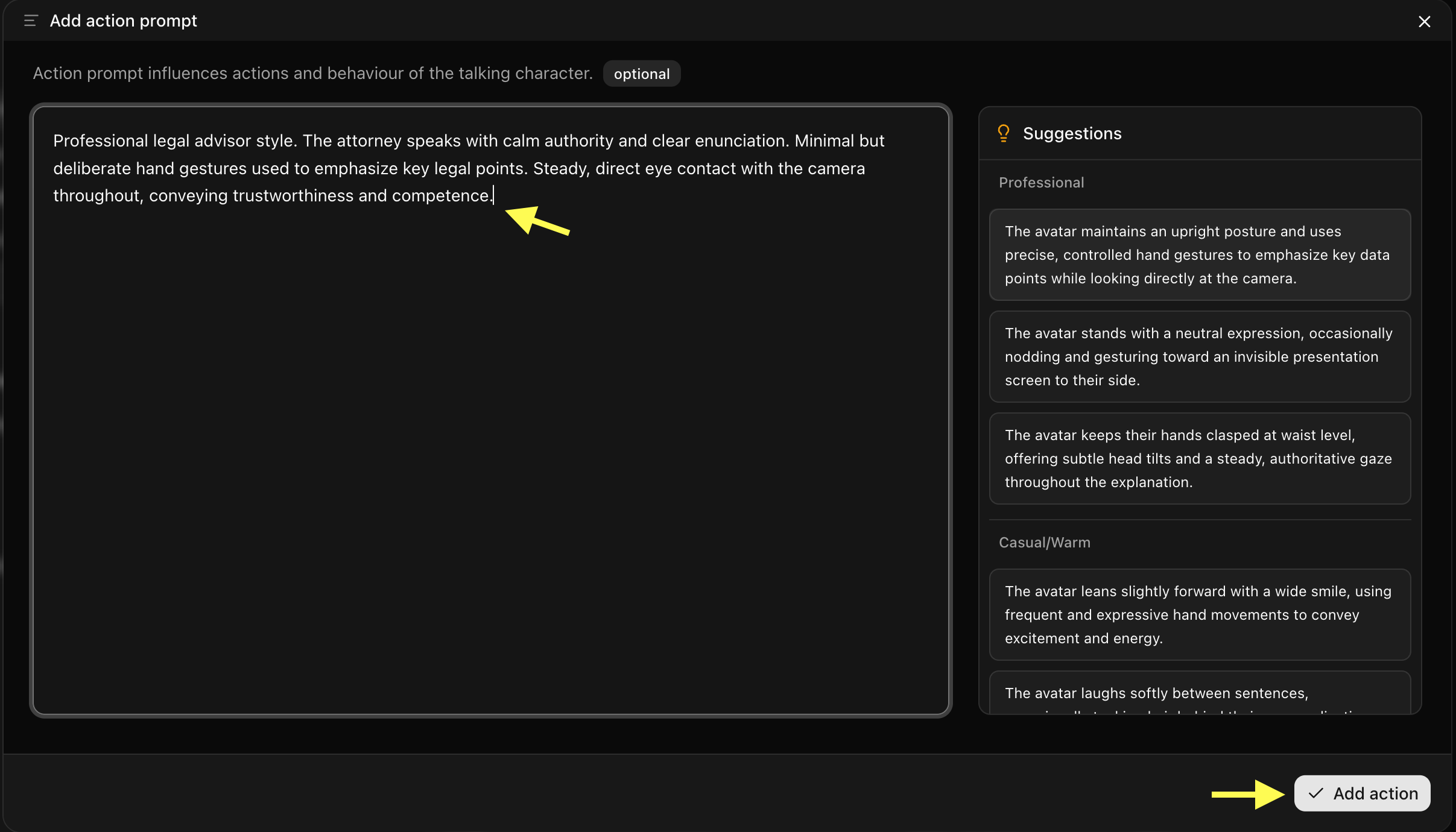
Step 16: Generate Your AI Lawyer Video
After setting up the script, voice, output settings, and action prompt, review all your configuration options. Click Generate to start processing your AI lawyer video.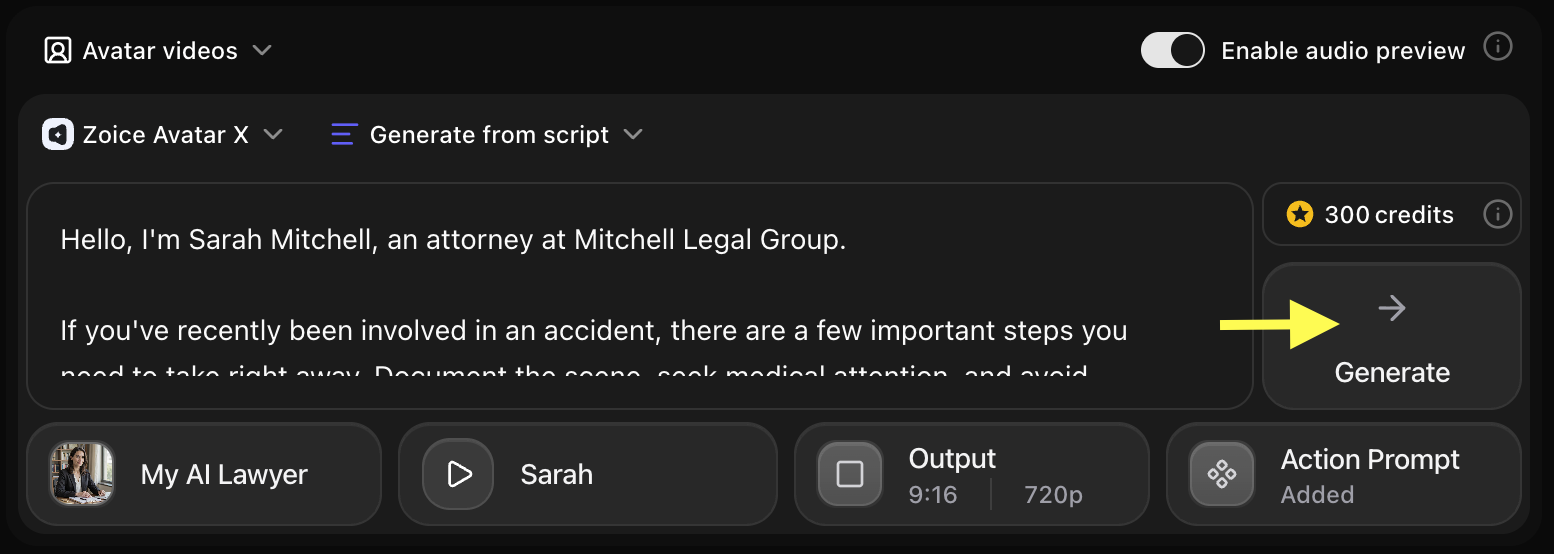
Step 17: Preview Audio and Click on Generate Avatar Video
Before generating the final video, Zoice creates an audio preview so you can verify how your script sounds. Check pronunciation, clarity, and pacing. If everything sounds correct, click Generate Avatar Video to create the final talking video.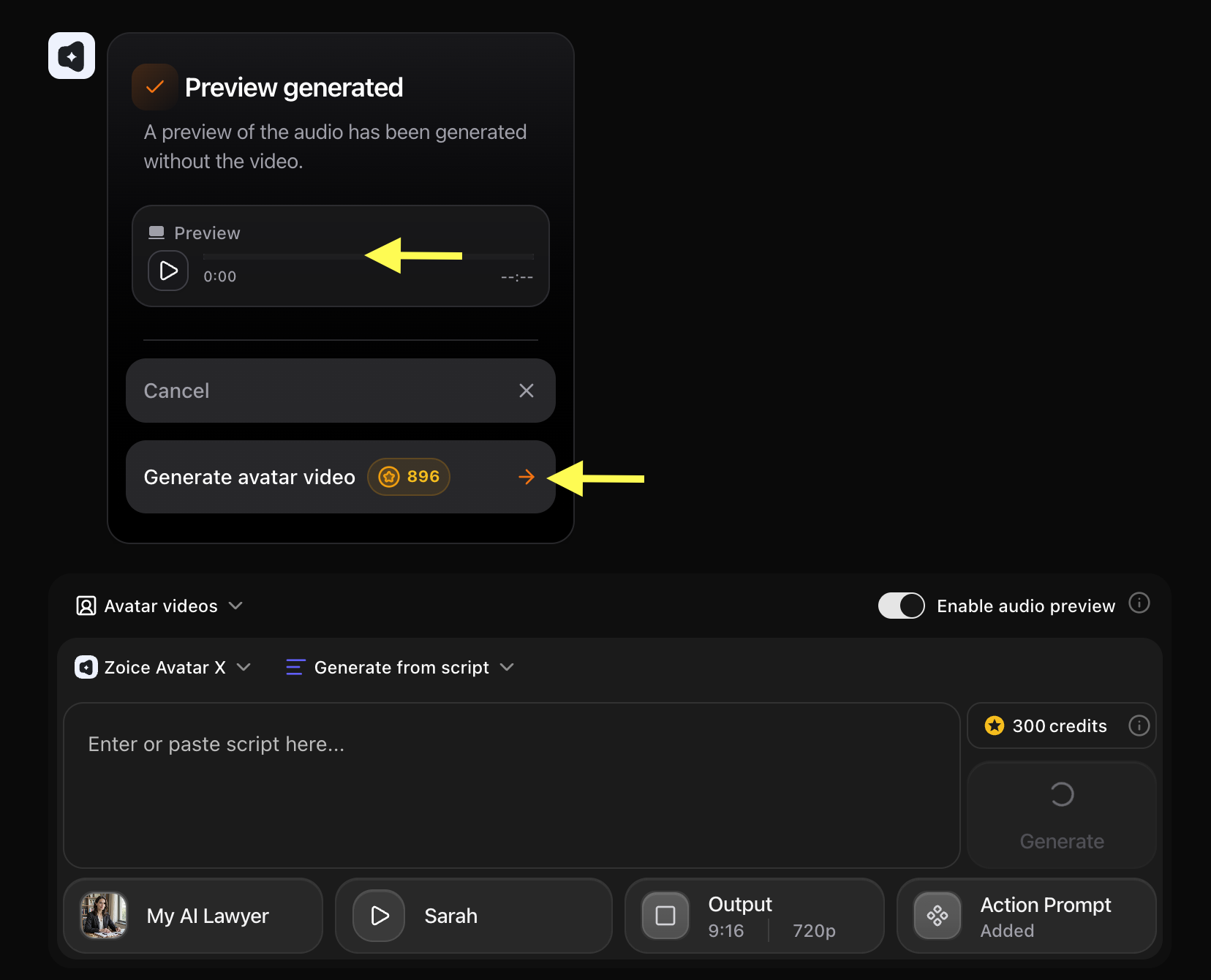
Step 18: Preview and Download Your AI Lawyer Video
Once the AI avatar video finishes processing, play the final result to check the avatar movements, voice synchronization, and video quality.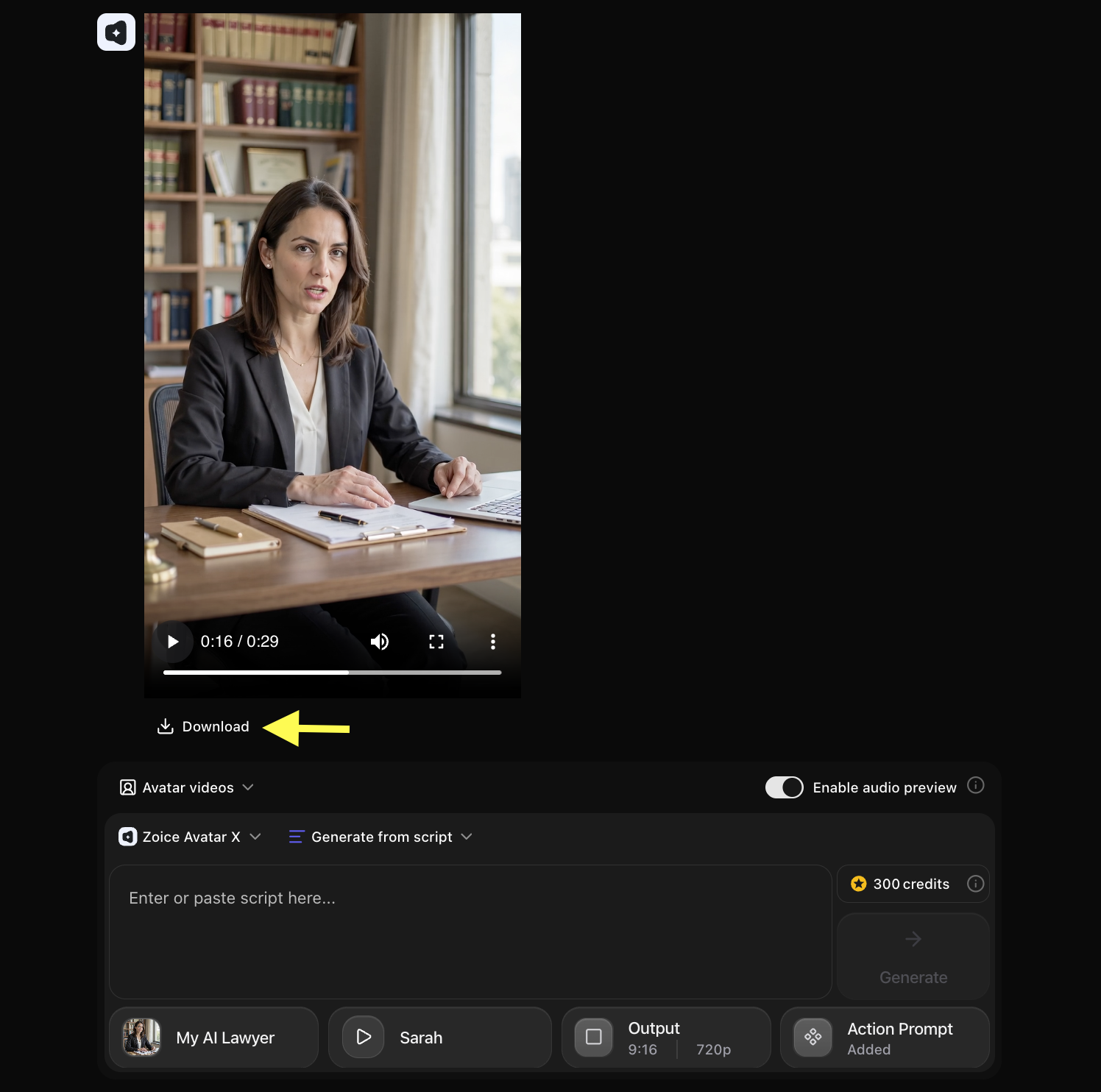 If you are satisfied, click Download to save the video to your device. Your AI lawyer video is now ready to use for client education, law firm marketing, or legal awareness campaigns!
Example Input Image, Script, Action Prompt & Output Video
To help you get started, here is an example of an input image, script, action prompt, and generated AI lawyer video.Used Image

Used Script
Used Action Prompt
Output Result Video
Below is the rendered AI lawyer video based on the input script:Tips for Creating Better AI Lawyer Videos
- Use Plain, Accessible Language: Legal terminology can be confusing for general audiences. Write scripts that explain legal concepts in plain English so clients can understand their situation and options clearly.
- Always Include a Disclaimer: Add a short disclaimer at the end of each video stating that the content is for general informational purposes only and does not constitute legal advice.
- Choose a Professional, Trustworthy Avatar: The appearance of your avatar builds credibility with potential clients. Use a well-dressed, professional presenter that reflects the seriousness of legal work.
- Keep Each Video Focused: Cover one legal topic per video. Focused, specific videos are more useful to viewers searching for answers to particular legal questions.
- Select a Clear and Authoritative Voice: Legal content requires a voice that sounds confident, trustworthy, and easy to follow. A steady, measured voice model reinforces the authority of the information being shared.
AI Lawyer Avatar Can Be Used For
- Legal rights explainer videos
- Law firm introduction and team overview videos
- Practice area overviews (personal injury, family law, employment law, etc.)
- Client FAQ and consultation preparation guides
- Step-by-step legal process walkthroughs
- Know-your-rights awareness campaigns
- Legal news and regulatory update videos
- Legal aid and pro bono public education
- Recruitment and firm culture videos
Where AI Lawyer Videos Are Used
- Law firm websites and landing pages
- YouTube channels focused on legal education
- LinkedIn for professional legal content
- Instagram Reels and TikTok for legal awareness
- Client portals and intake systems
- Legal webinars and virtual events
- Bar association publications and newsletters
- Legal tech platforms and LegalTech apps
Final Words
Creating AI lawyer videos with Zoice is a fast, professional, and scalable way to educate clients and grow your legal practice online. By setting up your attorney avatar and uploading your script, you can produce authoritative legal content in minutes. Whether you want to build trust with prospective clients, explain a practice area, or run a legal awareness campaign, AI avatars help you produce professional legal videos without cameras, studios, or complex production setups.Next Steps
AI Finance Advisor Avatar
Create professional financial education and advisory videos with an AI avatar.
AI Healthcare Avatar Guide
Learn how to create patient education and healthcare marketing videos with AI.
AI News Anchor Tutorial
Create professional news broadcast videos with a virtual AI anchor.
Real Estate AI Avatar
Present property listings and market updates with a professional AI agent.